You can add 2D and 3D events to 2D controls and 3D nodes, and click the event nodes in the preview to trigger the events.
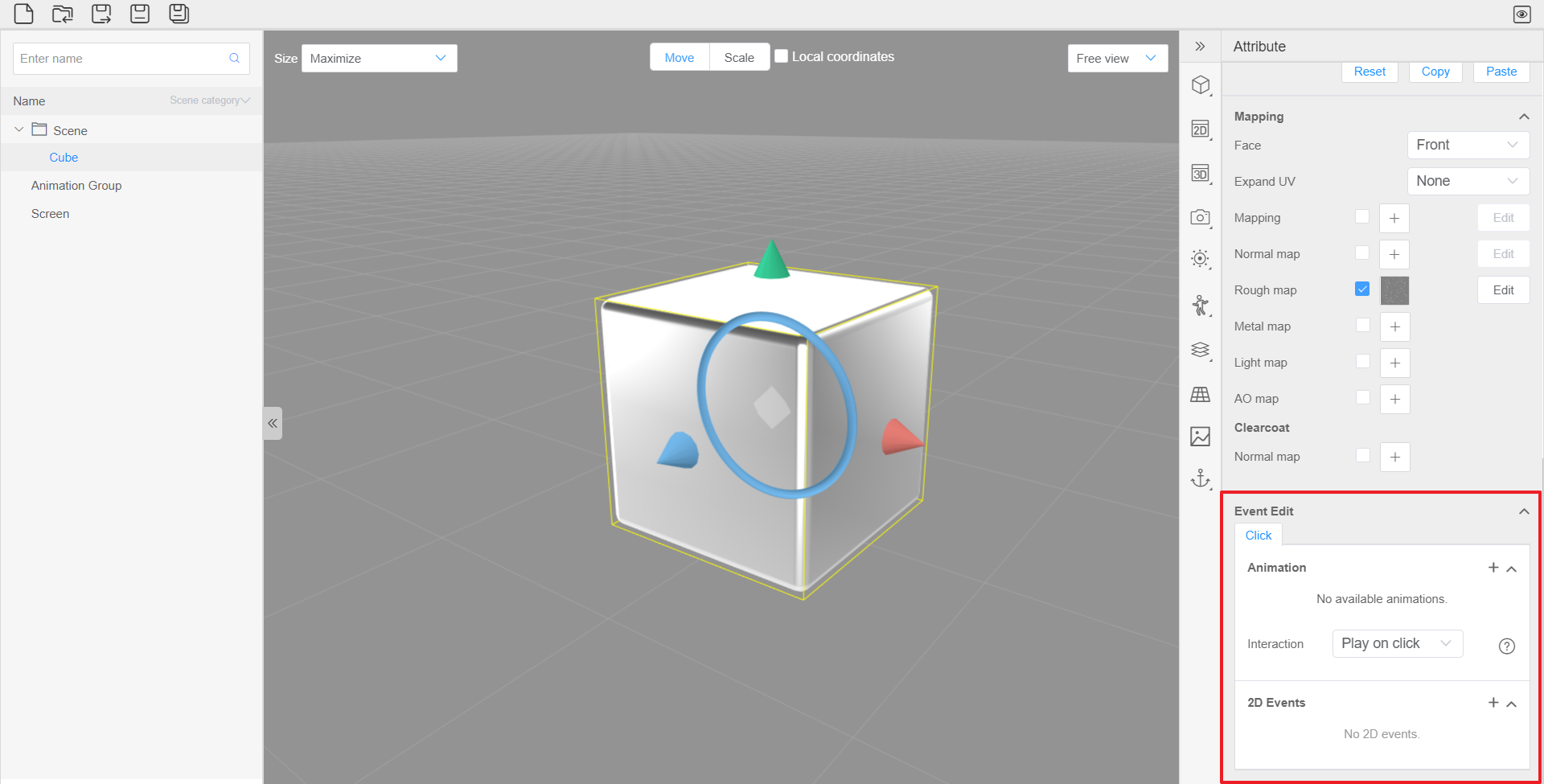

Events cannot be added to a group node.
2D Event
A 2D event includes its action and component. The types are:
- Play: Plays the video control.
- Pause: Pauses the playback of video controls.
- Show: Shows invisible 2D controls.
- Hide: Hides 2D controls.
- Run: Sets other controls to execute the 2D and 3D events bound to the tags of a tab control.
You can select a component and bind it with another control using the selected type.
For example, if you want a text panel to be displayed after you click a button, perform the following:
- Create a button control and a text panel control.
- Deselect the Visibility check box on the text panel.
- Click
 next to 2D Events in the attribute panel for the button control.
- Set Action to Show in the drop-down list box, and Component to Text panel name.
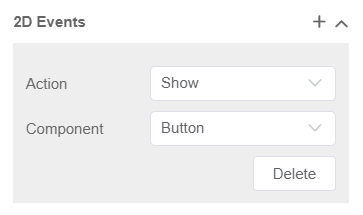

The five types of 2D events are valid only for 2D controls. The play and pause types are valid only for video controls. The Run type can set other controls to execute the 2D and 3D events bound to the tags of a tab control.
3D Event
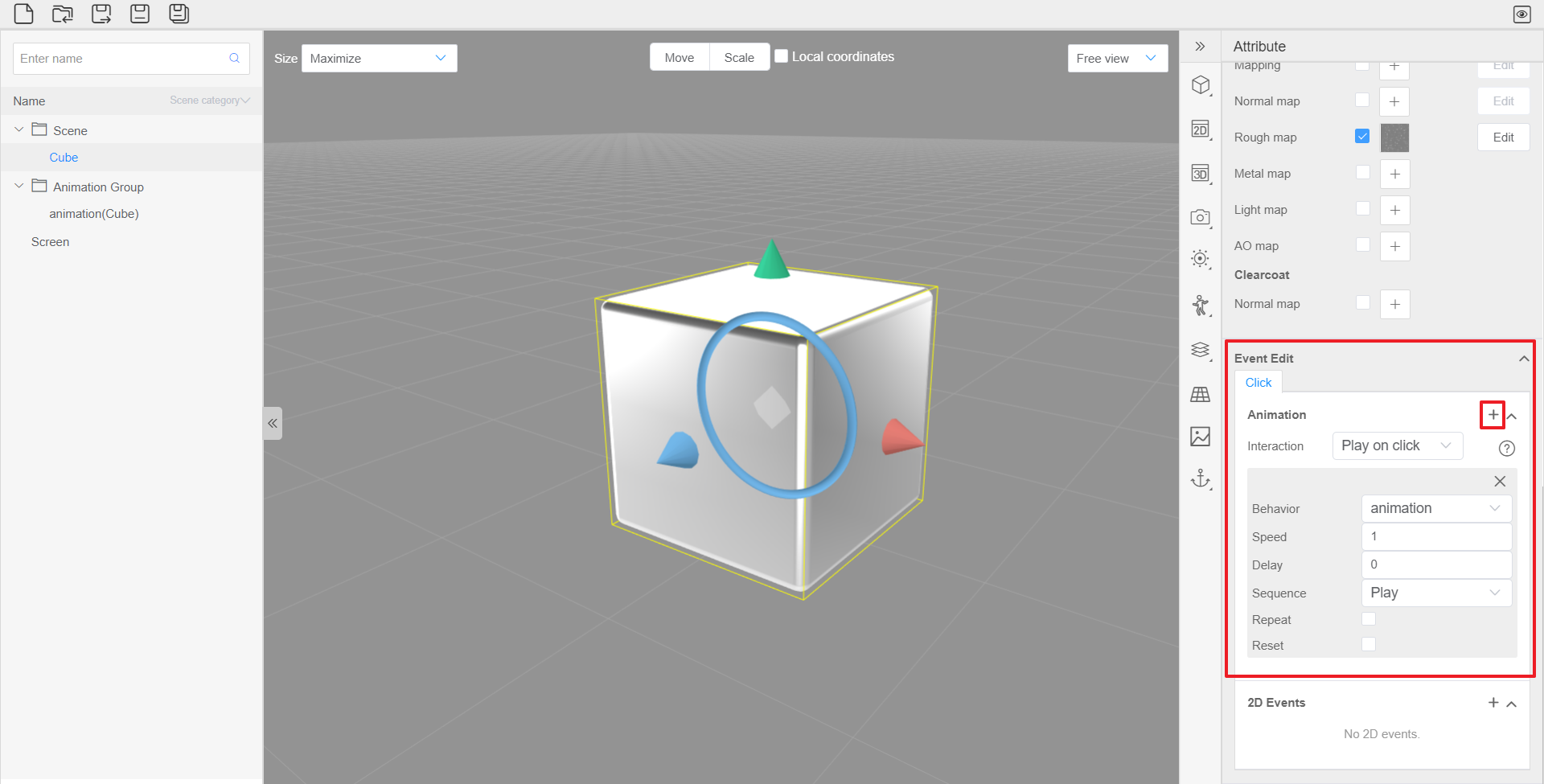
A 3D event is an animation event, which allows the animation to be played according to the preset rules. You can click  in the upper right corner of the attribute box of the 3D event to add existing animations. For details about how to create an animation, refer to section Creating an Animation in Reality Studio.
Attribute | Description |
|---|---|
Interaction |
|
Behavior | Specifies an animation. |
Speed | Specifies the playback speed. If the value is 1, the playback speed is normal. If the value is 2, the playback speed is 2x, and so on. The value cannot exceed 10. |
Delay | Delays the animation playback. The value is the number of seconds for which the animation will be delayed, which cannot exceed 20. |
Sequence |
|
Repeat | Keeps the animation playing in loops. |
Reset | Specifies whether to reset the position, rotation, scale, visibility, and opacity of the nodes related to the previous animation to the status before animation playback, when the next animation is played. If you deselect this check box, the status of the nodes after animation playback are retained. |
To play the animation by clicking a button, perform the following:
- Create a button control.
- In its animation attributes, click
 to add a 3D event.
- Select an animation from the Behavior drop-down list box.