You can switch between Chinese and English in Coding Assistant. The default language is English.
- Go to HMS > Settings > Select Language. The Coding Assistant Language Configuration page is displayed.
- Change the value of Language.
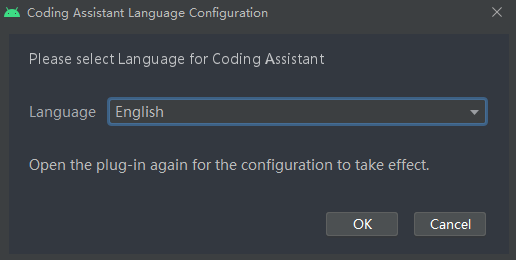
- Click OK and go to Coding Assistant again for the change to take effect.
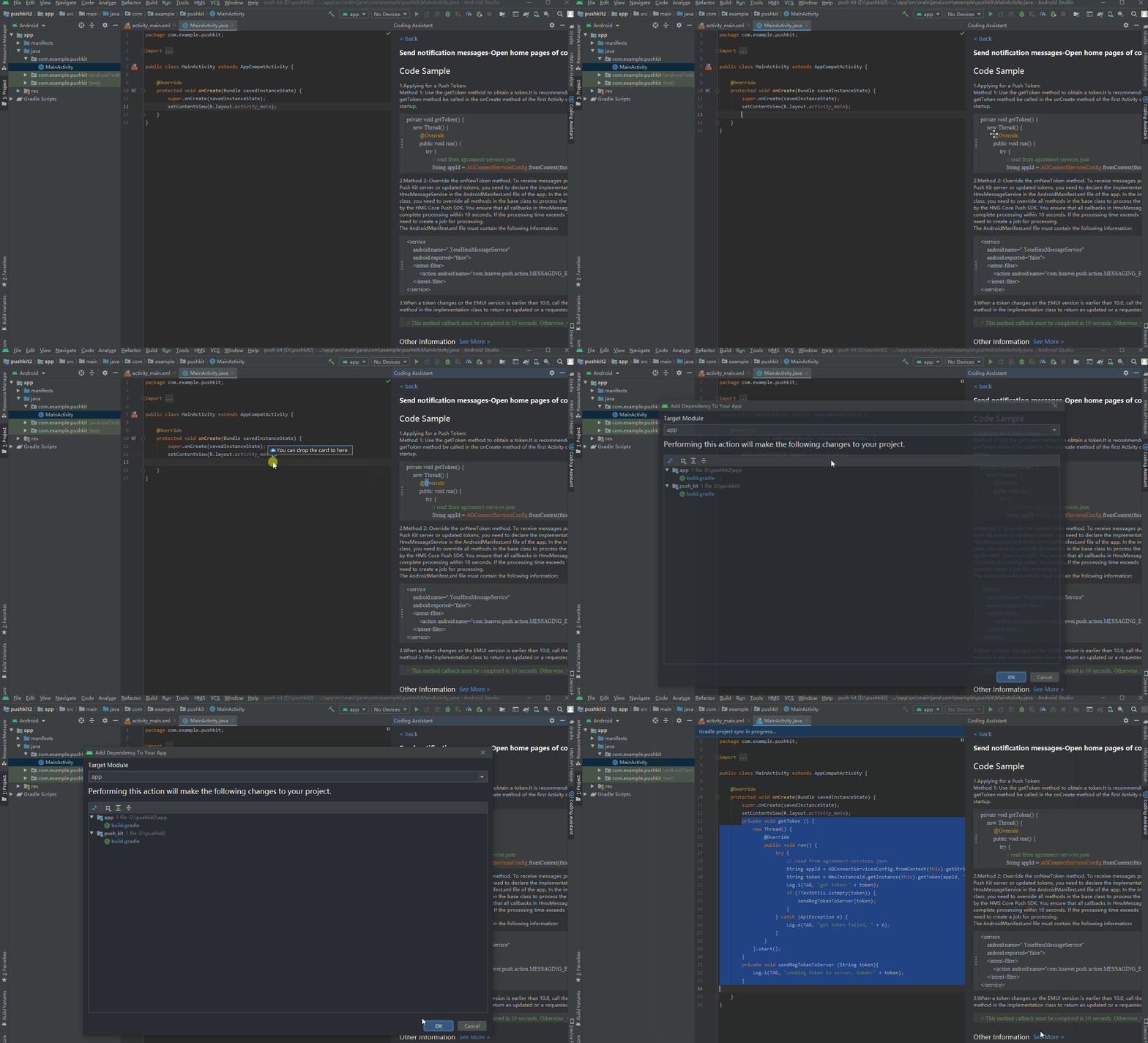
Coding Assistant provides APIs and code samples of each kit for you to quickly integrate these kits in either of the following methods:
- Drag and drop scenario cards.
- Drag and drop API code sample.
In addition, Coding Assistant implements optimization and integration for specific kits, including Analytics Kit and AI Tool. For details about the integration methods, please refer to Analytics Kit Integration and AI Tool.

Before using Coding Assistant to call a kit, ensure that the environment of the kit has been configured by referring to Configuration Wizard.
Scenario Integration
The following uses Push Kit as an example.
Go to HMS > Coding Assistant or click the following icon on the toolbar to go to Coding Assistant, and then select Push Kit in the kit list.

To integrate a scenario, find the scenario card in the scenario list and drag and drop the card to the code editing area, as shown in the following figure.
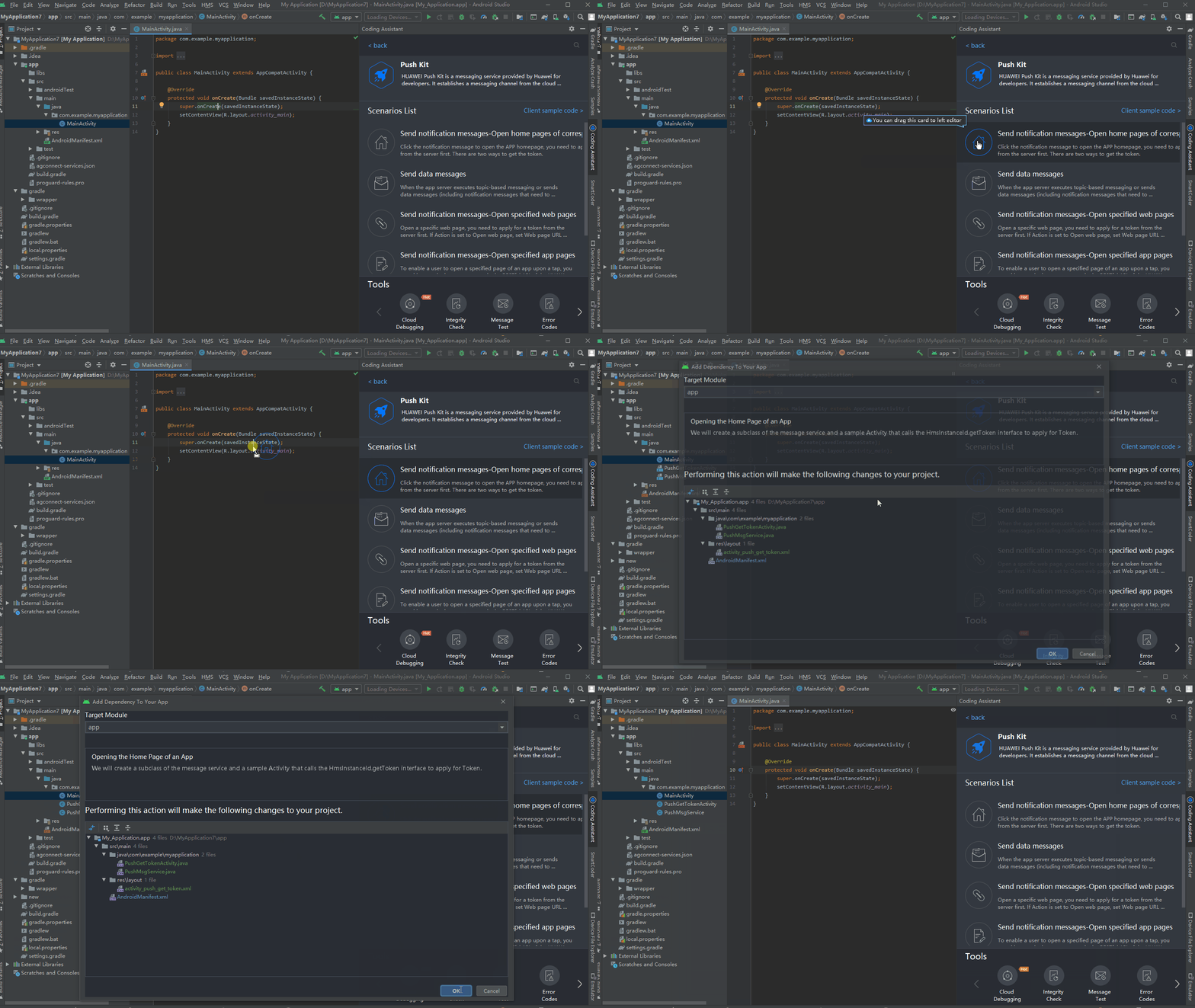
When you drag and drop the scenario card, Toolkit automatically generates an Activity file and XML layout file, and writes the configurations and dependencies required for the project running to the AndroidManifest.xml file, project-level build.gradle file, and app-level build.gradle file. To open the Activity, you need to call the Activity in the code. After the Activity is called, you can run the app on the device.

Currently, scenario integration dragging supports only Java, and only some kits support the dragging operation.
API Calling
For a kit that does not support scenario integration, you can click an API in the API list to go to the details page and drag and drop the sample code snippet of the API to the code. In this mode, you need to know the position of the code snippet. Similarly, Toolkit automatically writes the dependencies required for the project running to the project-level build.gradle file and app-level build.gradle file.