Scenario Description
After obtaining a token, you can configure a task in AppGallery Connect to send a test message to your app. You can also use a REST API to send test messages. For details, please refer to Downlink Message Sending.

Package your Android project into an APK and install it on a device for testing. Ensure that you use a correct certificate fingerprint during packaging. (For details, please refer to Generating a Signing Certificate Fingerprint.)
Sending a Notification Message
- Sign in to AppGallery Connect, click My projects, and find and click the desired project in the project list. Then, go to Grow > Push Kit > Notifications and click Add notification to create a task.
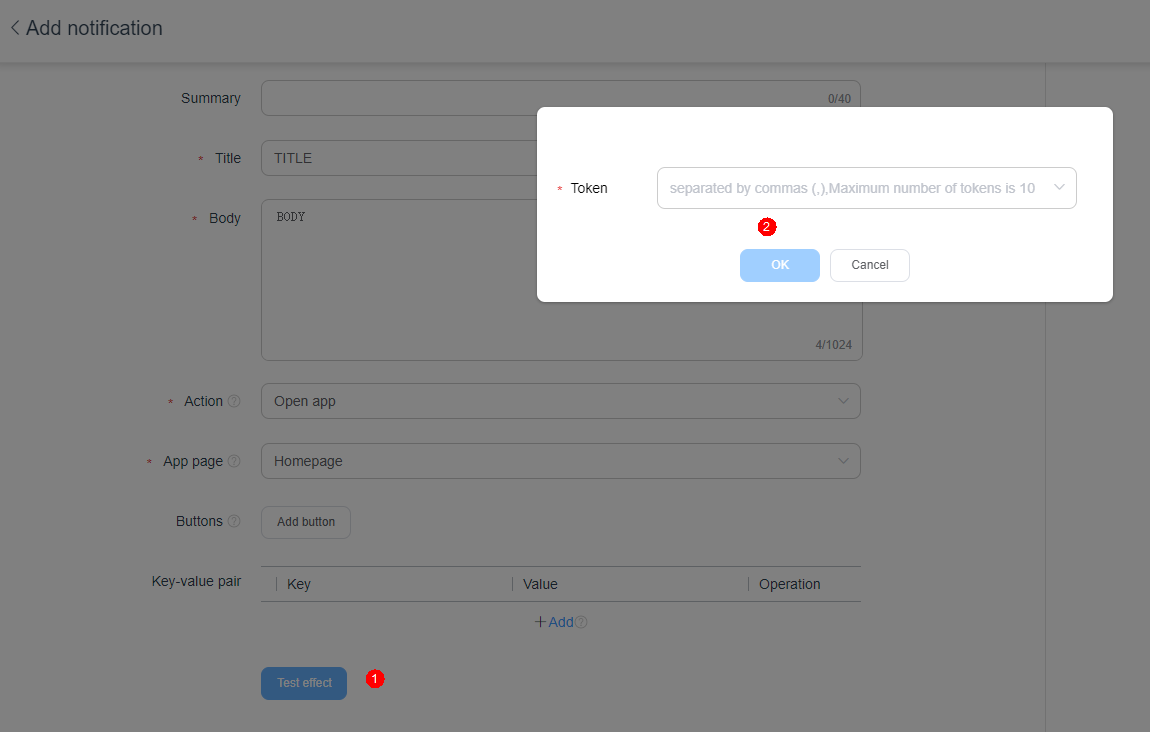
- On the page displayed, set the message name, title, and body, and set the message type to notification message. For details about other parameters, please refer to Scenario Description.
- Click Test effect, enter the obtained push token, and click OK.
Sending a Data Message
- Sign in to AppGallery Connect, click My projects, and find and click the desired project in the project list. Then, go to Grow > Push Kit > Notifications and click Add notification to create a task.
- On the page displayed, set related parameters, including the message name, type (data message), and key-value pair or custom parameter (that is used to carry message data).
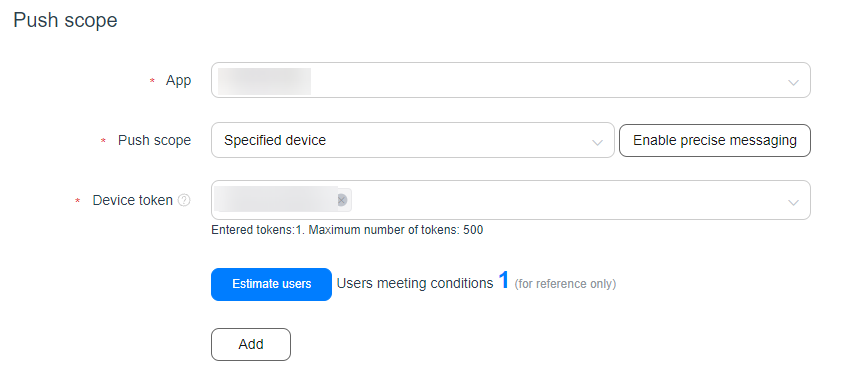
- Select your app and enter the push token in the Push scope area, and click Submit in the upper right corner.