You can use the preset map style (standard, simple, or night) for your map, or customize the map style for your map using the style editor or Maps Studio.
Using a Preset Style
Call the setPresetStyleId(String) method of HWMap to use a preset map style. Currently, there are three preset map styles: standard (Figure 1), simple (Figure 2), and night (Figure 3). If the map type is ROADMAP (basic map), the supported map styles are standard (default), simple, and night. If the map type is TERRAIN (terrain map), only the standard map style is supported.
map.setPresetStyleId("night"); 


Customizing the Map Style
You can customize the map style using either of the following methods:
- Setting the style file: Define a JSON file (map style file) to customize a map style.
- Specifying a style ID: Use Petal Maps Studio to create and manage map styles, and specify a style ID to apply the corresponding style to your map. You can create new styles or import existing styles to Petal Maps Studio. Once a map style is released, it will be applied to all apps that use it, without needing to update the apps.
[h2]Setting the Style File
map.setStyle([
		{
			"mapFeature": "landcover.natural",
			"options": "geometry.fill",
			"paint": {
				"color": "#8FBC8F"
			}
		},
		{
			"mapFeature": "water",
			"options": "geometry.fill",
			"paint": {
				"color": "#4682B4"
			}
		}
	]
); 
[h2]Specifying a Style ID
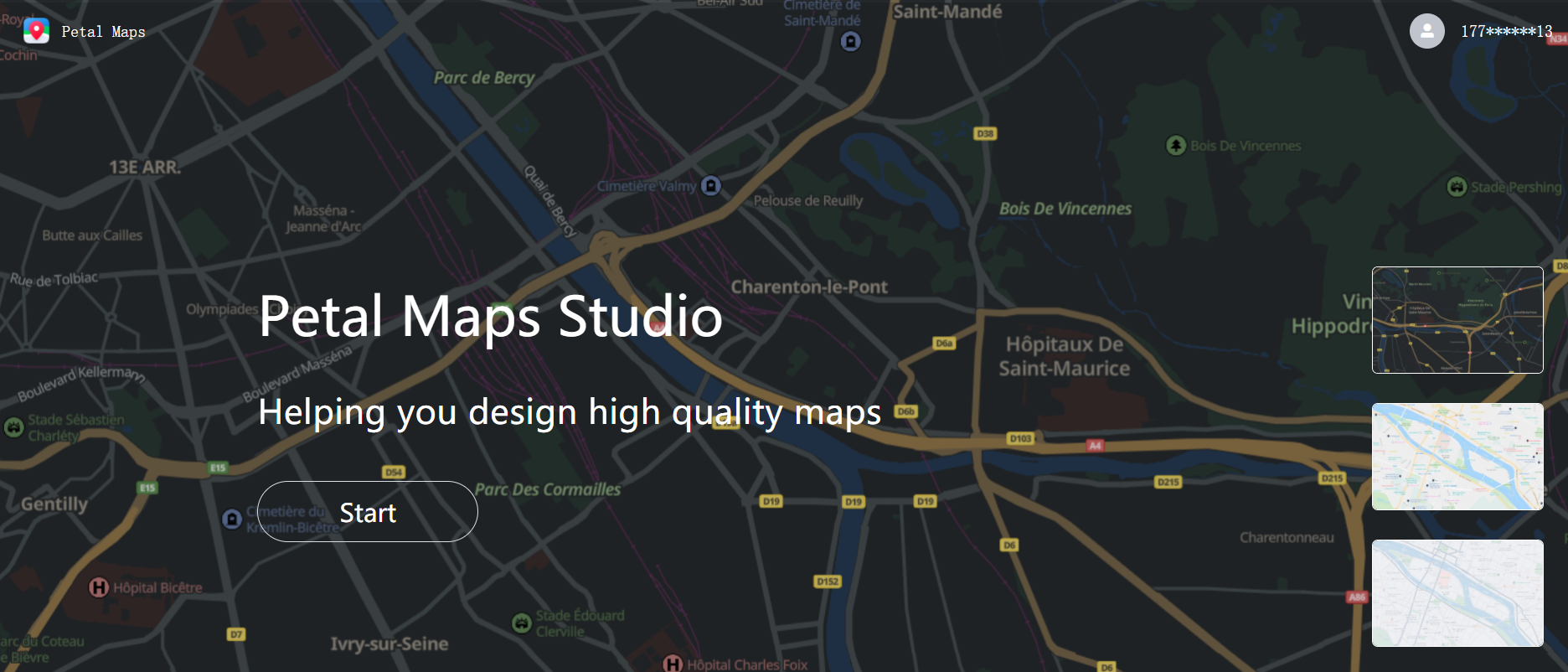
- Sign in to Petal Maps Studio.
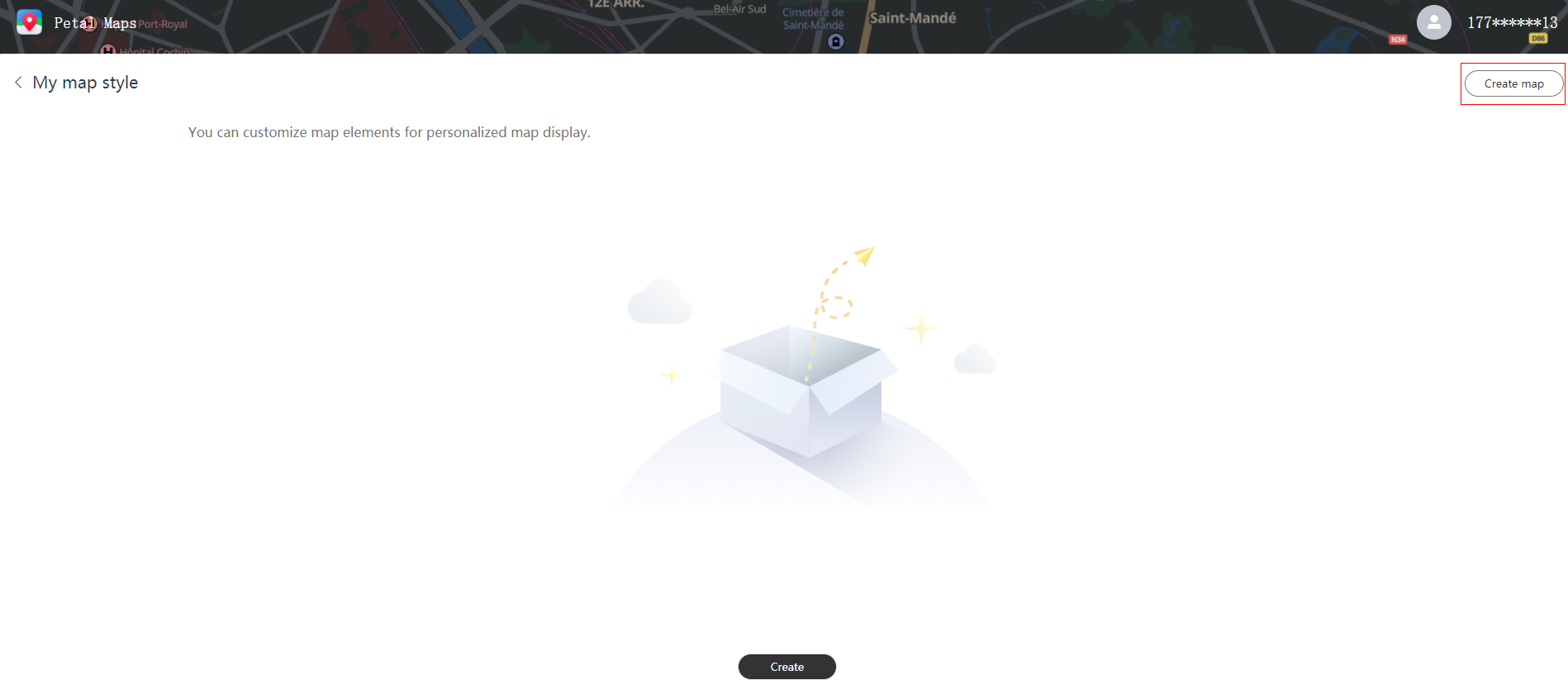
- Click Create map to create a custom map style.
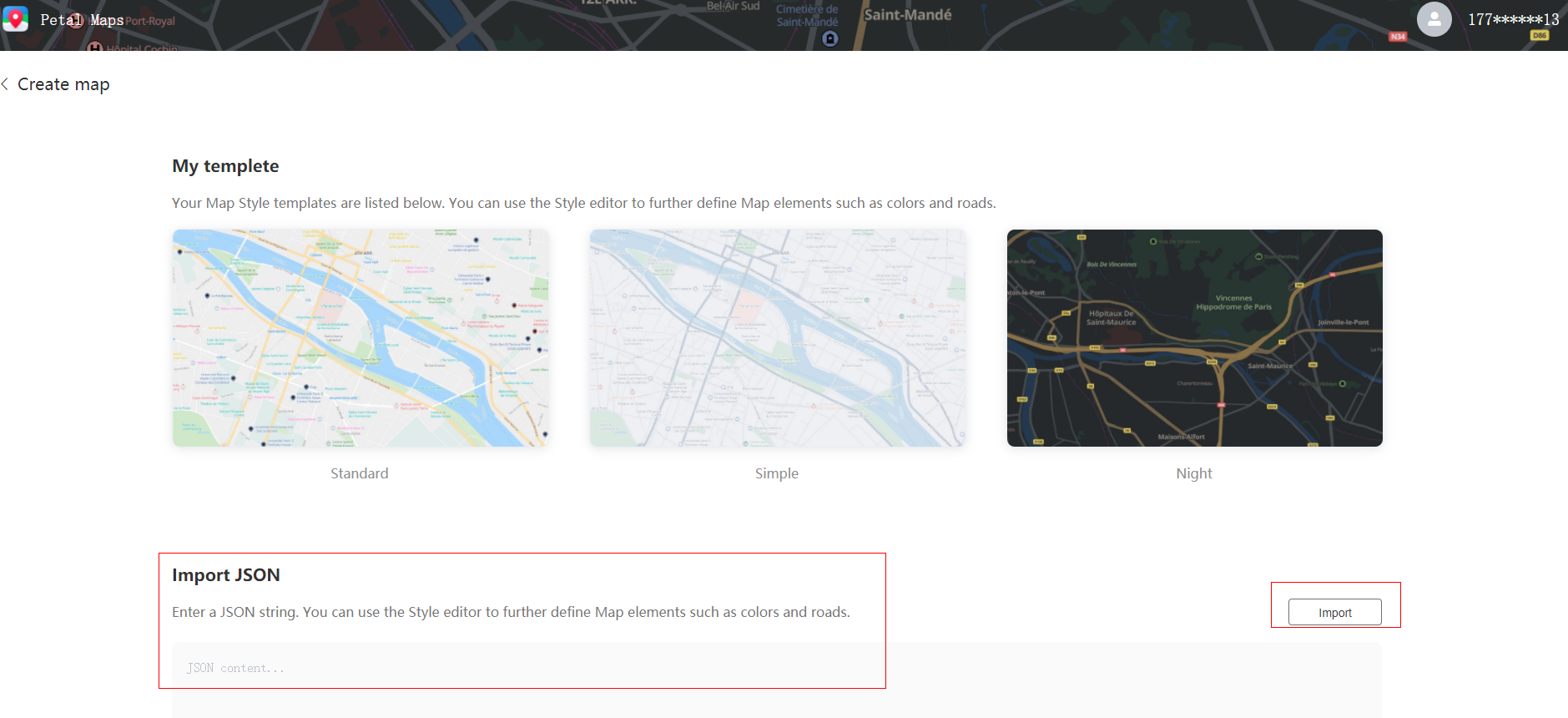
- Click Import to import a JSON style file.
- Modify the style in the editor.
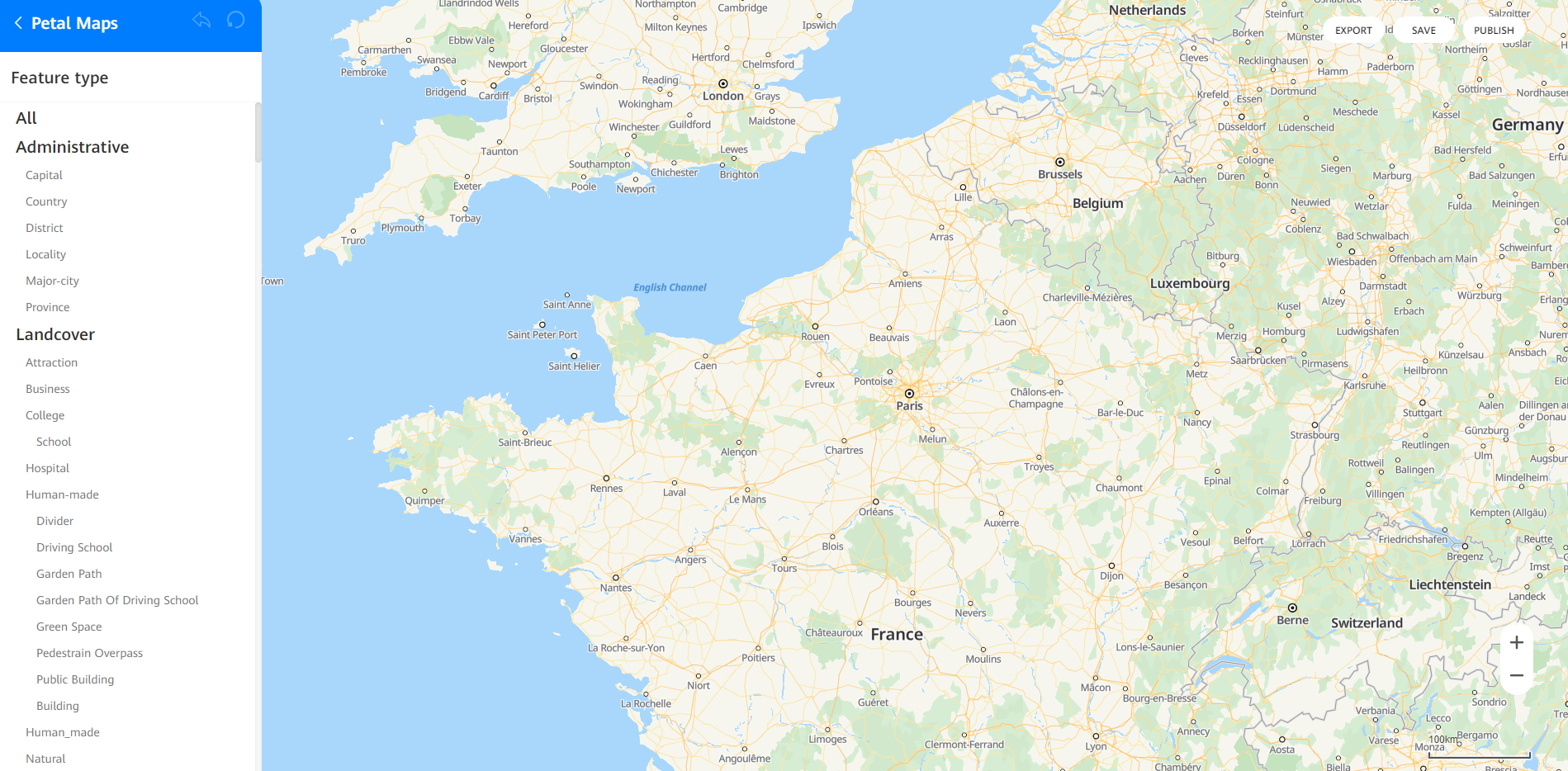
- Click SAVE to generate a preview ID that can be used to test the style effect. The preview ID of a style will be regenerated when you edit the style. Click PUBLISH to generate a style ID, which is unique and never changes once the style is released.
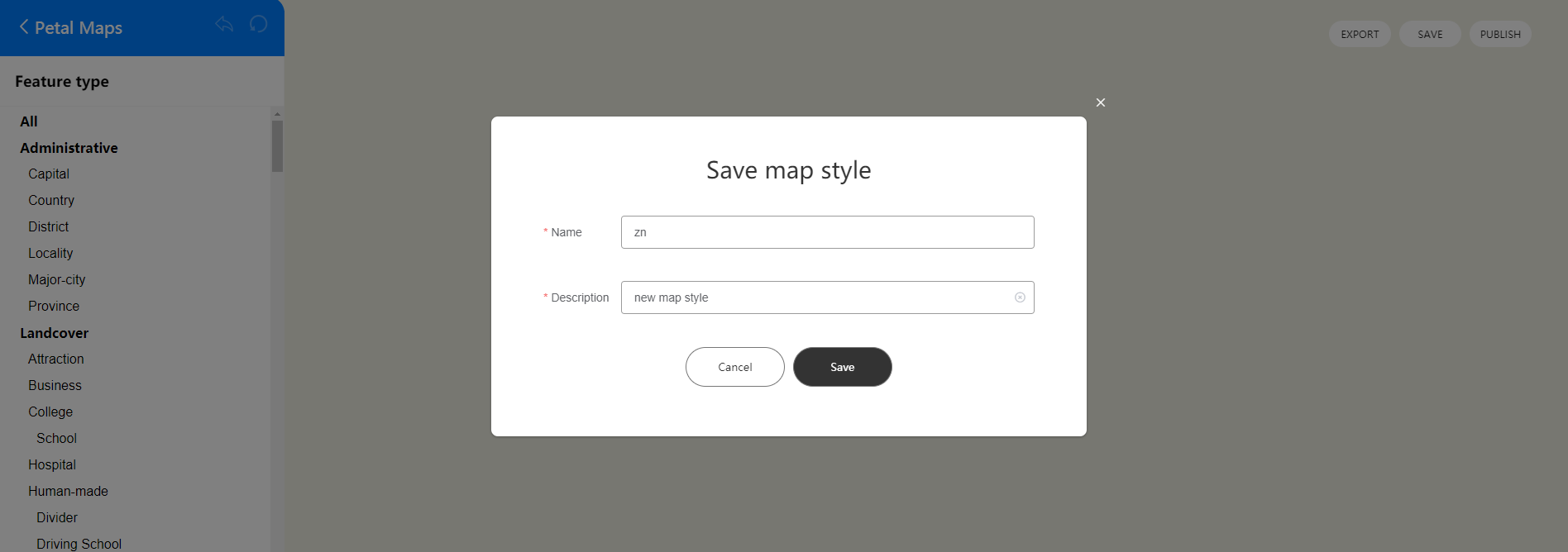
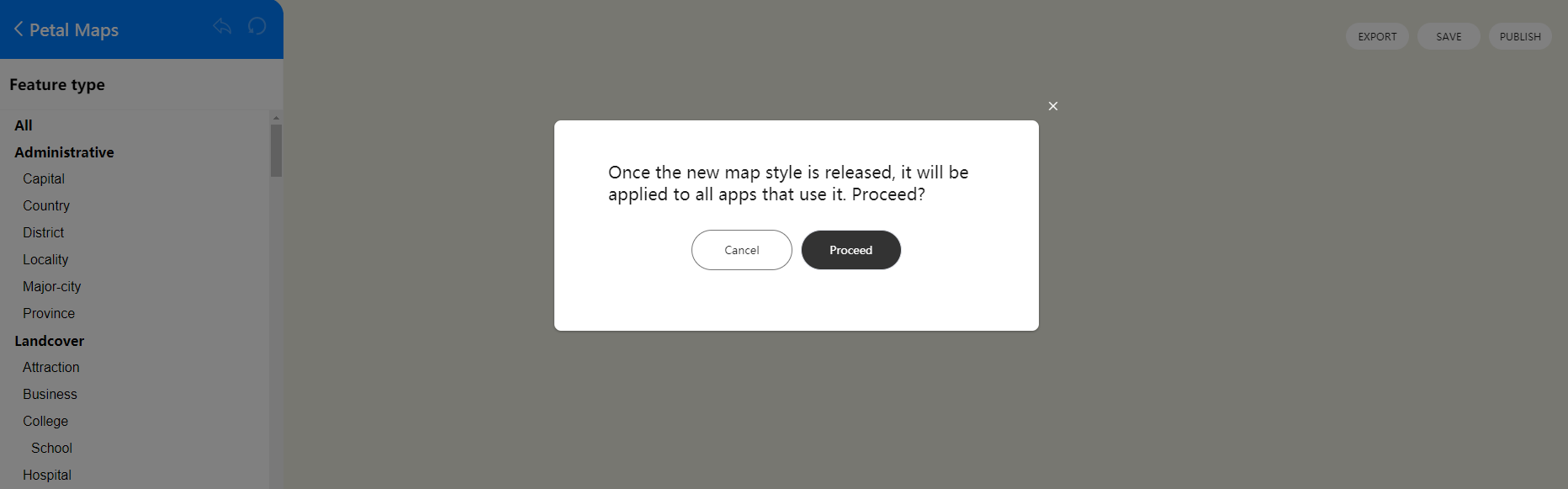
Call JavaScript APIs to specify a preview ID or style ID so that the corresponding style will be applied to the map.
JavaScript allows you to specify a preview ID or style ID either before or after a map is loaded.
- Using a custom map style before a map is loaded
When importing the Map Kit API file in Map Creation, add the styleId or previewId parameter. If both parameters are set, the styleId parameter takes precedence. Note that the API key must be transcoded using the URL.
<script src="https://mapapi.cloud.huawei.com/mapjs/v1/api/js?callback=initMap&key=API KEY&styleId=styleId"></script> - Using a custom map style after a map is loaded Call the following methods of HWMap:
// Specify a style ID.
map.setStyleId(String styleId)
// Specify a preview ID.
map.setPreviewId(String previewId)