Registering as a Developer
Before you get started, you must register as a Huawei developer and complete identity verification on HUAWEI Developers. For details, please refer to Registration and Verification.
Creating an App
Add an app to your project. For details, please refer to Creating an App. Set relevant parameters as follows:
Platform: Web
Enabling Required Services
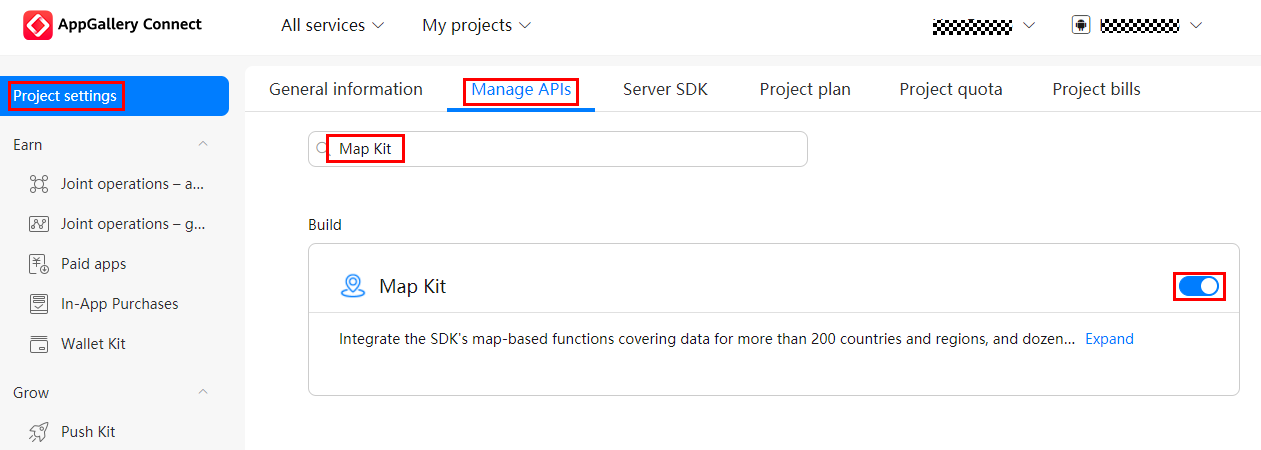
To use Map Kit in your app, you first need to enable the service in AppGallery Connect.
- Sign in to AppGallery Connect and click My projects.
- Find your project from the project list and click the app for which you need to enable Map Kit on the project card.
- Go to Project settings > Manage APIs and enable Map Kit.
Obtaining the API Key
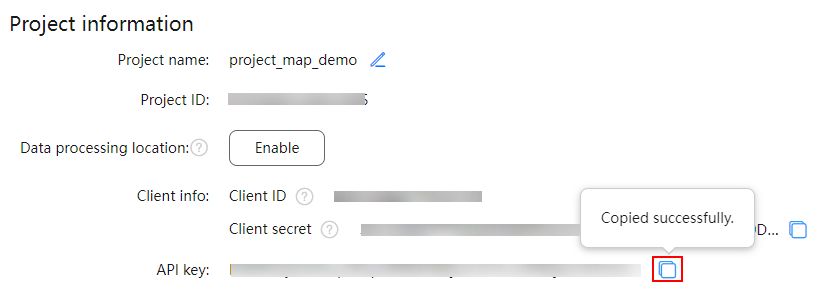
Before using the service, obtain the API key from AppGallery Connect. The procedure is as follows:
- Sign in to AppGallery Connect and click My projects.
- Find your app project, and click the app name.
- Go to . In the App information area, click the
 icon next to API key. The API key will then be copied to the clipboard.

- You need to call the URLEncoder.encode("Your apiKey", "UTF-8") method to encode the API key using encodeURI. For example, if the original API key is ABC/DFG+, the conversion result is ABC%2FDFG%2B.
- You are advised to take measures for protecting the API key security. For details, please refer to How can I protect the API key?.