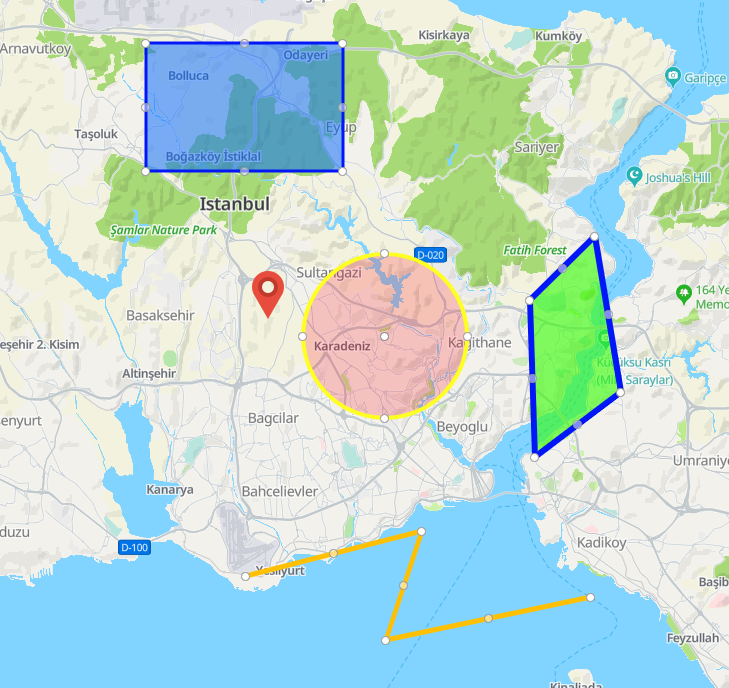
Drawing Layer is a drawing plugin that allows you to draw shapes on the map using the mouse. For example, you can draw a point with one mouse click or draw a polygon with multiple mouse clicks. The Drawing Layer toolbar provides the small hand, circle, pin, polygon, polyline, and rectangle icons.
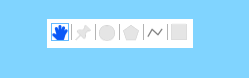
Drawing Shapes Using the Mouse
- Small hand: Click the small hand icon on the toolbar. The mouse cursor becomes a small hand. You can drag the mouse to pan the map.
- Pin: Click the pin icon on the toolbar. The mouse cursor becomes a cross icon. You can click anywhere on the map to generate a pin icon.
- Circle: Click the circle icon on the toolbar. The mouse cursor becomes a cross icon. You can click anywhere on the map to set a circle center, drag the mouse to change the circle radius, and then click the mouse to draw a circle.
- Polygon: Click the polygon icon on the toolbar. The mouse cursor becomes a cross icon. You can click anywhere on the map to start drawing a polygon. Each click will draw a line between the current and previous click points. If you double-click anywhere on the map, the end and initial points will be automatically connected to form a closed polygon. If you have clicked more than two points, you can double-click anywhere on the map to complete polygon drawing. If you double-click a point within 3 pixels around the initial point, the polygon drawing will be automatically canceled.
- Polyline: Click the polyline icon on the toolbar. The mouse cursor becomes a cross icon. You can click anywhere on the map to start drawing a polyline. Each click will draw a line between the current and previous click points. You can double-click a point on the map to set it as the end point and complete polyline drawing. If you have clicked more than two points, you can double-click anywhere on the map to complete polyline drawing. If you double-click a point within 3 pixels around the initial point, the polyline drawing will be automatically canceled.
- Rectangle: Click the rectangle icon on the toolbar. The mouse cursor becomes a cross icon. You can click anywhere on the map to start drawing a rectangle, drag the mouse to change the rectangle size, and click again to complete rectangle drawing.
Using the Drawing Library
- Import the drawing.js file.
<script src="https://mapapi.cloud.huawei.com/mapjs/v1/api/js/drawing.js"> </script> - Call drawing.DrawingManager(options) to create a drawingManager object.
// Create a drawingManager object. drawingManager = new drawing.DrawingManager({}); // Bind the object to a map. drawingManager.setMap(map , HWMapJsSDK); - Pass initialization parameters in DrawingManagerOptions, for example, to modify the control position and set the drawing mode. The sample code is as follows:
JavaScript
function initMap() {
  mapOptions.center = {lat: 41.04473887597426, lng: 28.956678750226562};
  mapOptions.zoom = 11;
  mapOptions.language = 'ENG';
  // mapOptions.sourceType = 'raster';
  map = new HWMapJsSDK.HWMap(document.getElementById('myMap'), mapOptions);
  map.setPinchRotate(false);

  const onComplete = (result, type) => {
    if (type === drawableObjectTypes.hwObject) {
      console.log('onComplete: ', result.getInstance(), ", object type: ", result.getObjectType());
    } else {
      console.log('onComplete: ', result);
    }
  };
  const onChange = (result, type) => {
    if (type === drawableObjectTypes.hwObject) {
      console.log('onChange: ', result.getInstance(), ", object type: ", result.getObjectType());
    } else {
      console.log('onChange: ', result);
    }
  };

  drawingManager = new drawing.DrawingManager({
      drawingMode: drawing.OverlayType.POINT,
      drawingControl: true,
      drawingControlOptions: {
          position: drawing.ControlPosition.TOP_RIGHT,
          drawingModes: [
             drawing.OverlayType.POINT,
             drawing.OverlayType.CIRCLE,
             drawing.OverlayType.POLYGON,
             drawing.OverlayType.LINE_STRING,
             drawing.OverlayType.BOX,
      ],
    },
    markerOptions: {
      icon: {
        url: 'marker.png',
      },

    },
    circleOptions: {
       fillColor: '#ff000d',
       strokeColor: '#ff2',
       strokeWeight: 4,
       fillOpacity: 0.2,
       editable: true,
    },
    polygonOptions: {
       fillColor: '#33ff00',
       fillOpacity: 0.6,
       strokeColor: '#0217f7',
       strokeWeight: 6,
       editable: true,
    },
    polylineOptions: {
       strokeColor: '#ffc003',
       strokeWeight: 5,
       editable: true,
    },
    boxOptions: {
       fillColor: '#0066ff',
       strokeColor: '#0217f7',
       fillOpacity: 0.5,
       strokeWeight: 3,
       editable: true,
    },
    onComplete,
    onChange,
  });

  drawingManager.setMap(map , HWMapJsSDK);
}
HTML <div id="map"></div> <div id="container"> <button id="btn-undo"></button> </div>CSS <style> body, html, * { padding: 0; margin: 0; } #demo { height: 100%; width: 100%; } #map { position: absolute; height: 100%; width: 100%; } </style