


Intelligent Assistant
Chat with our virtual assistant to get answers promptly.
Documents from this version have been archived, and will not continue to be maintained. Please use the latest version.
A HUAWEI ID is required to access Huawei cloud services, for example, the HUAWEI Consumer Cloud service, GameCenter, and AppGallery.
Based on OAuth2.0 and OpenID Connect, the HUAWEI ID sign-in and authorization solution enables third-party apps to obtain users’ temporary authorization codes, API access tokens, and basic HUAWEI ID user authentication information (such as ID Token) so that users can sign in to the apps with their HUAWEI IDs securely.
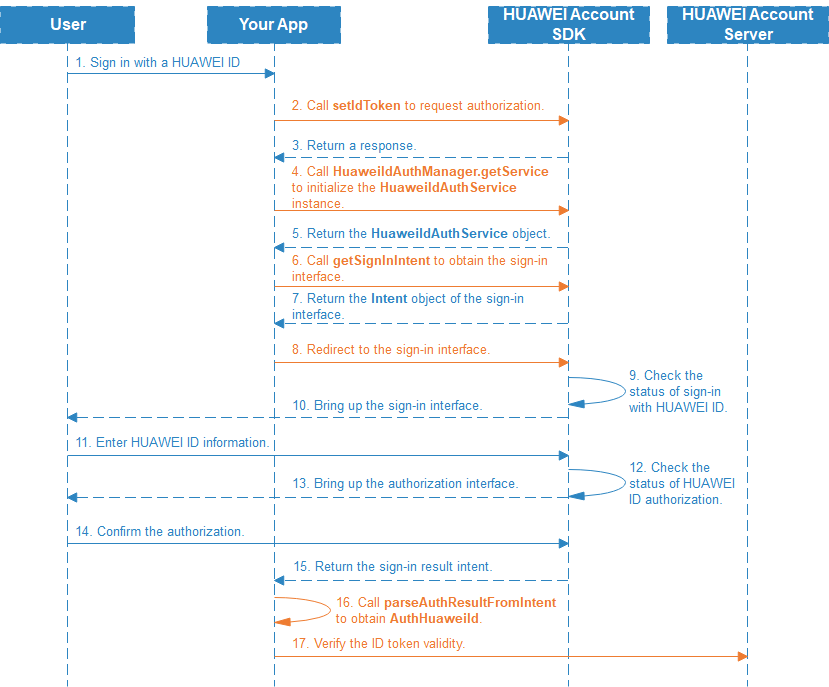
1. A user signs in to an app using a HUAWEI ID.
2. The app sends a sign-in request to the HUAWEI Account SDK.
3. The HUAWEI Account SDK brings up the user sign-in authorization interface, explicitly notifying the user of the content to be authorized based on the authorization scope contained in the sign-in request.
4. After the user manually authorizes the app to access the content in question, the HUAWEI Account SDK returns the ID token to the app.
5. The app verifies the ID token locally or using the HUAWEI Account Server. For details, please refer to Verifying ID Token Validity.
1.Present the HUAWEI ID sign-in icon.
The app presents the HUAWEI ID sign-in icon on the sign-in page. For details about the icon specifications, see Huawei Icon Specifications.
2.Call the HuaweiIdAuthParamsHelper.setIdToken method to send an authorization request.
- HuaweiIdAuthParams authParams = new HuaweiIdAuthParamsHelper(HuaweiIdAuthParams.DEFAULT_AUTH_REQUEST_PARAM).setIdToken().createParams();
3.Call the getService method of HuaweiIdAuthManager to initialize the HuaweiIdAuthService object.
- HuaweiIdAuthService service= HuaweiIdAuthManager.getService(MainActivity.this, authParams);
4.Call the HuaweiIdAuthService.getSignInIntent method to bring up the HUAWEI ID sign-in authorization interface.
- startActivityForResult(service.getSignInIntent(), 8888);
5.After sign-in authorization is complete, call the HuaweiIdAuthManager.parseAuthResultFromIntent method of onActivityResult to obtain HUAWEI ID from the sign-in result.
- @Override
- protected void onActivityResult(int requestCode, int resultCode, @Nullable Intent data) {
- //Process the sign-in and authorization result and obtain an ID token from AuthHuaweiId.
- super.onActivityResult(requestCode, resultCode, data);
- if (requestCode == 8888) {
- Task<AuthHuaweiId> authHuaweiIdTask = HuaweiIdAuthManager.parseAuthResultFromIntent(data);
- if (authHuaweiIdTask.isSuccessful()) {
- //The sign-in is successful, and the user's HUAWEI ID information and ID token are obtained.
- AuthHuaweiId huaweiAccount = authHuaweiIdTask.getResult();
- Log.i(TAG, "idToken:" + huaweiAccount.getIdToken());
- } else {
- //The sign-in failed.
- Log.e(TAG, "sign in failed : " +((ApiException)authHuaweiIdTask.getException()).getStatusCode());
- }
- }
- }
Method 1: Local verification
1. Obtain a public key URI from the jwks_uri field in the response returned by the Huawei server at https://oauth-login.cloud.huawei.com/.well-known/openid-configuration and access the public key URI to obtain a public key. The public key is updated once a day. Its value is cached in the app server.
- private void getJwks(ICallBack iCallBack) {
- OkHttpClient okHttpClient = new OkHttpClient();
- final Request request = new Request.Builder()
- .url(Constant.CERT_URL)
- .build();
- Call call = okHttpClient.newCall(request);
- call.enqueue(new Callback() {
- @Override
- public void onFailure(Call call, IOException e) {
- Log.i(TAG, "Get ID Token failed.");
- iCallBack.onFailed();
- }
- @Override
- public void onResponse(Call call, Response response) {
- if (response.isSuccessful()) {
- try {
- String res = response.body().string();
- JSONObject jsonObject = new JSONObject(res);
- mJsonArray = jsonObject.getJSONArray("keys");
- iCallBack.onSuccess();
- } catch (NullPointerException | JSONException | IOException e) {
- Log.i(TAG, "parse JsonArray failed." + e.getMessage());
- iCallBack.onFailed();
- }
- }
- }
- });
- }
2. Verify the signature. The ID token is in JWT format, whose signature can be verified using a common JWT library, such as jwt.io.
- DecodedJWT decoder = JWT.decode(idToken);
- Algorithm algorithm = Algorithm.RSA256(mRSAPublicKey , null);
- JWTVerifier verifier = JWT.require(algorithm).build();
- // verify signature
- verifier.verify(decoder);
3. Check whether the value of iss in the ID token is https://accounts.huawei.com.
- decoder.getIssuer().equals(ID_TOKEN_ISSUE);
4. Check whether the value of aud in the ID token is the same as the value of client_id of the app.
- decoder.getAudience().get(0).equals(CLIENT_ID);
5. Check whether the ID token expires based on the value of exp.
- // Expired, throws TokenExpiredException
- verifier.verify(decoder);
6. If the preceding items pass the check, the ID token is considered as successfully verified. The app can use the user information in the sign-in result.
- JSONObject jsonObject = new JSONObject(new String(Base64.decode(decoder.getPayload(), Base64.URL_SAFE), DEFAULT_CHARSET));
The specific code can refer to IDTokenParser.java in the Client Sample Code.
Method 2: Server verification
The app calls the Verify ID Token API to send an ID token verification request to the HUAWEI Account Server. Then, the HUAWEI Account Server directly returns the verification result to the app.
Request :
- POST/oauth2/v3/tokeninfo?id_token=eyJraWQiOiI2YTI4ODBjNWQ2YTg4Y2M0NjQzZTg4ZWI2ODBlMDUxOTdkNWJlYmQ4NTVhNDdiNzE3NTdmYzFiOTUzMDgwOWNhIiwidHlwIjoiSldUIiwiYWxnIjoiUlMyNTYifQ.eyJhdF9oYXNoIjoiRHg1V1V3VXpQZWxBTC1TS3VBdldVZyIsInN1YiI6Ik1ERUxhWkd4UTlXaHFIVnFrRVZZcVZYblF5TFhqcDhyVmhmbWxScHg4SjlYclEiLCJob21lX2NvdW50cnlfY29kZSI6IkNOIiwiaXNzIjoiaHR0cHM6Ly9hY2NvdW50cy5odWF3ZWkuY29tIiwiZ2l2ZW5fbmFtZSI6IuiWm-aMr-WNjiIsImxvY2FsZSI6InpoLWNuIiwiZGlzcGxheV9uYW1lIjoi56m65oyH6ZKIMeWPtyIsIm5vbmNlIjoic2FsZmRqb2p1aWV3cnJsa2pkc2Zmc2QiLCJyZWdpc3Rlcl9jb3VudHJ5X2NvZGUiOiJDTiIsImF1ZCI6IjMwMDAzNTIzMyIsImF6cCI6IjMwMDAzNTIzMyIsIm5hbWUiOiLolpvmjK_ljY4iLCJleHAiOjE1NjM4MjM5MDksImlhdCI6MTU2MzgyMDMwOSwiZW1haWwiOiIxNTIyMDI2NjU4MyJ9.cQdyVC7RPl9V6xjPjsRYdKapPb3ZNZPu4FLNMuPZxhoSwENDvvQBRc5_W-kNBmWMh-HxhDwmVPWValubXy-vPey6grUuwDmOQQRYyIsg0nHTBA91LmRIVrWLllpiEbqij_ExsDz2ThCcFoTZ2kXGEoJ2jnBIb17pHuG7USNLTGb7NayBZJrKBl85lo9V8lgMjj3hcMMPVWrF1pRWhWVNy3hOvMSf9n_l309Xn1Rd6lVUaTJtqC0NbpjmLMSj4OGGtvKICIBQlUw46-6rZqxY0DaU8ZrvK8mcWIf9XaHMAZIucOkVdgT3u3sUw1Dy8m8Cr-9zt_wixJMPEm4CMPHA-Q
- Host: oauth-login.cloud.huawei.com
- Content-Type: application/x-www-form-urlencoded
Response:
- HTTP/1.1 200 OK
- Content-Type: application/json;charset=UTF-8
- Cache-Control: no-store
- Pragma: no-cache
- {
- "at_hash": "Dx5WUwUzPelAL-SKuAvWUg",
- "sub": "MDELaZGxQ9WhqHVqkEVYqVXnQyLXjp8rVhfmlRpx8J9XrQ",
- "kid": "6a2880c5d6a88cc4643e88eb680e05197d5bebd855a47b71757fc1b9530809ca",
- "iss": "https://accounts.huawei.com",
- "typ": "JWT",
- "given_name": "Zhang San",
- "locale": "zh-cn",
- "display_name": "Jack",
- "nonce": "salfdjojuiewrrlkjdsffsd",
- "register_country_code": "CN",
- "aud": "300035233",
- "azp": "300035233",
- "name": "Zhang San",
- "exp": 1563823909,
- "iat": 1563820309,
- "alg": "RS256",
- "email": "zhangsan@example.com"
- }
A HUAWEI ID is required to access Huawei cloud services, for example, the HUAWEI Consumer Cloud service, GameCenter, and AppGallery.
Based on OAuth2.0 and OpenID Connect, the HUAWEI ID sign-in service enables your apps to access identity information (ID token) or temporary authorization credential (authorization code) of a HUAWEI ID user, ensuring that user sign-in is optimally secure. The authorization code applies only to apps that run on independent developer servers, while the ID token applies to both standalone apps and apps that run on independent developer servers. You may choose either of them to implement the function of allowing HUAWEI ID users to sign in using the authorization code.
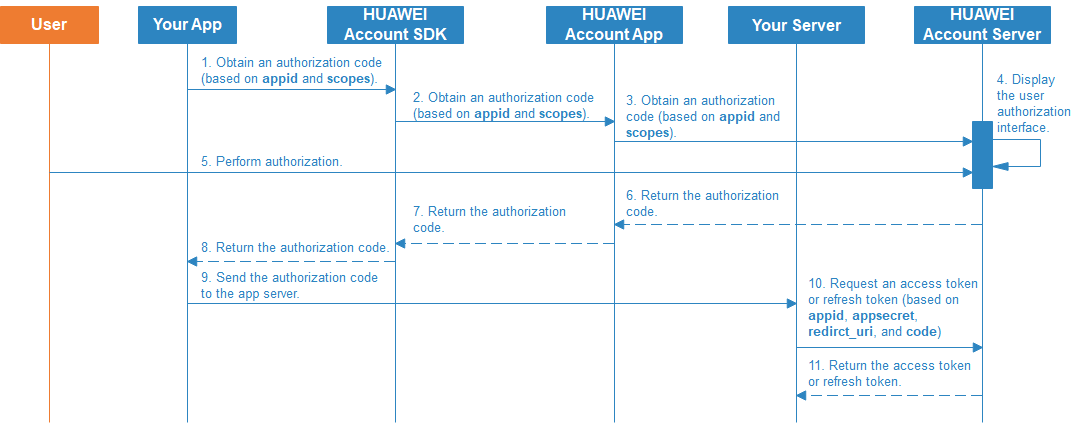
1. A user signs in to an app using a HUAWEI ID.
2. The app sends a sign-in request to the HUAWEI Account SDK.
3. The HUAWEI Account SDK brings up the user sign-in authorization interface, explicitly notifying the user of the content to be authorized based on the authorization scope contained in the sign-in request.
4. After the user manually authorizes the app to access the content in question, the HUAWEI Account SDK returns the authorization code to the app.
5. Based on the authorization code, the app obtains the access token, refresh token, and ID token from the HUAWEI Account Server.
6. Based on the access token, the app server obtains openId of the user from the HUAWEI Account Server.
7. If the access token or ID token has expired, the user obtains a new access token or ID token by using the refresh token.
1. Present the HUAWEI ID sign-in icon.
The app Presents the HUAWEI ID sign-in icon on the sign-in page. For details about the icon specifications, see Huawei Icon Specifications.
2. Call the HuaweiIdAuthParamsHelper.setAuthorizationCode method to request authorization.
- HuaweiIdAuthParams authParams = new HuaweiIdAuthParamsHelper(HuaweiIdAuthParams.DEFAULT_AUTH_REQUEST_PARAM).setAuthorizationCode().createParams();
3. Call the getService method of HuaweiIdAuthManager to initialize the HuaweiIdAuthService object.
- HuaweiIdAuthService service= HuaweiIdAuthManager.getService(MainActivity.this, authParams);
4. Call the HuaweiIdAuthService.getSignInIntent method to bring up the HUAWEI ID sign-in authorization interface.
- startActivityForResult(service.getSignInIntent(), 8888);
5. Process the sign-in result after successful sign-in authorization.
- @Override
- protected void onActivityResult(int requestCode, int resultCode, @Nullable Intent data) {
- //Process the sign-in result and obtain Authorization Code from AuthHuaweiId.
- super.onActivityResult(requestCode, resultCode, data);
- if (requestCode == 8888) {
- Task<AuthHuaweiId> authHuaweiIdTask = HuaweiIdAuthManager.parseAuthResultFromIntent(data);
- if (authHuaweiIdTask .isSuccessful()) {
- //The sign-in is successful, and the user's HUAWEI ID information and authorization code are obtained.
- AuthHuaweiId huaweiAccount = authHuaweiIdTask.getResult();
- Log.i(TAG, "Authorization code:" + huaweiAccount.getAuthorizationCode());
- } else {
- //The sign-in failed.
- Log.e(TAG, "sign in failed : " + ((ApiException)authHuaweiIdTask .getException()).getStatusCode());
- }
- }
- }
6. After the sign-in is successful, call the Obtain Token API to send a request to the HUAWEI Account Server to obtain an ID token, an access token, and a refresh token. The request is a POST request. The body must contain the following parameters.
| Parameter | Description |
|---|---|
| grant_type | This value is always authorization_code |
| code | Authorization code obtained in the preceding step |
| client_id | App ID in AppGallery Connect |
| client_secret | App secret in AppGallery Connect |
| redirect_uri | Redirection URI in AppGallery Connect |
Request:
- POST/oauth2/v3/token HTTP/1.1
- Host: oauth-login.cloud.huawei.com
- Content-Type: application/x-www-form-urlencoded
- grant_type=authorization_code&
- code=CF3L7XyCVZi52XMdsUzD7Z6ap0/N2qExcNe0AMqTselTtNd1B4DUwTsQ/23FPZasC8yI29v+N2s2jMT/T2MXiuc+178I/sYuWVoTyqwBaDqVW82KCMqaxbeWBguH4hEENxmDSUIE61Qg5R1F074PiS+qJYnbLI2IBqatS37px8pn5qnuq5oX+UX8XN3/w8HLt4GpakW5Dk1v7hGs&
- client_id={app_id}&
- client_secret={app_secret}&
- redirect_uri=https%3A%2F%2F/www.example.com/%2Fredirect_uri
Response:
- HTTP/1.1 200 OK
- Content-Type: application/json;charset=UTF-8
- Cache-Control: no-store
- Pragma: no-cache
- {"access_token": "CFyJ21sNODl16eV9y2vu3CwQk9DBr32BkOcxxgAd7MZUR5th1giyTk5\/kA+QDAyxou+\/5U2zzBRcf3qgLkkFdtbbC+mM3zFV7xj7CCEMHc5Tw92al0Y=",
- "refresh_token": "CF13G0sRaGybtYt7SIyeUILNORtTFwMgz4ao5C7j7vtgLPt6ogmXKjdI8RS\/YlyS71z4DyP6kEMnOrRlmNK0KhdOUNWd+qVLLRsEEHkqRIKpuAkPvL8=",
- "expires_in": 3600,
- "id_token": "eyJraWQiOiI3YTNlYjRkNTJmMDdhODM0NDU4MmRhOGQ3MWE1MGQ5MDlmNWM0YmRiZTFkNDQ3MjQ2MDNhZTA2NGM0ZTlkZGYyIiwidHlwIjoiSldUIiwiYWxnIjoiUlMyNTYifQ.eyJhdF9oYXNoIjoiM0hPdFZYOEdMcG1GSDBWRVlSc1BjdyIsImF1ZCI6IjEwMDczNTE2NyIsInN1YiI6Ik1ERTlYaWFoc3MwaWFFNXU2c09PaEY5Mlhvell0Rkt4bUdtbWlhNGtTaEJ3dklLR2ciLCJhenAiOiIxMDA3MzUxNjciLCJpc3MiOiJodHRwczovL2FjY291bnRzLmh1YXdlaS5jb20iLCJuYW1lIjoi6Jab5oyv5Y2OIiwiZXhwIjoxNTczMDQ2NDI4LCJnaXZlbl9uYW1lIjoi6Jab5oyv5Y2OIiwiZGlzcGxheV9uYW1lIjoi5rKh5pyJ562U5qGIIiwiaWF0IjoxNTczMDQyODI4LCJwaWN0dXJlIjoiaHR0cHM6Ly91cGZpbGUtZHJjbi5wbGF0Zm9ybS5oaWNsb3VkLmNvbS9GaWxlU2VydmVyL2ltYWdlL2IuMDI2MDA4NjAwMDIzMjQ3MjUxMS4yMDE5MDgyMDExNTQ0Mi5tbmRjWTZyN2JUT0xNcVdiNVBhZDIzZExWNXh0b1Z2WC4xMDAwLkI0QkUyQTdEM0I3NkFGMzBCMkJDNjlBQ0JFNjg3NDIxMTQwMjhEQzYwREZFOTVCMjM5QkI0QzM2OUQwOUVEMkEuanBnIn0.mqy2C3ZNYEM8FKt8r1LX0VFosJjpqVl7E7mw2N-uEhnmAJq3blBco8fp2TCEyUzi1qFMN7-cjv87mQqCEpgfozyU7xV0VXMGdcd9ZhOxtabZtQGxUXRpIPiK5iysp68d95_QJAf2YZIdA4P_1zU8ZGxH57njIXRUVdQWDB8poeuB9gOc72bufe3DmSkqYD9aKvcibpA44Iln58aj-I9xs-FpcDwE6Y9hTfLGT5vk_5hXs32qwt54kEH1JjKbzZRW7B-OaELJIzzOM49oZKrdkViG6c2Tco1xX1WcKSz298Wckj4suLBAqkam4AprQgoSETC__ORTfy9OHIS1m4_8uQ",
- "scope": "openid profile email",
- "token_type": "Bearer"
- }
7. The access token has a short validity period (currently, 60 minutes). When the access token has expired or is about to expire, request a new access token from the HUAWEI Account Server by sending the refresh token(180 days by default) through the Obtain Token API.
Request:
- POST /oauth2/v3/token HTTP/1.1
- Host: oauth-login.cloud.huawei.com
- Content-Type: application/x-www-form-urlencoded
- grant_type=refresh_token&
- client_id=12345&
- client_secret=bKaZ0VE3EYrXaXCdCe3d2k9few&
- refresh_toekn=CF2Mm03n0aos9iZZ8nIhfyDtoXy74CXeBi50gVVhMpB0IUzlv9ZwizEvTBhVoF820ZPim0JwNR9j2p1qgEQWnIVYZRlp4T6ezMgekUnsHBkvNev5rd2MdfQMLP
Response:
- HTTP/1.1 200 OK
- Content-Type: application/json;charset=UTF-8
- Cache-Control: no-store
- Pragma: no-cache
- {"access_token": "CFyJ4J\/l6wuwcFqYOJG4maq2ca8RAV+g0i+mel6qCV5lvqH0PYtW0+BNwfHWg0AqMnW6ZdBvUgs7ijkxMFh1xVP\/B+vQXz3PWsivkKCuL78XtbLt7vs=",
- "id_token": "eyJhbGciOiJSUzI1NiIsImtpZCI6IjExOGRmMjU0YjgzNzE4OWQxYmMyYmU5NjUwYTgyMTEyYzAwZGY1YTQiLCJ0eXAiOiJKV1QifQ.eyJpc3MiOiJodHRwczovL2FjY291bnRzLmdvb2dsZS5jb20iLCJhenAiOiI3ODI0NTY2Njc4OTgtc2M0MzE3Y2l0NGEwMjB0NzdrbGdsbWo1ZjA4YWtnMWIuYXBwcy5nb29nbGV1c2VyY29udGVudC5jb20iLCJhdWQiOiI3ODI0NTY2Njc4OTgtN2NkNGJpYWRkaGVwNGc4cnZic2VlOGtwcDA5Zm1hNzIuYXBwcy5nb29nbGV1c2VyY29udGVudC5jb20iLCJzdWIiOiIxMDE3MTIxMzkwMzgwNDE2MDc0MTQiLCJlbWFpbCI6Inh1ZXpoZW5odWF0anVAc2luYS5jb20iLCJlbWFpbF92ZXJpZmllZCI6dHJ1ZSwicGljdHVyZSI6Imh0dHBzOi8vbGg1Lmdvb2dsZXVzZXJjb250ZW50LmNvbS8tMm9lTTllT09zNTAvQUFBQUFBQUFBQUkvQUFBQUFBQUFBQkkvMVpOSC0xdmxxc3cvczk2LWMvcGhvdG8uanBnIiwiaWF0IjoxNTYxNDUxMTUyLCJleHAiOjE1NjE0NTQ3NTJ9.Eo9IHMkid596jvt1YYzNsRtDq9c9K9dbougkU41Noh7TXNiko86_RuWwHID6k1kDg398AwC3wwH-t2hLcUjgrXPNd9XYU96Jp4-UxdDszP6ywEJgvvBCyTHzsi2auvKt_MnfSrs3qOKfh7noJvXq8AY-Hi3vqSUks5kGqbZKVzCHhBDO3RD9Fs9YHsB6w0XVKZojPOBDaAT_TiijoChn-Q-e8NbSGUx52OgeH-Nw5lOj6JVb_7fb6ucWRzlhiQuzFjklevLVw2pjw1MxKbl1vfRp0X699uZBVjgl9hj1L7LSDObuPzLiXF7ojji5JKYC6zIwAtZQUZ_VUmSk01GDLQ",
- "expires_in": 3600,
- "scope": "openid profile email",
- "token_type": "Bearer"
- }
Apps provide a mechanism for users to sign out their HUAWEI IDs. After a user signs out, the app will notify the HUAWEI Account SDK to clear the user's HUAWEI ID information.
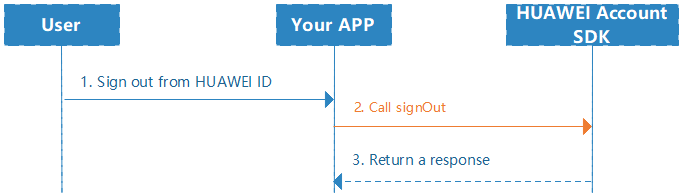
A user has signed in to an app and attempts to sign out.
The app calls the HuaweiIdAuthService.signOut method to request the HUAWEI Account SDK to sign the user out.
The HUAWEI Account SDK deletes the HUAWEI ID sign-in information of the user and sends the sign-out result to the app.
Call the signOut API using the HuaweiIdAuthService instance that is created during the HUAWEI ID sign-in authorization.
- //Use the HuaweiIdAuthService instance to call the getService API. The service is generated during authorization.
- Task<Void> signOutTask = service.signOut();
2. Perform processing after the sign-out is complete.
- signOutTask.addOnCompleteListener(new OnCompleteListener<Void>() {
- @Override
- public void onComplete(Task<Void> task) {
- // Processing after the sign-out.
- Log.i(TAG, "signOut complete");
- }
- });
Authorization is required only at the first sign-in to your app using a HUAWEI ID. Subsequent sign-ins using the same HUAWEI ID does not require any authorization.
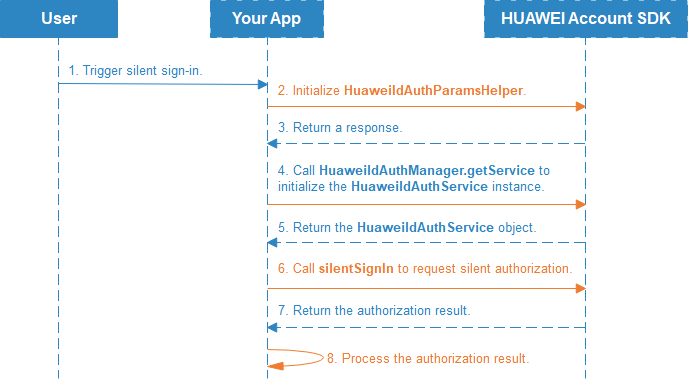
A user triggers silent sign-in in a specific scenario (preset by yourself).
The app calls the default construction method of HuaweiIdAuthParamsHelper to set authorization parameters.
The HUAWEI Account SDK returns the HuaweiIdAuthParams object containing the authorization parameters to the app.
The app calls the getService method of HuaweiIdAuthManager to initialize the HuaweiIdAuthService instance.
The HUAWEI Account SDK returns the HuaweiIdAuthService object to the app.
The app calls the HuaweiIdAuthService.silentSignIn method to send a silent sign-in request to the HUAWEI Account SDK.
The HUAWEI Account SDK checks whether the user meets the authorization condition for silent sign-in and returns the authorization result to the app.
The app determines subsequent processing based on the authorization result.
The key steps for developing the silent sign-in function are as follows:
Call the default construction method of HuaweiIdAuthParamsHelper to set authorization parameters.
- HuaweiIdAuthParams authParams= new HuaweiIdAuthParamsHelper(HuaweiIdAuthParams.DEFAULT_AUTH_REQUEST_PARAM).createParams();
2. Call the getService method of HuaweiIdAuthManager to initialize the HuaweiIdAuthService object.
- HuaweiIdAuthService service = HuaweiIdAuthManager.getService(MainActivity.this, authParams);
3. Call the HuaweiIdAuthService.silentSignIn method to initiate a silent sign-in request.
- Task<AuthHuaweiId> task = service.silentSignIn();
4. Process the authorization result.
- task.addOnSuccessListener(new OnSuccessListener<AuthHuaweiId>() {
- @Override
- public void onSuccess(AuthHuaweiId authHuaweiId) {
- // Obtain HUAWEI ID information.
- Log.i(TAG, "displayName:" + authHuaweiId.getDisplayName());
- }
- });
If the authorization fails, the user may have not successfully signed in before. The app may determine whether to call the getSignInIntent method of HuaweiIdAuthService to explicitly display the sign-in authorization interface.
- task.addOnFailureListener(new OnFailureListener() {
- @Override
- public void onFailure(Exception e) {
- // The sign-in fails. Try to sign in explicitly using getSignInIntent().
- if (e instanceof ApiException){
- ApiException apiException = (ApiException)e;
- Log.i(TAG, "sign failed status:" + apiException.getStatusCode());
- }
- }
- });
To improve privacy security, users are allowed to revoke authorization on your app.
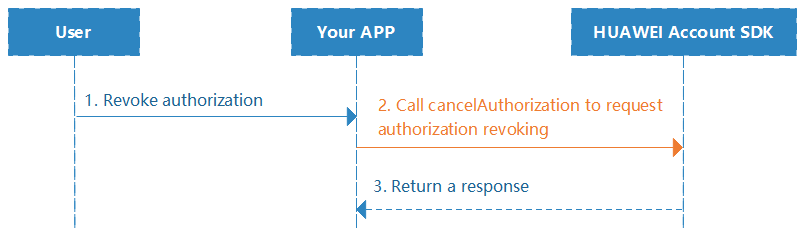
1. A signed-in user revokes the authorization to the app.
2. The app calls the HuaweiIdAuthService.cancelAuthorization method to request the HUAWEI Account SDK to revoke the authorization for the user.
3. The HUAWEI Account SDK deletes the HUAWEI ID authorization information and sends the result to the app.
The key steps for developing the function of revoking HUAWEI ID authorization on your app are as follows:
Configure an entry to allow a user to revoke authorization on the app.
Call the HuaweiIdAuthService.cancelAuthorization method and process the returned result.
- //Use the HuaweiIdAuthService instance to call the getService API. The service is generated during authorization.
- service.cancelAuthorization().addOnCompleteListener(new OnCompleteListener<Void>() {
- @Override
- public void onComplete(Task<Void> task) {
- if (task.isSuccessful()) {
- //do some thing while cancel success
- Log.i(TAG, "onSuccess: ");
- } else {
- //do some thing while cancel success
- Exception exception = task.getException();
- if (exception instanceof ApiException) {
- int statusCode = ((ApiException) exception).getStatusCode();
- Log.i(TAG, "onFailure: " + statusCode);
- }
- }
- }
- });
If your app requires a user to enter a mobile number and verify the user identity using an SMS verification code, you can integrate the ReadSmsManager service so that your app can automatically read the SMS verification code without applying for the SMS read permission. After the integration, SMS verification codes are automatically filled for the verification, greatly improving user experience.
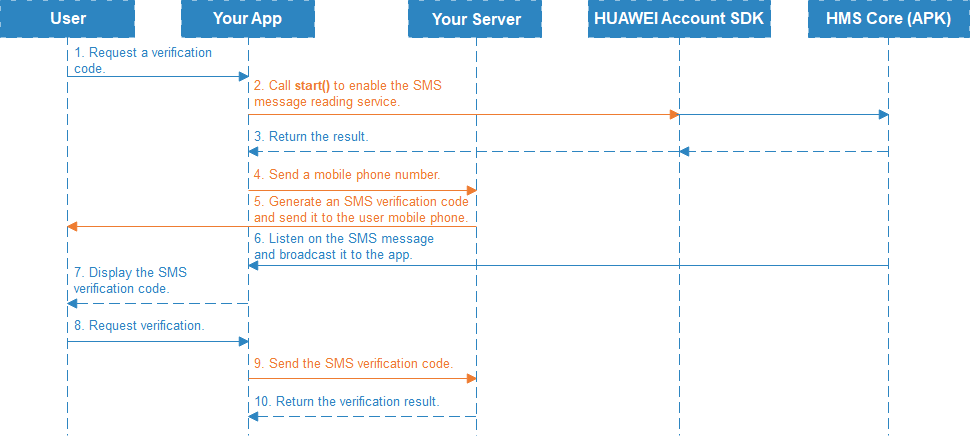
1. A user enters the mobile number on the verification interface of the app and requests to obtain a verification code.
2. The app calls the ReadSmsManager.start(Activity activity) method to request the HUAWEI Account SDK to enable the SMS message reading service. The HUAWEI Account SDK sends the request to HMS Core (APK).
3. HMS Core (APK) enables the SMS message reading service and returns the result to the app through the HUAWEI Account SDK.
4. The app transfers the user's phone number to the app server.
5. The app server generates an SMS verification code based on the mobile number and send an SMS message to the user in a specific format.
6. HMS Core (APK) listens for the SMS message, checks the mapping between the SMS message and the app, and sends the SMS message that complies with the rules to the app through a directed broadcast.
7. The app receives the directed broadcast, parses the SMS verification code, and presents it on the app interface.
8. The user confirms that the verification code is correct and sends a verification code request.
9. The app sends the verification code from the user to the app server for check.
10. The app server confirms that the verification code is correct and returns the check result to the app.
The ReadSmsManager allows fully automated verification. However, you still need to define a hash value in the SMS message body. If you are not the message sender, the ReadSmsManager is not recommended.
The HMS Core (APK) requires the SMS reading permission from the user's device, but the app does not require the SMS message receiving or reading permission.
The key steps for developing the automatic SMS verification function are as follows:
1.Call the ReadSmsManager.start(Activity activity) to request to enable the SMS message reading service.
- Task<Void> task = ReadSmsManager.start(MainActivity.this);
- task.addOnCompleteListener(new OnCompleteListener<Void>() {
- @Override
- public void onComplete(Task<Void> task) {
- if (task.isSuccessful()) {
- // The service is enabled successfully. Continue with the process.
- doSomethingWhenTaskSuccess();
- }
- }
- });
2.The app client sends the phone number to the app server, which will create a verification message and send it to the phone number via SMS. You can complete this process on your own.
3.When the user's mobile device receives the verification message, HUAWEI Mobile Services (APK) will explicitly broadcast it to the app, where the intent contains the message text. The app can receive the verification message through a broadcast.
- public class MySMSBroadcastReceiver extends BroadcastReceiver {
- @Override
- public void onReceive(Context context, Intent intent) {
- Bundle bundle = intent.getExtras();
- if (bundle != null) {
- Status status = bundle.getParcelable(ReadSmsConstant.EXTRA_STATUS);
- if (status.getStatusCode() == CommonStatusCodes.TIMEOUT) {
- // Service has timed out and no SMS message that meets the requirement is read. Service ended.
- doSomethingWhenTimeOut();
- } else if (status.getStatusCode() == CommonStatusCodes.SUCCESS) {
- if (bundle.containsKey(ReadSmsConstant.EXTRA_SMS_MESSAGE)) {
- // An SMS message that meets the requirement is read. Service ended.
- doSomethingWhenGetMessage(bundle.getString(ReadSmsConstant.EXTRA_SMS_MESSAGE));
- }
- }
- }
- }
- }
After reading text of the verification message, the app obtains the verification code from the message by using a regular expression or other methods. The format of the verification code is defined by the app and its server.
The AppTouch ID service is an open account service provided by AppTouch. AppTouch is a platform technically supported by Huawei and operated by third parties (such as telecom carriers) to present, distribute, and promote products such as apps and content to end users.
For more information about the AppTouch ID service, please refer to the AppTouch ID Service Development Guide.