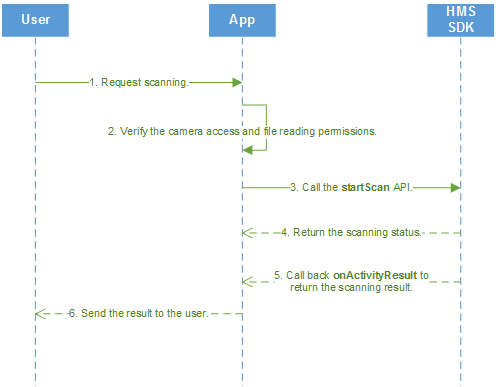
In Default View mode, Scan Kit scans barcodes using the camera or from images in the album, and also provides activities that can be directly used. You do not need to worry about designing a UI as Scan Kit provides a UI.
The process of using Scan Kit in Default View mode is as follows:
1. A user starts an app and sends a request of scanning a barcode.
2. Check whether the app has the camera access and file reading permissions.
3. If the app has the permissions, the startScan API of the HMS SDK will be called to bring up the scanning screen.
4. Check whether the scanning screen is successfully displayed.
5. The HMS SDK calls back the onActivityResult API of the app to obtain the scanning result based on the scanning status.
6. The app encapsulates the scanning result and sends it to the user.
1. Declare the scanning screen in the AndroidManifest.xml file of the app.
- <activity android:name="com.huawei.hms.hmsscankit.ScanKitActivity" />
2. (Optional) Set scanning parameters.
Scan Kit allows for 13 barcode formats (listed in Barcode Formats Supported by HUAWEI Scan Kit). If only some of them are required, add configurations for Scan Kit to support only these required ones. This will improve the scanning speed. For example, if only QR and DataMatrix codes need to be scanned, construct the HmsScanAnalyzerOptions object based on the following sample code. If you do not need to specify the barcode format, the HmsScanAnalyzerOptions object is not required.
- // QRCODE_SCAN_TYPE and DATAMATRIX_SCAN_TYPE are set for the barcode format, indicating that Scan Kit will support only QR Code and Data Matrix.
- HmsScanAnalyzerOptions options = new HmsScanAnalyzerOptions.Creator().setHmsScanTypes(HmsScan.QRCODE_SCAN_TYPE , HmsScan.DATAMATRIX_SCAN_TYPE).create();
3. Call the static method startScan of ScanUtil to bring up the scanning screen in Default View mode.
The user can use the camera to scan a barcode or tap the album button on the scanning screen to go to the album and detect the barcode in an image. In the following sample code, REQUEST_CODE_SCAN_ONE is the request ID. If requestCode in the onActivityResult method is exactly the request ID you defined here, the scanning result is successfully obtained from Scan Kit.
If you want Scan Kit to scan barcodes in all its supported 13 formats, set options to null here.
- ScanUtil.startScan(this, REQUEST_CODE_SCAN_ONE, options);
4. Receive the scanning result using the callback API, no matter whether the scanned object is captured by the camera or from an image in the album.
Call the onActivityResult method of the activity to obtain the scanning result object HmsScan, which is encapsulated in the intent.
If the value of requestCode is the same as that of REQUEST_CODE_SCAN_ONE defined in step 3, the received intent is returned by Scan Kit, which contains the scanning result object HmsScan.
The HmsScan object is obtained through ScanUtil.RESULT in the intent. If you want to know the information contained in the HmsScan object, please refer to Parsing Barcodes.
- @Override
- protected void onActivityResult(int requestCode, int resultCode, Intent data) {
- super.onActivityResult(requestCode, resultCode, data);
- if (resultCode != RESULT_OK || data == null) {
- return;
- }
- if (requestCode == REQUEST_CODE_SCAN_ONE) {
- HmsScan obj = data.getParcelableExtra(ScanUtil.RESULT);
- if (obj != null) {
- // Display the decoding result.
- showResult(obj);
- }
- }
- }