1. Download the HMS Core Analytics SDK and its dependent SDK Eclipse project packages listed in the following table. For details, please refer to Eclipse SDK Download.
2. Download the third-party open-source JAR packages that HUAWEI Analytics Kit indirectly depends on from the official website. The following table describes the packages.
| Third-Party Open-Source Software | Version | Description |
|---|---|---|
okhttp | 3.11.0 | Third-party open-source JAR package that HUAWEI Analytics Kit indirectly depends on. This software is mandatory. |
okio | 1.14.0 | JAR package that okhttp-3.11.0 depends on. This software is mandatory. |
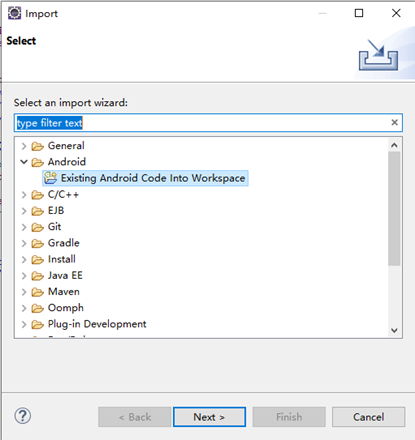
3. Go to "File > Import "to import all SDK projects to your workspace.
(1) Go to"Android > Existing Android Code Into Workspace" and click" Next".
(2) Click" Browse" and navigate to the directory where your projects are located. Select the desired projects under "Projects "and click" Finish". By default, all projects are selected. You can change the settings as needed.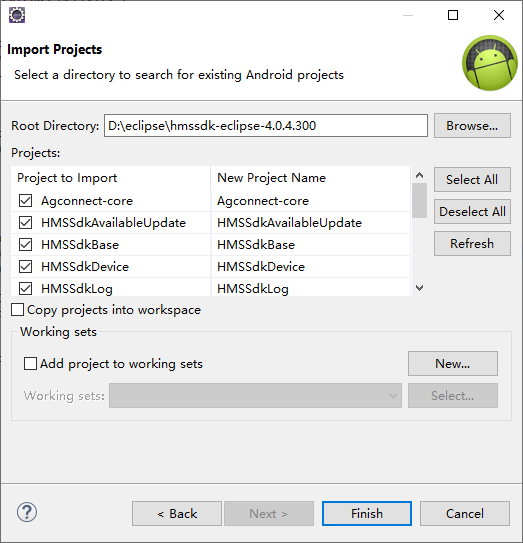
(1) The projects to be imported must be located in the same drive as your workspace, for example, "D:\". If they are not in the same drive, select "Copy projects into workspace" to copy the project files to the workspace.
(2) The Datastore-annotation directory extracted from the analyticssdk-eclipse-{version} package provides JAR packages instead of SDK subprojects. The JAR packages do not need to be imported.
(3) As the XML file in Eclipse does not support the dollar sign ($), replace "${ApplicationId}" in the AndroidManifest.xml file of the HMSSdkBase, HMSSdkOpendevice, and Agconnect-core projects with your app package name.
4. Add dependent JAR packages.
(1) Right-click your project and go to "Build Path > Configure Build Path".
(2) Choose" Java Build Path > Libraries > Add External JARs" from the navigation tree.
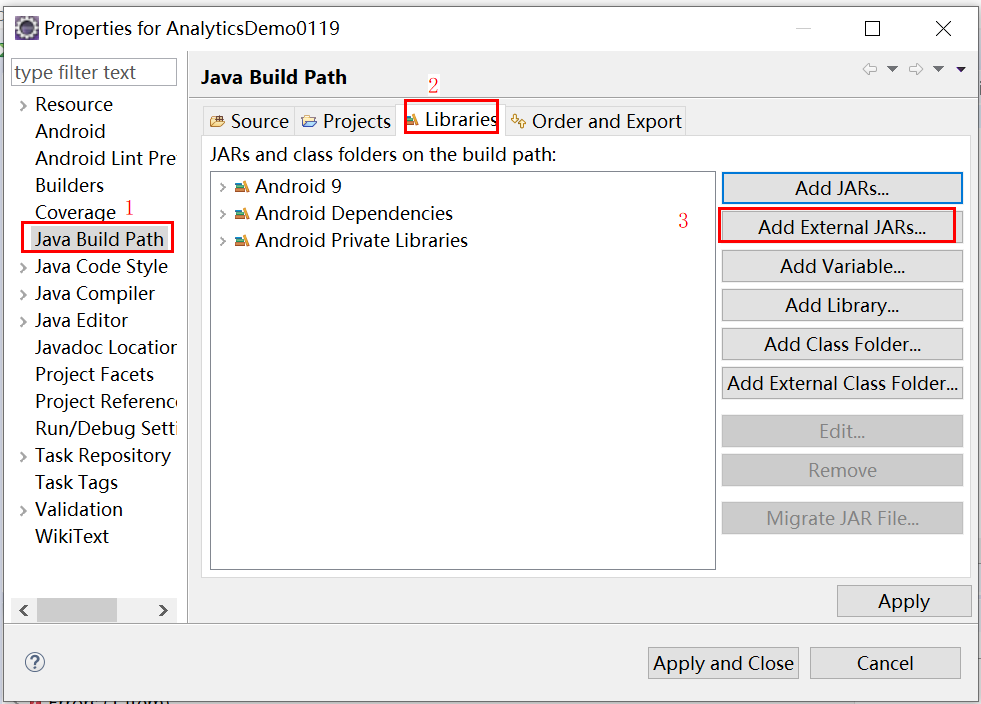
(3) In the dialog box that is displayed, add okhttp-3.11.0.jar, okio-1.14.0.jar, and datastore-annotation.jar in the Datastore-annotation directory extracted from analyticssdk-eclipse-{version}. Then, click "Apply".
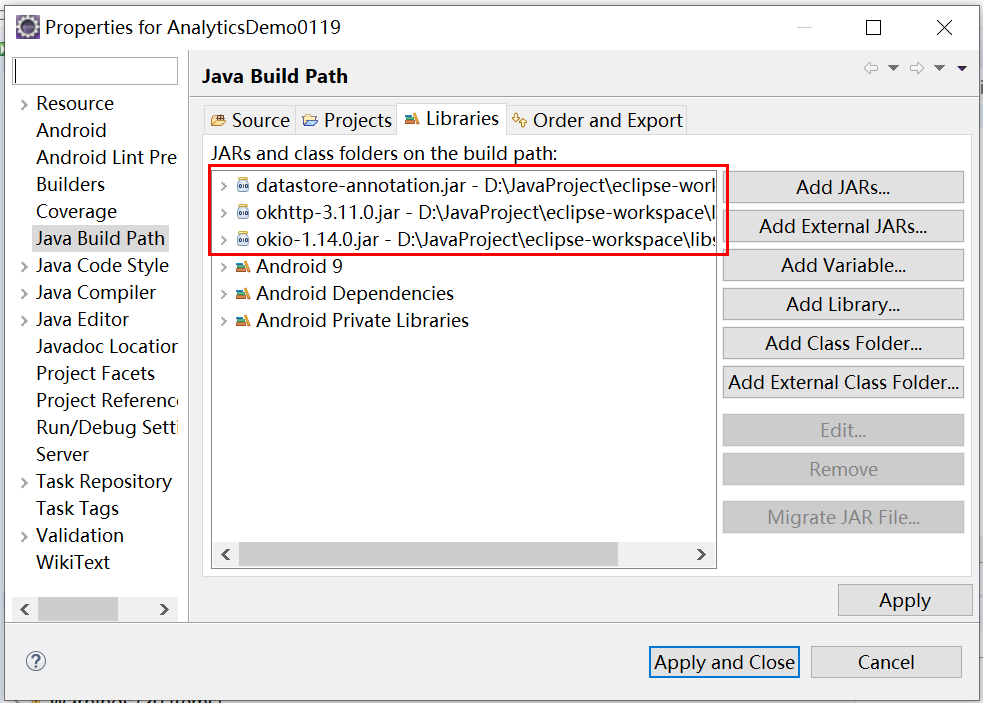
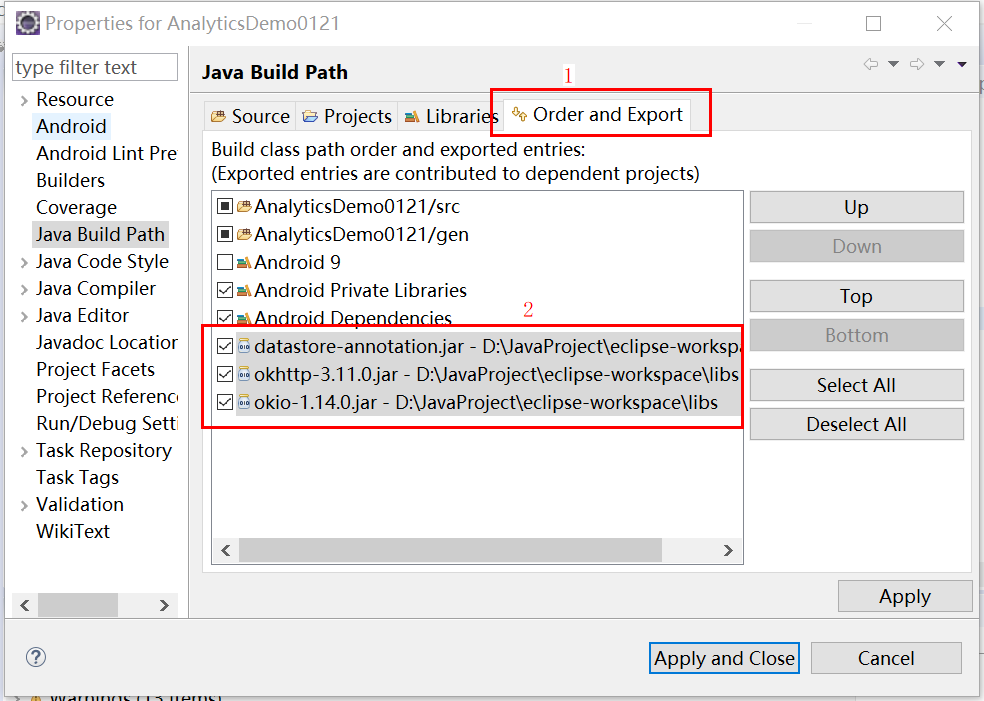
(4) Click" Order and Export", select datastore-annotation.jar, okhttp-3.11.0.jar, and okio-1.14.0.jar, and click" Apply and Close". The adding of JAR packages is complete.
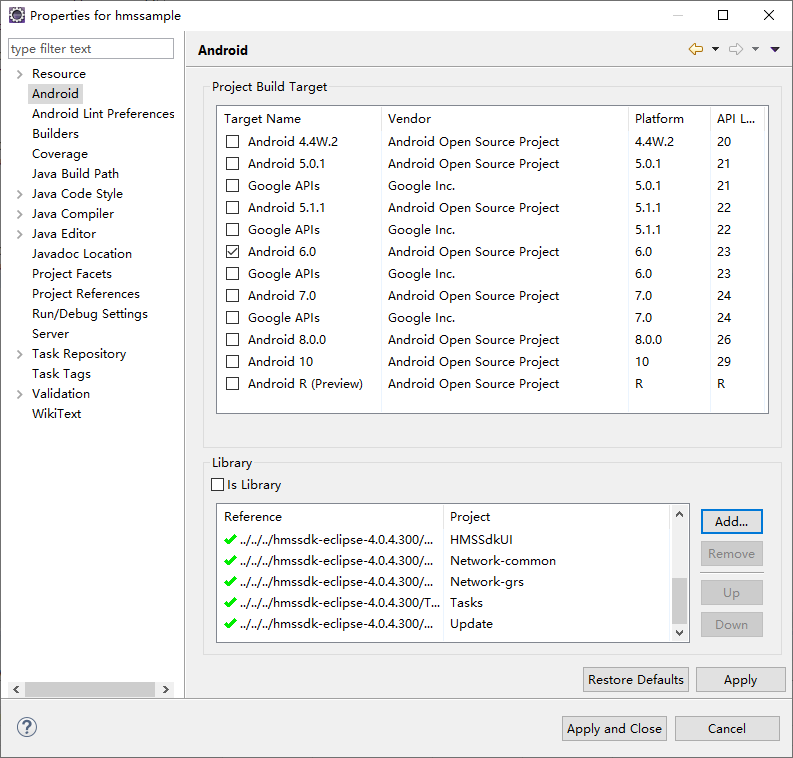
1. Right-click your app project and choose "Properties" from the shortcut menu.
2. Choose "Android" from the navigation tree. Then, click" Add "in the Library area, select the imported projects, and click "Apply and Close".
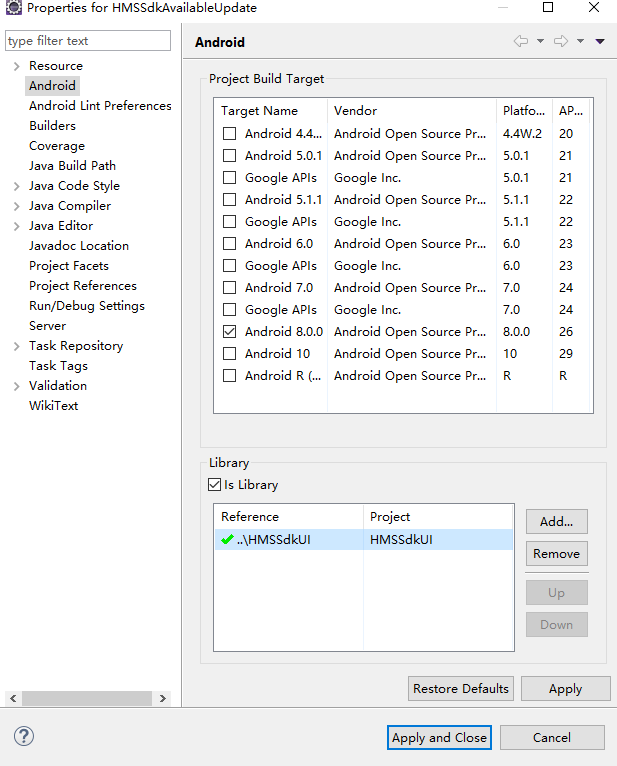
3. Right-click the HMSSdkAvailableUpdate project and choose Properties from the shortcut menu.
4. Choose Android from the navigation tree. Then, click Add in the Library area, select the HMSSdkUI project, and click Apply and Close.
Copy resource files to your project directory
The Eclipse cannot automatically merge the assets directories. You need to manually copy files in the assets directory of the subprojects to the assets directory of your project. The resource files to be copied are as follows.
| Subproject | Resource File |
|---|---|
Agconnect-credential | hmsrootcas.bks |
HMSSdkStats | hianalytics_njjn, updatesdkcas.bks |
HMSSdkAnalytics | hianalytics_njjn, hianalyticscas.bks |
Network-grs | grs_sdk_server_config.json, grs_sp.bks |
1. Find and open the project.properties file in your project directory and add the following code to merge the manifest files in the subprojects:
- manifestmerger.enabled=true
2. During project packaging and merging, the service sections in the AndroidManifest.xml files of the Agconnect-core and Agconnect-credential subprojects cannot be merged repeatedly. Delete the following code from the AndroidManifest.xml file of the Agconnect-core subproject.
- <service
- android:name="com.huawei.agconnect.core.ServiceDiscovery"
- android:exported="false" />
1. Sign in to AppGallery Connect and select "My projects".
2. Click the application to be configured.
3. Go to "Project setting > Convention".
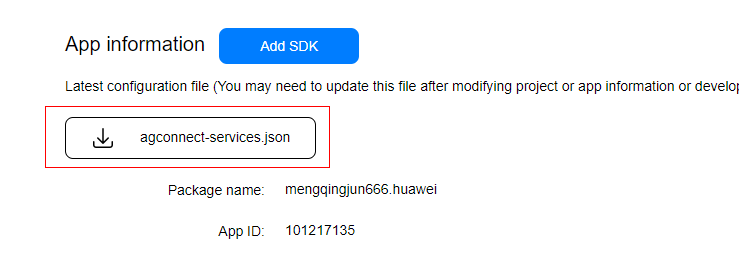
4. The Eclipse IDE does not support the AppGallery Connect plug-in. Therefore, you need to place the agconnect-services.json file in the assets directory of your project and add the following code to the Application subclass of the project. If the project does not have an Application subclass, create a subclass that extends the Application subclass, for example, MyApplication.
- public class MyApplication extends Application{
- @Override
- public void onCreate() {
- super.onCreate();
- }
- // TODO: Add the following code:
- @Override
- protected void attachBaseContext(Context context) {
- super.attachBaseContext(context);
- AGConnectServicesConfig config = AGConnectServicesConfig.fromContext(context);
- config.overlayWith(new LazyInputStream(context) {
- public InputStream get(Context context) {
- try {
- return context.getAssets().open("agconnect-services.json");
- } catch (IOException e) {
- return null;
- }
- }
- });
- }
- // TODO: End
- }
After that, import the following classes:
- import java.io.IOException;
- import java.io.InputStream;
- import com.huawei.agconnect.config.AGConnectServicesConfig;
- import com.huawei.agconnect.config.LazyInputStream;
- import android.App.Application;
- import android.content.Context;
- import android.util.Log;
5. Open the AndroidManifest.xml file of your project and add the Application subclass name to the "Application" section. If the subclass name has been added, skip this step. In the following example, the added class is named MyApplication.
- <application
- android:name=".MyApplication"
- …
- >
- </application>
6. In the Eclipse IDE menu bar, click "Project", and then "Clean".
Before building the APK, configure the obfuscation script to prevent HUAWEI Analytics Kit from being obfuscated. If obfuscation arises, HUAWEI Analytics Kit may not function properly. The configuration file in Eclipse is" proguard-project.txt".
1. Open the obfuscation script file of your project.
2. Add configurations to exclude HUAWEI Analytics Kit from obfuscation.
- -keep class com.hianalytics.android.**{*;}
- -keep class com.huawei.updatesdk.**{*;}
- -keep class com.huawei.hms.**{*;}
- -keep class com.huawei.agconnect.**{*;}
- -keep interface com.huawei.hms.analytics.type.**{*;}