


Intelligent Assistant
Chat with our virtual assistant to get answers promptly.
Documents from this version have been archived, and will not continue to be maintained. Please use the latest version.
In Bitmap mode, barcodes can be scanned using the camera or from images, which you can specify when calling the scanning API. If you choose to scan barcodes using the camera, camera control capabilities required for scanning should be developed by yourself. For the two barcode scanning ways, Scan Kit provides optimized scanning algorithms. Choosing the one that suits your needs best will provide you with the best experience.
Service Process
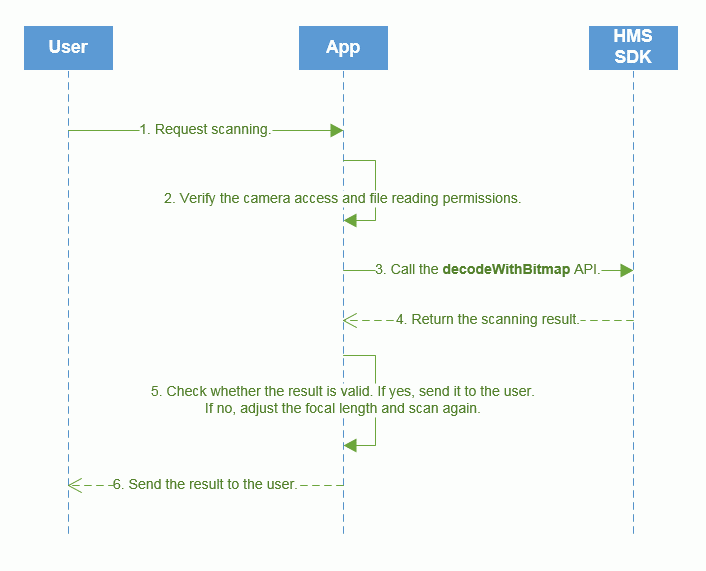
The service process of scanning barcodes using the camera in Bitmap mode is as follows:
1. A user starts an app and sends a request of scanning a barcode.
2. Check whether the app has the camera access permission.
3. If the app has the permission, call the scanning API decodeWithBitmap of the HMS SDK.
4. Return the scanning result.
5. Check whether the scanning result is valid. If it is valid, start processing the result. If zoomValue is greater than 1.0, the barcode detected is too small. Adjust the focal length accordingly to scan the barcode again.
6. The app encapsulates the scanning result and sends it to the user.
Development Process
1. Obtain an image frame of the camera.
- YuvImage yuv = new YuvImage(data, ImageFormat.NV21, camera.getParameters().getPreviewSize().width,
- camera.getParameters().getPreviewSize().height, null);
- ByteArrayOutputStream stream = new ByteArrayOutputStream();
- yuv.compressToJpeg(new Rect(0, 0, camera.getParameters().getPreviewSize().width,
- camera.getParameters().getPreviewSize().height), 100, stream);
2. Convert the camera data into bitmap data.
- Bitmap bitmap = BitmapFactory.decodeByteArray(stream.toByteArray(), 0,stream.toByteArray().length);
3. Initialize HmsScanAnalyzerOptions, set your desired barcode formats, and set the bitmap mode to camera-based barcode scanning.
The following two parameters are optional. Set them as needed.
setHmsScanTypes(): Set your desired barcode formats. Scan Kit with only a few barcode formats supported will scan faster. Barcode Formats Supported by HUAWEI Scan Kit will be scanned by default.
setPhotoMode(false): Set the bitmap mode. The default mode is camera-based scanning. Here, use the default setting.
- // QRCODE_SCAN_TYPE and DATAMATRIX_SCAN_TYPE are set for the barcode format, indicating that Scan Kit will support only QR Code and Data Matrix.
- HmsScanAnalyzerOptions options = new HmsScanAnalyzerOptions.Creator().setHmsScanTypes(HmsScan.QRCODE_SCAN_TYPE, HmsScan.DATAMATRIX_SCAN_TYPE).setPhotoMode(false).create();
4. Call the static method decodeWithBitmap of ScanUtil to initiate a barcode scanning request and obtain the scanning result object HmsScan. For the information contained in this object, please refer to Parsing Barcodes.
If you do not have specific barcode formats to set, set options to null here.
If the barcode detected is too small, Scan Kit will return an instruction to the app for adjusting the camera's focal length to obtain a clearer barcode image.
- HmsScan[] hmsScans = ScanUtil.decodeWithBitmap(BitmapActivity.this, bitmap, options);
- // Process the decoding result when the scanning is successful.
- if (hmsScans != null && hmsScans.length > 0 && !TextUtils.isEmpty(hmsScans[0].getOriginalValue())) {
- // Display the scanning result.
- showResult(hmsScans);
- }
- // If zoomValue is greater than 1.0, adjust the focal length using getZoomValue() and scan the barcode again.
- if (hmsScans != null && hmsScans.length > 0 && TextUtils.isEmpty(hmsScans[0].getOriginalValue()) && hmsScans[0].getZoomValue() != 1.0) {
- // Set the focal length of the camera. The camera generates new bitmap data and scans again. (The convertZoomInt() function is used to convert the magnification level to the value that can be received and recognized by the camera.)
- params = camera.getParameters();
- params.setZoom(convertZoomInt(hmsScans[0].getZoomValue()));
- camera.setParameters(params);
- }
Sample code for implementing the convertZoomInt() function:
- public int convertZoomInt(double zoomValue) {
- List<Integer> allZoomRatios = parameters.getZoomRatios();
- float maxZoom = Math.round(allZoomRatios.get(allZoomRatios.size() - 1) / 100f);
- if (zoomValue >= maxZoom) {
- return allZoomRatios.size() - 1;
- }
- for (int i = 1; i < allZoomRatios.size(); i++) {
- if (allZoomRatios.get(i) >= (zoomValue * 100) && allZoomRatios.get(i - 1) <= (zoomValue * 100)) {
- return i;
- }
- }
- return -1;
- }
Service Process
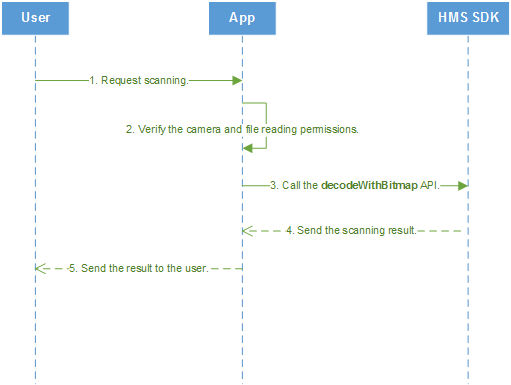
The service process of scanning barcodes from images in Bitmap mode is as follows:
1. A user starts an app and sends a request of scanning a barcode.
2. Check whether the app has the file reading permission.
3. If the app has the permission, call the scanning API decodeWithBitmap of the HMS SDK.
4. Return the scanning result.
5. The app encapsulates the scanning result and sends it to the user.
Development Process
1. Obtain an image and convert it into bitmap data.
- Bitmap bitmap = MediaStore.Images.Media.getBitmap(BitmapActivity.this.getContentResolver(), data.getData());
2. Initialize HmsScanAnalyzerOptions, set your desired barcode formats, and set the bitmap mode to image-based barcode scanning.
The following two parameters are optional. Set them as needed.
setHmsScanTypes(): Set your desired barcode formats. Scan Kit with only a few barcode formats supported will scan faster. Barcode FormatsSupported by HUAWEI Scan Kit will be scanned by default.
setPhotoMode(true): It specifies the bitmap mode. The default mode is camera-based scanning. Here, image-based barcode scanning is required, so the value is set to true.
- // QRCODE_SCAN_TYPE and DATAMATRIX_SCAN_TYPE are set for the barcode format, indicating that Scan Kit will support only QR Code and Data Matrix.
- HmsScanAnalyzerOptions options = new HmsScanAnalyzerOptions.Creator().setHmsScanTypes(HmsScan.QRCODE_SCAN_TYPE, HmsScan.DATAMATRIX_SCAN_TYPE).setPhotoMode(true).create();
3. Call the static method decodeWithBitmap of ScanUtil to initiate a barcode scanning request and obtain the scanning result object HmsScan. For the information contained in this object, please refer to Parsing Barcodes.
If you do not have specific barcode formats to set, set options to null here.
- HmsScan[] hmsScans = ScanUtil.decodeWithBitmap(BitmapActivity.this, bitmap, options);
- // Process the scanning result.
- if (hmsScans != null && hmsScans.length > 0) {
- // Display the scanning result.
- showResult(hmsScans);
- }