Only messages with medium and high priorities can be displayed in the customized notification channel. Messages with the low priority are displayed in the marketing notification channel.

Notification channel is a new function introduced in the Android O version to resolve the following issues:
1. More and more notification messages are sent by apps, causing obvious disturbance to users.
2. In versions earlier than EMUI 10.0, Huawei phones provide a default notification channel that is not customizable.
From EMUI 10.0 and on, three notification channels (service reminder, common notification, and marketing notification) are added to display notification messages of different priorities (high, medium, and low). Besides, a customized notification channel can be created. For details about how to create a customized notification channel, please refer to the related Android official document. To display messages in a customized channel for your app, you only need to set the channel_id field in message > android > notification of the request sent to the HUAWEI Push Kit server to the ID of the desired channel. Whether the messages can be displayed in a notification channel of your app depends on whether the channel has been created and enabled on the user device.
Only messages with medium and high priorities can be displayed in the customized notification channel. Messages with the low priority are displayed in the marketing notification channel.
Sample code:
- {
- "message": {
- "notification": {
- "title": "message title",
- "body": "message body"
- },
- "android": {
- "notification": {
- "channel_id": "RingRing",
- "click_action": {
- "type": 2,
- "url": "https://example.com"
- }
- }
- },
- "token": [
- "pushtoken1"
- ]
- }
- }
Notification message localization refers to displaying titles and content of notification messages in the system language of the destination device.
The following figure shows notification messages displayed in different languages.
After localization, notification messages can be displayed in NC. Alternatively, you can call a RESTful API of the HUAWEI Push Kit server to configure that notification messages are processed by the app when it runs in the foreground. This section describes how to develop the two processing modes.
You can use two methods to implement this display mode. Method 1: Call a RESTful API of the HUAWEI Push Kit server to perform configuration but do not configure the strings.xml file of your app. Method 2: Call a RESTful API of the HUAWEI Push Kit server to perform configuration (excluding defining the multi_lang_key field) and configure the strings.xml file of your app.
Note: If both the multi_lang_key field and the strings.xml file of your app are specified, the multi_lang_key field is used preferentially. If this field fails to be read, the display mode is read from the strings.xml file of your app.
The following is an example of the JSON configuration. If you want to define the title field as variable, the title_loc_args field must be defined.
- {
- "title_loc_key": "title_key",
- "body_loc_key": "body_key",
- "body_loc_args": [
- "Jack",
- "Shanghai"
- ],
- "multi_lang_key": {
- "title_key": {
- "en": "New Friend Request",
- "zh": "添加好友请求",
- "ru": "Запрос нового друга"
- },
- "body_key": {
- "en": "My name is %s, I am from %s.",
- "zh": "我叫%s,来自%s。",
- "ru": "Меня зовут %s, я из %s."
- }
- }
- }
The value of the multi_lang_key field is an object, whose title and body must be the same as the values of the title_loc_key and body_loc_key fields. In the preceding example, the value of the body_key field is also an object, which supports a maximum of three languages currently. The value of the en field is a formatted string, and the placeholder %s indicates a string value. The value of the body_loc_args field is a variable string array, which is used to replace the placeholders in the value of the en field. You can set the body_loc_args field based on the service requirements.
The following is an example of the JSON configuration. If you want to define the title field as variable, the title_loc_args field must be defined.
- "title_loc_key": "title_key",
- "body_loc_key": "body_key",
- "body_loc_args": ["Jack", "Shanghai"]
In the /res/values/strings.xml file, define string resources as follows, where the body_key field supports placeholders. For each placeholder, the number next to the percent sign (%) indicates the position of the placeholder and the character next to the dollar sign ($) indicates the data type.
- <string name="title_key">New Friend Request</string>
- <string name="body_key">My name is %1$s, I am from %2$s.</string>
Refer to the following code to dynamically obtain a variable string and format the resource string by replacing placeholders with specified values.
- public class DemoHmsMessageService extends HmsMessageService {
- @Override
- public void onMessageReceived(RemoteMessage message) {
- String[] bodyArrays = message.getNotification().getBodyLocalizationArgs();
- String key = getResources().getString(R.string.body_key);
- String body = String.format(key, bodyArrays[0], bodyArrays[1]);
- Log.i(TAG, body);
- }
- }
The HMS Core Push SDK does not provide the method of obtaining the value of multi_lang_key set by using a RESTful API of the HUAWEI Push Kit server. Therefore, to enable your app to display notification messages, you must configure the strings.xml file of your app. For details, please refer to Method 2 in Message Display in NC.
Assume that you have used the HUAWEI Push Kit server's open API to configure that if the app is running in the foreground, notification messages are not displayed in NC but transparently transmitted to the app. When your app server sends a notification message, the message is processed for display by the app. You can set the foreground_show field in message > android > notification to the role that displays the message.
Sample code:
- {
- "message": {
- "notification": {
- "title": "message title",
- "body": "message body"
- },
- "android": {
- "notification": {
- "foreground_show": false,
- "click_action": {
- "type": 1,
- "action": "com.huawei.codelabpush.intent.action.test"
- }
- }
- },
- "token": [
- "pushtoken1"
- ]
- }
- }
Field value description: If this field is set to true or left empty, notification messages are displayed in NC even when your app is running in the foreground. If this field is set to false, notification messages are not displayed in NC. Instead, all notification message content is transmitted to the app through the onMessageReceived(RemoteMessage message) method of the HmsMessageService class, and the app calls the method provided by the RemoteMessage class to obtain related fields. In this case, HUAWEI Push Kit does not verify the fields in the messages.
If a user does not tap or delete a notification message that is displayed on a device, the notification message can be overwritten by a new notification message. This function can be implemented through an API provided by the HUAWEI Push Kit server, specifically, through the tag field (whose value is a string), the notify_id field (whose value is an integer), or the group field (whose value is a string).
Sample code containing the tag field:
- {
- "message": {
- "notification": {
- "title": "message title",
- "body": "message body"
- },
- "android": {
- "notification": {
- "tag": "tagBoom",
- "click_action": {
- "type": 2,
- "url": "https://example.com"
- }
- }
- },
- "token": [
- "pushtoken1"
- ]
- }
- }
For messages with the same tag value, the older one will be overwritten by the newer one.
Sample code containing the notify_id field:
- {
- "message": {
- "notification": {
- "title": "message title",
- "body": "message body"
- },
- "android": {
- "notification": {
- "notify_id": 123,
- "click_action": {
- "type": 2,
- "url": "https://example.com"
- }
- }
- },
- "token": [
- "pushtoken1"
- ]
- }
- }
The notify_id field specifies the unique notification ID of a message. Different notification messages can have the same notify_id value, and the older one will be overwritten by the newer one.
Sample code containing the group field:
- {
- "message": {
- "notification": {
- "title": "message title",
- "body": "message body"
- },
- "android": {
- "notification": {
- "group": "espace",
- "click_action": {
- "type": 2,
- "url": "https://example.com"
- }
- }
- },
- "token": [
- "pushtoken1"
- ]
- }
- }
For multiple messages with the same group value, only the latest one will be displayed.
tag, notify_id, and group are mutually exclusive. Only one of them should be used. However, if all of them are used, group will take the precedence, followed by tag and then notify_id.
This function enables you to send topic-based messages based on a combination of conditions, or in another word, a Boolean expression of target topics. For example, you can send messages to users who have subscribed to both the weather and sports topics. Currently, this function is only available in Android apps. For details about the condition field, please refer to Sending Messages.
Sample code:
- {
- "validate_only": false,
- "message": {
- "notification": {
- "title": "message title",
- "body": " message body"
- },
- "android": {
- "notification": {
- "click_action": {
- "type": 1,
- "action": "com.huawei.codelabpush.intent.action.test"
- }
- }
- },
- "condition": "'weather' in topics && 'sports' in topics"
- }
- }
By using the offline message cache identifier, namely, the collapse_key field provided by the server API, you can control the caching and overwritting of offline messages. For details about the collapse_key field, please refer to Sending Messages.
Sample code:
- {
- "validate_only": false,
- "message": {
- "notification": {
- "title": "message title",
- "body": "message body"
- },
- "android": {
- "collapse_key": 0,
- "notification": {
- "click_action": {
- "type": 2,
- "url": "https://example.com"
- }
- }
- },
- "token": [
- "pushtoken1"
- ]
- }
- }
You can control the caching duration of offline messages using the ttl field provided by the server API. For details about the ttl field, please refer to Sending Messages.
Sample code:
- {
- "validate_only": false,
- "message": {
- "notification": {
- "title": "message title ",
- "body": "message body"
- },
- "android": {
- "notification": {
- "click_action": {
- "type": 2,
- "url": "https://example.com"
- }
- },
- "ttl": "1000"
- },
- "token": [
- "pushtoken1"
- ]
- }
- }
When using the default style, a notification includes only a single line of text. To provide more information, you can use the large text style, where a large chunk of text (up to 11 lines are allowed by EMUI) can be displayed under the title line. The following figure shows an expanded notification in the large text style.

Sample code:
- {
- "validate_only": false,
- "message": {
- "android": {
- "notification": {
- "title": "message title",
- "body": " message body",
- "click_action": {
- "type": 1,
- "intent": "#Intent;compo=com.rvr/.Activity;S.W=U;end"
- },
- "style": 1,
- "big_title": "the big title",
- "big_body": "the big body"
- }
- },
- "token": [
- "pushtoken1"
- ]
- }
- }
The title and text displayed before the notification is expanded use the values of the title and body fields, rather than those of the big_title and big_body fields.
If the screen of a mobile phone is locked, the content of a received notification message will not be displayed on the lock screen. To enable this function, set the visibility field in the Sending Messages API provided by the HUAWEI Push Kit server. The options are of the visibility field are as follows:
VISIBILITY_UNSPECIFIED: The visibility is not specified. This value is equivalent to PRIVATE.
PUBLIC: The content of a received notification message is displayed on the lock screen.
SECRET: A received notification message is not displayed on the lock screen.
PRIVATE: If you have set a lock screen password and enabled Hide notification content under Settings > Notifications, the content of a received notification message is hidden on the lock screen.
Sample code:
- {
- "message": {
- "notification": {
- "title": "message title",
- "body": "message body"
- },
- "android": {
- "notification": {
- "visibility": "PRIVATE",
- "click_action": {
- "type": 2,
- "url": "https://example.com"
- }
- }
- },
- "token": [
- "pushtoken1"
- ]
- }
- }
HUAWEI Push Kit provides an API for setting badges on the server. You can encapsulate badge parameters in messages. For notification messages, HUAWEI Push Kit will display the badge number on the app. For data messages, your app needs to call the getBadgeNumber() method to obtain badge parameters from the message and display the badge number.
Sample code for setting a badge on the server:
- {
- "validate_only": false,
- "message": {
- "notification": {
- "title": "message title ",
- "body": "message body"
- },
- "android": {
- "notification": {
- "click_action": {
- "type": 2,
- "url": "https://example.com"
- },
- "badge": {
- "add_num": 1,
- "class": "com.huawei.codelabpush.MainActivity",
- "set_num": 10
- }
- },
- "ttl": "1000"
- },
- "token": [
- "pushtoken1"
- ]
- }
- }
For details about badge development on the client, please refer to Interface Description for Badging on Huawei Desktop.
1. By default, when a user starts the app, taps a notification message, or clears a notification message, the badge number will not be deleted. To enable your app to clear the badge number, perform development on the client by referring to Interface Description for Badging on Huawei Desktop.
2. If both add_num and set_num are set, set_num will take the precedence.
HUAWEI Push Kit provides two methods for setting notification message icons: Method 1: Set the icon field in the Sending Messages API provided by the HUAWEI Push Kit server. Method 2: Add meta-data to the AndroidManifest.xml file. Here, we describe method 2 in detail.
Add <meta-data> to the application element. Do not modify name in the meta-data element and use resource to specify a resource icon, which must be stored in the res/drawable directory of your app.
- <application
- <meta-data
- android:name="com.huawei.messaging.default_notification_icon"
- android:resource="@drawable/ic_push_notification" />
- </application>
1. The icon file stored by the app must have an extension name but the extension name must not be included in the URI. Currently, supported file formats include PNG and JPG.
2. If both methods are used, the icon specified by the icon field will be displayed preferentially. If neither method is used, the desktop icon of your app will be used by default.
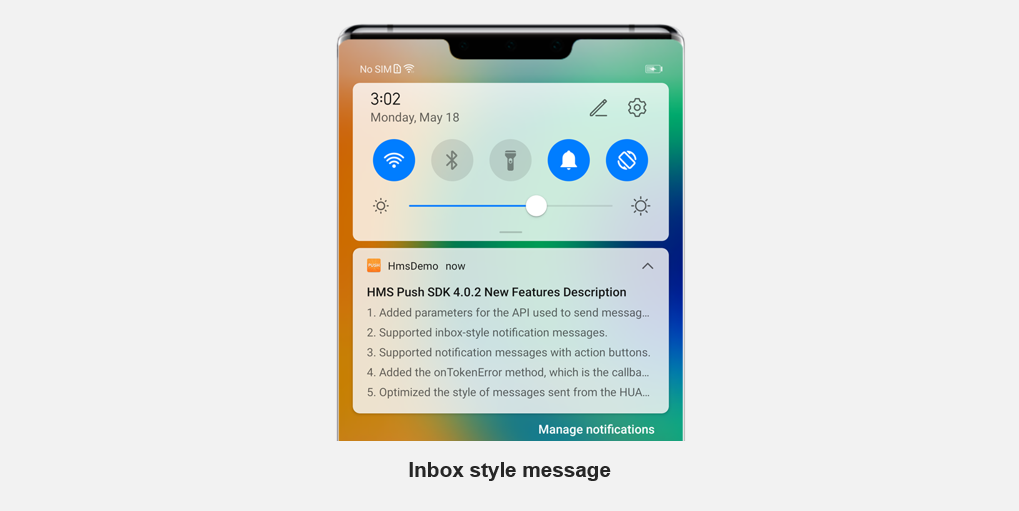
Different from the large text style, the inbox style allows notification text to be displayed in sequence in separate lines, as shown in the figure below. The sequence numbers of the text lines are added manually and a maximum of five lines can be displayed. When text cannot be completely displayed in a line due to space restrictions, an ellipsis (...) will be automatically added to the end of the line.
Sample code:
- {
- "validate_only": false,
- "message": {
- "android": {
- "notification": {
- "title": "message title",
- "body": " message body",
- "click_action": {
- "type": 1,
- "intent": "#Intent;compo=com.rvr/.Activity;S.W=U;end"
- },
- "style": 3,
- "big_title": "HMS SDK 4.0.0 Feature Description",
- "inbox_content": [
- "1. Added the function of displaying notification messages on the UI.",
- "2. Added the automatic initialization capability.",
- "3. Added the function of sending messages to web apps through the WebPush agent.",
- "4. Added the function of sending messages to web apps through the WebPush agent.",
- "5. Expanded the application scope of the some functions."
- ]
- }
- },
- "token": [
- "pushtoken1"
- ]
- }
- }
When using the inbox style, ensure that the size of the inbox_content array is at least two, namely, the array should contain at least two messages. Otherwise, it is recommended that you use the large text style instead.
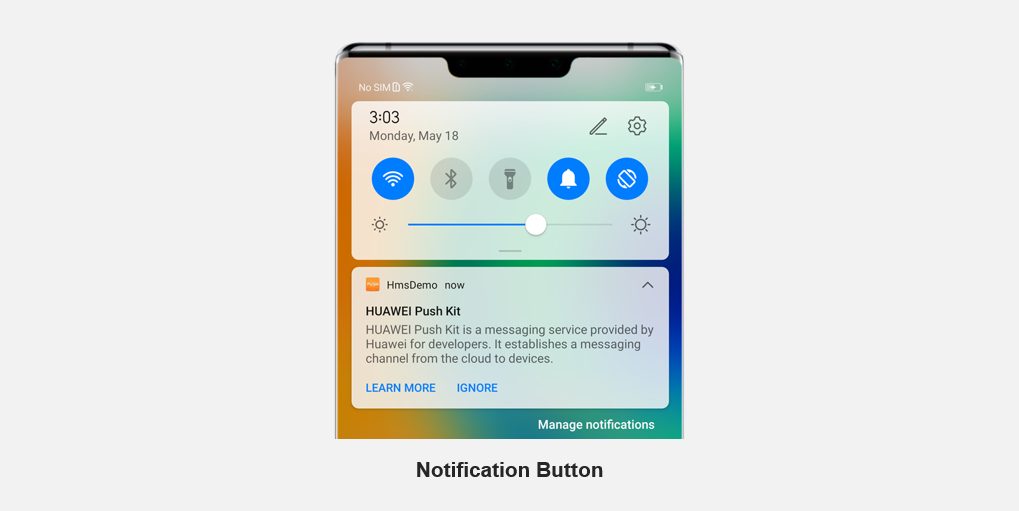
You can add action buttons to notification messages. A tap on the buttons will trigger the predefined actions. For details about the types of actions supported, please refer to the Button Structure provided by the server API. The figure below shows a notification message with action buttons.
Sample code:
- {
- "validate_only": false,
- "message": {
- "android": {
- "notification": {
- "title": "message title",
- "body": " message body",
- "click_action": {
- "type": 1,
- "intent": "#Intent;compo=com.rvr/.Activity;S.W=U;end"
- },
- "style": 1,
- "buttons": [
- {
- "action_type": 0,
- "name": "Learn more"
- },
- {
- "action_type": 3,
- "name": "Ignore"
- }
- ],
- "big_title": "HUAWEI Push Kit",
- "big_body": "HUAWEI Push Kit is a messaging service provided by Huawei for developers. It establishes a messaging channel from the cloud to devices."
- }
- },
- "token": [
- "pushtoken1"
- ]
- }
- }
If the value of name is in English, the button name will be displayed in uppercase letters in the message.
If the value of action_type is 0 or 1, a tap on the button will launch your own app and data specified by the data field will be sent to the app. Sample code:
- {
- "validate_only": false,
- "message": {
- "android": {
- "notification": {
- "title": "message title",
- "body": " message body",
- "click_action": {
- "type": 1,
- "intent": "#Intent;compo=com.rvr/.Activity;S.W=U;end"
- },
- "style": 1,
- "buttons": [
- {
- "name": "Learn more",
- "action_type": 1,
- "intent_type": 0,
- "intent": "intent://com.huawei.codelabpush/deeplink?#Intent;scheme=pushscheme;launchFlags=0x4000000;i.age=180;S.name=abc;end",
- "data": "{\"key1\":\"value1\",\"key2\":\"value2\",\"keyn\":\"valuen\"}"
- }
- ],
- "big_title": "HUAWEI Push Kit",
- "big_body": "HUAWEI Push Kit is a messaging service provided by Huawei for developers. It establishes a messaging channel from the cloud to devices."
- }
- },
- "token": [
- "pushtoken1"
- ]
- }
- }
For details about how to read the value of the data field, please refer to the data receiving method as described in Opening the Home Page of an App.