Overview
Some AppGallery Connect services may require you to specify a location for them to process your app and user data.
If you do not specify a data processing location for a specific service, the service will process your app and user data at the default data processing location that you set for your project.
Service | Access All Enabled Locations | Access Only the Default Location | Automatically Delete Cloud-side Data When an Enabled Location Is Disabled | Automatically Delete Cloud-side Data When the Default Location Is Changed |
|---|---|---|---|---|
Auth Service | √ | - | - | - |
API gateway | √ | - | - | - |
Crash | √ | - | √ | √ |
APM | - | √ | - | √ |
Push Kit | - | √ | - | √ |
Remote Configuration | √ | - | √ Statistics generated by HUAWEI Analytics will be deleted. Configurations you made will not be deleted. | √ Statistics generated by HUAWEI Analytics will be deleted. Configurations you made will not be deleted. |
App Messaging | √ | - | √ Statistics generated by HUAWEI Analytics will be deleted. Message configurations you made will not be deleted. | √ Statistics generated by HUAWEI Analytics will be deleted. Message configurations you made will not be deleted. |
App Linking | √ | - | √ Indicators related to the number of users, which are generated by HUAWEI Analytics, will be deleted. Dynamic link configurations and other indicators will not be deleted. | √ Indicators related to the number of users, which are generated by HUAWEI Analytics, will be deleted. Dynamic link configurations and other indicators will not be deleted. |
Dynamic Tag Manager (DTM) | - | √ | - | √ |
Awareness Kit | - | √ | - | √ |
Search Kit | - | √ | - | √ |
3D Modeling Kit | - | √ | - | √ |

As described in the preceding table, cloud-side data will automatically be deleted and cannot be restored when the default data processing location is changed or an enabled data processing location is disabled for some of the services. Because of this, you are advised not to perform such operations. If such operations are inevitable, evaluate the consequence first and back up related data in advance.
[h2]Supported Data Processing Locations
AppGallery Connect provides the following locations for you to enable:
- China
- Germany
- Russia
- Singapore
[h2]Setting Rules
Take the following into consideration when selecting a data processing location (including setting the default data processing location for a project):
- Whether in compliance with relevant laws and regulations, including but not limited to the laws and regulations of the countries or regions in which your users are located, and the export and sanction laws and regulations of the United Nations, China, the United States, and other countries or regions.
- Distance between your user and the data processing location. The further the distance, the greater the network latency.
Enabling Data Processing Locations
You can set the data processing location of a project in the following scenarios:
Scenario 1:
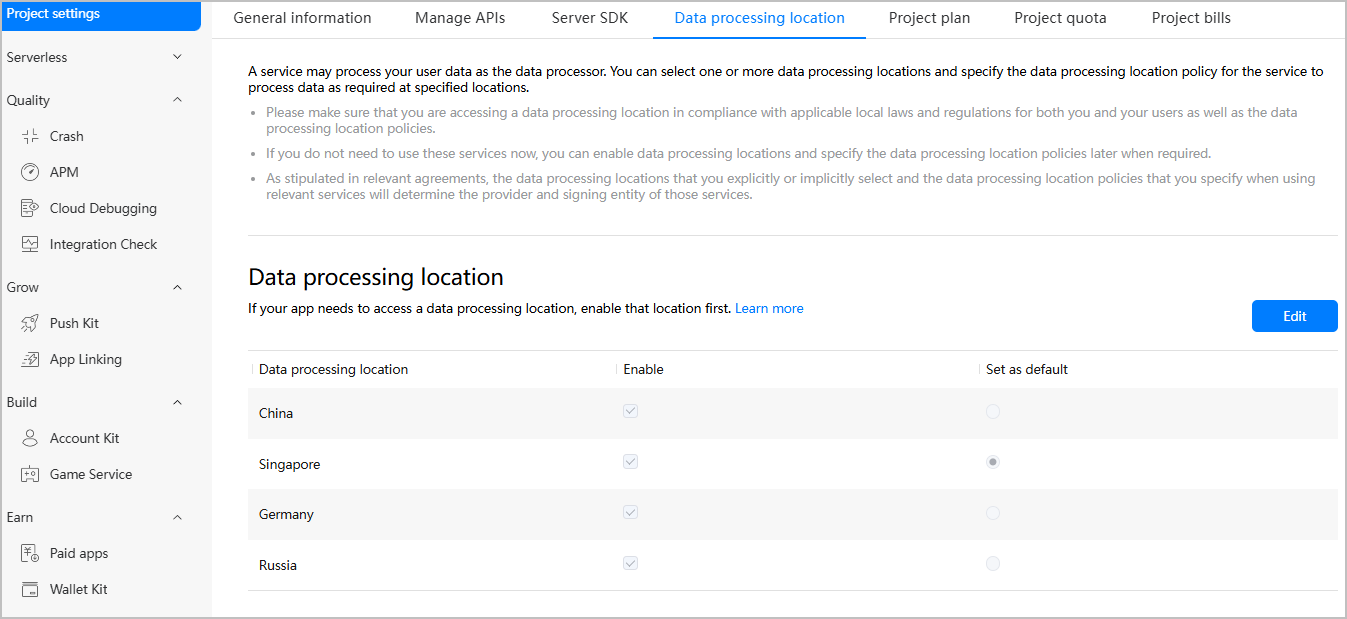
You can set one or more data processing locations under Project settings > Data processing location. The procedure is as follows:
- Sign in to AppGallery Connect and click Development and services.
- Click the project for which you want to set data processing locations.
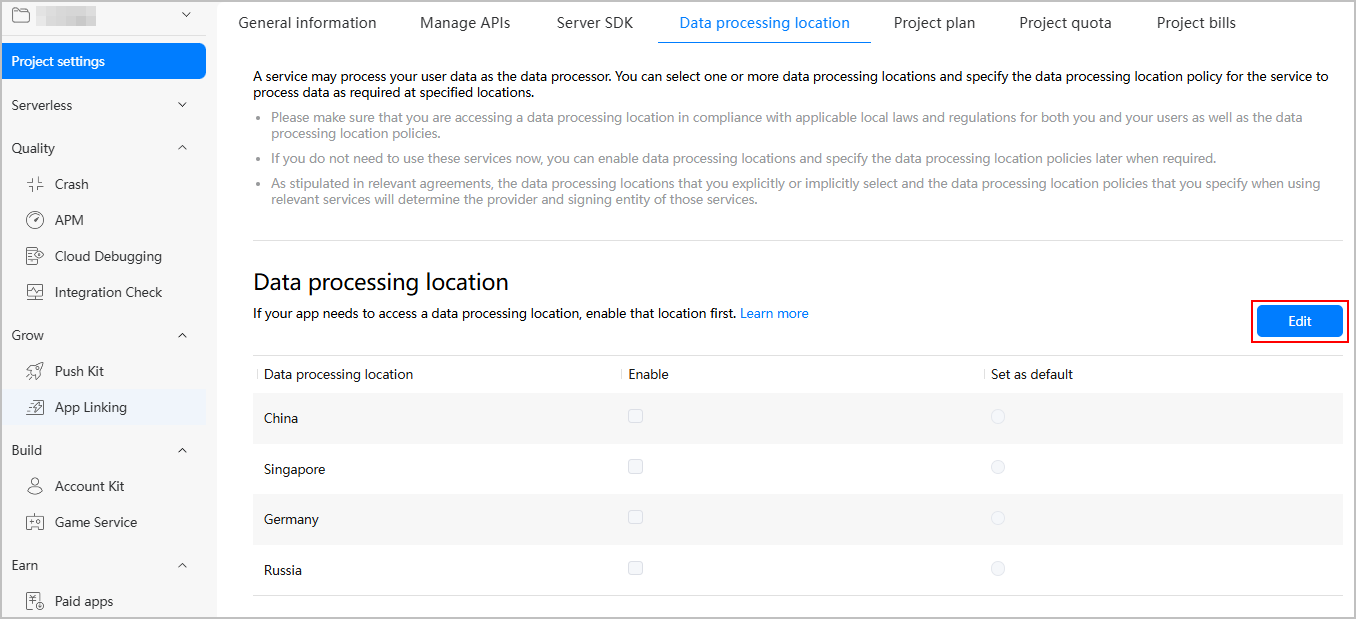
- Go to Project settings > Data processing location, and click Edit.
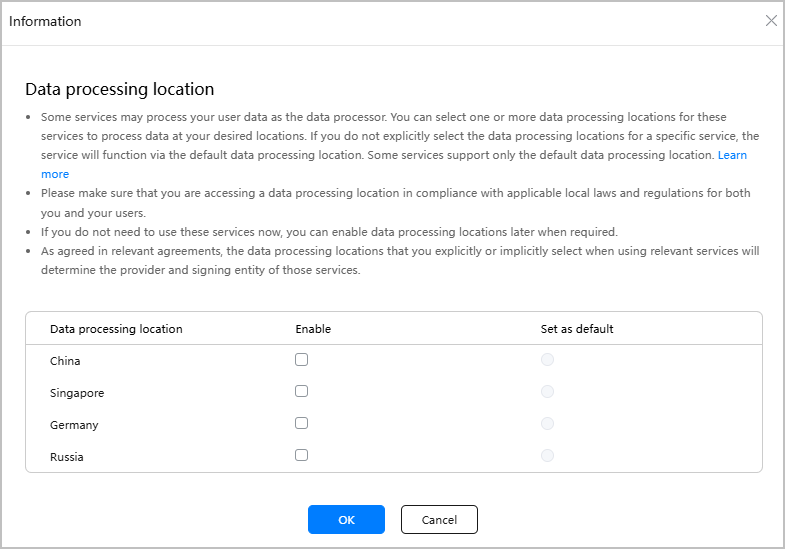
- Read the messages on the top, select one or more data processing locations in the Enable column, and set one as the default data processing location in the Set as default column.

- Only an enabled data processing location can be set as the default data processing location.
- When there is only one enabled data processing location, you must set it as the default data processing location.
- When you have enabled multiple data processing locations, you can process your app and user data at multiple locations.
- Click Save.
Scenario 2:
When you enable a service for the first time, you can set one or more data processing locations. The procedure for setting data processing locations for Auth Service is as follows:
- On the Auth Service page, click Enable Now.

- Read the messages in the dialog box, select one or more data processing locations in the Enable column, and set one as the default data processing location in the Set as default column.

- Only an enabled data processing location can be set as the default data processing location.
- When there is only one enabled data processing location, you must set it as the default data processing location.
- Click OK.
Editing the Settings
To edit the settings, such as enabling or disabling a data processing location, or changing the default data processing location, perform the following steps.
- Sign in to AppGallery Connect and click Development and services.
- Click the project for which you want to change the data processing location.
- Go to Project settings > Data processing location, and click Edit.

- On the Data processing location tab page, you can:
- Enable a data processing location in the Enable column and then click Save.
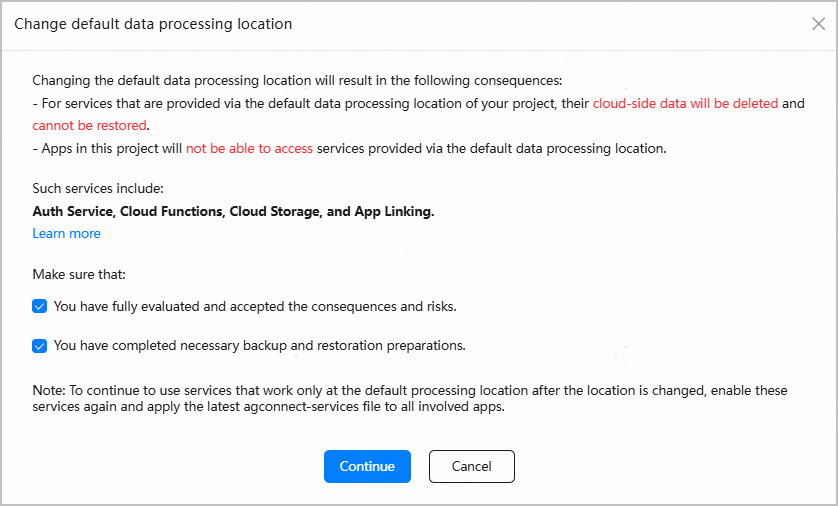
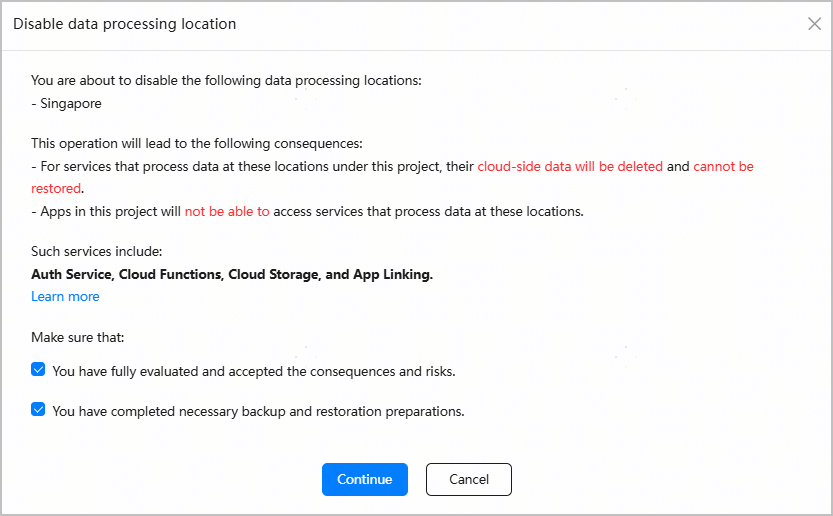
- Disable an enabled data processing location in the Enable column and then click Save. In the displayed dialog box, read the message, select the confirmation items, and click Continue. To cancel the change, click Cancel.

- If you want to disable the default data processing location, set another location as the default one first and then disable the original default location.
- When a data processing location is disabled, the cloud-side data of some services at that location will be deleted and cannot be restored, and apps in this project will not be able to access the affected services.
- Change the default data processing location in the Set as default column and then click Save.

- Before setting a new default data processing location, ensure that it has been enabled.
- The interval for changing the default data processing location cannot be less than one hour.

- (Optional) A dialog box will be displayed if you have changed the default data processing location. Read the content in the dialog box, confirm the information, select the check boxes, and click Continue. To cancel the change, click Cancel.

Changing the default data processing location will result in the following consequences:
- For services that work only at the default data processing location, their cloud-side data will be deleted and cannot be restored.
- Released versions of apps in this project may fail to access services provided via the data processing location.
- Services that work only at the default data processing location need to be enabled again after the location is changed, and the latest agconnect-services file needs to be applied to all involved apps. When the default data processing location of a service is changed, the service does not need to be enabled again.