Error Code | Description |
|---|---|
Failed to parse the package due to an unknown error. | |
The package is invalid because the default widget does not meet the requirements. | |
The package is invalid because the preload module is missing. | |
The package is invalid because the size of a single module exceeds 2 MB. | |
The size of the package exceeds 10 MB. | |
The package is invalid because the package it depends on is missing. | |
This atomic service uses the FA model. For each device type under this model, non-entry modules are not allowed. | |
This atomic service has multiple entry packages for a device type, but only one entry package is allowed. | |
The device types default and phone coexist. | |
The widgets and snapshots in the package do not meet the requirements. | |
Invalid package. | |
The value of bundleName parsed from the package is different from that set when the app was created, or the names of involved HAPs are not the same. | |
Invalid profile. | |
The package does not exist. | |
The package you uploaded is not a HarmonyOS package with the file name extension .app. | |
Failed to parse the package due to an unknown error. | |
The value of bundleName does not match the app. | |
The uploaded package does not support the selected devices. | |
The profile type used by the uploaded HarmonyOS app package is incorrect. | |
The profile used by the uploaded HarmonyOS app package has expired. | |
The profile used by the uploaded HarmonyOS app package does not match the certificate. | |
The certificate used by the uploaded HarmonyOS app package has expired. | |
The certificate used by the uploaded HarmonyOS app package has not taken effect. | |
An app with the same value of bundleName has been created. | |
The certificate is invalid. | |
The HAP is too large. | |
The version number of the submitted HarmonyOS app is earlier than the version number of shell.apk in the package. | |
The associated Android app is incorrect. | |
Either appId or packageName of the Android app bound to the atomic service is missing. | |
The package is not an atomic service package. | |
The package is not a HarmonyOS app package. | |
The HAPs in the package are of different types. | |
The HAP has not been signed. | |
The compressed package format failed the security check. | |
The API version of the uploaded test package is earlier than 10. | |
Custom encryption is not supported. | |
The package type does not match the app type. | |
The shell.apk file is missing. | |
Failed to read shell.apk. | |
The permission list in shell.apk exceeds the upper limit. | |
The permissions configured in the package are inconsistent with those requested by the profile. | |
The package cannot be released. | |
The version of the profile in the package does not meet requirements. | |
System error. | |
The package cannot be released on AppGallery. | |
The package cannot be released on AppGallery. | |
The package cannot be released on AppGallery. | |
API call validation failed for your atomic service. | |
The uploaded CSR file is invalid. |
Error code 4: Failed to parse the package due to an unknown error
This problem is caused by an unknown error during package parsing. Try again later. If the problem persists, submit a ticket to Huawei technical support.
Error code 5: The package is invalid because the default widget does not meet the requirements
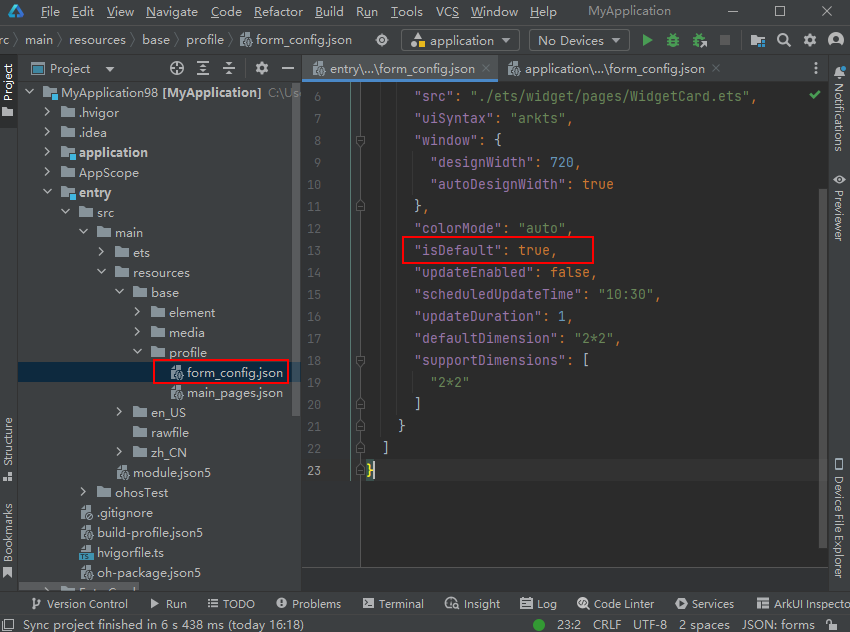
Each atomic service must have only one default widget per device type, and this default widget can only be placed in the entry package.
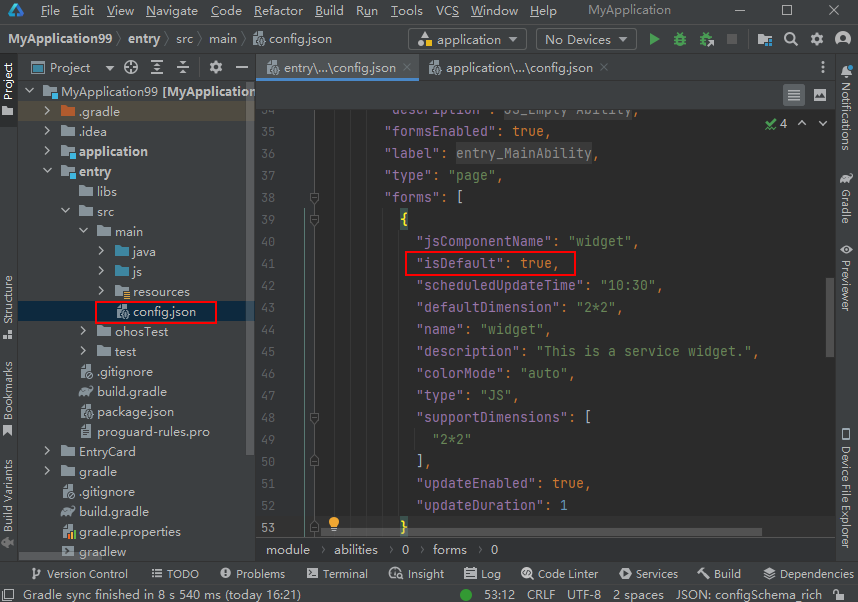
Check whether the isDefault field set for each device type in your package meets the following specifications. If not, modify the setting as required and re-package the atomic service.
- For an atomic service adopting the stage model: There must be only one isDefault whose value is set to true in src/main/resources/base/profile/form_config.json of the entry package, and isDefault in src/main/resources/base/profile/form_config.json of other modules must be set to false.
- For an atomic service adopting the FA model: There must be only one isDefault whose value is set to true in the src/main/config.json file of any module.
- If there is no isDefault in the mentioned files, the default widget has not been created. In this case, create a default widget by right-clicking any file under entry and choosing New > Service Widget from the shortcut menu.
Error code 6: The package is invalid because the preload module is missing
This error occurs because the package lacks the preload module. Add the preload module and upload the package again. For details, please refer to Preloading.
Error code 7: The package is invalid because the size of a single module exceeds 2 MB
For an atomic service that adopts the stage model, its package must meet the following requirements:
- The size of each module of any type in your APP package cannot exceed 2 MB.
- The total size of a module and the Harmony Shared Packages (HSPs) it depends on via the dependency mechanism is 2 MB at most.

If an HSP is required by both an entry package and subpackages, it is only counted in the size of the entry package and not again in the subpackages. For example, if an atomic service contains an entry package and subpackage 1, the entry package depends on HSP 1 and HSP 2, and subpackage 1 depends on HSP 1 and HSP 3, then the size of the entry package = entry package itself + HSP 1 + HSP 2, and the size of subpackage 1 = subpackage 1 itself + HSP 3.
Check whether your atomic service package meets the preceding requirements. If not, delete invalid resources, re-package the atomic service, and upload the new package.
Error code 8: The size of the package exceeds 10 MB
Check whether your package meets either of the following requirements:
- For an atomic service adopting the FA model: The size of each HAP is 10 MB at most.
- For an atomic service adopting the stage model: The total size of all modules for a device type of an atomic service is 10 MB at most.
If your package fails to meet the requirement, delete invalid resources, re-package the atomic service, and upload the new package.
Error code 9: The package is invalid because the package it depends on is missing
This error occurs because a dependency is configured for the atomic service, but AppGallery Connect cannot find the package that your package depends on. Add the missing package and upload your package again.
Error code 10: This atomic service uses the FA model. For a device type under this model, non-entry modules are not allowed
For an atomic service adopting the FA model, there can be only one entry package for a device type of the atomic service. Therefore, delete non-entry modules and upload the package again.
Error code 11: This atomic service has multiple entry packages for a device type, but only one entry package is allowed
Only one entry package is allowed for a device type of an atomic service. Delete unnecessary entry packages and try again.
Error code 12: The device types default and phone coexist
This error occurs because the deviceTypes field is set to default and phone at the same time in the module.json5 file for a module in the package. Delete default and upload the package again.
Error code 13: The widgets and snapshots in the package do not meet the requirements
For an atomic service with API version 11 or later, if its package contains widgets, the package must also contain snapshots of the same dimensions as the widgets, and the numbers of widgets and snapshots must be the same. For example, if the package contains three widgets whose dimensions are 1 x 2, 2 x 2, and 2 x 4, three snapshots whose dimensions are 1 x 2, 2 x 2, and 2 x 4 must be also provided.
This error will occur if the preceding requirements are not met. In this case, go to the EntryCard directory where the snapshots are stored, make modifications, and upload the package again. For details about how to create an atomic service widget, please refer to Creating an Atomic Service Widget.
Error code 991: Invalid package
The possible cause is that the package has not been signed. Ensure that a signature file is used in compiling your app package, and you have signed it correctly. Also, avoid unpacking the package and then manually re-packing it, as this may result in an invalid signature.
Error code 992: The value of bundleName parsed from the package is different from that set when the app was created, or the names of involved HAPs are not the same
Locate and rectify the fault, and then try again. The possible causes are as follows:
- The value of bundleName contained in your package is inconsistent with that in AppGallery Connect.
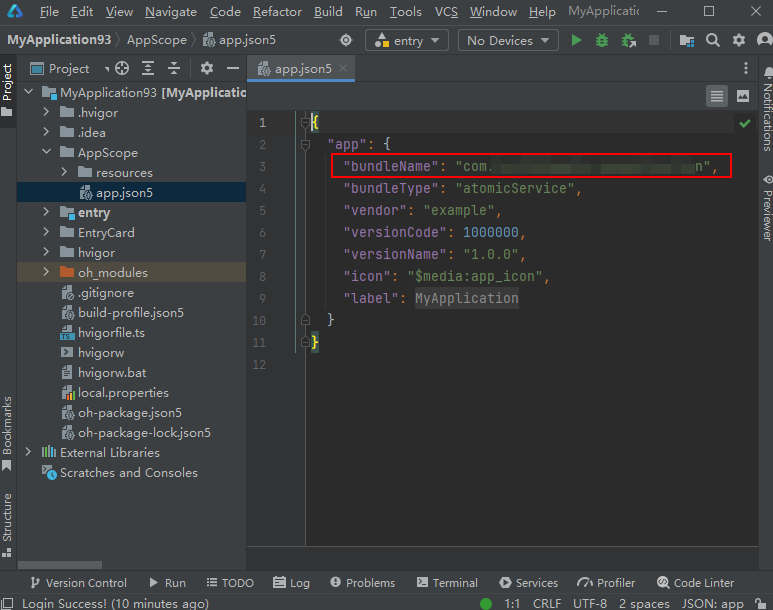
- For the stage model: Ensure that the value of bundleName in the AppScope/app.json5 file of the project is the same as the package name displayed on the App information page of AppGallery Connect.
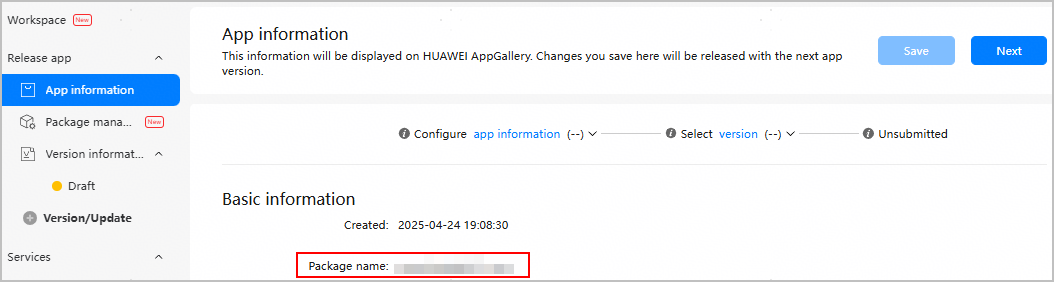
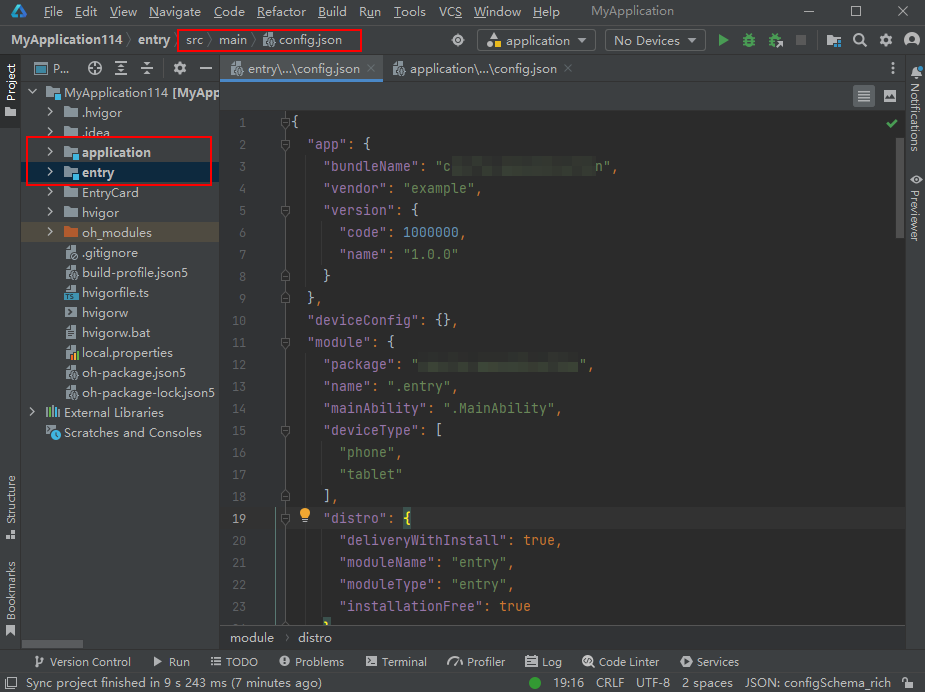
- For the FA model: Ensure that the value of bundleName in the src/main/config.json file of each HAP in the project is the same as the package name displayed on the App information page of AppGallery Connect.
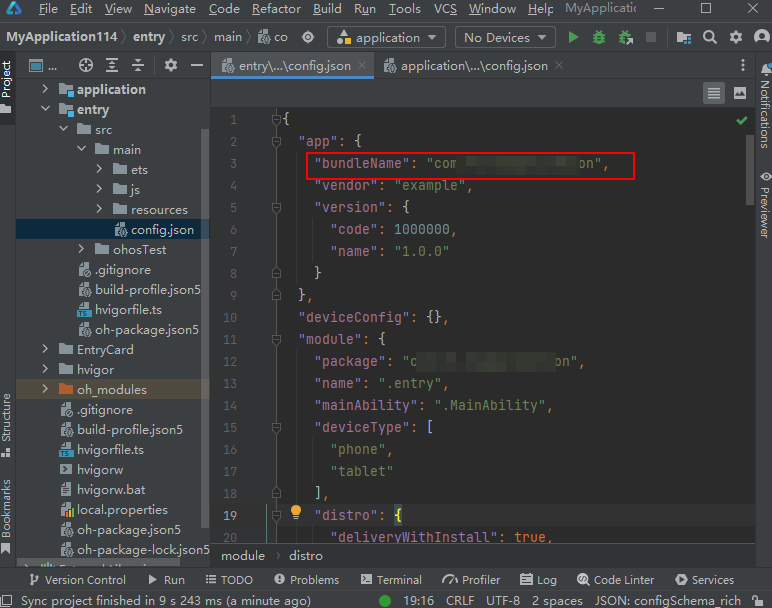
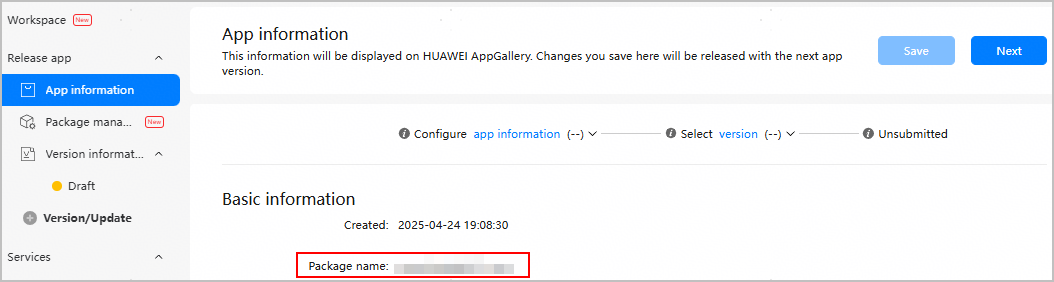
- For the stage model: Ensure that the value of bundleName in the AppScope/app.json5 file of the project is the same as the package name displayed on the App information page of AppGallery Connect.
- The names of different HAPs in the package are different. This problem occurs only in projects that adopt the FA model.
Ensure that the value of bundleName in the src/main/config.json file of each HAP is the same.
Error code 993: Invalid profile
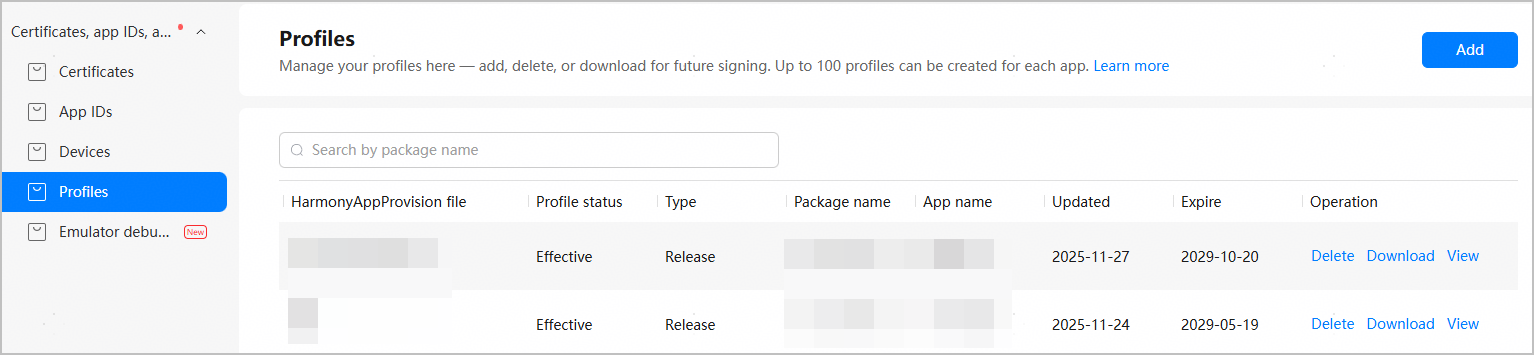
- Cause 1: The profile used by the package has been deleted. That is, no profile of the app is displayed on the Certificates, app IDs, and profiles > Profiles page. You need to request a release profile again, modify the package, and re-upload it.
- Cause 2: The release profile in the package does not belong to the app to be released. This is usually because the profile of another app is downloaded or used.
For example, if the profile for HarmonyA is downloaded and added to the package of HarmonyB, an error will occur when you upload the package of HarmonyB for release.
- Cause 3: The profile used by the package is invalid.
- Go to Certificates, app IDs, and profiles > Profiles, find your app profile, and check whether the profile is invalid.
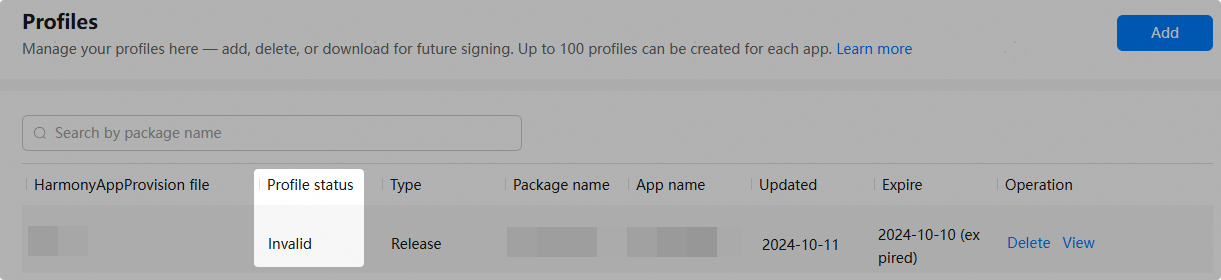
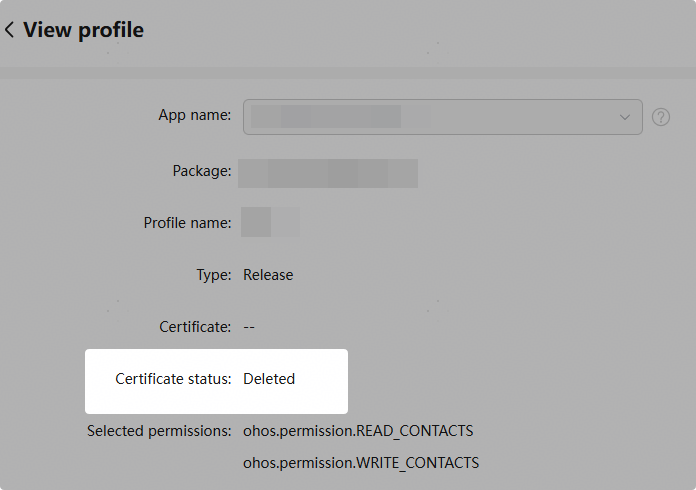
- If the profile is invalid, click View in the Operation column to check the status of the certificate to which the profile belongs.
- If the certificate has been deleted, the profile becomes invalid. Delete the invalid profile, request a new release certificate and a new release profile, and upload the package again.
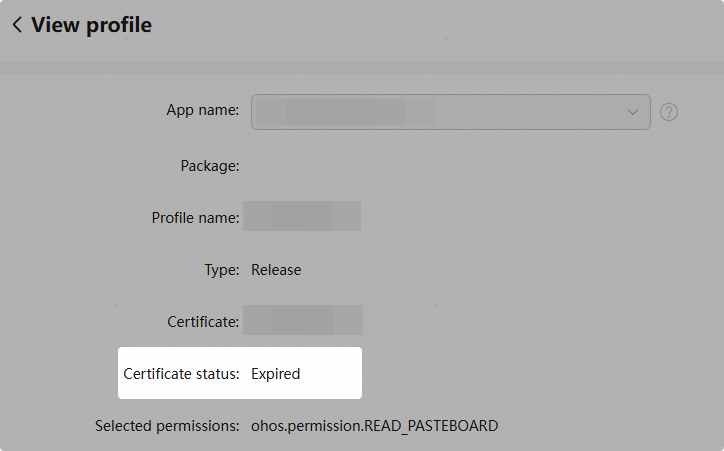
- If the certificate has expired, the profile becomes invalid. Delete the certificate and profile, request a new release certificate and a new release profile, and upload the package again.
- If the certificate has been deleted, the profile becomes invalid. Delete the invalid profile, request a new release certificate and a new release profile, and upload the package again.
- Go to Certificates, app IDs, and profiles > Profiles, find your app profile, and check whether the profile is invalid.
- Cause 4: The package is automatically signed. Use the release profile to manually sign the package.
Error code 994: The package does not exist
This problem is caused by a package download error. Try again later. If the problem persists, submit a ticket to Huawei technical support.
Error code 995: The package you uploaded is not a HarmonyOS package with the file name extension .app
This error indicates that an incorrect type of package has been uploaded. The file name extension must be .app for a HarmonyOS app or atomic service package. Re-upload the package after making modifications.
Error code 996: Failed to parse the package due to an unknown error
This problem is caused by an unknown error during package parsing. Try again later. If the problem persists, submit a ticket to Huawei technical support.
Error code 997: The value of bundleName does not match the app
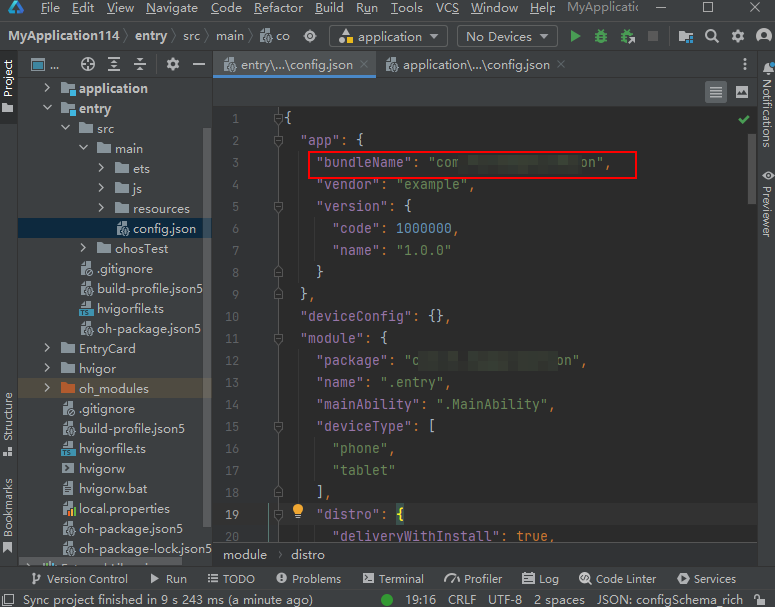
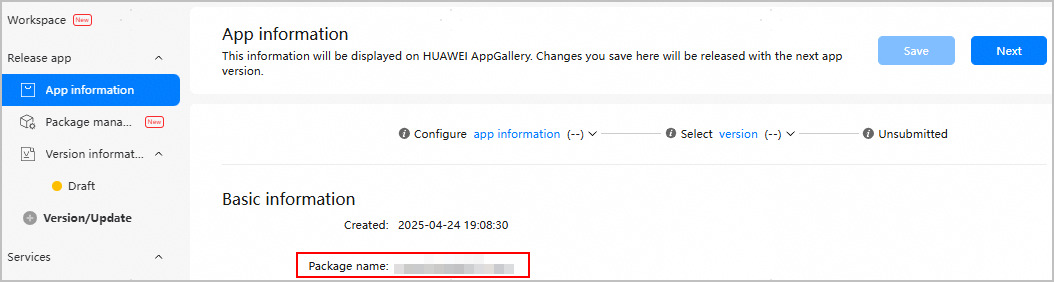
- For the stage model: Ensure that the value of bundleName in the AppScope/app.json5 file of the project is the same as the package name displayed on the App information page of AppGallery Connect.
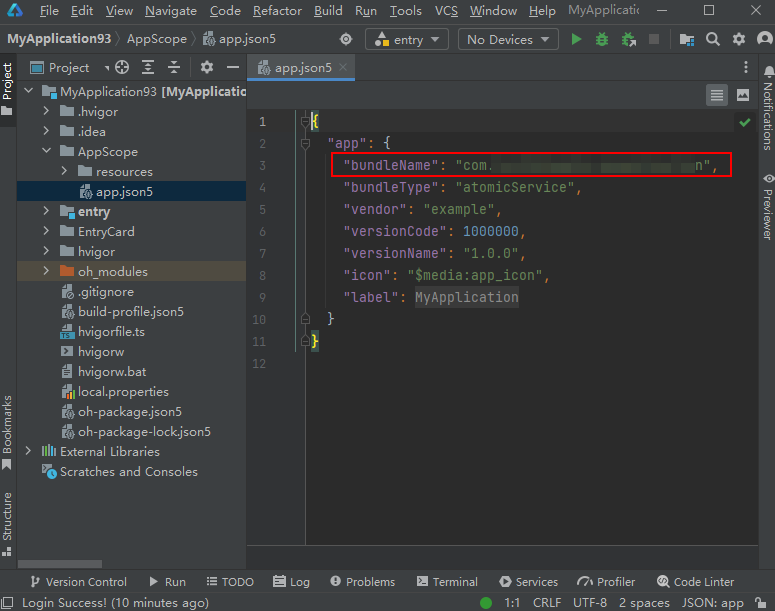
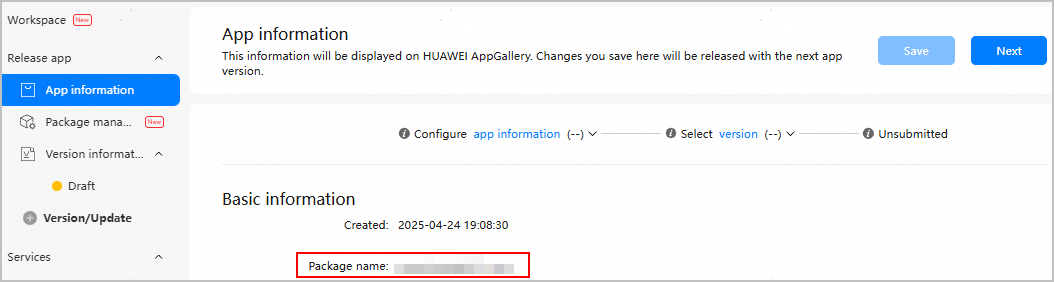
- For the FA model: Ensure that the value of bundleName in the src/main/config.json file of each HAP in the project is the same as the package name displayed on the App information page of AppGallery Connect.
Error code 998: The uploaded package does not support the selected devices
This error indicates that the package you uploaded does not support the devices selected in AppGallery Connect for the app. Change the device types declared in the package, or change the supported device types on the App information page of AppGallery Connect.
Error code 999: The profile type used by the uploaded HarmonyOS app package is incorrect
The possible cause is that your package is using a debug certificate and a debug profile. To formally release your app on AppGallery, use a release certificate and a release profile. Replace the certificate and profile with correct ones and upload the package again.
Error code 1000: The profile used by the uploaded HarmonyOS app package has expired
- Sign in to AppGallery Connect and choose Certificates, app IDs, and profiles.
- In the navigation tree on the left, choose Profiles.
- Find the release profile that has expired and click Delete.

- Request a new release profile.
- In DevEco Studio, configure new signing information to compile a new package.
- Upload the new package to AppGallery Connect.
Error code 1001: The profile used by the uploaded HarmonyOS app package does not match the certificate
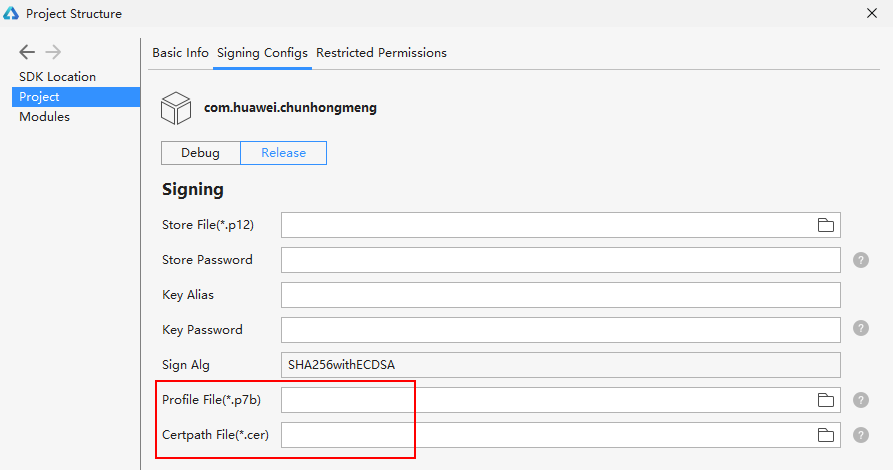
This error occurs when the release certificate contained in the HarmonyOS app package is different from that in the release profile. Ensure that the release certificate that you use to package your app in DevEco Studio is the same as that used for requesting a release profile.
Error code 1002: The certificate used by the uploaded HarmonyOS app package has expired
This error indicates that the release certificate you requested in AppGallery Connect has expired. Request a new certificate and profile and use them to recompile the package.
- Sign in to AppGallery Connect and choose Certificates, app IDs, and profiles.
- In the navigation tree on the left, choose Certificates, select the expired certificate, and click Revoke.


- Request a new release certificate and a new release profile.
- In DevEco Studio, configure new signing information to compile a new package.
- Upload the new package to AppGallery Connect.
Error code 1003: The certificate used by the uploaded HarmonyOS app package has not taken effect
This error indicates that the certificate used by the package has not taken effect. Check whether the certificate is effective.
- Sign in to AppGallery Connect and choose Certificates, app IDs, and profiles.
- In the navigation tree on the left, choose Certificates and download the certificate you are using.

- Open the certificate and check its validity period.
Error code 1004: An app with the same value of bundleName has been created
This error indicates that the value of bundleName declared in your uploaded package has been used by another app. Change the value of bundleName. If you find any infringement or piracy, file a complaint by submitting a ticket.
Error code 1005: The certificate is invalid
The possible causes are as follows:
- Cause 1: The certificate used by the package has been deleted.
Find your app profile on the Certificates, app IDs, and profiles > Profiles page, and click View in the Operation column to view the status of the certificate to which the profile belongs. If the certificate has been deleted, the profile also becomes invalid.
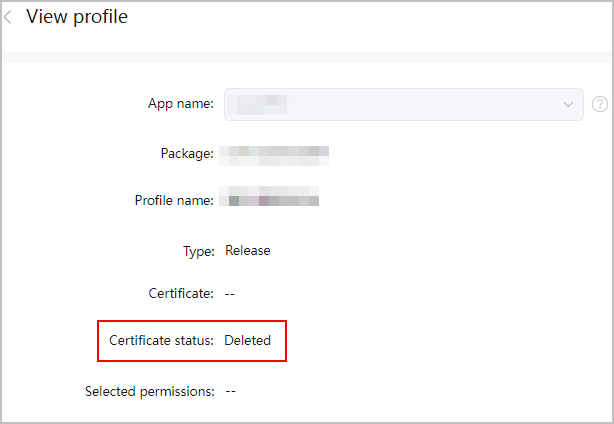
Delete the invalid profile, request a new release certificate and a new release profile, and upload the package again.
- Cause 2: The certificate used by the package has been revoked.
- Go to Certificates, app IDs, and profiles > Profiles, find your app profile, and check whether the profile has been revoked. If the status is Revoked, click View in the Operation column and record the name of the certificate associated with the profile.

- Go to Certificates, app IDs, and profiles > Certificates, find the certificate associated with the profile, and view the certificate status. A revoked certificate causes the associated profile to be revoked as well.

- Delete the certificate and profile that have been revoked, request a new release certificate and a new release profile, and upload the package again.
- Go to Certificates, app IDs, and profiles > Profiles, find your app profile, and check whether the profile has been revoked. If the status is Revoked, click View in the Operation column and record the name of the certificate associated with the profile.
Error code 1006: The HAP is too large
This error indicates that the size of an HAP in the package does not meet requirements. Re-upload the package after making modifications. The requirements are as follows:
- The maximum size of an HAP is 4 GB for mobile phones, tablets, and PCs/2-in-1 devices, 2 GB for smart watches and Vision devices, and 20 MB for sports watches.
- For a HarmonyOS app package that supports only one device type, the size of an HAP cannot exceed the upper limit supported by that device type. For example, if a HarmonyOS app package supports only sports watches, the size of the HAP cannot exceed 20 MB.
- For a HarmonyOS app package that supports multiple device types, if an HAP in the APP package supports a single device type, the size of the HAP cannot exceed the upper limit supported by that device type. If an HAP in the APP package supports multiple device types, the size of the HAP cannot exceed the smallest upper limit supported by these device types.
Error code 1007: The version number of the submitted HarmonyOS app is earlier than the version number of shell.apk in the package
The HarmonyOS package version of the HarmonyOS app (hybrid) cannot be earlier than the version number of shell.apk in the package. Otherwise, the package upload will fail. Re-upload the package after making modifications.
Error code 1008: The associated Android app is incorrect
This error occurs because the ID of the Android app bound to the package is different from that of the Android app bound when the profile was requested in AppGallery Connect. Re-upload the package after making modifications.
Error code 1009: Either appId or packageName of the Android app bound to the atomic service is missing
When an atomic service is bound to an Android app, the appId and packageName fields of the Android app must exist at the same time. Re-upload the package after making modifications.
Error code 1010: The package is not an atomic service package
This error indicates that an incorrect type of package has been uploaded. You need to upload an atomic service package, instead of a HarmonyOS app package.
Perform the following operation for troubleshooting:
- When the SDK API version is earlier than 9: Check whether the installationFree field in src/main/config.json of each module is set to true.
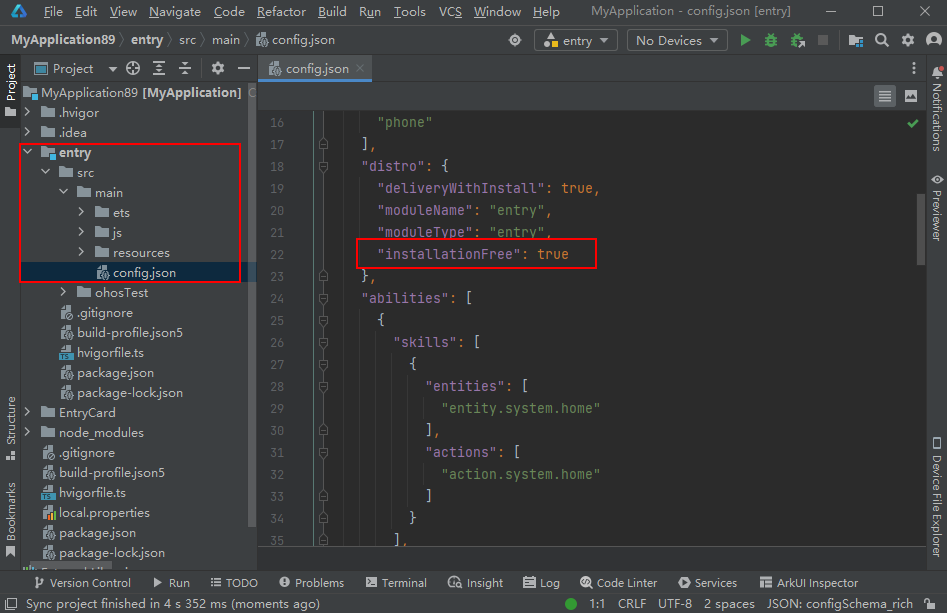
- When the SDK API version is 9 or later:
- For the FA model: Check whether the installationFree field in src/main/config.json of each module is set to true.
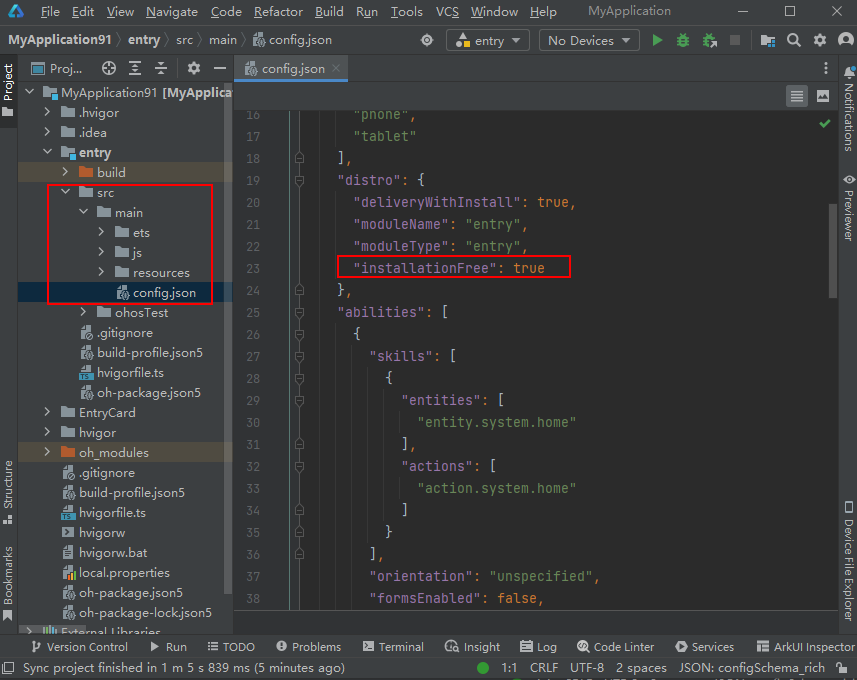
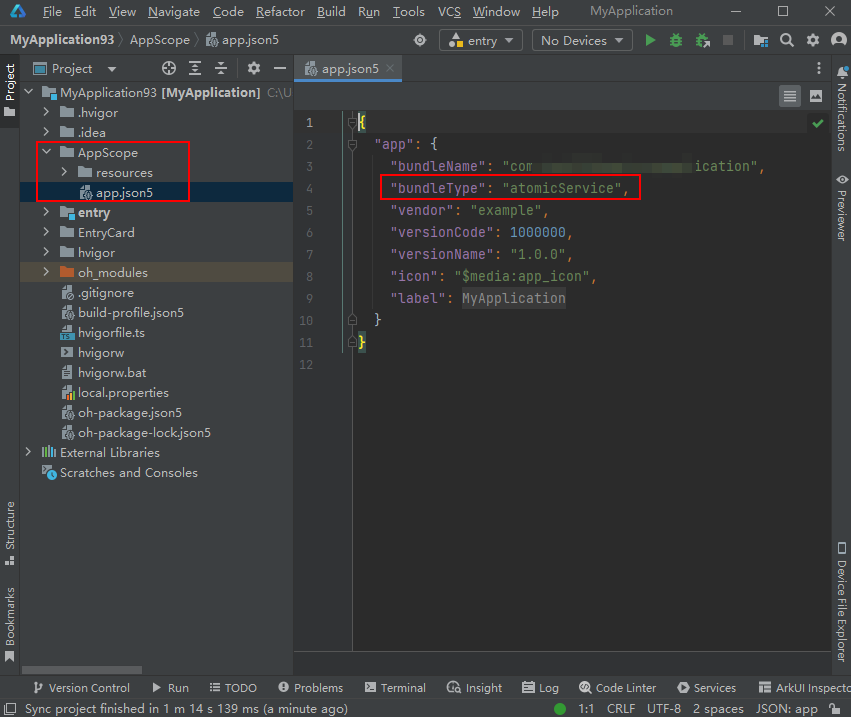
- For the stage model: Check whether the bundleType field in AppScope/app.json5 is set to atomicService. (If bundleType does not exist in the file, then the app is regarded as an app by default.)
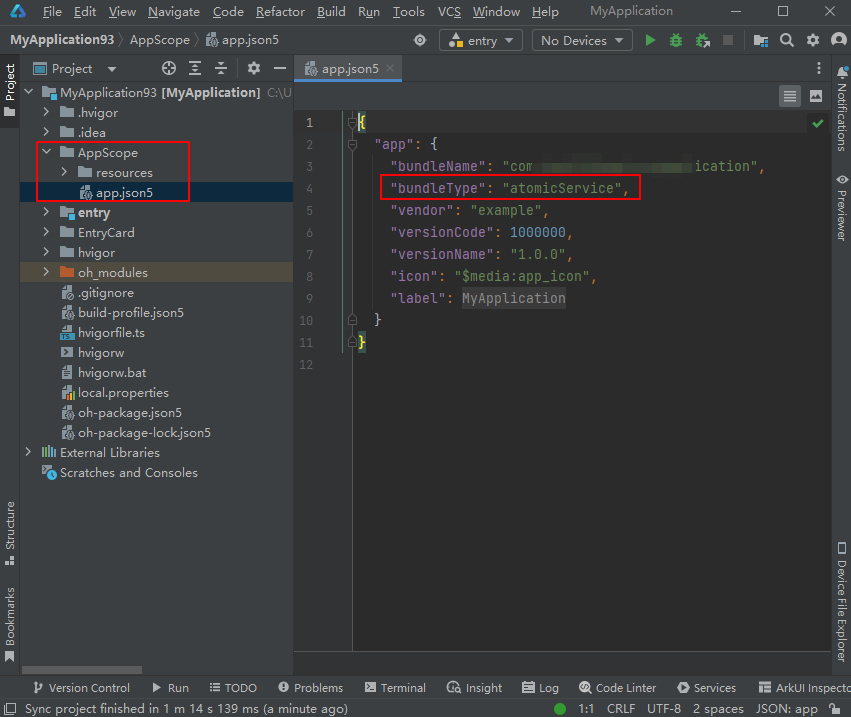
- For the FA model: Check whether the installationFree field in src/main/config.json of each module is set to true.
Error code 1011: The package is not a HarmonyOS app package
This error indicates that an incorrect type of package has been uploaded. You need to upload a HarmonyOS app package, instead of an atomic service package.
Perform the following operation for troubleshooting:
- When the SDK API version is earlier than 9: Check whether the installationFree field in src/main/config.json of each module is set to false.
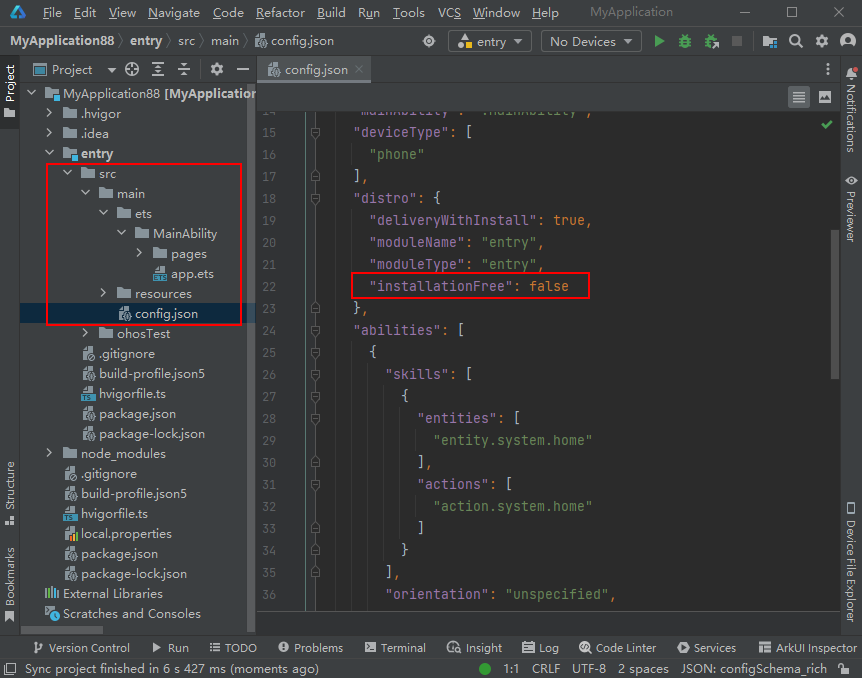
- When the SDK API version is 9 or later:
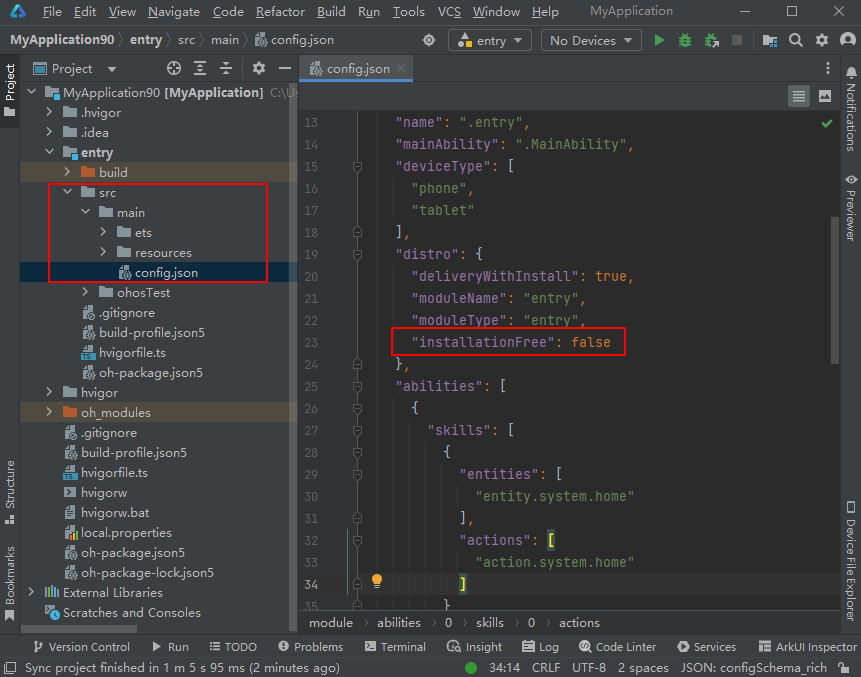
- For the FA model: Check whether the installationFree field in src/main/config.json of each module is set to false.
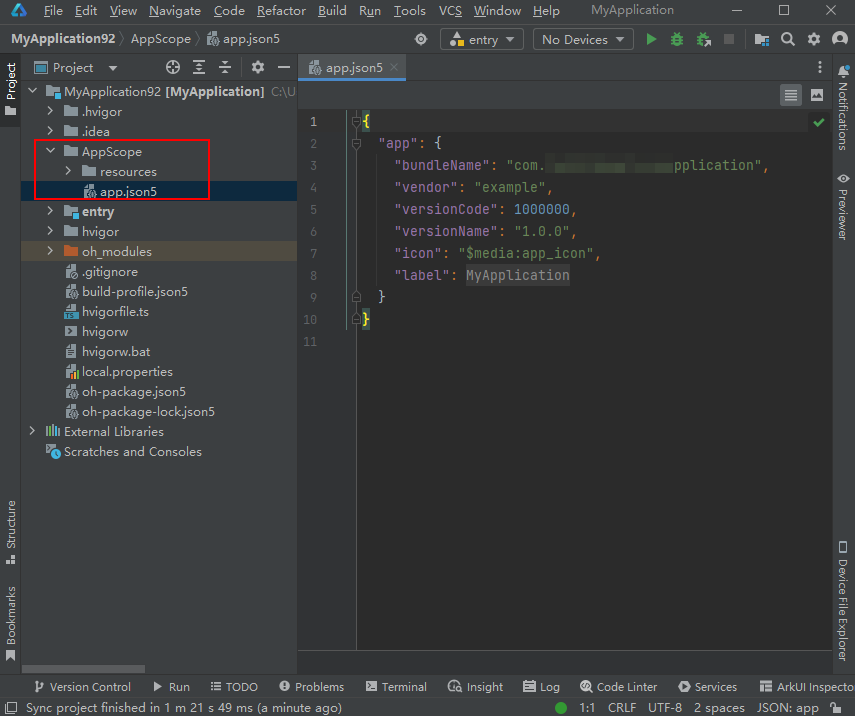
- For the stage model: Check whether the bundleType field in AppScope/app.json5 is set to app. (If bundleType does not exist in the file, then the app is regarded as an app by default.)
- For the FA model: Check whether the installationFree field in src/main/config.json of each module is set to false.
Error code 1012: The HAPs in the package are of different types
This error implies that the types of HAPs in your uploaded package are inconsistent.
The types of HAPs in a package must be consistent, either all installation-free (for an atomic service) or all non-installation-free (for a HarmonyOS app).
Perform the following operation for troubleshooting:
- When the SDK API version is earlier than 9: Check whether the value of installationFree in the src/main/config.json file of each module is consistent. For a HarmonyOS app, the value should be false; for an atomic service, the value should be true.
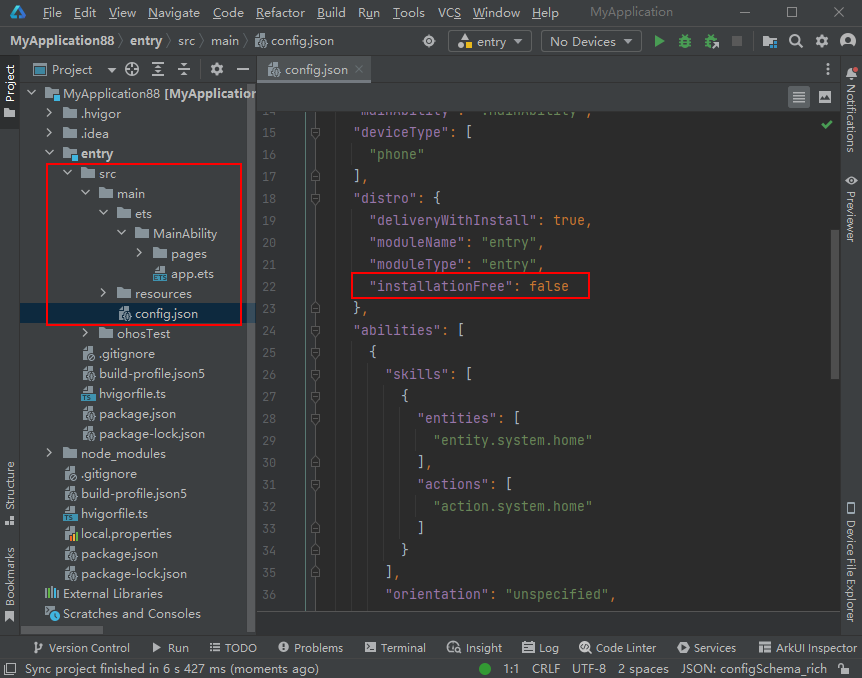
- When the SDK API version is 9 or later:
- For the FA model: Check whether the value of installationFree in src/main/config.json of each module is consistent. For a HarmonyOS app, the value should be false; for an atomic service, the value should be true.
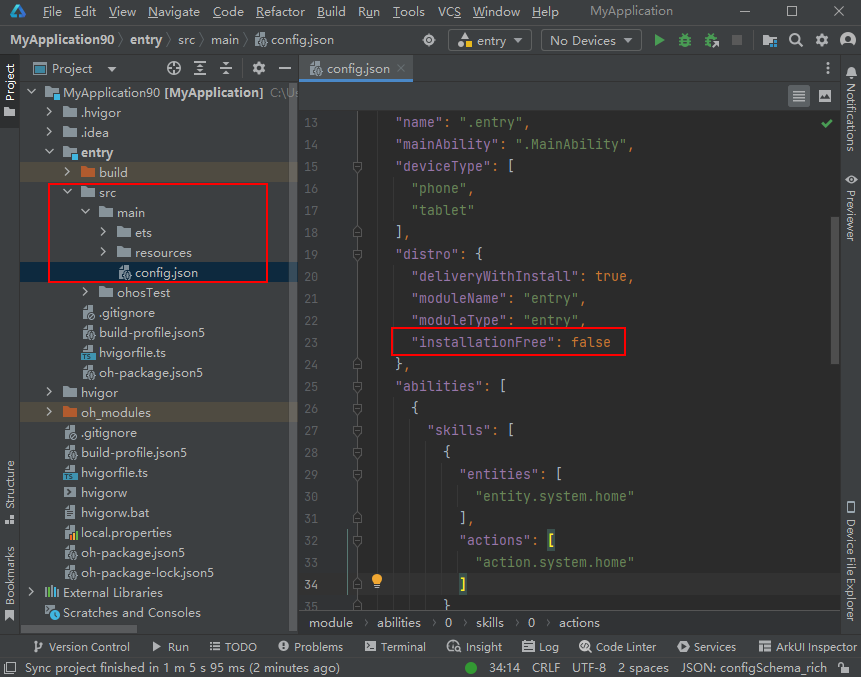
- For the stage model: The app project type depends on the value of bundleType in the AppScope/app.json5 file (app for a HarmonyOS app and atomicService for an atomic service). Therefore, for the stage model, the HAP type inconsistency problem does not exist.
- For the FA model: Check whether the value of installationFree in src/main/config.json of each module is consistent. For a HarmonyOS app, the value should be false; for an atomic service, the value should be true.
Error code 1014: The HAP has not been signed
This error occurs because the HAP has not been signed. Ensure that a signature file is used during the compilation.
Error code 1015: The compressed package format failed the security check
This error occurs because the format of the compressed package does not pass the security check. Verify your package and upload it again. If the problem persists, submit a ticket to Huawei technical support.
Error code 1021: The API version of the uploaded test package is earlier than 10
This error occurs because the API version of the uploaded test package is earlier than 10, while only the test package whose API version is 10 or later is supported. Re-upload the package after making modifications.
To release a test version of your HarmonyOS app whose API version is earlier than 10, go to Release app > Version information > Open testing and configure and release a version for open testing.
Error code 1023: Custom encryption is not supported
This error occurs because the custom encryption capability that is not available yet is used. Check whether the encrypt.json file exists in the root directory of your project. If so, delete the file and upload your package again. If the problem persists, submit a ticket to Huawei technical support.
Error code 1026: The package type does not match the app type
This error occurs because the type of the uploaded package does not match the app type you have set.
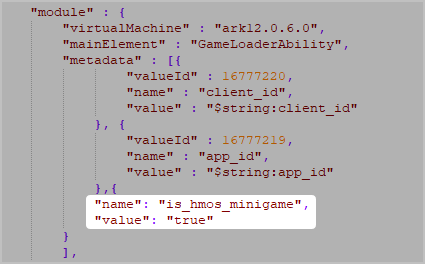
For mini games, is_hmos_minigame in metadata under module in the module.json5 file must be set to true.
Error code 7011: The shell.apk file is missing
This error occurs because shell.apk is missing in the HarmonyOS app (hybrid) package. Re-upload the package after making modifications.
Error code 7012: Failed to read shell.apk
This error occurs because shell.apk in the HarmonyOS app (hybrid) package fails to be read due to an unknown error. Verify your package and upload it again. If the problem persists, submit a ticket to Huawei technical support.
Error code 7013: The permission list in shell.apk exceeds the upper limit
The error occurs because the permission list in shell.apk of the HarmonyOS app (hybrid) package exceeds the upper limit of 20,000 lines. Re-upload the package after making modifications.
Error code 7014: The permissions configured in the package are inconsistent with those requested by the profile
This error occurs because the permissions configured in the package are inconsistent with those requested by the profile.
Check the permissions requested by the profile and those declared in your package's configuration file. Ensure that the permissions requested by the profile include all the permissions configured in your package. That is, the permissions in your package are a subset of those requested by the profile.
Error code 7015: The package cannot be released
This error occurs because you have submitted a trusted application (TA) package that contains a .sec file. However, TAs cannot be released through AppGallery Connect currently.
Error code 7017: The version of the profile in the package does not meet requirements
For apps or atomic services that use API version 9 or later, AppGallery Connect will issue a profile of a new version, and the profile you have requested will also be automatically updated to the new version. Apps or atomic services that use profiles of earlier versions cannot be released.
This error occurs if the version of the profile in the package does not meet the requirements. In this case, go to Certificates, app IDs, and profiles > Profiles to download the new profile, and upload the package again.
Error code 7021: System error
System error. Try again later. If the problem persists, submit a ticket to Huawei technical support.
Error code 7022: The package cannot be released on AppGallery
In-house apps cannot be released on AppGallery. Please check your package type. For other questions, submit a ticket to Huawei technical support.
Error code 7023: The package cannot be released on AppGallery
Enterprise MDM apps cannot be released on AppGallery. Please check your package type. For other questions, submit a ticket to Huawei technical support.
Error code 7024: The package cannot be released on AppGallery
Enterprise apps cannot be released on AppGallery. Please check your package type. For other questions, submit a ticket to Huawei technical support.
Error code 9999: API call validation failed for your atomic service
This error occurs when your atomic service calls APIs that are not part of the allowed atomic service APIs. If your atomic service is developed using API version 11 or later, it can only call atomic service APIs. Check whether your atomic service package calls non-atomic service APIs. If so, modify your package and upload it again.
Error code 205389875: The uploaded CSR file is invalid
Check whether the -keyalg parameter is set to EC when generating a certificate signing request (CSR). If not, generate another CSR file and upload it again. If the problem persists, submit a ticket to Huawei technical support.
