If you need to change its release countries and regions, change the app package, or release an open testing version for a released app, you need to submit the new version to Huawei for review in AppGallery Connect. After the app version is approved, the latest app version will be displayed on AppGallery.
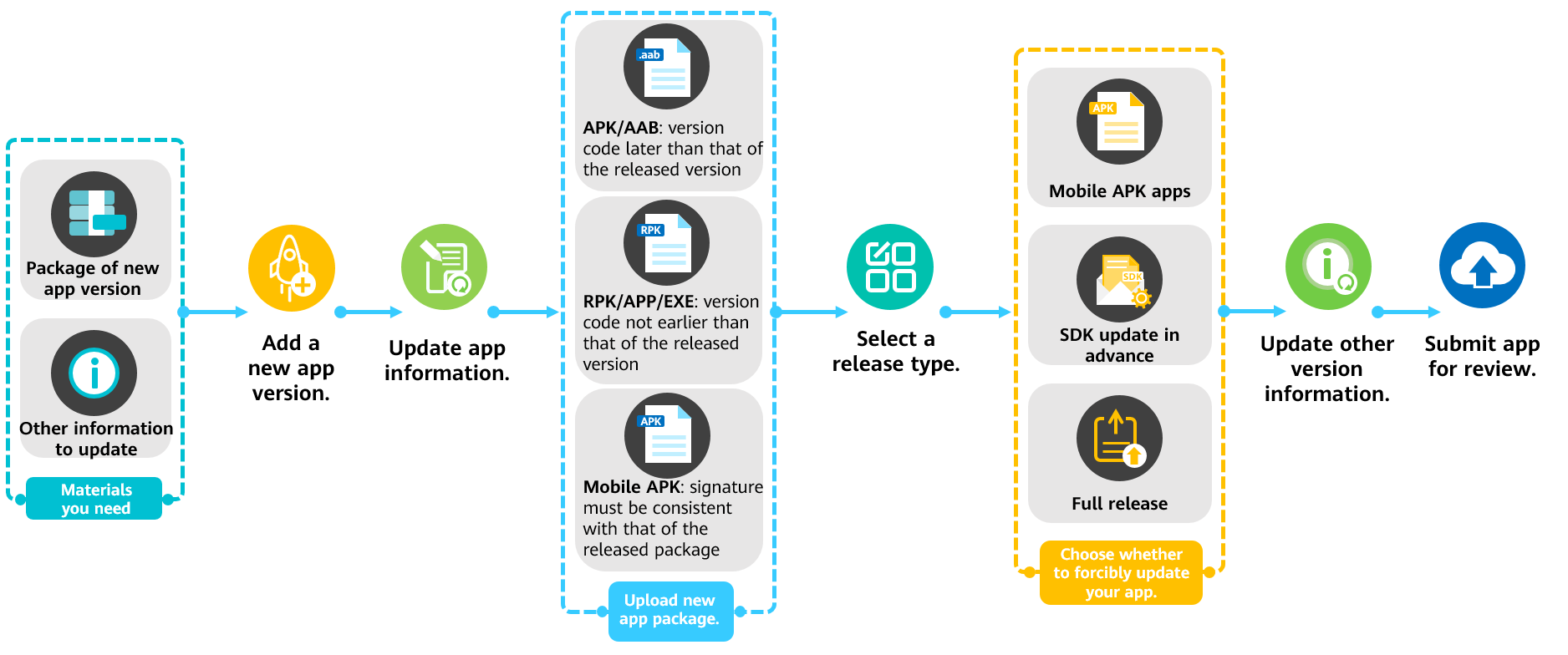
Before You Start
Prepare the update materials or information, for example, the new app package or visual assets.
Creating a New Version
You need to create a new app version before submitting it for review in AppGallery Connect.
- Sign in to AppGallery Connect and click Apps and atomic services.
- Find your app from the list and click the version to be updated.
- Click Update in the upper right corner. The New version - Draft menu appears in the navigation tree on the left.

If the last version has not been released, the Update button may not exist, and the Version/Update menu on the left is unavailable.

Updating App Information
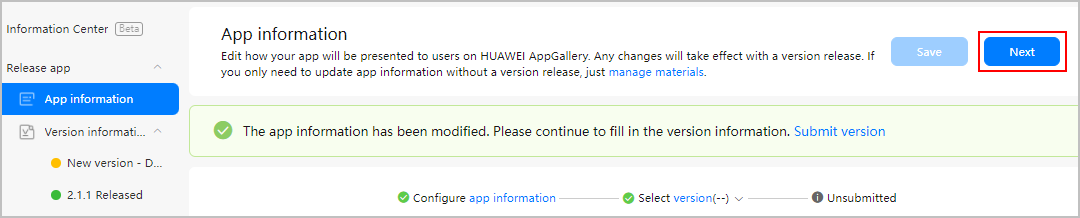
If you need to modify your app information, choose App information in the navigation tree on the left. Click Next. The New version - Draft page is displayed.
Uploading the New App Package
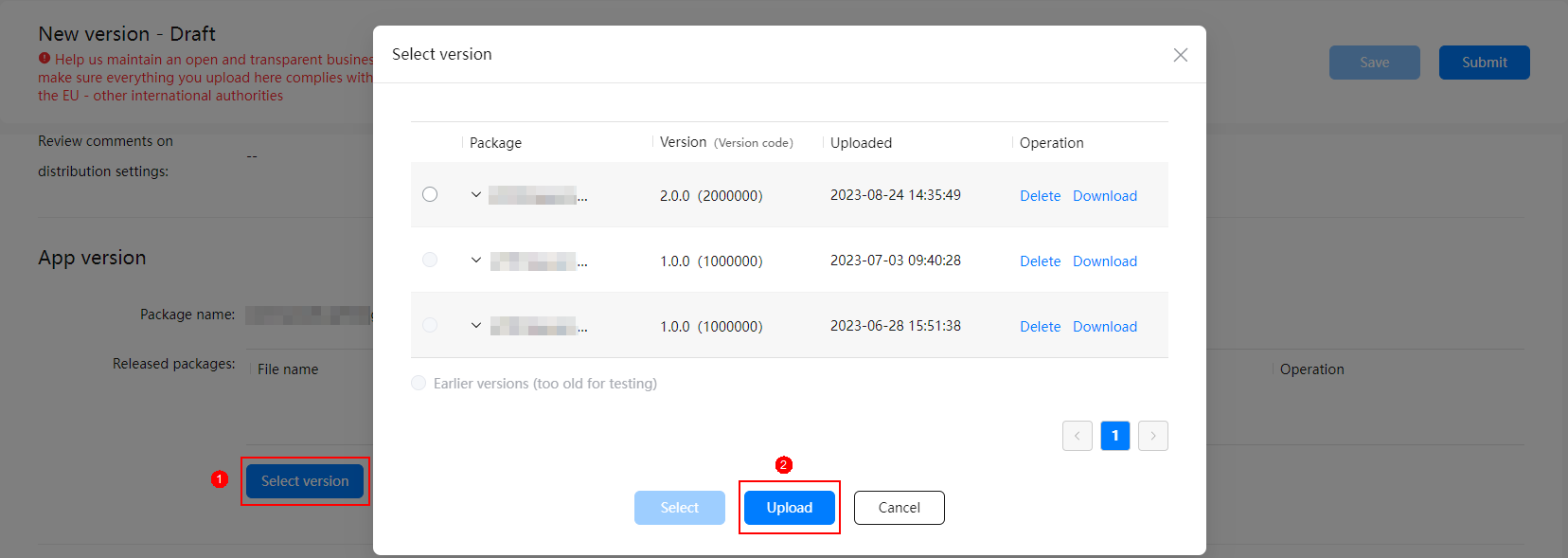
On the New version - Draft page, click Select version under App version (for Android apps, click Manage packages). In the displayed dialog box, click Upload to upload a local app package.
Package Type | Update Requirements |
|---|---|
APK |
|
RPK/APP | Ensure that the version code of the uploaded app package is not earlier than that of the released version. |
AAB | You cannot update your app package with a version code the same as that of the existing package.
|
Selecting a Release Type
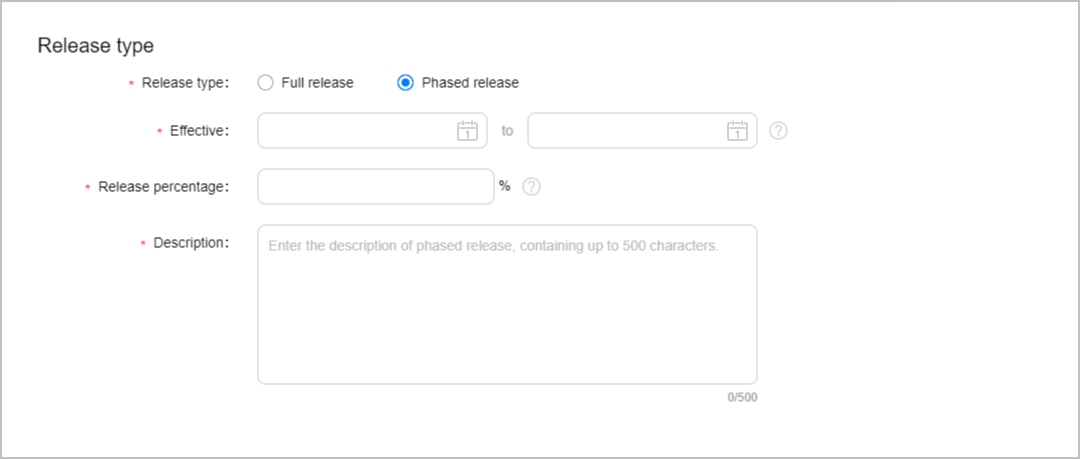
- For global release, select Full release for Release type.
- To roll out updates through phased release, select Phased release for Release type and set related parameters.
Choosing Whether to Forcibly Update Your App



You cannot change the payment type of a released app directly. To change the payment type of a released app, remove and delete the app, and then release the app with the desired payment type.
Submitting for Review
Confirm that all your release information is correct and click Submit.
- If the following message is displayed, confirm the version number, and click OK.
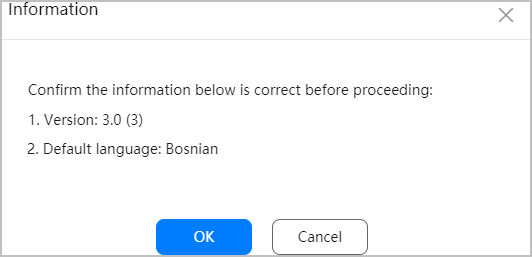
- If the following message is displayed, the version code of the uploaded app package is the same as that of the released version.
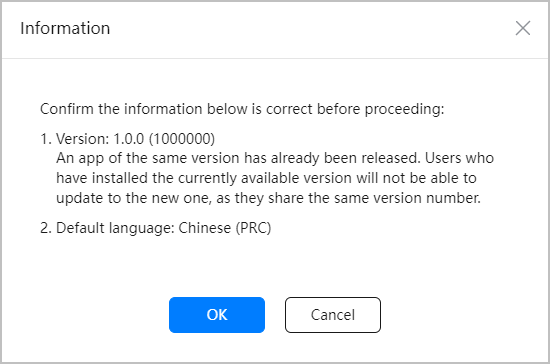
- If you do not want to change the version code, click OK. Note that if you do so, users who have already installed this version will not be able to update to the new one. In addition, the version update time displayed on AppGallery is still the release date of the currently available version.
- If you want to change the version code, click Cancel, and upload the correct app package.
After your request is submitted, the app status changes to Reviewing. The app will be successfully updated if the request is approved.
Solution to Package Signature Inconsistency

Before globally releasing an app that is already released by phase, the system verifies the signature of the released app version.
[h2]Android Apps
For mobile APK apps, when you select a package and click Select in the Manage packages dialog box, the system immediately verifies the signature consistency. If the signature of the updated package is inconsistent with that of the released version, you can take corresponding measures based on the following situations:
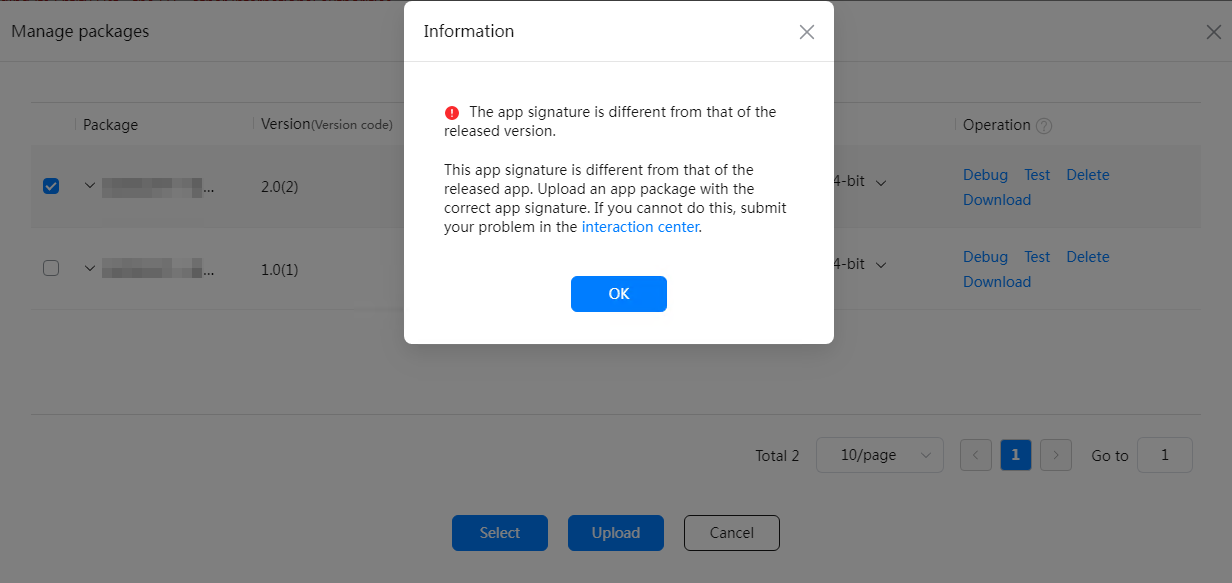
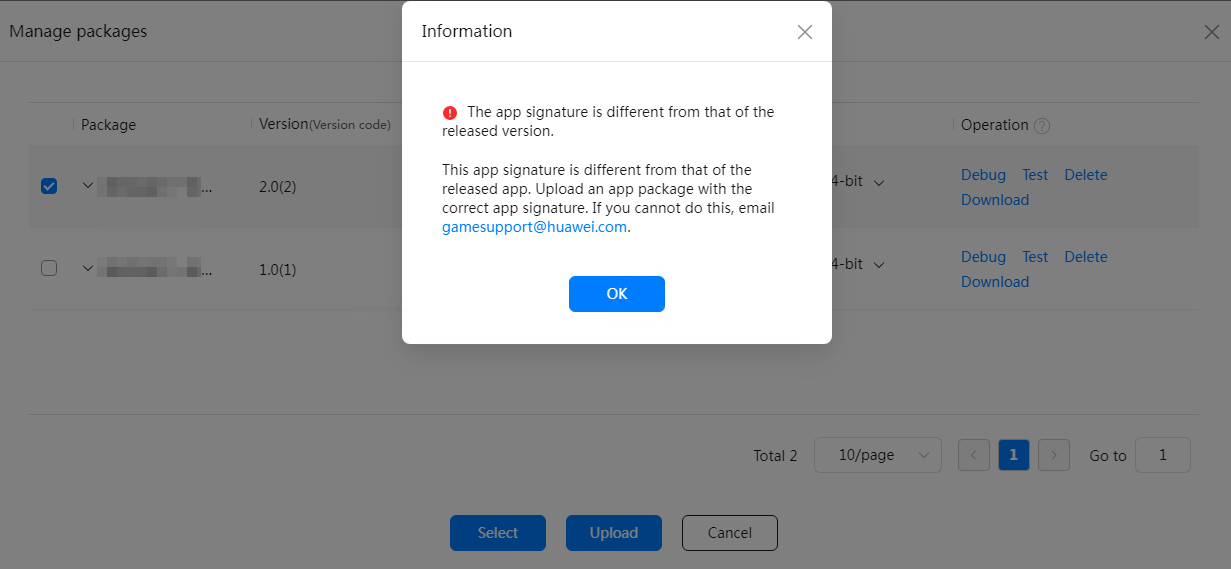
- For game apps: Click OK in the displayed dialog box to return to the Manage packages dialog box. Then you need to upload an app version with the same signature as that of the released version.If you cannot obtain the signature of the released version, select a channel for feedback based on the app distribution location.
- If the game app is distributed in the Chinese mainland, go to the interaction center to provide feedback.
- If the game app is distributed to locations outside the Chinese mainland, send an email to gamesupport@huawei.com.
- If the game app is distributed in the Chinese mainland, go to the interaction center to provide feedback.
- For other apps: You need to select an option as required.
- If you have used an incorrect signature during packaging, or uploaded an incorrect app version, select the first option and click OK to delete the package and display the Manage packages dialog box. Then you need to upload an app version with the same signature as that of the released version.
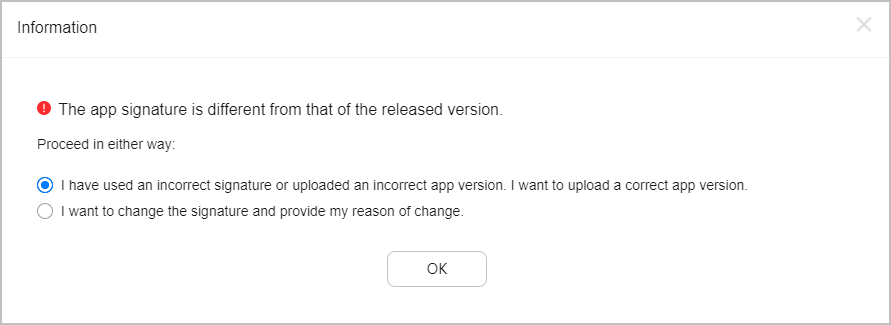
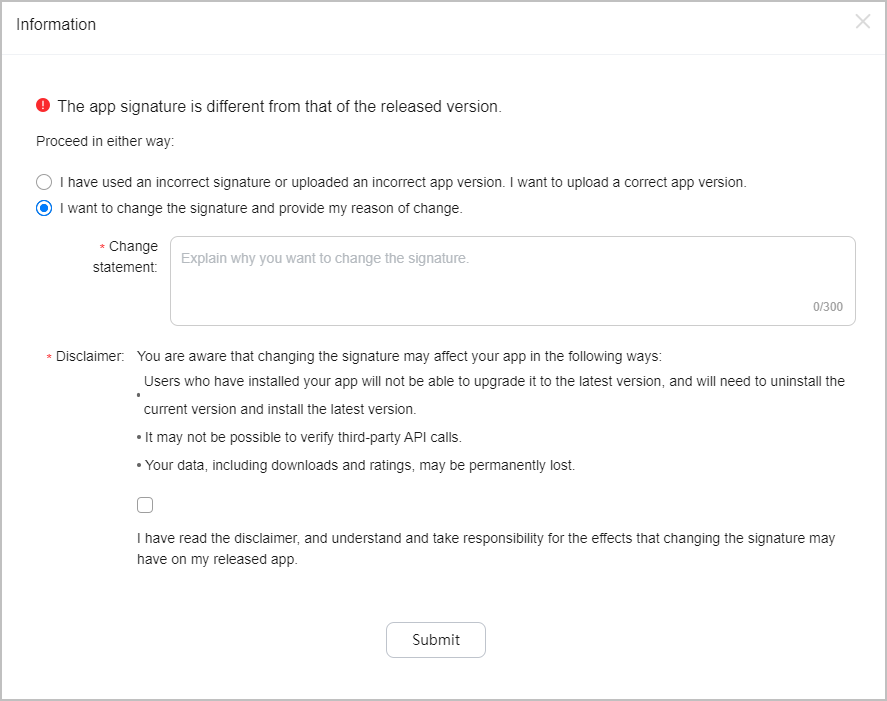
- If you need to change the app signature, select the second option. In this case, enter the cause of signature inconsistency, read the disclaimer, and select the check box under Disclaimer. All items in the dialog box are mandatory. Then click Submit.
- If you have used an incorrect signature during packaging, or uploaded an incorrect app version, select the first option and click OK to delete the package and display the Manage packages dialog box. Then you need to upload an app version with the same signature as that of the released version.