目录
- Version Change History
- Introduction
- Workflows
- AppGallery Connect API
- About Accounts and Permissions
- Managing Your Developer Account
- Managing the Team Account
- Roles and Permissions
- Topping Up
- Setting a Spending Notification
- Viewing Account Spending Details
- Creating a Project
- Managing Data Processing Locations
- Creating a HarmonyOS App
- Creating an Atomic Service
- Viewing App Information
- Managing Huawei Open Capabilities
- Overview
- Using the Free Quota of a Paid Service
- Checking the Free Quota Usage
- Upgrading a Service Bundle to the Pay-As-You-Go Plan
- Downgrading a Service Bundle to the Free Plan
- Checking the Plan List
- Overview
- Registering a Device
- Deleting a Device
- FAQs
- Overview
- Requesting a Debug Certificate
- Requesting a Release Certificate
- Requesting an In-House Release Certificate
- Requesting an Enterprise App Re-signing Certificate
- Requesting a Binary Certificate
- Configuring a Public Key Fingerprint
- FAQs
- Overview
- Requesting ACL Permissions
- Overview
- Requesting a Debug Profile
- Requesting a Release Profile
- Requesting an In-House Release Profile
- Overview
- Registering an Emulator Debug Credential
- Overview
- Configuring a Privacy Statement (for a HarmonyOS App)
- Configuring a Privacy Statement (for an Atomic Service)
- Configuring a User Agreement
- FAQs
- Overview
- Service Introduction
- Obtaining Authorization from the Server
- Upload Management API
- Obtaining the File Upload URL
- Uploading a File
- Initializing Chunk Information
- Obtaining Chunk Upload URLs
- Uploading a Chunk
- Merging Chunks
- CommonUrlInfo
- ConnectRet
- FilePartComposeInfo
- FilePartInfo
- FilePartUploadInfo
- Result Codes
- Provisioning API Guide
- Requesting a Certificate
- Querying a Certificate
- Deleting Certificates
- Adding Devices in Batches
- Querying the Device List
- Deleting Devices
- Requesting a Profile
- Querying the Profile List
- Modifying Devices Bound to a Profile
- Deleting a Profile
- AddDeviceInfo
- AddDeviceResult
- CertInfo
- ConnectRet
- DeviceInfo
- ProvisionInfo
- Result Codes
- Languages
- Country/Region Codes
- App/Game Categories
- App Rating
- Obtaining the Public Key for Signature Verification
- Price Conversion Rules
- App File Restrictions
- Release Guidelines
- Making Preparations
- Uploading Your Package
- Configuring Supported Devices
- Configuring Localized Information (App Name and Icon)
- Configuring an App Category and Tags
- Configuring Service Information
- Selecting a Package to Be Released
- Configuring Release Countries/Regions
- Configuring Localized Information (Introduction, Features, and Assets)
- Configuring In-App Purchase Items and In-App Products
- Configuring Content Rating
- Configuring a Privacy Description
- Configuring a Privacy Statement
- Configuring Privacy Tag Information
- Configuring Copyright Information
- Configuring Information for the Reviewer
- Setting the Release Time
- Submitting the App for Review
- Release Guidelines
- Making Preparations
- Uploading Your Package
- Configuring Supported Devices
- Configuring Localized Information (Name and Icon)
- Configuring an App Category and Tags
- Configuring Service Information
- Selecting a Package Version
- Configuring Release Countries/Regions
- Configuring Localized Information (Introduction, Features, and Assets)
- Configuring In-App Purchase Items
- Configuring Content Rating
- Configuring a Privacy Description
- Configuring a Privacy Statement
- Configuring Privacy Tag Information
- Configuring AI Function Declaration
- Configuring Copyright Information
- Configuring Publication Approval Information
- Configuring an In-App Product
- Configuring the Information for Reviewers
- Scheduling the Release
- Submitting the App for Review
- Release Guidelines
- Making Preparations
- Uploading Your Package
- Configuring Supported Devices
- Configuring Localized Information (Atomic Service Name and Icon)
- Configuring an Atomic Service Category, Tags, and Qualifications
- Configuring Service Information
- Selecting a Package to Be Released
- Configuring Localized Information (Introduction and Features)
- Configuring In-App Purchase Items and In-App Products
- Configuring Content Rating
- Configuring a Privacy Description
- Configuring a Privacy Statement
- Configuring AI Function Declaration
- Configuring Information for the Reviewer
- Setting the Release Time
- Submitting the Atomic Service for Review
- Releasing an In-House App
- Sending a Review Reminder or Canceling Review
- FAQs
- Updating App Information
- Updating a Version
- Rolling Back an App
- Releasing an App by Phase
- Removing an App or Atomic Service
- Deleting an App or Atomic Service
- Viewing the Version History
- Interaction Center
- Technical Support
- Asset Specifications
- Package Parsing Error Codes
- Version Update Error Codes
- Service Overview
- Enabling the Merchant Service
- Enabling the In-App Purchases (HarmonyOS NEXT) API
- Activating the In-App Purchases Service and Configuring Event Notifications
- Creating a Key
- Downloading a Key
- Revoking a Key
- Querying a Public Key
- Prerequisites
- Non-subscriptions
- Auto-renewable Subscriptions
- Importing Products in Batches
- Prerequisites
- Non-subscriptions
- Auto-renewable Subscriptions
- Non-subscriptions
- Auto-renewable Subscriptions
- Modifying Products in Batches
- Common Errors
- Prerequisites
- Activating a Product
- Deactivating a Product
- Prerequisites
- Deleting a Product
- Restoring a Product
- Conversion Rules
- Optimization Rules
- Prerequisites
- Adding a Subscription Group
- Overview
- Prerequisites
- Creating an App
- Setting the App Price
- Submitting for Review
- Analyzing Data
- Financial Settlement
- Services & Support
- AppGallery Introduction
- Categorization
- Overview
- 1. App Information
- 2. App Security
- 3. App Functions
- 4. App Content
- 5. App Ads
- 6. App Payment
- 7. User Privacy
- 8. Minor Protection
- 9. Intellectual Property Rights
- 10. App Qualifications
- 11. Developers' Behavior
- Overview
- 1. Atomic Service Information
- 2. Atomic Service Security
- 3. Atomic Service Features
- 4. Atomic Service Content
- 5. Atomic Service Ads
- 6. Atomic Service Payments
- 7. User Privacy
- 8. Minor Protection
- 9. Intellectual Property Rights
- 10. Atomic Service Qualifications
- 11. Developers' Behavior
- Business License and Certificate Review Requirements for Apps
- Business License and Certificate Review Requirements for Atomic Services
- Application Age Rating Standard
- Guidelines for Handling HUAWEI AppGallery Infringement Complaints
- App Review FAQs
- Atomic Service Review FAQs
- Overview
- Where Can I Upload Certificates?
- FAQs About ICP Filing
- FAQs About Computer Software Copyright Certificates
- FAQs About the Security Assessment Report
- FAQs About the Network Culture Business License
- FAQs About the Medical Institution Practice License
- FAQs About the Surveying and Mapping Qualification Certificate
- FAQs About Internet Information Service Algorithm Filing
- FAQs About the Human Resource Service License and Organization Filing
- FAQs About Labeling Content Generated by Artificial Intelligence
- Template of Authorization Relationship Description
- FAQs About Age Rating Questionnaire
- Overview
- I. Non-compliant Personal Information Collection
- II. Personal Information Collection Beyond the Necessary Scope
- III. Non-compliant Use of Personal Information
- IV. Targeted Push Notifications and Precision Advertising
- V. Non-compliant Permission Requests
- VI. Automatic Launch and Secondary Launch
- VII. Download and Distribution
- VIII. Non-compliant Access to Personal Information
- IX. FAQs Related to Account Deletion
- X. True and Valid Information Provided by Developers
- FAQs About In-App Auto-Renewable Services
- Description for Tablet-like Devices
- APK Firmware and Resolution Specifications
- AppGallery Privacy Tag Service Description
- AppGallery Connect Agreement Signing Guide
- AppGallery Connect Service and Agreement
- HUAWEI AppGallery Connect Distribution Service Agreement For Paid Apps
- Agreement on Use of Huawei APIs
- Privacy and security in Huawei AppGallery Connect
- AppGallery Connect Data Processing Addendum
- Data Processing Information
- Subprocessor of Huawei Software Technologies Co., Ltd.
- Aspeigel SE's Sub-processors
- HUAWEI Services (Hong Kong) Co., Limited's Sub-processors
- AppGallery Connect Data Center Location
- HUAWEI AppGallery Connect Service Agreement
- HUAWEI Analytics Service Agreement
- HUAWEI Analytics Data Protection Agreement
- HUAWEI Push Service Agreement
- HUAWEI Map Service Agreement
- HUAWEI Nearby Service Agreement
- HUAWEI Health Kit Service Agreement
- HUAWEI Wallet Kit Service Agreement
- HUAWEI ML Kit Service Agreement
- HUAWEI Dynamic Tag Manager Service Agreement
- HUAWEI Prediction Service Agreement
- HUAWEI AppGallery Connect Paid Service Agreement
- HUAWEI Location Service Agreement
- HUAWEI AppGallery Connect Privacy Notice
- HUAWEI Developers Basic Service Agreement
- Huawei AppGallery Connect App Signing Service Agreement
- Statement About Referral Program and Privacy
- General Terms and Conditions for AppGallery Referral Program
- HUAWEI WisePlay DRM Service Agreement
- Business Connect Service Agreement
- HUAWEI Video Editor Kit Service Agreement
- HUAWEI SignPal Kit Service Agreement
- Business Introduction
- Applications Management Guide
- Content Copyright Dispute Operation Guide
- Content Removal Guide
- Online Signing Guide
- Joint Operation Partner Guide
- AppTouch Supplement to HUAWEI AppGallery Connect Distribution Service Agreement For Paid Apps
- Introduction to the AppTouch VIP Service
- Channel Promotion Operation Guide
- Report Operation Guide
- Application Access Guide
- VIP Service Access Guide
- InTouch Project
- AppTouch FAQ
- InTouch FAQ
- Service Introduction
- UI Design Specifications
- Overview
- Getting Started
- Overall Process
- Workspace
- About Accounts and Permissions
- Managing Your Developer Account
- Managing the Team Account
- Roles and Permissions
- About Projects and Apps
- Creating a Project
- Creating a HarmonyOS App or Atomic Service
- Creating an Android App
- Creating a Quick App
- Creating an iOS App
- Creating a Web App
- Data Processing Location
- Data Processing Location Policies
- Viewing App Basic Information
- FAQs
- Overview
- (Optional) Configuring the App Signing Certificate Fingerprint
- Integrating Services
- Debugging an API
- Overview
- Requesting a Debug Certificate
- Registering a Debugging Device
- Requesting a Debug Profile
- Overview
- Sandbox Testing
- Cloud Testing
- Cloud Debugging
- Integration Check
- Open Testing
- Early Access for Games
- Overview
- Requesting a Release Certificate
- Requesting a Release Profile
- Releasing a HarmonyOS App
- Releasing an Atomic Service
- Releasing an App (APK)
- Releasing an App (RPK)
- Releasing an App (App Bundle)
- Pre-orders
- Releasing a Multi-APK App That Supports One Device Type
- Configuring GMS/HMS Restrictions in the Multi-APK Version Release Scenario
- Package Parsing Error Codes (HarmonyOS)
- Package Parsing Error Codes (Non-HarmonyOS)
- FAQs
- Updating the Details of a Released App
- Releasing an App Update
- Releasing an App by Phase
- Version Update Errors (HarmonyOS)
- Sending a Review Reminder or Canceling Review
- Removing an App from Sale
- Rolling Back an App
- Deleting an App
- Transferring Non-HarmonyOS Apps
- Viewing App Credit Records
- Viewing Version History of an App
- Home Page of App Analytics
- Distribution Reports
- Operations Reports
- Quality Reports
- Analytics FAQs
- Comments
- Developer's Message
- Managing Gifts
- Creating an In-App Product
- Modifying an In-App Product
- Setting Automatic Price Updates
- Activating or Deactivating an In-App Product
- Deleting or Restoring an In-App Product
- Managing Subscription Groups
- Managing Product Marketing
- Currency Conversion Rules
- FAQs
- Interaction Center
- Technical Support
- Supported Countries/Regions, Languages, and Currencies for Product Management
- AppGallery Connect Service White Paper
- Specifications for App Visual Assets
- Google File Conversion Tool
1. Log in to the AG Connect service
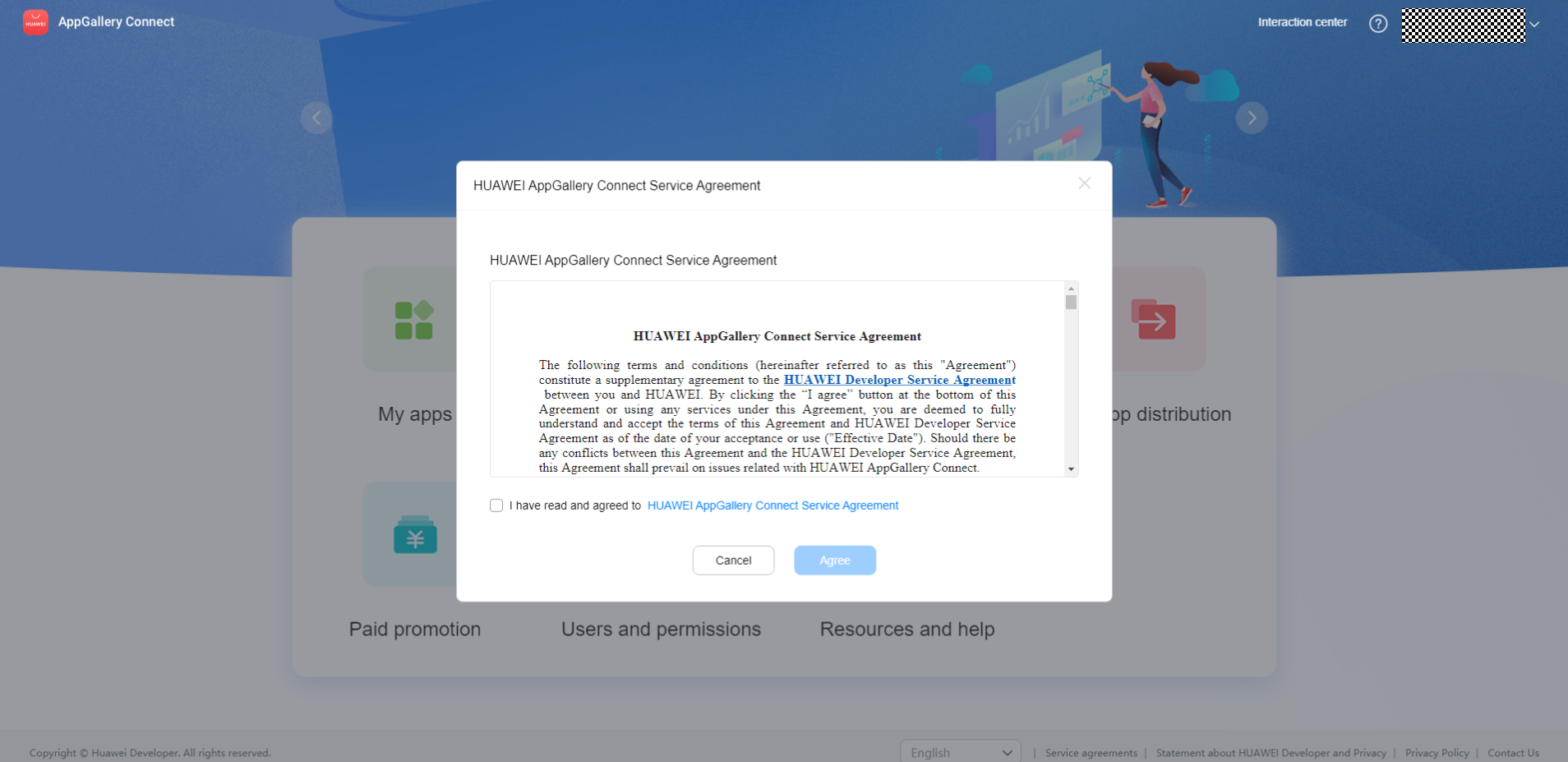
When you log in to AppGallery Connect for the first time and enable the distribution service, sign the Huawei AppGallery Connect service agreement displayed on the home page. After signing the contract, you can release and distribute the app on the AppGallery Connect.
2. Signing of the AG Connect agreement package
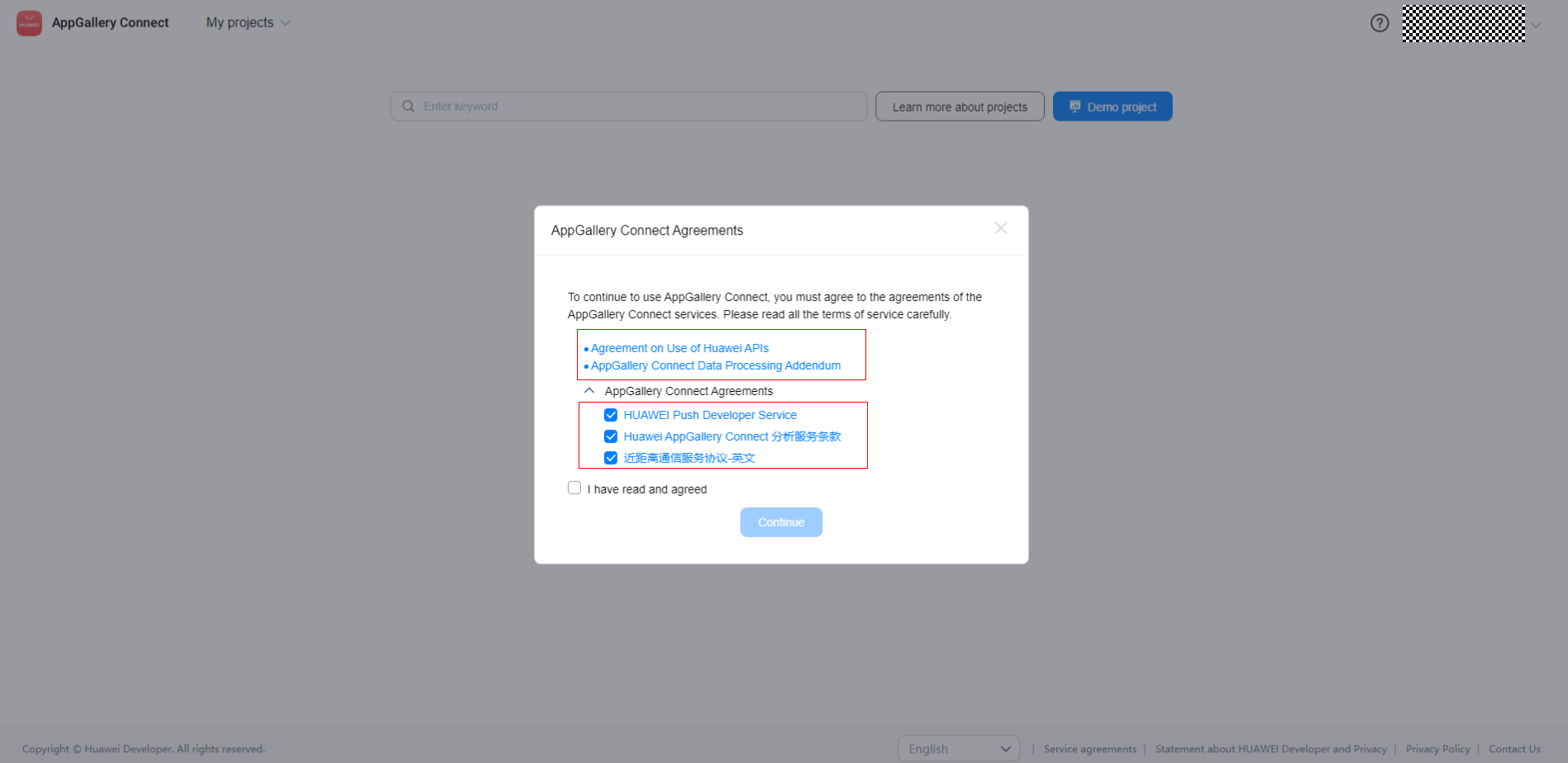
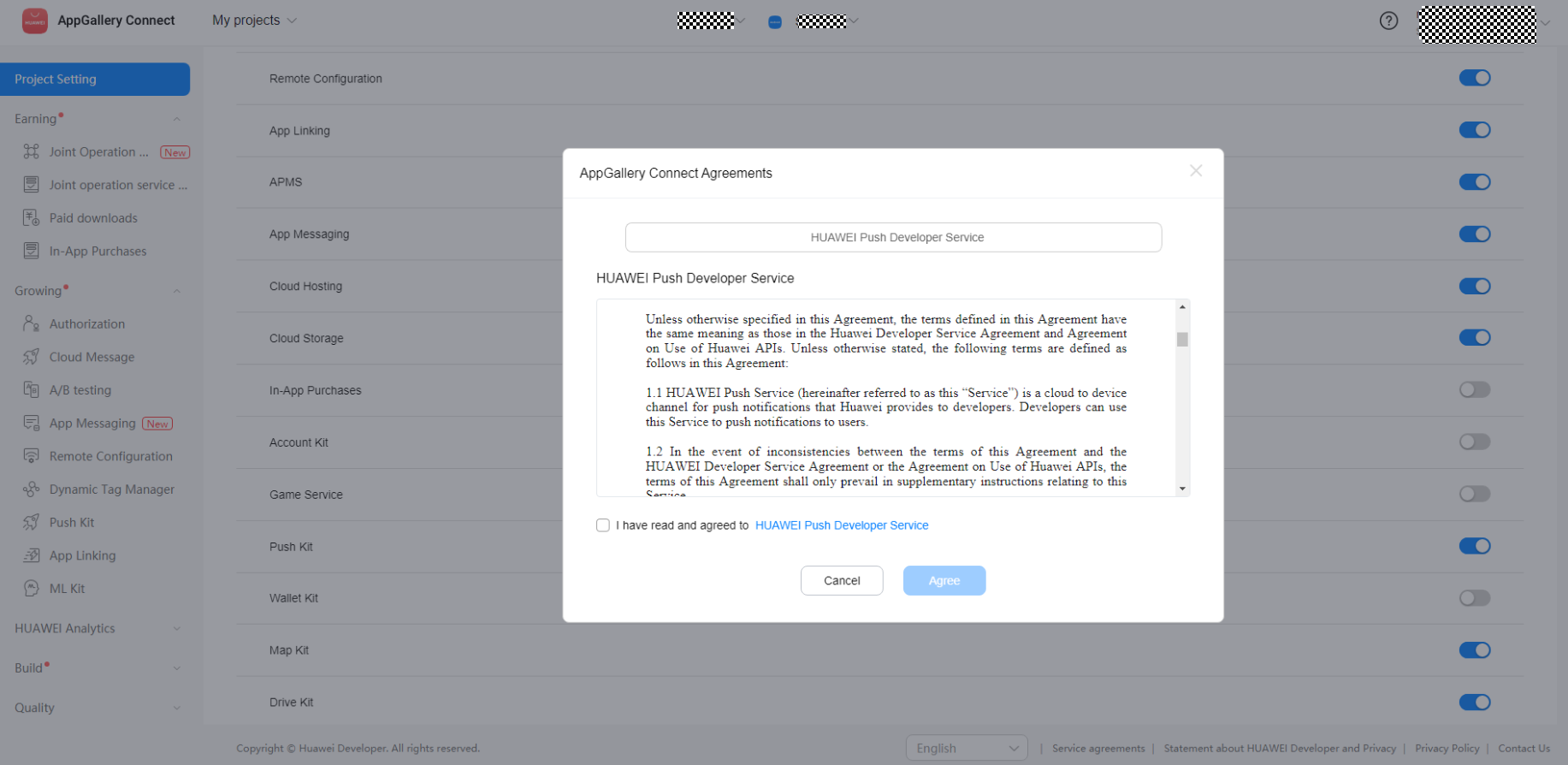
When you click My Project on the home page of the AG Connect platform to create a project for the first time, read and agree to sign the AppGallery Connect agreement package: "Agreement on Use of Huawei APIs", "AppGallery Connect Data Processing Addendum", "HUAWEI Push Developer Service", "Terms and Conditions for HUAWEI AppGallery Connect Analytics Service", "HUAWEI Map Service Agreement", "HUAWEI ML Kit Service Agreement", "HUAWEI Nearby Service Agreement", "HUAWEI Wallet Kit Service Agreement". And "Agreement on Use of Huawei APIs", "AppGallery Connect Data Processing Addendum" are basic agreements, which are involved in most development service. Other service agreements are optional. If you need to use other services in the future, you can sign on the corresponding page, or sign on the page of Manage APIs when enabling a service. You can also click here to view the correspondence between specific agreements and services.
3. Signing of "HUAWEI AppGallery Connect Distribution Service Agreement For Paid Apps"
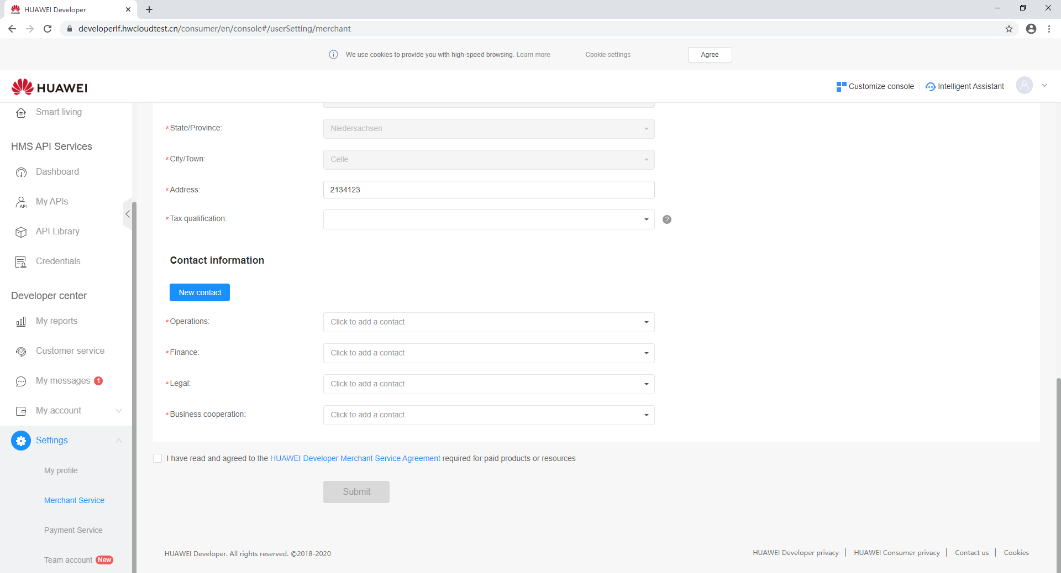
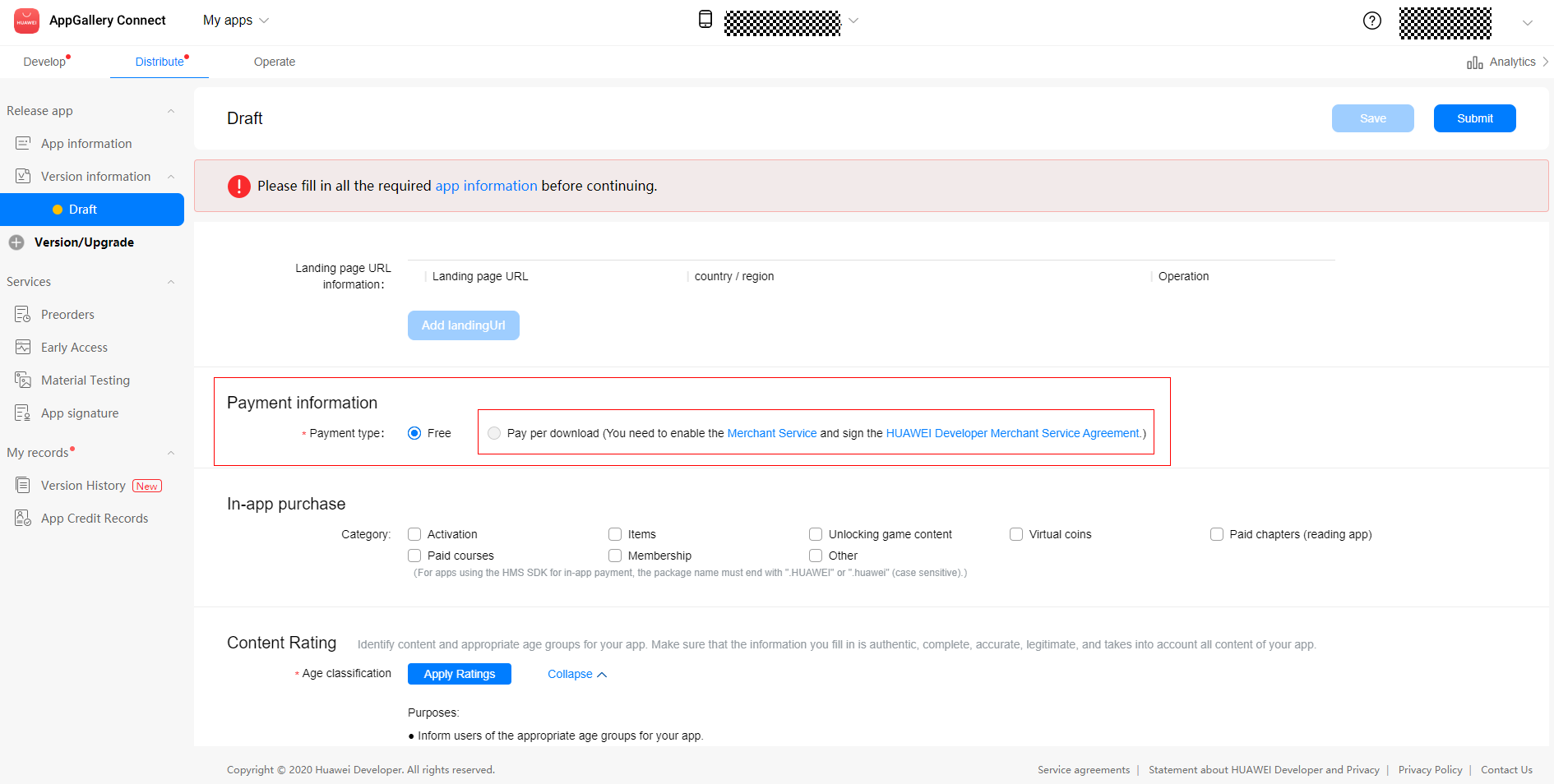
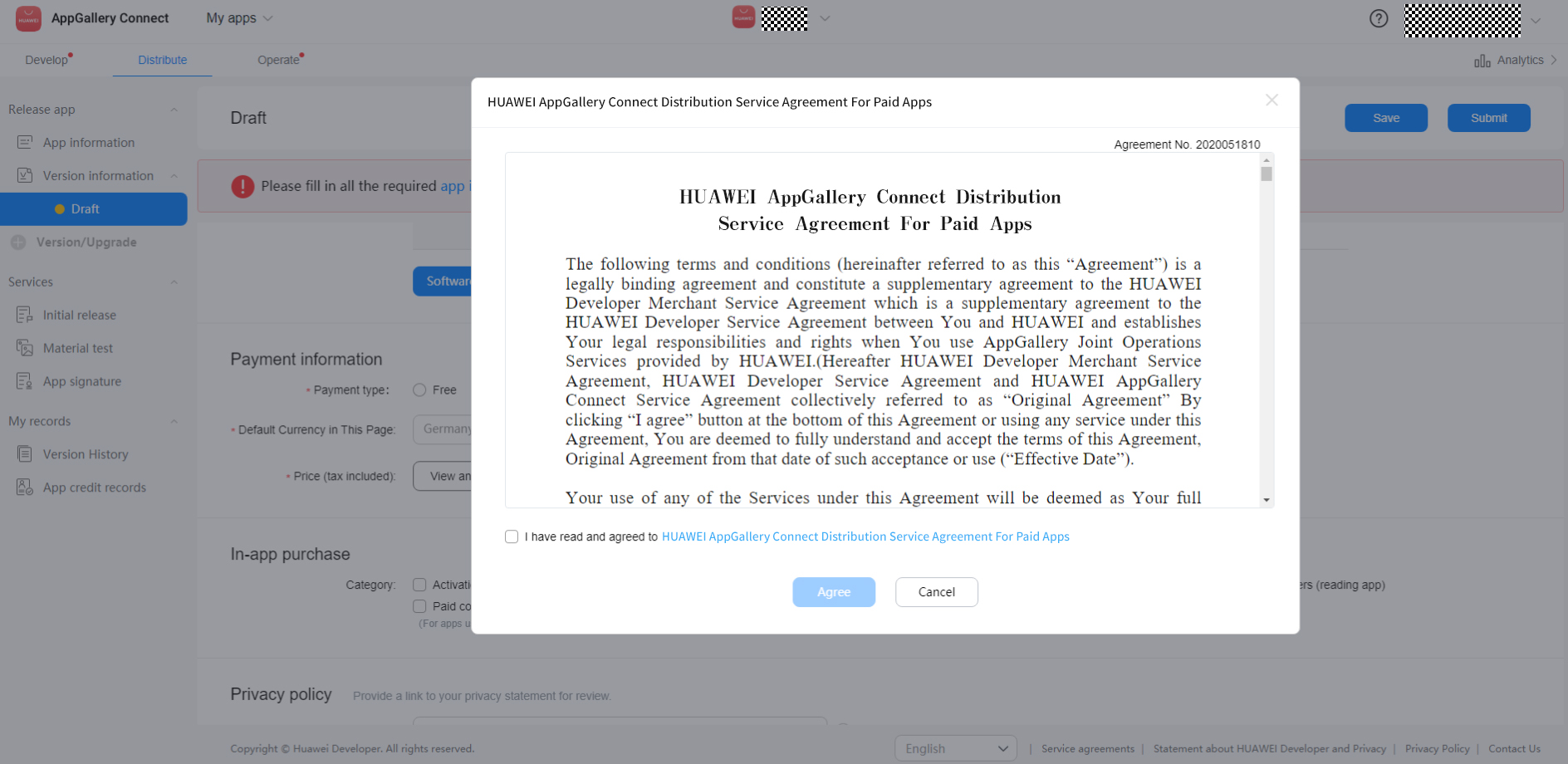
If your app requires users to pay for purchases (including paid downloads, in-app purchases, etc.), you need to activate merchant services in advance and sign the "HUAWEI Developer Merchant Service Agreement". In this case, click My App > Create App. When filling in the version information, select "Paid" in the "Payment Information" area, and please read and agree to sign the "HUAWEI AppGallery Connect Distribution Service Agreement For Paid Apps". If you have not enabled the merchant services, enable it first.
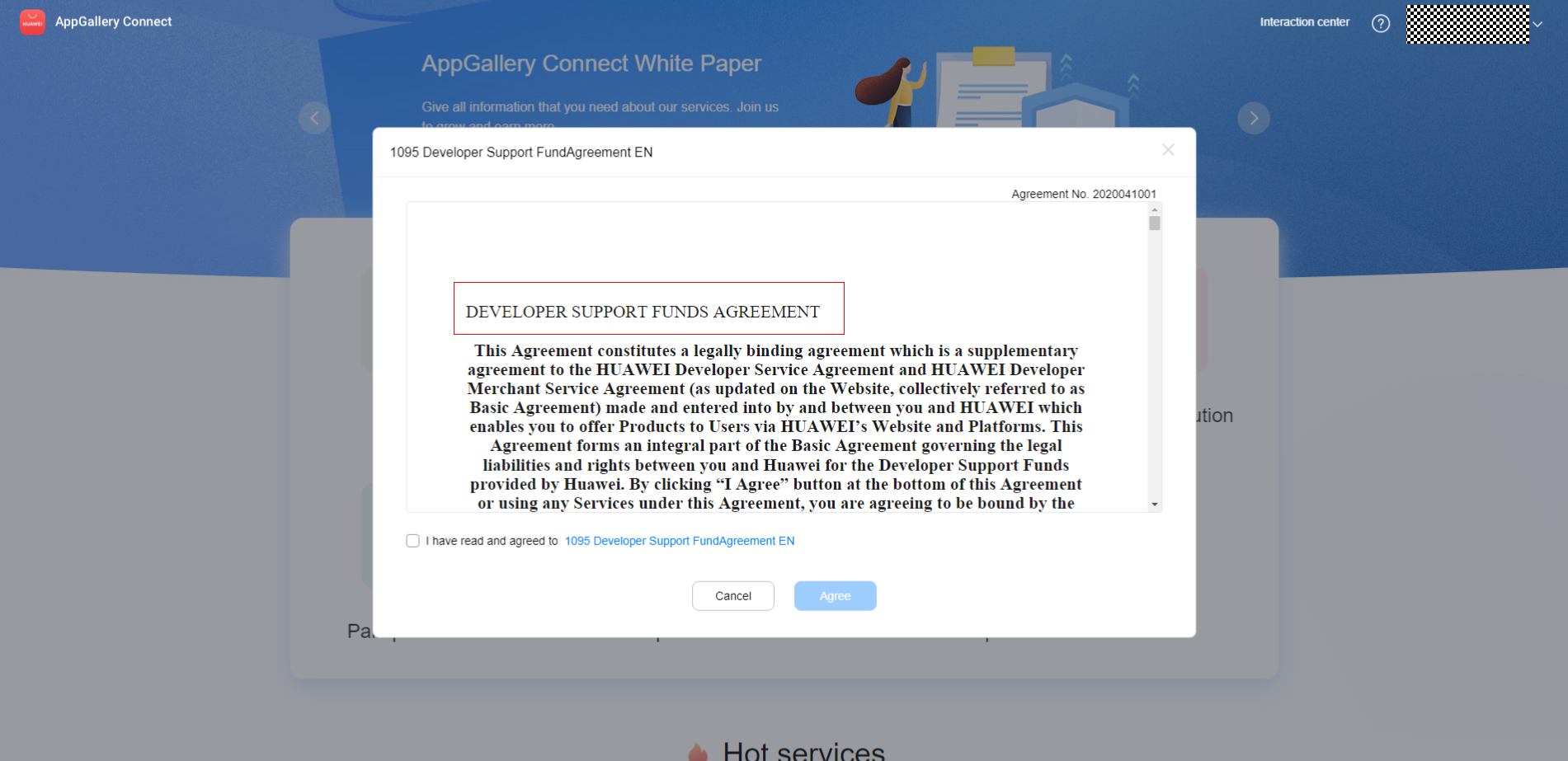
4. Signing of “Developer Support Funds Agreement”
(1) Enterprise developer support funds agreement signing:
Log in to HUAWEI Developers website, click App Services > Developer Support Funds, and sign the "Developer Support Fund Agreement". After the agreement is signed, Huawei will provide you with an incentive offer (including the specific amount). You can confirm the offer on HUAWEI Developer later.
(2) Developer support funds agreement signing:
Log in to AppGallery Connect and sign the "Developer Support Funds Agreement". After the agreement is signed, Huawei will send you an offer containing the amount through the public email.
5. Viewing Agreement Signing Records
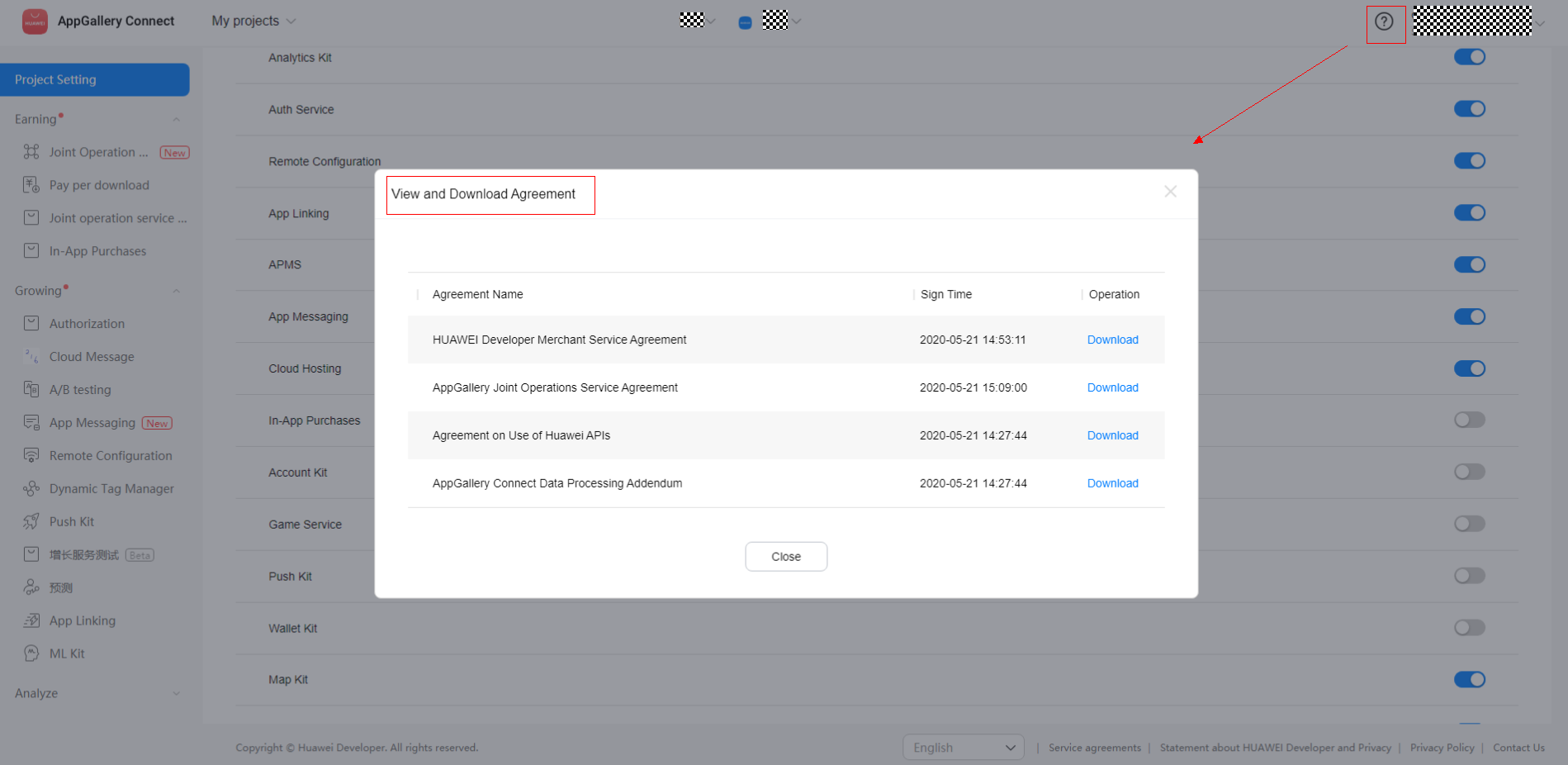
You can click the question mark in the upper right corner to view your agreement signing records. You can download an agreement that you have signed for viewing or archive.
6. Agreement Updates
Agreement updates are classified into update of important terms and update of general terms.
(1) Update of important terms
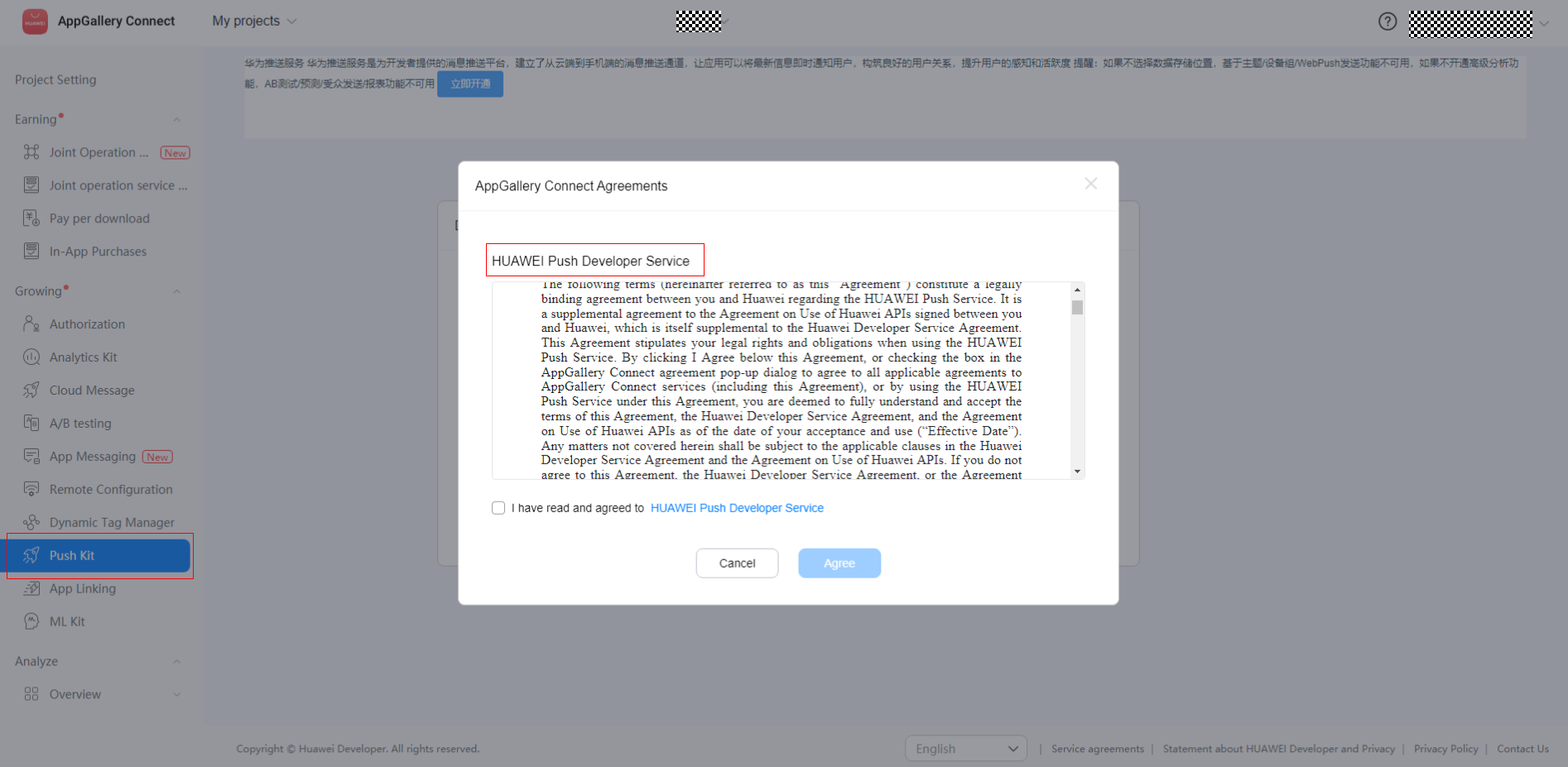
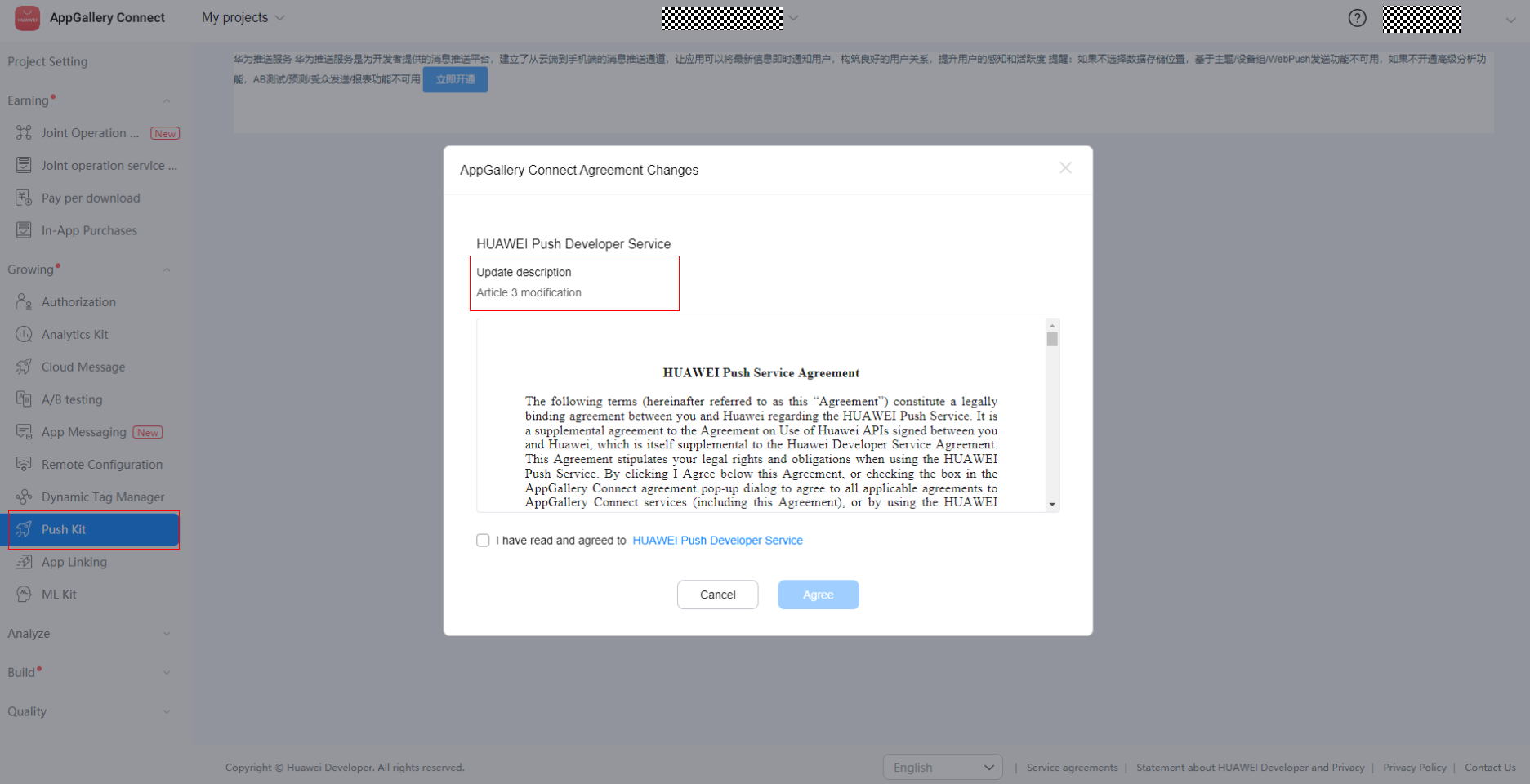
If any important term changes, you need to re-sign the agreement to use relevant services. If you do not agree to the updated term, you need to stop using these services. The updated agreement will be displayed in a pop-up window for signing and the agreement change points will be marked for you. For example, if the HUAWEI Push Developer Service is updated, when you go to My projects > Growing > Push Kit, a message will be displayed, asking you to sign the new agreement. The updates will be described above the agreement for you.
(2) Update of general terms
If any general term changes, for example, updates due to the changes of applicable laws and regulations, your rights and service usage will not be affected. As a result, you do not need to sign the agreement again to continue using relevant services. An updated agreement will be publicized for 30 days and will take effect automatically after the publicity. By default, you agree to the agreement changes. For any question, please contact us.