


Intelligent Assistant
Chat with our virtual assistant to get answers promptly.
We use essential cookies for the website to function, as well as analytics cookies for analyzing and creating statistics of the website performance. To agree to the use of analytics cookies, click "Accept All". You can manage your preferences at any time by clicking "Cookie Settings" on the footer. More Information.
HUAWEI HMS Core
Documents from this version have been archived, and will not continue to be maintained. Please use the latest version.
If you are using Android Studio, you can integrate your HMS SDK by using the Maven repository. Before you start developing an app, integrate the HMS SDK into your Android Studio first.
1. Sign in to AppGallery Connect and select My projects.
2. Find your project from the project list and click the app on the project card.
3. Go to Project Setting > General information. In the App information area, download the agconnect-services.json file.
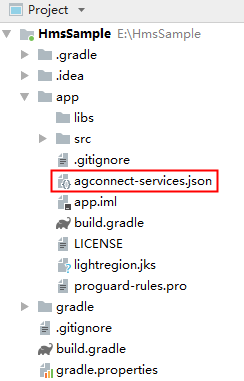
4. Copy the agconnect-services.json file to the app root directory.
Intelligent Assistant
Chat with our virtual assistant to get answers promptly.
Quick start
Helps you find desired resources with ease.