In the debugging phase, you need to configure a debug certificate to perform manual signing. You can request a debug certificate and download it by referring to this document. For details about how to perform manual signing, please refer to Signing Your App/Atomic Service Manually.

Each account can request up to three debug certificates.
Before You Start
- Prepare a CSR file.
- Obtain the permission to access debug certificates for your account role.
Procedure
- Sign in to AppGallery Connect and choose Certificates, app IDs, and profiles.
- In the navigation tree on the left, choose Certificates and click New certificate.

- Enter the certificate information in the New certificate window, and click Submit.
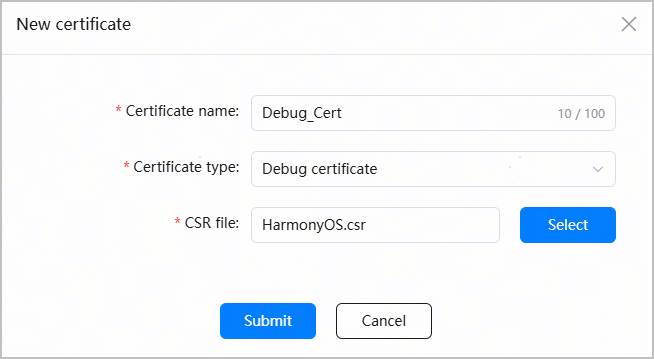
Parameter
Description
Certificate name
Custom certificate name, which contains a maximum of 100 characters.
Certificate type
Select Debug certificate.
CSR file
Upload the CSR file you have prepared.
- After the certificate request is approved, check information like the certificate name on the Certificates page. Click Download to save the generated certificate to the local device for subsequent signing and debugging.


- Currently, for a developer who has completed identity verification, the debug certificate is valid for one year. For a developer who has not completed identity verification, the debug certificate is valid for 14 days. If issues such as the app launch being blocked or an app expiration message occur during debugging, first check whether the debug certificate has expired. Once the certificate expires, the app can no longer be properly signed for debugging.
- In the debugging phase, if you update the debug certificate or configure a public key fingerprint, you need to update the debug profile.
- If the certificate becomes invalid or is revoked, it will no longer be available, and all profiles requested using the certificate will also become invalid or revoked. In this case, you need to request a new certificate and profile.
- A revoked certificate cannot be restored and all profiles requested using the certificate will become invalid. Exercise caution when performing this operation.