Cause Analysis:
HUAWEI Analytics Kit finds that collector_url is not in the allowlist. The allowlisted domain names in the HMS Core Analytics SDK include:
{"dbankcloud.com","dbankcloud.cn", "dbankcloud.eu","dbankcloud.asia",{"dbankcloud.com", "dbankcloud.cn", "dbankcloud.eu", "dbankcloud.asia", "digitalincloud.com","digitalincloud.cn","digitalincloud.eu","digitalincloud.asia", "dbankcdn.com","dbankcdn.cn","dbankcdn.eu","dbankcdn.asia","hicloud.com"} The whitelist is predefined and cannot be modified.
Solution:
Preset the value of collector_url in the system and make sure that the value is in the whitelist. Users are not allowed to change the value.
Cause Analysis:
The debug mode is not enabled.
Solution:
Enable the debug mode. For details, please refer to Access Debugging under App Development > Accessing HUAWEI Analytics Kit in the Development Guide.
Cause Analysis:
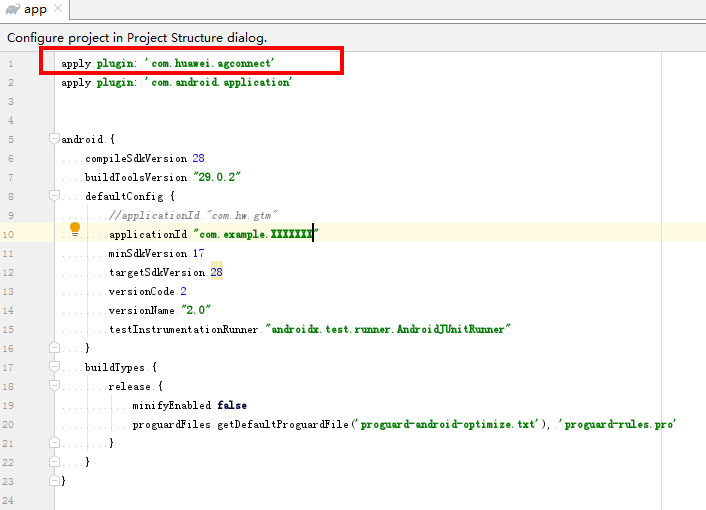
The AppGallery Connect plug-in configuration is added to the first line of the build.gradle file in the app directory, as shown in the following figure.
Solution:
Move the AppGallery Connect plug-in configuration to another line.
Cause Analysis:
The debug mode is not disabled, and therefore the reported event data is not displayed on the Real-time analysis page but on the App debugging page.
Solution:
Check whether debugMode enabled is displayed in local logs. If yes, the debug mode is not disabled. Run the following command and try again:
- adb shell setprop debug.huawei.hms.analytics.app .none.
Cause Analysis:
In the data reports (such as event analysis reports and retention analysis reports) of HUAWEI Analytics Kit, the real-time trend is updated in minutes, and all other indicators are updated the next day.
Solution:
After integrating HUAWEI Analytics Kit into your app, view the data reports the next day.
Cause Analysis:
The versionName field in the app-level build.gradle file is empty.
Solution:
Set the versionName field correctly.

Cause Analysis:
The configuration in the agconnect-services.json file is modified. As a result, the app fails to obtain the AppGallery Connect token.
Solution:
Check whether the configuration in the agconnect-services.json file is modified during app development, especially the configuration of the url parameter in the agcgw section. If yes, download the latest agconnect-services.json file and use the file to replace the existing one in the app directory of your Android project.
Cause Analysis:
This is normal, and the reason is as follows:
During the funnel analysis, if multiple events of a user meet the definition of a conversion step in a conversion period, the system preferentially selects the event closer to the final conversion target as the conversion event and stops the conversion calculation when the final conversion target is reached for the first time.
Assume that the conversion steps of a funnel include A, B, and C. The following are examples showing the behavior sequences and actual conversion steps (displayed in bold) of different users.
Example 1: A ->A ->A ->B
Example 2: A ->A ->A ->B ->C
Example 3: A ->A ->A ->B ->C ->A ->B
Example 4: A ->B ->B ->C
Cause Analysis:
Custom parameters are not added on the Event management page.
Solution:
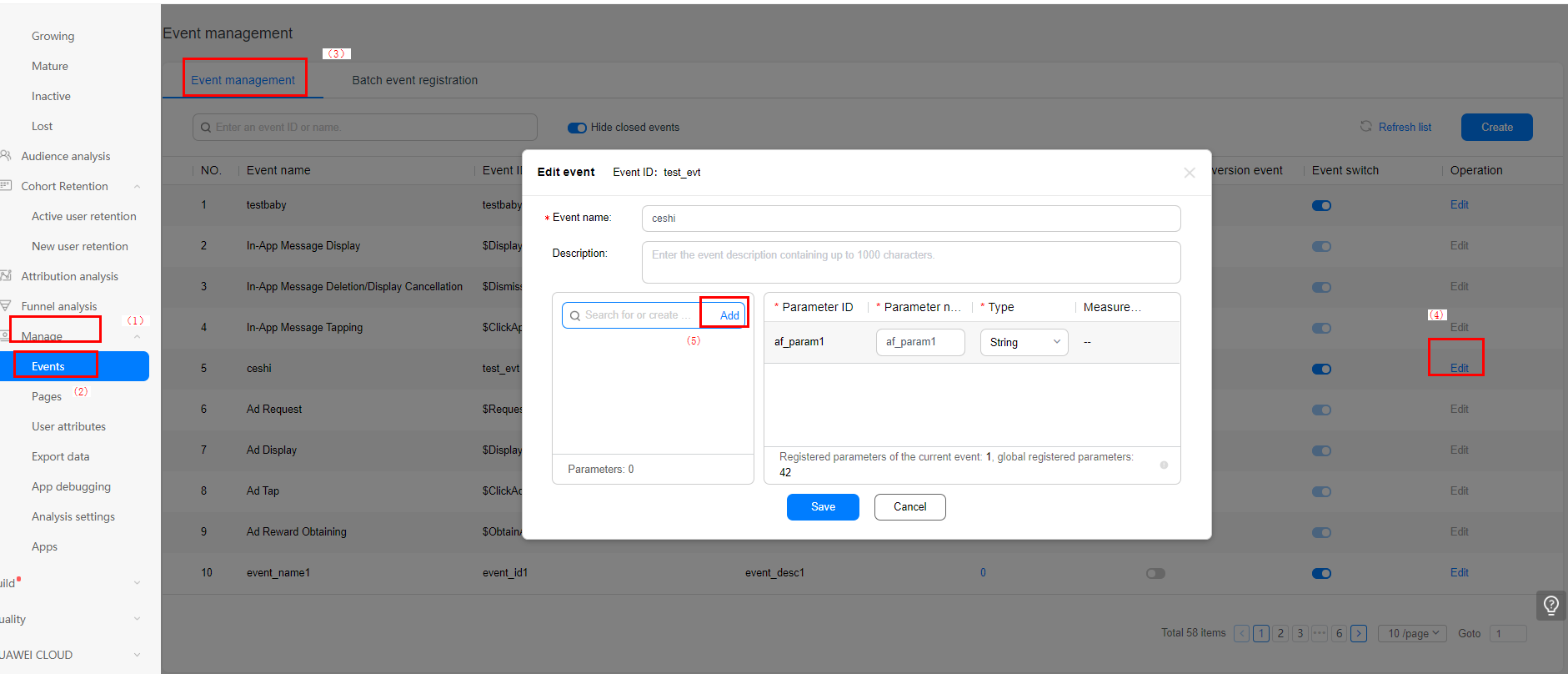
Check whether custom parameters of events have been added on the Event management page. To add a custom parameter, go to Project Setting > Analyze > Manage > Events. On the Event management page, click Edit, add a custom parameter, and click Add.
The domain name .cn is a secondary domain name. The site IP address resolved from .cn is the same as that resolved from .com. If you select the German site as the data storage location, the IP addresses resolved from .com and .cn are the same, that is, the IP address of the German site. The domain name .cn is used to ensure that your data can be uploaded to the cloud in a timely and reliable manner when .com fails to be resolved. This prevents data loss caused by domain name resolution failures and ensures your operations decision-making.
Cause Analysis:
Currently, you call the service registration API regHmsSvcEvent() in the onCreate() method and the service deregistration API unRegHmsSvcEvent() in the onDestroy() method in MainActivity. If MainActivity is destroyed immediately, the service deregistration API will be called. As a result, the in-app purchases event cannot be reported in real time.
Solution:
You are advised to call the regHmsSvcEvent() and unRegHmsSvcEvent() APIs in Application to report in-app purchases events in real time.