The function is available only for apps released in the Chinese mainland.
You need to complete the development of the following for an AppGalleryKit game:
Service | Mandatory or Optional (Chinese Mainland) | Mandatory or Optional (Outside the Chinese Mainland) | Description |
Mandatory | Conditionally optional |
| |
Optional but strongly recommended | Optional | It is recommended that HUAWEI Analytics be initialized upon game launch so that you can collect and analyze game basic data. | |
Mandatory | Optional |
| |
Mandatory | Mandatory | Integrate this service for your AppGalleryKit game. | |
Recommended | Not supported | Integrate this service if your AppGalleryKit game needs to display product information on the app details page. This service now supports only games released in the Chinese mainland. |
You must integrate HUAWEI Account Kit for AppGalleryKit game. For details, please refer to Signing In with HUAWEI ID.
To integrate HUAWEI Game Service, develop the game startup and login functions according to Huawei requirements.
For details about how to develop the game startup function, see Launching the Game.
For details about how to log in to the game, see Game Signing In.
Other game features (such as achievements and events) can be accessed by developers based on actual requirements. For details, see Game Development Guide.
HUAWEI Analytics predefines a large number of analytics models to help you clearly understand user behavior and gain in-depth insights into users, products, and content. As such, you can carry out data-driven operations and make strategic decisions about app marketing and product optimization.
AppGalleryKit requires that the HUAWEI Analytics service be initialized after an app is started, in order to collect automatically collected events. Automatically collection events are classified into the following types:
System events: These events are triggered when an app is started for the first time and when an app updates. They are automatically collected by HUAWEI Analytics Kit after the HUAWEI Analytics service is initialized. For details about system events, please refer to System Events.
Activity-based screen events: These events are triggered during activity startup and exit. They are automatically collected by HUAWEI Analytics Kit after the HUAWEI Analytics service is initialized. For details about activity-based screen events, please refer to Activity-based Screen Events.
For details about the automatically collected events, see Automatically Collected Event.
Restrictions on Different Terminal Platforms.
In principle, HUAWEI Analytics is supported on all Android devices on which the HMS Core(APK) is installed.
For non-Huawei Android devices (such as Xiaomi, VIVO, OPPO, Samsung, Coolpad, and ZTE), the HMS Core(APK) must be installed. Some mobile phone brands may delete Huawei processes, leading to data report exceptions.
HUAWEI Analytics is not supported on iOS devices.
As a data processor, HUAWEI Analytics does not proactively collect the personal data of users. The developer needs to determine which personal data should be collected based on the applicable laws and regulations, and protect users' privileges regarding their personal data.
Initialize HUAWEI Analytics Kit when the app is started.
- @Override
- protected void onCreate(Bundle savedInstanceState) {
- super.onCreate(savedInstanceState);
- setContentView(R.layout.activity_main);
- //Enable the SDK log.
- HiAnalyticsTools.enableLog();
- HiAnalyticsInstance instance = HiAnalytics.getInstance(this);
- }
After being initialized, HUAWEI Analytics Kit automatically collects system events and activity-based screen events. You can conduct basic data analysis by using relevant HUAWEI Analytics functions. For details, please refer to Huawei Analytics User Guide.
If you wish to use more advanced event analysis functions such as defining and reporting present events and custom events, please refer to Huawei Analytics Development Guide。
For details about how to upgrade an app, please refer to Updating the App.
You need to integrate the HUAWEI IAP service to your AppGalleryKit game. For details, please refer to HUAWEI IAP Development Guide.
You can create a product in the Product Management System (PMS) of AppGallery Connect, package the product for marketing, and display the product publicity image, product name, and product description on their app details screen in AppGallery.
The function is available only for apps released in the Chinese mainland.
Out-of-app purchase for PMS-managed products supports the following payment modes:
DeepLink: When a user taps to purchase a product in AppGallery, the user will be redirected to your app and be instructed to complete payment and delivery in your app.
- Redemption code: You can configure redemption codes in advance in HUAWEI AppGallery Connect. After a user uses a redemption code to purchase a product in AppGallery, Huawei server instructs your server to complete the product delivery.
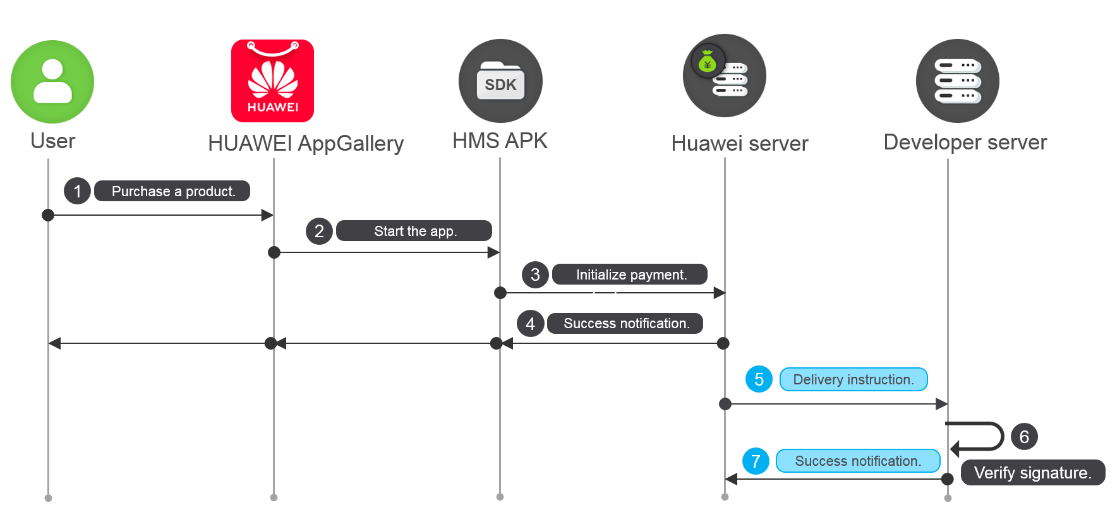
- HMS Core: When a user taps to purchase a product in AppGallery, Huawei HMS Core initiates a payment request. After the payment is complete, Huawei server instructs your server to complete the product delivery.
To implement the DeepLink mode, you simply need to set DeepLink when you Configure product Marketing Information. When a user taps to purchase your product, the user will be redirected to the address specified by DeepLink. The subsequent payment and delivery process is the same as that of in-app purchase. For details, please refer to HUAWEI IAP Development Guide.
In redemption code payment mode, you only need to configure redemption codes by referring to Virtual Product and your delivery address when Managing Product Marketing. No extra coding is required.
To use HMS Core to initiate payment, you need to develop the direct purchase and missed order query functions. This section describes how to develop these functions.
You have configured product marketing information by referring to Configuring Product Marketing Information.
Receiving a delivery notification:
1. After the direct purchase is successful, Huawei server calls the Delivery Notification API to instruct the developer's server to deliver the product to the user.
Request
- POST {Third-party app server url} HTTP/1.1
- Content Type : application/json ; charset=UTF-8
- {
- "data": {
- "developerId": "234234234",
- "appId": "1231333",
- "orderId": "sdfsfff32324324234234",
- "productNo": "product344",
- "openId": "openId13123",
- "count": 1,
- "ts": 12312313123131123
- },
- "sign": "string"
- }
2. Obtain the public key for verifying the order information. For details, please refer to Obtaining the Public Key for Signature Verification.
3. After receiving the delivery notification, verify the sign field in the delivery notification by referring to the Signature Verification Example and return the processing result to Huawei server according to the queried order data.
Response
- {
- "error": {
- "errorCode": 0,
- "errorMsg": "string"
- }
- }
- or
- {
- "data": {
- "result": 0
- }
- }
4. Deliver the product based on the product ID and user information.
Proactive notification of delivery success
1. Create an API client for accessing Huawei server APIs. For details, please refer to Creating an API Client.
You need to create the API client only once to call desired APIs.
2. Call the Obtaining a token to obtain the access token used for API client authentication.
3. After the delivery is successful, call the Delivery Success Notification API to send a notification to Huawei server with the access token. Then Huawei server updates the order status as instructed.
Request
- {
- "orderId": "string",
- "productNo": "string",
- "openId": "string",
- "status": 0
- "ts": 12312313123131123
- }
Response
- {
- "error": {
- "errorCode": 0,
- "errorMsg": "string"
- }
- }
- or
- {
- "data": {
- "result": 0
- }
- }
If the delivery notification fails for a direct purchase, order missing occurs. In this case, Huawei server marks the order as not delivered. When an app is started, it needs to check whether the current HUAWEI ID has missed orders. If so, the app instructs the developer's server to deliver involved products. After the developer's server successfully delivers products, the developer's server notifies Huawei server of the delivery success. Huawei server then changes the order status to delivered.
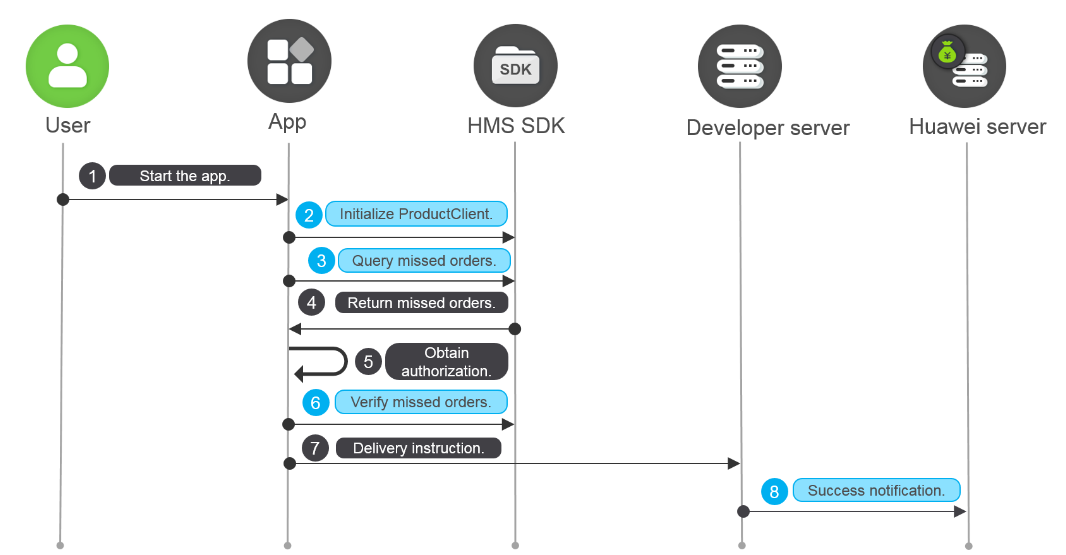
1. Call the JosApps.getProductClient method to initialize the ProductClient instance when your app is started.
- ProductClient productClient = JosApps.getProductClient(this);
2. Call the ProductClient.getMissProductOrder method to query missed orders.
This step is optional and only intends to detect whether a HUAWEI ID has signed in to the current device. Data query with specific data usage purposes will be performed in Step 4.
For a device signed in with a HUAWEI ID, the HMS SDK queries missed order data. If no HUAWEI ID has signed in to the current device, no data will be returned.
- productClient.getMissProductOrder(this)
- .addOnSuccessListener(new OnSuccessListener<ProductOrderList>() {
- @Override
- public void onSuccess(ProductOrderList productOrderInfos) {
- if (productOrderInfos == null) {
- LogUtil.i("QueryDPSMissProductList", "not have miss product");
- return;
- }
- StringBuffer stringBuffer = new StringBuffer();
- for (ProductOrderInfo productOrderInfo : productOrderInfos) {
- stringBuffer
- .append("TradeId:").append(productOrderInfo.getTradeId()).append("\r\n")
- .append("ProductNo:").append(productOrderInfo.getProductNo()).append("\r\n")
- .append("OrderId:").append(productOrderInfo.getOrderId()).append("\r\n")
- .append("Sign:").append(productOrderInfo.getSign()).append("\r\n")
- .append("--------------\r\n:");
- }
- LogUtil.i("QueryDPSMissProductList", stringBuffer.toString());
- }
- }).addOnFailureListener(new OnFailureListener() {
- @Override
- public void onFailure(Exception e) {
- if (e instanceof ApiException) {
- ApiException apiException = (ApiException) e;
- LogUtil.i("QueryDPSMissProductList", "getMissProductOrder failed:" + apiException.getStatusCode());
- }
- }
- });
3. Instruct the user to authorize access to your app using his/her HUAWEI ID.
To improve user experience, it is recommended that you associate users' HUAWEI IDs with your own account system so that users can view orders placed using both HUAWEI IDs and accounts in your system.
4. Call the ProductClient.getMissProductOrder method again to query missed orders.
5. Call the ProductOrderInfo.getSign method to obtain the signature from order information and verify the signatureby the Public Key in the Obtaining the Public Key for Signature Verification . For details how to verify the signature, please refer to Verifying the Signature for Missed Orders.
6. After the signature is verified, instruct the developer's server to deliver involved products to the user. The developer's server sends a delivery success notification to Huawei server. For details, please refer to Delivery Success Notification.