
Attribution analysis of in-app events measures the conversion contribution of to-be-attributed events (such as tapping a push message) to target conversion events (such as placing a purchase order). You can define target conversion events and to-be-attributed events, and select an attribution model to generate an attribution analysis report. The report helps evaluate the marketing channel conversion effect so that you can adjust your strategy in time.
An attribution model is a rule or a set of rules that determine how to assign sales and conversion contributions to contact points in the conversion path. For example, the Last event attribution model assigns 100% of contributions to the final contact point (that is, a tap) before sales or conversion, and the First event attribution model assigns 100% of contributions to the contact point that triggers the conversion path.
1. Sign in to AppGallery Connect and select "My projects".
2. Click the app for which you need to view analytics data.
3. Go to "Analyze > Attribution analysis".
On the Attribution analysis page, you can:
View a list of created attribution analysis reports and the basic information, including the name, description, and creation time.
Manage reports: Specify conditions in area (1) to search for desired attribution analysis reports. Click area (2) to create an attribution report. Click area (3) to edit or delete an attribution report.
Click Create attribution analysis report at the upper right corner of the Attribution analysis page.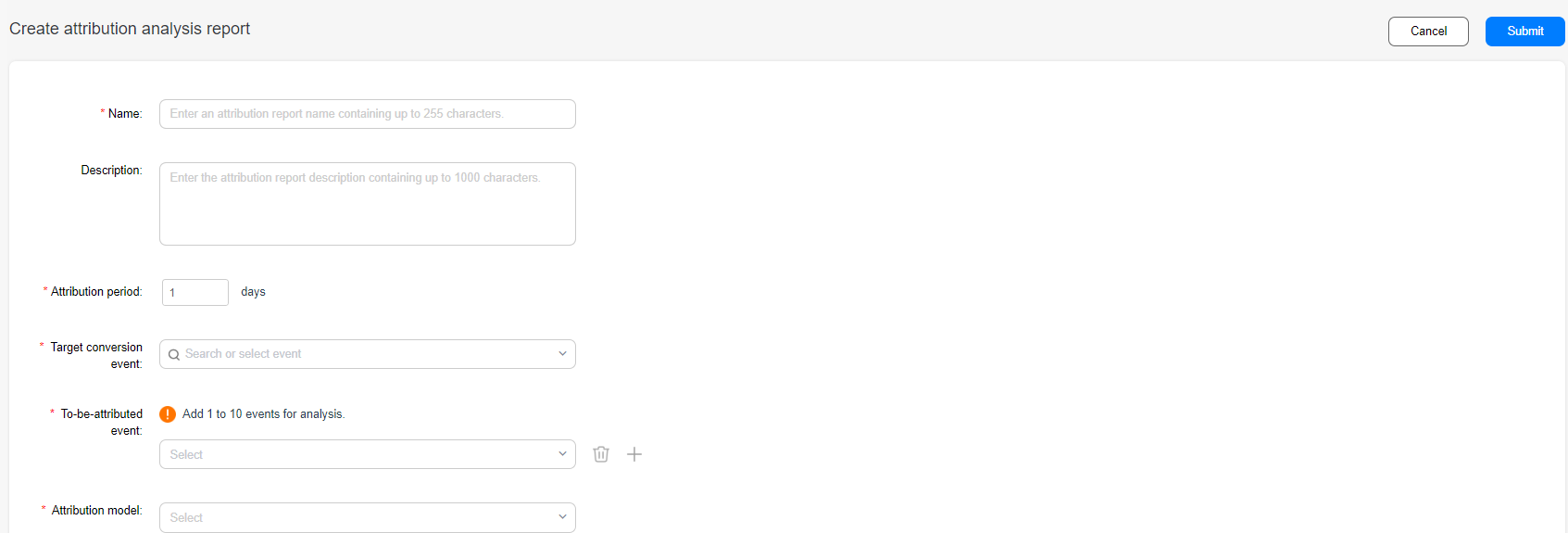
The following table describes the related parameters.
| Parameter | Description |
|---|---|
Name | Enter a report name that is easy to remember and understand. |
Description | Enter information such as the purpose of creating the report. |
Attribution period | The period must be within 1–90 days. |
Target conversion event | Select any event of the current app as the target conversion event, for example, In-App Purchases. Fuzzy search is supported. |
To-be-attributed event | Select 1 to 10 events (excluding target conversion events) of the current app. Fuzzy search is supported. |
Attribution model | Select First event attribution or Last event attribution. |
First event attribution: Among the to-be-attributed events selected, the event that occurs first is considered as the cause of the conversion event.
Last event attribution: Among the to-be-attributed events selected, the event that occurs last is considered as the cause of the conversion event.
For example: A user sets the target event to A and the to-be-attributed events to B and C. The time sequence of the user's behavior events is B > C > A. If you select the First event attribution model, event B is considered as the cause of event A. If you select the Last event attribution model, event C is considered as the cause of event A.
Click the name of an attribution analysis report on the Attribution analysis page to view the report.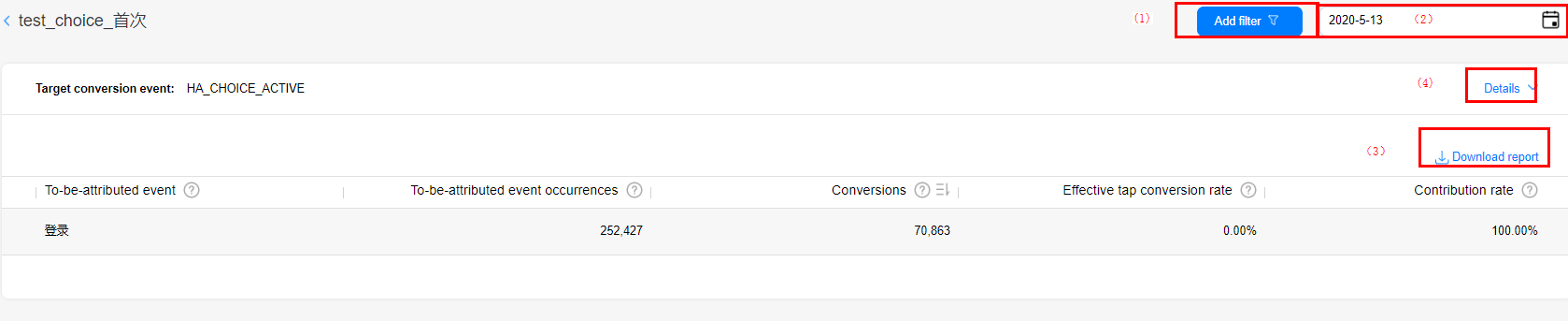
In area (1), click Add filter to perform comparison analysis on launch times by the app type, app, user attribute, audience, or industry.
In area (2), select a date on the calendar, but not a time period.
The table displays the indicators of each to-be-attributed event. Click Download report in area (3) to export data in the table to a CSV file.
In area (4), click Details to display information such as target conversion events, to-be-attributed events, the attribution period, and the attribution model.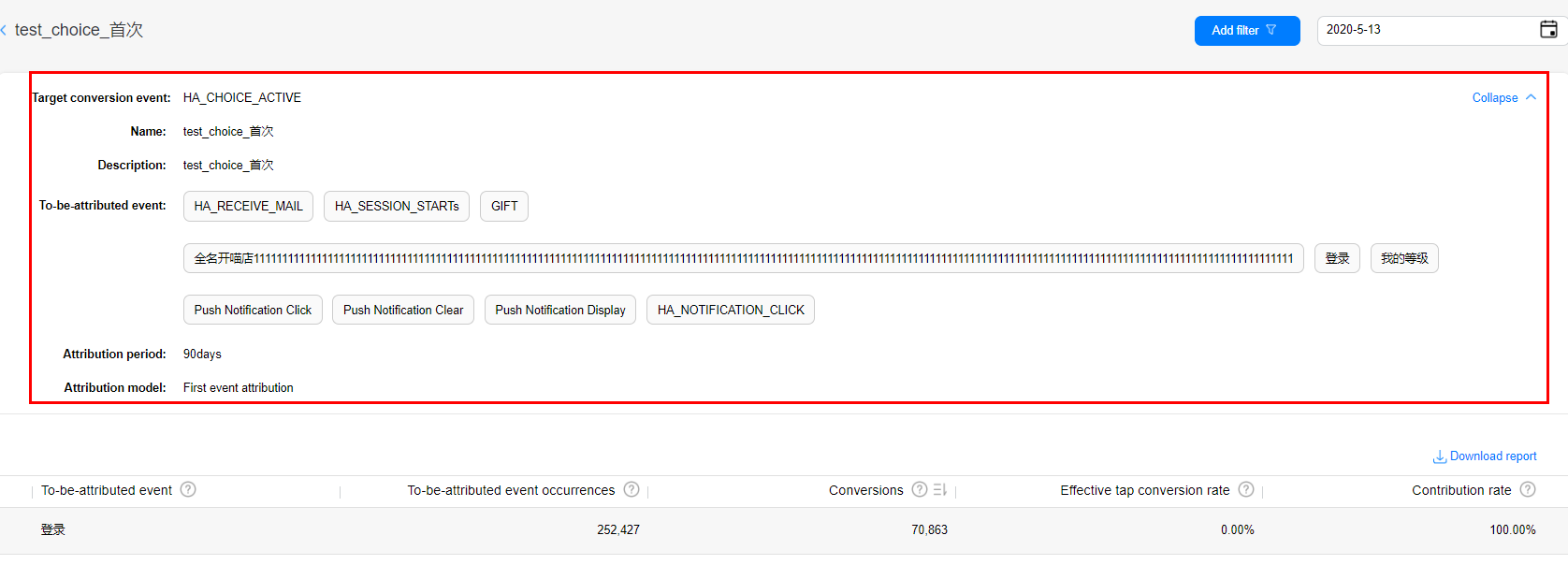
Indicators:
To-be-attributed event: Name of a to-be-attributed event.
To-be-attributed event occurrences: Total number of times that a to-be-attributed event occurs.
Conversions: Total number of times the target event triggered by a to-be-attributed event occurs.
Conversion rate: Conversions/To-be-attributed events x 100%.
Contribution rate: Conversions of a to-be-attributed event/Sum (conversions of all to-be-attributed events) x 100%.
If you modify a report field except Name and Description, for example, Attribution period, Target conversion event, To-be-attributed event, or Attribution model, historical report data will be deleted.
The number of attribution reports of each app cannot exceed 100.
The number of to-be-attributed events in each report cannot exceed 10.
An attribution period can last for 1 to 90 days.