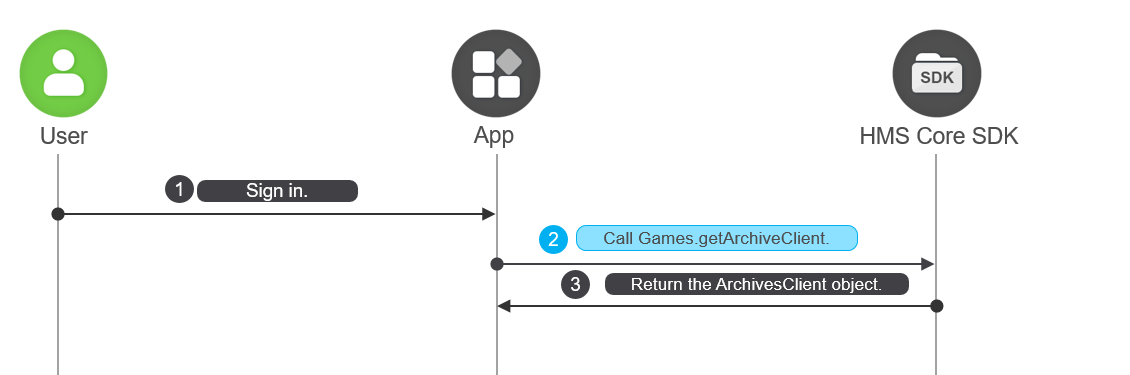
HUAWEI Game Service allows your game to save your players' game progress to HUAWEI Mobile Cloud and then retrieve the saved data so that your players can continue the game from the last save point from any device as long as they use HUAWEI IDs to sign in to the game. In this way, players do not need to start from the beginning even if their device is lost, damaged, or changed.
A saved game consists of the following parts:
Archive file: a file that you choose for writing saved game data. After an archive file is retrieved from HUAWEI Mobile Cloud, your game needs to parse it. The maximum size of such a file is 3 MB.
Archive metadata: archive attributes that can be displayed to players to help them identify saved games and select one to continue, including the archive name and last update time. An archive contains the following attributes.
Attribute | Description |
ID | Unique ID of an archive, which is generated by Huawei game server. |
Name | Name of an archive, which is generated by Huawei game server. |
Description | Description about an archive, which is defined by you for players to view. The description can contain up to 1000 characters. |
Last update time | Timestamp when a game is last saved. The value is generated by Huawei game server and is accurate to milliseconds. |
Played time | Total played time of an archive, in milliseconds. Your game needs to provide the value when updating an archive. |
Game progress | Progress of a player on an archive. You can define how to measure the progress. For example, the progress can be represented by the current level reached by a player, for which you can define an integer. |
Cover image | Cover image of an archive, which is usually the game screenshot taken at the save point and provided by your game. This attribute is optional. If you do not set the attribute, the default image is used. A JPG or PNG image with the aspect ratio 16:9 and a size no larger than 200 KB is recommended. |
When a player's device is offline, archives can be written to and read from the local cache.
Local data updates will be synchronized to Huawei game server as long as the player's device goes online.
Offline synchronization is available only for players who sign in to your game using HUAWEI IDs.
If a player signs out before his/her device goes online, the locally cached archive will be discarded.
Your game may encounter conflicts when using the saved game function. These conflicts occur when a player plays your game on different devices using the same HUAWEI ID at the same time and these devices perform reads and writes on the same archive in poor network conditions. If two archives conflict with each other, Huawei game server will notify your game of the conflict reason and allow your game to use one archive as the final archive or properly combine the two archives into the archive to use.
Conflicts may occur during archive reading or writing when any of the conditions described in the following table is met.
If a parameter in one archive does not exist and cannot be used for comparison with the other archive, Huawei game server also regards that a conflict has occurred and the parameter value in the other archive is more preferred.
Operation | Conflict Occurs When |
Archive updating | Archive A is written; while archive B already exists on the server.
|
Archive reading | Archive A is cached locally, but archive B is retrieved from the server.
|
There are two ways of resolving conflicts:
Specify a conflict resolution policy for Huawei game server to resolve a conflict automatically when reading an archive.
Define a conflict resolution mechanism for your game to resolve conflicts, either using one archive as the final archive or properly combining the two archives into the final archive.
The saved game function saves data to HUAWEI Mobile Cloud by players' HUAWEI IDs. As a result, you need to agree to enable HUAWEI Drive Kit so you can implement the saving function. The saved game function applies only to countries and regions supported by HUAWEI Drive Kit. For details, please refer to Regions Supported by HUAWEI Drive Kit.
Before calling archive APIs, ensure that the player has signed in with his/her HUAWEI ID.
Up to 100 saved games can be stored in HUAWEI Cloud for each user at the same time as long as HUAWEI Cloud has a sufficient space.
To use the saved game feature, users need to enable Game Services in HUAWEI AppGallery (10.3 or later). If a user who has not enabled Game Services triggers archive API calling, the HMS Core SDK redirects the user to the Game Services switch screen in HUAWEI AppGallery and instructs the user to enable Game Services. If the user does not enable Game Services, result code 7018 is returned. Your game needs to actively instruct users to go to Me > Settings > Game Services in AppGallery, so the saved game feature will be available.
1. To use the saved game function, call HuaweiIdAuthParamsHelper.setScopeList when a player signs in to your game to apply for the permission scope of DRIVE_APP_DATA. The sample code is as follows:
- List<Scope> scopes = new ArrayList<>();
- scopes.add(GameScopes.DRIVE_APP_DATA);
- HuaweiIdAuthParams huaweiIdAuthParams = new HuaweiIdAuthParamsHelper(HuaweiIdAuthParams.DEFAULT_AUTH_REQUEST_PARAM_GAME).setScopeList(scopes).createParams();
2. Before using archive API capabilities, call Games.getArchiveClient to obtain the ArchivesClient instance. The sample code is as follows:
- ArchivesClient client = Games.getArchiveClient(this, mAuthHuaweiId);
The value of mAuthHuaweiId passed in the API is the AuthHuaweiId object obtained when a user signs in to the game. If the sign-in session has expired, call the HuaweiIdAuthService.getSignInIntent method to sign the user in to the game again or call the HuaweiIdAuthService.silentSignIn method to implement silent sign-in and obtain AuthHuaweiId.
When a player saves a game for the first time, Huawei game server creates an archive file and archive metadata for the saved game.
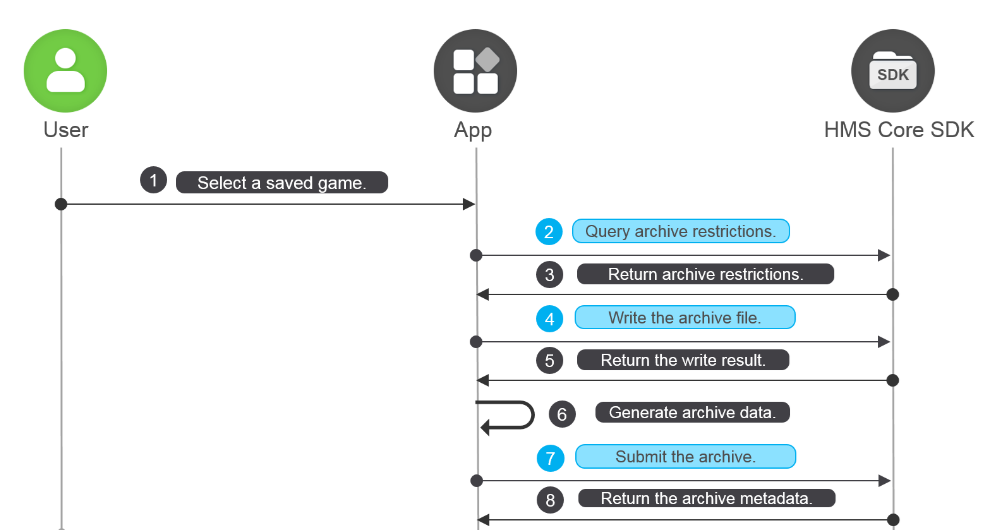
1. When a player saves the game during gameplay, your game needs to query Huawei game server's restrictions on related archive files.
To query the maximum size (in bytes) of a saved game's cover image, call the ArchivesClient.getLimitThumbnailSize method.
To query the maximum size (in bytes) of an archive file, call the ArchivesClient.getLimitDetailsSize method.
- Task<Integer> thumbnailSizeTask = Games.getArchiveClient(this, mAuthHuaweiId) .getLimitThumbnailSize();
- thumbnailSizeTask.addOnSuccessListener(new OnSuccessListener<Integer>() {
- @Override
- public void onSuccess(Integer integer) {
- int maxThumbnailSize = integer;
- }
- }).addOnFailureListener(new OnFailureListener() {
- @Override
- public void onFailure(Exception e) {
- if (e instanceof ApiException) {
- ApiException apiException = (ApiException) e;
- Log.e("archive","statusCode:" + apiException.getStatusCode());
- }
- }
- });
- Task<Integer> detailSizeTask = Games.getArchiveClient(this, signInHuaweiId) .getLimitDetailsSize();
- detailSizeTask.addOnSuccessListener(new OnSuccessListener<Integer>() {
- @Override
- public void onSuccess(Integer integer) {
- int detailSize = integer;
- }
- }).addOnFailureListener(new OnFailureListener() {
- @Override
- public void onFailure(Exception e) {
- if (e instanceof ApiException) {
- ApiException apiException = (ApiException) e;
- Log.e("archive","statusCode:" + apiException.getStatusCode());
- }
- }
- });
2. Call the ArchiveDetails.set method to write the current archive file of the player to the ArchiveDetails object.
3. The game writes the archive metadata (such as the archivee description, progress, and cover image) to the ArchiveSummaryUpdate object.
- ArchiveSummaryUpdate archiveSummaryUpdate =
- new ArchiveSummaryUpdate.Builder().setActiveTime(playedTime)
- .setCurrentProgress(progress)
- .setDescInfo(description)
- .setThumbnail(bitmap)
- .setThumbnailMimeType(imageType)
- .build();
4. Call the ArchivesClient.addArchive method to submit the archive. After the game is successfully saved, the HMS SDK returns the archive metadata to your game as an ArchiveSummary object.
- ArchiveDetails archiveDetails = new ArchiveDetails.Builder().build();
- archiveDetails.set(content);
- Task<ArchiveSummary> addArchiveTask = Games.getArchiveClient(this, signInHuaweiId).addArchive(archiveDetails, archiveSummaryUpdate, isSupportCache);
- addArchiveTask.addOnSuccessListener(new OnSuccessListener<ArchiveSummary>() {
- @Override
- public void onSuccess(ArchiveSummary archiveSummary) {
- if (archiveSummary != null) {
- String fileName = archiveSummary.getFileName();
- String archiveId = archiveSummary.getId();
- }
- }
- }).addOnFailureListener(new OnFailureListener() {
- @Override
- public void onFailure(Exception e) {
- if (e instanceof ApiException) {
- ApiException apiException = (ApiException) e;
- Log.e("archive","statusCode:" + apiException.getStatusCode());
- }
- }
- });
When a player requests to browse saved game data, your game needs to display all saved games of the player for the player to choose in either way:
Obtain the Intent object of the saved game list screen in HUAWEI AppAssistant and call the startActivityForResult method to open the saved game list screen. In this way, you do not need to develop your own saved game list screen. However, this way supports only devices running EMUI 9.0 or later and with HUAWEI AppAssistant 10.3 or later installed.
Develop your own saved game list screen that displays the obtained archive data.
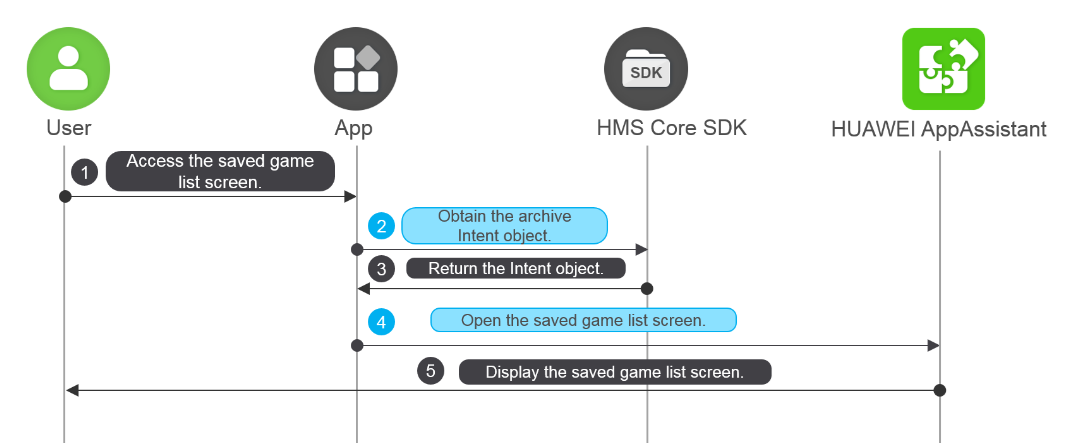
1. When a player triggers saved game browsing, the game obtains the Intent object of the saved game list screen of HUAWEI AppAssistant by calling the ArchivesClient.getShowArchiveListIntent method.
2. Call the startActivityForResult method to open the saved game list screen of HUAWEI AppAssistant.
3. If a user selects a saved game from the saved game list screen of HUAWEI AppAssistant, your game needs to call ArchivesClient.parseSummary to obtain the corresponding archive metadata. The Bundle object is obtained using the getParcelableExtra method of the Intent object.
- Task<Intent> task = archivesClient.getshowArchiveListIntent(title, allowAddBtn, allowDeleteBtn, maxArchive);
- task.addOnSuccessListener(new OnSuccessListener<Intent>() {
- @Override
- public void onSuccess(Intent intent) {
- if (intent != null) {
- startActivityForResult(intent, 1);
- }
- }
- }).addOnFailureListener(new OnFailureListener() {
- @Override
- public void onFailure(Exception e) {
- if (e instanceof ApiException) {
- ApiException apiException = (ApiException) e;
- Log.e("archive", "statusCode:" + apiException.getStatusCode());
- }
- }
- });
- …
- @Override
- protected void onActivityResult(int requestCode, int resultCode, Intent data) {
- super.onActivityResult(requestCode, resultCode, data);
- if (requestCode == 1) {
- if (data == null) {
- return;
- }
- if (data.hasExtra(ArchiveConstants.ARCHIVE_SELECT)) {
- Bundle bundle = data.getParcelableExtra(ArchiveConstants.ARCHIVE_SELECT);
- Task<ArchiveSummary> task = getArchivesClient().parseSummary(bundle);
- task.addOnSuccessListener(new OnSuccessListener<ArchiveSummary>() {
- @Override
- public void onSuccess(ArchiveSummary archiveSummary) {
- if (archiveSummary != null) {
- // TODO
- }
- }
- }).addOnFailureListener(new OnFailureListener() {
- @Override
- public void onFailure(Exception e) {
- if (e instanceof ApiException) {
- ApiException apiException = (ApiException) e;
- Log.e("archive", "statusCode:" + apiException.getStatusCode());
- }
- }
- });
- } else if (data.hasExtra(ArchiveConstants.ARCHIVE_ADD)) {
- // TODO call addArchive api to add a new Archive
- }
- }
- }
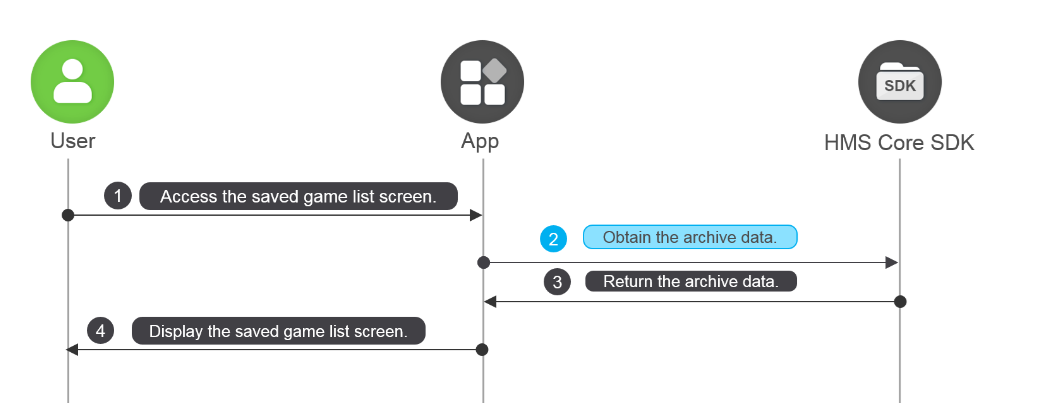
When a player triggers saved game browsing, call the ArchivesClient.getArchiveSummaryList method to obtain all archive data from Huawei game server or a local position.
- Task<List<ArchiveSummary>> task = archivesClient.getArchiveSummaryList(isRealTime);
- task.addOnSuccessListener(new OnSuccessListener<List<ArchiveSummary>>() {
- @Override
- public void onSuccess(List<ArchiveSummary> list) {
- if (list != null) {
- Log.i("TAG"," list size" + list.size());
- }
- }
- }).addOnFailureListener(new OnFailureListener() {
- @Override
- public void onFailure(Exception e) {
- if (e instanceof ApiException) {
- ApiException apiException = (ApiException) e;
- Log.e("archive", "statusCode:" + apiException.getStatusCode());
- }
- }
- });
To obtain the archive cover, call ArchiveSummary.hasThumbnail to check whether there is a cover thumbnail. If so, call ArchivesClient.getThumbnail to obtain the thumbnail.
- private void loadThumbnail(Archive archive){
- if (archive.getSummary().hasThumbnail()) {
- Task<Bitmap> coverImageTask = getArchivesClient().getThumbnail(archive.getSummary().getId());
- coverImageTask.addOnSuccessListener(new OnSuccessListener<Bitmap>() {
- @Override
- public void onSuccess(Bitmap bitmap) {
- Glide.with(getApplicationContext()).load(bitmap).into(archiveImage);
- }
- }).addOnFailureListener(new OnFailureListener() {
- @Override
- public void onFailure(Exception e) {
- if (e instanceof ApiException) {
- Log.e("archive","load image failed"+ ((ApiException) e).getStatusCode());
- }
- }
- });
- }
- }
When a player saves a game again, Huawei game server can update the existing archive file and metadata instead of generating new files to save the storage space.
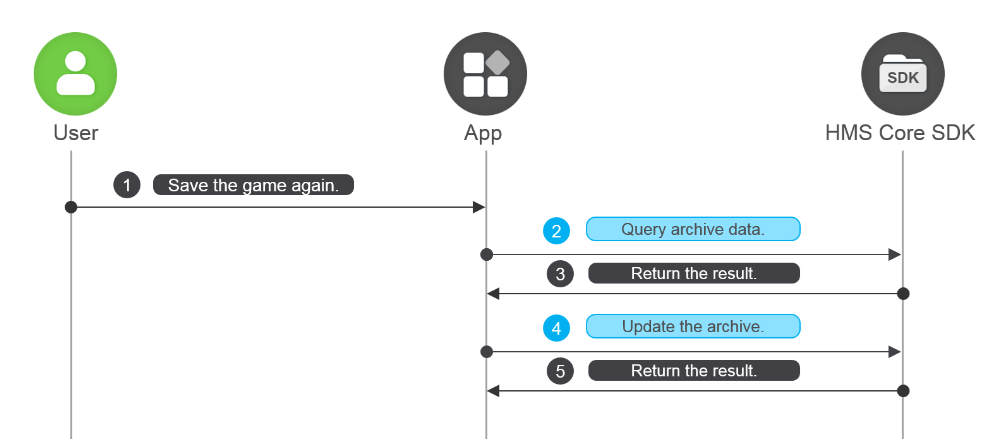
1. When a player saves a game again, call the ArchivesClient.getArchiveSummaryList method to obtain the archive list of the current player.
2. Obtain the ArchiveSummary metadata from the existing archive data and parse the archive ID.
3. Call the ArchiveDetails.set method to write the current game archive file of the player to the ArchiveDetails object and write the archive metadata to be saved to the ArchiveSummaryUpdate object.
4. Call the ArchivesClient.updateArchive method to update the archive.
5. If OperationResult.isDifference returns true during archive reading, a data conflict has occurred. To resolve the conflict, go to Resolving Archive Conflicts.
- String description = editTextDescription.getText().toString();
- long playedTime = String2Long(editTextPlayedTime.getText().toString());
- long progress = String2Long(editTextProgress.getText().toString());
- ArchiveSummaryUpdate archiveMetadataChange = builder.build();
- ArchiveDetails archiveContents = new ArchiveDetails.Builder().build();
- archiveContents.set((progress + description + playedTime).getBytes());
- Task<OperationResult> task = getArchivesClient().updateArchive(archiveId, archiveMetadataChange, archiveContents);
- task.addOnSuccessListener(new OnSuccessListener<OperationResult>() {
- @Override
- public void onSuccess(OperationResult archiveDataOrConflict) {
- showLog("isDifference:" + ((archiveDataOrConflict == null) ? "" : archiveDataOrConflict.isDifference()));
- }
- }
A user can choose to load the game from a specified archive.
If the saved game list screen is provided by HUAWEI AppAssistant, HUAWEI AppAssistant loads the archive of the selected saved game
If your own saved game list screen is opened, your are advised to call the ArchivesClient.getArchiveSummaryList method to obtain archive data from Huawei game server instead of loading local cached data.
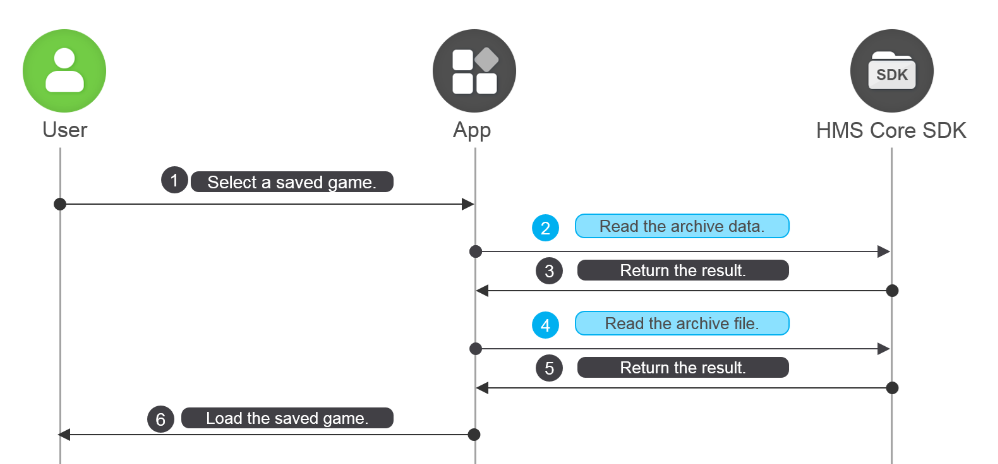
1. When a player selects a saved game, call the loadArchiveDetails method of ArchivesClient to read the archive depending on the following situations:
Huawei game server does not resolve data conflicts. You need to resolve them on your own. In this case, call the loadArchiveDetails(ArchiveSummary metadata) or loadArchiveDetails(String archiveId) method to read the archive.
A data conflict resolution policy is defined for Huawei game server to resolve conflicts. Then the server can process conflicting data, including the played time, progress, and last update time, according to the policy. In this case, call the loadArchiveDetails(ArchiveSummary metadata, int diffStrategy) or loadArchiveDetails(String archiveId, int diffStrategy) method to read the archive.
2. If OperationResult.isDifference returns true during archive reading, a data conflict has occurred. To resolve the conflict, go to Resolving Archive Conflicts.
3. After the archive is successfully read, call OperationResult.getArchive to obtain the Archive object that contains the archive metadata and file, and then call Archive.getDetails to obtain the ArchiveDetails object that contains the saved game file content.
The sample code is as follows:
- int conflictPolicy = getConflictPolicy(); //Specify the conflict resolution policy.
- Task<OperationResult> task;
- if (conflictPolicy == -1) {
- task = Games.getArchiveClient(this, authHuaweiId).loadArchiveDetails(archiveId);
- } else {
- task = Games.getArchiveClient(this, authHuaweiId).loadArchiveDetails(archiveId, conflictPolicy);
- }
- task.addOnSuccessListener(new OnSuccessListener<OperationResult>() {
- @Override
- public void onSuccess(OperationResult archiveDataOrConflict) {
- Log.i("TAG", "isDifference:" + ((archiveDataOrConflict == null) ? "" : archiveDataOrConflict.isDifference()));
- if (archiveDataOrConflict != null && !archiveDataOrConflict.isDifference()) {
- Archive archive = archiveDataOrConflict.getArchive();
- if (archive != null && archive.getSummary() != null) {
- Log.i("TAG", "ArchiveId:" + archive.getSummary().getId());
- }
- } else {
- //Conflict handling
- handleDifference(archiveDataOrConflict);
- }
- }
- }).addOnFailureListener(new OnFailureListener() {
- @Override
- public void onFailure(Exception e) {
- if (e instanceof ApiException) {
- ApiException apiException = (ApiException) e;
- Log.e("archive", "statusCode:" + apiException.getStatusCode());
- }
- }
- });
4. Call the ArchiveDetails.get method to read the binary game data from the archive file and load the data in your game.
- archive.getArchiveDetails().get();
When archive data read from the local cache conflicts with that retrieved from Huawei game server during archive reading or updating, Huawei game server returns the conflict details to your game. You can select either of the following conflict resolution mechanisms based on your requirements:
Use either of the conflicting archives as the final archive.
Properly combine the two archives into the final archive.
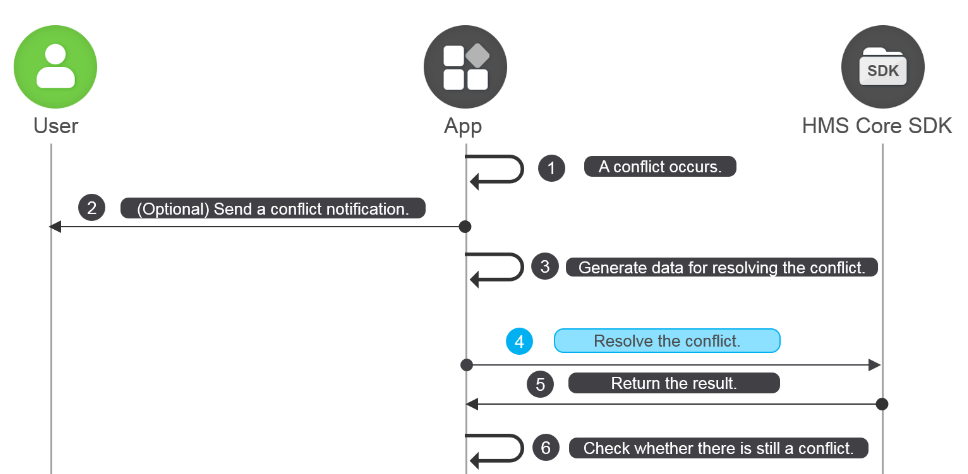
1. If OperationResult.isDifference returns true during archive reading, a data conflict has occurred. Call OperationResult.getDifference to obtain conflict details.
2. Your game can select or prompt the user to select one of the conflicting archives as the final archive.
3. Generate the final archive based on the conflict resolution result.
To obtain the archive cached locally as the final archive, call the OperationResult.Difference.getRecentArchive method.
To obtain the archive stored on Huawei game server as the final archive, call the OperationResult.Difference.getServerArchive method.
To combine the two archives into the final archive, edit the data obtained from the local cache and Huawei game server to generate the ArchiveSummaryUpdate and ArchiveDetails objects of the final archive.
4. Call the updateArchive method of ArchivesClient to resolve the conflict.
To use the ArchiveSummaryUpdate and ArchiveDetails objects generated after data editing to resolve the conflict, call ArchivesClient.updateArchive(String archiveId, ArchiveSummaryUpdate update, ArchiveDetails details).
To use the archive obtained either from the local cache or Huawei game server, call the ArchivesClient.updateArchive(Archive archive) method to resolve the conflict.
5. Call the OperationResult.isDifference method to check whether there is still a conflict. If so, repeat the preceding steps until OperationResult.isDifference returns false.
The sample code is as follows:
- private void handleDifference(OperationResult operationResult) {
- if (operationResult != null) {
- OperationResult.Difference archiveDifference = operationResult.getDifference();
- Archive openedArchive = archiveDifference.getRecentArchive();
- Archive serverArchive = archiveDifference.getServerArchive();
- // Sample use the server archive to solve diffrence
- if (serverArchive == null) {
- return;
- }
- Task<OperationResult> task = Games.getArchiveClient(this, signInHuaweiId).updateArchive(serverArchive);
- task.addOnSuccessListener(new OnSuccessListener<OperationResult>() {
- @Override
- public void onSuccess(OperationResult operationResult) {
- Log.i("archive","isDifference:"
- + ((operationResult == null) ? "" : operationResult.isDifference()));
- if (operationResult != null && !operationResult.isDifference()) {
- Archive archive = operationResult.getRecentArchive();
- if (archive != null && archive.getSummary() != null) {
- Log.i("archive","ArchiveId:" + archive.getSummary().getId());
- }
- } else {
- handleDifference(operationResult);
- }
- }
- }).addOnFailureListener(new OnFailureListener() {
- @Override
- public void onFailure(Exception e) {
- ApiException apiException = (ApiException) e;
- Log.e("archive" , "resolve result:" + apiException.getStatusCode());
- }
- });
- }
- }
If a player deletes a saved game on the saved game list screen provided by HUAWEI AppAssistant, the deletion logic is implemented by HUAWEI AppAssistant.
If you use your own saved game list screen, the process for implementing the deletion is as follows:
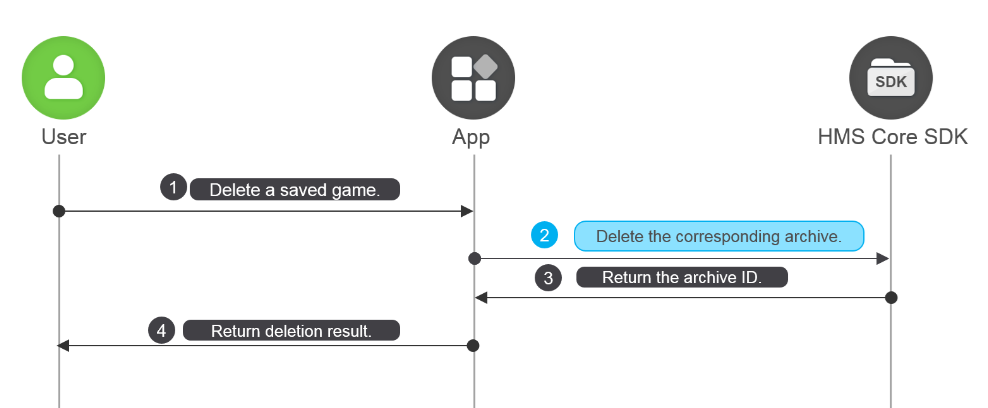
When a player deletes a saved game, call the ArchivesClient.removeArchive method with the archive metadata object in the request.
- Task<String> removeArchiveTask = Games.getArchiveClient(this, signInHuaweiId).removeArchive(archiveSummary);
- removeArchiveTask.addOnSuccessListener(new OnSuccessListener<String>() {
- @Override
- public void onSuccess(String s) {
- String deletedArchiveId = s;
- }
- }).addOnFailureListener(new OnFailureListener() {
- @Override
- public void onFailure(Exception e) {
- if (e instanceof ApiException) {
- ApiException apiException = (ApiException) e;
- Log.e("archive" ,"statusCode:" + apiException.getStatusCode());
- }
- }
- });
If a saved game is deleted successfully, the archive ID is returned. If the saved game fails to be deleted, a result code is returned. For details, please refer to Game API Result Codes.