
Before you start developing an app, configure app information in AppGallery Connect.
Before you get started, you must register as a HUAWEI developer and complete identity verification on the HUAWEI Developer website. For details, please refer to Register a HUAWEI ID.
Create an app by referring toCreating a ProjectandCreating an App in the Project. Special configurations for a game app are as follows:
Platform: SelectAndroid.
Device: SelectMobile phone.
App category: SelectGame.
A signing certificate fingerprint is used to verify the authenticity of an app when the app attempts to access HMS Core (APK) through the HMS SDK. Before using the HMS Core (APK) service, you must locally generate a signing certificate fingerprint and configure it in AppGallery Connect. Ensure that the following conditions are met:
● You have created the app's signature file.
● The JDK has been installed on your PC.
Perform the following steps:
1. Open the command line tool (using the cmd command) and run the cd command to go to the directory where keytool.exe is located. In the following example, the Java program is installed in Program Files (x86) in the C drive.
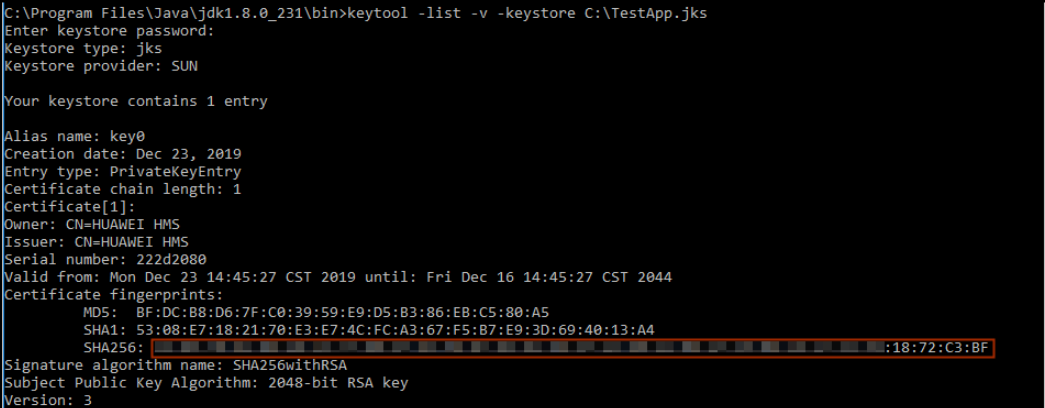
2. Run keytool -list -v -keystore <keystore-file> and respond as prompted. In the preceding command, <keystore-file> indicates the complete path to the app's signature file.
Example:
- C:\Program Files (x86)\Java\jdk1.7.0_25\bin>keytool -list -v -keystoreE:\HMS_SDK_2.5.1.300\Sample\HMSSdkSample_2.5.1.300_AS\HmsSample\android.keystore.jks
3. Obtain the SHA-256 fingerprint from the result.
1. Sign in toAppGallery Connectand selectMy projects.
2.Find your project from the project list and click the app on the project card.
3. On theProject Settingpage, setSHA-256 certificate fingerprintto the SHA-256 fingerprint fromGenerating a Signing Certificate Fingerprint.
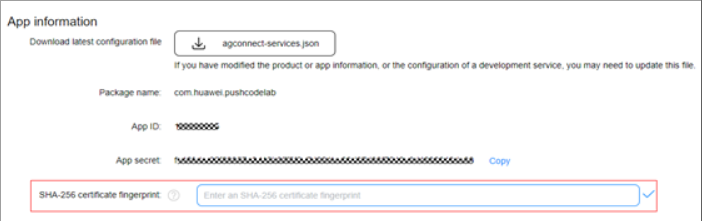
4. After completing configuration, click .
To use the FIDO function, you must enable the FIDO service. For details, please refer to Enabling Services.
If you are using Android Studio, you can integrate your HMS SDK by using the Maven repository. Before you start developing an app, integrate the HMS SDK into your Android Studio first.
1. Add theAppGallery Connectconfiguration file of the current app to your AndroidStudio.
a. Sign in toAppGallery Connectand select My projects.
b. Find your project from the project list and click the app on the project card.
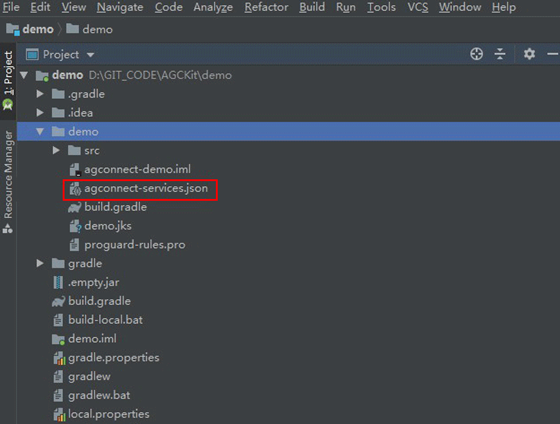
c. On the Project Setting page, click agconnect-services.json to download the configuration file.
d.Copy the agconnect-services.json file to the app root directory.
2. Configure the Maven repository address for the HMS SDK.
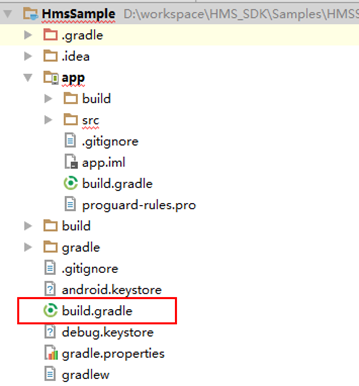
a. Open the build.gradle file in the root directory of your Android Studio project.
b. Go to allprojects > repositories and configure the Maven repository address for the HMS SDK.
- allprojects {
- repositories {
- google()
- jcenter()
- maven {url'https://developer.huawei.com/repo/'}
- }
- }
The Maven repository address cannot be accessed from a browser. It can only be configured in the IDE.
c. Go to buildscript > repositories and configure the Maven repository address for the HMS SDK.
- buildscript {
- repositories {
- google()
- jcenter()
- maven {url 'https://developer.huawei.com/repo/'}
- }
- }
d. Go to buildscript > dependencies and configure the address of the AppGallery Connect plug-in.
- buildscript {
- dependencies {
- classpath 'com.android.tools.build:gradle:3.3.0'
- classpath 'com.huawei.agconnect:agcp:1.2.0.300'
- }
- }
3. Add build dependencies and the AppGallery Connect plug-in address.
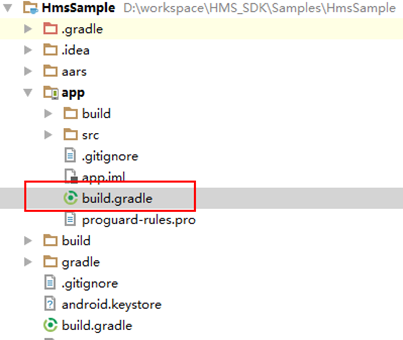
a. Open the build.gradle file in the app directory.
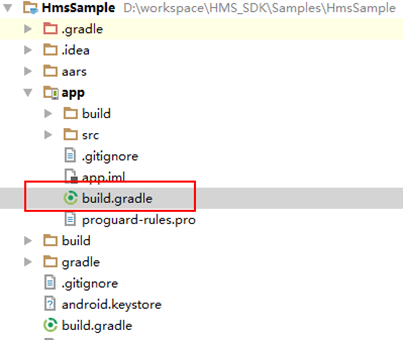
b. Add the AppGallery Connect plug-in dependency to the file header.
apply plugin: 'com.huawei.agconnect'
c. Configure build dependencies.(Do not add dependencies on both BioAuthn-AndroidX and BioAuthn.)
1) FIDO2
- dependencies {
- implementation 'com.huawei.hms:fido-fido2:4.0.3.300'
- }
2) BioAuthn-AndroidX
- dependencies {
- implementation 'com.huawei.hms:fido-bioauthn-androidx:4.0.3.300'
- }
3) BioAuthn
- dependencies {
- implementation 'com.huawei.hms:fido-bioauthn:4.0.3.300'
- }
4. Open the modified build.gradle file again. You will find a Sync Now link in the upper right corner of the page. Click Sync Now and wait until synchronization is complete.
If an error occurs, check the network connection and the configurations in the build.gradle file.
5. Define multi-language settings.
By default, your app supports all languages provided by the HMS SDK. If your app uses all these languages, skip this step.
If your app only supports certain languages, you can configure the languages during this step.
Open the build.gradle file in the app directory of your project.
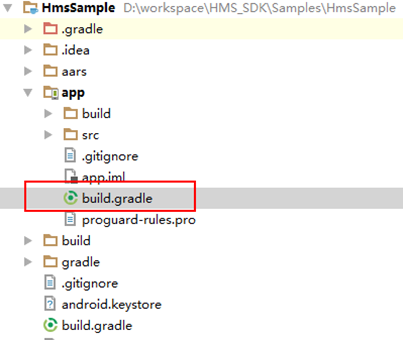
Go to android > defaultConfig and add the resConfigs configuration. en (English) and zh-rCN (Simplified Chinese) are mandatory. For example, if your app supports only English and Simplified Chinese, the configuration is as follows:
- android {
- defaultConfig {
- ...
- resConfigs "en","zh-rCN"
- }
- }
For details about the languages supported by the HMS SDK, please refer to Languages Supported by HMS SDK.
Before building the APK, configure obfuscation scripts to prevent the HMS SDK from being obfuscated. If obfuscation arises, the HMS SDK may not function properly.
Open the obfuscation configuration file proguard-rules.pro of your Android project.
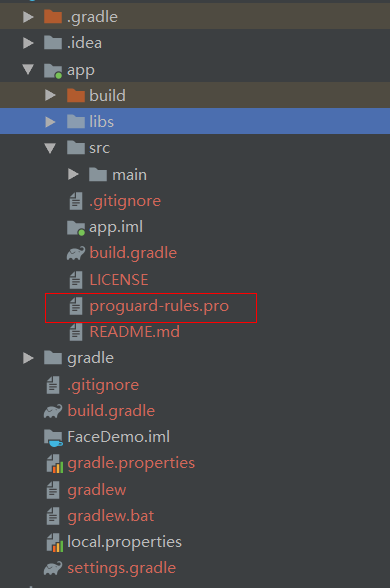
Add configurations to exclude the HMS SDK from obfuscation.
- -ignorewarnings
- -keepattributes *Annotation*
- -keepattributes Exceptions
- -keepattributes InnerClasses
- -keepattributes Signature
- -keepattributes SourceFile,LineNumberTable
- -keep class com.hianalytics.android.**{*;}
- -keep class com.huawei.updatesdk.**{*;}
- -keep class com.huawei.hms.**{*;}
3. If you have used AndResGuard, add the AndResGuard whitelist to the obfuscation configuration file.
- "R.string.hms*",
- "R.string.agc*",
- "R.string.connect_server_fail_prompt_toast",
- "R.string.getting_message_fail_prompt_toast",
- "R.string.no_available_network_prompt_toast",
- "R.string.third_app_*",
- "R.string.upsdk_*",
- "R.layout.hms*",
- "R.layout.upsdk_*",
- "R.drawable.upsdk*",
- "R.color.upsdk*",
- "R.dimen.upsdk*",
- "R.style.upsdk"