HUAWEI Analytics Kit is based on the event analytics data model.
The analytics data model uses the Event-Param-User model to record data, describes events using parameters, and describes the characteristics of users.
| Term | Meaning | Description |
|---|---|---|
Event | Event | An event describes a specific task completed by a user at a location using a method at a time, including key elements such as who, when, where, how, and what. |
Param | Parameter | Associated parameters reported in events, for example, the product name and product price parameters in the event of a product being added to the shopping cart. These parameters can be used for subsequent in-depth analytics. |
UserProfiles | User attribute | List of user attributes. Common user attributes include the ODID, device model, app version, and custom user attributes such as food preferences. |
HUAWEI Analytics Kit collects the AAID that is allocated by the HMS Instance ID to each app instance installed on the device. The AAID is used for connecting various Huawei services, such as HUAWEI PUSH Kit, HUAWEI Analytics Kit, and remote configurations.
The AAID will be reset in the following scenarios:
The user uninstalls or reinstalls the app.
The user restores the device to its factory settings.
The user clears the app data.
The app calls the clearCachedData API.
1. Initialize the HMS Core Analytics SDK.
After the agconnect-services.plist file is imported successfully, initialize AppDelegate through the config interface.
Objective C code example: Perform initialization in AppDelegate.m.
- #import "AppDelegate.h"
- #import <HiAnalytics/HiAnalytics.h>
- @interface AppDelegate ()
- @end
- @implementation AppDelegate
- ...
- - (BOOL)Application:(UIApplication *)Application didFinishLaunchingWithOptions:(NSDictionary *)launchOptions {
- // Override point for customization after Application launch.
- [HiAnalytics config];//Initialization
- return YES;
- }
- ...
- @end
Swift code example: Perform initialization in AppDelegate.swift.
- import UIKit
- import HiAnalytics
- @UIApplicationMain
- class AppDelegate: UIResponder, UIApplicationDelegate {
- ...
- func Application(_ Application: UIApplication, didFinishLaunchingWithOptions launchOptions: [UIApplication.LaunchOptionsKey: Any]?) -> Bool {
- // Override point for customization after Application launch.
- HiAnalytics.config();//Initialization
- return true
- }
- ...
- }
2. Record defined events using the onEvent API. For definitions of the events, please refer to Event Description.
3. Call APIs of HUAWEI Analytics Kit to implement the corresponding functions. For details, please refer to API Reference. For example, call the setUserProfile API to set user attributes.
Insert tracing points in proper position of the code.
- //Set user attributes.
- [HiAnalytics setUserProfile:@"userProfile1" setValue:@"userProfileValue1"];
- [HiAnalytics setUserProfile:@"userProfile2" setValue:@"userProfileValue2"];
//Customize tracing points and add tracing points in the proper position of the code.[HiAnalytics onEvent:@"customEventName"
setParams:@{@"key1":@"value1",@"key2":@"value2"}];
During the development, you can use DebugView to view the event records in real time, observe the results, and adjust the event tracing scheme.
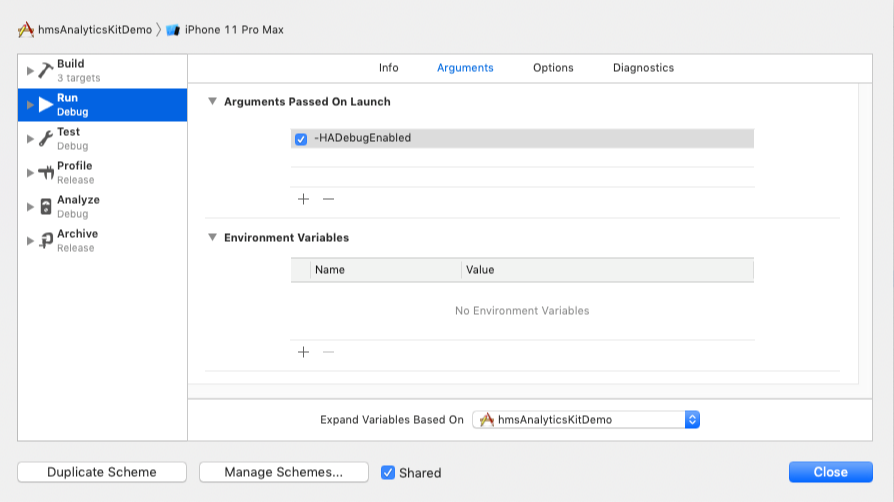
1. To enable the debug mode:
Choose Product > Scheme > Edit Scheme from the Xcode menu. On the Arguments page, click + to add the -HADebugEnabled parameter. After the parameter is added, click Close to save the setting.
- -HADebugEnabled
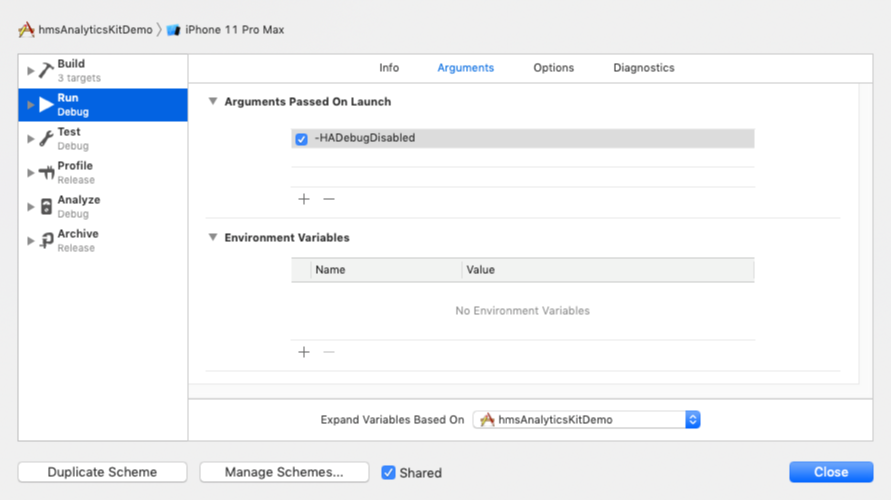
2. To disable the debug mode:
- -HADebugDisabled
Successfully reported data is displayed on Huawei Developers in real time, as shown in the figure below.
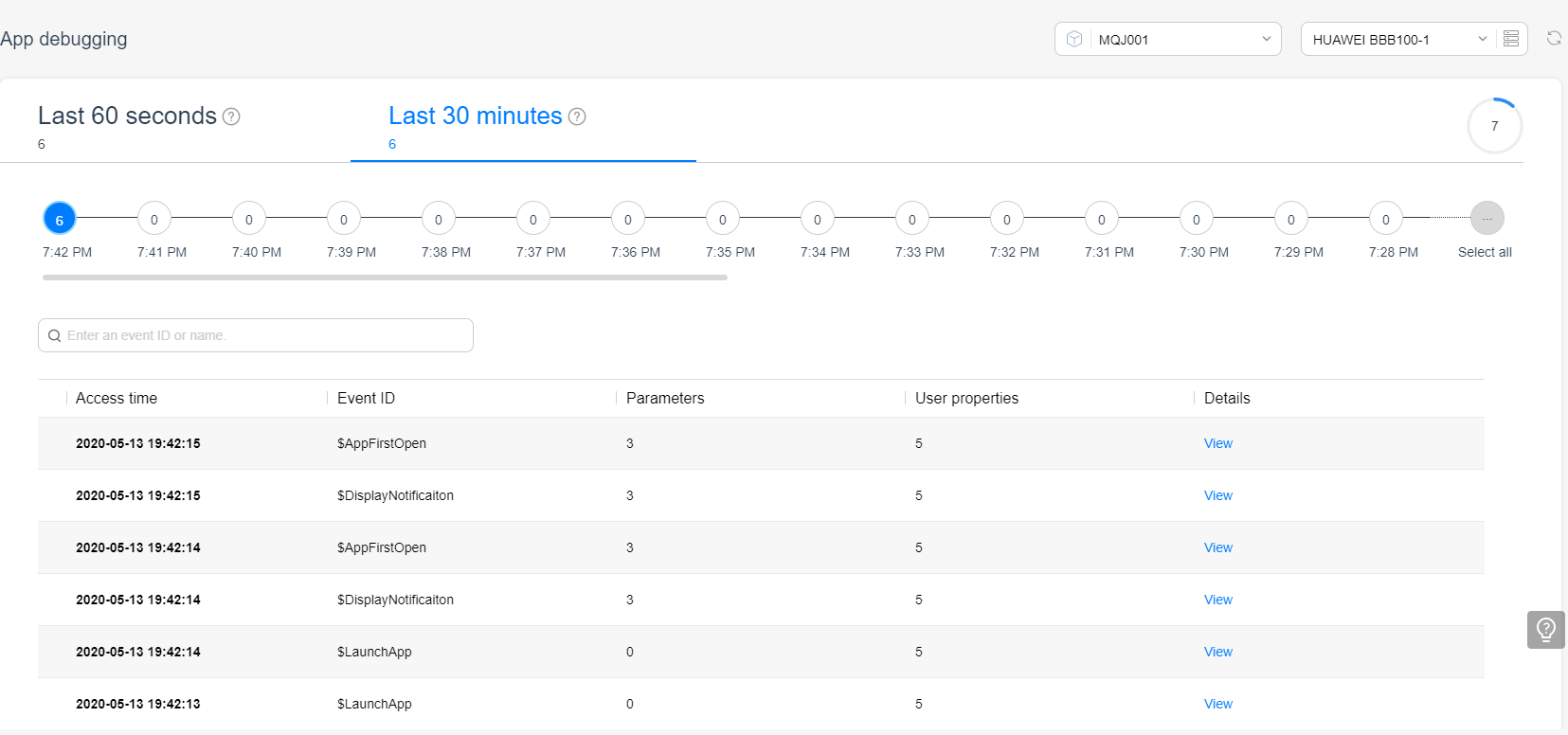
For details about how to view analysis data on Huawei Developers, please refer to App Debugging.
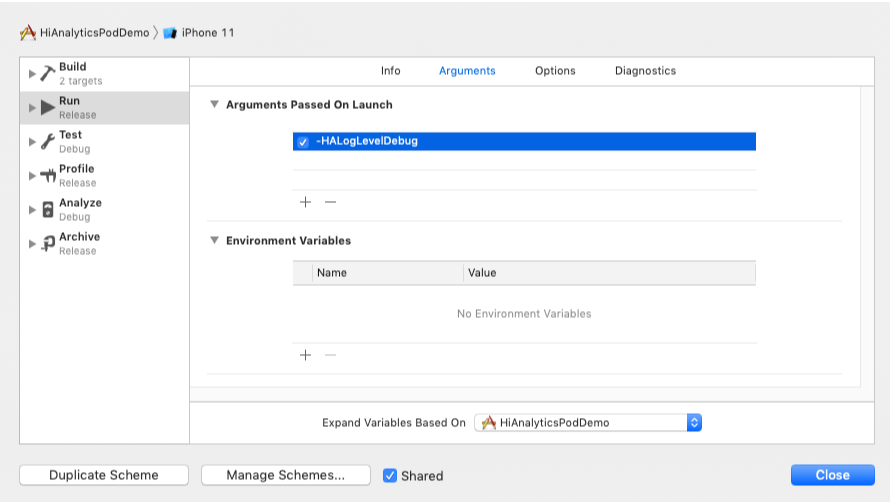
You can adjust the log level by adding arguments.
The available options include -HALogLevelDebug, -HALogLevelInfo, -HALogLevelWarn, and -HALogLevelError. For example, if you want to set the log level to HALogLevelDebug:
Choose Product > Scheme > Edit Scheme from the Xcode menu. On the Arguments page, click + to add the -HALogLevelDebug parameter. After the parameter is added, click Close to save the setting.
- -HALogLevelDebug