


Intelligent Assistant
Chat with our virtual assistant to get answers promptly.
Need more help? Go to Stack Overflow.
The error code NOT_YET_SUPPORTED will be returned. On some phones, the following error logs may be recorded but normal functions are not affected:
- b'08-09 21:23:47.202 30443 18338 E AndroidRuntime: FATAL EXCEPTION: Location_Location_DispatchTaskManager_14'
- b'08-09 21:23:47.202 30443 18338 E AndroidRuntime: Process: com.huawei.locationsample6, PID: 30443'
- b'08-09 21:23:47.202 30443 18338 E AndroidRuntime: com.huawei.location.router.dispatch.DispatchException: api interface not register'
- b'08-09 21:23:47.202 30443 18338 E AndroidRuntime: \tat com.huawei.location.router.dispatch.DispatchThreadPoolExecutor.processRequest(Unknown Source:90)'
- b'08-09 21:23:47.202 30443 18338 E AndroidRuntime: \tat com.huawei.location.router.dispatch.DispatchThreadPoolExecutor.beforeExecute(Unknown Source:10)'
- b'08-09 21:23:47.202 30443 18338 E AndroidRuntime: \tat java.util.concurrent.ThreadPoolExecutor.runWorker(ThreadPoolExecutor.java:1164)'
- b'08-09 21:23:47.202 30443 18338 E AndroidRuntime: \tat java.util.concurrent.ThreadPoolExecutor$Worker.run(ThreadPoolExecutor.java:641)'
- b'08-09 21:23:47.202 30443 18338 E AndroidRuntime: \tat java.lang.Thread.run(Thread.java:923)'
- b'08-09 21:23:47.202 30443 18338 E AndroidRuntime: FATAL EXCEPTION: Location_Location_DispatchTaskManager_14'
- b'08-09 21:23:47.202 30443 18338 E AndroidRuntime: Process: com.huawei.locationsample6, PID: 30443'
- b'08-09 21:23:47.202 30443 18338 E AndroidRuntime: com.huawei.location.router.dispatch.DispatchException: api interface not register'
- b'08-09 21:23:47.202 30443 18338 E AndroidRuntime: \tat com.huawei.location.router.dispatch.DispatchThreadPoolExecutor.processRequest(Unknown Source:90)'
- b'08-09 21:23:47.202 30443 18338 E AndroidRuntime: \tat com.huawei.location.router.dispatch.DispatchThreadPoolExecutor.beforeExecute(Unknown Source:10)'
- b'08-09 21:23:47.202 30443 18338 E AndroidRuntime: \tat java.util.concurrent.ThreadPoolExecutor.runWorker(ThreadPoolExecutor.java:1164)'
- b'08-09 21:23:47.202 30443 18338 E AndroidRuntime: \tat java.util.concurrent.ThreadPoolExecutor$Worker.run(ThreadPoolExecutor.java:641)'
- b'08-09 21:23:47.202 30443 18338 E AndroidRuntime: \tat java.lang.Thread.run(Thread.java:923)'
On non-Huawei Android phones, the Location SDK cannot return the specific address information of the current location, such as the city, district or county, and street.
In Android 11, the way for an app to query other apps on the user device and interact with them has been changed. If targetSdkVersion is 30 or later for your app and the Location SDK integrated into your app is earlier than 6.2.0.300, your app will be unable to access HMS Core (APK) and will continuously ask users to update the APK.
You can solve the issue using either of the following methods:
Update the Location SDK to the latest version. For details about the latest version, please refer to Version Change History.
If the SDK is not updated, add a <queries> element in the manifest element in AndroidManifest.xml.
- <manifest ...>
- ...
- <queries>
- <intent>
- <action android:name="com.huawei.hms.core.aidlservice" />
- </intent>
- </queries>
- ...
- </manifest>
The <queries> element requires the following:
The PRIORITY_NO_POWER mode is used for passive location. It listens for the location of a native location request. If no app has initiated a native location request, this mode cannot obtain a location.
The possible cause is that the obfuscation configuration file is not configured to exclude the HMS Core SDK from being obfuscated. Perform operations in Configuring Obfuscation Scripts before building your APK.
The getLastLocation method obtains the device location from the system cache. However, the cache may not contain the device location. If the obtained device location is null, the possible cause is that the system cache has been cleared. In this case, you need to call the requestLocationUpdates method to obtain the device location and update the cache, and then call the getLastLocation method to obtain the device location.
After isMockMode is set to true using setMockMode(boolean isMockMode), Location Kit will return the location specified in setMockLocation(Location mockLocation) instead of using the GNSS or network location. Note that once the mock mode is enabled, the location function of all apps using Location Kit on the device will be affected. Therefore, when the mock mode is not required anymore, you are advised to set isMockMode to false using setMockMode(boolean isMockMode).
You can check whether the current location is a mock location based on the return value of mockLocation.getExtras().getBoolean("mockLocation"). If the return value is true, the current location is a mock location. If the return value is false, the current location is a real location.
If your app fails to call a Location Kit API, check the causes based on the return value using the following method: Obtain the Task object returned by the API, call addOnFailureListener(), override the onFailure(Exception e) method, and execute e.getMessage to print the error information. The error information contains the result code and result description. For details about the result codes, please refer to Result Codes.
If your app does not receive the device location after calling a Location Kit API and the fault cannot be troubleshooted, you can capture run logs and go to to submit a ticket online. Huawei technical support will handle it in time.
The procedure for capturing logs is as follows:
- adb logcat –v time > D:\hwlocation.log
In addition, record the device model, EMUI version, HMS Core (APK) version, integrated SDK version, and fault reproduction procedure so that technical personnel can help you quickly troubleshoot the fault.
Earliest Android API Level | Earliest Android Version | Earliest EMUI Version |
|---|---|---|
19 | 5.1 | 5.0 |
For location purposes, your app needs to trigger the location service of HMS Core (APK). To ensure successful location, your app user needs to assign the location permission to HMS Core (APK), which is irrelevant to your app. For an Android Q device, your app user needs to assign HMS Core (APK) the permission to always obtain the device location in the background.
The setMockMode(boolean isMockMode) method can only be used on Huawei phones running EMUI 5.0 or later.
Go to Settings > Location > LOCATION SERVICES > Network Location Services and toggle the Network Location Services switch on.
Yes. The navigation satellite location function is not affected when the phone is not connected to the network or the network location function is disabled.
HMS Core (APK) runs in the background. The location permission must be set to Allow all the time for HMS Core (APK) so that the location function can be used properly.
You are advised to set Location to Allow all the time for your app. This can ensure that correct data can be continuously returned when your app initiates location requests in the background.
In normal cases, the navigation satellite signal coverage is poor in indoor environments. Therefore, HMS Core (APK) uses the network location function which is slow compared with the satellite location function.
If real-time location is required, you are advised to call the requestLocationUpdates API. To receive a location once only, you can set numUpdates in the setNumUpdates method of LocationRequest to 1.
Go to Settings > Privacy > Location Services > System services > Geofence Services and enable the geofence service.
Add android.jetifier.blacklist=bcprov-jdk15on to the gradle.properties file.
Result Code | Solution |
|---|---|
INSTALL_FAILED_APP_SOURCE_NOT_TRUSTED |
|
INSTALL_PARSE_FAILED_USESDK_ERROR | The value of apiVersion in config.json does not match the ROM version. Modify the value of apiVersion to make it match the ROM version. |
INSTALL_PARSE_FAILED_PROFILE_MISSING_PROP | In config.json file, change the value of reqSdk to that of apiVersion. To do this, add apiVersion to the app field. |
ERROR_GET_BUNDLE_INSTALLER_FAILED | The com.huawei.harmonyos.foundation process restarts. Run the adb shell ps -A | grep foundation command for multiple times to check whether the process restarts repeatedly, and analyze the process restart cause in detail. (Generally, the cause is so/jar mismatching, null pointer, or others.) |
INSTALL_FAILED_RESTRICTED_PERMISSIONS_NOT_GRANTED | Restricted permissions are declared in the config.json file. However, the permissions are not assigned when the profile is applied for in the signature center. Check whether restricted permissions are declared in the config.json file. If yes, add the permissions to restricted-permissions when applying for a debug profile or release the profile. "permissions": { "restricted-permissions": [ "ohos.permission.ANSWER_PHONE_CALLS", "# This field is optional. Restricted permissions are mainly sensitive permissions related to the phone numbers, SMS messages, and call records." ]} |
INSTALL_FAILED_DEVICE_NOT_SUPPORT_ERROR | The possible causes are as follows:
The correct configuration (case sensitive) is as follows: "module": { "package": "com.huawei.hiworld.location", "deviceType": [ "default", "tv" "car", "wearable" ] } |
INSTALL_FAILED_INCOMPATIBLE_SIGNATURE | The signature of the new app package is different from that of the old app package. Manually uninstall the old app and then install the new one. |
The getLastLocation method obtains the device location from the system cache. However, the cache may not contain the device location. If the obtained device location is null, the possible cause is that the system cache has been cleared. In this case, you need to call the requestLocationUpdates method to obtain the device location and update the cache, and then call the getLastLocation method to obtain the device location.
If your app fails to call a Location Kit API, check the causes based on the return value using the following method: Obtain the HarmonyTask object returned by the API, call addOnFailureListener(), override the onFailure(Exception exception) method, and execute e.getMessage() to print the error information. The error information contains the error code and error description. For details about the result codes, please refer to Result Codes.
You are advised to set the background location permission to Allow all the time for your app. This can ensure that correct data can be continuously returned when your app initiates location requests in the background.
The Location SDK for iOS provides fused location. Generally, the Location SDK for iOS first returns a location using the no-network location (offline network location) method, which is a fast location method. When a network connection is available, the Location SDK updates the location using the network location (online network location) method.
The network location method consists of the base station location and Wi-Fi location modes. When the Wi-Fi module is enabled, the Wi-Fi location mode will be used, regardless of whether a Wi-Fi connection is available. If the Wi-Fi module is disabled, the base station location mode will be used.
In outdoor scenarios, the device will utilize A-GPS to query satellite ephemeris online, and use connected GPS satellites to perform the location operation if GPS signals are received. (A-GPS is used for accelerating traversing of satellite ephemeris.)
iOS devices may switch between these location methods based on the current signal strength and network condition. With updates of iOS, the location rules may also change. Therefore, it is hard to tell whether the GPS location or network location method is used for location on iOS devices.
You cannot set the Location SDK for iOS to specify the time interval and distance change for obtaining location updates.
The location capabilities in the Location SDK for iOS are encapsulated based on native location capabilities of iOS. Therefore, you cannot set the Location SDK for iOS to specify the time interval and distance change.
The native location capabilities of iOS provide two mechanisms for obtaining location updates:
You can call the following method to set the minimum distance change (in meters) for obtaining location updates. If the distance change between two location updates is greater than the specified minimum distance change, the Location SDK for iOS will return a location update meeting the requirements.
self.locationManager.distanceFilter = 200;
A location update will be obtained as long as the iOS device moves, without depending on any time interval and distance change.
The Location SDK for iOS does not support hot update and is integrated as a static library.
The Location SDK for iOS completes the initial location operation using the base station or through the no-network base station location function, which usually has an error ranging from hundreds of meters to several kilometers. If Wi-Fi or satellite signals cannot be received later, this location error will be kept for all returned locations. To improve the location accuracy, you can enable the Wi-Fi function (regardless of whether a network connection is available), or place the device in an open area to receive satellite signals.
Solution: Wait for a while, enable the mobile data and Wi-Fi functions (which can be disabled after the location operation is complete), or go to an outdoor place.
The coordinate system used depends on the geographical location. In the Chinese mainland, Hong Kong (China), and Macao (China), the GCJ02 coordinate system is used. In Taiwan (China) and regions outside China, the WGS84 coordinate system is used.
iOS 11 has updated location permission settings. You can set the location permission as follows:
Declare the location permission in the Info.plist file of your project. You can set the permission as needed in the following ways:
For iOS 9 to iOS 10:
The NSLocationWhenInUseUsageDescription permission allows your app to obtain the location information when it runs in the foreground.
The NSLocationAlwaysUsageDescription permission allows your app to obtain the location information regardless of whether it runs in the foreground or background.
For iOS 11:
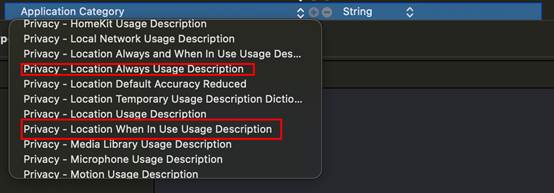
The NSLocationWhenInUseUsageDescription permission allows your app to obtain the location information when it runs in the foreground.
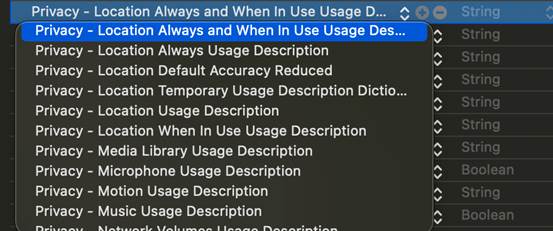
The NSLocationAlwaysAndWhenInUseUsageDescription permission allows your app to obtain the location information regardless of whether it runs in the foreground or background.
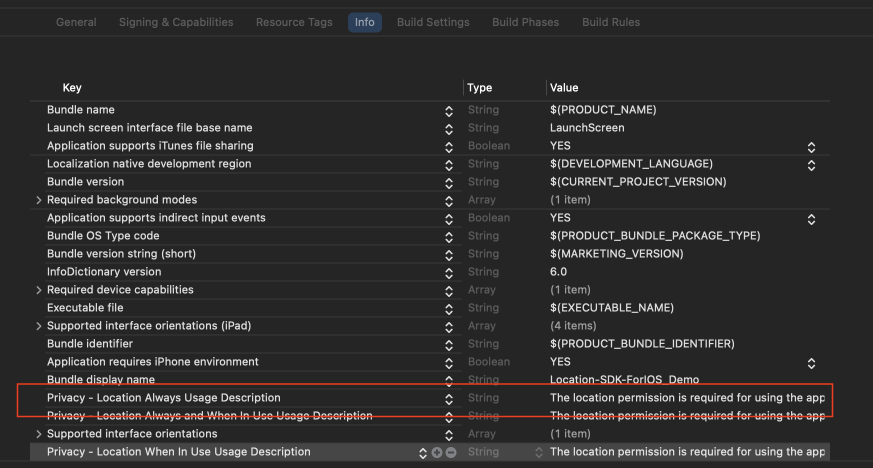
If your app needs to use location functions in iOS 9 or later, you are advised to declare the NSLocationWhenInUseUsageDescription, NSLocationAlwaysUsageDescription, and NSLocationAlwaysAndWhenInUseUsageDescription permissions in the Info.plist file.
Before using capabilities of the Location SDK for iOS, you need to apply for required authorization. Do not use the location capabilities while applying for required authorization, and do not use the location capabilities immediately after setting the location permission and then switching to the app.
If both the heading and heading accuracy are -1, the accuracy fails to be obtained. The heading information is not returned during network location. In this case, turn off the Wi-Fi and cellular network and perform GPS location. If the location operation is successful but no valid longitude and latitude are obtained, check the gyroscope on your device.
Please wait patiently. There is a high probability that the continuous location is still in progress because the callback interval is long. You can move the device by a distance greater than or equal to the location accuracy, to help trigger location updates quickly. If the problem persists, submit a service ticket to us.
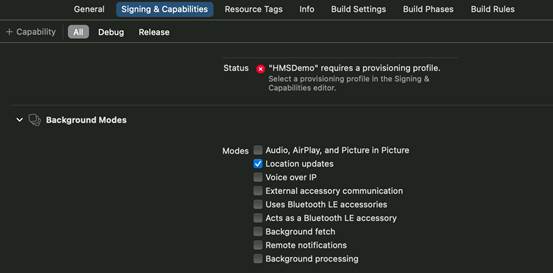
Scenario 1: [The device has no cellular or Wi-Fi signals, and has no network access.] The location operation can only be performed outdoors using GPS. The initial location request may take several minutes, but the time required for subsequent location requests will be normal.
Scenario 2: [The device has no cellular signals or network access, but has Wi-Fi signals.] If the device has accessed the network earlier around the current place and downloaded nearby Wi-Fi hotspot data, the location can be pinpointed using the no-network Wi-Fi location function. Otherwise, the processing is the same as that in scenario 1.
Scenario 3: [The device has no cellular signals, but has Wi-Fi signals and network access.] The location can be pinpointed using the Wi-Fi location function. In addition, data about Wi-Fi hotspots in a large area around the current location will be downloaded for subsequent use by the no-network Wi-Fi location function.
Scenario 4: [The device has cellular signals, but has no Wi-Fi signals and network access.] If the device can receive signals from important base stations built in iOS, these base stations will be used for no-network base station location. Otherwise, the location operation cannot be performed.
Scenario 5: [The device has cellular signals and network access, but has no Wi-Fi signals.] The base station and network are used for location. In addition, local important base station information may be updated.
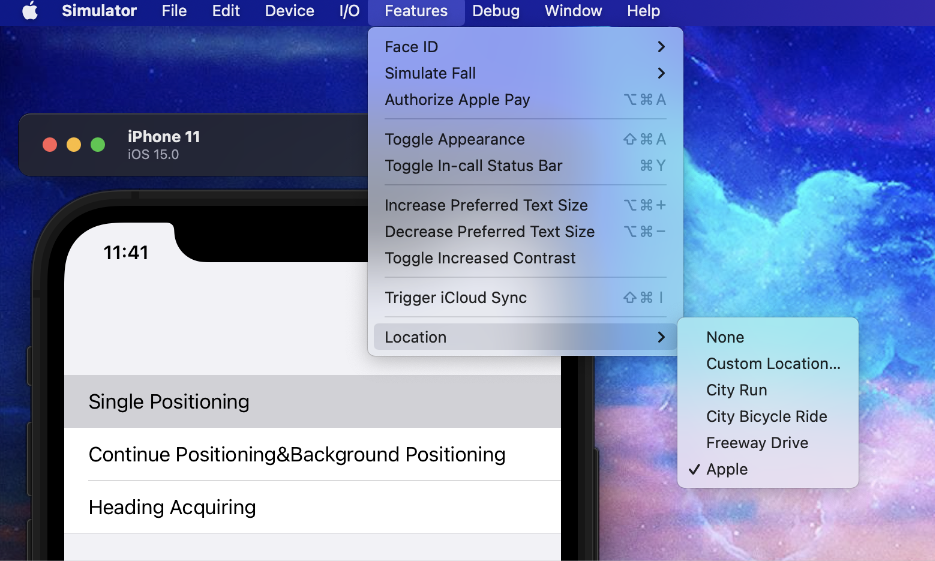
You cannot obtain the heading information but can obtain the mock location information. Open the simulator, go to Features > Location, and select an option other than None.
You need to modify Firefox settings. To do this, open the Firefox browser, enter about:config in the address box, and press Enter. On the settings page displayed, search for security.csp.enable, set it to false, and restart the Firefox browser.
Sign in to AppGallery Connect, go to Project settings > Manage APIs, toggle the Location Kit switch off, toggle the switch on again, and try again later.