


Intelligent Assistant
Chat with our virtual assistant to get answers promptly.
You can access data in the Huawei Health app only after the user has authorized the app to open data to Health Service Kit. (Skip this section if you do not need to access data in the Huawei Health app.)
You can enable the open authorization to Health Service Kit in the Huawei Health app in either of the following ways:
To link Health Service Kit by calling the HTML5 page provided by the Health Service Kit cloud, perform the following:
- https://oauth-login.cloud.huawei.com/oauth2/v3/authorize?response_type=code&client_id=106804381&redirect_uri=https%3A%2F%2Fh5hosting.dbankcdn.com%2Fcch5%2Fhealthkit%2Flink%2Fpages%2FprivacyManage.html&access_type=offline&display=touch&state=zh-cn
You can modify the following parameters:
| Parameter Name | Mandatory | Description |
|---|---|---|
| display | No | The value is page for PCs, and touch for mobile devices. The default value is page. |
| state | No | Text language. American English (en-us) is used by default. |
For example, if the app whose client_id is 101489619 wants to access the Huawei Health data after passing the authentication, and display the page in Chinese (zh-cn), the URL that users are redirected to will be:
- https://oauth-login.cloud.huawei.com/oauth2/v3/authorize?response_type=code&client_id=106804381&redirect_uri=https%3A%2F%2Fh5hosting.dbankcdn.com%2Fcch5%2Fhealthkit%2Flink%2Fpages%2FprivacyManage.html&access_type=offline&state=zh-cn
client_id is always set to 106804381 and cannot be modified. This parameter is used to control the privacy switch in Huawei Health, and does not support Authentication for your app. Therefore, you can use the default value directly.
During this process, users need to sign in to the HUAWEI ID, and touch LINK when redirected to the connection screen.
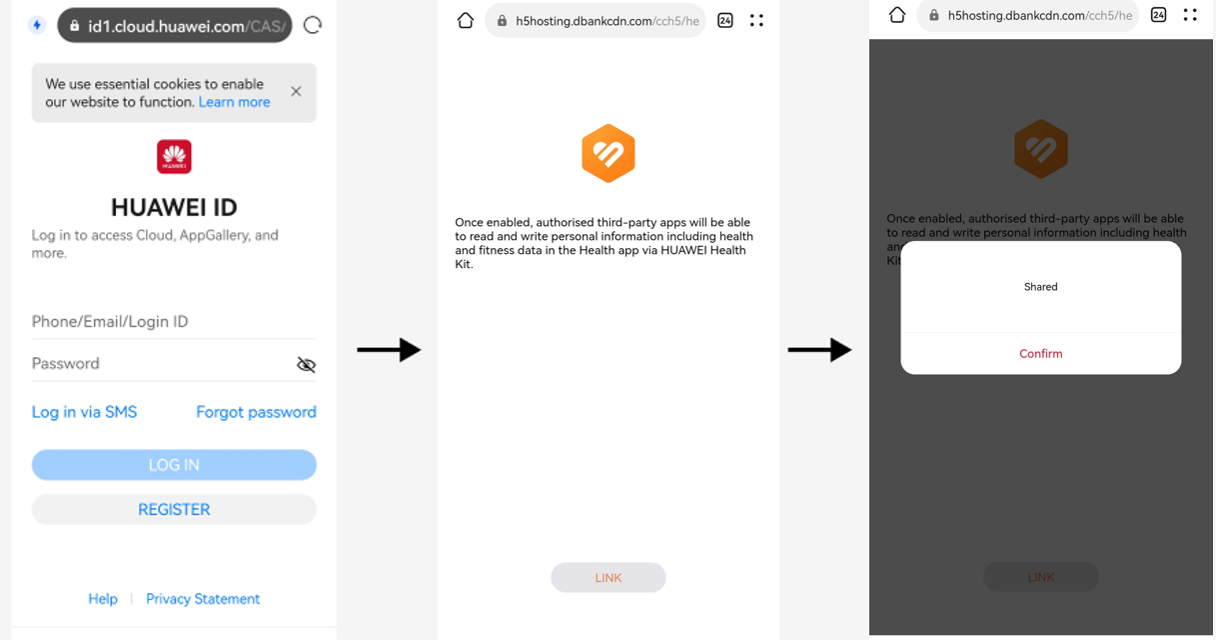
This section provides a mechanism to keep you aware of whether users have authorized the Huawei Health app to open data to Health Service Kit, so that you can perform further processing according to the returned authorization result.
Implement interactions between your app and the frontend using the addJavascriptInterface method of WebView.
Make sure that the name of the Java object to be injected to the WebView is jsToAndroid, so that its definition is consistent with that in the frontend.
The sample code is as follows:
- class JsObject {
- @JavascriptInterface
- public String resultCodeProc(String result) {
- // Implement logic processing (you can also close the WebView here) after receiving the return code.
- Log("get the link result:" + result);
- getActivity().finish();
- }
- }
- webview.getSettings().setJavaScriptEnabled(true);
- webView.addJavascriptInterface(new JsObject(), "jsToAndroid");
In the addScriptMessageHandler:name: method that has implemented WebKit, add code for processing interaction messages after the user touches the LINK button.
In case of circular dependency, implement addScriptMessageHandler in the -viewWillAppear: method, and removeScriptMessageHandlerForName in the -viewWillDisappear: method.
The sample code is as follows:
- #import <WebKit/WebKit.h>
- @interface WKWebViewWKScriptMessageHandlerController () <WKScriptMessageHandler>
- // ! Add ScriptMessageHandler and set name to jsToObj.
- WKUserContentController *userContentController = [[WKUserContentController alloc] init];
- [userContentController addScriptMessageHandler:self name:@"jsToObj"];
-
- // ! Complete the configuration.
- WKWebViewConfiguration *configuration = [[WKWebViewConfiguration alloc] init];
- configuration.userContentController = userContentController;
-
- // ! Initialize the WebView.
- _webView = [[WKWebView alloc] initWithFrame:self.view.bounds configuration:configuration];
- #pragma mark - WKScriptMessageHandler
- // ! This method is called back when WKWebView receives ScriptMessage.
- - (void)userContentController:(WKUserContentController *)userContentController didReceiveScriptMessage:(WKScriptMessage *)message {
- if ([message.name caseInsensitiveCompare:@"jsToObj"] == NSOrderedSame) {
- // ! proce message.body
- }
- }
| resultCode | Description |
|---|---|
| 0 | Huawei Health app authorized to open data to Health Service Kit. |
| 401 | Huawei Health app fails to be authorized to open data to Health Service Kit. |