Use Cases
Analytics Kit provides server APIs for you to export event data collected on devices and import the data to your BI system for unified data analysis. After the export is complete, Analytics Kit asynchronously uploads the exported data to the Object Storage Service (OBS) and then returns the export result and data storage path to your app server by sending an HTTPS POST request to call its callback API. To ensure data security, the download link will become invalid after 48 hours.
The following table describes the export results.
Status Code | Description | Handling |
|---|---|---|
EXPORTED | Exported successfully. | Click the download link to download the data before the link expires. |
NO_DATA | No record meets the criteria. | Modify data filter criteria. |
EXPORT_FAILED | Export failed. | Server error. Try again. |
TOO_MANY_RECORDS | Too much data is exported at a time. NOTE:
| Narrow down the data export scope and try again. |

It is recommended that your app server process the download link in asynchronous mode so that the status code of success is returned to the Analytics Kit server in a timely manner.
The following table lists the data filter criteria.
Description | |
|---|---|
app_ver | App version. |
device_maker | Device brand. |
device_name | Device model. |
region_cd | Location code. |
os_language | OS language. |
os_ver | OS version. |
event_id | Event ID. NOTE: Only predefined and custom events can be exported. |
[h2]Setting the Callback API
- Sign in to AppGallery Connect, click My projects, and select your app. Then, go to , and select Set callback API to set related parameters.
- Configure the callback API URL for receiving the data download link.
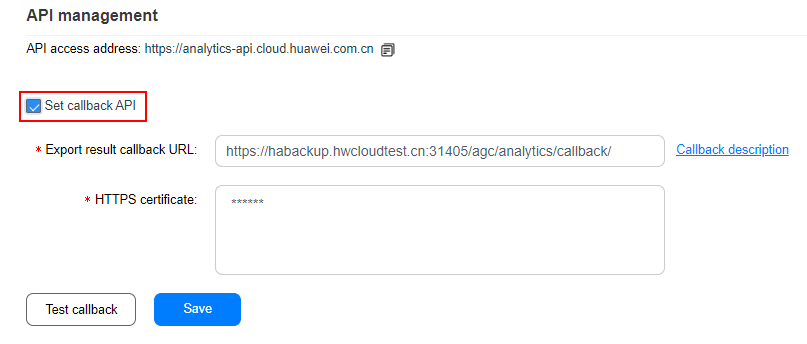

The PEM certificate is in the same format as the Base-64 encoded X.509 (.CER)(S) certificate you obtained when configuring the HTTPS certificate.
- Configure the HTTPS certificate.

Because Analytics Kit sends an HTTPS POST request to call the callback API, it will verify the validity of the HTTPS certificate deployed on your app server. Therefore, make sure that you use a formal commercial HTTPS certificate.
- Click Test callback to test the function of the callback API. After the test is successful, click Save to complete the callback API configuration.
Development Guide
Before developing the callback API, you need to prepare a public network domain name and an API that can receive POST requests. Ensure that the POST API has an HTTPS certificate.
The development procedure is as follows:
- Develop the callback API. In the sample code, the domain name is habackup.hwcloudtest.cn, which is accessible for your server.
@RequestMapping(value = "/agc/analytics/callback", method = RequestMethod.POST)
public ResultResp callback(@RequestBody @Valid ExportDataCallbackReq req) {
    ResultResp result = new ResultResp();
    // Receive the callback after the export task is generated.
    if (LOGGER.isDebugEnabled()) {
        LOGGER.debug("the download url: {}", req.getFilePath());
    }
    // Obtain the download link to continue.
    result.setResultCode("0");
    result.setResultMsg("success");
    return result;
}
Requested object:
public class ExportDataCallbackReq implements Serializable { private static final long serialVersionUID = -8014011591749838257L; @JsonProperty("request_id") private String requestId; @JsonProperty("app_id") private String appId; @JsonProperty("status") private String status; @JsonProperty("file_path") private String filePath; @JsonProperty("status_time") private String statusTime; } - Go to to configure the callback API.
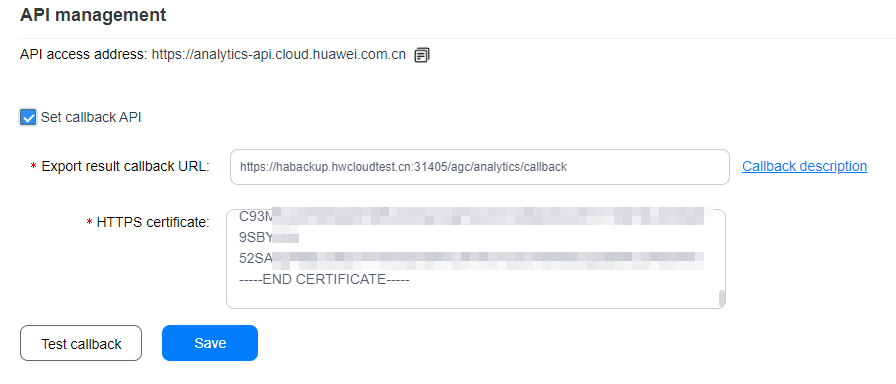

You can click Test callback to verify the configured callback URL and click Save to save it. If you go to other pages after saving the configuration and go back to the API management page again, the HTTPS certificate will be displayed in ciphertext. If you click Test callback or Save in this case, the system will display a message indicating that the callback API certificate is invalid. You can enter the plaintext certificate and click Test callback to test the configuration again.
- Call the public API to obtain the token.
POST request:
URI: https://oauth-login.cloud.huawei.com/oauth2/v2/token
Header:
Content-Type:Application/x-www-form-urlencoded
Body:
grant_type:client_credentials
client_id:100664247
client_secret:170e4ecb457bd73fa7c977de976274a7
Response:
{ "access_token": "CV6qeoJReXe+YfDRQomDe9VW1B6fzIH1QU260T94x4RBLUSZRjTRIcY7IngF1cPIEYaPhJCjVNOxrhvAo49Ay/Ukkf+p", "expires_in": 3600, "token_type": "Bearer" } - Start data export.
POST request:
URI: https://analytics-api.cloud.huawei.com.cn/analytics/export/raw_data_requests/v2
Header:
Authorization:Bearer CV6qeoJReXe+YfDRQomDe9VW1B6fzIH1QU260T94x4RBLUSZRjTRIcY7IngF1cPIEYaPhJCjVNOxrhvAo49Ay\/Ukkf+p (token_type + space + access_token, obtained from the token response)
x-App-id:10066424
Content-Type:Application/json
x-product-id:9105163812218569643
Body:
{
  "date_range": {
    "start_date": "2020-2-29",
    "end_date": "2020-3-10"
  },
  "file_format": "csv",
  "filters": []
}
Response:
{ "result_code": "0", "result_msg": "success", "request_id": "c0b41debe8064c54ab200d30907f40c5" } - View the export status.
Click My projects and select your app. Then, go to .
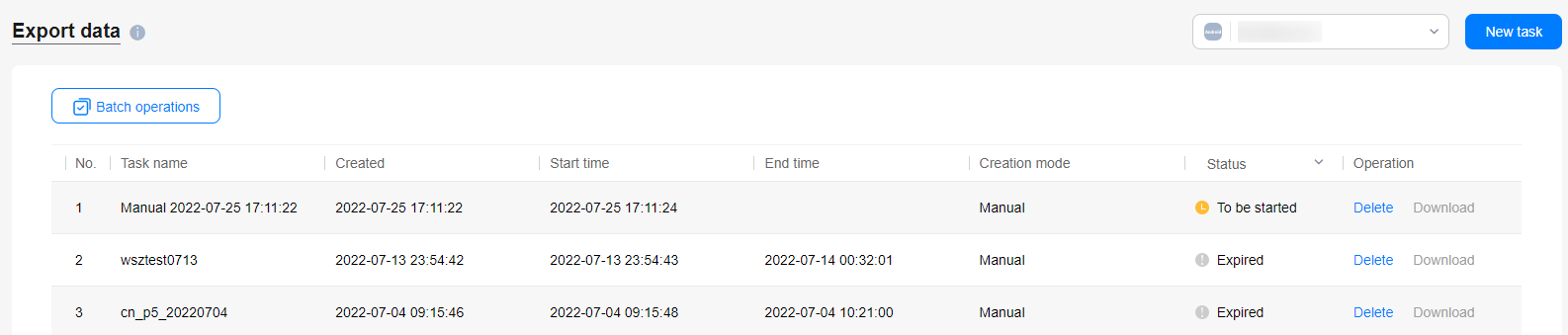
- Wait until the Analytics SDK automatically calls the callback API configured in step 2 and returns the download link of the exported file.
- If the following information is displayed, the data export is successful. Obtain the download link from the file_path field. The link is valid within 48 hours.
[
  {
    "request_id": "c0b41debe8064c54ab200d30907f40c5",
    "App_id": "100664247",
    "status": "EXPORTED",
    "file_path": "https://nsp-ha-gdpr-drcn.obs.cn-north-2.myhuaweicloud.com/20200430_14_c0b41debe8064c54ab200d30907f40c5.csv?X-Amz-Algorithm=AWS4-HMAC-SHA256&X-Amz-Credential=F9WBKUUWDQODJO4FQMBF%2F20200430%2Fcn-north-2%2Fs3%2Faws4_request&X-Amz-Date=20200430T073623Z&X-Amz-Expires=86400&X-Amz-SignedHeaders=host&X-Amz-Signature=9145e80d51e21cd295861a5a0688bbcfbf8805e071cd8b98e08b5eacf2171fdb",
    "status_time": "2020-04-30 07:37:02"
  }
]
For more details, please refer to Fields in the Exported Data File and How to Obtain an HTTPS Certificate on Windows.