


Intelligent Assistant
Chat with our virtual assistant to get answers promptly.
We use essential cookies for the website to function, as well as analytics cookies for analyzing and creating statistics of the website performance. To agree to the use of analytics cookies, click "Accept All". You can manage your preferences at any time by clicking "Cookie Settings" on the footer. More Information.
HMS Core
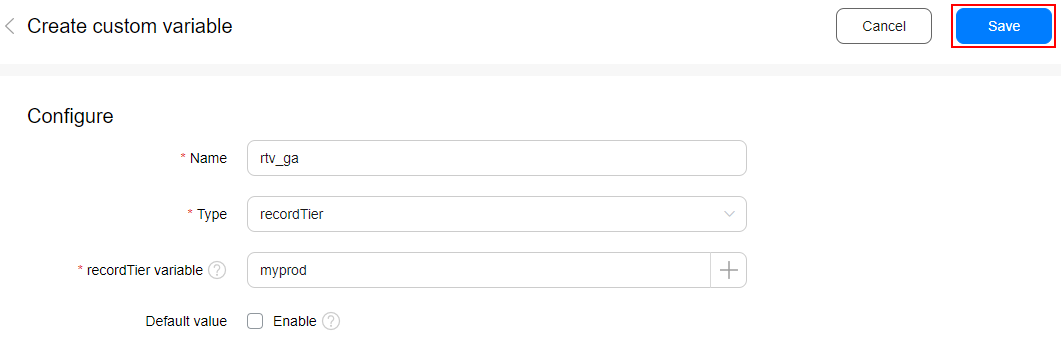
recordTier is a JavaScript object used to pass data from websites to DTM. You can create a recordTier variable to obtain data from recordTier.
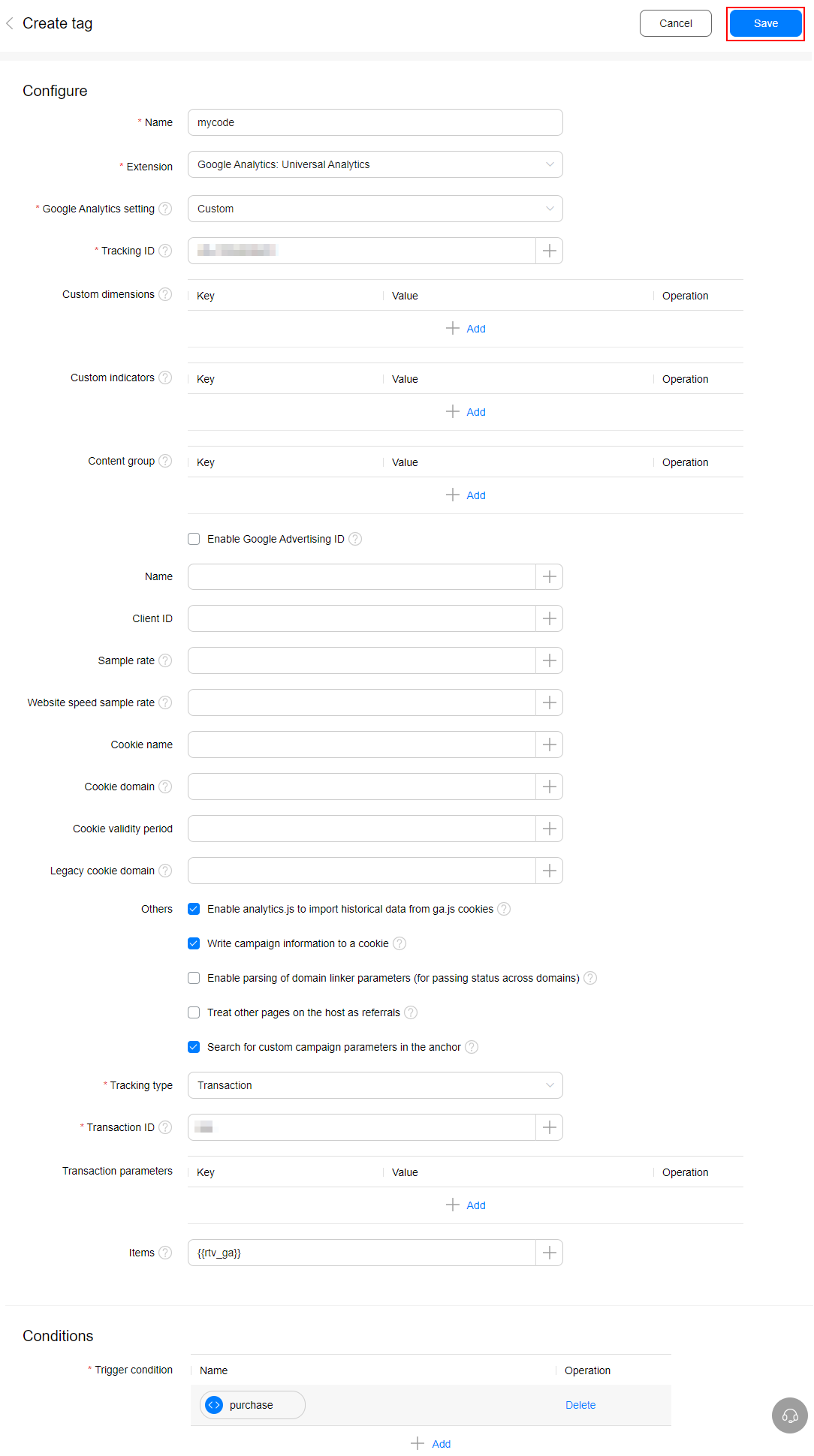
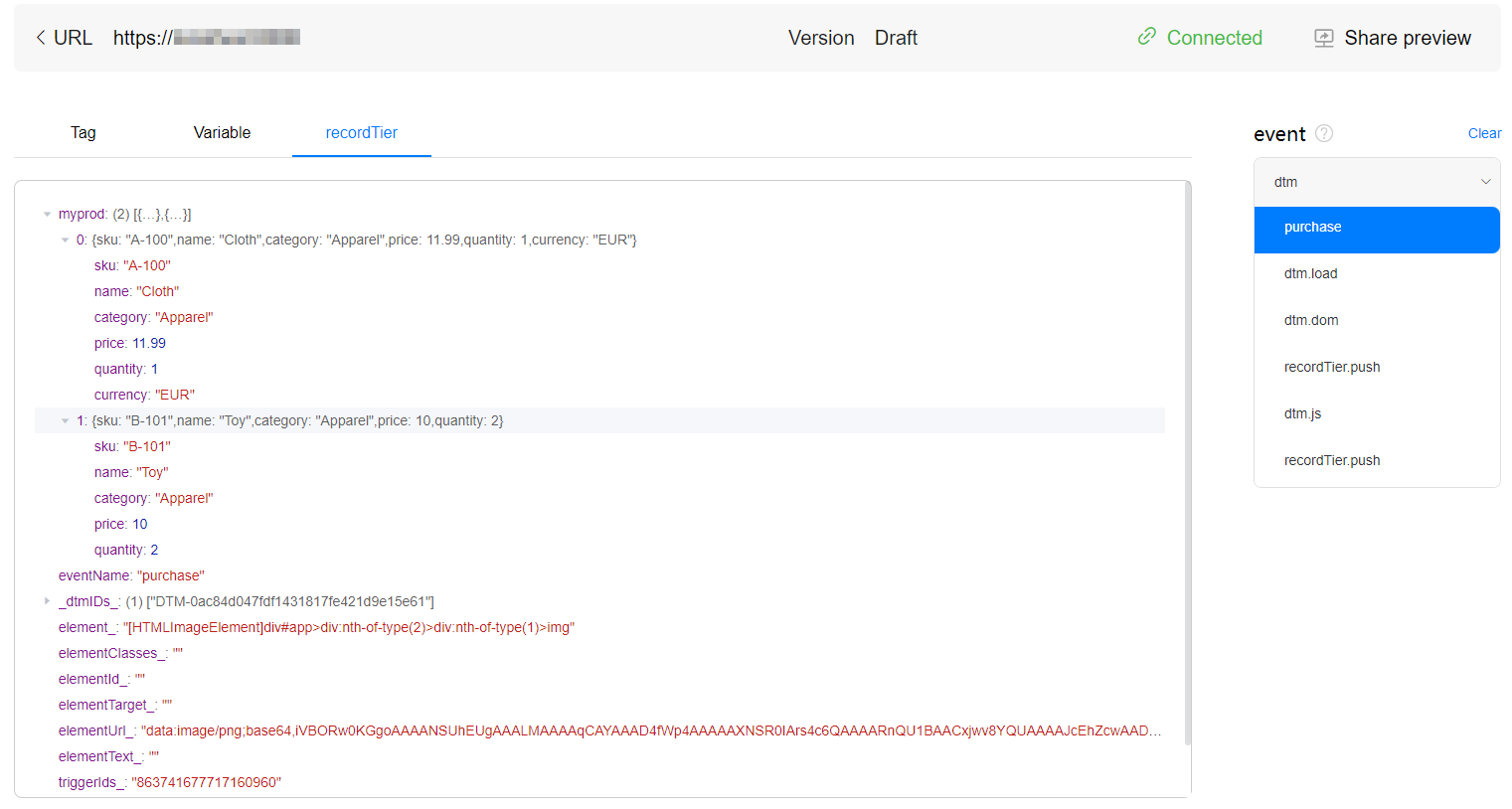
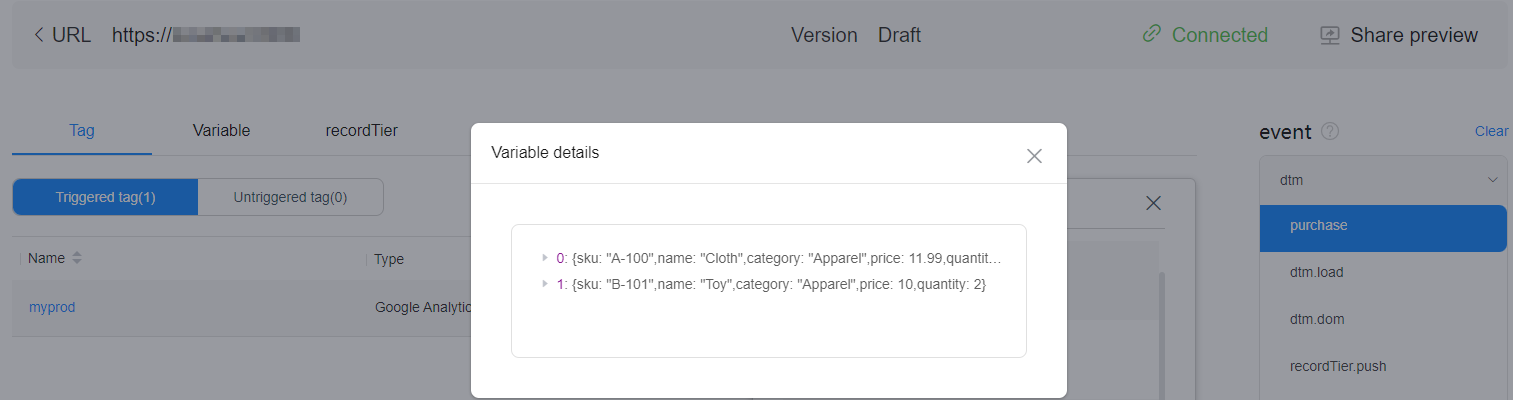
With recordTier variables, DTM can obtain values from recordTier and pass these values to tags, conditions, and other variables. recordTier consists of a list of key-value pairs. To create a recordTier variable, perform the following steps:

<script>
    window.recordTier = window.recordTier || [];
    window.recordTier.push({
 myprod: [{
            'sku': 'A-100',
            'name': 'Cloth',
            'category': 'Apparel',
            'price': 11.99,
            'quantity': 1,
            'currency': 'EUR'
 }, {
            'sku': 'B-101',
           'name': 'Toy',
            'category': 'Apparel',
            'price': 10,
            'quantity': 2
 }]
    });
</script>
Ensure that the JavaScript for inserting data to the recordTier variable is executed before the tag is executed. Otherwise, the tag cannot obtain the real data of the recordTier variable.
Intelligent Assistant
Chat with our virtual assistant to get answers promptly.
Quick start
Helps you find desired resources with ease.