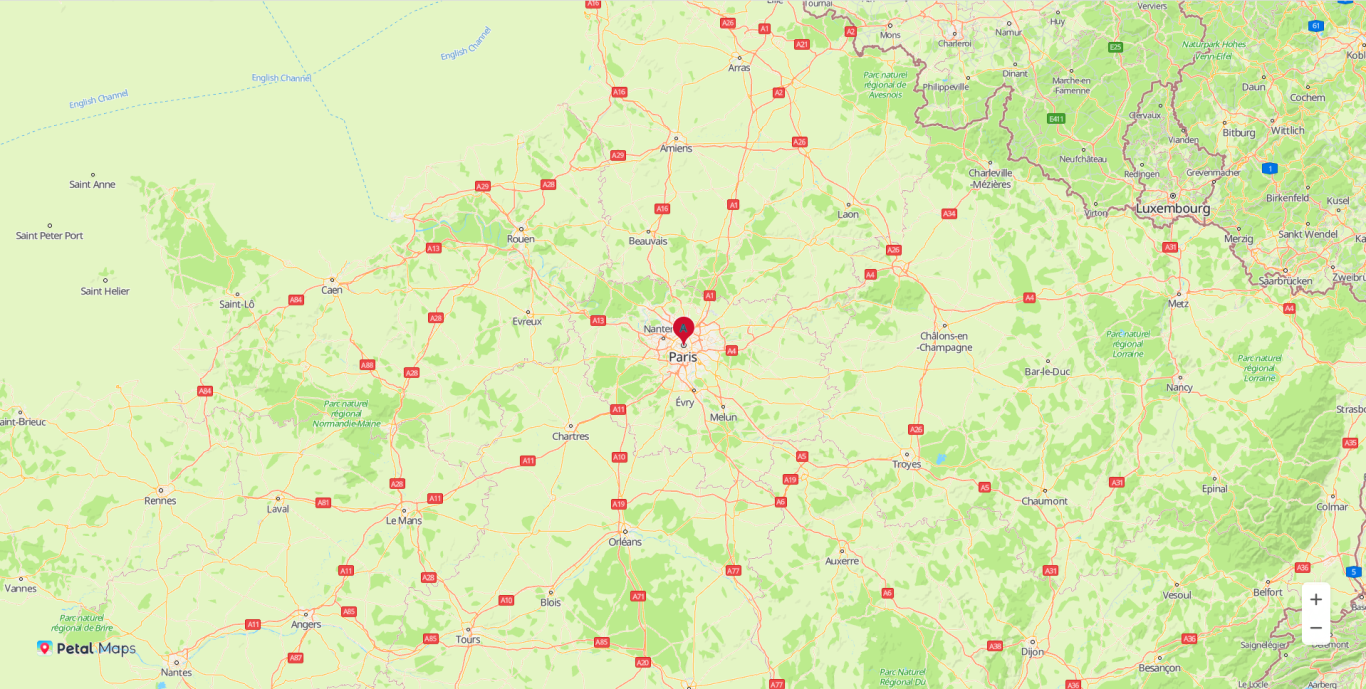
You can add markers to a map to identify locations such as stores and buildings, and provide location details with information windows.
Adding a Marker
var map;
var mMarker;

// Start the script callback.
function initMap() {
    var mapOptions = {};
    mapOptions.center = {lat: 48.856613, lng: 2.352222};
    mapOptions.zoom = 9;

    // Initialize the map.
    map = new HWMapJsSDK.HWMap(document.getElementById('map'), mapOptions);

    // Initialize the marker.
    mMarker = new HWMapJsSDK.HWMarker({
        map: map,
        position: {lat: 48.85, lng: 2.35},
        zIndex: 10,
        label: {
            text: 'A',
            offsetY: -30,
            fontSize: '20px'
        },
        icon: {
            opacity: 0.5,
            scale: 1.2,
        }
    });
}
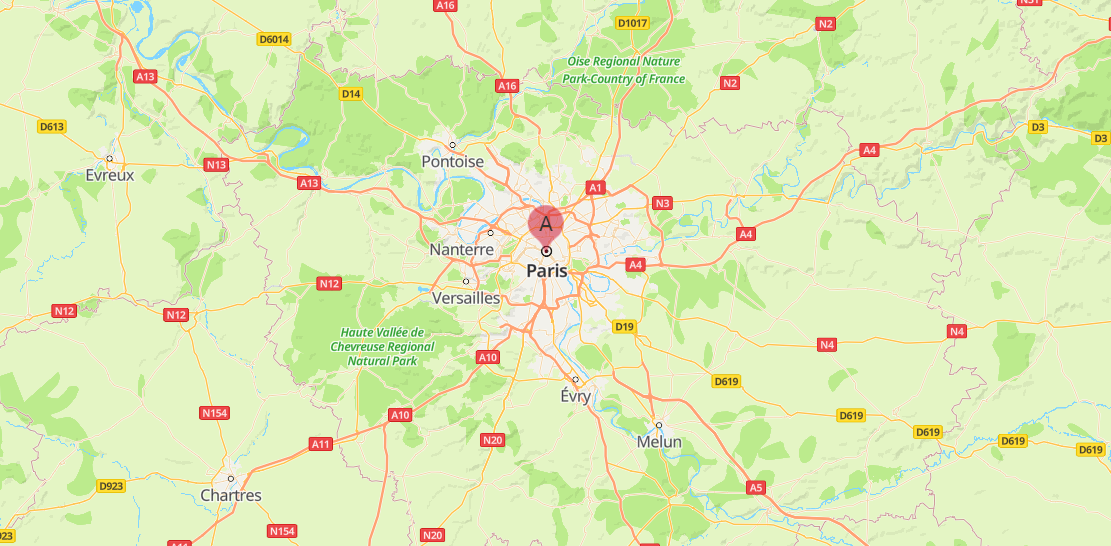
The sample code is to add a marker whose label is A and transparency is 0.5 at 48.85°N, 2.35°E, as shown in the figure below.
For details about custom attributes supported by markerOptions, please refer to MarkerOptions.
Customizing a Marker
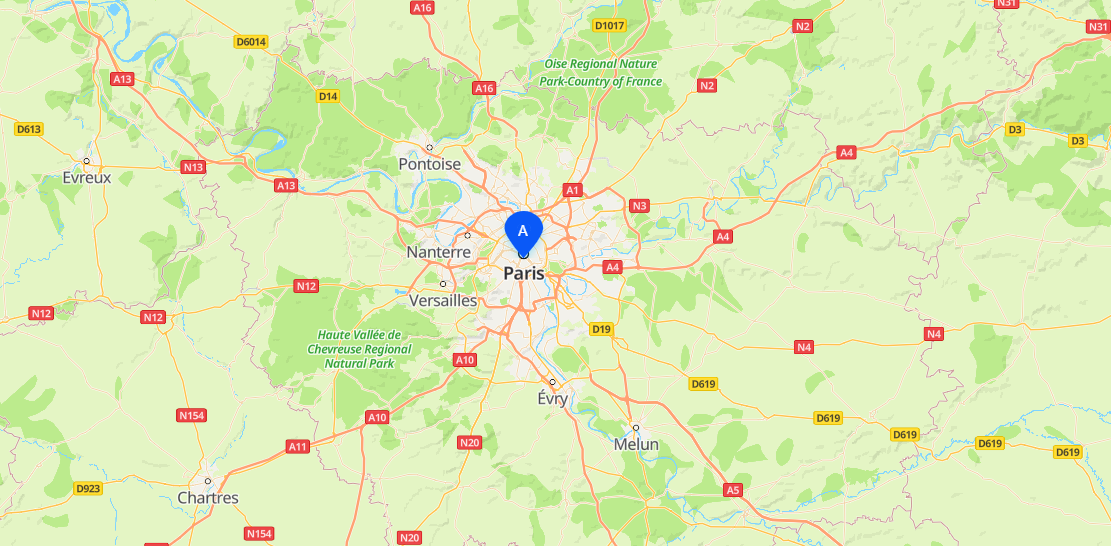
Call HWMapJsSDK.HWMarker(markerOptions) and use the icon attribute to set a custom icon.
mMarker = new HWMapJsSDK.HWMarker({
    map: map,
    position: {lat: 48.85, lng: 2.35},
    label: {
        text: 'A',
        color: '#ffffff',
    },
    // Set a customized icon.
    icon: {
        scale: 2,
        // Set the image URL.
        url: 'location-marker.png'
    }
}); 
Removing a Marker
Call the setMap() method and pass null as a parameter of the method to remove a marker from a map.
mMarker.setMap(null);
Note that the previous method cannot be used to delete a marker. It simply removes the marker from the map. To delete a marker, you need to remove it from the map and set the marker itself to null.
mMarker.setMap(null);
mMarker = null;
Modifying a Marker
Call methods provided by HWMarker to modify attributes. For example, call the setPosition(position) method to change the marker position.
<tr>
    <td>Marker Lat:</td>
    <td><input id="markerLatInput" type="text" value="48"/></td>
</tr>
<tr>
    <td>Marker Lng:</td>
    <td><input id="markerLngInput" type="text" value="1.5"/></td>
</tr>
<script>
    var lat = Number(document.getElementById("markerLatInput").value);
    var lng = Number(document.getElementById("markerLngInput").value);
    mMarker.setPosition({lat: lat, lng: lng});
</script>
The following table describes marker attributes that can be customized. For details, please refer to HWMarker Methods.
| Attribute | Description |
|---|---|
| setIcon(icon) | Sets the icon of a marker. |
| setLabel(label) | Sets the label of a marker. |
| setPosition(position) | Sets the position of a marker. |
| setZIndex(zIndex) | Sets the Z-index of a marker. |
Listening for Marker Events
The following table describes marker events. For details, please refer to HWMarker Events.
| Event | Description |
|---|---|
| click | Click on a marker. |
| dbclick | Double-click on a marker. |
| icon_changed | Marker icon change. |
| mousedown | Mouse button press. |
| mouseup | Mouse button release. |
| position_changed | Position change. |
The following sample code is to listen for marker tap events. To set this listener, call the addListener('click', callback) method of the HWMarker object.
function handleClick() {
      alert("On Marker Click!");
}
mMarker.addListener('click', handleClick);
Setting a Marker as Draggable
function initMap() {
    var mapOptions = {};
    mapOptions.center = {lat: 48.856613, lng: 2.352222};
    mapOptions.zoom = 9;
    map = new HWMapJsSDK.HWMap(document.getElementById('map'), mapOptions);
    // Add a draggable marker on the map.
    const marker = new HWMapJsSDK.HWMarker({
        map,
        position:{lat: 48.856613, lng: 2.352222},
        draggable:true
    })
}
Animating a Marker
To animate a marker, call HWMapJsSDK.HWMarker(markerOptions), and set the animation attribute in MarkerOptions to specify an animation mode. Available animation modes are as follows:
- DROP: Makes the marker fall when the marker is placed for the first time.
- BOUNCE: Makes the marker bounce.
function initMap() {
    var mapOptions = {};
    mapOptions.center = {lat: 48.856613, lng: 2.352222};
    mapOptions.zoom = 9;
    mapOptions.language = 'en'

    map = new HWMapJsSDK.HWMap(document.getElementById('map'), mapOptions);

    marker = new HWMapJsSDK.HWMarker({
        map: map,
        position: {lat: 48.856613, lng: 2.352222},
        icon: {
            scale: 1,
            url: 'imageurl'
        },
        // Specify an animation mode for the marker.
        animation: 'DROP',
    });
} | Figure 1 DROP  | Figure 2 BOUNCE  |
If you use component-based development in MVVM mode, call the marker.setAnimation(null) method to destroy the animation in time in the lifecycle method of the instance before instance destruction.
marker.setAnimation(null);
Setting the Text Stroke
When multiple markers overlap on the map or a marker is displayed against the dark background, text labels of the markers will overlap and be unclear if the stroke is not set for them. To avoid this, call HWMapJsSDK.HWMarker(markerOptions) and set the strokeColor and strokeWeight attributes in MarkerLabelOption to set the stroke.
function initMap() {
    var mapOptions = {};
    mapOptions.center = {lat: 48.856613, lng: 2.352222};
    mapOptions.zoom = 9;
    mapOptions.language = 'en'

    map = new HWMapJsSDK.HWMap(document.getElementById('map'), mapOptions);

    marker = new HWMapJsSDK.HWMarker({
        map: map,
        position: {lat: 48.856613, lng: 2.352222},
        zIndex: 10,
        icon: {
            scale:1,
            url:'imageurl'
        },
        label: {
            text:'A',
            // Set the text stroke color. The default value is #FFF.
            strokeColor: '#00bcd4',
            // Set the text stroke size. The default value is 0.
            strokeWeight: 1
        },
    });
}