Requirements for Browsers
You are advised to use the following browsers to visit AppGallery Connect:
- Google Chrome
- Mozilla Firefox
- Microsoft Edge
Registering as a Huawei Developer
To release your app on AppGallery and use AppGallery Connect services, you need to register as a Huawei developer first. Complete identity verification for your HUAWEI ID to turn it into a developer account.
[h2]Registering a HUAWEI ID
You can register a HUAWEI ID on HUAWEI Developers. For details, please refer to HUAWEI ID Registration. If you already have a HUAWEI ID, skip this step.
[h2]Performing Identity Verification
To use Huawei's capabilities and services, you need to complete identity verification after registration. You can register as an individual or enterprise developer. An enterprise developer can have access to more services than an individual developer.
[h2]Enabling the Merchant Service
If your app shares revenue with AppGallery (from paid apps or in-app purchases), you need to enable the Merchant Service and sign the HUAWEI Developer Merchant Service Agreement. For details, please refer to Merchant Service.
What AppGallery Connect Offers on the Home Page
- Sign in to AppGallery Connect using your Huawei developer account.
- Access relevant function modules in AppGallery Connect as needed. These modules grant access to the services and features you have permission to use.
[h2]Menu Bar
- On any page, click the AppGallery Connect icon in the upper left corner to return to the home page.
- Hover over
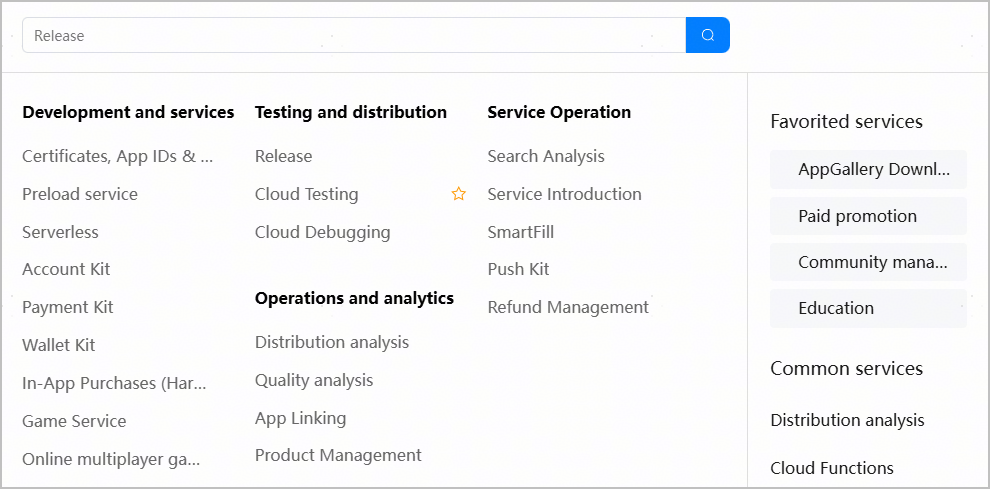
 in the upper left corner to search for or view all available services in AppGallery Connect. You can also click View all services to go to the service overview page. This page shows services as cards. Each card includes a video and a brief description. Click a video to get a quick glimpse of the service or the text to visit the service page.
- Hover over
 in the upper left corner and click
 next to a service to favorite it, or click
 next to a favorited service again to unfavorite it. After a service is favorited, it will be displayed below Favorited services. Up to eight favorited services can be displayed here.
- Hover over
 in the upper left corner to view services you have recently used frequently.
- Click
 to go to the interaction center to check the app review progress, system notifications, and service request results, participate in official activities, and handle appeals or report problems.
- Click
 to view the AppGallery Connect help document, HarmonyOS development documents, HarmonyOS development tool documents, or the agreements you have signed.
- The current signed-in account is displayed in the upper right corner. By clicking it, you can view account information or switch to another account.
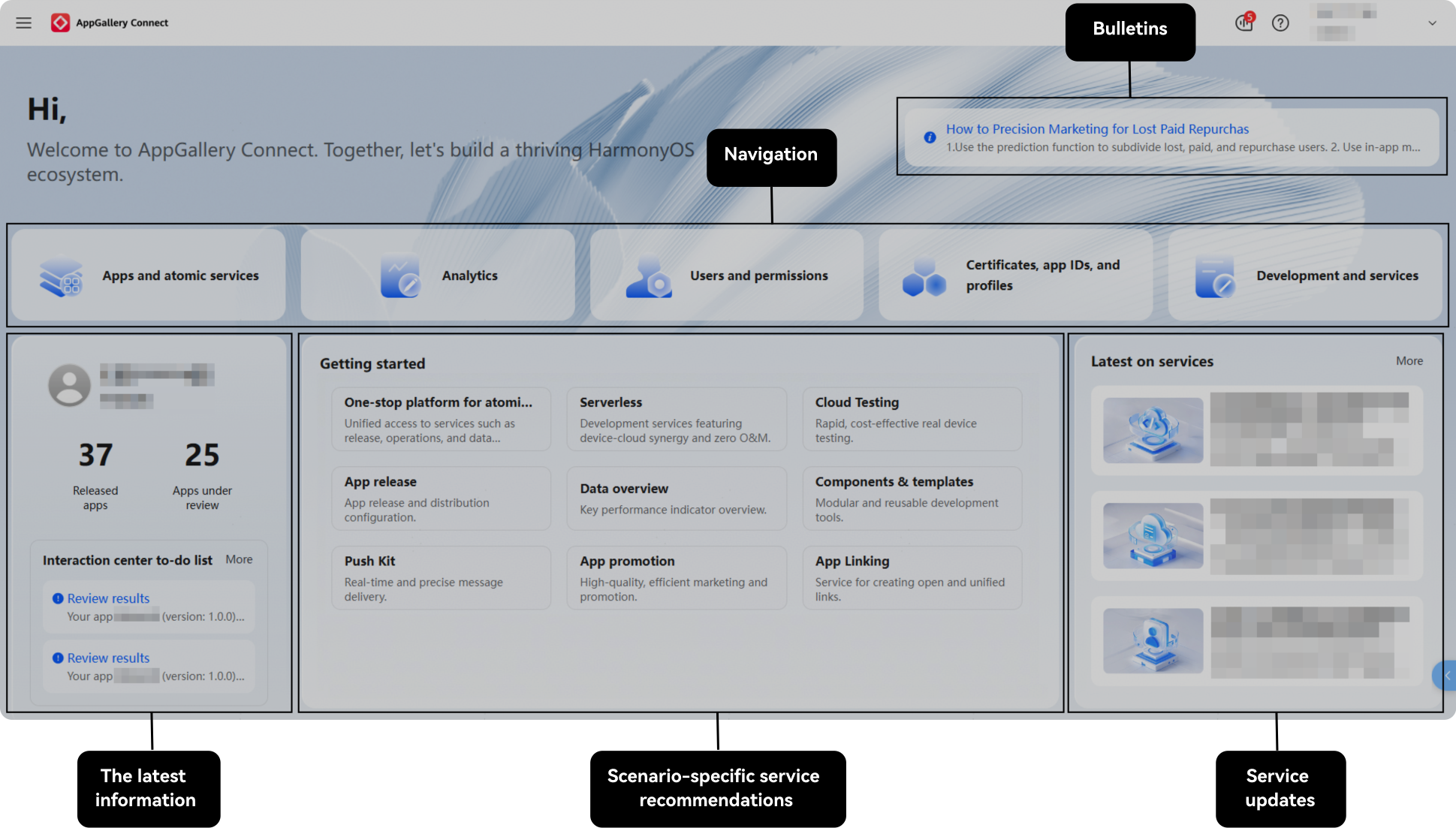
[h2]Bulletins
View important information you may concern about, such as review arrangements during holidays and filing requirements. A maximum of two pieces of information can be displayed.
[h2]Navigation
Module | Description |
|---|---|
| Apps and atomic services: You can manage and operate your apps in this module, such as creating, releasing, or updating an app, configuring product information, managing comments, and managing gifts. |
| Analytics: You can view app analytics in this module, including app downloads and installations, in-app purchases, coupon activities, and financial reports. |
| Users and permissions: You can manage information about the current developer account, such as managing the team account and creating sandbox testing accounts. |
| Certificates, app IDs, and profiles: You can request a debug or release certificate, create a HarmonyOS app or atomic service, register a debugging device, and request a debug or release profile in this module. |
| Development and services: You can create projects in this module and use the AppGallery Connect development services, including Auth Service, Cloud Functions, Cloud Testing, and App Linking. |


[h2]The Latest Information
- View your developer account information or switch to another team.
- View the numbers of released apps and apps under review.
- View the pending items in the interaction center, including app reviews, service requests, activities and updates, system notifications, and appeals and feedback. App review content closely related to users is preferentially displayed. A maximum of two records can be displayed. When there are two or more pending items in the interaction center, the More button is displayed. You can click this button to go to the interaction center home page.
[h2]Scenario-specific Service Recommendations
Click a service card to go to the service page.
- One-stop platform for atomic services: Click this card to go to the atomic service console built based on the AppGallery Connect platform. It aggregates all service features related to atomic services, such as atomic service release, basic services, service distribution and growth, and data analysis, helping you quickly release and manage atomic services.
- Serverless: Click this card to go to the Auth Service page under Serverless. Other cloud development services are also available, including Cloud Functions, Cloud DB, Cloud Cache, Cloud Storage, API gateway, and serverless templates.
- Cloud Testing: Click this card to go to the Cloud Testing page. Before officially releasing your app, you can use Cloud Testing to efficiently test your app package on a real device and use tools such as the test report to efficiently resolve problems, improving the release approval efficiency.
- App release: Click this card to go to the App information page under Apps and atomic services > Distribute. On the page displayed, you can complete your app information. After full testing and verification, you can submit your app for release.
- Data overview: Click this card to go to the Analytics > Overview page. Here, you will find a comprehensive summary of your app analytics, covering distribution, quality, and operations. Use these insights for data-driven product optimization and precise operations.
- Components & templates: Click this card to view modular and reusable templates and components designed for HarmonyOS ecosystem partners.
- Push Kit: Click this card to go to the Push Kit page, where you can utilize the cloud-to-device channel established by Push Kit for real-time, efficient, and precise messaging.
- App promotion: Click this card to access the AppGallery App Promotion platform, through which you can promote your app on AppGallery.
- App Linking: Click this card to access the App Linking page, where you can create app links, atomic service links, and cross-platform links.