Overview
To effectively reduce power consumption and ensure smooth user experience, the system manages background apps, including suspending and terminating processes. When an app is playing music or navigating, it will automatically run in the background if the user switches the app to the background, locks the screen, or switches to another app. The system provides a standard background task mechanism to ensure that apps can properly run in the background. This topic describes common issues and corresponding solutions for background apps, and provides guidance for you to effectively use background tasks to handle freezing scenarios by analyzing app development cases in the following scenarios: short-term switchover between the foreground and background and long-term running in the background.
Background Standards
The system strictly manages the resources used by apps that are switched to the background. The specific measures include process suspension and termination. If background processing is not performed, apps may run improperly. For details about the constraints and suggestions, see the following official guides and best practices:
- Proper Use of Background Hardware Resources: covers CPU load constraints for background processes (continuous tasks and transient tasks); the use of Bluetooth, network resources, microphones or speakers, and GPS resources when no continuous task is running in the background; prohibition of sensors when an app is running in the background.
- Proper Use of Background Software Resources: covers the proper use of upload and download, audio services, location and navigation services, and system resources in the background.
- Introduction to Background Tasks Kit: describes background task functions, resource usage restrictions, and background task types.
[h2]Background Task Types
For standard-system devices, the following types of constrained background tasks are provided: transient tasks, continuous tasks, deferred tasks, and agent-powered reminders. You can select an appropriate background task type to keep your app running after it moves to the background.
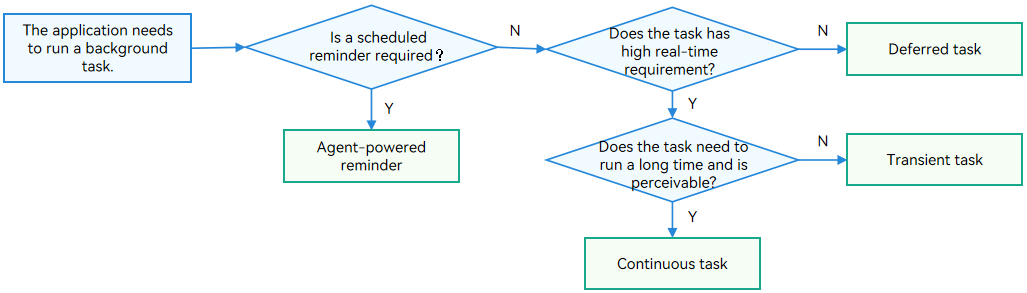
The table below describes these background tasks from different dimensions.
Application Scenario | Concept | Common Issues | Background App Status | Task Type |
|---|---|---|---|---|
No background task executed | The app does not execute any task and is switched to the background. | - | The app is suspended within several seconds. | No background |
Small file download, caching, and information sending | Tasks that have high requirements on real-time performance and can be completed in a short period of time | The app is switched to background for a short period of time, and the process is suspended. | Within the one-time quota, the app is not suspended until the task is canceled. If the one-time quota times out and the task is not canceled, the app process will be terminated. | Transient task |
Data transfer, audio playback, recording, positioning and navigation, Bluetooth-related tasks, WLAN-related tasks, multi-device connection, voice and video calls, and computing tasks | Background tasks that are perceivable and need to run for a long time | The app is interrupted after running in the background for a long time. | The app will not be suspended until the task is canceled. If the app process is not canceled when the task ends, the process will be terminated. | Continuous task |
Software update, information collection, and data processing | Tasks that do not have high requirements on real-time performance and can be executed later. If the conditions are met, the task is placed in the execution queue and will be scheduled by the system based on the memory and power consumption. | - | The app is suspended after it is switched to the background. If the preset conditions are met, the system starts the app in a unified manner and creates an Extension process to execute the task. A single callback can run for a maximum of 2 minutes. If the callback is not canceled when it times out, the system terminates the corresponding Extension process. | Deferred task |
Alarm clocks, countdown timer, and calendar events | System agent-powered reminder | - | The app is suspended or the process is terminated. When the conditions are met, the system sends reminders on behalf of the app. | Agent-powered reminder |
[h2]Avoiding Process Suspension by Using Transient Tasks
For service scenarios like small-file download/cache and message sending, if an app is briefly switched to the background (causing process suspension) and then back to the foreground, the service code logic in the foreground and background periodic callback will cause app abnormalities. In this case, you can request a transient task to solve this problem. The following uses the message sending scenario as an example to describe how to use ApplicationContext to subscribe to the callback for the app switchover between the foreground and background to request a transient task when the app is switched to the background. This solves the problem that the app fails to send messages due to a short switchover.
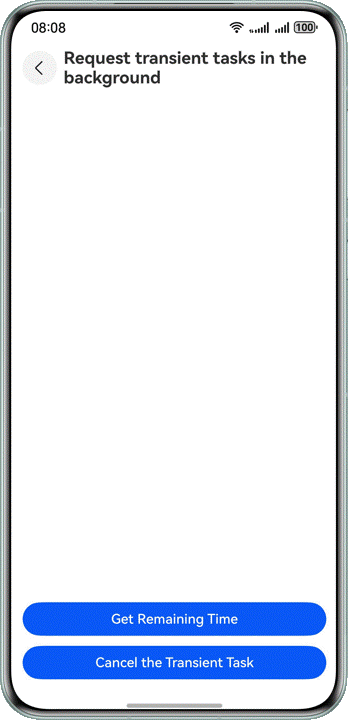
- Define SuspendTaskInfo() to specify transient task information, including the task ID and the remaining time (delayTime) of the transient task.
export interface SuspendTaskInfo { id: number; // Short-time task ID delayTime: number; // The remaining time of this request short assignment } - When the app is in the foreground, use a timer in onAppear() to send a message every 2 seconds to simulate the background service of the app.
NavDestination() { // ... } .title(this.builderTitle()) .onAppear(() => { this.shortTermTaskModel.subscribeStateChange(); this.taskTimer = setInterval(() => { this.messageCount++; hilog.info(0x0000, TAG, `already sent :${this.messageCount} messages`); }, 2000); }) - Use ApplicationContext.on('applicationStateChange') to register a listener for the foreground and background switchover of an app. When the app switches to the background, onApplicationBackground() is called to request a transient task.
// Apply front - and back-end status monitoring subscribeStateChange() { let that = this; // Obtain applicationContext. let applicationContext = this.context.getApplicationContext(); let applicationStateChangeCallback: ApplicationStateChangeCallback = { onApplicationForeground() { hilog.info(0x0000, TAG, 'applicationStateChangeCallback onApplicationForeground'); }, onApplicationBackground() { hilog.info(0x0000, TAG, 'applicationStateChangeCallback onApplicationBackground'); // Apply for short-time tasks when the application changes from foreground to background that.suspendTaskInfo = SuspendTaskUtils.requestSuspendDelay('Suspend Task'); hilog.info(0x0000, TAG, `requestSuspendDelay, id:${that.suspendTaskInfo.id}, delayTime:${that.suspendTaskInfo.delayTime}`); } } try { // Registers the background and pre - application status monitoring through applicationContext applicationContext.on('applicationStateChange', applicationStateChangeCallback); } catch (paramError) { hilog.error(0x0000, TAG, `error: ${(paramError as BusinessError).code}, ${(paramError as BusinessError).message}`); } } - In scenarios such as small file download, caching, and message sending, call backgroundTaskManager.requestSuspendDelay() to request a transient task for a background app. For details about the constraints on requesting and using transient tasks, see Transient Task (ArkTS).
/** * * @param reason Set the delay task suspension reason * @returns */ requestSuspendDelay(reason: string): SuspendTaskInfo { let id: number; // Apply for a short-time task ID let delayTime: number; // The remaining time of this request short assignment try { // Request deferred task let delayInfo = backgroundTaskManager.requestSuspendDelay(reason, () => { // This function is used to call back the application when a short task requested by the application is about to time out. hilog.info(0x0000, TAG, `Request suspension delay will time out.`); backgroundTaskManager.cancelSuspendDelay(delayInfo.requestId); }) id = delayInfo.requestId; delayTime = delayInfo.actualDelayTime; let taskInfo = { id: id, delayTime: delayTime } as SuspendTaskInfo; return taskInfo; } catch (err) { let taskInfo = { id: 0, delayTime: 0 } as SuspendTaskInfo; return taskInfo; } } - After the app returns to the foreground, call backgroundTaskManager.getRemainingDelayTime() to obtain the remaining time of the transient task.
async getRemainingDelayTime(id: number): Promise<number> { let delayTime: number = -1; await backgroundTaskManager.getRemainingDelayTime(id).then((res: number) => { delayTime = res; hilog.info(0x0000, TAG, 'Operation getRemainingDelayTime succeeded. Data: ' + JSON.stringify(res)); }).catch((err: BusinessError) => { hilog.error(0x0000, TAG, 'Operation getRemainingDelayTime failed. Cause: ' + err.code); }); return delayTime; } - After the app is switched to the background, call backgroundTaskManager.cancelSuspendDelay() to cancel a transient task.
cancelSuspendDelay(id: number): boolean {
  try {
    backgroundTaskManager.cancelSuspendDelay(id);
    hilog.info(0x0000, TAG, 'cancelSuspendDelay succeeded.');
  } catch (err) {
    hilog.error(0x0000, TAG, `cancelSuspendDelay failed. Cause: ${JSON.stringify(err)}`);
    return false;
  }
  return true;
}
Demo
- After the screen is automatically turned off, the foreground app is identified that it is in the background. At this time, request a transient task with a maximum of 3-minute remaining time, that is, delayTime: 180000.

- When the remaining time of a transient task is insufficient, the system triggers a callback to stop the transient task.

[h2]Maintaining Proper Background Application Running by Using Continuous Tasks
When an app involves multiple scenarios, such as data transfer, audio playback, recording, positioning and navigation, Bluetooth-related task, WLAN-related task, multi-device connection, voice and video calls, and complex computing tasks, the app needs to run in the background for a long period of time. To ensure a proper app running in the background, you can request a continuous task. The following example uses a continuous task to manage the location service of an app. In this way, the app can continuously obtain the location information of a device when the app is running in the background for a long period of time.
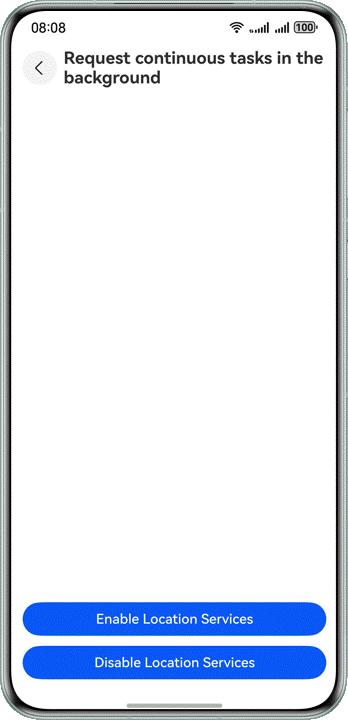
- To ensure that the location service can still be used after the positioning and navigation app is switched to the background, declare a continuous task with the location type for EntryAbility and request location-related permissions in the module.json5 configuration file.
{ "module": { // ... "abilities": [ { "name": "EntryAbility", "srcEntry": "./ets/entryability/EntryAbility.ets", // ... "backgroundModes": [ 'location' ] } ], // ... "requestPermissions": [ { "name": "ohos.permission.LOCATION", // ... }, { "name": "ohos.permission.LOCATION_IN_BACKGROUND", // ... }, { "name": "ohos.permission.APPROXIMATELY_LOCATION", // ... }, { "name": "ohos.permission.KEEP_BACKGROUND_RUNNING", // ... } ] } } - After the app is redirected to the location feature page, system will request the location permission and network access permission.
// Apply for location-related permissions requestPermissionsFromUser(): void { let atManager: abilityAccessCtrl.AtManager = abilityAccessCtrl.createAtManager(); let permissionList: Permissions[] = [ 'ohos.permission.INTERNET', 'ohos.permission.LOCATION', 'ohos.permission.APPROXIMATELY_LOCATION' ]; atManager.requestPermissionsFromUser(this.context, permissionList) .then((data: PermissionRequestResult) => { hilog.info(0x0000, TAG, `data: ${JSON.stringify(data)}`); }) .catch((err: BusinessError) => { hilog.error(0x0000, TAG, `requestPermissionsFromUser fail: ${JSON.stringify(err)}`); }); } - Call geoLocationManager.on('locationChange') to subscribe to the location changes and initiate a location request.
locationCallback = async (location: geoLocationManager.Location) => { hilog.info(0x0000, TAG, `locationCallback: data: ${JSON.stringify(location)}`); }; // Get the location async getLocation() { let request: geoLocationManager.LocationRequest = { priority: geoLocationManager.LocationRequestPriority.FIRST_FIX, // Quick location acquisition is preferred scenario: geoLocationManager.LocationRequestScenario.UNSET, // Indicates that no scenario information is set timeInterval: 1, // Interval for reporting the location information distanceInterval: 0, // Distance for reporting location information maxAccuracy: 100 // The precision value required when the application requests location information from the system }; try { geoLocationManager.on('locationChange', request, this.locationCallback); } catch (err) { hilog.error(0x0000, TAG, `errCode: ${JSON.stringify(err)}`); } } - Call backgroundTaskManager.startBackgroundRunning() to request a continuous task for the app running in the background.
// Start a long task startLongTask(): void { let wantAgentInfo: wantAgent.WantAgentInfo = { wants: [ { bundleName: this.context.abilityInfo.bundleName, abilityName: this.context.abilityInfo.name } ], actionType: wantAgent.OperationType.START_ABILITY, requestCode: 0, wantAgentFlags: [wantAgent.WantAgentFlags.UPDATE_PRESENT_FLAG] }; try { // wantAgent object is obtained by getWantAgent method in WantAgent module wantAgent.getWantAgent(wantAgentInfo).then((wantAgentObj: WantAgent) => { backgroundTaskManager.startBackgroundRunning(this.context, backgroundTaskManager.BackgroundMode.LOCATION, wantAgentObj) .then(() => { hilog.info(0x0000, TAG, `Operation startBackgroundRunning succeeded`); }) .catch((error: BusinessError) => { hilog.error(0x0000, TAG, `Operation startBackgroundRunning failed. code is ${error.code} message is ${error.message}`); }); }); } catch (error) { hilog.error(0x0000, TAG, `Operation getWantAgent failed. error is ${JSON.stringify(error)} `); } } - Call geoLocationManager.off('locationChange') to unsubscribe from the location changes when a navigation app exits.
geoLocationManager.off('locationChange'); - Call backgroundTaskManager.stopBackgroundRunning() to cancel the continuous task when the app exits.
// Stop a long task
stopLongTask(): void {
  backgroundTaskManager.stopBackgroundRunning(this.context).then(() => {
    hilog.info(0x0000, TAG, `Operation stopBackgroundRunning succeeded`);
  }).catch((error: BusinessError) => {
    hilog.error(0x0000, TAG, `Operation stopBackgroundRunning failed. error is ${JSON.stringify(error)} `);
  });
}
Demo
- When a positioning and navigation app is running in the foreground, location subscription is enabled and the location information is printed in the console log periodically.

- When a positioning and navigation app is running continuously in the background, the location information is printed in the console log periodically.
