Overview
In apps such as office, creation, and social networking, content publishing, browsing, and sharing are the core of user interaction and communication. It allows users to create and share multimedia information, including images, videos, and text, to enhance the connection and interaction between users. As electronic devices such as mobile phones, tablets, and computers become more popular, users have increasing demands for processing images, videos, and text across devices, editing content on different devices, seamlessly switching between devices and quickly and conveniently sharing content. This topic describes how to use the cross-device migration and multi-device collaboration functions to implement quick and seamless switching between different devices, improving the convenience of content publishing, browsing, and sharing.
This topic covers the following contents:
- Device Interconnectivity: Based on the distributed collaboration framework, the createCollaborationServiceMenuItems (camera device list component) and CollaborationServiceStateDialog (dialog box component showing remote camera status) components are provided for cross-device services such as photographing. Your app only needs to call these two components to implement cross-device camera invoking, photographing, scanning, and gallery access.
- Cross-Device Image and Text Dragging: The cross-device drag-and-drop scenario is supported, which allows the system to automatically complete screen hopping and data transmission across devices. Your app can use the Drag and Drop Control and Drag Event capabilities to move images and text between two tablets or PCs to meet actual requirements.
- Cross-Device Image/Video/Text Clipping and Pasting: The @ohos.pasteboard (Pasteboard) capability enables the system's copy and paste functions, supporting both the local pasteboards and cross-device pasteboards service scenarios. Local pasteboards allow users to copy and paste content within a device, and cross-device pasteboards allow users to copy and paste content across devices.
- Cross-Device App Continuation: Based on the UIAbility app component, the onContinue() API is used to save migration data on the local device, and the onCreate() or onNewWant() API is used to restore migration data on the destination device, implementing app continuation scenario. This feature allows operations being performed by a user on one device to be quickly switched and seamlessly continued in the same app on another device.
- Inserting Images Through Tap to Transfer: Based on the Tap to Transfer Between a Phone and a PC/2-in-1 Device capability, images in the gallery of a mobile device can be shared and inserted into an app page on a PC.
- Sharing Pages Through Tap to Transfer: Based on the system's Tap to Transfer capability, users can share the content page to other devices. In addition, the App Linking technology (for details, see App Linking Kit Overview) can be used to quickly share content across devices and directly access the target app, providing efficient, convenient, and seamless sharing experience.
- Sharing Pages Through Grab & Drop: Based on the system's Grab & Drop capability, users can share the content page to other devices by performing the grab & drop gesture. Users can trigger the sharing of an App Linking link through the grab & drop gesture. The recipient device with the app installed can directly open the link to view the content.
[h2]Experience
| Feature | Experience Video |
| Device interconnectivity | |
| Cross-device drag-and-drop | |
| Cross-device clipping | |
| Cross-device app continuation | |
| Inserting images through Tap to Transfer | |
| Sharing pages through Tap to Transfer | |
| Sharing pages through Grab & drop |
[h2]Restrictions
| Restriction/Scenario | Device Interconnectivity | Cross-Device Drag and Drop | Cross-Device Clipping | Cross-Device App Continuation | Sharing Through Tap to Transfer | Sharing Through Grab & Drop |
|---|---|---|---|---|---|---|
| Devices running HarmonyOS NEXT or later | √ | √ | √ | √ | √ | √ |
| Log in to the same HUAWEI ID | √ | √ | √ | √ |
| NA |
| Wi-Fi and Bluetooth are enabled | √ | √ | √ | √ | NA | NA |
| The device needs to be unlocked and the screen needs to be turned on. | NA | NA | √ | NA | √ | √ |
| Device type (common devices in the vertical domain: phone, tablet, and PC) |
| A PC must be connected, or a tablet that supports PC mode must be connected. | Phone, tablet, and PC | Phone, tablet, and PC |
| Phone, tablet, and PC |
| Enable the corresponding function in Settings > More connectivity options. | √ | Enable keyboard & mouse sharing. | Enable cross-device clipboard. | Enable continuation. | NA | NA |
| Others | Devices can be invoked based on specific invoking policies. For details, see Constraints > Restrictions on usage > Invoking policy. | The devices must be connected to the same LAN. Resource files preset in the app (that is, resource files that already exist in the HAP before the app is installed) do not support cross-device drag-and-drop. | NA | The app must be installed on both devices. | Huawei Share Kit has been enabled (enabled by default). For details about the constraints on the Tap to Transfer between a phone and a PC, see "Constraints on screen touch interaction" in Constraints. |
[h2]When to Use
When a user is using a text editing app (such as Notepad, Email, or Notes) on a tablet or PC, if the current device is inconvenient for shooting, the user can use the device interconnectivity feature to directly invoke the camera of the phone or tablet to take photos or videos, or select images or videos from the gallery. Phones and tablets have advantages in shooting flexibility, framing convenience, and camera performance. The selected materials will be quickly transferred to the app on the original device, helping the user efficiently complete the image and text editing task.

To use this feature, the device restrictions and usage restrictions must be met. For details, see Constraints in "Device Interconnectivity Development Guide".
[h2]How to Implement
Scenario Analysis
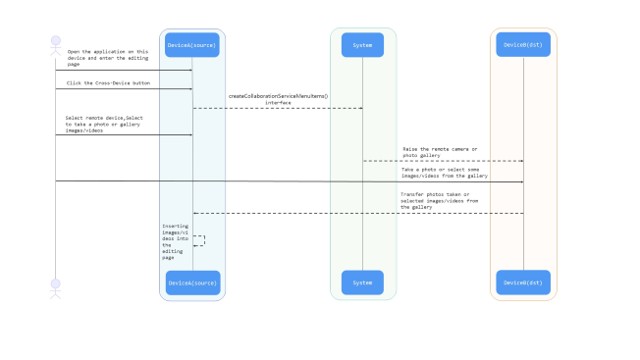
- A user operates in the app on the local device (tablet or PC), selects the remote device's camera, scanning, or gallery feature, and sends a request to the remote device.
- The system automatically wakes up the camera, gallery, or scanning feature on the remote device and enters the corresponding screen.
- The user uses the remote device to take photos or select photos/videos and confirm them, which are then sent back to the local device and inserted into the app on the local device.
Key Technologies
The core of device interconnectivity is to use the distributed collaboration framework of HarmonyOS.
- Device discovery: Use the createCollaborationServiceMenuItems component to obtain the list of devices with the corresponding capabilities on the network.
- Remote wakeup: The system automatically wakes up the camera, gallery, or scanning feature on the remote device.
- Status backhaul: Use the CollaborationServiceStateDialog component to send back the remote shooting status in real time.
- Data receiving: Process the received data in the onState() callback.
In the distributed collaboration framework, an app only needs to call the createCollaborationServiceMenuItems (camera device list component) and CollaborationServiceStateDialog (dialog box component showing remote camera status) components to complete cross-device photo shooting, scanning, and gallery access capabilities for the service scenario of cross-device image/video information interconnection. You do not need to pay attention to details such as data transmission and instruction control in distributed scenarios. For details, see Working Principles.
[h2]How to Implement
- Starting the remote device list and selecting a remote device
Use the createCollaborationServiceMenuItems component to obtain a list of devices with required capabilities on the network. After a user selects a specific device feature, the system automatically activates the camera or gallery of the peer device and automatically lights up the device screen. You can set the maximum number of photos/videos (canReceiveNumber) to be transferred. The value ranges from 1 to 50. If the value is less than or equal to 0, the corresponding feature of the called device will not be started. If the value is greater than 50, the default value 50 is used.
// Remote menu. @Builder MyTestMenu() { Menu() { MenuItem({ symbolStartIcon: new SymbolGlyphModifier($r('sys.symbol.picture_2')), content: $r('app.string.local_device') }) .onClick(() => { if (this.mediaUriArray.length < CommonConstants.MAX_ADD_MEDIA_NUM) { this.selectImage(); } else { try { this.getUIContext().getPromptAction().showToast({ message: $r('app.string.add_picture_prompt') }); } catch (err) { hilog.error(DOMAIN, TAG, FORMAT, `ShowToast failed. Cause code: ${err.code}, message: ${err.message}`); } } }) if (canIUse('SystemCapability.Collaboration.Service')) { createCollaborationServiceMenuItems([CollaborationServiceFilter.ALL, CollaborationServiceFilter.VIDEO_PICKER], CommonConstants.MAX_ADD_MEDIA_NUM) } } } - Sending back the shooting status information of the remote device in real time
The app displays a dialog box to send remote shooting status information to the CollaborationServiceStateDialog (dialog box component showing remote camera status) component in real time. Bind and implement the onState() method to the dialog box component. The collaboration framework calls this method for data receiving and processing after the service starts. In the data received by the callback function, stateCode indicates the service completion status, bufferType indicates the type of the returned data, and buffer indicates the returned data. When bufferType is set to general.image, the buffer returns the image data. When bufferType is set to general.video, the buffer returns the URI of the sandbox video.
build() { Column() { CollaborationServiceStateDialog({ onState: (stateCode: number, bufferType: string, buffer: ArrayBuffer): void => this.doInsertMedia(stateCode, bufferType, buffer) }) // ... } // ... } - Writing the returned data to the page
After the user uses the remote device to take a photo or select a photo/video from the gallery, use the custom method to write the returned image/video data to the local device page. The remote device automatically closes the camera or gallery, and returns to its original state.
// Remote images or videos fall into.
doInsertMedia(stateCode: number, bufferType: string, buffer: ArrayBuffer): void {
  if (stateCode != 0) {
    return;
  }
  if (this.mediaUriArray.length >= CommonConstants.MAX_ADD_MEDIA_NUM) {
    return;
  }

  if (bufferType === 'general.image') {
    let imageSource = image.createImageSource(buffer);
    imageSource.createPixelMap().then((pixelMap) => {
      let uuid = util.generateRandomUUID();
      this.PixelMapToBuffer(pixelMap, uuid);
      this.mediaUriArray.push({ imagePixelMap: pixelMap, mediaName: uuid, mediaType: MediaType.MEDIA_IMAGE });
      imageSource.release();
    })
  } else if (bufferType === 'general.video') {
    let uuid = util.generateRandomUUID();
    let decoder = util.TextDecoder.create('utf-8');
    let videoUriStr = decoder.decodeToString(new Uint8Array(buffer));
    writeDistributedFile(this.context, uuid, MediaType.MEDIA_VIDEO, undefined, videoUriStr);
    this.mediaUriArray.push({ videoUri: videoUriStr, mediaName: uuid, mediaType: MediaType.MEDIA_VIDEO });
  }
}
[h2]When to Use
In multi-device scenarios, Keyboard & mouse sharing feature can be enabled to move the keyboard and mouse between different devices. Through cross-device drag and drop, the user can easily drag materials from the local device to the remote device to quickly complete content creation and enjoy efficient cross-device collaboration.

To use this feature, the device restrictions and usage restrictions must be met. For details, see Constraints in "Drag-and-Drop Across Devices".
[h2]How to Implement
Scenario Analysis
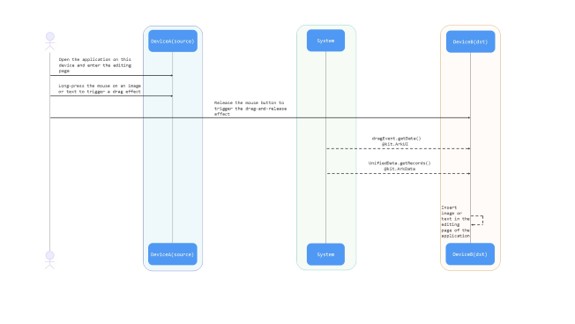
- A user holds down the mouse to trigger a drag event to drag images or texts from the local editing page to the remote editing page.
- During this process, the system automatically processes cross-device data transmission. You do not need to intervene.
- When the user releases the mouse, the drag release event is triggered. The remote app processes the received drag data and writes the data to the remote editing page.
Key Technologies
The cross-device drag-and-drop feature allows the system to automatically move the mouse between different devices and transfer data. You can drag components in or out and finish the development of drag event in your app based on service requirements. For details, see Working Principles in "Drag-and-Drop Across Devices".
[h2]How to Implement
- Setting the component to be draggable
Set draggable() to true for the Image, TextInput, and TextArea components.
- Setting the type of data that can be dropped to the component
Use the allowDrop() method to set the types of data that can be dropped to the component, including PLAIN_TEXT, IMAGE, and OPENHARMONY_PIXEL_MAP. For details, see UniformDataType.
- Defining a drag event
Bind the onDrop() event to the component that allows dragging in data as the drop target. When the dragged item is dropped on the drop target within the component scope, the callback function is triggered to implement the drag and drop of images.
build() {
  Column() {
    // ...
  }
  .draggable(true)
  .allowDrop([uniformTypeDescriptor.UniformDataType.IMAGE,
    uniformTypeDescriptor.UniformDataType.OPENHARMONY_PIXEL_MAP])
  .onDrop((dragEvent?: DragEvent) => {
    // The logic behind the image falling in, achieving image writing.
    // ...
    })
  })

}


// ...

/*
 *  Adding an image or video.
 */
@Builder
addMedia() {
  Row() {
    List({ space: CommonConstants.LIST_COMM_SPACE }) {
      ForEach(this.mediaUriArray, (item: MediaInfo) => {
        ListItem() {
          if (item.imagePixelMap) {
            Image(item.imagePixelMap)// ...
              .draggable(true)
              .onDragEnd((event) => {
                // The logic after dragging and dropping is completed.
                // ...
              })// ...
          } else if (item.videoUri) {
            Video({
              src: item.videoUri,
              posterOptions: {
                showFirstFrame: true
              }
            })// ...
              .draggable(true)
              .controls(false)
              .autoPlay(true)
              .loop(true)
              .onDragEnd((event) => {
                // The logic after dragging and dropping is completed.
                // ...
              })// ...
          }
        }
      }, (item: MediaInfo, index: number) => JSON.stringify(item) + index)
      // ...
    }
    // ...
  }
  // ...
}
When the dragged item is dropped on the drop target within the TextInput and TextArea components, the callback function is triggered to implement the drag and drop of texts.
build() {
  Flex({ direction: FlexDirection.Column }) {
    TextInput({ text: this.mainTitle, placeholder: $r('app.string.text_input_placeholder') })// ...
      .draggable(true)
      .allowDrop([uniformTypeDescriptor.UniformDataType.PLAIN_TEXT])
      .onDrop((dragEvent?: DragEvent) => {
        // The logic after the text falls in, realizing the writing of text.
        // ...
      })

    TextArea({ text: this.textContent, placeholder: $r('app.string.richEditor_placeholder') })// ...
      .draggable(true)
      .allowDrop([uniformTypeDescriptor.UniformDataType.PLAIN_TEXT])
      .onDrop((dragEvent?: DragEvent) => {
        // The logic after the text falls in, realizing the writing of text.
        // ...
      })
  }
  .backgroundColor($r('sys.color.background_primary'))
  // ...
}
[h2]When to Use
In multi-device scenarios, cross-device pasteboard enables the user to copy text, images, or videos in the app of the local device and paste it to the app of the remote device, achieving efficient content sharing.

To use this feature, the device restrictions and usage restrictions must be met. For details, see Constraints in "Cross-Device Pasteboard".
[h2]How to Implement
Scenario Analysis
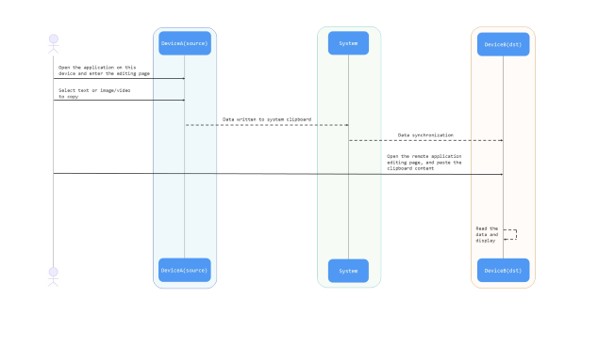
1. A user copies data at the local device, which is written to the system pasteboard service.
2. The system pasteboard service processes and synchronizes the data. This process is not perceived by developers.
3. The user reads the content from the system pasteboard at the remote device and pastes the data from the local device.
Key Technologies
The cross-device pasteboard feature allows the system to automatically complete data transmission across devices. Apps can access the cross-device pasteboard as required to implement cross-device data sharing. For details, see Working Principles in "Cross-Device Pasteboard".
[h2]How to Implement
- Copying data and writing it to the pasteboard service on the local device
Use the setData() method of SystemPasteboard object to write the data copied on the local device to the pasteboard service.
// Copy picture or video. async setPasteDataTest(data: image.PixelMap | string): Promise<void> { let pasteData: pasteboard.PasteData; if (typeof data === 'string') { pasteData = pasteboard.createData(pasteboard.MIMETYPE_TEXT_URI, data); } else { pasteData = pasteboard.createData(pasteboard.MIMETYPE_PIXELMAP, data); } let systemPasteBoard: pasteboard.SystemPasteboard = pasteboard.getSystemPasteboard(); await systemPasteBoard.setData(pasteData).catch((err: BusinessError) => { hilog.error(DOMAIN, TAG, FORMAT, `Failed to set pastedata. Code: ${err.code}, message: ${err.message}`); }); } - Pasting data and reading the pasteboard content on the remote device
When pasting data on the remote device, use the getData() method of the SystemPasteboard object to read the content on the pasteboard and display the data on the page.
// Paste picture or video.
async getPasteDataTest(): Promise<void> {
  let systemPasteBoard: pasteboard.SystemPasteboard = pasteboard.getSystemPasteboard();
  systemPasteBoard.getData((err: BusinessError, data: pasteboard.PasteData) => {
    if (err) {
      hilog.error(DOMAIN, TAG, FORMAT, `Failed to get pastedata. Code: ${err.code}, message: ${err.message}`);
      return;
    }
    // Process pasteData, obtain type, number, etc
    // Retrieve the number of records in the clipboard.
    let recordCount: number = data.getRecordCount();
    // Retrieve the type of data from the clipboard.
    let type: string = data.getPrimaryMimeType();
    hilog.info(DOMAIN, TAG, FORMAT, `recordCount: ${recordCount}, type: ${type}`);
    // Retrieve the content of data from the clipboard.
    if (this.mediaUriArray.length < CommonConstants.MAX_ADD_MEDIA_NUM) {
      if (type === pasteboard.MIMETYPE_PIXELMAP) {
        let primaryPixelMap: image.PixelMap = data.getPrimaryPixelMap();
        let uuid = util.generateRandomUUID();
        this.PixelMapToBuffer(primaryPixelMap, uuid);
        this.mediaUriArray.push({
          imagePixelMap: primaryPixelMap,
          mediaName: uuid,
          mediaType: MediaType.MEDIA_IMAGE
        });
      } else if (type === pasteboard.MIMETYPE_TEXT_URI) {
        let uuid = util.generateRandomUUID();
        writeDistributedFile(this.context, uuid, MediaType.MEDIA_VIDEO, undefined, data.getPrimaryUri());
        this.mediaUriArray.push({
          videoUri: data.getPrimaryUri(),
          mediaName: uuid,
          mediaType: MediaType.MEDIA_VIDEO
        });
      }
    } else {
      this.toastShow = true;
    }
  });
}
[h2]When to Use
When the environment changes during usage and a more appropriate device is detected, the user can migrate an ongoing task to another device without exiting. After the continuation is complete, the app on the previous device can be exited or retained. The started device continues the task.

To use this feature, the device and usage restrictions must be met. For details, see Constraints in "App Continuation Overview".
[h2]How to Implement
Scenario Analysis
- A user selects photos/videos and enters the title and text on the local device.
- After the user taps the dock icon on the remote device, the local device initiates a continuation and transfers data to the remote device.
- The remote device receives and displays the continuation data.
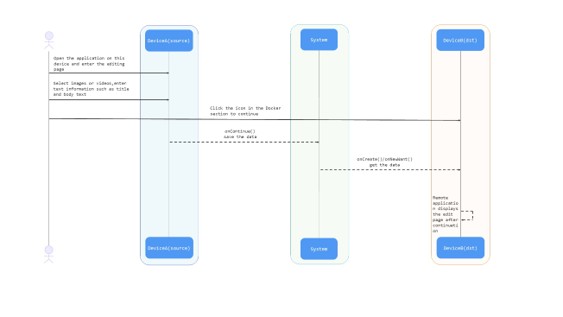
The core of this scenario is how to transfer data during app continuation. You can use distributed data objects to store text information; copy the photos/videos to a distributed file directory and use distributed data assets to save them as root properties of distributed data objects.
Key Technologies
The device that initiates the continuation is called the local device, and the device that receives the data is called the remote device. The underlying continuation process relies on the distributed framework and soft bus. You only need to enable continuation, save data, and restore data. For details, see Working Principles in "App Continuation Overview".
- Enabling app continuation
In abilities of the module.json5 file, set the continuable attribute to true (the default value is false), indicating that the UIAbility can be migrated. If this attribute is set to false, the UIAbility cannot be migrated.
{ "module": { // ... "abilities": [ { // ... "continuable": true, // ... } ], // ... } } - Migrating basic data and file assets
Convert file data (images, videos, and documents) to the ArrayBuffer type and save them in a distributed file directory.
export function writeDistributedFile(context: common.UIAbilityContext, displayName: string, mediaType: MediaType,
  buf?: ArrayBuffer, uri?: string): void {
  // The asset is written to the distributed file directory.
  // Obtain the distributed file directory path.
  let distributedDir: string = context.distributedFilesDir;
  let fileName: string = '/' + displayName;
  let filePath: string = distributedDir + fileName;
  let file: fileIo.File | undefined = undefined;
  let srcFile: fileIo.File | undefined = undefined;
  try {
    // Create a file in a distributed directory.
    file = fileIo.openSync(filePath, fileIo.OpenMode.READ_WRITE | fileIo.OpenMode.CREATE);
    hilog.info(DOMAIN, TAG, FORMAT, 'Create file success.');
    if (mediaType === MediaType.MEDIA_IMAGE && buf) {
      // Write content to a file (if the asset is a picture, the picture can be converted to a buffer to write)
      fileIo.writeSync(file.fd, buf);
    } else if (mediaType === MediaType.MEDIA_VIDEO && uri) {
      srcFile = fileIo.openSync(uri, fileIo.OpenMode.READ_ONLY);
      fileIo.copyFileSync(srcFile.fd, file.fd);
    }
  } catch (error) {
    let err: BusinessError = error as BusinessError;
    hilog.info(DOMAIN, TAG, FORMAT,
      `Failed to openSync / writeSync / closeSync. Code: ${err.code}, message: ${err.message}`);
  } finally {
    // closed file.
    if (file) {
      fileIo.closeSync(file.fd);
    }
    if (srcFile) {
      fileIo.closeSync(srcFile.fd);
    }
  }
}
On the local device, create a distributed data object in onContinue() and save the data. The process is as follows:
- Call create() in onContinue() to create a distributed data object and fill the data to be migrated into the distributed data object.
- To migrate file data such as images, videos and documents, convert the data to the commonType.Asset type and then encapsulate the data into a distributed data object.
- Call genSessionId() to generate a session ID for the distributed data object, and call setSessionId() with this ID to add the device to the network and activate the distributed data object.
- Call save() to persist the activated distributed data object. This ensures that the app on the remote device can continue to access the data even if the app on the local device exits.
- Pass the generated sessionId to the remote device through want. The sessionId is used to activate the distributed data object of the remote device and transfer data to the remote device.
async onContinue(wantParam: Record<string, Object | undefined>): Promise<AbilityConstant.OnContinueResult> { wantParam[wantConstant.Params.SUPPORT_CONTINUE_PAGE_STACK_KEY] = false; wantParam.mediaUriArray = JSON.stringify(AppStorage.get<Array<MediaInfo>>('mediaUriArray')); try { // Generate the session ID of the distributed data object. let sessionId: string = distributedDataObject.genSessionId(); wantParam.distributedSessionId = sessionId; let currNavPathNames: string[] = AppStorage.get<NavPathStack>('pageInfos')?.getAllPathName() as string[]; wantParam.currContinuePageUrl = currNavPathNames[currNavPathNames?.length - 1]; let mediaUriArray = AppStorage.get<Array<MediaInfo>>('mediaUriArray'); let assets: commonType.Assets = []; if (mediaUriArray) { for (let i = 0; i < mediaUriArray.length; i++) { let append = mediaUriArray[i]; let attachment: commonType.Asset = getAssetInfo(this.context, append); assets.push(attachment); } } let contentInfo: ContentInfo = new ContentInfo( AppStorage.get('mainTitle'), AppStorage.get('textContent'), AppStorage.get('mediaUriArray'), AppStorage.get('isShowLocalInfo'), AppStorage.get('isAddLocalInfo'), AppStorage.get('selectLocalInfo'), assets ); let source = contentInfo.flatAssets(); this.distributedObject = distributedDataObject.create(this.context, source); this.distributedObject.setSessionId(sessionId).catch((err: BusinessError) => { hilog.info(DOMAIN, TAG, FORMAT, `SetSessionId failed. Cause code: ${err.code}, message: ${err.message}`); }); await this.distributedObject.save(wantParam.targetDevice as string).catch((err: BusinessError) => { hilog.info(DOMAIN, TAG, FORMAT, `Failed to save. Code: ${err.code}, message: ${err.message}`); }); } catch (error) { hilog.error(DOMAIN, TAG, FORMAT, 'distributedDataObject failed', `code ${(error as BusinessError).code}`); } return AbilityConstant.OnContinueResult.AGREE; } - Restoring basic data and file assets
In onCreate() or onNewWant() of the UIAbility on the remote device, call restoreDistributedObject() and add the distributed data object with the same session ID to restore data. The execution process is as follows:
- In restoreDistributedObject(), create an empty distributed data object for receiving the restored data.
- Obtain the session ID of the distributed data object from want.
- Register on() to listen for data changes of the distributed data object. In the callback of the event whose status is restore, implement the operation to be performed when the data restoration is complete. Because the restored data contains images/videos, call fileCopy() to read ArrayBuffer from the distributed file and convert the ArrayBuffer into corresponding data for storage.
- Call setSessionId() to connect the target app to the network and activate the distributed data object.
- Tap the app continuation button on the remote device. The app is opened and the data on the page is restored.
onCreate(want: Want, launchParam: AbilityConstant.LaunchParam): void {
  hilog.info(DOMAIN, TAG, FORMAT, 'Ability onCreate');
  this.restoreDistributedObject(want, launchParam);
  // ...
}

onNewWant(want: Want, launchParam: AbilityConstant.LaunchParam): void {
  hilog.info(DOMAIN, TAG, FORMAT, 'Ability onNewWant');
  this.restoreDistributedObject(want, launchParam);
  // ...
}


/*
 * The peer device receives data.
 * @param want
 * @param launchParam
 * @returns
 */
async restoreDistributedObject(want: Want, launchParam: AbilityConstant.LaunchParam): Promise<void> {
  if (launchParam.launchReason !== AbilityConstant.LaunchReason.CONTINUATION) {
    return;
  }

  let mailInfo: ContentInfo = new ContentInfo(undefined, undefined, [], undefined, undefined, undefined, undefined);
  this.distributedObject = distributedDataObject.create(this.context, mailInfo);
  // Add a data restored listener.
  try {
    this.distributedObject.on('status',
      (sessionId: string, networkId: string, status: 'online' | 'offline' | 'restored') => {
        hilog.info(DOMAIN, TAG, FORMAT, `status changed, sessionId: ${sessionId}`);
        hilog.info(DOMAIN, TAG, FORMAT, `status changed, status: ${status}`);
        hilog.info(DOMAIN, TAG, FORMAT, `status changed, networkId: ${networkId}`);
        if (status === 'restored') {
          if (!this.distributedObject) {
            return;
          }
          AppStorage.setOrCreate('mainTitle', this.distributedObject['mainTitle']);
          AppStorage.setOrCreate('textContent', this.distributedObject['textContent']);
          AppStorage.setOrCreate('isShowLocalInfo', this.distributedObject['isShowLocalInfo']);
          AppStorage.setOrCreate('isAddLocalInfo', this.distributedObject['isAddLocalInfo']);
          AppStorage.setOrCreate('selectLocalInfo', this.distributedObject['selectLocalInfo']);
          AppStorage.setOrCreate('attachments', this.distributedObject['attachments']);
          let attachments = this.distributedObject['attachments'] as commonType.Assets;
          hilog.info(DOMAIN, TAG, FORMAT,
            `attachments: ${JSON.stringify(this.distributedObject['attachments'])}`);
          for (const attachment of attachments) {
            fileCopy(this.context, attachment, this.mediaUriArray);
          }
          AppStorage.setOrCreate<Array<MediaInfo>>('mediaUriArray', this.mediaUriArray);
        }
      });
  } catch (err) {
    hilog.error(DOMAIN, TAG, FORMAT,
      `On status failed. Cause code: ${(err as BusinessError).code}, message: ${(err as BusinessError).message}`);
  }
  let sessionId: string = want.parameters?.distributedSessionId as string;
  this.distributedObject.setSessionId(sessionId).catch((err: BusinessError) => {
    hilog.info(DOMAIN, TAG, FORMAT, `SetSessionId failed. Cause code: ${err.code}, message: ${err.message}`);
  });

  let currContinuePageUrl = want.parameters?.currContinuePageUrl as string;
  AppStorage.setOrCreate<string>(CommonConstants.CONTINUE_PAGE_URL, currContinuePageUrl);
}
Read and process the continued image and video files from the distributed file directory, and convert them to the required data type.
/*
 * Copy distributed files.
 * @param attachmentRecord
 * @param key
 */
export function fileCopy(context: common.UIAbilityContext, attachment: commonType.Asset,
  mediaUriArray: Array<MediaInfo>): void {
  if (canIUse('SystemCapability.DistributedDataManager.CommonType')) {
    let mediaName = attachment.name.substring(attachment.name.indexOf('_') + 1);
    let mediaType = attachment.name.substring(0, attachment.name.indexOf('_'));
    let filePath: string = context.distributedFilesDir + '/' + mediaName;
    let savePath: string = context.filesDir + '/' + mediaName;
    let file: fileIo.File | undefined = undefined;
    let saveFile: fileIo.File | undefined = undefined;
    let imageSourceApi: image.ImageSource | undefined;
    try {
      if (fileIo.accessSync(filePath)) {
        saveFile = fileIo.openSync(savePath, fileIo.OpenMode.READ_WRITE | fileIo.OpenMode.CREATE);
        file = fileIo.openSync(filePath, fileIo.OpenMode.READ_WRITE);
        let buf: ArrayBuffer = new ArrayBuffer(Number(attachment.size));
        let readSize = 0;
        let readLen = fileIo.readSync(file.fd, buf, {
          offset: readSize
        });
        if (mediaType == MediaType.MEDIA_IMAGE) {
          let sourceOptions: image.SourceOptions = {
            sourceDensity: 120
          };
          imageSourceApi = image.createImageSource(buf, sourceOptions);
          mediaUriArray.push({
            imagePixelMap: imageSourceApi.createPixelMapSync(),
            mediaName: mediaName,
            mediaType: mediaType
          });
        } else if (mediaType == MediaType.MEDIA_VIDEO) {
          mediaUriArray.push({
            videoUri: attachment.uri,
            mediaName: mediaName,
            mediaType: mediaType
          })
        }

        while (readLen > 0) {
          readSize += readLen;
          fileIo.writeSync(saveFile.fd, buf);
          readLen = fileIo.readSync(file.fd, buf, {
            offset: readSize
          });
        }
        hilog.info(DOMAIN, TAG, FORMAT, `${attachment.name} synchronized successfully.`);
      }
    } catch (error) {
      let err: BusinessError = error as BusinessError;
      hilog.error(DOMAIN, TAG, FORMAT, `${attachment.name} fileCopy failed with err: ${JSON.stringify(err)}`);
    } finally {
      if (file) {
        fileIo.closeSync(file.fd);
      }
      if (saveFile) {
        fileIo.closeSync(saveFile.fd);
      }
      if (imageSourceApi) {
        imageSourceApi.release();
        imageSourceApi = undefined;
      }
    }
  }
}
[h2]When to Use
In multi-device collaboration scenarios, users can quickly transfer images from their phones to PCs through Tap to Transfer. For example, a user can browse images in the gallery on their phone and then use Tap to Transfer to insert the images into an app on the PC.

To use this feature, certain device and usage restrictions must be met. For details, see Constraints in "Overview of Tap to Transfer Between a Phone and a PC/2-in-1 Device".
[h2]How to Implement
Scenario Analysis
- A user browses images in the gallery on the phone and selects the image to be inserted.
- Based on the gallery-based Tap to Transfer feature, the user taps the top of the phone against the PC screen to open the Tap to Transfer screen and share the image.
- After receiving the shared image, the PC inserts it into the app page.
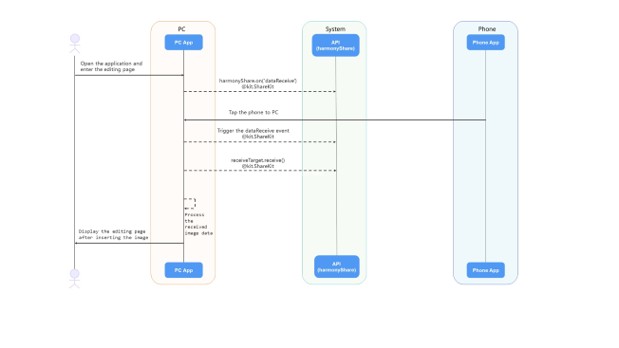
For details, see "PC/2-in-1 device as the data receiver" in Service Process of "Overview of Tap to Transfer Between a Phone and a PC/2-in-1 Device".
Key Technologies
The core of receiving images inserted through Tap to Transfer on a PC is to use the data receiving feature of harmonyShare.
- Data receiving listener registration: Call harmonyShare.on('dataReceive') to register a data receiving listener.
- Receiving capability setting: Define the supported data types and the maximum number of data items that can be received.
- Received data processing: Process the received file data in the onDataReceived callback.
- Conversion to PixelMap: Convert the received image data into a PixelMap for display.
[h2]How to Implement
- Register an on('dataReceive') listener on the PC to receive data from the phone.
/** * Add dataReceive listening in 2in1 device type. */ public dataReceiveListeningPC(uiContext: UIContext) { if (!canIUse('SystemCapability.Collaboration.HarmonyShare')) { return; } window.getLastWindow(this.context).then(((data) => { try { let mainWindowID: number = data.getWindowProperties().id; harmonyShare.on('dataReceive', { windowId: mainWindowID, capabilities: [ { 'utd': uniformTypeDescriptor.UniformDataType.MEDIA, 'maxSupportedCount': 5 }, { 'utd': uniformTypeDescriptor.UniformDataType.FILE, 'maxSupportedCount': 5 } ] }, (receiveTarget: harmonyShare.ReceivableTarget) => { if (!this.context) { return; } // Process the received file data. receiveTarget.receive(fileUri.getUriFromPath(this.context.filesDir), { onDataReceived: (shareData: systemShare.SharedData) => { // ... }, onResult(resultCode: harmonyShare.ShareResultCode) { if (resultCode === harmonyShare.ShareResultCode.SHARE_SUCCESS) { hilog.info(DOMAIN, TAG, FORMAT, 'receive file success'); } else { hilog.error(DOMAIN, TAG, FORMAT, 'receive failed ' + resultCode); } } }); }); } catch (error) { hilog.error(DOMAIN, TAG, FORMAT, `getWindowProperties error ${error.code} ${error.message}`); } })).catch((error: BusinessError) => { hilog.error(DOMAIN, TAG, FORMAT, `failed to obtain the window. cause ${error.code} ${error.message}`); }); } - Customize the implementation of the ReceiveCallback() callback function to process the received data. For example, the received image data is converted into a pixel map for display in the app.
let shareRecords = shareData.getRecords(); let mediaUriArray = AppStorage.get('mediaUriArray') as Array<MediaInfo>; shareRecords.forEach(async (record: systemShare.SharedRecord) => { if (!record.uri) { return; } let fileName = record.uri.split('/').pop()?.split('.')[0]; if (record.uri.endsWith('png') || record.uri.endsWith('jpg') || record.uri.endsWith('jpeg')) { let imageUri = record.uri; let file = fileIo.openSync(imageUri, fileIo.OpenMode.READ_ONLY); let imageSourceApi: image.ImageSource | undefined = undefined; try { imageSourceApi = image.createImageSource(file.fd); } catch (err) { hilog.error(DOMAIN, TAG, FORMAT, `CreateImageSource error: ${(err as BusinessError).code} ${(err as BusinessError).message}`); } finally { fileIo.closeSync(file.fd); } const imagePackApi = image.createImagePacker(); let packOpts: image.PackingOption = { format: 'image/png', quality: 100 }; imagePackApi.packToData(imageSourceApi!, packOpts).then(async readBuffer => { let imageSource: image.ImageSource = image.createImageSource(readBuffer as ArrayBuffer); let option: image.InitializationOptions = { pixelFormat: 3, size: { width: 100, height: 100 } }; imageSource.createPixelMap(option).then((pixelMap: PixelMap) => { if (mediaUriArray.length < CommonConstants.MAX_ADD_MEDIA_NUM) { mediaUriArray.push({ imagePixelMap: pixelMap, mediaName: fileName, mediaType: MediaType.MEDIA_IMAGE }); } else { try { uiContext.getPromptAction().showToast({ message: $r('app.string.add_picture_prompt') }); } catch (err) { hilog.error(DOMAIN, TAG, FORMAT, `ShowToast failed. Cause code: ${(err as BusinessError).code}, message: ${(err as BusinessError).message}`); } } imageSource.release(); imageSource = undefined; imageSourceApi?.release(); imageSourceApi = undefined; }); }).catch((err: BusinessError) => { hilog.error(DOMAIN, TAG, FORMAT, `PackToData failed. Cause code: ${err.code}, message: ${err.message}`); }); } }); - When the user leaves the sharing screen (including scenarios where the app is switched to the background), the Grab & drop event listener is unregistered to release resources.
/**
 *  Remove dataReceive listening.
 */
public dataReceiveDisableListeningPC() {
  if (!canIUse('SystemCapability.Collaboration.HarmonyShare')) {
    return;
  }
  window.getLastWindow(this.context).then(((data) => {
    try {
      let mainWindowID: number = data.getWindowProperties().id;
      harmonyShare.off('dataReceive', {
        windowId: mainWindowID, capabilities: [
          {
            'utd': uniformTypeDescriptor.UniformDataType.MEDIA,
            'maxSupportedCount': 5
          },
          {
            'utd': uniformTypeDescriptor.UniformDataType.FILE,
            'maxSupportedCount': 5
          }
        ]
      });
    } catch (error) {
      hilog.error(DOMAIN, TAG, FORMAT, `getWindowProperties error ${error.code} ${error.message}`);
    }
  })).catch((error: BusinessError) => {
    hilog.error(DOMAIN, TAG, FORMAT, `failed to obtain the window. cause ${error.code} ${error.message}`);
  });
}
[h2]When to Use
In multi-device collaboration scenarios, users can share the current page to another device through Tap to Transfer. For example, a user can browse a content page on their phone and then use Tap to Transfer to share the page to a nearby device.

To use this feature, the device and usage restrictions must be met. For details, see:
- Tap to Transfer Between Phones: Constraints
- Tap to Transfer Between a Phone and a PC/2-in-1 Device: Constraints
[h2]How to Implement
Scenario Analysis
1. A user opens the app on the local device and taps the details page of the content to be shared.
2. The user performs the Tap to Transfer operation between the local device and the remote device. The local device triggers the Tap to Transfer sharing panel, and the user swipes up to share the content.
3. The remote device displays the receiving panel. The user can tap the receiving button to directly access the app sharing page. If the user taps the reject button, a dialog box is displayed on the local device, indicating that the sharing is rejected.
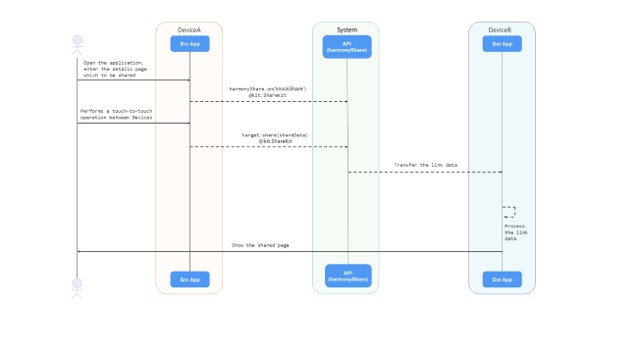
Key Technologies
The core of the Tap to Transfer sharing page is to support cross-device link sharing through Tap to Transfer. For details, see Tap to Transfer for Links.
[h2]How to Implement
1. Configure App Linking. To implement the feature of directly accessing an app through Tap to Transfer, your app needs to integrate App Linking to ensure the integrity of end-to-end experience. For details about the configuration method, see Configuring App Linking.
{
  "module": {
    // ...
    "abilities": [
      {
        "name": "EntryAbility",
        // ...
        "exported": true,
        "skills": [
          {
            "entities": [
              "entity.system.home",
              // entities must contain "entity.system.browsable"
              "entity.system.browsable"
            ],
            "actions": [
              "action.system.home",
              // Actions must contain "ohos.want.action.viewData"
              "ohos.want.action.viewData"
            ],
            "uris": [
              {
                // The scheme must be configured as https
                "scheme": "https",
                // The host must be configured as the associated domain name
                "host": "www.example.com",
                "path": ""
              }
            ],
            // domainVerify must be set to true
            "domainVerify": true
          }
        ],
        // ...
      }
    ],
    // ...
  }
}
2. Register the on('knockShare') event to listen for the Tap to Transfer event and cancel the listening through off('knockShare').
/**
 *  Add knock listening.
 */
public immersiveListening() {
  if (canIUse('SystemCapability.Collaboration.HarmonyShare')) {
    harmonyShare.on('knockShare', (target: harmonyShare.SharableTarget) => {
      this.immersiveCallback(target);
    });
  }
}

/**
 *  Add knock listening in 2in1 device type.
 */
public immersiveListeningPC() {
  if (canIUse('SystemCapability.Collaboration.HarmonyShare')) {
    window.getLastWindow(this.context).then((data) => {
      try {
        let mainWindowID: number = data.getWindowProperties().id;
        harmonyShare.on('knockShare', { windowId: mainWindowID }, (target: harmonyShare.SharableTarget) => {
          this.immersiveCallback(target);
        });
      } catch (err) {
        hilog.error(DOMAIN, TAG, FORMAT,
          `GetWindowProperties error: ${(err as BusinessError).code} ${(err as BusinessError).message}`);
      }
    }).catch((error: BusinessError) => {
      hilog.error(DOMAIN, TAG, FORMAT, `GetLastWindow failed. Error: ${error.code} ${error.message}`);
    });
  }
}

/**
 *  remove knock listening.
 */
public immersiveDisableListening() {
  if (canIUse('SystemCapability.Collaboration.HarmonyShare')) {
    harmonyShare.off('knockShare');
  }
}

/**
 *  remove knock listening.
 */
public immersiveDisableListeningPC() {
  if (canIUse('SystemCapability.Collaboration.HarmonyShare')) {
    window.getLastWindow(this.context).then((data) => {
      try {
        let mainWindowID: number = data.getWindowProperties().id;
        harmonyShare.off('knockShare', { windowId: mainWindowID });
      } catch (err) {
        hilog.error(DOMAIN, TAG, FORMAT,
          `GetWindowProperties error ${(err as BusinessError).code} ${(err as BusinessError).message}`);
      }
    }).catch((error: BusinessError) => {
      hilog.error(DOMAIN, TAG, FORMAT, `GetLastWindow failed. Error: ${error.code} ${error.message}`);
    });
  }
}
3. Construct the data to be shared and initiate the sharing on the local device. Construct the ShareRecord object, set the utd attribute to uniformTypeDescriptor.UniformDataType.HYPERLINK (for details about the attribute, see UniformDataType), and set the content attribute to the corresponding page link. After the construction is complete, call the share() method of sharableTarget to initiate the sharing.
/**
 * Knock listening callback.
 *
 * @param target After the Huawei Share event is triggered,
 * you can call back the parameters and share them across devices.
 */
public immersiveCallback(target: harmonyShare.SharableTarget) {
  let shareData: systemShare.SharedData = this.getLinkShareData();
  target.share(shareData);
}

/**
 * Get link share data.
 * @returns systemShare.SharedData.
 */
getLinkShareData(): systemShare.SharedData {
  let encodedParams = encodeURIComponent(JSON.stringify(this.pageParamsData));
  let title: string = CommonConstants.STRING_DEFAULT_VALUE;
  try {
    title = this.context!.resourceManager.getStringSync(this.pageParamsData?.userName.id);
  } catch (err) {
    hilog.error(DOMAIN, TAG, FORMAT,
      `resourceManager getStringSync error: ${(err as BusinessError).code} ${(err as BusinessError).message}`);
  }
  // share app linking.
  let shareData: systemShare.SharedData = new systemShare.SharedData({
    // Set the shared data type to Link.
    utd: uniformTypeDescriptor.UniformDataType.HYPERLINK,
    // title
    title: title,
    // description
    description: this.pageParamsData?.title,
    // The shared App Linking link is replaced with the real address here.
    content: `${CommonConstants.SHARE_URL_SCHEME}://www.example.com?pageUrl=${this.pageUrl}&pageParams=${encodedParams}&sharingMechanism=knockShare`,
  });
  return shareData;
}
4. (The app has been installed on the remote device.) The remote device obtains information such as the target page and input parameters in the link in the onCreate() and onNewWant() lifecycle methods for subsequent redirection.
onCreate(want: Want, launchParam: AbilityConstant.LaunchParam): void {
  // ...

  let pageUrl = getValueFromWant(want, 'pageUrl');
  let pageParams = getValueFromWant(want, 'pageParams');
  let shareMechanism = getValueFromWant(want, 'sharingMechanism');
  if (pageUrl !== '') {
    if (shareMechanism === 'gesturesShare') {
      // ...
    } else if (shareMechanism === 'knockShare') {
      AppStorage.setOrCreate(CommonConstants.KNOCK_SHARE_SHARE_PAGE_URL, pageUrl);
      AppStorage.setOrCreate(CommonConstants.KNOCK_SHARE_SHARE_PAGE_PARAMS, pageParams);
      AppStorage.setOrCreate(CommonConstants.KNOCK_SHARE_IS_SHARE_LINK, true);
    }
  }
  hilog.info(DOMAIN, TAG, FORMAT, `onCreate() pageUrl: ${pageUrl} pageParams:${pageParams}`);
}

onNewWant(want: Want, launchParam: AbilityConstant.LaunchParam): void {
  // ...
  let pageUrl = getValueFromWant(want, 'pageUrl');
  let pageParams = getValueFromWant(want, 'pageParams');
  let shareMechanism = getValueFromWant(want, 'sharingMechanism');
  if (pageUrl !== '') {
    if (shareMechanism === 'gesturesShare') {
      // ...
    } else if (shareMechanism === 'knockShare') {
      AppStorage.setOrCreate(CommonConstants.KNOCK_SHARE_SHARE_PAGE_URL, pageUrl);
      AppStorage.setOrCreate(CommonConstants.KNOCK_SHARE_SHARE_PAGE_PARAMS, pageParams);
      AppStorage.setOrCreate(CommonConstants.KNOCK_SHARE_IS_SHARE_LINK, true);
    }
  }
  hilog.info(DOMAIN, TAG, FORMAT, `onNewWant() pageUrl: ${pageUrl} pageParams:${pageParams}`);
}
The parsing logic can be encapsulated into a tool method for subsequent invoking.
export function getValueFromWant(want: Want, key: string): string {
  let value: string = '';
  try {
    let uri = want?.uri;
    if (!uri) {
      hilog.error(DOMAIN, TAG, FORMAT, `Failed to getValueFromWant, uri is undefined.`);
      return value;
    }
    // Parse the parameters to obtain the app linking
    let urlObject = url.URL.parseURL(want?.uri);
    if (key !== 'pageParams') {
      value = urlObject.params.get(key) as string;
      return value;
    }
    let encodedData = urlObject.params.get(key);
    if (encodedData) {
      value = decodeURIComponent(encodedData);
    }
    return value;
  } catch (err) {
    let error = err as BusinessError;
    hilog.error(DOMAIN, TAG, FORMAT, `Failed to getValueFromWant, error: ${error.code} ${error.message}`);
  }
  return value;
} [h2]When to Use
In multi-device collaboration scenarios, users can share the current page to another device through air gestures. For example, a user can browse content on their phone and use the grab-and-drop gesture to share the page to a nearby device.

[h2]How to Implement
Scenario Analysis
1. A user opens the app on the local device and taps the details page of the content to be shared.
2. The user perform the grab gesture on the local device and then the drop gesture on the remote device.
3. After the remote device successfully identifies the gesture, the user can directly access the app sharing page.
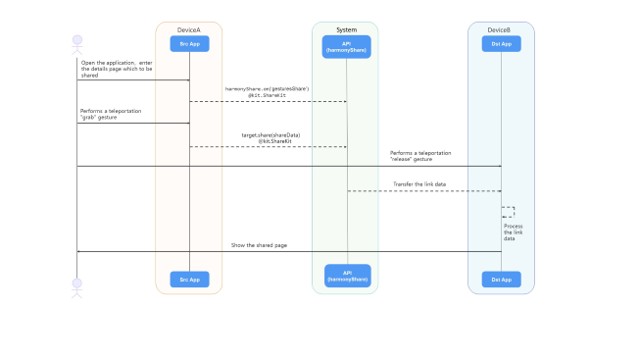
Key Technologies
Grab & drop is based on the Share Kit. An app can listen for the harmonyShare.on('gesturesShare') event, so that users can share content across devices by performing the simple grab-and-drop gesture. For details, see Key Technologies.
[h2]How to Implement
1. Configure the App Linking service. To implement the feature of directly accessing an app through Grab & drop, your app needs to integrate App Linking to ensure the integrity of end-to-end experience. For details about the configuration method, see Configuring App Linking.
{
  "module": {
    // ...
    "abilities": [
      {
        "name": "EntryAbility",
        // ...
        "exported": true,
        "skills": [
          {
            "entities": [
              "entity.system.home",
              // entities must contain "entity.system.browsable"
              "entity.system.browsable"
            ],
            "actions": [
              "action.system.home",
              // Actions must contain "ohos.want.action.viewData"
              "ohos.want.action.viewData"
            ],
            "uris": [
              {
                // The scheme must be configured as https
                "scheme": "https",
                // The host must be configured as the associated domain name
                "host": "www.example.com",
                "path": ""
              }
            ],
            // domainVerify must be set to true
            "domainVerify": true
          }
        ],
        // ...
      }
    ],
    // ...
  }
}
2. Register the on('gesturesShare') event to listen for the Grab & drop event and cancel the listening through off('gesturesShare').
/**
 *  Add gesturesShare listening.
 */
public immersiveListening(shareType: ShareType) {
  if (canIUse('SystemCapability.Collaboration.HarmonyShare')) {
    window.getLastWindow(this.context).then((data) => {
      try {
        let mainWindowID: number = data.getWindowProperties().id;
        harmonyShare.on('gesturesShare', { windowId: mainWindowID }, (target: harmonyShare.SharableTarget) => {
          this.immersiveCallback(target, shareType);
        });
      } catch (err) {
        let error = err as BusinessError;
        hilog.error(DOMAIN, TAG, FORMAT, `getWindowProperties error ${error.code} ${error.message}`);
      }
    }).catch((error: BusinessError) => {
      hilog.error(DOMAIN, TAG, FORMAT, `immersiveListening error ${error.code} ${error.message}`);
    })
  }
}

/**
 *  Remove gesturesShare listening.
 */
public immersiveDisableListening() {
  if (canIUse('SystemCapability.Collaboration.HarmonyShare')) {
    window.getLastWindow(this.context).then((data) => {
      try {
        let mainWindowID: number = data.getWindowProperties().id;
        harmonyShare.off('gesturesShare', { windowId: mainWindowID });
      } catch (error) {
        let err = error as BusinessError;
        hilog.error(DOMAIN, TAG, FORMAT, `getWindowProperties error ${err.code} ${err.message}`);
      }
    }).catch((error: BusinessError) => {
      hilog.error(DOMAIN, TAG, FORMAT, `immersiveDisableListening error ${error.code} ${error.message}`);
    })
  }
}
3. Construct the data to be shared and initiate the sharing on the local device. Construct the ShareRecord object, set the utd attribute to uniformTypeDescriptor.UniformDataType.HYPERLINK, and set the content attribute to the corresponding page link. After the construction is complete, call the share() method of sharableTarget to initiate the sharing.
public immersiveCallback(target: harmonyShare.SharableTarget, shareType: ShareType) {
  if (shareType === ShareType.LINK_SHARE) {
    let shareData: systemShare.SharedData = this.getLinkShareData();
    target.share(shareData);
  }
}


/**
 * Get link share data.
 * @returns systemShare.SharedData.
 */
getLinkShareData(): systemShare.SharedData {
  let encodedParams = encodeURIComponent(JSON.stringify(this.pageParamsData));
  let title: string = CommonConstants.STRING_DEFAULT_VALUE;
  try {
    title = this.context!.resourceManager.getStringSync(this.pageParamsData?.userName.id);
  } catch (err) {
    hilog.error(DOMAIN, TAG, FORMAT,
      `resourceManager getStringSync error: ${(err as BusinessError).code} ${(err as BusinessError).message}`);
  }
  // share app linking.
  let shareData: systemShare.SharedData = new systemShare.SharedData({
    // Set the shared data type to Link.
    utd: uniformTypeDescriptor.UniformDataType.HYPERLINK,
    // title
    title: title,
    // description
    description: this.pageParamsData?.title,
    // The shared App Linking link is replaced with the real address here.
    content: `${CommonConstants.SHARE_URL_SCHEME}://www.example.com?pageUrl=${this.pageUrl}&pageParams=${encodedParams}&sharingMechanism=gesturesShare`,
  });
  return shareData;
}
4. (The app has been installed on the remote device.) The remote device obtains information such as the target page and input parameters in the link in the onCreate() and onNewWant() lifecycle methods for subsequent redirection.
onCreate(want: Want, launchParam: AbilityConstant.LaunchParam): void {
  // ...

  let pageUrl = getValueFromWant(want, 'pageUrl');
  let pageParams = getValueFromWant(want, 'pageParams');
  let shareMechanism = getValueFromWant(want, 'sharingMechanism');
  if (pageUrl !== '') {
    if (shareMechanism === 'gesturesShare') {
      AppStorage.setOrCreate(CommonConstants.GESTURES_SHARE_SHARE_PAGE_URL, pageUrl);
      AppStorage.setOrCreate(CommonConstants.GESTURES_SHARE_SHARE_PAGE_PARAMS, pageParams);
      AppStorage.setOrCreate(CommonConstants.GESTURES_SHARE_IS_SHARE_LINK, true);
    } else if (shareMechanism === 'knockShare') {
      // ...
    }
  }
  hilog.info(DOMAIN, TAG, FORMAT, `onCreate() pageUrl: ${pageUrl} pageParams:${pageParams}`);
}

onNewWant(want: Want, launchParam: AbilityConstant.LaunchParam): void {
  // ...
  let pageUrl = getValueFromWant(want, 'pageUrl');
  let pageParams = getValueFromWant(want, 'pageParams');
  let shareMechanism = getValueFromWant(want, 'sharingMechanism');
  if (pageUrl !== '') {
    if (shareMechanism === 'gesturesShare') {
      AppStorage.setOrCreate(CommonConstants.GESTURES_SHARE_SHARE_PAGE_URL, pageUrl);
      AppStorage.setOrCreate(CommonConstants.GESTURES_SHARE_SHARE_PAGE_PARAMS, pageParams);
      AppStorage.setOrCreate(CommonConstants.GESTURES_SHARE_IS_SHARE_LINK, true);
    } else if (shareMechanism === 'knockShare') {
      // ...
    }
  }
  hilog.info(DOMAIN, TAG, FORMAT, `onNewWant() pageUrl: ${pageUrl} pageParams:${pageParams}`);
}
The parsing logic can be encapsulated into a tool method for subsequent invoking.
export function getValueFromWant(want: Want, key: string): string {
  let value: string = '';
  try {
    let uri = want?.uri;
    if (!uri) {
      hilog.error(DOMAIN, TAG, FORMAT, `Failed to getValueFromWant, uri is undefined.`);
      return value;
    }
    // Parse the parameters to obtain the app linking
    let urlObject = url.URL.parseURL(want?.uri);
    if (key !== 'pageParams') {
      value = urlObject.params.get(key) as string;
      return value;
    }
    let encodedData = urlObject.params.get(key);
    if (encodedData) {
      value = decodeURIComponent(encodedData);
    }
    return value;
  } catch (err) {
    let error = err as BusinessError;
    hilog.error(DOMAIN, TAG, FORMAT, `Failed to getValueFromWant, error: ${error.code} ${error.message}`);
  }
  return value;
}