Overview
The app continuation feature allows the operations being performed by a user on one device to be quickly switched and seamlessly continued in the same app on another device. For example, when the environment changes during usage and a more appropriate device is detected, the user can migrate an ongoing task to another device without exiting. After the continuation is complete, the app on the previous device can be exited or retained. The target device continues the task.
As shown in the figure, notes being edited on the go can be seamlessly switched from the phone to the PC when the user arrives at the office.
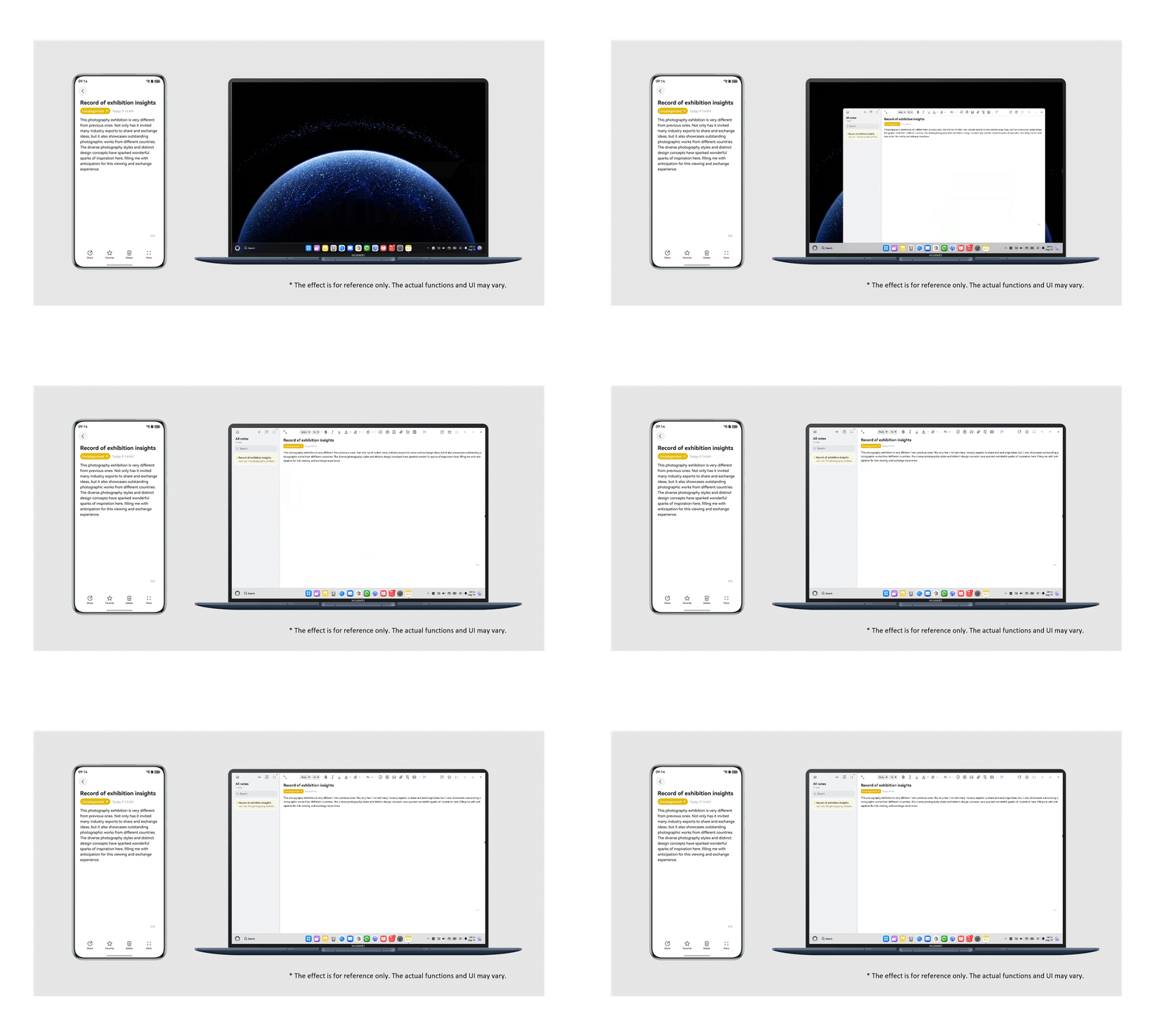
The HarmonyOS underlying architecture provides solutions for device discovery, connection, and networking during app continuation. During app access, you only need to focus on data transfer and recovery. For details, see the following sections:
- Constraints: Supported devices and usage constraints that must be met for app continuation.
- Suggestions on Common Continuation Scenarios: Suggestions on access in different vertical continuation scenarios, such as whether content synchronization is required and whether the app on the previous device needs to exit.
- How to Develop: How to access app continuation.
- App Continuation for Data Migration: How to implement continuation in scenarios with large files and data volumes.
- Common Continuation Practice: How to implement continuation in long list browsing, web page view, and media browsing.
Constraints
- Device version constraints
Devices running HarmonyOS NEXT Developer Preview0 or later.
- Usage constraints
- The same HUAWEI ID is logged on both devices.
- WLAN and Bluetooth must be enabled on both devices, or Enhanced collaboration services is enabled at Settings > More connectivity options > Advanced.
- The continuation feature should be enabled on both devices at Settings > More connectivity options.
- The app must be installed on both devices.
- To ensure a smooth continuation experience, the data transferred using wantParam in the onContinue callback must be less than 100 KB. For large data volumes, use distributed data objects for data migration.
- Emulator support
- Not supported.

- Since API version 12, the ohos.permission.DISTRIBUTED_DATASYNC permission is not required.
- For API version 11 and earlier versions, perform the following operations:
- Declare the ohos.permission.DISTRIBUTED_DATASYNC permission. For details, see Declaring Permissions.
- The app needs to request the ohos.permission.DISTRIBUTED_DATASYNC permission from users when it is launched for the first time or proceeds to the continuation page. For details, see Requesting User Authorization.
Suggestions on Common Continuation Scenarios
App continuation is generally used for pages that users stay on for a long time. By default, after the continuation is complete, the app on the source device automatically exits. You can refer to Exit on Demand.
Recommended configuration items for different types of apps are as follows.
Category | Scenario | Page for Initiating Continuation and Content to Be Synchronized | Exit Solution for the App on the Source Device |
|---|---|---|---|
Tools | Notepad | On the details page of Notepad, the browsing progress is synchronized. | Exit. |
Notes | On the notes editing page, the browsing or editing progress is synchronized. | Exit. | |
Calendar | On any page, the date view, schedule browsing, or editing progress is synchronized. | Exit. | |
Email address | On the email editing page, the editing progress and attachments are synchronized. | Exit. | |
Browser | On the web page details page, the browsing progress is synchronized. | Exit. | |
Navigation & transport | Map service | On the route query or navigation page, the current route and navigation are synchronized. | Exit. |
Entertainment | Video/Short video/Micro-drama/Live streaming | On the audio/video playback or live streaming page, the audio/video playback progress or live streaming progress is synchronized. | App adaptation as required. |
Music/Karaoke/Radio/Musical instrument | On the audio/video playback or live streaming page, the audio/video playback progress or live streaming progress is synchronized. | App adaptation as required. | |
Kids | Early education/Nursery rhymes | On the audio/video playback or live streaming page, the audio/video playback progress or live streaming progress is synchronized. | App adaptation as required. |
News & reading | Audiobook/Podcast/Ebook/Novel/Magazine | On the book home page, novel reading page, or audiobook playback page, the reading progress or audiobook playback progress are synchronized. | Exit. However, for scenarios involving extensive audiobook listening or live streaming, the app may not exit but only pause the playback of the audiobook, or does not exit with live streaming continued. |
News | On the news details page, the news browsing progress is synchronized. | Exit. | |
Office
| Meeting | On a meeting page, the current meeting is synchronized. | Exit the meeting and navigate to the chat page without closing the app. |
Design | On the CAD editing screen, the editing content is synchronized. | App adaptation as required. | |
Social | Social media | On the image and text browsing, video browsing, and editing pages, the browsing and editing progress is synchronized. | App adaptation as required. |
Photo & video | Shooting/Photo beautification | On the photo or video editing page, the editing content and progress are synchronized. | Exit. |
Lifestyle
| Housing/Home decoration | App adaptation as required. | Exit. |
Recipe/Baking/Diet/Cookbook | App adaptation as required. | Exit. | |
Product recommendation | App adaptation as required. | Exit. | |
Finance | Stock/Stock market/Fund/Securities/Securities investment consulting | App adaptation as required. | Exit. |
Game | Game | App adaptation as required. | Exit. |
Working Principles

- On the source device, you can save the service data to be connected through the onContinue() callback of UIAbility.
For example, to implement app continuation in a browser, you need to use the onContinue() API to save the service content, such as the page URL, so that the user can continue browsing the page on the target device after opening it on the source device.
- The distributed framework provides a mechanism for saving and restoring the app UI, page stacks, and service data across devices. It sends the data from the source device to the target device.
- On the target device, the same UIAbility restores the service data through the onCreate() or onNewWant() API.
Main APIs
The following table lists the main APIs for implementing app continuation. For details, see UIAbility.
API | Description |
|---|---|
onContinue(wantParam : {[key: string]: Object}): OnContinueResult | Called by the source app to save the data required for migration and specify whether the migration is allowed.
|
onCreate(want: Want, param: AbilityConstant.LaunchParam): void; | Called by the target to restore the data and UI page if the target uses cold start or the target is a multiton app and uses hot start. |
onNewWant(want: Want, launchParams: AbilityConstant.LaunchParam): void; | Called by the target to restore the data and UI page if the target is a singleton app and uses hot start. |
[h2]Enabling App Continuation
In the abilities field of the module.json5 file, set continuable to true, which indicates that the UIAbility can be migrated. The default value is false, indicating that the migration cannot be performed.
{
  "module": {
    // ...
    "abilities": [
      {
        // ...
        "continuable": true,
        // ...
      }
    ],
    // ...
  }
}
[h2]Configuring the App Launch Type
Configure the app launch type. For details, see UIAbility Component Launch Type.
[h2]Saving Migration Data on the Source Device
When app data migration is triggered, onContinue() is called on the source device. You can implement the following in this callback:
- Saving the data to migrate: You can save the data to migrate in KV pairs in wantParam.

If the compatibility issues have little or no impact on migration experience, you can skip this check.
- (Optional) Checking app compatibility: You can obtain the app version on the target device from wantParam.version in onContinue() and compare it with the app version on the source device. If the version compatibility check fails, the app should notify users of the cause of the migration failure.
- Returning the migration result: You can check whether the migration is supported based on the return value of onContinue(). For details, see OnContinueResult().
- Certain fields (listed in the table below) in wantParam passed in to onContinue() are preconfigured in the system. You can use these fields for service processing. When defining custom wantParam data, do not use the same keys as the preconfigured ones to prevent data exceptions due to system overwrites. See the following table for more details.
Field
Description
version
Version number of the app on the target device.
targetDevice
Network ID of the target device.
export default class EntryAbility extends UIAbility {
  // Indicates whether target side should restore Router page stack automatically.
  // ...
  onContinue(wantParam: Record<string, Object>) {
    // Read target app version to guard cross-version continuation compatibility.
    const targetVersion = wantParam.version;
    // Define minimum compatible version supported by the source app.
    const versionThreshold: number = 1000;
    // Reject continuation when target side is below required version.
    if (targetVersion < versionThreshold) {
      // Give user-friendly reason when continuation is rejected.q
      this.context.windowStage.getMainWindowSync().getUIContext().getPromptAction().showToast({
        message: 'The target app version is too early to continue. Update the app and try again.',
        duration: 2000
      })
      // Return MISMATCH to terminate continuation negotiation.
      return AbilityConstant.OnContinueResult.MISMATCH;
    }
    // Put migration payload into want params for target-side restore.
    const continueInput = AppStorage.get('entryAbilityContext') as string;
    if (continueInput) {
      // Custom field "data" carries text payload.
      wantParam['data'] = continueInput;
    }
    // ...
    return AbilityConstant.OnContinueResult.AGREE;
  }
  // ...
}
[h2]Restoring Data on the Target Device
In the stage model, apps with different launch types call different APIs to restore data and load the UI, as shown below.
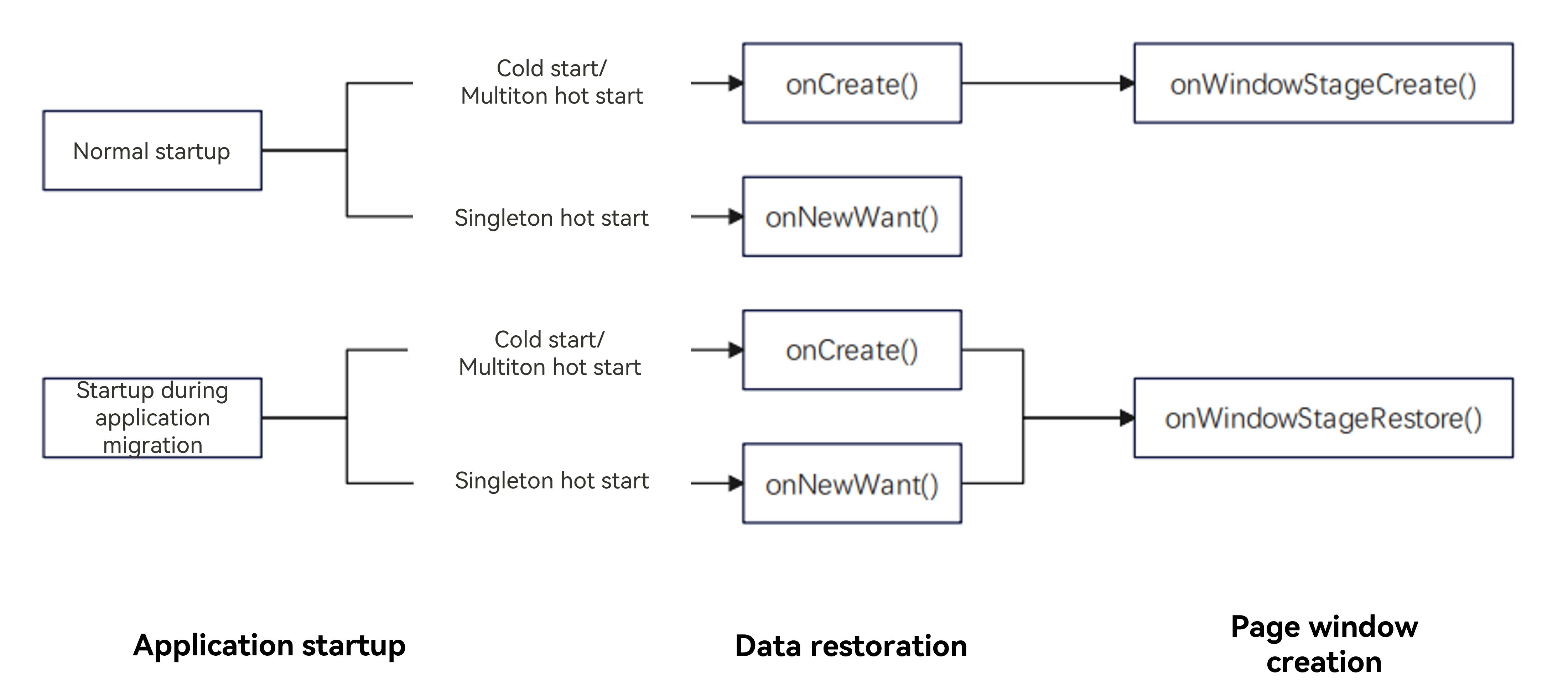

- When app migration is enabled, the onWindowStageRestore lifecycle callback, rather than onWindowStageCreate(), is triggered following onCreate() or onNewWant(). This sequence occurs for both cold and hot starts.
- If you have performed some necessary initialization operations during app launch in onWindowStageCreate(), you must perform the same initialization operations in onWindowStageRestore() after the migration to avoid app exceptions.
Implement the onCreate() and onNewWant() APIs in the UIAbility of the target device to restore the migrated data.
- Implementation example of onCreate
- The target device determines whether the launch is LaunchReason.CONTINUATION based on launchReason in onCreate().
- You can obtain the saved data from the want parameter.
- To restore a page with a page stack, call restoreWindowStage() before the onCreate() or onNewWant() execution is complete. If the page stack does not need to be migrated, see Migrating the Page Stack on Demand.
export default class EntryAbility extends UIAbility {
  // Indicates whether target side should restore Router page stack automatically.
  // ...
  onCreate(want: Want, launchParam: AbilityConstant.LaunchParam): void {
    try {
      // Keep system color mode unmanaged by the app.
      // ...
      if (launchParam.launchReason === AbilityConstant.LaunchReason.CONTINUATION) {
        // Restore migration payload and stack snapshot from continuation parameters.
        this.context.setMissionContinueState(AbilityConstant.ContinueState.ACTIVE, (result) => {
          console.info(`setMissionContinueState: ${JSON.stringify(result)}`);
        });
        if (want.parameters !== undefined) {
          if (typeof want.parameters.data === 'string') {
            AppStorage.setOrCreate('entryAbilityContext', want.parameters.data);
          }
          // ...
        }
        // Restore window stage so UI can reconstruct previous continuation state.
        this.context.restoreWindowStage(new LocalStorage());
      }
    } catch (err) {
      hilog.error(DOMAIN, 'testTag', 'Failed to set colorMode. Cause: %{public}s', JSON.stringify(err));
    }
    hilog.info(DOMAIN, 'testTag', '%{public}s', 'Ability onCreate');
  }
  // ...
} 
The restoreWindowStage(this.storage) API must be executed in a synchronous API method. If it is executed in an asynchronous callback, the page may fail to be loaded after app migration.
[h2]Supporting Cross-Device Migration Between Different Abilities in the Same App
Generally, the same ability is involved during a cross-device migration. However, different ability names may be configured for the same service on different device types, resulting in different abilities. To support migration in this scenario, you can configure the continueType tag under abilities in the module.json5 file for association. The values of the continueType tag of the two abilities must be the same. The following is an example.

- The value of continueType must be unique in an app. The value is a string of a maximum of 127 bytes consisting of letters, digits, and underscores (_).
- The continueType tag is a string array. If multiple fields are configured, only the first field takes effect.
Device A:
{
  "module": {
    // ...
    "abilities": [
      {
        // ...
        "continuable": true,
        "continueType": ['continueType1'],
      }
    ],
    // ...
  }
}
Device B:
{
  "module": {
    // ...
    "abilities": [
      {
        // ...
        "continuable": true,
        "continueType": ['continueType1']
      }
    ],
    // ...
  }
}
[h2]Supporting Cross-Device Migration Between Abilities with Different Bundle Names in the Same App (Applicable to the Same Developer)
An app developed by the same developer may use different bundle names on different device types. To implement cross-device migration for the app, you need to perform the following configurations in the module.json5 configuration file of each bundle of the app:
- continueBundleName: Bundle name of the app on the target device.
- continueType: The same value must be used for each app.

- The value of continueType must be unique in an app. The value is a string of a maximum of 127 bytes consisting of letters, digits, and underscores (_).
- The continueType tag is a string array. If multiple fields are configured, only the first field takes effect.
The sample code is as follows:
An app with different bundle names is migrated between device A and device B. The bundle name of the app on device A is com.demo.example1, and that on device B is com.demo.example2.
{
  "module": {
    // ...
    "abilities": [
      {
        "name": "EntryAbility"
        // ...
        "continueType": ['continueType'],
        "continueBundleName": ["com.demo.example2"],
      }
    ]
  }
}
In the app configuration file of device B, set the continueBundleName field to the bundle name of the app on device A. In this example, the bundle name of the app on device A is com.demo.example1.
{
  "module": {
    // ...
    "abilities": [
      {
        "name": "EntryAbility"
        // ...
        "continueType": ['continueType'],
        "continueBundleName": ["com.demo.example1"],
      }
    ]
  }
}
[h2]Supporting Cross-Device Migration Between Abilities with Different Bundle Names in the Same App (Applicable to Different Developers)
An app may be released by different developers on different types of devices. In this scenario, if the app needs to support cross-device migration, you need to apply for the continuation service in AppGallery Connect.
The following example describes the operation procedure for an app released by two developers. The smartphone app A and PC app B belong to different developers. The app ID of app A is AppId_A, and that of app B is AppId_B.

UI display in the procedure may vary in different versions. The actual website prevails.
- Access AGC. For details, see AGC.
- Apply for the continuation service for app A.
- Go to the app details page of app A, find the continuation service, and click Apply.

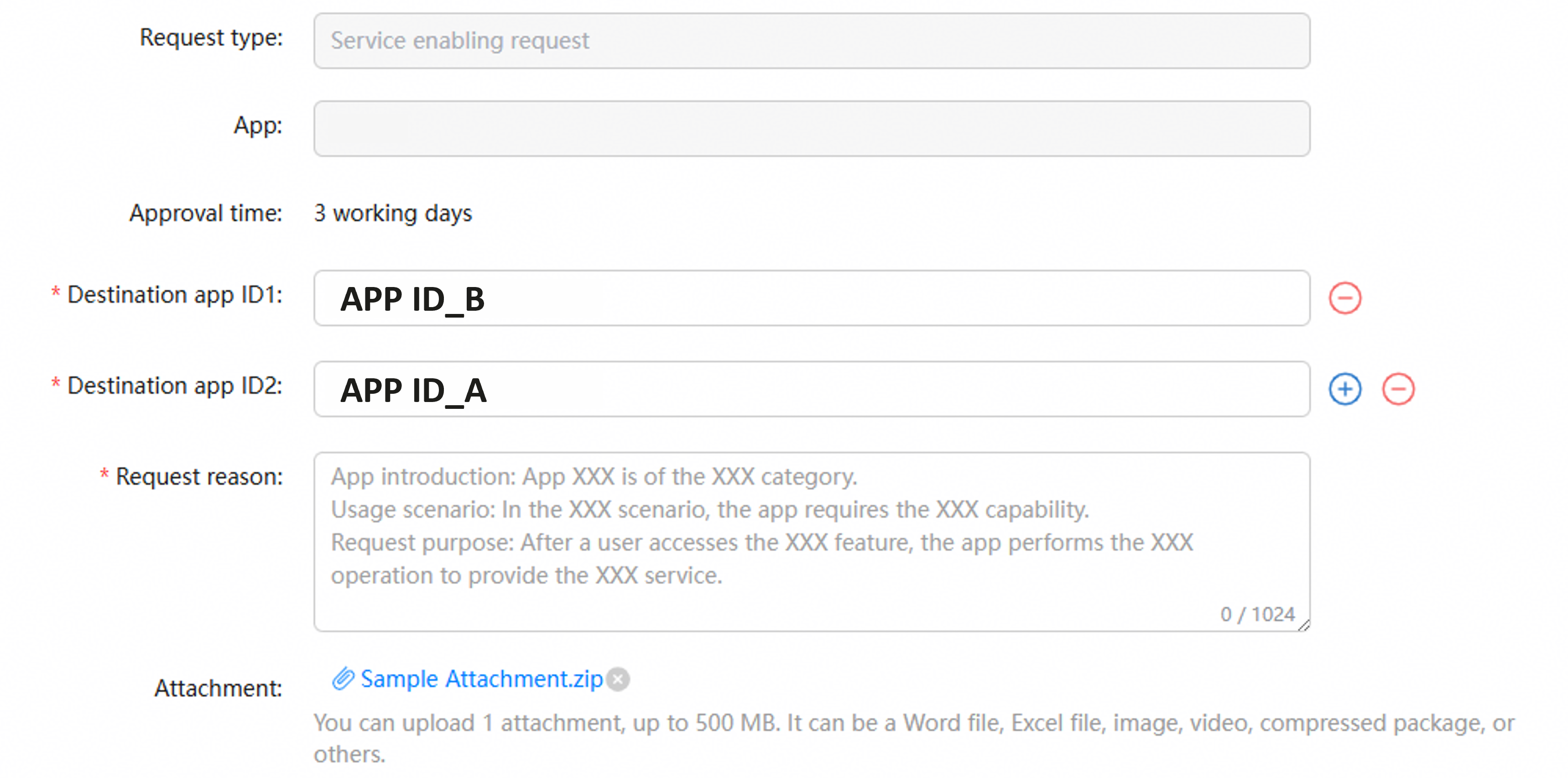
- On the New service application page, fill in the following fields and click Submit.
- Target app ID1: Enter AppId_B.
- Target app ID 2: Enter AppId_A.
- Request reason: Fill in the reason according to the template.
- Attachment: Upload information about the app.
Multiple app IDs can be configured for app continuation. The configuration sequence determines the sequence in which apps are matched on the target device. When entering the app ID of the corresponding device type, ensure that your own app ID is included.
The recommended app ID configuration sequence is as follows.
Initiator
Target
App ID Configuration Priority of Initiator App A (from High to Low)
Mobile device
TV/PC
1. App A on the TV
2. App A on the PC
3. App A on the mobile device
TV
PC/Mobile
1. App A on the PC
2. App A on the TV
3. App A on the mobile device
PC
TV/Mobile
1. App A on the TV
2. App A on the PC
3. App A on the mobile device
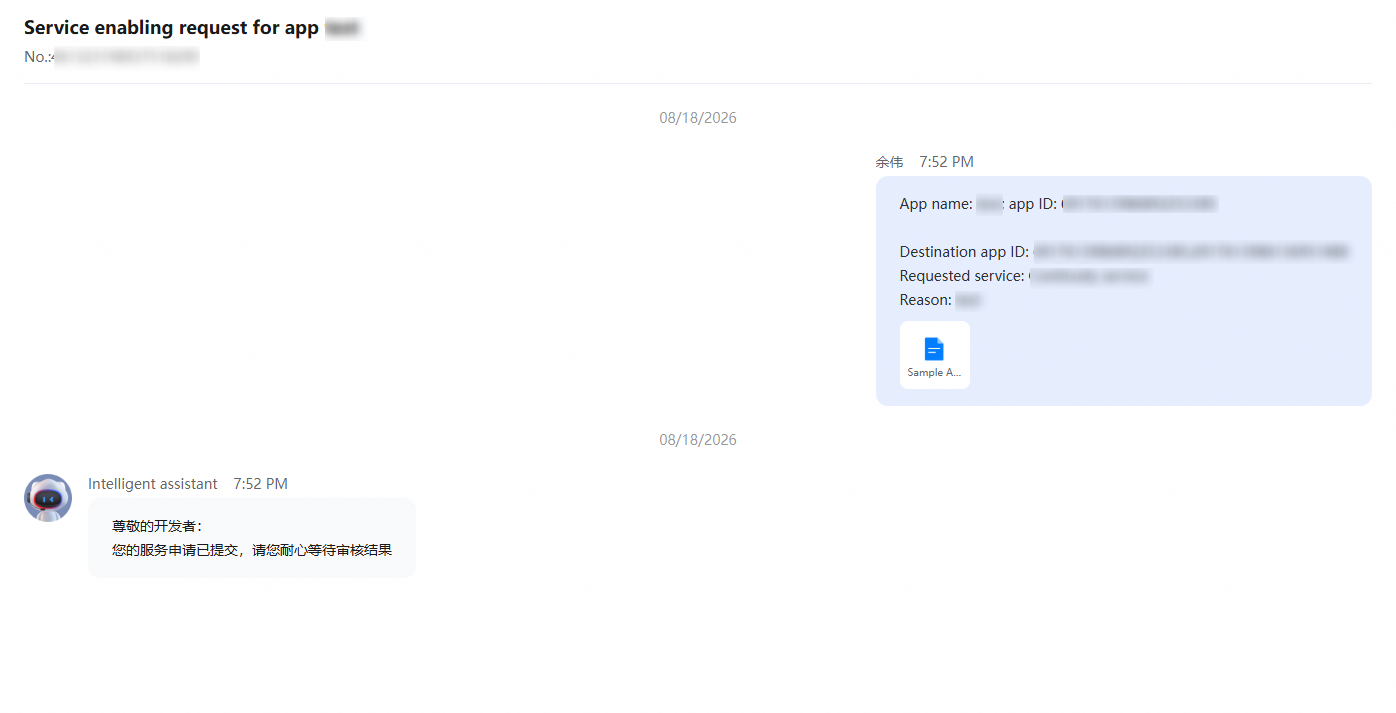
- Go to the interaction center and check your request.
- On the Integrate open capabilities page displayed, the Apply button changes to Applying.

- Once your application is approved, the interaction center will send a notification to you. The Applying button changes to Apply, and the corresponding capability is automatically enabled for you. Then your app has successfully accessed the continuation service capability.

- Go to the app details page of app A, find the continuation service, and click Apply.
- Apply for the continuation service for app B. The procedure is the same as step 2.
- Apply for and download the corresponding profile files for subsequent packaging.
- In the module.json5 configuration file of app A and app B, perform the following configurations:In the app configuration file of device A, set the continueBundleName field to the bundle name of the app on device B. In this example, the bundle name of the app on device B is com.demo.example2.
{
  "module": {
    // ...
    "abilities": [
      {
        "name": "EntryAbility"
        // ...
        "continueType": ['continueType'],
        "continueBundleName": ["com.demo.example2"],
      }
    ]
  }
}
In the app configuration file of device B, set the continueBundleName field to the bundle name of the app on device A. In this example, the bundle name of the app on device A is com.demo.example1.
// In the configuration file for device B, set continueBundleName to the bundle name of the app on device A.
{
  "module": {
    // ...
    "abilities": [
      {
        "name": "EntryAbility"
        // ...
        "continueType": ['continueType'],
        "continueBundleName": ["com.demo.example1"],
      }
    ]
  }
}
[h2]Quickly Launching the Target App
{
  "module": {
    // ...
    "abilities": [
      {
        // ...
        "name": "EntryAbility"
        "continueType": ['EntryAbility_ContinueQuickStart'],
      }
    ]
  }
}
If the quick start is configured for an app, the app will receive an onCreate() or onNewWant() request with launchReason.PREPARE_CONTINUATION when the user initiates the continuation, and then receive an onNewWant() request with launchReason.CONTINUATION, as described in the following table.
Scenario | Lifecycle Function | launchParam.launchReason |
|---|---|---|
First start request | onCreate (in the case of cold start); onNewWant (in the case of hot start) | AbilityConstant.LaunchReason.PREPARE_CONTINUATION |
Second start request | onNewWant | AbilityConstant.LaunchReason.CONTINUATION |
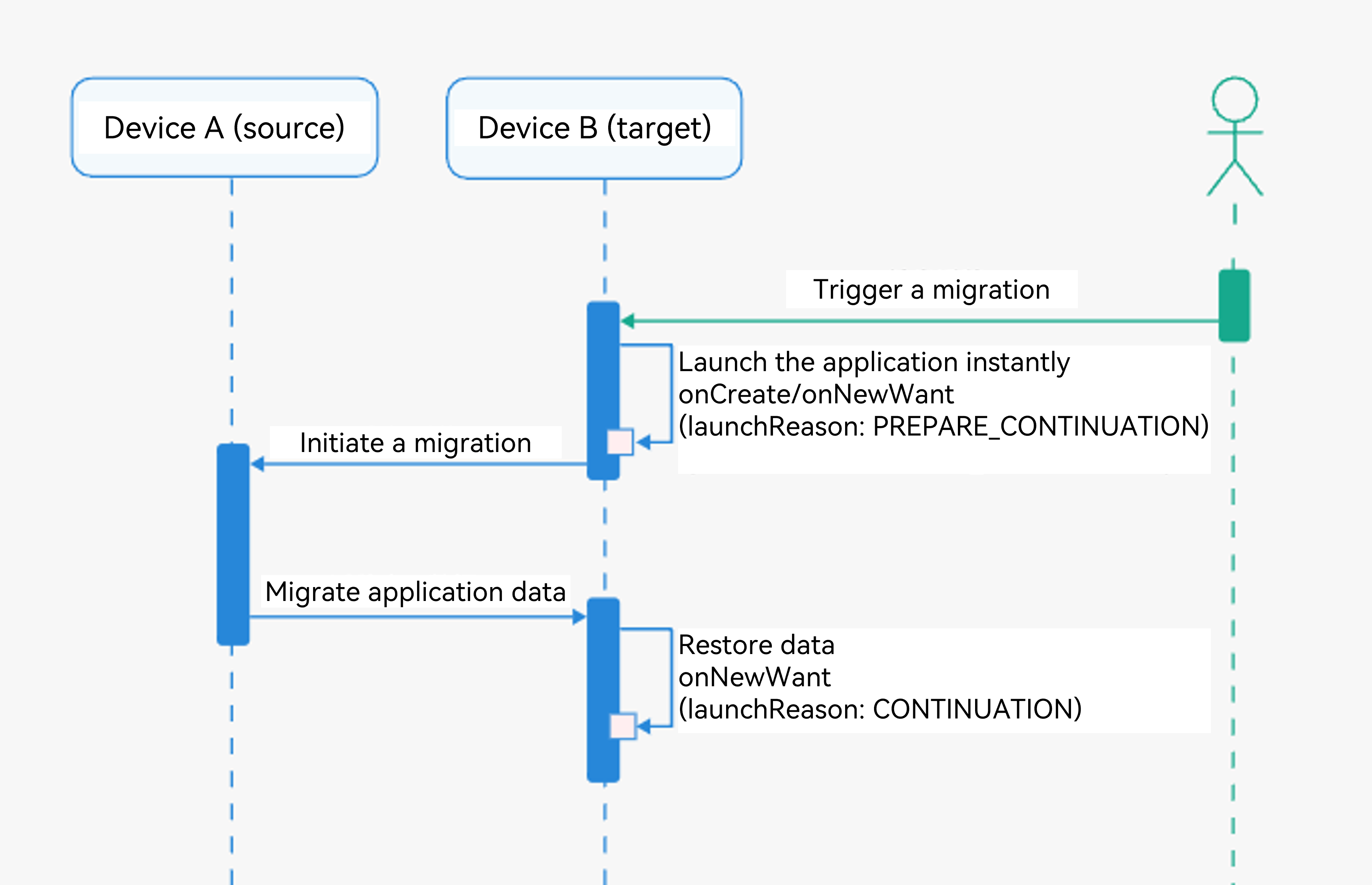
If quick start is not configured, only one start request is received.
Scenario | Lifecycle Function | launchParam.launchReason |
|---|---|---|
One start request | onCreate (in the case of cold start); onNewWant (in the case of hot start) | AbilityConstant.LaunchReason.CONTINUATION |
After quick start is configured, onCreate() or onNewWant() can be implemented as follows:
import { AbilityConstant, UIAbility, Want } from '@kit.AbilityKit';
import { hilog } from '@kit.PerformanceAnalysisKit';
// ...
const TAG: string = '[MigrationAbility]';
const DOMAIN_NUMBER: number = 0xFF00;

export default class MigrationAbility_quickStart extends UIAbility {
  storage : LocalStorage = new LocalStorage();

  onCreate(want: Want, launchParam: AbilityConstant.LaunchParam): void {
    hilog.info(DOMAIN_NUMBER, TAG, '%{public}s', 'Ability onCreate');

    if (launchParam.launchReason === AbilityConstant.LaunchReason.PREPARE_CONTINUATION) {
      // ...
    }
  }

  onNewWant(want: Want, launchParam: AbilityConstant.LaunchParam): void {
    hilog.info(DOMAIN_NUMBER, TAG, 'onNewWant');

    if (launchParam.launchReason === AbilityConstant.LaunchReason.PREPARE_CONTINUATION) {
      // ...
    }

    if (launchParam.launchReason === AbilityConstant.LaunchReason.CONTINUATION) {
      let continueInput = '';
      if (want.parameters !== undefined) {
        continueInput = JSON.stringify(want.parameters.data);
        hilog.info(DOMAIN_NUMBER, TAG, `continue input ${JSON.stringify(continueInput)}`);
      }
      this.context.restoreWindowStage(this.storage);
    }
  }

  // ...
}
[h2]Dynamically Setting the Migration Capability
Since API version 10, you can dynamically set the migration capability. Specifically, the app can enable or disable migration based on the service scenario by calling setMissionContinueState().
Value | Description |
|---|---|
AbilityConstant.ContinueState.ACTIVE | The migration capability is enabled for the app. |
AbilityConstant.ContinueState.INACTIVE | The migration capability is disabled for the app. |
Time for Setting the Migration Capability
By default, AbilityConstant.ContinueState.ACTIVE is set for an app, which indicates that migration is enabled.
To implement special scenarios, for example, where migration is required only for a specific page or upon a specific event, perform the following steps:
- The encapsulation function calls the setMissionContinueState() API to set the migration capability.
private setContinueEnabled(isOn: boolean): void { const state = isOn ? AbilityConstant.ContinueState.ACTIVE : AbilityConstant.ContinueState.INACTIVE; this.context.setMissionContinueState(state, (result) => { hilog.info(0x0000,`setMissionContinueState ${state} result: `, JSON.stringify(result)); }); } - Enable continuation when the page is displayed. You can set this in the onPageShow() function of the page or the aboutToAppear() function of the component.
onPageShow() { // Ensure continuation is active when this page is visible. this.setContinueEnabled(true); } - Bind the continuation switch in the Toggle() component.
Toggle({ type: ToggleType.Switch, isOn: true })
  .selectedColor($r('sys.color.icon_emphasize'))
  .switchPointColor(Color.White)
  .onChange((isOn: boolean) => {
    // Sync ability continuation state with UI switch.
    this.setContinueEnabled(isOn);
  })
Ensuring Migration Continuity
During UI page loading, the app on the target device may have executed the command to set its own migration state (for example, set the state to INACTIVE in onCreate() during cold start or to INACTIVE during hot start after the app has opened a page that cannot be migrated). To ensure the app can be migrated back to the source device, you must set the migration state to ACTIVE in onCreate() and onNewWant().
onCreate(want: Want, launchParam: AbilityConstant.LaunchParam): void {
  try {
    // ...
    if (launchParam.launchReason === AbilityConstant.LaunchReason.CONTINUATION) {
      // Restore migration payload and stack snapshot from continuation parameters.
      this.context.setMissionContinueState(AbilityConstant.ContinueState.ACTIVE, (result) => {
        console.info(`setMissionContinueState: ${JSON.stringify(result)}`);
      });
      // ...
      // Restore window stage so UI can reconstruct previous continuation state.
      this.context.restoreWindowStage(new LocalStorage());
    }
  } catch (err) {
    hilog.error(DOMAIN, 'testTag', 'Failed to set colorMode. Cause: %{public}s', JSON.stringify(err));
  }
  hilog.info(DOMAIN, 'testTag', '%{public}s', 'Ability onCreate');
}
onNewWant(want: Want, launchParam: AbilityConstant.LaunchParam): void {
  try {
    // Keep system color mode unmanaged by the app.
    // ...
    if (launchParam.launchReason === AbilityConstant.LaunchReason.CONTINUATION) {
      // Restore migration payload and stack snapshot from continuation parameters.
      this.context.setMissionContinueState(AbilityConstant.ContinueState.ACTIVE, (result) => {
        console.info(`setMissionContinueState: ${JSON.stringify(result)}`);
      });
      // ...
      // Restore window stage so UI can reconstruct previous continuation state.
      this.context.restoreWindowStage(new LocalStorage());
    }
  } catch (err) {
    hilog.error(DOMAIN, 'testTag', 'Failed to set colorMode. Cause: %{public}s', JSON.stringify(err));
  }
  hilog.info(DOMAIN, 'testTag', '%{public}s', 'Ability onCreate');
  // ...
}
[h2]Migrating the Page Stack on Demand
Apps can dynamically determine whether to restore the page stack (restored by default). If the app on the target device does not use the default page stack restored, disable page stack migration and set the page to be displayed in onWindowStageRestore(). For details about the parameter definition, see SUPPORT_CONTINUE_PAGE_STACK_KEY in Params.

- Currently, only the page stack implemented based on the router module can be automatically restored. The page stack implemented using the Navigation component cannot be automatically restored.
- If an app uses the Navigation component for routing, you can disable page stack migration and save the page (or page stack) to be migrated in want, and manually load the specified page on the target device.
The index and second routes exist in the page stack of the app on the source device. However, the app on the target device wants to display a specified page, rather than that on the source device.
- Router Page Stack Migration
- Configure wantParam[wantConstant.Params.SUPPORT_CONTINUE_PAGE_STACK_KEY].
onContinue(wantParam: Record<string, Object>) { // ... wantParam[wantConstant.Params.SUPPORT_CONTINUE_PAGE_STACK_KEY] = AppStorage.get('ifContinueRouterPage') as boolean; // Return AGREE to allow continuation process to proceed. return AbilityConstant.OnContinueResult.AGREE; } - Obtain the migration settings. The following uses the onCreate() lifecycle as an example. For details about whether to obtain the settings in onNewWant(), see Restoring Data on the Target Device. The app on the target device wants to display a specified page, rather than that on the source device. In this example, the target device is restored to the Index page. The restoration is performed as required when the capability is integrated.
export default class EntryAbility extends UIAbility {
  // Indicates whether target side should restore Router page stack automatically.
  SUPPORT_CONTINUE_PAGE_STACK_KEY:boolean = true;
  onCreate(want: Want, launchParam: AbilityConstant.LaunchParam): void {
    try {
      // ...
      if (launchParam.launchReason === AbilityConstant.LaunchReason.CONTINUATION) {
        // Restore migration payload and stack snapshot from continuation parameters.
        if (want.parameters !== undefined) {
          // ...
          if (typeof want.parameters['ohos.extra.param.key.supportContinuePageStack'] === 'boolean') {
            this.SUPPORT_CONTINUE_PAGE_STACK_KEY =
              want.parameters['ohos.extra.param.key.supportContinuePageStack'] as boolean;
          }
        }
        // Restore window stage so UI can reconstruct previous continuation state.
        this.context.restoreWindowStage(new LocalStorage());
      }
    } catch (err) {
      hilog.error(DOMAIN, 'testTag', 'Failed to set colorMode. Cause: %{public}s', JSON.stringify(err));
    }
    hilog.info(DOMAIN, 'testTag', '%{public}s', 'Ability onCreate');
  }
  // ...
}
onWindowStageRestore(windowStage: window.WindowStage) { // If Router stack migration is disabled, force fallback landing page. if(!this.SUPPORT_CONTINUE_PAGE_STACK_KEY){ windowStage.loadContent('pages/Index', (err) => { if (err.code) { hilog.error(DOMAIN, 'testTag', 'Failed to load the content. Cause: %{public}s', JSON.stringify(err)); return; } hilog.info(DOMAIN, 'testTag', 'Succeeded in loading the content.'); }); } }
- Configure wantParam[wantConstant.Params.SUPPORT_CONTINUE_PAGE_STACK_KEY].
[h2]Exit on Demand
You can determine whether to exit the app on the source device after a successful migration (the app exits by default). To prevent the app on the source device from automatically exiting after a successful migration, set the SUPPORT_CONTINUE_SOURCE_EXIT_KEY parameter in Params.
Example: An app on the source device does not exit after a successful migration.
onContinue(wantParam: Record<string, Object>) {
  // ...
  // Export Router/source-exit switches for target-side behavior control.
  wantParam[wantConstant.Params.SUPPORT_CONTINUE_SOURCE_EXIT_KEY] = AppStorage.get('entryAbilityContinueExit') as boolean;
  // ...
  return AbilityConstant.OnContinueResult.AGREE;
} [h2]What should I do if the continuation icon is not displayed on the target device after a continuable app is opened?
Symptom
After a system app such as the system browser is opened, the continuation icon is not displayed on the target device.
Solution
If no continuation icon is displayed on the target device after the system browser, a memo note with content, or a newly developed app is opened, perform the following steps to troubleshoot:
- Check whether Bluetooth is enabled.
- Check whether the continuation function is enabled. Go to Settings > More connectivity options > Continuation.
- Check whether the same HUAWEI ID is used.
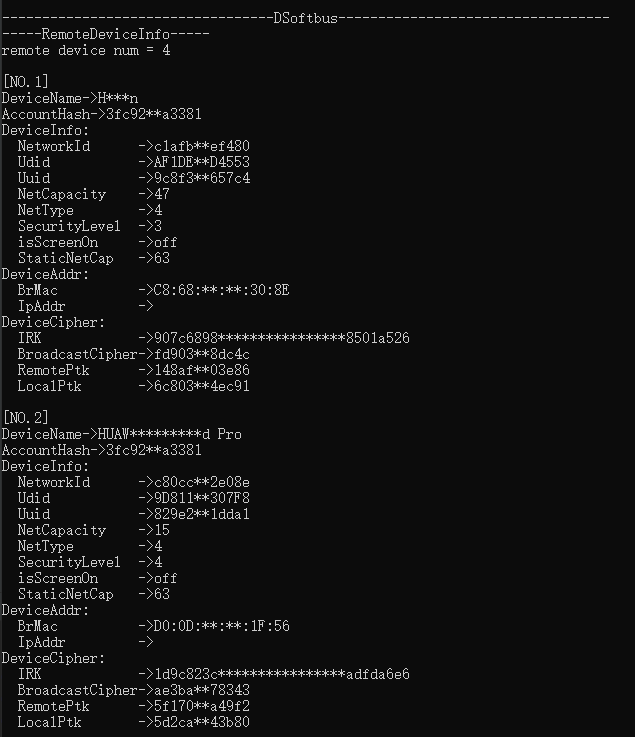
- Check whether the networking is successful using commands.
hidumper -s 4700 -a "buscenter -l remote_device_info"
After the command is executed, the devices listed in RemoteDeviceInfo are the devices that have been successfully networked with the current device. As shown in the following figure, the device has been successfully networked with two other devices.
[h2]If no operation is performed for more than 1 minute, the icon automatically disappears, and will reappear when you perform an operation on the app again.
Symptom
When no operation is performed on the app within 1 minute, the icon automatically disappears, and reappears when the app is operated.
Possible Causes
Icon display and hiding is a feature of the system. According to the current policy, the icon is displayed within 1 minute after the last touch operation on the source device. If no operation is performed within 1 minute, the icon automatically disappears to reduce interference to users. Similarly, when the screen is locked, the icon automatically disappears after 10 seconds, which is also a part of the normal system running.
[h2]What should I do if the icon is not displayed on the target device after a newly accessed app is opened?
Symptom
The continuation icon is properly displayed for system apps such as the system browser, but not for newly accessed apps.
Solution
A continuation broadcast is sent and the continuation icon is displayed on the target device only when the app is configured with the continuable tag and is in the focus and continuation state. Perform the following steps to troubleshoot:
- Check whether the app has been installed on both devices.
- Check whether the continuable tag is set to true for the app.
- Check whether the app has called setMissionContinueState() to set its migration status to true.