Overview
During development and debugging, screen flickering may occur in an application. Flickering problems can stem from different causes and manifest in various ways, yet they all detract from the application's user experience and fluidity.
The following describes the common screen flickering scenarios, analyzes their causes, and provides specific solutions to help you effectively cope with these problems.
- Screen flickering during animation
- Screen flickering during refresh
Symptom
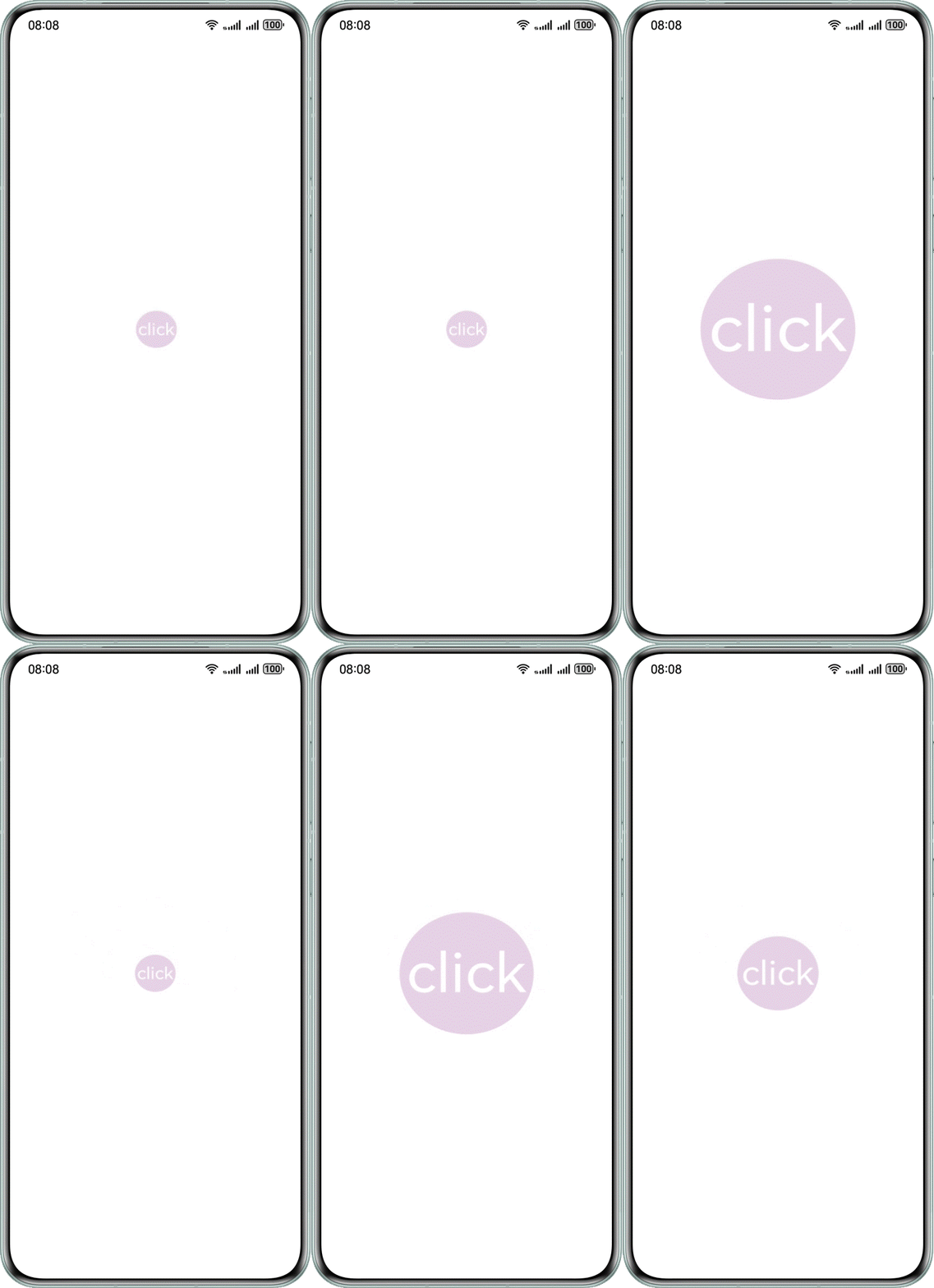
After consecutive taps, the icon size changes abnormally, causing screen flickering.
@Entry
@Component
struct ClickError {
  @State scaleValue: number = 0.5; // Pantograph ratio
  @State animated: boolean = true; // Control zoom

  build() {
    Stack() {
      Stack() {
        Text('click')
          .fontSize(45)
          .fontColor(Color.White)
      }
      .borderRadius(50)
      .width(100)
      .height(100)
      .backgroundColor('#e6cfe6')
      .scale({ x: this.scaleValue, y: this.scaleValue })
      .onClick(() => {
        // When the animation is delivered, the count is increased by 1
        this.getUIContext().animateTo({
          curve: Curve.EaseInOut,
          duration: 350,
          onFinish: () => {
            // At the end of the animation, the count is reduced by 1
            // A count of 0 indicates the end of the last animation
              // Determine the final zoom size at the end of the animation
              const EPSILON: number = 1e-6;
              if (Math.abs(this.scaleValue - 0.5) < EPSILON) {
                this.scaleValue = 1;
              } else {
                this.scaleValue = 2;
              }
          },
        }, () => {
          this.animated = !this.animated;
          this.scaleValue = this.animated ? 0.5 : 2.5;
        })
      })
    }
    .height('100%')
    .width('100%')
  }
}
Possible Causes
The property value is modified within the animation end callback. As the icon repeatedly scales up and down, the animation keeps adjusting the property value. Meanwhile, the animation end callback also directly tweaks the property value, which results in erratic property values during the process and an outcome that falls short of expectations. After all animations end, the effect reverts to normal, though with a noticeable jump.
Solution
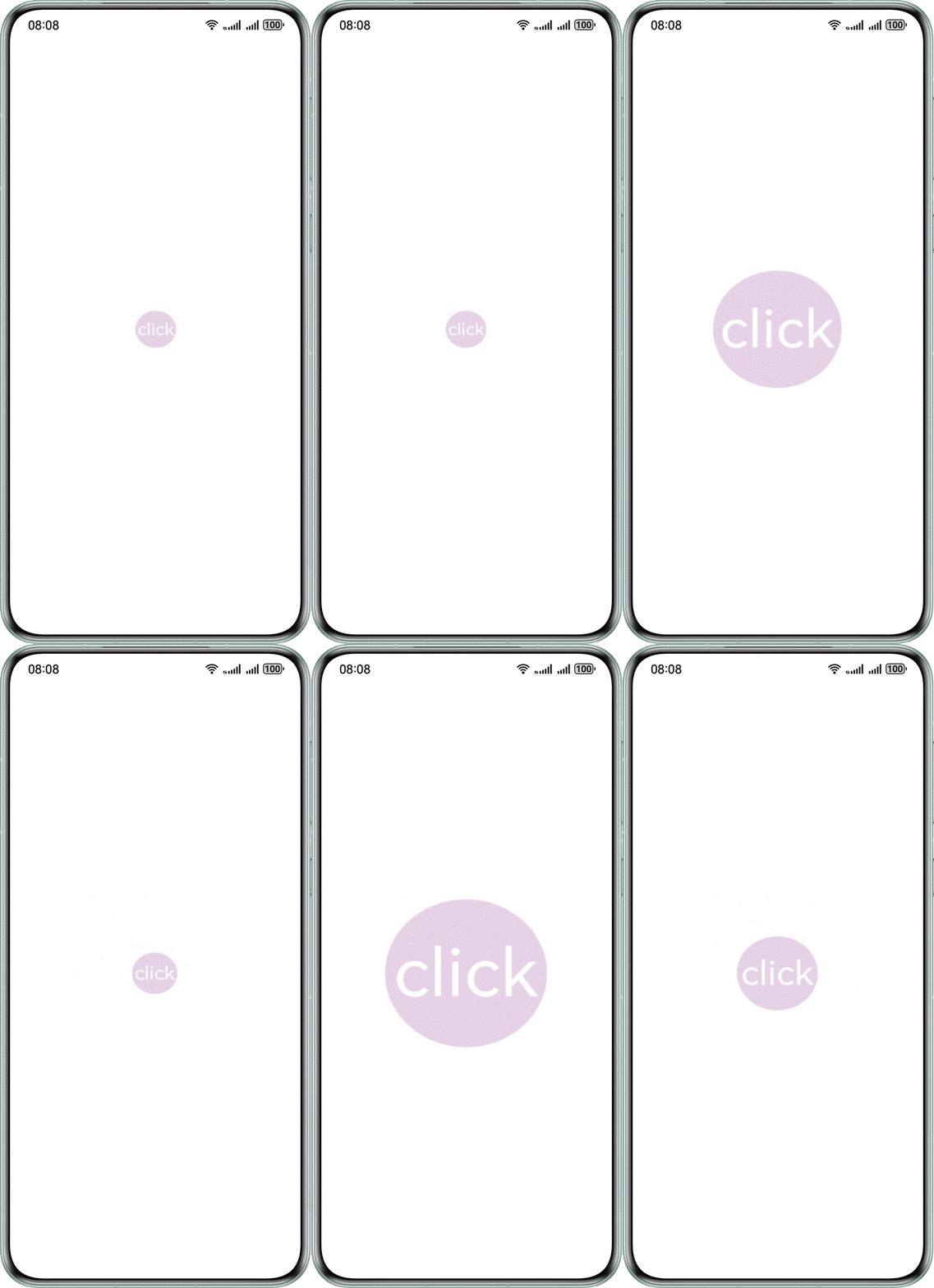
- If you set the value in the animation end callback, use methods such as a counter to check whether there is an animation in the property.
- If you set the value when the last animation of the property ends, set it in the animation end callback only, which avoids exceptions caused by animation interruption.
@Entry
@Component
struct ClickRight {
  @State scaleValue: number = 0.5; // Pantograph ratio
  @State animated: boolean = true; // Control zoom
  @State cnt: number = 0; // Run counter

  build() {
    Stack() {
      Stack() {
        Text('click')
          .fontSize(45)
          .fontColor(Color.White)
      }
      .borderRadius(50)
      .width(100)
      .height(100)
      .backgroundColor('#e6cfe6')
      .scale({ x: this.scaleValue, y: this.scaleValue })
      .onClick(() => {
        // When the animation is delivered, the count is increased by 1
        this.cnt = this.cnt + 1;
        this.getUIContext().animateTo({
          curve: Curve.EaseInOut,
          duration: 350,
          onFinish: () => {
            // At the end of the animation, the count is reduced by 1
            this.cnt = this.cnt - 1;
            // A count of 0 indicates the end of the last animation
            if (this.cnt === 0) {
              // Determine the final zoom size at the end of the animation
              const EPSILON: number = 1e-6;
              if (Math.abs(this.scaleValue - 0.5) < EPSILON) {
                this.scaleValue = 1;
              } else {
                this.scaleValue = 2;
              }
            }
          },
        }, () => {
          this.animated = !this.animated;
          this.scaleValue = this.animated ? 0.5 : 2.5;
        })
      })
    }
    .height('100%')
    .width('100%')
  }
}
The figure below shows the effect.
[h2]Screen Flickering Caused by Tab Switching During Animation
Symptom
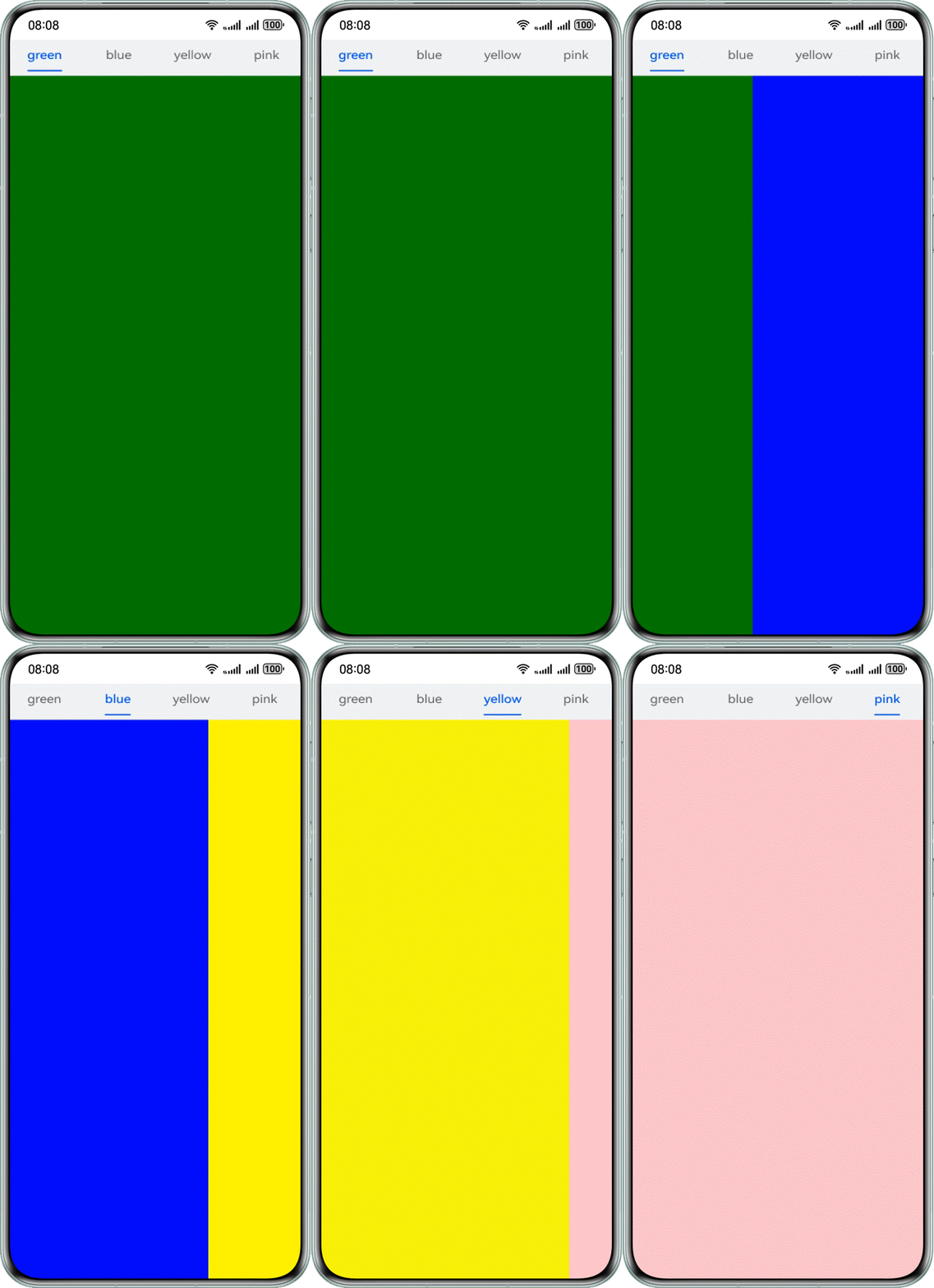
When the Tabs component is swiped, the upper tabs fail to be updated synchronously. After the content in the lower part is completely switched, the tabs switch with flickering.
@Entry
@Component
struct TabsContainer {
  @State currentIndex: number = 0
  @State animationDuration: number = 300;
  @State indicatorLeftMargin: number = 0;
  @State indicatorWidth: number = 0;
  private tabsWidth: number = 0;
  private textInfos: [number, number][] = [];
  private isStartAnimateTo: boolean = false;

  @Builder
  tabBuilder(index: number, name: string) {
    Column() {
      Text(name)
        .fontSize(16)
        .fontColor(this.currentIndex === index ? $r('sys.color.brand') : $r('sys.color.ohos_id_color_text_secondary'))
        .fontWeight(this.currentIndex === index ? 500 : 400)
        .id(index.toString())
        .onAreaChange((_oldValue: Area, newValue: Area) => {
          this.textInfos[index] = [newValue.globalPosition.x as number, newValue.width as number];
          if (this.currentIndex === index && !this.isStartAnimateTo) {
            this.indicatorLeftMargin = this.textInfos[index][0];
            this.indicatorWidth = this.textInfos[index][1];
          }
        })
    }
    .width('100%')
  }

  build() {
    Stack({ alignContent: Alignment.TopStart }) {
      Tabs({ barPosition: BarPosition.Start }) {
        TabContent() {
          Column()
            .width('100%')
            .height('100%')
            .backgroundColor(Color.Green)
            .expandSafeArea([SafeAreaType.SYSTEM], [SafeAreaEdge.TOP, SafeAreaEdge.BOTTOM])
        }
        .tabBar(this.tabBuilder(0, 'green'))
        .expandSafeArea([SafeAreaType.SYSTEM], [SafeAreaEdge.TOP, SafeAreaEdge.BOTTOM])

        TabContent() {
          Column()
            .width('100%')
            .height('100%')
            .backgroundColor(Color.Blue)
            .expandSafeArea([SafeAreaType.SYSTEM], [SafeAreaEdge.TOP, SafeAreaEdge.BOTTOM])
        }
        .tabBar(this.tabBuilder(1, 'blue'))
        .expandSafeArea([SafeAreaType.SYSTEM], [SafeAreaEdge.TOP, SafeAreaEdge.BOTTOM])

        TabContent() {
          Column()
            .width('100%')
            .height('100%')
            .backgroundColor(Color.Yellow)
            .expandSafeArea([SafeAreaType.SYSTEM], [SafeAreaEdge.TOP, SafeAreaEdge.BOTTOM])
        }
        .tabBar(this.tabBuilder(2, 'yellow'))
        .expandSafeArea([SafeAreaType.SYSTEM], [SafeAreaEdge.TOP, SafeAreaEdge.BOTTOM])

        TabContent() {
          Column()
            .width('100%')
            .height('100%')
            .backgroundColor(Color.Pink)
            .expandSafeArea([SafeAreaType.SYSTEM], [SafeAreaEdge.TOP, SafeAreaEdge.BOTTOM])
        }
        .tabBar(this.tabBuilder(3, 'pink'))
        .expandSafeArea([SafeAreaType.SYSTEM], [SafeAreaEdge.TOP, SafeAreaEdge.BOTTOM])
      }
      .onAreaChange((_oldValue: Area, newValue: Area) => {
        this.tabsWidth = newValue.width as number;
      })
      .barWidth('100%')
      .barHeight(56)
      .width('100%')
      .expandSafeArea([SafeAreaType.SYSTEM], [SafeAreaEdge.TOP, SafeAreaEdge.BOTTOM])
      .backgroundColor('#F1F3F5')
      .animationDuration(this.animationDuration)
      .onChange((index: number) => {
        this.currentIndex = index; // Monitor changes in index and switch TAB contents.
      })

      Column()
        .height(2)
        .borderRadius(1)
        .width(this.indicatorWidth)
        .margin({ left: this.indicatorLeftMargin, top: 48 })
        .backgroundColor($r('sys.color.brand'))
    }
    .width('100%')
  }
}
Possible Causes
The index value of the selected page is updated in the end callback of the tab switching animation. As a result, when the left/right page turning animation ends, the tab style (such as the font size and underline) corresponding to the index in the tab bar changes immediately, causing screen flickering.
Solution
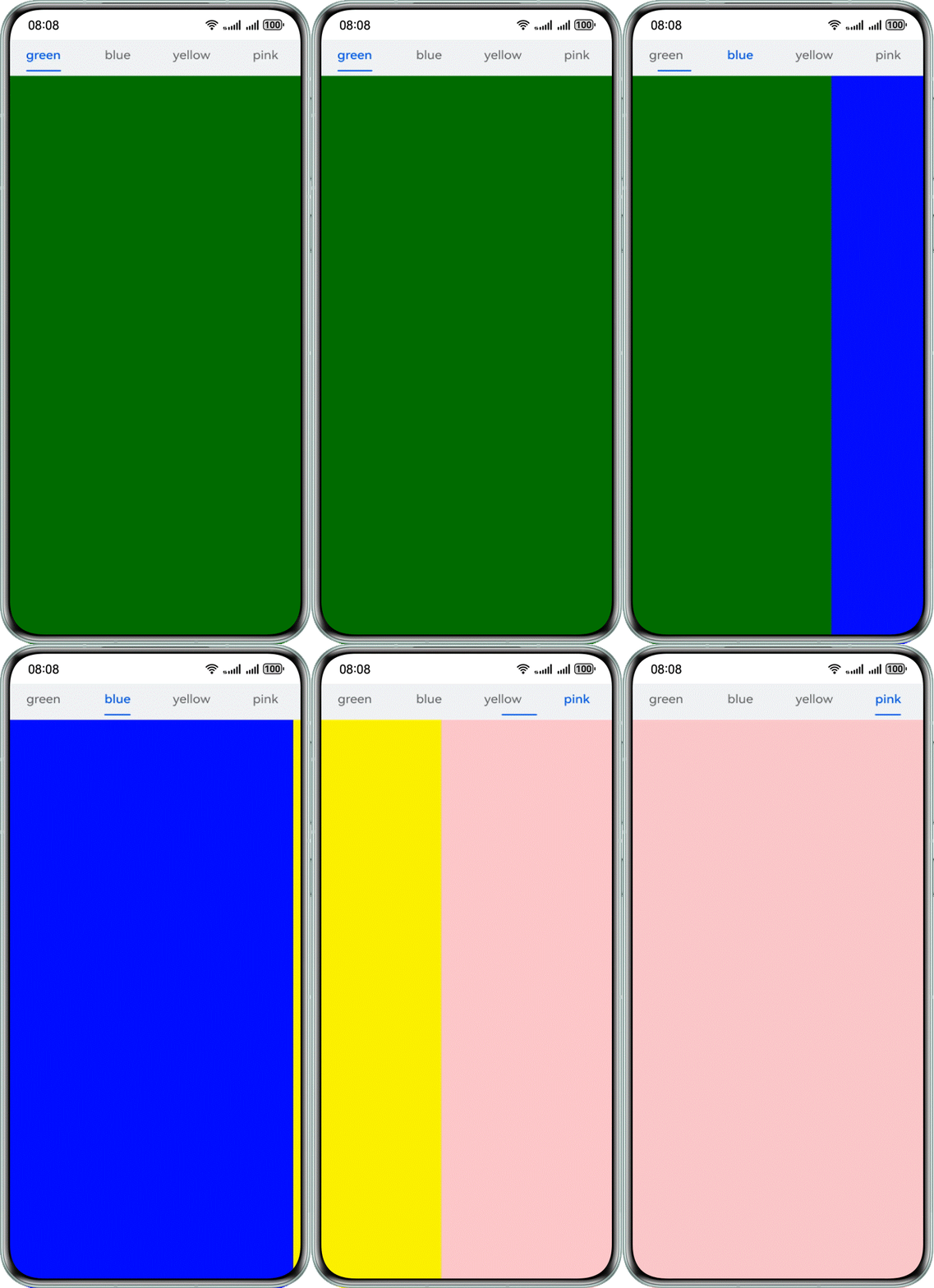
During the page turning, use TabsAnimationEvent to obtain the swipe distance and change the position of the underline between the previous and next tabs. When the page turning animation is triggered, the underline animation is also triggered to ensure that they are synchronized.
build() {
  Stack({ alignContent: Alignment.TopStart }) {
    Tabs({ barPosition: BarPosition.Start }) {
      TabContent() {
        Column()
          .width('100%')
          .height('100%')
          .backgroundColor(Color.Green)
          .expandSafeArea([SafeAreaType.SYSTEM], [SafeAreaEdge.TOP, SafeAreaEdge.BOTTOM])
      }
      .tabBar(this.tabBuilder(0, 'green'))
      .expandSafeArea([SafeAreaType.SYSTEM], [SafeAreaEdge.TOP, SafeAreaEdge.BOTTOM])

      TabContent() {
        Column()
          .width('100%')
          .height('100%')
          .backgroundColor(Color.Blue)
          .expandSafeArea([SafeAreaType.SYSTEM], [SafeAreaEdge.TOP, SafeAreaEdge.BOTTOM])
      }
      .tabBar(this.tabBuilder(1, 'blue'))
      .expandSafeArea([SafeAreaType.SYSTEM], [SafeAreaEdge.TOP, SafeAreaEdge.BOTTOM])

      TabContent() {
        Column()
          .width('100%')
          .height('100%')
          .backgroundColor(Color.Yellow)
          .expandSafeArea([SafeAreaType.SYSTEM], [SafeAreaEdge.TOP, SafeAreaEdge.BOTTOM])
      }
      .tabBar(this.tabBuilder(2, 'yellow'))
      .expandSafeArea([SafeAreaType.SYSTEM], [SafeAreaEdge.TOP, SafeAreaEdge.BOTTOM])

      TabContent() {
        Column()
          .width('100%')
          .height('100%')
          .backgroundColor(Color.Pink)
          .expandSafeArea([SafeAreaType.SYSTEM], [SafeAreaEdge.TOP, SafeAreaEdge.BOTTOM])
      }
      .tabBar(this.tabBuilder(3, 'pink'))
      .expandSafeArea([SafeAreaType.SYSTEM], [SafeAreaEdge.TOP, SafeAreaEdge.BOTTOM])
    }
    .onAreaChange((_oldValue: Area, newValue: Area) => {
      this.tabsWidth = newValue.width as number;
    })
    .barWidth('100%')
    .barHeight(56)
    .width('100%')
    .expandSafeArea([SafeAreaType.SYSTEM], [SafeAreaEdge.TOP, SafeAreaEdge.BOTTOM])
    .backgroundColor('#F1F3F5')
    .animationDuration(this.animationDuration)
    .onChange((index: number) => {
      this.currentIndex = index; // Monitor changes in index and switch TAB contents.
    })
    .onAnimationStart((_index: number, targetIndex: number) => {
      // The callback is triggered when the switch animation begins. The underline slides along with the page, and the width changes gradually.
      this.currentIndex = targetIndex;
      this.startAnimateTo(this.animationDuration, this.textInfos[targetIndex][0], this.textInfos[targetIndex][1]);
    })
    .onAnimationEnd((index: number, event: TabsAnimationEvent) => {
      let currentIndicatorInfo: Record<string, number> = this.getCurrentIndicatorInfo(index, event);
      this.startAnimateTo(0, currentIndicatorInfo.left, currentIndicatorInfo.width);
    })
    .onGestureSwipe((index: number, event: TabsAnimationEvent) => {
      let currentIndicatorInfo: Record<string, number> = this.getCurrentIndicatorInfo(index, event);
      this.currentIndex = currentIndicatorInfo.index;
      this.indicatorLeftMargin = currentIndicatorInfo.left;
      this.indicatorWidth = currentIndicatorInfo.width;
    })

    Column()
      .height(2)
      .borderRadius(1)
      .width(this.indicatorWidth)
      .margin({ left: this.indicatorLeftMargin, top: 48 })
      .backgroundColor($r('sys.color.brand'))
  }
  .width('100%')
}
Set the TabsAnimationEvent method as follows:
private getCurrentIndicatorInfo(index: number, event: TabsAnimationEvent): Record<string, number> {
  let nextIndex = index;
  if (index > 0 && event.currentOffset > 0) {
    nextIndex--;
  } else if (index < 3 && event.currentOffset < 0) {
    nextIndex++;
  }

  let indexInfo: [number, number] = this.textInfos[index];
  let nextIndexInfo: [number, number] = this.textInfos[nextIndex];
  let swipeRatio: number = Math.abs(event.currentOffset / this.tabsWidth);
  let currentIndex: number = swipeRatio > 0.5 ? nextIndex :
    index; // The page slides more than halfway and the tabBar switches to the next page.
  let currentLeft: number = indexInfo[0] + (nextIndexInfo[0] - indexInfo[0]) * swipeRatio;
  let currentWidth: number = indexInfo[1] + (nextIndexInfo[1] - indexInfo[1]) * swipeRatio;
  return { 'index': currentIndex, 'left': currentLeft, 'width': currentWidth };
}

private startAnimateTo(duration: number, leftMargin: number, width: number) {
  this.isStartAnimateTo = true;
  this.getUIContext().animateTo({
    duration: duration, // duration
    curve: Curve.Linear, // curve
    iterations: 1, // iterations
    playMode: PlayMode.Normal, // playMode
    onFinish: () => {
      this.isStartAnimateTo = false;
    }
  }, () => {
    this.indicatorLeftMargin = leftMargin;
    this.indicatorWidth = width;
  });
}
The figure below shows the effect.
[h2]Screen Flickering Caused by Unconfigured ForEach Key Value Generation Function During Refreshing
Symptom
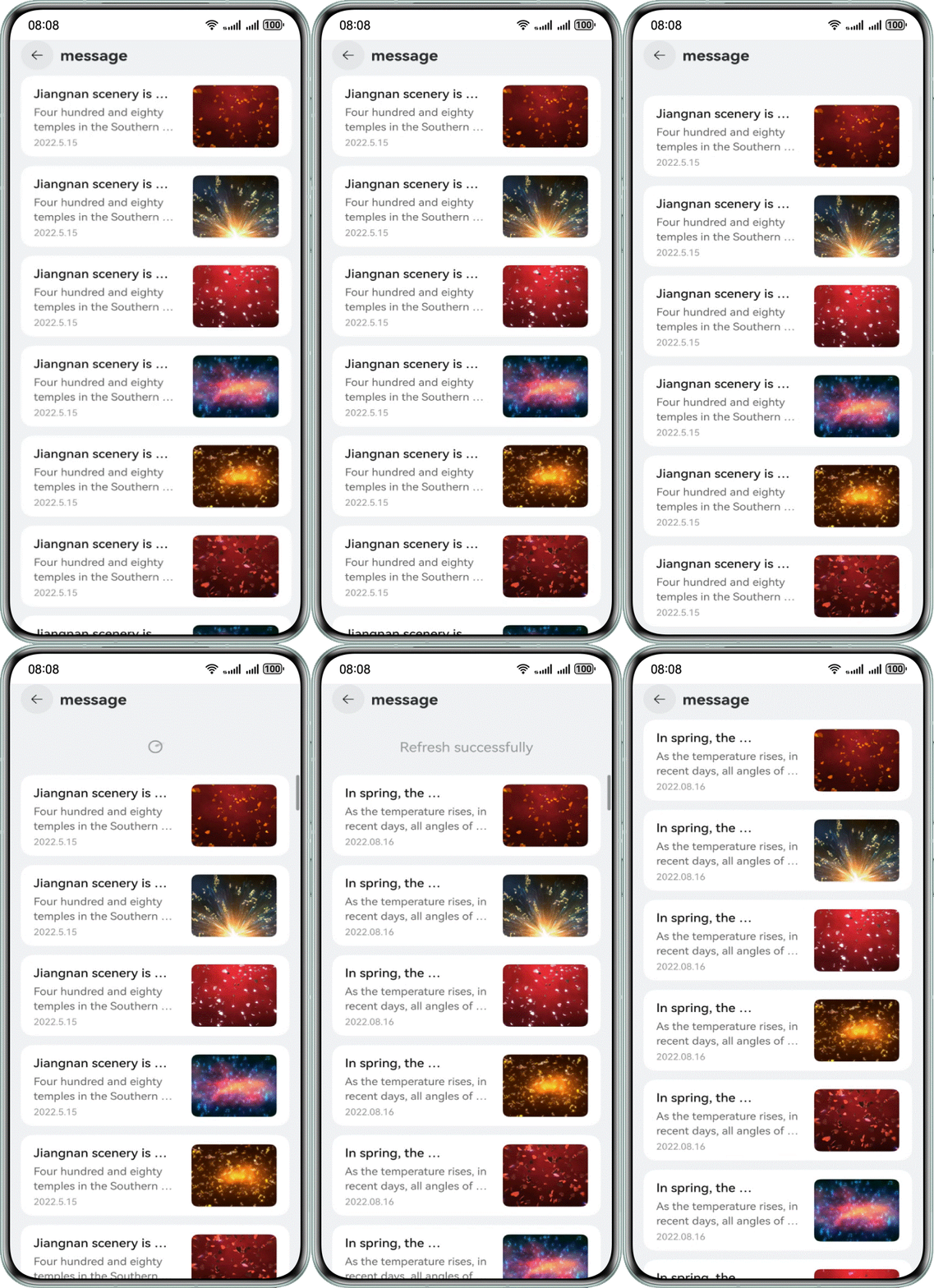
When a user swipes down to refresh the screen, the application freezes and the screen flickers.
@Builder
private getListView() {
  List({
    space: 12,
    scroller: this.scroller
  }) {
    // Render data using lazy loading components
    ForEach(this.newsData, (item: NewsData) => {
      ListItem() {
        newsItem({
          newsTitle: item.newsTitle,
          newsContent: item.newsContent,
          newsTime: item.newsTime,
          img: item.img
        })
      }
      .backgroundColor(Color.White)
      .borderRadius(16)
    });
  }
  .width('100%')
  .height('100%')
  .padding({
    left: 16,
    right: 16
  })
  .backgroundColor('#F1F3F5')
  // You must set the list to slide to edge to have no effect, otherwise the pullToRefresh component's slide up and drop down method cannot be triggered.
  .edgeEffect(EdgeEffect.None)
}
Possible Causes
ForEach provides a parameter named keyGenerator, through which you can customize key generation rules. If no keyGenerator function is defined, the ArkUI framework uses the default key generator, that is, (item: Object, index: number) => { return index + '__' + JSON.stringify(item); }. For details, see Key Generation Rules.
Correct use of ForEach requires a clear understanding of the key generation rules. Incorrect usage may cause function problems, such as unexpected rendering results, or performance problems, such as deteriorated rendering performance.
Solution
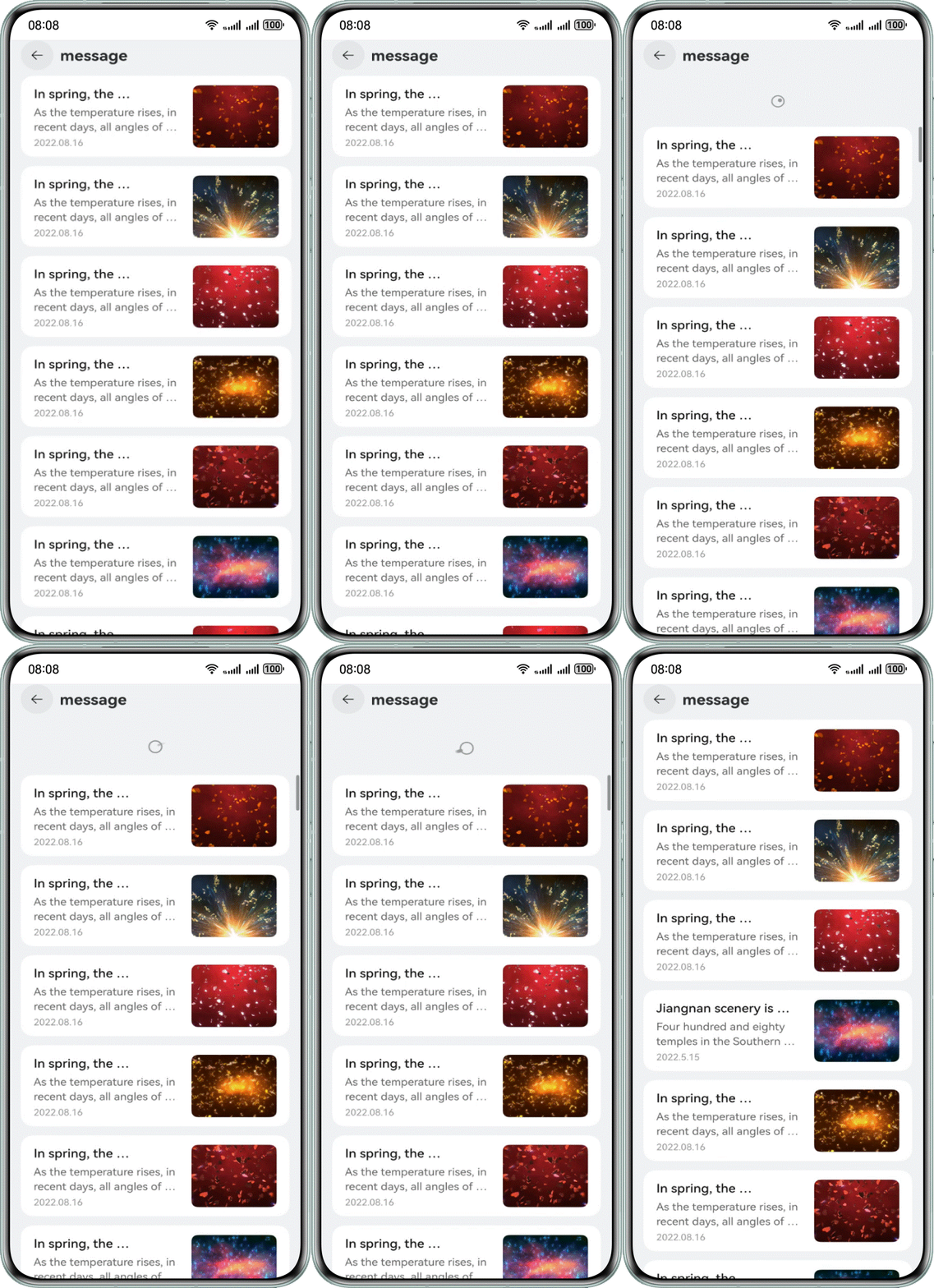
Define the key generation rules in the third parameter of ForEach to (item: NewsData, index?: number) => item.id. In this way, the rendering overhead of duplicate components can be reduced, thereby eliminating screen flickering. For details, see Recommendations for the ForEach component.
@Builder
private getListView() {
  List({
    space: 12,
    scroller: this.scroller
  }) {
    // Render data using lazy loading components
    ForEach(this.newsData, (item: NewsData) => {
      ListItem() {
        newsItem({
          newsTitle: item.newsTitle,
          newsContent: item.newsContent,
          newsTime: item.newsTime,
          img: item.img
        })
      }
      .backgroundColor(Color.White)
      .borderRadius(16)
    }, (item: NewsData) => item.newsId);
  }
  .width('100%')
  .height('100%')
  .padding({
    left: 16,
    right: 16
  })
  .backgroundColor('#F1F3F5')
  // You must set the list to slide to edge to have no effect, otherwise the pullToRefresh component's slide up and drop down method cannot be triggered.
  .edgeEffect(EdgeEffect.None)
}
The figure below shows the effect.
Summary
When dealing with screen flickering, start by identifying and testing potential causes. After the problem is located, try the corresponding solution to eliminate it.
- In cases of rapid successive touches in an application, use a counter to optimize the animation logic.
- In the tab switching scenario, fine-tune the animation details to boost fluidity.
- During content refresh using ForEach, adjust the key generation function based on the service scenario.