Execution Process of the ArkUI Framework
When using ArkUI for development, we use layout components and basic components to describe the UI. These descriptions form a component tree structure, which can be called an app component tree. Basic components are leaf nodes, and layout components are intermediate nodes. When a user performs interaction (such as swiping and tapping), UI modification is triggered. The UI modification is essentially a process of updating the app UI by triggering re-rendering of the component tree.
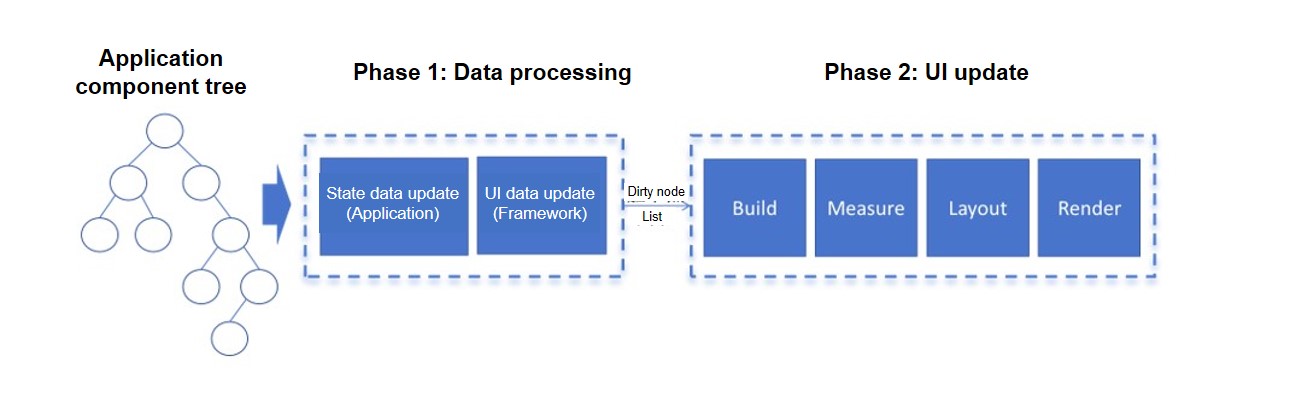
The UI update process consists of two parts: data processing and UI update.
- Data processing primarily involves updating state variables (those decorated with @State and related decorators). When data changes, the update takes a certain period of time. The number of components associated with the data also affects the time required for subsequent UI updates. Therefore, in the development process, you need to avoid invalid data updates to reduce redundant UI update overhead. For details, see State Management.
- During UI update, the target elements need to be updated through the Build, Measure, Layout, and Render phases. Among them, Build is the phase of component creation and marking components as "dirty" (that is, marking components that need updates—when a component's property state changes, the framework marks it as "dirty," indicating that it needs to be rebuilt). Measure is the phase of measuring the width and height of components. Layout is the phase of positioning elements on the screen. Render is the phase of committing and rendering based on size and position information obtained from Measure and Layout phases.

When you access a page for the first time, all components participate in the rendering of the page. In other words, when the page is rendered for the first time, it can be considered that all components need to be updated.
[h2]UI Update Process
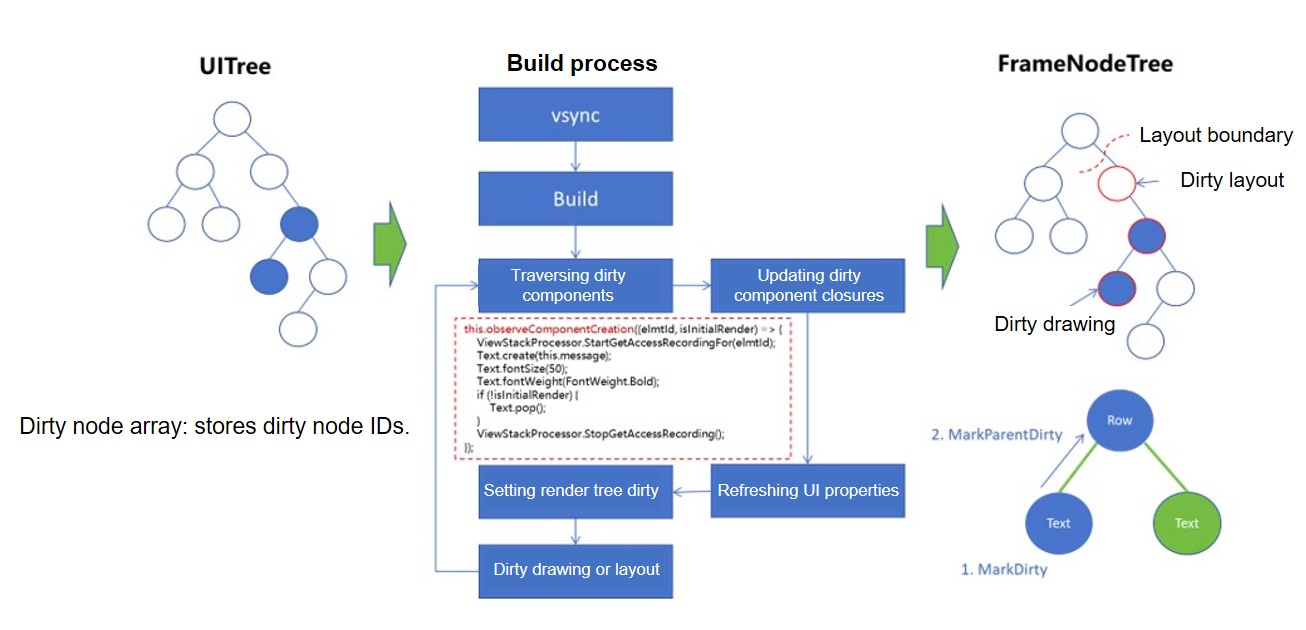
The UI update process includes component dirty marking and layout calculation. During the initial loading phase, all components—excluding branches where if/else conditions are not met and content in invisible areas of LazyForEach—will fully undergo the Build, Measure, Layout, and Render phases. During UI updates triggered by list scrolling, visibility toggles, or changes to element properties (content/style/position/size), the UI thread first builds the dirty nodes. In the Build phase, component properties are updated in sequence based on component IDs. Should a property change, the component is marked as dirty.
- If layout properties (such as width, height, padding, and margin) change: The layout is marked as dirty, the layout boundary is identified, and the subtree is updated.
- If non-layout properties (style properties) change (such as color, backgroundColor, and opacity): Only the component's own properties are affected, and no subtree search is performed.
In most cases, a component layout change affects the layouts of other components. Therefore, when a component's layout changes, the simplest approach is to re-layout the entire tree. However, the cost of re-layout is too high. Marking components dirty is to determine the minimum impact scope of the layout within the layout boundary to minimize the re-layout cost.
Generally, if a component has a fixed width and height, the component is the layout boundary. The change of the internal component layout does not affect the layout outside the layout boundary. Therefore, during the search, you only need to determine which component layout is affected within the layout boundary. This can avoid the search process in the entire tree structure.
After the actual dirty node array is determined, the corresponding dirty node object is obtained based on the dirty node array, and the Measure process is performed by recursively traversing children. If the layout parameter of the object does not change, the corresponding Measure phase is skipped. After the Measure phase is complete, the Layout phase starts.
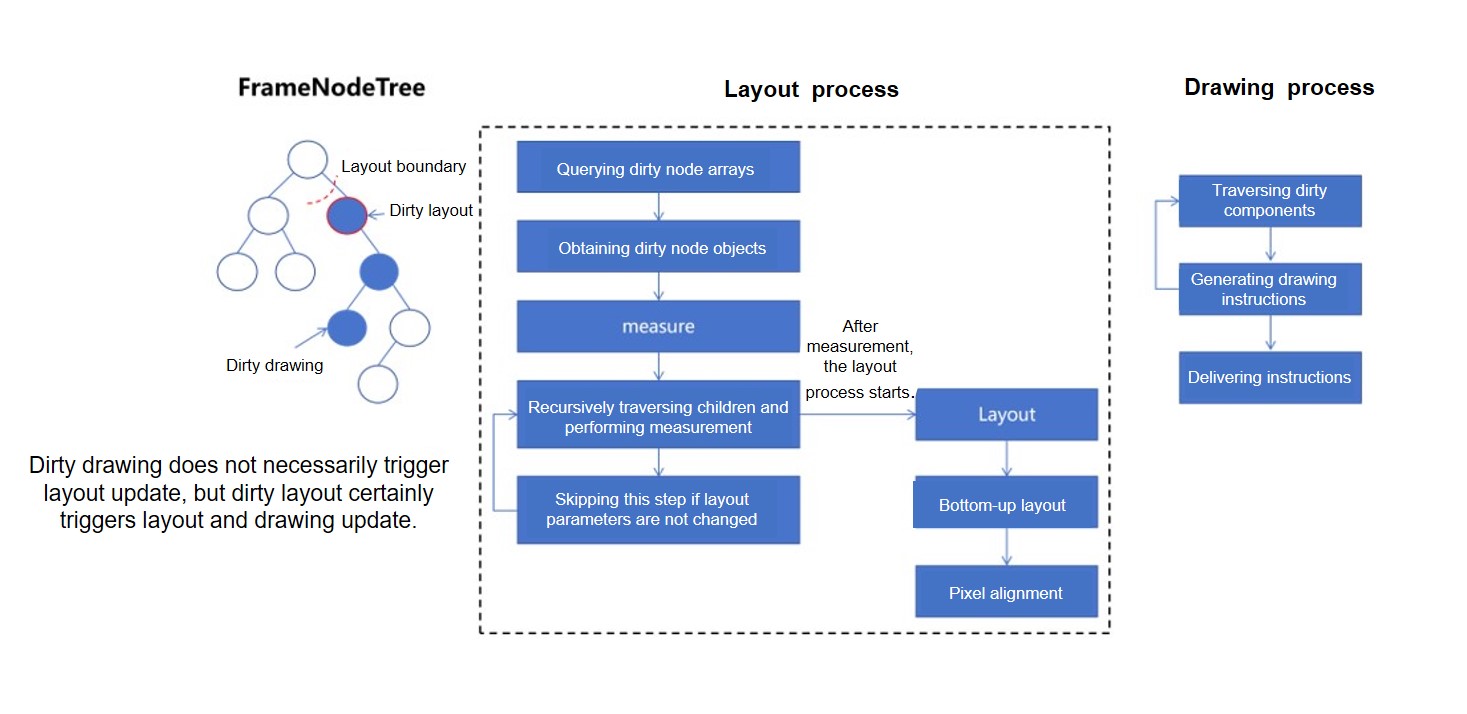
According to the foregoing process, a main factor that affects the UI update process is a quantity of nodes involved in the update.
During initial loading, all nodes need to be covered in the entire process. Therefore, the number of component nodes on the entire page needs to be reduced if there is a requirement on the rendering speed at the first frame.
During page content update, the UI will be updated due to the change of state variables. The layout boundary can be used to reduce the number of subtree updates as well as layout calculation.
Reducing Nodes

You are advised to use the Code Linter scanning tool for code inspection, focusing specifically on the @performance/hp-arkui-remove-container-without-property rule. If issues related to this rule are identified in the scan results, adjust your code by following the optimization suggestions provided in this section.
In the layout phase, component positions and sizes are calculated by recursively traversing all nodes. If the nesting level is deep, more intermediate nodes are generated. In the layout calculation phase, extra nodes cause more calculation processes, which compromises performance. We simulated scenarios with Row components nested 10, 100, 500, and 1000 levels deep, used the Profiler to capture Launch phase data to observe the corresponding first frame rendering, and compared the time spent in the Measure/Layout phases.
  Row() {
    ... // 10, 100, 500, and 1000 layers of Row containers are nested.
    Row() {
      Text('Inner Text')
    }
    ...
  }
Then, in the flat layout mode, we compared the Launch phase data (captured via the Profiler) under the condition that the number of components within a single Row is 10, 100, 500, and 1000. The results are shown in Table 1 below.
 Row() {
    Row() {}
    ... // 10, 100, 500, and 1000 layers of Row containers are arranged side by side.
    Text('Inner Text')
} | Comparison Metrics | 10 | 100 | 500 | 1000 | |
|---|---|---|---|---|---|
|
Nesting/Layer | First frame drawing | 3.2 ms | 5.8 ms | 17.3 ms | 32 ms |
| Measure | 1.88 ms | 2.89 ms | 5.93 ms | 10.46 ms | |
| Layout | 0.38 ms | 1.12 ms | 5.26 ms | 10.88 ms | |
|
Tile/Piece | First frame drawing | 3.6 ms | 4.5 ms | 14 ms | 24.3 ms |
| Measure | 2.15 ms | 2.31 ms | 5.61 ms | 9.26 ms | |
| Layout | 0.39 ms | 1.38 ms | 4.74 ms | 9.92 ms | |

The preceding data is obtained from tests using DevEco Studio 4.0.3.415 and SDK 4.0.10.9. The data may vary with the device type. The test data is used to reflect the performance optimization trend and is for reference only.

According to the preceding data comparison, when the number of components in tile mode is the same as that in nested mode, the performance is slightly different and the overall trend is the same. As the number of components increases, the performance deteriorates linearly. Therefore, the number of nodes involved in the layout is the factor that relates to the layout performance. For this reason, during layout, the number of nodes should be minimized to relieve the performance deterioration of the layout.
There are two methods for reducing the total number of nodes:
- Removing redundant nodes
- Flattening layout to reduce nodes
Removing Redundant Nodes
In a case in which redundancy often occurs, for example, a Row container may include a child that is also a Row container. This nesting is actually redundant and causes unnecessary layout overhead.
Row() {
  Row(){
    Image()
    Text()
  }
  Image()
}
The parent and child layout directions of the Row container are the same. Therefore, you can remove the Row at the outer layer of Image and Text to reduce the number of layers. If the view is complex, unnecessary calculation will be generated during layout rendering.
Row() {
  Image()
  Text()
  Image()
}
Although there is only one extra layer here, layouts in actual development are often far more complex. The overhead caused by redundancy can significantly impact layout performance, especially when components are dynamically created in lists.
Flattening Layout to Reduce Nodes
In some cases, the layout implemented by a developer is not redundant at the nesting level, but the nesting level is still deep and it may be impossible to adjust the existing layout scheme to contain redundant layouts. The only solution may be as follows: Flatten the hierarchy by switching to a completely different layout type.
For example, in the schematic diagram of an element structure shown in Figure 1, when a conventional linear layout is used, there are four layers of nested nodes, with 15 nodes in total, and there is no redundant nested node. Flattening layout is to make the page structure shallow and wide. Some advanced components such as RelativeContainer and Grid can be used to expand elements on a plane. This layout mode can effectively reduce the nesting depth caused by the linear layout, and optimize the container nodes used to describe the layout. As a result, nodes are reduced. As shown in Figure 1, after the linear layout is changed to the relative layout, two layers are nested, with 10 nodes in total—five fewer than those before the layout change.

In this mode, the effect on the layout is as follows:
- When a page is created, flattening reduces the nesting layers in the middle. As a result, the total number of component nodes is reduced, and the calculation required for layout is reduced.
- When a page is updated, the overall update will cause updated nodes to compromise the layout performance if the structure to be updated is a nested subtree structure and the tree contains many nodes.
Therefore, when there is no redundant node on the page, you can consider whether the page can be flattened by replacing the layout with a more advanced layout to reduce nodes. The main methods are as follows:
- RelativeContainer: flattened through relative layout.
- Absolute positioning: flattened through anchor positioning.
- Grid: flattened through two-dimensional layout.
Reducing Layout Calculation by Using Layout Boundaries
If the width and height of a component do not need to be adapted, you are advised to specify the width and height of the component during UI description. When the size of an external container of the component changes, for example, in the drag and zoom scenarios, if the width and height of the component are fixed, theoretically: This component is not involved in the Measure phase of the layout phase. The corresponding size data is stored on the node. If the component content is large, the performance is greatly improved because the overall calculation process of the component is avoided.
Column() {
  Button ("Change Width").onClick(() => {
    this.testWidth = '90%'
  }).height('20%')

  Row() {
    // 400 text data entries
  }
}.width(this.testWidth )
The following table shows the comparison result:
| Comparison Metrics (ms) | Width and Height Fixed for a Container | Width and Height Not Specified for a Container | Width and Height Subject to Percentage for a Container |
|---|---|---|---|
| First frame drawing | 60.20 ms | 59.99 ms | 60.50 ms |
| Measure | 17.80 ms | 17.76 ms | 16.92 ms |
| Layout | 5.5 ms | 4.91 ms | 4.92 ms |
| Redraw | 2.0 ms | 38.45 ms | 42.62 ms |
| Redrawn Measure | 0.50 ms | 18.87 ms | 20.93 ms |
| Redrawn Layout | 0.12 ms | 1.41 ms | 1.80 ms |

- The preceding data is obtained from tests using DevEco Studio 4.0.3.415 and SDK 4.0.10.9. The data may vary with the device type. The test data is used to reflect the performance optimization trend and is for reference only.
The preceding data shows that:
- When the drawing is performed for the first time, the data in the three cases is similar.
- When the width and height of the container are fixed during redrawing, the performance is greatly improved.
Analysis reveals that this occurs because, in the case of the first rendering, a layout and measurement process is performed for all components regardless of whether width and height properties are set, to determine the final size and position of all components. When the button is triggered to change the width of the outer Column item, that is, when the redrawing is triggered, the performance of the given container with a fixed width and height is much better than that when the width and height are not specified and the percentage width and height are specified. This is because the component triggers the re-measurement process to re-calculate the width and height of the component when the width and height are not specified and the percentage width and height are specified, or when the width and height of the outer container change. As a result, the layout takes a long time. However, if the width and height of a component are fixed, the component directly uses the node size data retained during the initial drawing, which shortens the calculation time. This is especially obvious for performance improvement, particularly when the content in the component is complex.
Therefore, for a component whose width and height can be given at the initial stage, the width and height values are given if possible during UI description, to reduce performance of a recalculation process caused by a container size change.
[h2]Properly Controlling the Display and Hiding of Elements
It is common to display or hide elements. You can achieve this effect through the visibility property or the if condition. The if condition controls component creation and layout, and the visibility property controls whether an element participates in layout rendering. Improper usage may cause performance problems.
In different scenarios, you need to select a proper method based on the performance or memory requirements.
- If there is only one initial rendering action or a small number of interactions, you are advised to use the if condition to control the display and hiding effects of elements, which greatly improves the memory usage.
- If the effect of interaction between display and hiding is frequently responded, you are advised to switch between Visibility.None and Visibility.Visible to control the display and hiding of elements to improve performance.
For a complex view structure, for example, in the following sample code, the if condition and visibility property are used to control the display and hiding of the Column container that contains 100 Image components.
The sample code for control using the if condition is as follows:
 Row() {
    Text("Hello World")
    if(this.visible) {
      Column() {
        ... // 100 image components
      }
    }
} Row() {
Text("Hello World")
Column() {
... // 100 image components
}.visibility(this.visible?Visibility.Visible:Visibility.None)
} In the same test environment, test the duration captured by the Profiler tool for creating the Measure, Layout, and component when the page is loaded for the first time and the value of the state variable this.visible is changed to display or hide the page.
The test result in the case of initial loading is as follows:
| Comparison Metrics | True for the if Condition | False for the if Condition | Visibility.Visible | Visibility.None |
|---|---|---|---|---|
| Component creation time | 13.67 ms | 3.83 ms | 13.38 ms | 13.26 ms |
| Measure | 2.83 ms | 0.92 ms | 2.58 ms | 2.24 ms |
| Layout | 3.79 ms | 0.30 ms | 2.14 ms | 0.39 ms |

The preceding data is obtained from tests using DevEco Studio 4.0.3.415 and SDK 4.0.10.9. The data may vary with the device type. The test data is used to reflect the performance optimization trend and is for reference only.
The preceding data shows that:
- The if condition is used to determine the display and hiding modes.
- For the two cases where the judgment value is true and false, there is a significant difference in the elapsed time of the Measure and Layout phases during initial loading. Additionally, from the component creation time, we can tell that during loading, the system determines whether to create the corresponding component content based on the initial value.
- If the condition is false, the corresponding component content is not involved in the Creation, Measure, and Layout phases.
- The visibility property controls the display and hiding modes.
- During initial loading, the corresponding component content will be created regardless of whether the value of visibility is Visibility.None or Visibility.Visible.
- The visibility property controls the Measure and Layout phases. When the value of the visibility property is Visibility.None, the corresponding component is not involved in the Layout phase.
The result in the case of switching the display state is as follows:
| Comparison Metrics | True for the if Condition | False for the if Condition | Visibility.Visible | Visibility.None |
|---|---|---|---|---|
| Component creation time | 13.67 ms | 3.83 ms | \ | \ |
| Measure | 3.10 ms | 0.13 ms | 0.19 ms | 0.10 ms |
| Layout | 1.64 ms | 0.60 ms | 0.27 ms | 0.07 ms |

The preceding data is obtained from tests using DevEco Studio 4.0.3.415 and SDK 4.0.10.9. The data may vary with the device type. The test data is used to reflect the performance optimization trend and is for reference only.
In the case of switching the display state:
- When the if condition is used to determine whether to switch the display mode, the system determines whether the component is involved in the creation and layout processes due to the condition change. During the switching, the Measure performance is seriously deteriorated because a new component is created and the Measure and Layout processes are performed again.
- When the visibility property is used, the component has been created for the first time and always exists in the component tree regardless of whether the component is hidden. In addition, the performance deterioration in the Measure and Layout phases is much lower than that in the if/else mode, because the component has been calculated in the first frame and does not need to be calculated again.
To sum up, you are advised to select a control mode based on the following principles when displaying or hiding a component:
- If high performance is required and the display and hiding of elements are frequently switched, do not use the if condition. Instead, use the visibility property to control the display and hiding of elements. In this way, the component creation time can be saved when you switch between Visibility.None and Visibility.Visible. You can directly go to the rendering process.
- You can use if/else to display or hide the content only under specific conditions to achieve lazy loading if the creation of a component consumes a lot of resources, the component is not used immediately, and it is not frequently switched and interacted.
[h2]Using Lazy Loading for Long Lists, and Reusing and Components
In the list scenario, components such as List, Grid, and WaterFlow are used together with ForEach or LazyForEach. ForEach applies to a list with fixed content length and fewer than two screens. LazyForEach applies to a list with more than two screens. When the content layout is relatively fixed, LazyForEach can be used together with the component reuse function to reduce component creation during a swipe. For details, see Optimizing Frame Loss for Long List Loading. This section introduces only some key data for performance benefits.
Lazy Loading
In the long list scenario, 10, 100, 1000, and 10000 data records are simulated locally. ForEach and LazyForEach are used to test the full display time, list mounting time, and exclusive memory when lazy loading is disabled and enabled. Moreover, the frame loss rate in the swiping process is analyzed. The list mounting time refers to the total duration for creating a component and mounting data to the component. Ultimately, the Profiler tool of DevEco Studio is used to check the following metrics. The obtained data is as follows.
| ForEach Comparison Metrics | 10 Data Records | 100 Data Records | 1000 Data Records | 10,000 Data Records |
|---|---|---|---|---|
| Full display time | 1s 741 ms | 1s 786 ms | 1s 942 ms | 5s 841 ms |
| List mounting time | 87 ms | 88 ms | 135 ms | 3s 291 ms |
| Exclusive memory (after the swiping is complete) | 38.2 MB | 48.7 MB | 83.7 MB | 560.1 MB |
| Frame loss rate | 0.0% | 3.8% | 4.5% | 58.2% |
| LazyForEach Comparison Metrics | 10 Data Records | 100 Data Records | 1000 Data Records | 10,000 Data Records |
|---|---|---|---|---|
| Full display time | 1s 544 ms | 1s 486 ms | 1s 652 ms | 1s 707 ms |
| List mounting time | 88 ms | 89 ms | 94 ms | 97 ms |
| Exclusive memory (after the swiping is complete) | 38.1 MB | 44.6 MB | 46.3 MB | 82.9 MB |
| Frame loss rate | 0.0% | 2.3% | 3.6% | 6.6% |
The test data shows that:
- ForEach and LazyForEach are similar in the range of 100 data records. In general, the performance metrics of ForEach and LazyForEach are acceptable. The code logic of ForEach is simpler than that of LazyForEach. Therefore, ForEach can be used in this scenario.
- If there are more than 1000 data records, especially up to 10000 data records, ForEach will experience exponential deterioration in the aspects such as list rendering, app memory usage, and frame loss rate. Sliding will cause obvious frame freezing or even app crash.
- If LazyForEach is used, the memory usage increases slightly, but the list rendering time and frame loss rate do not change significantly. Therefore, LazyForEach boasts good performance.
Reusing Components
When LazyForEach is used, BuildLazyItem is time-consuming because components need to be dynamically created during a swipe. By leveraging component recycling capabilities, the time consumed by creating components during a swipe can be reduced. Additionally, since the BuildRecycle operation incurs minimal overhead, it further optimizes the swipe performance.
The following table shows the data when component reuse is enabled and disabled in the long list case.
| Reusing Components | Before Reusing Components | After Reusing Components |
|---|---|---|
| Frame loss rate | 3.7% | 0% |
| Time for BuildLazyItem | 10.277 ms | 0.749 ms |
| Time for BuildRecycle | N/A | 0.221 ms |
It is found that the frame loss rate decreases significantly when the list is swiped. This is because the component reuse feature is enabled for List and the BuildLazyItem operation is not performed. When new component nodes are required, they are directly reused from the cache instead of being recreated from scratch, eliminating the initial creation overhead.
[h2]Selecting Proper Layout Components
During layout, the child components obtain the target arrangement rules based on the layout algorithm of the parent component, and will be placed in line with these rules. The layout algorithms used by different layout containers will relate differently to the performance. You should select the appropriate layout for the scenario, and minimize the use of poor-performance layout components.
Common basic layout components include the following:
- Row and Column, which are used to build a linear layout.
- Stack, which is used to build a stacking layout.
The foregoing layouts are all linear layouts. As the name implies, components arranged in the linear layout are linearly placed in a specific direction, for example, a horizontal/vertical/Z-order direction. In addition to these layout types, there are some complex layout capabilities, such as Flex, List, Grid, RelativeContainer, and custom layout.
- Flex can be used to build an elastic layout.
- List has the linear layout feature and supports lazy loading and swiping.
- Grid/GridItem provides the grid layout capability and supports lazy loading and swiping.
- RelativeContainer is a two-dimensional layout algorithm. It describes the relationships between content components to guide the layout process of content elements. The layout can be described horizontally and vertically.
The complex layout provides the scenario-based capability to fulfill one or more layout scenarios. However, in some scenarios, improper use of these advanced components may more seriously deteriorate the performance.
For different layout modes, set the nesting depth of the target container to 5 and the total number of element nodes to 20 Text items to compare the deteriorated performance. Use the Profiler tool to obtain the time of drawing the first frame for comparison. The following table shows the comparison result.
| Comparison Metrics | Column/Row | Stack | Flex | RelativeContainer | Grid/GridItem |
|---|---|---|---|---|---|
| First frame drawing | 7.13 ms | 7.34 ms | 11.71 ms | 9.13 ms | 12.62 ms |
| Measure | 2.63 ms | 2.70 ms | 7.59 ms | 3.59 ms | 8.68 ms |
| Layout | 0.74 ms | 0.77 ms | 0.83 ms | 0.77 ms | 0.92 ms |

The preceding data is obtained from tests using DevEco Studio 4.0.3.415 and SDK 4.0.10.9. The data may vary with the device type. The test data is used to reflect the performance optimization trend and is for reference only.
When the layout depth and the number of nodes are the same:
- The performance of basic components such as Column and Row containers is much superior to that of other layouts.
- The performance of Flex is obviously inferior to that of Column and Row containers due to the secondary layout of Flex.
- The performance consumption of the Grid/GridItem layout and relative layout RelativeContainer is higher than that of basic components such as Column, Row, and Stack.
The preceding data is based on the comparison result when the number of layout layers and the number of nodes are the same. It reflects the relative performance consumption of the layout. However, it does not mean that the performance is poor when the component is used. In addition, the basic component cannot maintain good performance in all cases. Under certain situations, advanced components can greatly reduce the number of nesting layers and the number of nodes. The performance improved by advanced components is higher than the performance deteriorated by the components. Therefore, observe the following principles when using the layout:
- In the case of the same nesting level, preferentially select the layout which takes a short time if multiple layout modes can achieve the same effect. For example, use Column and Row instead of Flex to implement the same single-row layout.
- If the number of nodes can be greatly optimized through other layouts, advanced components can be used. For example, RelativeContainer can be used to replace Row and Column to flatten the layout. In this case, the benefit is greater than the performance gap of the layout component.
- Use time-consuming layout components only in special scenarios, for example, using Flex for the folding layout and using Grid for the two-dimensional grid layout.
[h2]Specifying the Width and Height of the List Component in the Scroll Nested List Scenario
If the width and height of the List component are not specified when the Scroll container component is nested with the List component to load a long list, all lists are loaded by default.

When a List component is nested within a Scroll component:
- If the width and height of the List component are not specified, all ListItem child components of the List component are involved in the layout.
- If the width and height of the List component are specified, only the ListItem child components in the layout area are involved in the layout.
- When the List component uses ForEach to load child components, all child components are loaded regardless of whether the width and height of the List component are specified.
- When the List component uses LazyForEach to load child components, all child components are loaded if the width and height of the List component are not specified, and child components in the display area of the List component are loaded if the width and height of the List component are specified.
In the following code example, use Scroll to nest a list and compare the result between the List component with the width specified and that with the width not specified.
class BasicDataSource implements IDataSource {
  private listeners: DataChangeListener[] = [];
  private originDataArray: string[] = [];

  public totalCount(): number {
    return 0;
  }

  public getData(index: number): string {
    return this.originDataArray[index];
  }

  registerDataChangeListener(listener: DataChangeListener): void {
    if (this.listeners.indexOf(listener) < 0) {
      console.info('add listener');
      this.listeners.push(listener);
    }
  }

  unregisterDataChangeListener(listener: DataChangeListener): void {
    const pos = this.listeners.indexOf(listener);
    if (pos >= 0) {
      console.info('remove listener');
      this.listeners.splice(pos, 1);
    }
  }

  notifyDataReload(): void {
    this.listeners.forEach(listener => {
      listener.onDataReloaded();
    });
  }

  notifyDataAdd(index: number): void {
    this.listeners.forEach(listener => {
      listener.onDataAdd(index);
    });
  }

  notifyDataChange(index: number): void {
    this.listeners.forEach(listener => {
      listener.onDataChange(index);
    });
  }

  notifyDataDelete(index: number): void {
    this.listeners.forEach(listener => {
      listener.onDataDelete(index);
    });
  }

  notifyDataMove(from: number, to: number): void {
    this.listeners.forEach(listener => {
      listener.onDataMove(from, to);
    });
  }
}


export class MyDataSource extends BasicDataSource {
  private dataArray: Array<string> = new Array(100).fill('test');

  public totalCount(): number {
    return this.dataArray.length;
  }

  public getData(index: number): string {
    return this.dataArray[index];
  }

  public addData(index: number, data: string): void {
    this.dataArray.splice(index, 0, data);
    this.notifyDataAdd(index);
  }

  public pushData(data: string): void {
    this.dataArray.push(data);
    this.notifyDataAdd(this.dataArray.length - 1);
  }
}
The following is a code example when the width and height are not specified:
import { MyDataSource } from './segment1';

@Entry
@Component
struct NotSetHeightTestPage {
  private data: MyDataSource = new MyDataSource();

  build() {
    Scroll() {
      List() {
        LazyForEach(this.data, (item: string, index: number) => {
          ListItem() {
            Row() {
              Text('item value: ' + item + (index + 1))
                .fontSize(20)
                .margin(10)
            }
          }
        })
      }
    }
  }
}
The code upon a fixed height is as follows:
import { MyDataSource } from './segment1';

@Entry
@Component
struct SetHeightTestPage {
  private data: MyDataSource = new MyDataSource();

  build() {
    Scroll() {
      List() {
        LazyForEach(this.data, (item: string, index: number) => {
          ListItem() {
            Row() {
              Text('item value: ' + item + (index + 1))
                .fontSize(20)
                .margin(10)
            }
          }
        })
      }
      .width('100%')
      .height(500)
    }
  }
}
Use the Profiler of DevEco Studio to capture the launch data. The following information is displayed.


| Comparison Data | Width and Height not Fixed for the List Component | Width and Height Fixed for the List Component |
|---|---|---|
| Number of layout tasks (LayoutTasks) | 100 | 12 |
| Layout time (ms) | 32.43 | 6.08 |
The data of FlushLayoutTask and FlushRenderTask shows that the number of components involved in the layout is 100 if the width and height are not specified, and is 12 if the width and height of the list are specified. This indicates that in the case of a Scroll nested List, the Scroll is a scrollable container and its height is infinite if the width and height of the List component are not specified. The height of the Scroll is also infinite if the height of the List component is not specified. Therefore, all contents will be created. However, if the height is specified, only the component content within the specified height is created. Therefore, the number of components is 12. In terms of layout time, the overall layout time is 32.43 ms when the width and height are not specified, and 6.08 ms when the width and height are fixed. This greatly improves the performance during the first loading operation.
Fault Locating Tools
Performance issues are complex and involved in many aspects. DevEco Studio provides tools to help you locate performance bottlenecks. For details about how to use the Profiler to view performance parameters, see Using DevEco Profiler. For details about how to use ArkUI Inspector to view the component tree structure, see Layout Analysis.