Overview
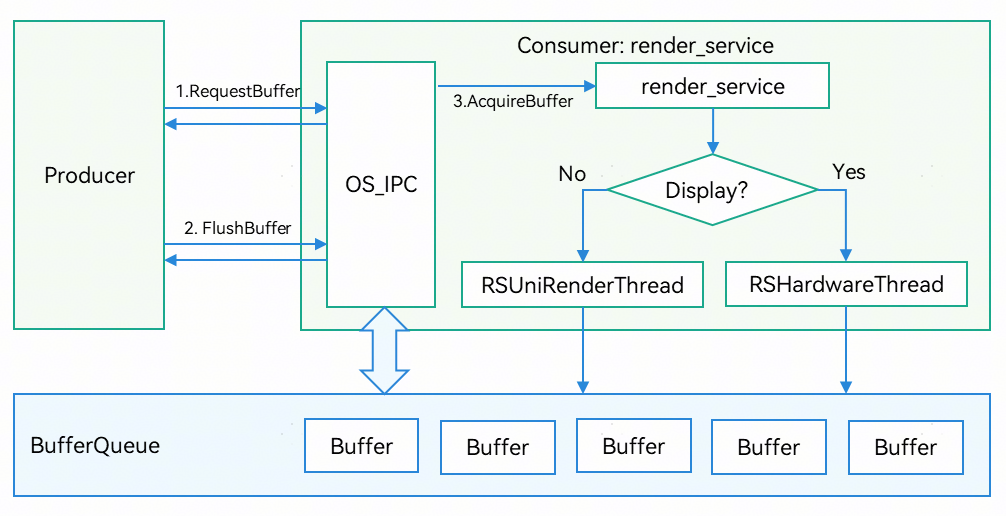
In HarmonyOS, the buffer is the main carrier for cyclic rendering of self-drawn content. Different from the unified execution of Vsync, the production of self-drawn content does not depend on system events, but is controlled by third parties. During rendering, the buffer rotates through BufferQueue. The producer-consumer design is adopted. An app acts as a producer to prepare the rendered content, and obtains the buffer from BufferQueue and flushes the buffer. The RS acts as a consumer to obtain the buffer through the AcquireBuffer API, and uses the buffer as a frame of the self-drawn surface to display on the screen. After using the buffer, the RS calls ReleaseBuffer to release the buffer to the rotation pool. The following figure shows the related transfer logic.
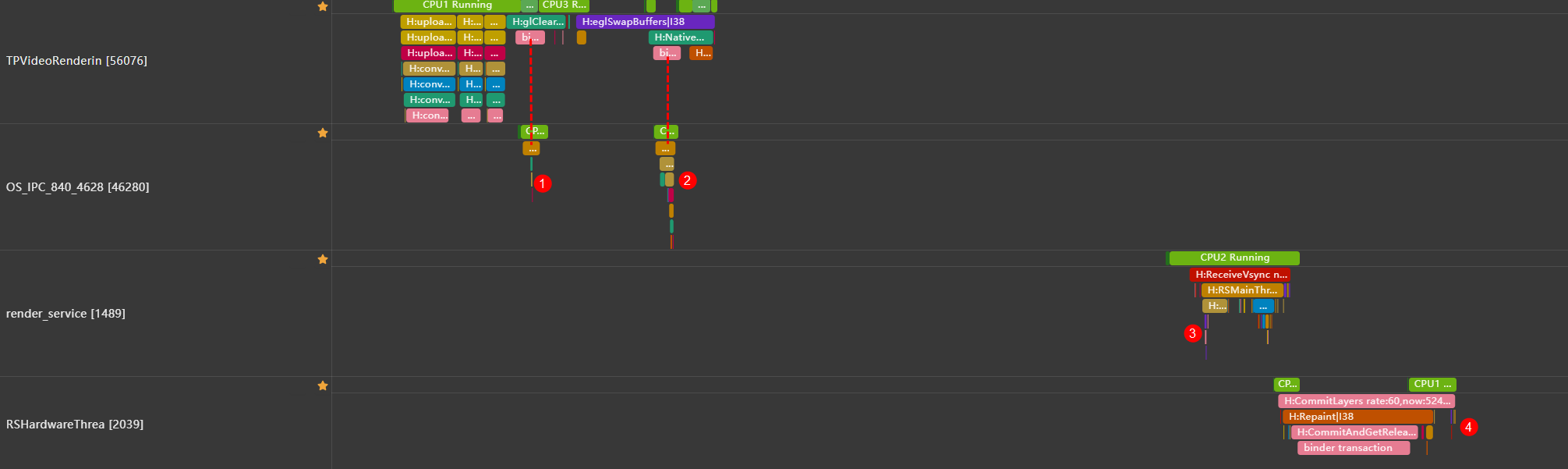
You can use the Trace tool of Profiler to analyze the buffer transfer process. You can top the related processes in the sequence shown in the following figure. OS_IPC contains cross-process communication information of render_service. You can find the corresponding producer process based on the binder by referring to the dotted line in the following figure. The meanings of the detailed trace points are as follows:
- "H:RequestBuffer name: xxx queueId: 6631429506443 queueSize: 5 reserveSlotNum: 0": It is located in the OS_IPC thread lane and indicates that the producer has requested to use one buffer frame. The connection is established with the producer's corresponding process via binder, and the producer executes the subsequent services.
- "H:FlushBuffer name: xxx queueId: 6631429506443 sequence: 97784886": It is located in the OS_IPC thread lane and indicates that the buffer of the surface named xxx has finished content production and has been handed over to the consumer through BufferQueue. queueId is the independent ID of the buffer sequence, and sequence is the independent ID of each buffer. At the same time, H:rs_RequestNextVSync can be found in OS_IPC, indicating that the RS will be started to execute subsequent services in the next Vsync cycle.
- "H:AcquireBuffer with PresentTimestamp name: xxx queueId: 6631429506443": It is located in the lane of the render_service thread and indicates that when the surface named xxx is collecting the rendering requests for this frame, the RS, acting as a consumer, requests this Buffer for subsequent frame rendering. If the buffer is successfully obtained, "H:acquire buffer sequence: 97784886" is printed in the sub-trace.
- "H:ReleaseBuffer name: xxx queueId: 6631429506443 seq: 97784892": It is located in the lane of the RSHardware or RSUniRenderThrea thread. It is usually displayed at the end of a frame in RSHardwareThread, indicating that the consumer has successfully used the buffer, released the buffer block, and returned the buffer block to the BufferQueue. If ReleaseBuffer appears in RSUniRender, the buffer does not need to be rendered on the screen. This is a buffer idle running problem.
Analysis
When locating a fault, you can perform the following steps to check whether the buffer usage is correct:
- Search for H:ReleaseBuffer in the RSHardwareThread lane. As shown in the following figure, RosenWeb and DisplayNode are released for a certain number of times in the selected period. You can collect statistics on the number of times based on Occurrence on the right. Because BufferQueue has a cyclic reuse mechanism, the same sequence is reused for multiple times. As shown in the figure, RosenWeb is formed by cyclically reusing five buffers. DisplayNode is a unified drawing layer obtained after an app process delivers a drawing instruction and performs rendering. Most ArkUI components are also refreshed in DisplayNode.

- Search for H:ReleaseBuffer in RSUniRenderThre. The buffer release process is also available in RSUniRenderThre. As shown in the following figure, the BufferQueue of a RosenWeb has cycled for 174 times within the selected period. The buffer does not actually cause the display effect, resulting in the buffer idle running.

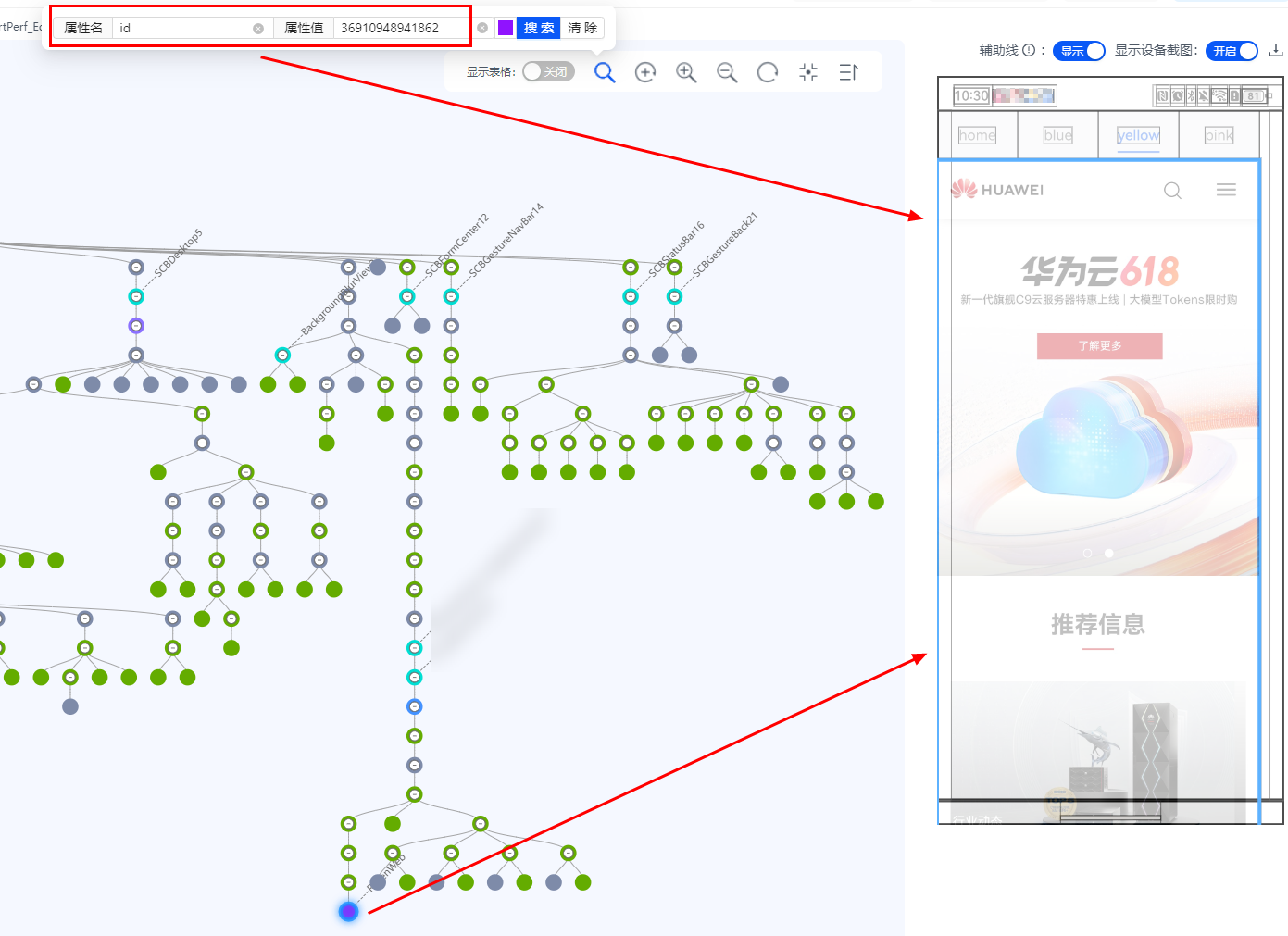
- Search for seq = [idle running buffer ID] in the render_service lane. If an idle-running BufferQueue is found, you can find a buffer ID, for example, 100151309, and search for it in render_service. The search result is as follows. In H:RsDebug surfaceHandler(id:xxx), you can confirm the node ID of the RS tree corresponding to the buffer.

You can use HiSmartPerf to expand the RS tree in the Whole Device Test > RS Tree Visualization area, search for the RS node corresponding to the BufferQueue by ID, and locate the self-drawing content that causes empty running. As shown in the following figure, the developer captures traces on the home page (TabIndex = 0) and detects the buffer idle-running issue. After finding the node ID through RsDebug, the developer searches for the node ID and finds that the issue is caused by web buffer pre-rendering when switching to the yellow page.

Generally, buffers that can cause idle running are not displayed on the screen. Therefore, they are not found on the current page. When using the tool, you can combine the page logic, scroll up and down, switch left and right, and trace back to the path page based on the problem reproduction procedure to find the faulty RS node.
[h2]Symptom
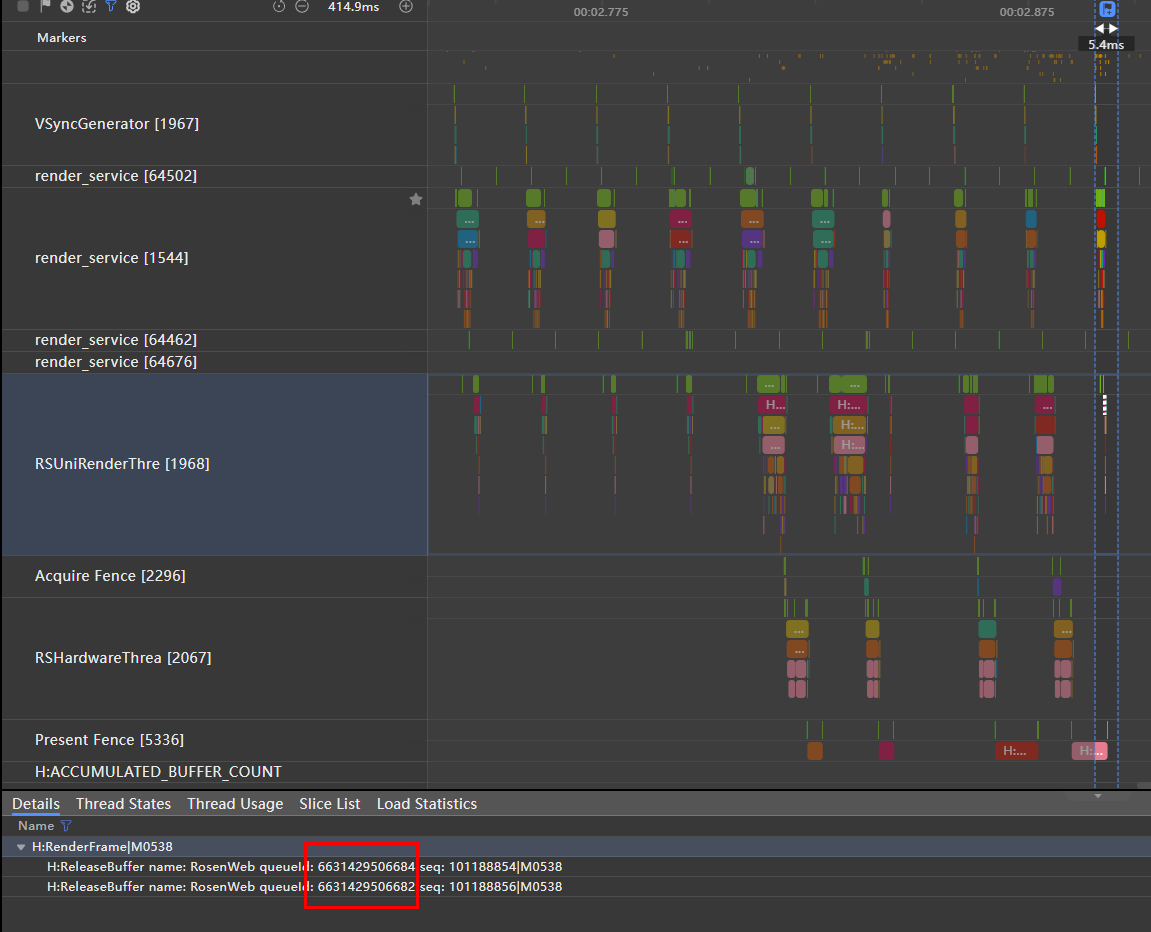
Web prerendering is a widely used performance optimization method. If web components are rendered before being mounted, the latency during the initial web loading can be effectively reduced. However, improper processing may also cause buffer idle-running issues. In web apps, for preloaded offline web nodes, you need to ensure that these background web nodes are frozen, which prevents continuous redundant buffers from affecting functionalities in normal scenarios. The following figure shows a trace of two web pages being preloaded via Tabs on a non-web home page. Analysis of the buffer release status reveals that the frame rate of RSUniRenderThread in the trace is higher than the actual display frame rate, indicating the presence of an idle running issue. Upon further observation, two ReleaseBuffer records are found in RSUni. They are from two different queue IDs. It can be inferred that there may be two offline web components rendering in the background, resulting in redundant load.
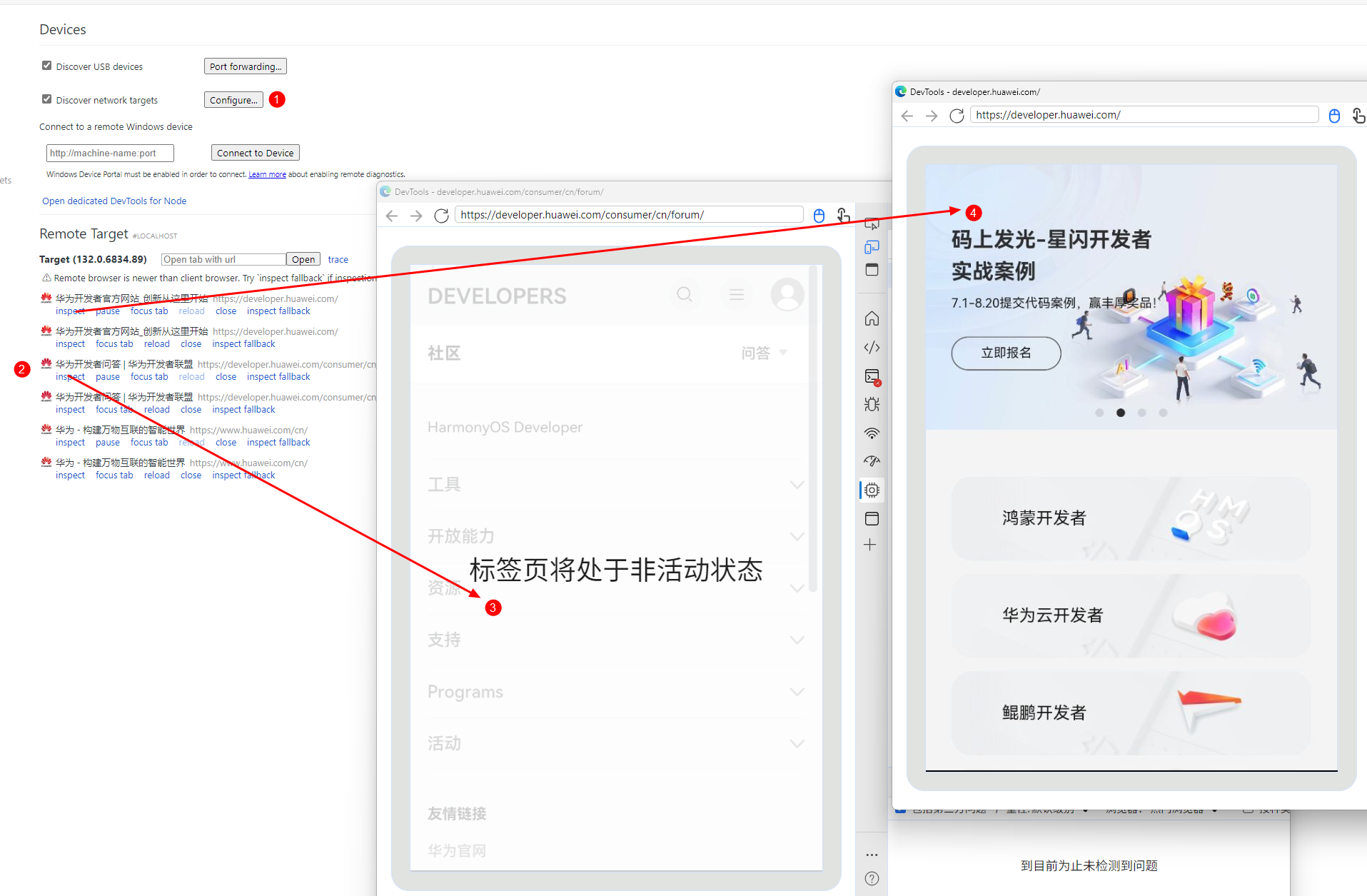
You can use the RS tree of HiSmartPerf to locate the buffer. In addition, you are advised to fully use the Web DevTools. For details, see Debugging Frontend Pages by Using DevTools. You can view the loading status of all web pages on the current page through port mapping. As shown in the following figure, after the port is successfully mapped, enter the mapped port in 1 and all created web objects are displayed in 2. You can click two web pages to view their states. For example, 3 and 4 correspond to the pages in the frozen and active states, respectively. You can click inspect to check the performance. The active/frozen state can be controlled via WebController.onActive/onInactive. As a rule, web pages outside the visible screen area should not remain active, to prevent their buffers from being prematurely occupied and causing unnecessary resource strain.
[h2]Optimization Approaches

Currently, the system has visibility callback integrated into web components to help you avoid most idle running issues. This API ensures that after a web component is mounted to the ArkUI tree, the controller is controlled based on the visibility of the web component. When the web component is invisible, it is set to a frozen state. Otherwise, it is set to an active state. However, the visibility API does not return results for offline components, which are controlled by third-party developers.
You can control the active and frozen states of the web component by using onActive() and onInactive() of WebviewController. Frozen web components in the background do not generate buffers, which ensures power consumption benefits. When you use offline web components or call preloaditems(), you are advised to add onFirstMeaningfulPaint() to the web container to ensure that the web components enter the frozen state after the first page rendering is complete during offline loading. This ensures that the first frame can be quickly opened when the pre-rendered web component is started, and redundant buffers are not generated in the background.
@Component
struct MyWebComponent {
  private src: string = ""
  private controller1: webview.WebviewController = new webview.WebviewController();
  shouldDraw: boolean = true;
  build() {
    Web({ src: this.src, controller: this.controller1 })
      .onPageBegin(() => {
        console.log(this.src, "webpage is onActive")
        this.controller1.onActive();
      })

      .onFirstMeaningfulPaint(() => {
        if (!this.shouldDraw) {
          return;
        }
        console.log(this.src, "webpage is onInactive")
        this.controller1.onInactive()
        this.shouldDraw = false
      })
  }
} 
Tab is a special loading structure. Its default switching animation constructs TabContent in the path. In this case, the web component in TabContent cannot respond to the visibility callback due to the implicit animation feature. For developers who use Tab+Web, it is recommended that preloadItems() be called to preload Tabs after the first frame of onFirstMeaningfulPaint() is frozen. If preloading is not performed, ensure that the controller is not set to the active state in onPageBegin().
[h2]Symptom
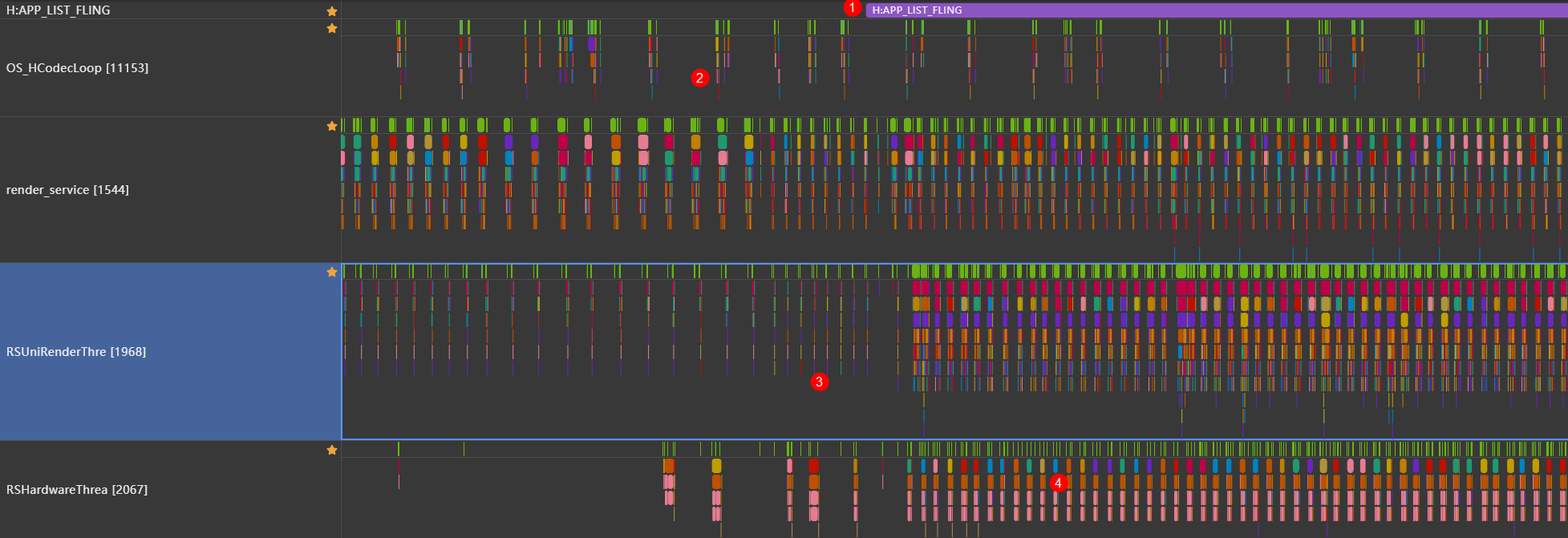
The preceding figure shows an app scenario where a Video component in a scrollable list slides from outside the screen to inside the screen. The information in 1 indicates the page sliding time, and the information in 2 indicates that the video hardware decoding process keeps being generated. According to the differences at 3 and 4, when the Video component is located outside the screen, RSUni continuously releases buffers due to continuous buffer production, causing idle running. In principle, the self-drawn layers used by developers need to add sufficient event listeners to their ArkUI carriers (such as Video and XComponent) to ensure that when they no longer need to be displayed, the production of buffers is stopped at the source.
[h2]Optimization Approaches
@Component
export struct MyVideoComponent {
  @State videoSrc: Resource | string = $r('app.media.test_video');
  private controller: VideoController = new VideoController();


  build() {
    Column() {
      Video({
        src: this.videoSrc,
        controller: this.controller,

      })
        .width(300)
        .height(200)
        .onPrepared(() => {
          this.controller.start();
        })
        // Play the video when its component is fully visible and pause it when it is completely off-screen.
        .onVisibleAreaChange([0.0], (isExpanding: boolean, currentRatio: number) => {
          if (isExpanding && currentRatio >= 1.0) {
            console.info('Component is completely visiable.');
            if (this.controller) {
              this.controller.start();
            }
          }
          if (!isExpanding && currentRatio <= 0.0) {
            console.info('Component is completely invisible.');
            if (this.controller) {
              this.controller.pause();
            }
          }
        })
    }
  }
}
As shown in the preceding code, you can use the visibility listener to determine whether the ArkUI component that presents the self-drawn content is in the display range. By controlling Video.controller, you can control the video to play when ArkUI is visible and stop when ArkUI is invisible.
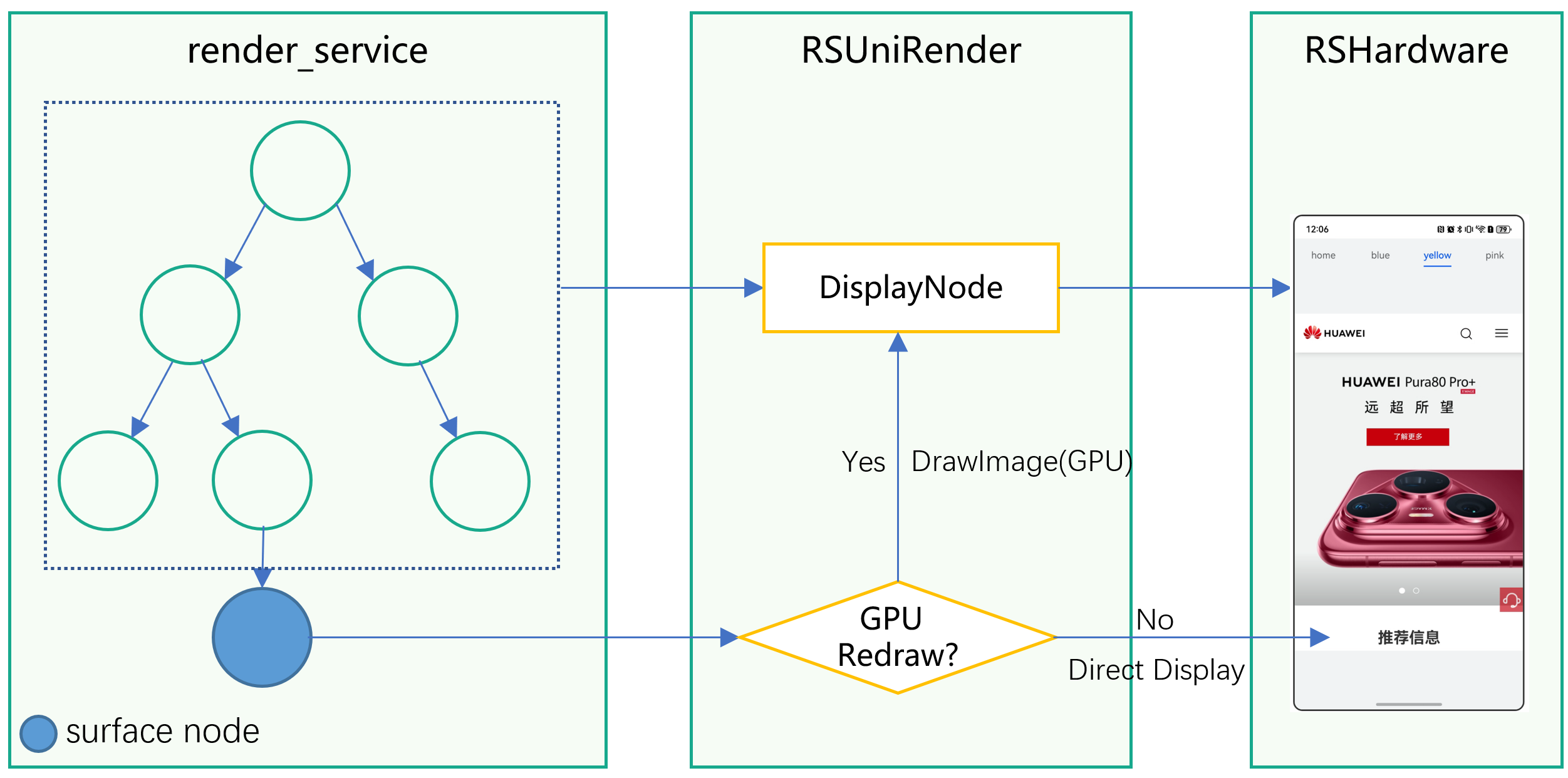
For an app page that uses self-drawing layers, you need to consider the overlapping relationship between self-drawing layers and the existing layers (such as DisplayNode) on the current page. In ideal cases, if no more overlapping calculation is required between the produced self-drawing layer and other layers, the self-drawing layer can be directly displayed by RSHardware without being processed by the RSUniRender thread. This display mode is called "straight-through". Conversely, if you set certain graphical drawing effects, such as blur, transparency, and lightening up, on the container that hosts the self-drawn component, then RSUniRender needs to perform overlapping calculation on the rendered buffer and the DisplayNode that functions as the background. In this case, the self-drawn layer must prematurely release the buffer in RSUniRender, and the content of the custom-drawn layer must be re-drawn by the GPU. The redrawn content is then reintegrated as part of the DisplayNode and handed over to RSHardware for display. This phenomenon can be referred to as "GPU redrawing".

GPU redrawing has a great impact on power consumption. In most cases, the display effect brought by the properties such as background color and transparency set by developers is not obvious under the overlay of the self-drawn layer. The production of self-drawn layers also consumes a large number of CPU and GPU computing resources. Therefore, continuous GPU redrawing occupies more computing resources and causes obvious heating. Specifically, for containers such as Web and XComponent, you are not advised to set the background color and transparency.
The following are some common root causes of GPU redrawing:
- Filter effect: If the self-drawn layer itself or any overlapping components have filter effects, such as blur, lightening up, and blendMode, this will trigger the GPU recomputation of the layer.
- Background color: The background color of the layer has transparency. As a result, the layer has to be superimposed with other layers during synthesis.
- Layer format: For pass-through drawing of the current system, the rotated buffer in non-HEBC format cannot be directly synthesized online. In video playback, call, and conference scenarios, you are advised to disable the CPU access to window buffers (adapting to the HEBC format). Layers in HEBC format are more friendly to the CPU during drawing, which brings better power consumption performance and reduces the risk of overheating.
[h2]Troubleshooting
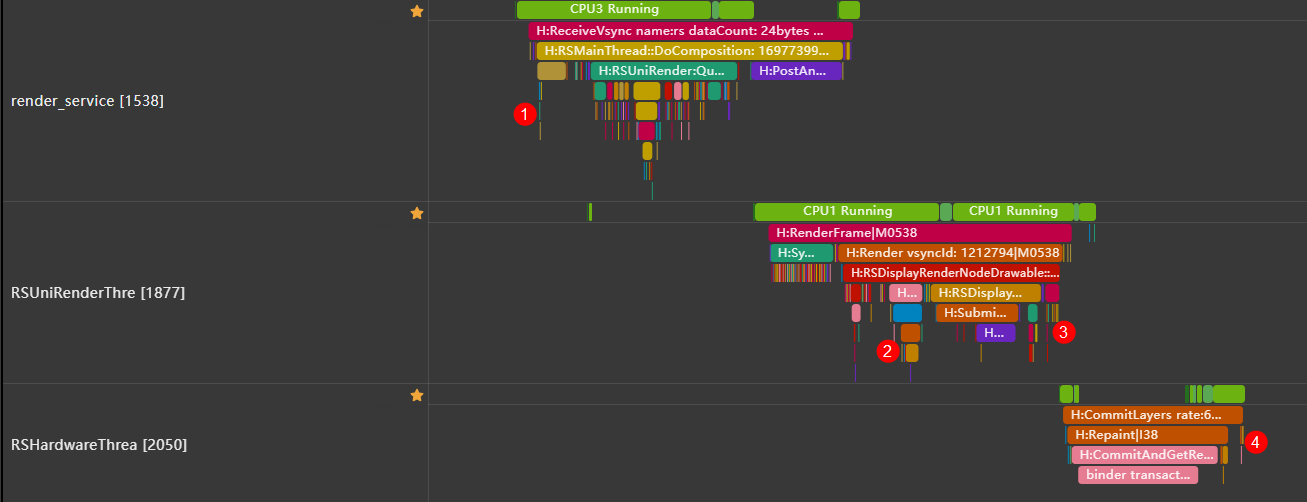
You can search for DrawImage to determine whether GPU redrawing occurs. As shown in the preceding figure, the transparency is set for a pure adaptation playback layer, causing GPU redrawing. You can locate the problem based on the following trace points:
- "H:AcquireBuffer name: Surface queueId: 6605659702100": indicates the time when the buffer of the self-drawing layer is obtained.
- "H:RSBaseRenderEngine::DrawImage(GPU) targetColorGamut=4": DrawImage(GPU) indicates that GPU redrawing occurs. targetColorGamut=4 indicates that the surface has four buffers during synthesis. The three fixed buffers are Display and two fixed rounded-corner layers. If the value is greater than 3, buffers from other sources are redrawn and enter the DisplayNode.
- "H:ReleaseBuffer name: Surface queueId: 6605659702100 seq: 100801225": The buffer is released in RSUni. At this time, the buffer content has been stored in the DisplayNode and the buffer flows into the BufferQueue again.
- "H:ReleaseBuffer name: DisplayNode queueId: 6605659701285 seq: 100798111": The DisplayNode is released in RSHardware.

In the case shown in the preceding figure, render_service does not contain valid information about ProcessCommandUni or Animate, indicating that no refresh task is executed in the DisplayNode. However, due to GPU redrawing, the DisplayNode also participates in the buffer rotation process and the layer calculation power consumption is generated.
[h2]Optimization Approaches
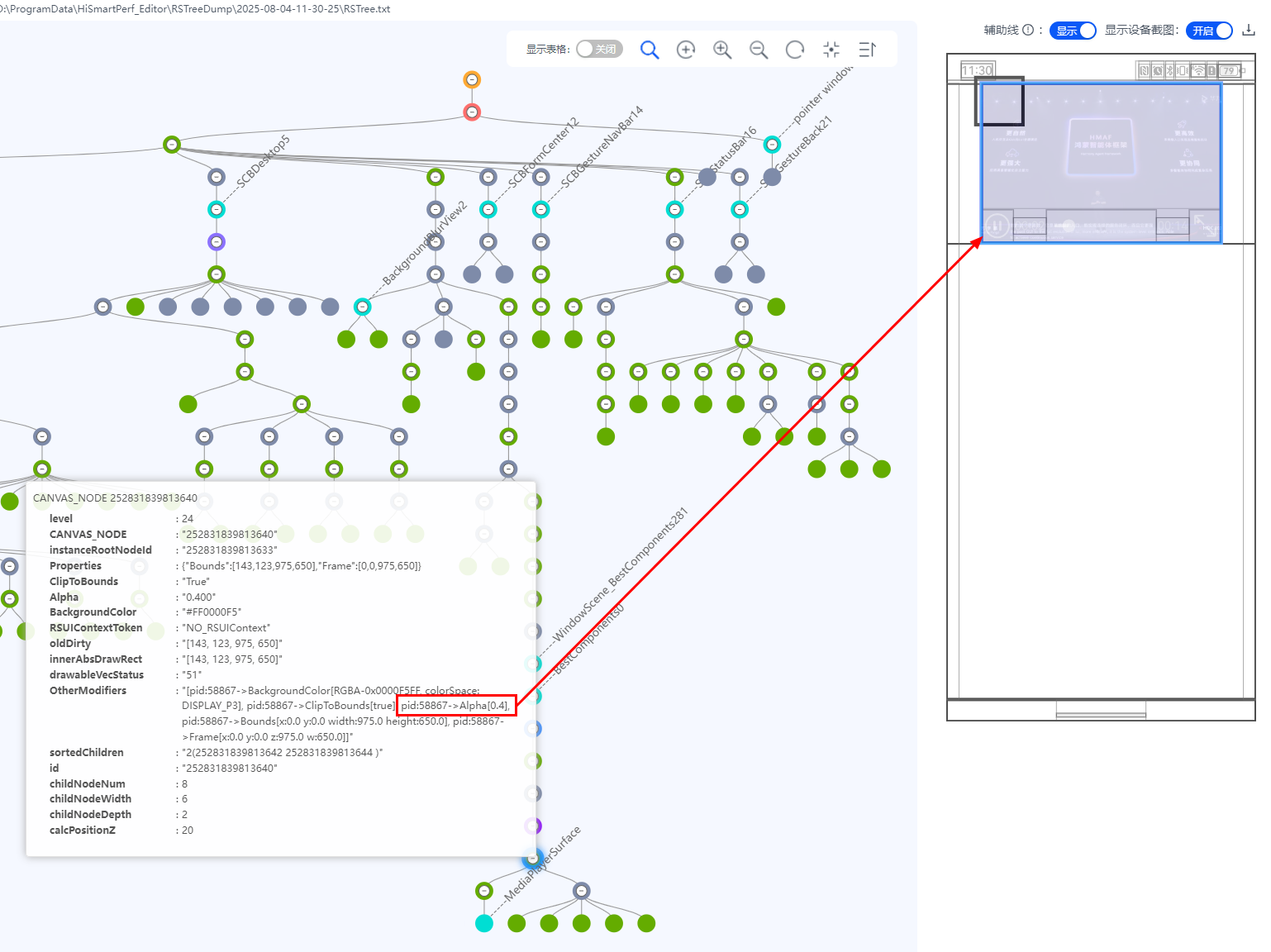
As shown in the above figure, you can use HiSmartPerf's RS tree to view suspicious nodes. In OtherModifier, it can be seen that a process with PID 58867 added an Alpha transparency value of 0.4 to the node. Using this information, the corresponding code snippet can be further identified, as shown in the following code. After commenting out the transparency effect, the issue no longer occurs.
@Component
export struct MyVideoComponent_opacity {
  @State videoSrc: Resource | string = $r('app.media.test_video');
  private controller: VideoController = new VideoController();


  build() {
    Column() {
      Video({
        src: this.videoSrc,
        controller: this.controller,

      })
        .width(300)
        .height(200)
        // .opacity(0.4): Comment out the code snippet to avoid GPU redrawing.
        .onPrepared(() => {
          this.controller.start();
        })
    }
  }
}
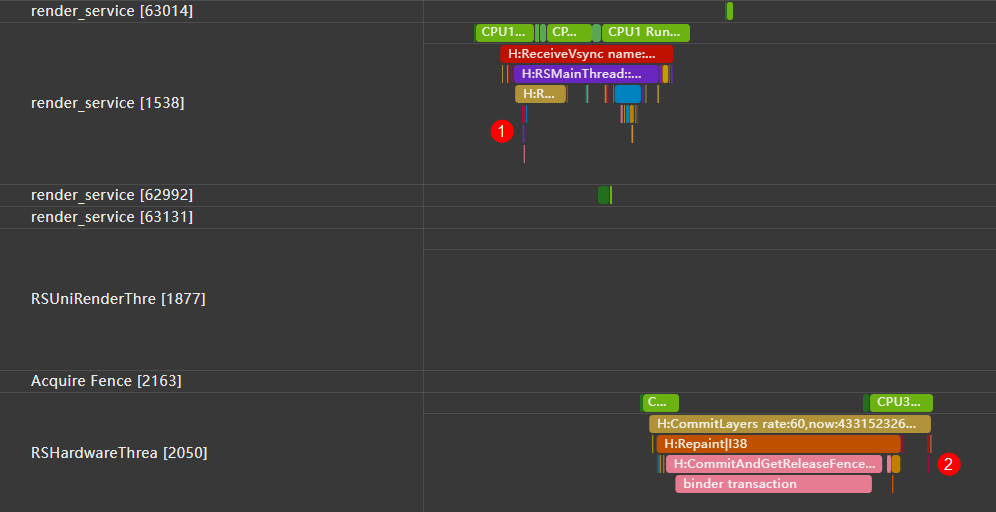
The following figure shows the modified trace. In pass-through mode, the self-drawing layer obtains the buffer at 1 and releases the buffer at 2. The RSUniRender does not need to perform redrawing calculation, and the DisplayNode is not refreshed, achieving the expected low-power effect.

The following effects will cause GPU redrawing at the self-drawing layer. You are not advised to integrate them unless necessary.
- Use the opacity property to set the transparency for self-drawing components.
- Use foregroundEffect to implement foreground blur and blur to implement background blur.
- Use grayscale to implement the grayscale effect.
- Use lightUpEffect to forcibly darken and brighten the layer.
- Note: For Web and XComponent, you are advised to set the background color to opaque black or do not set the backgroundColor property.