Overview
On a complex app page, when multiple components are nested and bound to a gesture event at the same time, or the same component is bound to multiple gestures at the same time, gesture event conflicts may occur.
This topic starts with the event response mechanism, describes the basic process of gesture triggering, how to respond to gesture events, understand the execution principles, and solve conflicts. The following sections are included:
- Event response chain collection
- Gesture response priority
- Gesture response control
- Common gesture conflicts
Event Response Chain Collection
In HarmonyOS development, the touch event (onTouch) is the basis for the interaction between users and devices, and is the foundation of all gestures. It comes in four touch types: Down, Move, Up, and Cancel. A gesture is a sequence of touch events. For example, tap gestures include Down and Up events, and swipe gestures include Down, Move, and Up events.
The distribution of touch events is determined by the touch test (TouchTest) result. The result directly determines the components whose events are added to the event response chain (a linked list consisting of event response members) and determines whether the events are consumed based on the response chain sequence. Therefore, understanding the process of collecting a touch event response chain helps you address the gesture event conflicts.
In ArkUI, the event response chain is collected based on a right subtree priority, which follows a post-order traversal process according to the layout hierarchy of components. The process is as follows:
build() {
  StackA() {
    ComponentB() {
      ComponentC()
    }

    ComponentD() {
      ComponentE()
    }
  }
}
A is the outermost component, B and D are child components of A, C is a child component of B, and E is a child component of D. The following figure shows the UI effect and component tree structure.
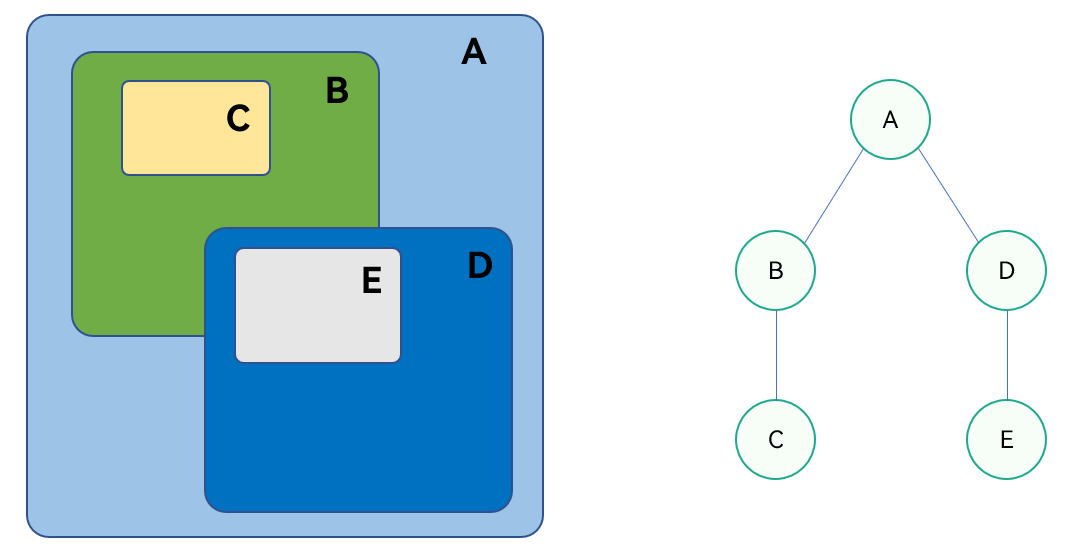
If the user touches component C, the event response chain is collected based on a right subtree priority, which follows a post-order traversal process according to the layout hierarchy of components. Because the touch point is not in the right tree, the event is uploaded from node C in the left tree, the onTouch event is a bubbling event that is passed upwards by default until it is consumed or discarded. Multiple components can trigger the event at the same time. Finally, the collected response chain is C > B > A.

If the user touches component E, the event response chain is collected based on a right subtree priority, which follows a post-order traversal process. Therefore, the event is uploaded from node D in the right tree. Although the touch point is on the intersection of component D and component B, the hitTestBehavior attribute of component D is HitTestMode.Default. After collecting the event, component D blocks the sibling node (component B), so the left subtree of component A is not collected. The collected response chain is E->D->A.
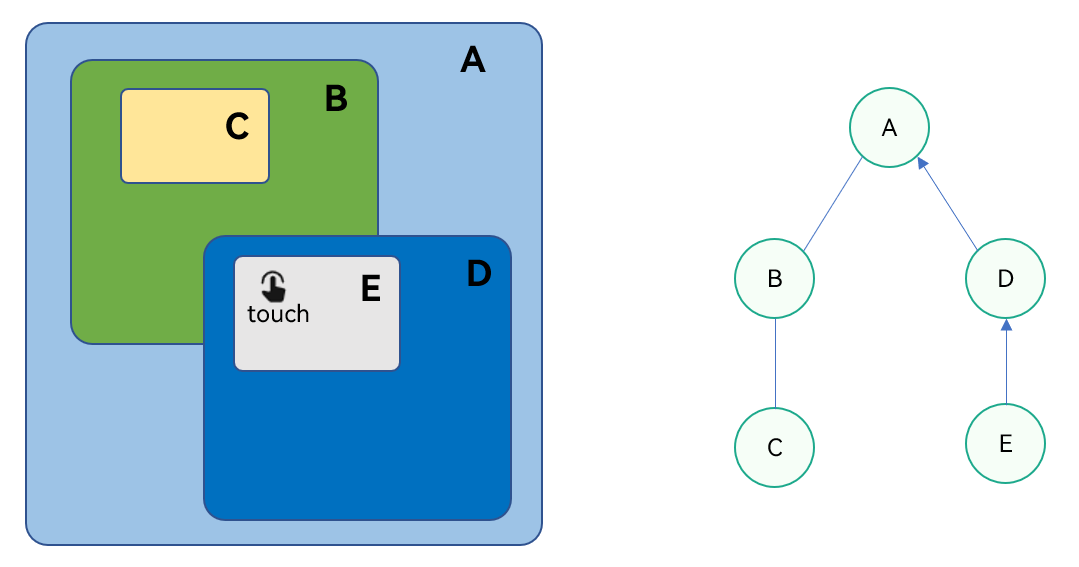
The event response chain described above is the default behavior of the system. If you need to change the response member, for example, when you touch component E, how can the event be passed to component B? You can set the hitTestBehavior attribute of component D to HitTestMode.None or HitTestMode.Transparent. For example, if HitTestMode.Transparent is set, component D performs the touch test without blocking the sibling and parent components. Finally, the collected response chain is E > D > B > A.

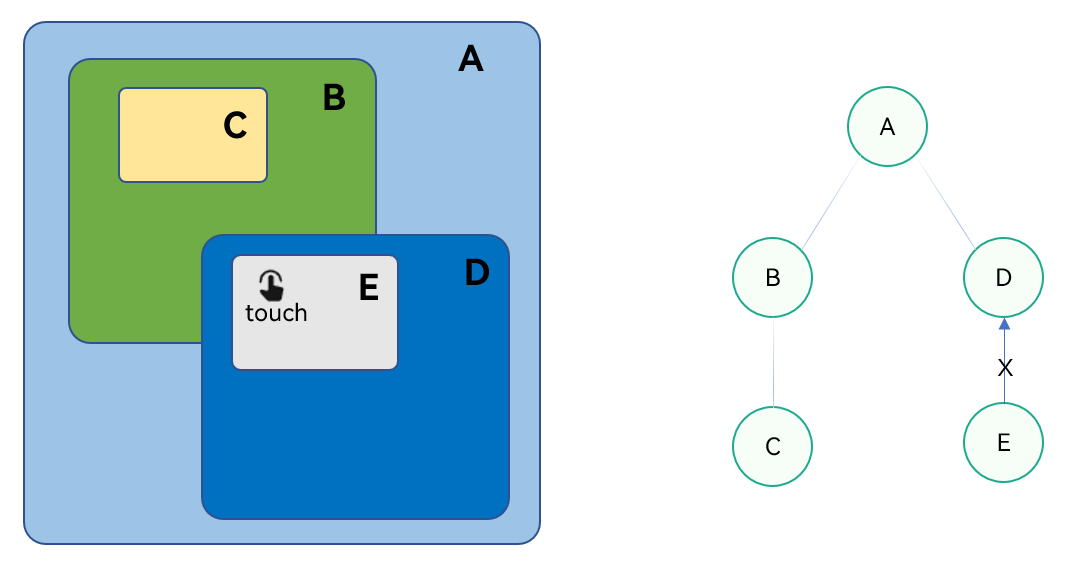
For another example, to make only the component E respond to a touch event when this component is touched, you can use stopPropagation() of TouchEvent to prevent touch event from bubbling and being passed upwards. You can also set the hitTestBehavior attribute of component E to HitTestMode.Block. In this case, only component E is collected in the response chain.
For more factors that affect the event response chain, see Hit Test Control.
Gesture Response
Based on the event response chain collection, the response chain members and event response sequence are determined. However, when processing some services, you need to add more gestures and events to one or more components, such as onClick and API gestures. Which event will be responded? In this case, you need to understand the priority of gesture response. This section mainly describes the priority of gestures and gesture control.
[h2]Gesture Response Priority
Gestures are classified into the following types:
- System gestures: default gestures (built-in gestures for calling common events) implemented by system components, such as drag gesture of onClick, click event of bindMenu, and long press gesture of bindContextMenu.
- Custom gestures: gesture API that is bound, for example, using the event callback declared by gesture to bind the long press gesture event method.
All gestures and events except the touch event (onTouch) are implemented using basic or combined gestures. For example, the drag event is a sequence of a long press gesture and a swipe gesture.
By default, these gestures are non-bubbling events. When the parent component and child component are bound to gestures of the same type, their gesture events compete with each other, and the child component preferentially recognizes the bound gestures.
Therefore, unless it is explicitly declared that multiple gestures can be recognized at the same time, only one gesture is handled at once.
- When the parent and child components are bound to the same type of gesture, the child component responds prior to the parent component.
- When a component is bound to multiple gestures, the gesture that first meets triggering conditions is preferentially triggered.
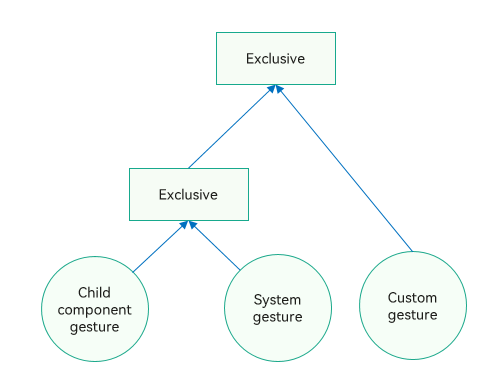
- When a component is bound to a system gesture and a custom gesture of the same event type, the system gesture is preferentially responded. For example, both the custom gesture TapGesture and the system gesture onClick are tap events, but the onClick event is preferentially responded.
[h2]Gesture Response Control
The foregoing describes a default priority sequence of gestures. When parent and child components are nested, both of them are bound to a gesture or an event, or when a same component is bound to multiple gestures at the same time, the following factors need to be controlled based on service logic: whether a gesture needs to be responded to, who the gesture is distributed for response, and the respond sequence. Next, the following gesture response control methods are available for you to use.
1. Gesture Binding
When binding a parent component and a child component to the same gesture, you can assign different response priorities to them by using different gesture binding methods. The following table lists three methods.
Name | Function Specification | Parameter 1 | Parameter 2 | Constraints |
|---|---|---|---|---|
gesture | Binds a gesture event. The overlapping areas of the parent and child components are bound to respond to the child component. | GestureType | GestureMask | Preemption with common events. |
priorityGesture | When priorityGesture is configured for the parent component, the gesture bound to this parent component is preferentially recognized. | GestureType | GestureMask | Preemption with common events. |
parallelGesture | When parallelGesture is configured for the parent component, the same gesture events of the parent and child components can be triggered. | GestureType | GestureMask | None. |
The priority of the gesture mentioned above is the default priority. After the priorityGesture and parallelGesture binding methods are introduced, the gesture response sequence is shown as follows.
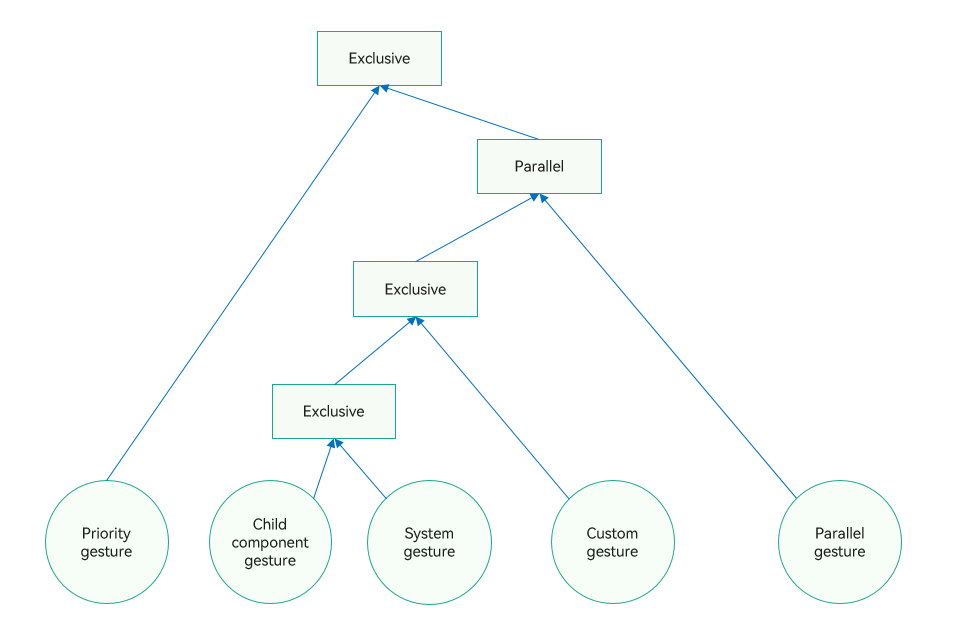
GestureMask Enums
Name | Description |
|---|---|
Normal | The gestures of child components are enabled and recognized based on the default gesture recognition sequence. |
IgnoreInternal | The gestures of child components are disabled, including the built-in gestures, such as the built-in swipe gesture for a List component. If the areas of the parent and child components are partly overlapped, only gestures in the overlapped areas are disabled. |
Parameter Specifications of Different Gesture Binding Methods
Parent Gesture | Child Gesture | GestureMask (Parent) | Same Event Responder in the Overlapped Area | Different Event Responders in the Overlapped Area |
|---|---|---|---|---|
gesture | gesture | default | Child components | Respective response |
gesture | gesture | IgnoreInternal | Parent component | Parent component |
priorityGesture | gesture | default | Parent component | Respective response |
priorityGesture | gesture | IgnoreInternal | Parent component | Parent component |
parallelGesture | gesture | default | Respective response | Respective response |
parallelGesture | gesture | IgnoreInternal | Parent component | Parent component |
Combined Gestures (GestureGroup)
A combined gesture is a combination of multiple single gestures. Several gestures can be added to the same component through the GestureGroup attribute. Sequential recognition, parallel recognition, and exclusive recognition are supported for a group of gestures. You can select a proper mode based on service requirements.
API | Optional Mode | Description | Registration Event |
|---|---|---|---|
GestureGroup | Sequence | Continuous recognition. Gestures queue in sequence and need to be recognized based on the preset sequence. If one gesture fails, all gestures fail. | onCancel |
GestureGroup | Parallel | Parallel recognition. The combined gestures are simultaneously recognized until all gestures are recognized. | None. |
GestureGroup | Exclusive | Exclusive recognition. If a gesture is successfully recognized, the recognition completes. | None. |
You can configure a component to monopolize events – built-in events and custom gesture events through the monopolizeEvents attribute. The component that first responds to the event serves as the first responder, and other components do not respond to any event before the finger leaves the screen,
so that if the component first responds to an event in a window, it will be the only component that responds to the event.
If a component is bound through parallelGesture to a gesture, for example, PanGesture, that can also be triggered by its child component, and the child component is configured to monopolize events, then the parent will not respond to the gesture after the child component has responded to it.
You can use the custom gesture judgment APIs to specify whether to respond to specific gestures when they are being recognized. For example, the onGestureJudgeBegin method can be used to specify.
4. Gesture Blocking Enhancement
You can use the gesture blocking APIs to perform parallel processing on built-in gestures and gestures with higher priorities on the response chain as required, and dynamically control the triggering of gesture events.
5. responseRegion and hitTestBehavior
Factors affecting the touch test may also affect the gesture response process. Specifically, use the responseRegion and hitTestBehavior attributes to control dispatching of touch events, thereby affecting the response to the onTouch events and gestures. You can also call gesture binding methods to control gesture competition and affect gesture response, but this approach does not affect triggering of onTouch events.
6. Gesture Response Controlled by the ArkUI Component's Attributes
The ArkUI component can also control the response to gesture events. For example, scrollable container components such as Grid, List, Scroll, Swiper, and WaterFlow provide the nestedScroll attribute to solve conflicts with the nested scrolling of the parent component. The disableSwipe attribute of Swiper can be set to disable the swipe-to-switch feature of the component. The enableScrollInteraction attribute of List can be set to enable or disable gesture-based scrolling.
Common Gesture Conflicts
The foregoing lists some common gesture response control methods. Next, the following will describe how to use these methods to resolve common gesture conflicts.
[h2]Scrolling Container Nesting
1. Swipe event conflict occurs when a List component is nested in a Scroll component
When a List component is nested in the Scroll component, the priority of the swipe gesture of the List is higher than that of the Scroll. Therefore, when the List component is scrolled, it does not respond to the scroll event of the Scroll component, and both components do not scroll together. To scroll the two components synchronously, you can use the nestedScroll attribute to set the nested scrolling mode in the forward and backward directions, enabling the child component to scroll together with the parent component.
In the nestedScroll attribute, when NestedScrollMode is set to SELF_FIRST, the parent component continues to scroll after the List component scrolls to the edge of the page. When NestedScrollMode is set to PARENT_FIRST, the parent component scrolls first. After the parent component scrolls to the edge of the page, the List component is notified to continue scrolling. The sample code is as follows:
@Entry
@Component
struct GesturesConflictScene1 {
  build() {
    Scroll() {
      Column() {
        Column()
          .height('30%')
          .width('100%')
          .backgroundColor(Color.Blue)
        List() {
          ForEach([1, 2, 3, 4, 5, 6], (item: string) => {
            ListItem() {
              Text(item.toString())
                .height(300)
                .fontSize(50)
                .fontWeight(FontWeight.Bold)
            }
          }, (item: number) => item.toString())
        }
        .edgeEffect(EdgeEffect.None)
        .nestedScroll({
          scrollForward: NestedScrollMode.PARENT_FIRST,
          scrollBackward: NestedScrollMode.SELF_FIRST
        })
        .height('100%')
        .width('100%')
      }
    }
    .height('100%')
    .width('100%')
  }
}
2. Swipe event conflict occurs when a Web component is nested in a List or Scroller component
When a Web component is nested in the List component and the web page loaded in the Web component also contains a scrollable view, scrolling the Web component up or down will not result in synchronous scrolling with the entire List component. This is because the swipe event of the Web component conflicts with the List component. If you want the Web component to scroll with the List component, add the nestedScroll attribute to the Web component.
Web(
  // ...
)
  .nestedScroll({
    scrollForward: NestedScrollMode.PARENT_FIRST,
    scrollBackward: NestedScrollMode.SELF_FIRST
  })
For details about the implementation, see Implementing Nested Scrolling.
[h2]Binding Multiple Gestures of the Same Type When Using a Combined Gesture
When TapGesture is set for both tap and double-tap gestures of a component, the double-tap gesture is invalid. This is because in the combined gestures that are in exclusive recognition mode, the gestures are recognized in the declared sequence. If one gesture is successfully recognized, the gesture recognition ends. In the following sample code, the tap gesture is placed in front of the double-tap gesture. Therefore, when a user double-taps, the tap gesture is recognized first and the double-tap gesture will not be recognized.
@Entry
@Component
struct GesturesConflictScene2 {
  @State count1: number = 0;
  @State count2: number = 0;

  build() {
    Column() {
      Text('Exclusive gesture\n' + 'Click count is:' + this.count1 + '\nDouble click count is:' + this.count2 + '\n')
        .fontSize(28)
    }
    .height(200)
    .width('100%')
    // The following gestures are mutually exclusive. After the gesture is successfully recognized, the gesture cannot be recognized by double-clicking
    .gesture(
      GestureGroup(GestureMode.Exclusive,
        TapGesture({ count: 1 })
          .onAction(() => {
            this.count1++;
          }),
        TapGesture({ count: 2 })
          .onAction(() => {
            this.count2++;
          })
      )
    )
  }
}
You can set GestureMode to Parallel to enable parallel gesture recognition.
.gesture(
  GestureGroup(GestureMode.Parallel,
    TapGesture({ count: 2 })
      .onAction(() => {
        this.count2++;
      }),
    TapGesture({ count: 1 })
      .onAction(() => {
        this.count1++;
      })
  )
)
[h2]Conflict Between System Gestures and Custom Gestures
For gestures of the same type, system gesture is preferentially recognized. You can use priorityGesture or parallelGesture to bind custom gestures.
For example, the response to the long press gesture on an image fails. After the long press gesture is added to the Image component, long pressing the image does not trigger the corresponding method but triggers a zoom-in animation. The sample code is as follows:
@Entry
@Component
struct GesturesConflictScene3 {
  @State message: string = 'Hello World';

  build() {
    Row() {
      Column() {
        Text(this.message)
          .fontSize(50)
          .fontWeight(FontWeight.Bold)
        Image($r('app.media.startIcon'))
          .margin({ top: 100 })
          .width(360)
          .height(360)
          .gesture(
            LongPressGesture({ repeat: true })
              .onAction((event: GestureEvent) => {
              })
              // The long press action ends
              .onActionEnd(() => {
                try {
                  this.getUIContext().getPromptAction().showToast({ message: 'Long Press' });
                } catch (err) {
                  let error = err as BusinessError;
                  hilog.error(0x0000, 'testTag', `showToast err, code: ${error.code}, mesage: ${error.message}`);
                }
              })
          )
      }
      .width('100%')
    }
    .height('100%')
  }
}
This is because the long press gesture built in the Image component conflicts with the custom LongPressGesture. You can use priorityGesture to bind gestures instead of using gesture. In this way, only the custom LongPressGesture is responded. If both of long press gestures need to be executed, you can use the parallelGesture binding method.
.priorityGesture(
  LongPressGesture({ repeat: true })
    .onAction((event: GestureEvent) => {
    })
    .onActionEnd(() => {
      try {
        this.getUIContext().getPromptAction().showToast({ message: 'Long Press' });
      } catch (err) {
        let error = err as BusinessError;
        hilog.error(0x0000, 'testTag', `showToast err, code: ${error.code}, mesage: ${error.message}`);
      }
    })
  )
[h2]Gesture Event Transparent Transmission
Similar to touch events, gesture events can also be transparently transmitted through the hitTestBehavior attribute. In the following example, after the hitTestBehavior attribute of the upper-layer Column component is set to HitTestMode.None, the SwipeGesture can be transparently transmitted to the overwritten Column component. The HitTestMode.None does not receive events, but does not block sibling components and child components to continue the touch testing.
import { BusinessError } from '@kit.BasicServicesKit';
import { hilog } from '@kit.PerformanceAnalysisKit';

@Entry
@Component
struct GesturesConflictScene4 {
  build() {
    Stack() {
      Column()// The bottom column
        .width('100%')
        .height('100%')
        .backgroundColor(Color.Black)
        .gesture(
          SwipeGesture({ direction: SwipeDirection.Horizontal })// Horizontal swipe gesture
            .onAction((event) => {
              if (event) {
                try {
                  this.getUIContext().getPromptAction().showToast({ message: 'SwipeGesture' });
                } catch (err) {
                  let error = err as BusinessError;
                  hilog.error(0x0000, 'testTag', `showToast err, code: ${error.code}, mesage: ${error.message}`);
                }
              }
            })
        )
      Column()// The upper-level column
        .width(300)
        .height(100)
        .backgroundColor(Color.Red)
        .hitTestBehavior(HitTestMode.None)
    }
    .width(300)
    .height(300)
  }
}
[h2]Gesture Conflict in Multi-Touch Scenarios
If multiple components on a page can respond to gesture events, several components may respond to gesture events at the same time when multiple fingers touch the screen, resulting in service exceptions. ArkUI provides the monopolizeEvents attribute, which is exclusively used by gestures. To solve this problem, set monopolizeEvents to true in the component that needs to respond to events separately.
In the following example, .monopolizeEvents (true) is set for Button1. When a finger touches Button 1, gestures and events of other components are not triggered until the finger leaves.
import { hilog } from '@kit.PerformanceAnalysisKit';
import { BusinessError } from '@kit.BasicServicesKit';

@Entry
@Component
struct GesturesConflictScene5 {
  @State message: string = 'Hello World';

  build() {
    Column() {
      Row({ space: 20 }) {
        Button('Button1')
          .width(100)
          .height(40)
          .monopolizeEvents(true)
        Button('Button2')
          .width(200)
          .height(50)
          .onClick(() => {
              try {
                this.getUIContext().getPromptAction().showToast({ message: 'GesturesConflictScene5 Button2 click' });
              } catch (err) {
                let error = err as BusinessError;
                hilog.error(0x0000, 'testTag', `showToast err, code: ${error.code}, mesage: ${error.message}`);
              }
          })
      }
      .margin(20)

      Text(this.message)
        .margin(15)
    }
    .width('100%')
    .gesture(
      TapGesture({ count: 1 })
        .onAction(() => {
          console.info('GesturesConflictScene5 TapGesture onAction.');
        }),
    )
  }
}
[h2]Dynamically Controlling the Custom Gesture Response
During gesture recognition, you can determine whether the system responds to the gesture. In the following sample code, the onGestureJudgeBegin callback method is used for determination. When the gesture is GestureType.DRAG, it is not responded and the defined onDragStart event becomes invalid.
@Entry
@Component
struct GesturesConflictScene6 {
  @State message: string = 'Hello World';

  build() {
    Column()
      .width('100%')
      .height(200)
      .backgroundColor(Color.Brown)
      .onDragStart(() => {
        console.info('GesturesConflictScene6 Drag start.');
      })
      .gesture(
        TapGesture({ count: 1 })
          .tag('tap1')
          .onAction(() => {
            console.info('GesturesConflictScene6 TapGesture onAction.');
          }),
      )
      .onGestureJudgeBegin((gestureInfo: GestureInfo, event: BaseGestureEvent) => {
        if (gestureInfo.type === GestureControl.GestureType.LONG_PRESS_GESTURE) {
          let longPressEvent = event as LongPressGestureEvent;
          console.info('GesturesConflictScene6: ' + longPressEvent.repeat);
        }
        if (gestureInfo.type === GestureControl.GestureType.DRAG) {
          // Returning to the REJECT will fail the drag gesture
          return GestureJudgeResult.REJECT;
        } else if (gestureInfo.tag === 'tap1' && event.pressure > 10) {
          return GestureJudgeResult.CONTINUE
        }
        return GestureJudgeResult.CONTINUE;
      })
  }
}
[h2]Managing Child component Gesture by Parent Component
If a scroll gesture conflict occurs when the parent and child components are nested, the parent component has a mechanism to intervene in the gesture response of the child component. The following example shows how to use gesture blocking enhancement APIs to dynamically control the inner and outer Scroll gesture events in the shouldBuiltInRecognizerParallelWith and onGestureRecognizerJudgeBegin callbacks of the outer Scroll component.
1. Collect gestures that require parallel recognition by calling the shouldBuiltInRecognizerParallelWith method of the parent component Scroll. In the sample code, the gesture recognizer childRecognizer of the child component is collected, so that it can be recognized in parallel mode with the gesture recognizer currentRecognizer of the parent component.
2. Optimize the gesture recognizer availability by calling the onGestureRecognizerJudgeBegin method. This method determines if the scrollable component has reached the top or bottom, and based on the service logic, dynamically enables or disables the childRecognizer and currentRecognizer within the parallel processor.
@Entry
@Component
struct GesturesConflictScene7 {
  scroller: Scroller = new Scroller();
  scroller2: Scroller = new Scroller();
  private arr: number[] = [0, 1, 2, 3, 4, 5, 6, 7, 8, 9];
  private childRecognizer: GestureRecognizer = new GestureRecognizer();
  private currentRecognizer: GestureRecognizer = new GestureRecognizer();

  build() {
    Stack({ alignContent: Alignment.TopStart }) {
      Scroll(this.scroller) { // External rolling container
        Column() {
          Text('Scroll Area')
            .width('100%')
            .height(150)
            .backgroundColor(0xFFFFFF)
            .borderRadius(15)
            .fontSize(16)
            .textAlign(TextAlign.Center)
            .margin({ top: 10 })
          Scroll(this.scroller2) { // internal rolling container
            Column() {
              Text('Scroll Area2')
                .width('100%')
                .height(150)
                .backgroundColor(0xFFFFFF)
                .borderRadius(15)
                .fontSize(16)
                .textAlign(TextAlign.Center)
                .margin({ top: 10 })
              Column() {
                ForEach(this.arr, (item: number) => {
                  Text(item.toString())
                    .width('100%')
                    .height(200)
                    .backgroundColor(0xFFFFFF)
                    .borderRadius(15)
                    .fontSize(20)
                    .textAlign(TextAlign.Center)
                    .margin({ top: 10 })
                }, (item: string) => item)
              }
              .width('100%')
            }
          }
          .id('innerScroll')
          .scrollBar(BarState.Off) // The scroll bar is always displayed
          .width('100%')
          .height(800)
        }.width('100%')
      }
      .id('outerScroll')
      .height(600)
      .scrollBar(BarState.Off) // The scroll bar is always displayed
      .shouldBuiltInRecognizerParallelWith((current: GestureRecognizer, others: Array<GestureRecognizer>) => {
        for (let i = 0; i < others.length; i++) {
          let target = others[i].getEventTargetInfo();
          if (target) {
            if (target.getId() === 'innerScroll' && others[i].isBuiltIn() &&
              others[i].getType() === GestureControl.GestureType.PAN_GESTURE) { // Find the recognizer that will form the parallel gesture
              this.currentRecognizer = current; // Save the recognizer of the current component
              this.childRecognizer = others[i]; // Save the recognizer that will form the parallel gesture
              return others[i]; // Return the recognizer that will form the parallel gesture
            }
          }
        }
        return undefined;
      })
      .onGestureRecognizerJudgeBegin((event: BaseGestureEvent, current: GestureRecognizer,
        others: Array<GestureRecognizer>) => { // When the recognizer is about to succeed, set the recognizer enabling status according to the current component status
        if (current) {
          let target = current.getEventTargetInfo();
          if (target) {
            if (target.getId() === 'outerScroll' && current.isBuiltIn() &&
              current.getType() === GestureControl.GestureType.PAN_GESTURE) {
              if (others) {
                for (let i = 0; i < others.length; i++) {
                  let target = others[i].getEventTargetInfo() as ScrollableTargetInfo;
                    if (target instanceof ScrollableTargetInfo && target.getId() == 'innerScroll') { // Find the corresponding parallel recognizer on the response chain
                    let panEvent = event as PanGestureEvent;
                    if (target.isEnd()) { // isEnd returns whether the current rolling container component is at the bottom of the dynamic control status of the recognizer based on the current component status and movement direction
                      if (panEvent && panEvent.offsetY < 0) {
                        this.childRecognizer.setEnabled(false) // When it's the end, pull up
                        this.currentRecognizer.setEnabled(true)
                      } else {
                        this.childRecognizer.setEnabled(true)
                        this.currentRecognizer.setEnabled(false)
                      }
                    } else if (target.isBegin()) {
                      if (panEvent.offsetY > 0) { // Pull down at the beginning
                        this.childRecognizer.setEnabled(false)
                        this.currentRecognizer.setEnabled(true)
                      } else {
                        this.childRecognizer.setEnabled(true)
                        this.currentRecognizer.setEnabled(false)
                      }
                    } else {
                      this.childRecognizer.setEnabled(true)
                      this.currentRecognizer.setEnabled(false)
                    }
                  }
                }
              }
            }
          }
        }
        return GestureJudgeResult.CONTINUE;
      })
    }
    .width('100%')
    .height('100%')
    .backgroundColor(0xF1F3F5)
    .padding(12)
  }
}
Summary
Gesture conflicts are inevitable in UI development, especially in complex app UIs. A proper solution is required for different conflict scenarios and gesture interaction requirements. You can refer to the preceding content to try to solve the issue.
- For scrolling conflicts between the nested scrolling containers such as Grid, List, Scroll, Swiper, or WaterFlow, you can use the nestedScroll attribute to resolve this issue.
- For conflicts between combined gestures of a single component or between custom gestures and system gestures, you can use sequential recognition, parallel recognition, or exclusive recognition to resolve such issues.
- For gesture response conflicts of multi-layer components, see Multi-level Gesture Events.
- If you need to process system gestures and gestures with higher priorities in parallel mode and dynamically control the triggering of gesture events, see Gesture Blocking Enhancement.
- If you only need to dynamically control the responding of custom gestures, see Custom Gesture Judgment.
- For gesture conflicts caused by multi-touch, see Event Monopolization.
We hope that this article can help you solve some common gesture event conflicts.