For HarmonyOS, drawing requests from different sources and architectures are managed by the Render Service in a unified manner. To ensure that complex drawing effects from different sources can be drawn, synthesized, and displayed at the same time, the Render Service depends on Vsync to implement a globally unified signal receiving and sending mechanism. If the Render Service is regarded as a well-organized bus system, the VsyncGenerator subprocess is the departure station, while the RSHardware subprocess is the destination station, that is, the screen display. Each "passenger" who needs to use Vsync can apply for a "ticket". The VsyncGenerator thread collects statistics on each applicant and determines a proper departure frequency, such as 30 Hz, 60 Hz, or 120 Hz, which is finally reflected by the refresh frame rate of the screen after the subsequent drawing and synthesis steps.
You can capture traces in Profiler and search for the following key trace points to analyze the Vsync app and usage within a period of time:
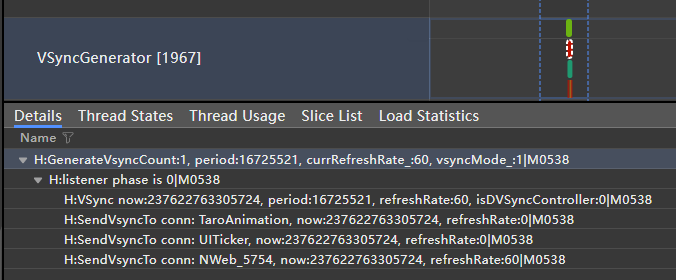
- H:SendVsyncTo conn: xxx: This keyword can be found in the VsyncGenerator process, and indicates the number of passengers in the current train. You can search for the trace point in Profiler to obtain information about all drawing requesters in a specified period. As shown in the following figure, the Vsync signal will be sent to three receivers: TaroAnimation, UITicker, and Nweb_5754.
- H:xxx_RequestNextVsync: The keyword indicates that the applicant xxx requests the Vsync ticket of the next frame. This information is usually generated by other drawing service processes and transferred to the OS_IPC thread of the RS. In actual apps, in addition to the ArkUI component and third-party frameworks, some frame callback functions may also initiate requests for Vsync. For example, in an app suspension scenario, the applicant UITicker continuously requests Vsync at a frequency of 60 Hz, while the actual number of requests from WM_31284 (responsible for starting the app's main process) and the RS (responsible for starting the RS) is small. Actually, this request behavior comes from the default onUITick frame callback function in the React Native framework code. This issue has been resolved in later versions of react-native-harmony 0.72.70. In addition, some developers may use methods such as displaySync and postFrameCallback to implement the frame callback effect. It is recommended that you avoid using such frame callback functions in all scenarios and instead dynamically enable or disable them: disable the callbacks when the page content remains unchanged for a long time, and re-enable them when scrolling or animations occur.

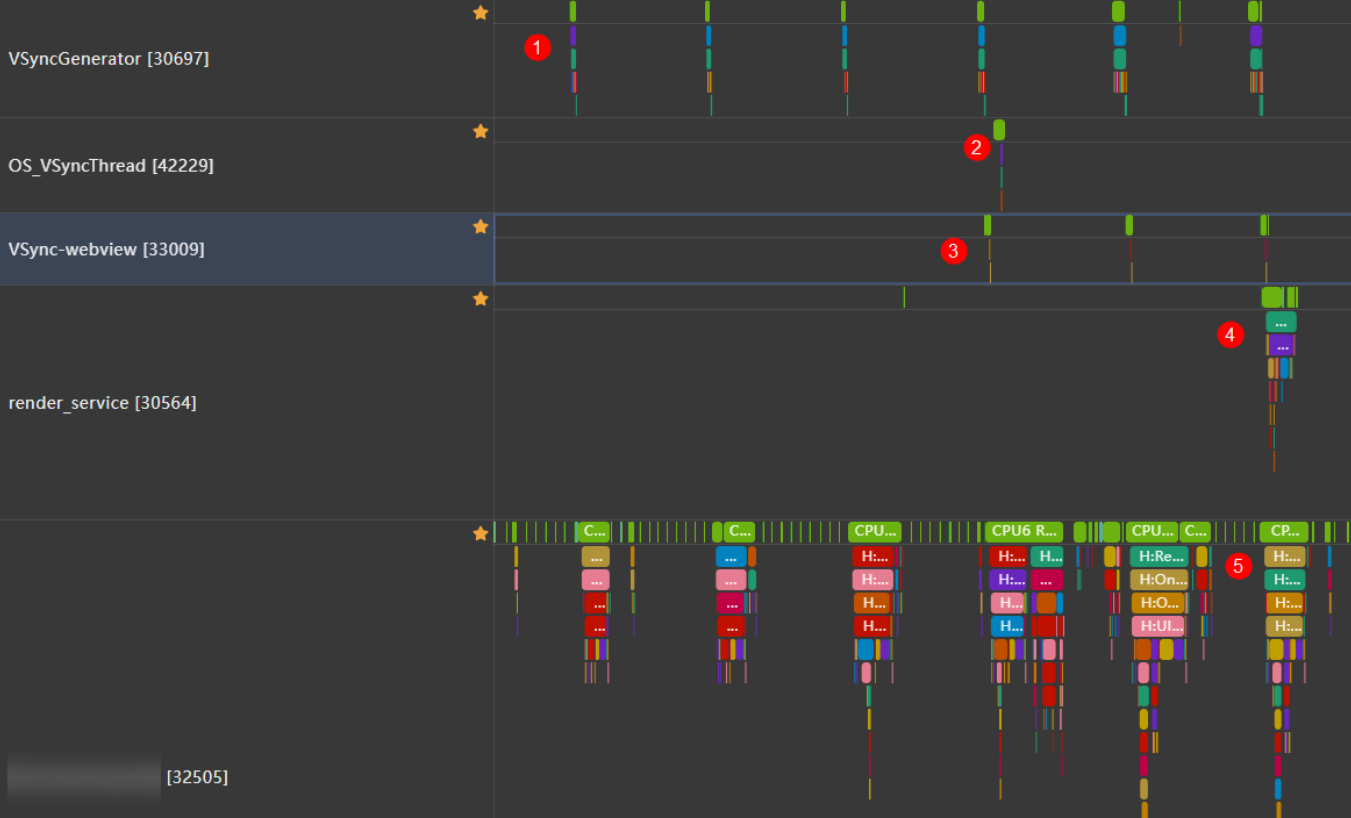
- H:ReceiveVsync name:xxx: The keyword indicates that the applicant xxx consumes one frame of Vsync. This process typically triggers more drawing logic, as shown in the figure below, where Vsync_webview, OS_VsyncThread, the main thread of the foreground app, and the Render Service are all activated. The ArkUI component refresh of the foreground app process usually corresponds to ReceiveVsync name: WM_[Process ID]. However, non-ArkUI drawing components, such as React Native and Flutter, usually depend on OS_VsyncThread under the process to receive Vsync. When analyzing Vsync, you can arrange VsyncGenerator and all started processes at the top according to the following figure. Drawing objects are matched based on the ReceiveVsync name. Drawing objects from different sources may receive different Vsync periods, each taking what they need independently without interfering with one another.
After understanding the basic functions of Vsync, you need to realize that Vsync is mainly used to ensure vertical unification of drawing signals. You should avoid using redundant Vsync signals on pages that are still or refreshed by a single component. From the perspective of actual development, the displaySync and NativeVsync APIs may have a substantial impact on the Vsync objects in the scenario. For apps using React Native, Webview, and Flutter, you can use the Vsync analysis method to uncover potential power consumption issues. This not only avoids the redundant power consumption caused by"empty runs" of Vsync but also avoids redundant drawing content that is not actually displayed. The following provides some low-power suggestions for proper use of Vsync.
- When an app uses the displaySync method to draw an object, the lifecycle management must be properly performed. When the corresponding drawing object is blocked, slides out of the screen, or jumps to another page, you need to stop or destroy the object in a timely manner. Otherwise, redundant drawing may occur.
- When an app calls NativeVsync or uses a third-party framework (such as React Native and Taro) that encapsulates NativeVsync, the app should be aware of the management of NativeVsync objects and destroy the Vsync animation that does not need to be displayed in a timely manner.
[h2]Symptom
The displaySync method allows you to run UI services at a specified frame rate. It is generally used when you draw UIs by yourself and have specific requirements on the frame rate. You need to properly manage the lifecycle of the objects created in this way. When the drawing content is out of the screen or is no longer needed, you need to deregister the displaySync object to prevent the app process from refreshing frames. The following figure shows a scenario where displaySync is incorrectly used to implement the Canvas bullet comment functionality. When the bullet comment component is properly displayed, it is refreshed at a frequency of 60 Hz. However, when a user disables the bullet comment functionality, the displaySync object still continuously executes services. The symptoms of the faulty UI frame are as follows:
- Below the trace point H:DispatchDisplaySync, the DisplaySyncId[327] object exists, which lasts for 4 ms. In addition, the information displayed on the right includes the frame rate "DrawFPS[60] VsyncRate[60]".
- The UI frame is large on the left and small on the right. There are no trace points under the FlushRenderTask related to the ArkUI dirty region component refresh, indicating that no ArkUI dirty region performed any tasks in this frame.
- H:MarshRSTransactionData is not sent under FlushMessage, indicating that the drawing content is intercepted on the UI side and SendCommand fails. As a result, the command will not be passed down to the RS, causing the UI to run idle.
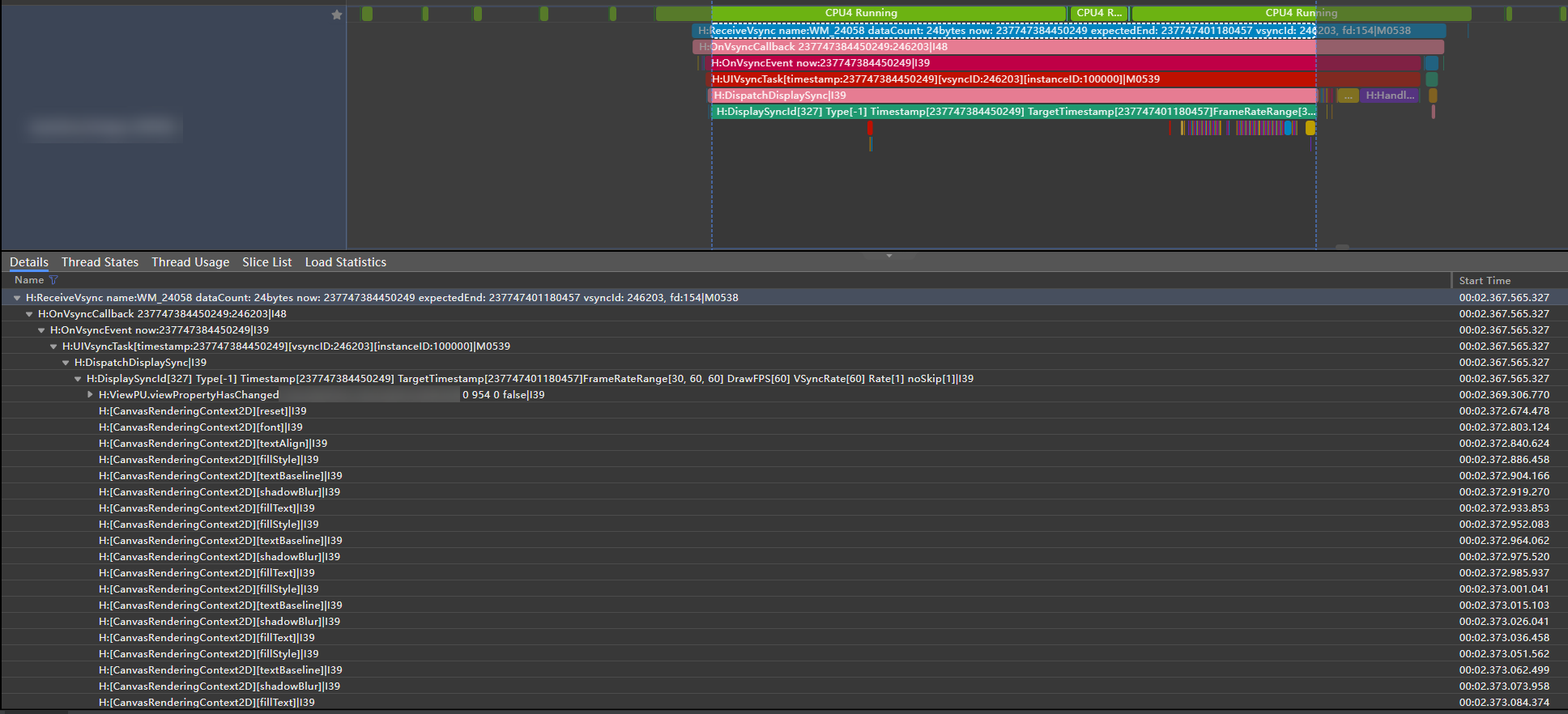
Further expand the trace information under DisplaySync. It is found that a large number of CanvasRenderingContext2D services are included, where the ArkUI component name is displayed in H:ViewPU.viewPropertyHasChanged, helping you locate the component that is executing services. After the component that may cause the problem is located, you can find the code for controlling the create, start, and stop states of the displayVsync object.

When analyzing the DisplaySync service, you can enable the debug function (hdc shell param set persist.ace.debug.enabled 1) and restart the mobile phone before capturing traces. "H:ViewPU.viewPropertyHasChanged" is printed only when DisplaySync causes component property changes. When DisplaySync is registered only for frame rate listening and callback and does not cause component property changes, you can analyze the call stack of the frame to find the code logic executed during the time-consuming process of DisplaySync.
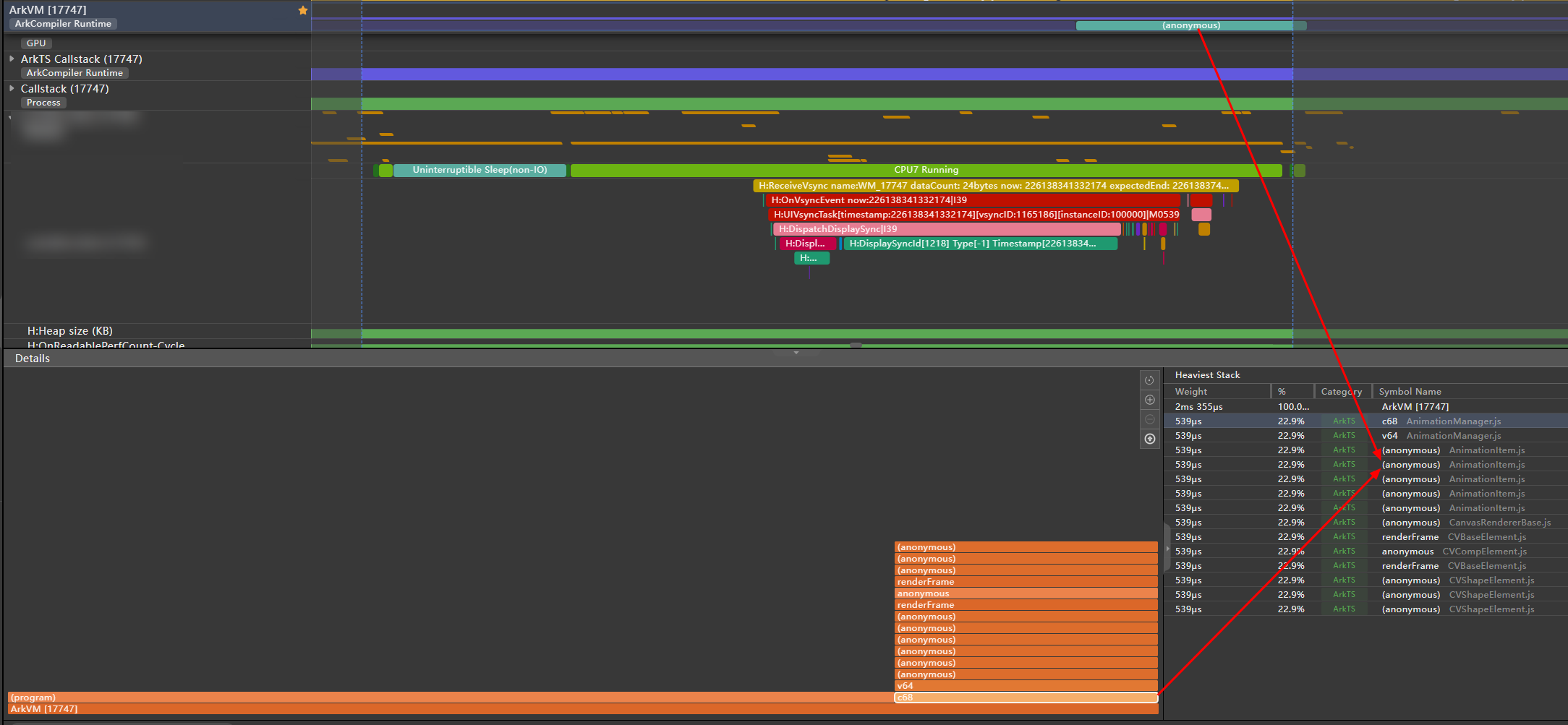
As shown in the following figure, the DisplaySync object executes animation-related services in the callback function. However, the component variables are not changed, and no dirty region drawing instruction is generated. Only redundant load is caused. You can use the call stack to lock redundant functions and corresponding execution code segments.
[h2]Optimization Approaches
- The displaySync object is bound to the lifecycle of the component. When the component is destroyed, the displaySync object stops running and is set to null. Avoid creating displaySync in advance in the offline components or in the lazy-loading and preloading scenarios.
- The running status of the displaySync object is bound to the component visibility. You can use the onVisibleAreaChange callback to listen to the component visibility. When the component is invisible, call displaySync.stop. When the component is visible again, call displaySync.start.
As shown in the following code snippets, the displaySync object is optimized in aboutToDisappear() and onVisibleAreaChange() of the component. aboutToDisappear() is based on the custom component lifecycle to ensure that the displaySync object does not leak when the component is destroyed. onVisibleAreaChange() controls the playback status of displaySync based on the visibility of the component, preventing displaySync from being active when the component enters an invisible area.
// Stop DisplaySync and leave it empty during component uninstallation to prevent idle running and memory leaks.
aboutToDisappear() {
  if (this.backDisplaySyncSlow) {
    this.backDisplaySyncSlow.stop();
    this.backDisplaySyncSlow = undefined;
  }
  if (this.backDisplaySyncFast) {
    this.backDisplaySyncFast.stop();
    this.backDisplaySyncFast = undefined;
  }
}
// Pause the DisplaySync object when the component is invisible.
.onVisibleAreaChange([0.0, 1.0], (isExpanding: boolean, currentRatio: number) => {
if (!isExpanding && currentRatio <= 0.0) {
console.info('Component is completely invisible.');
if (this.backDisplaySyncSlow) {
this.backDisplaySyncSlow.stop();
}
if (this.backDisplaySyncFast) {
this.backDisplaySyncFast.stop();
}
}
}) [h2]Modification Effect
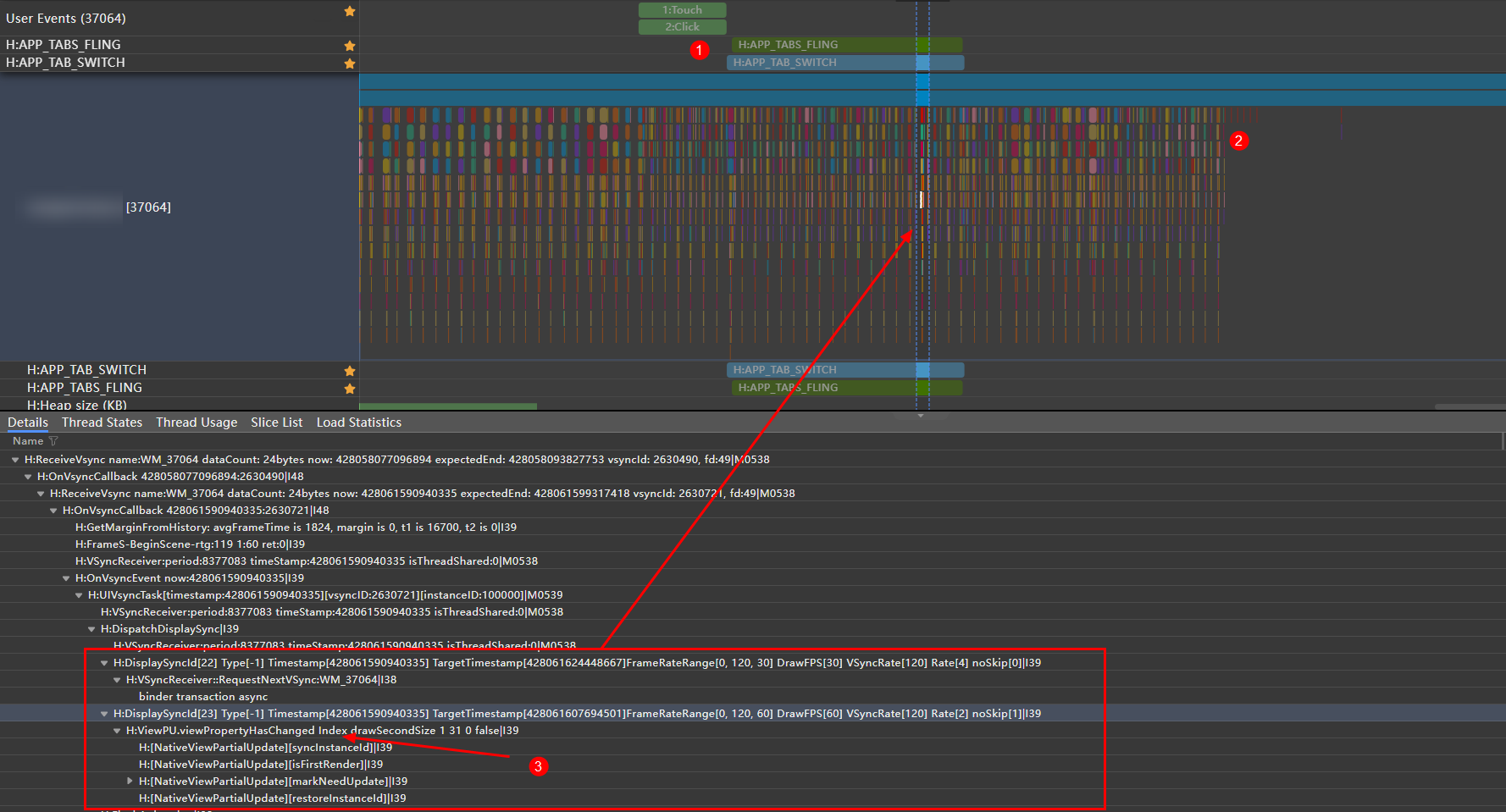
In the trace shown in the preceding figure, the displaySync object added to the Index component exists on the original page. The user clicks Tab at 1 to switch the page, and unregisters the displaySync object on the page at 2. The UI frame rate drops to 0 Hz, achieving power consumption optimization.
[h2]Symptom
NativeVsync allows you to obtain system vsync callbacks and can be used to synchronize the drawing frame rate of the app with the system frame rate. NativeVsync is widely used in apps developed using React Native and C-API. These development frameworks contain multiple callback function APIs, which continuously request Vsync to start customized service content of apps. As shown in the following figure, the trace of a static page is displayed. Both 1 and 2 are from OS_VsyncThread in the app process, and their H:ReceiveVsync names are TaroAnimation and dirty, respectively. From the trace information in 3, it can be observed that FlushRenderTask did not print any ArkUI components that need to be refreshed. However, under FlushMessage, there is H:MarshRSTransactionData being sent out, indicating that this frame still has rendering effects delivered to the RS through the UI frame.
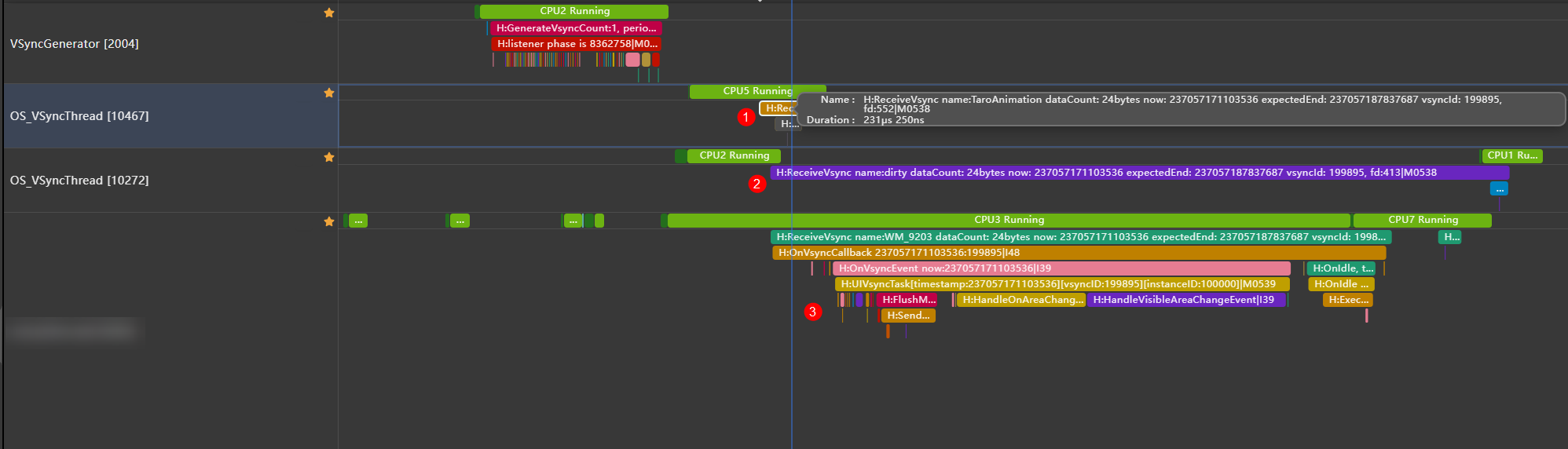
Then, Render Service and RSUniRender continue to process persistent drawing instructions. However, since DisplayNode does not have any content to display, DisplayNode skip is printed on RSUniRender. In this scenario, the app experiences idle running with redundant loads in UI and Render Service.

[h2]Analysis
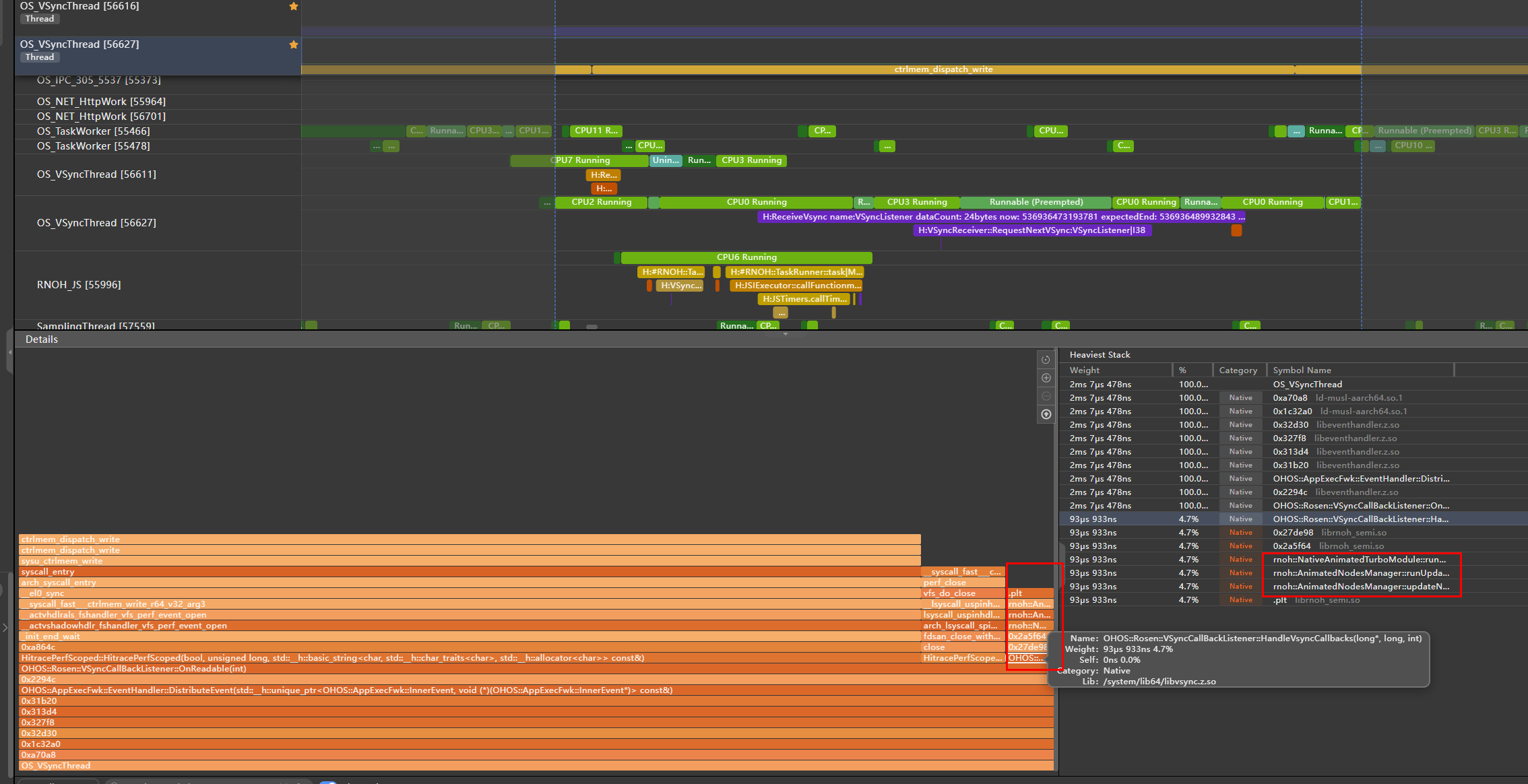
During the diagnosis of such issues, the developer-defined NativeVsync objects are typically delivered by the VsyncGenerator to the OS_VsyncThread sub-thread of the app process. You can identify the corresponding Vsync request object based on the name of the Vsync requester. You can use the Callstack captured by the Profiler tool to view the service content executed within the corresponding Vsync callback. As shown in the figure below, you have a small call stack of rnoh's Animate in the VsyncListener's monitoring callback, which may indicate some animation services are being executed. For NativeVsync objects, the system only provides callbacks and does not constrain the service implementation within the callback functions. Therefore, if you have a lot of drawing-related services in NativeVsync, you should pay extra attention to the start and stop timing of the drawing services and reduce the use of unnecessary Vsync listeners.