


Intelligent Assistant
Chat with our virtual assistant to get answers promptly.
We use essential cookies for the website to function, as well as analytics cookies for analyzing and creating statistics of the website performance. To agree to the use of analytics cookies, click "Accept All". You can manage your preferences at any time by clicking "Cookie Settings" on the footer. More Information.
HarmonyOS
For large apps, the process of rebuilding, pushing packages, and installing after each code modification can be time-consuming. To address this issue, incremental debugging is provided in both DevEco Studio and command line. After code is modified, the debugger can identify code differences and build and push only the incremental package for debugging.
Incremental debugging of C++ code is available for projects developed using API version 11 or later based on the stage model. Incremental debugging of ArkTS code, specifically for modifications to resource files, is available for projects developed using API version 12 or later based on the stage model.
 Run or
  Debug.
 Apply Changes.
 Then, DevEco Studio initiates an incremental build task, building an incremental package in HQF format. Once the incremental package is built, it will be pushed and installed on the device.
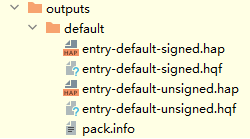
The Apply Changes feature does not support the creation and deletion of code files, modifications to decorator-related code, or addition of new references using import statements.
Incremental debugging of resource files in the rawfile folder is supported since DevEco Studio 5.1.0 Release.
 Run or
  Debug.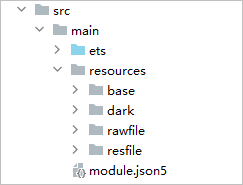
Currently, incremental debugging of resfile and rawfile resources is limited to the resource files that are explicitly called in the code.
 Apply Changes to push the incremental package to the device.
 Then, DevEco Studio initiates an incremental build task, building an incremental package in HQF format. Once the incremental package is built, it will be pushed and installed on the device.
If you have performed step 1, skip steps 2 and 3.
hvigorw --mode module -p module=entry@default,library@default -p product=default assembleHap assembleHsp --info --no-daemon
For details about how to use the commands, see hvigorw.
$ hdc shell mkdir data/local/tmp/99c24fdc44694c05be12491d0a48e139
$ hdc file send library-default-signed.hsp "data/local/tmp/99c24fdc44694c05be12491d0a48e139"
$ hdc file send entry-default-signed.hap "data/local/tmp/99c24fdc44694c05be12491d0a48e139"
$ hdc shell bm install -p "data/local/tmp/99c24fdc44694c05be12491d0a48e139"
$ hdc shell rm -rf data/local/tmp/99c24fdc44694c05be12491d0a48e139
$ hdc shell aa start -a {abilityName} -b {bundleName} {
"resources": {
"resFile": [
{
"filePath": "D:\\MyApplication\\entry\\src\\main\\resources\\resfile\\test.txt",
"resourcePath": "D:\\MyApplication\\entry\\src\\main\\resources"
}
],
"rawFile": [
{
"filePath": "D:\\MyApplication\\entry\\src\\main\\resources\\rawfile\\test.txt",
"resourcePath": "D:\\MyApplication\\entry\\src\\main\\resources"
}
]
}
} hvigorw --mode module -p module=entry@default,library@default -p product=default assembleDevHqf --info --no-daemon
$ hdc shell mkdir data/local/tmp/3b7d97cdf4de41c4aecc465ff5069708 $ hdc file send library-default-signed.hqf "data/local/tmp/3b7d97cdf4de41c4aecc465ff5069708" $ hdc file send entry-default-signed.hqf "data/local/tmp/3b7d97cdf4de41c4aecc465ff5069708" $ hdc shell bm quickfix -a -f "data/local/tmp/3b7d97cdf4de41c4aecc465ff5069708" -d -o
hdc bm install {hap_path} // Use this command when the HAP is on the computer, where hap_path refers to the path of the HAP.
hdc shell bm install -p {hap_path} // Use this command when the HAP is on the target device. 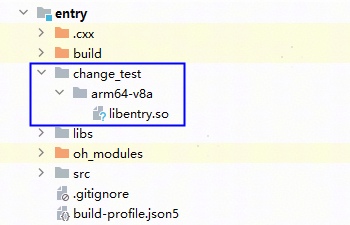
{
"resources": {
"resFile": [
{
"filePath": "D:\\MyApplication\\entry\\src\\main\\resources\\resfile\\test.txt",
"resourcePath": "D:\\MyApplication\\entry\\src\\main\\resources"
}
],
"rawFile": [
{
"filePath": "D:\\MyApplication\\entry\\src\\main\\resources\\rawfile\\test.txt",
"resourcePath": "D:\\MyApplication\\entry\\src\\main\\resources"
}
]
}
} You can obtain the corresponding signature file from the project's build-profile.json5 file.
{
"app" : {
"bundleName" : "com.ohos.quickfix",
"versionCode" : 1000000, // App version
"versionName" : "1.0.0",
"patchVersionCode" : 1000000, // Patch version number. Each time you perform incremental debugging, increment the patch version number by 1 to make sure it is always be greater than the previous one.
"patchVersionName" : "1000000" // The value must match the patch version number.
},
"module" : {
"name" : "entry",
"type" : "patch",
"deviceTypes" : [
"phone",
"tablet"
],
"originalModuleHash" : "" // SHA-256 value of the HAP to be fixed; leave it empty
}
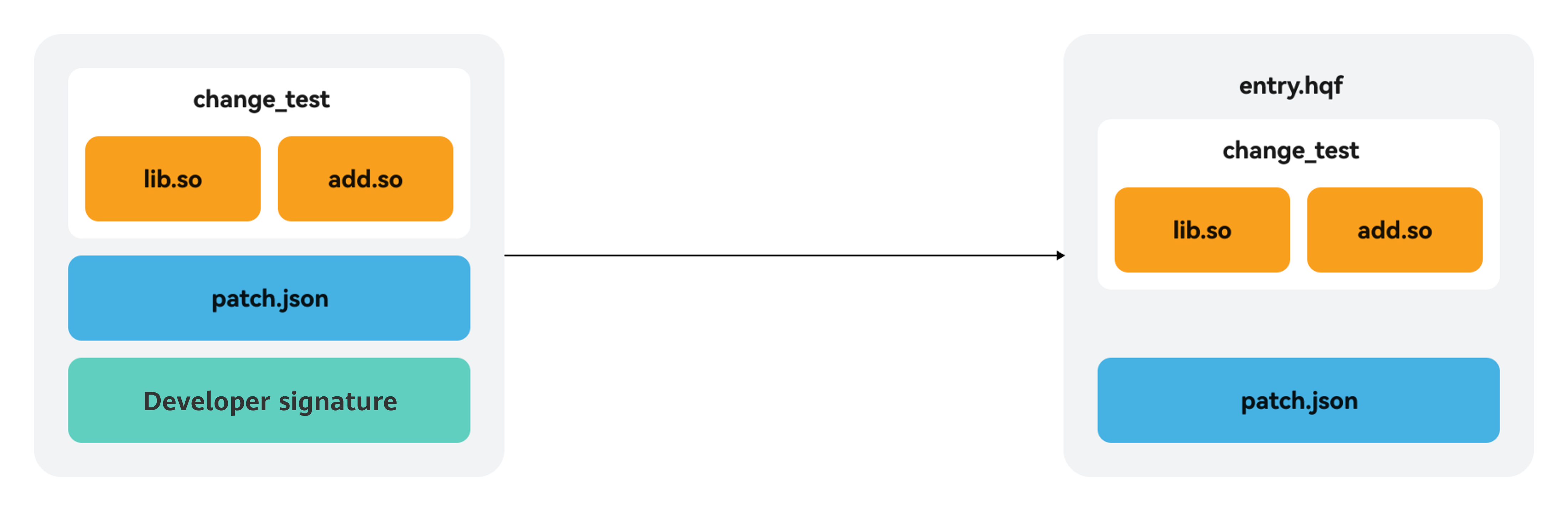
} java -jar app_packing_tool.jar --mode hqf --json-path D:\MyApplication\entry\patch.json --lib-path D:\MyApplication\entry\change_test --resources-path D:\MyApplication\entry\src\main\resources --out-path entry-default-unsigned.hqf --force true
In the preceding command, modify settings of the following parameters and keep the other parameters as they are:
java -jar hap-sign-tool.jar sign-app -keyAlias "OpenHarmony Application Release" -signAlg "SHA256withECDSA" -mode "localSign" -appCertFile "OpenHarmonyApplication.cer" -profileFile "ohos_provision_release.p7b" -inFile "entry-default-unsigned.hqf" -keystoreFile "OpenHarmony.p12" -outFile "entry-default-signed.hqf" -keyPwd "123456Abc" -keystorePwd "123456Abc"
In the preceding command, modify settings of the following parameters and keep the other parameters as they are:
$ hdc shell mkdir data/local/tmp/3b7d97cdf4de41c4aecc465ff5069708 $ hdc file send entry-default-signed.hqf "data/local/tmp/3b7d97cdf4de41c4aecc465ff5069708" $ hdc shell bm quickfix -a -f "data/local/tmp/3b7d97cdf4de41c4aecc465ff5069708" -d -o
Symptom
If the .so file is modified and packed by using other development tools, the incremental debugging feature of DevEco Studio 4.1 Canary2 does not work.
Solution
In DevEco Studio 4.1 Canary2, if the native file exceeds 16 KB, the LLDB debugger holds the file handle by default when a breakpoint is hit. As a result, the file cannot be modified or saved during debugging.
To resolve this issue, use either of the following methods:
settings set use-source-cache false
Intelligent Assistant
Chat with our virtual assistant to get answers promptly.
Quick start
Helps you find desired resources with ease.