Intelligent Assistant
Chat with our virtual assistant to get answers promptly.
Push Kit is a messaging service provided for you to establish a cloud-to-device messaging channel. With Push Kit integrated, any HarmonyOS app can send real-time, eye-catching messages to the right users at the right time, boosting user awareness and engagement.
For details about how to integrate Push Kit, please refer to Getting Started.
Stable and reliable messaging channel
Push Kit offers a system-level persistent connection that can be used to push messages in real time, even when your app is not running.
Rich message styles
Push Kit offers a variety of message display options, including text styles, large message icons, multi-line text, and badges, to cater to your diverse and personalized messaging needs.
Flexible scenario-specific messages
You can leverage scenario-specific messages to reach users flexibly in a wide range of scenarios. For example, your app can leverage in-app call messages for making voice and video calls, utilize text-to-speech messages for service implementation of voice broadcasting, and employ background messages to update app configurations.
Push messages are notifications sent from an app to Huawei devices via Push Kit. Users will receive notifications through the notification panel, banners, lock screen, app icon badges, and notification icons.
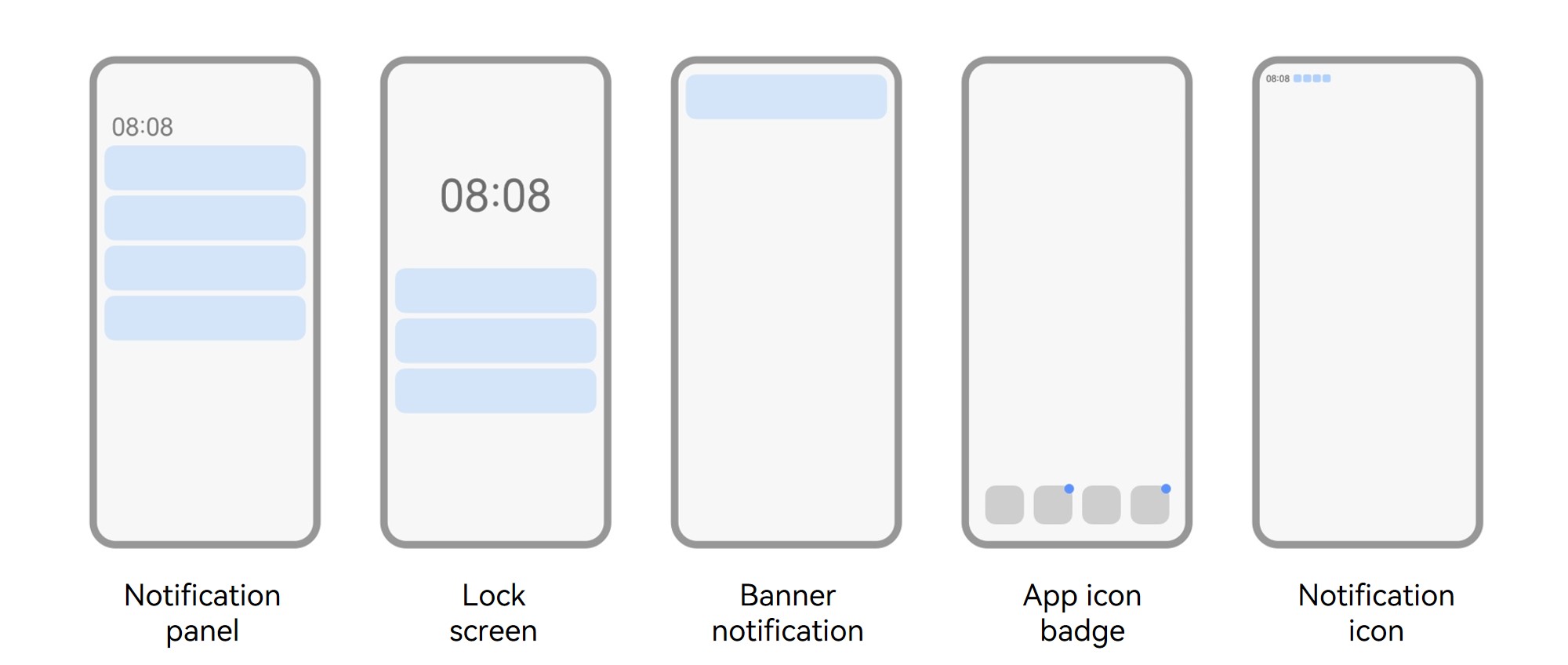
For details about each scenario, please refer to Notification Scenarios.
Push Kit supports the following message types.
| Message Type | Description |
|---|---|
| Notification message | A notification message is directly sent by Push Kit and displayed in the notification panel, on the lock screen, or as a banner. Users can tap the message to launch the corresponding app. You can configure the notification message layout to attract users. Common use scenarios: travel reminder and account status |
| Text-to-speech message | When a user device receives a text-to-speech message from your app, Push Kit will start a subprocess of your app to handle the relevant service logic. Common use scenarios: voice broadcast |
| Widget update message | Your app can push updated widget content via widget update messages at appropriate times to boost user awareness and engagement. Common use scenarios: ride hailing and package delivery tracking |
| Background message | Upon receiving a background message, the device will transfer the message to the app if the app is currently running in the foreground. Otherwise, the message will be cached for later delivery after the app is launched. Common use scenarios: notifications of app configuration updates |
| Live view message | Your app can request the Push Kit server to create or update a live view. Common use scenarios: live score and ride hailing status updates |
| In-app call message | This type of messages empowers your app with voice and video call capabilities. Common use scenarios: voice/video call |
| Badge update message | A badge update message is used to set the badge number for an app to remind users to check for message updates. Common use scenarios: multi-device badge synchronization for instant messaging apps |
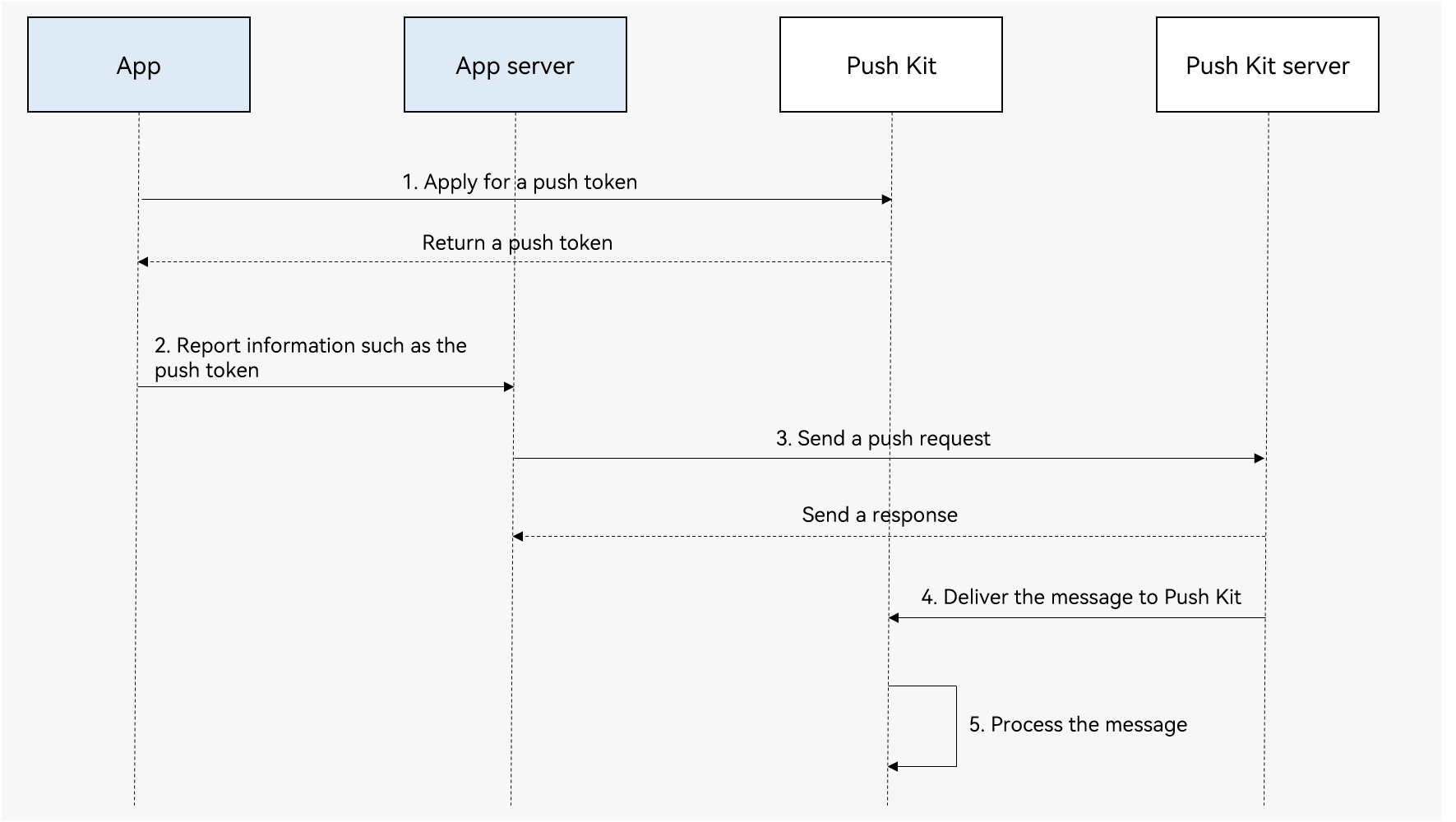
The service process of Push Kit is as follows:
An app calls Push Kit to obtain a push token.
The app reports information including the obtained push token to the app server.
The app server sends a push message request to the Push Kit server. The notification function of the app is disabled by default. Before requesting message push, request user authorization for sending notifications. For details, please refer to Requesting Notification Authorization.
The Push Kit server delivers the message to Push Kit.
Push Kit processes the message.
Push Kit functions as a secure and reliable system-level messaging channel to ensure successful message delivery. The message delivery rate may be affected by the following factors:
Whether the target device is connected to the network. Push Kit caches a message if the target device is offline, and delivers the message after the device goes online.
Whether the app has been uninstalled from the target device.
Whether the network status of the target device is stable.
Security control policies of the target device.
When the device network is in good conditions and not congested, Push Kit utilizes intelligent push policies to reduce the messaging latency.
To reduce disturbance to a user, the OS will learn their behavioral habits, predict their sleep time, and implement message delivery control during their sleep. Push Kit caches messages pushed during this period (excluding in-app call messages or VoIP messages with category set to VoIP). Push Kit will redeliver the messages to the user device until the user wakes up.
The message body cannot exceed 4096 bytes (excluding the token). Otherwise, error code 80300008 will be returned.
For each project, a maximum of 1000 test messages can be pushed altogether per day. Formal messages have different quotas depending on the specific scenarios. For details, please refer to Message Frequency Control.
If the network a device is connected to is protected by a firewall or subject to network access restrictions, ensure that traffic is allowed on the ports listed below, so that your message delivery rate will not be affected.
Port numbers:
5223
443
The Push Kit server's IP address that devices connect to is dynamically assigned, making it impossible to allow traffic access by configuring an IP trustlist. You are advised to use a device on an unrestricted network or allow traffic on the ports listed above.
For details about the countries/regions where wearables are supported, please refer to Supported Countries/Regions. Other devices listed in Supported Devices are supported only in the Chinese mainland.
Push Kit supports phones, tablets, PCs/2-in-1 devices, wearables, and TVs.
Wearables are supported only when they are used independently with Internet access. They are not supported when they are connected to phones.
Push Kit does not support debugging on cloud-hosted real devices.
Push Kit supports the Emulator, but there are some differences in feature support between real devices and the Emulator:
Push Kit establishes a messaging channel from the cloud side to devices, enabling real-time message delivery from the cloud side. If you want to push notifications directly from devices, leverage capabilities of Notification Kit.
To push a widget update message, use Form Kit to create a widget for your app first.
To push a live view update message, use Live View Kit to create a local live view first.
To push an in-app call message, use Call Service Kit to manage app calls.
Refer to the sample code of Push Kit.