


Intelligent Assistant
Chat with our virtual assistant to get answers promptly.
We use essential cookies for the website to function, as well as analytics cookies for analyzing and creating statistics of the website performance. To agree to the use of analytics cookies, click "Accept All". You can manage your preferences at any time by clicking "Cookie Settings" on the footer. More Information.
HarmonyOS
wukong is a built-in command line tool that implements application stability test capabilities such as random event injection, component injection, exception capture, report generation, and data traversal of abilities. This tool allows you to conduct stability tests on the system or applications by simulating user behavior. wukong provides three types of testing: random testing, special testing, and focus testing.
In random testing, test inputs are generated randomly. Available features include shell startup, whole application startup, multiple injection modes, random seeds setting, run log printing, and report generation.
In special testing, specific application components are tested. Available features include shell startup, sequential traversal and screenshot, sleep and wakeup test, recording and playback, run log printing, and report generation.
In focus testing, specific components are injected. Available features include shell startup, device application startup, multiple injection modes, random seed setting, focus component type setting, component injection times setting, run log printing, and report generation.
The following figure shows the wukong component architecture and the responsibilities of sub-modules.
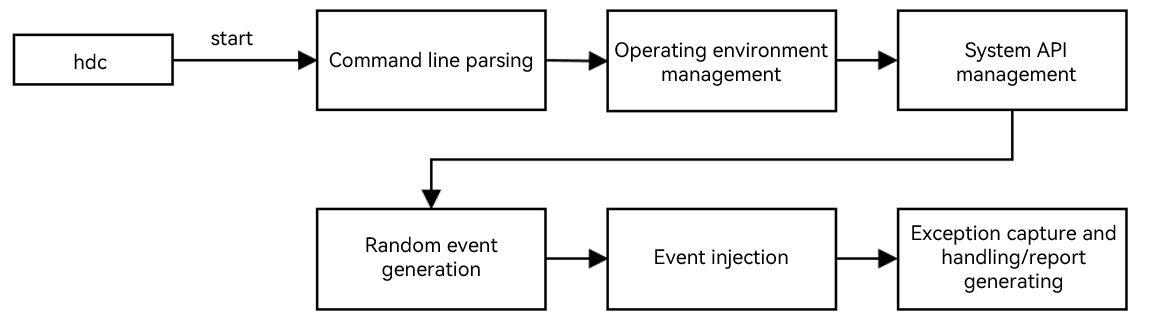
The wukong tool is built in the system since API version 9.
Before running any command, configure the hdc environment and enter the shell mode.
| Command | Description |
|---|---|
| -v/--version | Obtains version information. |
| help | Obtains help information. |
| appinfo | Queries the bundle name and the name of the corresponding mainAbility of the app that can be started. |
| special | Runs special testing. |
| exec | Runs random testing. |
| focus | Runs focus testing. |
Open the shell.
- #If you are testing one device, run **hdc shell**.
- C:\Users>hdc shell
- $
- #If you are testing multiple devices, obtain the SNs first by running **hdc list targets**. Then, enter the shell.
- C:\Users>hdc list targets
- 15xxx424axxxx345209d94xxxx8fxx900
- C:\Users>hdc -t 15xxx424axxxx345209d94xxxx8fxx900 shell
- $
Obtain the bundle name and ability name of the application.
- $ wukong appinfo
- BundleName: com.ohos.adminprovisioning
- AbilityName: com.ohos.adminprovisioning.MainAbility
- BundleName: com.ohos.callui
- AbilityName: com.ohos.callui.MainAbility
View the help information.
- C:\Users>hdc shell
- $ wukong help #wukong help menu.
- usage: wukong <command> [<arguments>]
- These are common wukong command list:
- help wukong help information
- -v/--version wukong version
- exec run random test
- special run special test
- focus run focus test
- appinfo show all app information
- $ wukong exec -help #Help menu for wukong random testing.
- usage: wukong exec [<arguments>]
- These are wukong exec arguments list:
- -h, --help random test help
- -a, --appswitch appswitch event percent
- -b, --bundle the bundle name of allowlist
- -p, --prohibit the bundle name of blocklist
- -d, --page block page list
- -t, --touch touch event percent
- -c, --count test count
- -i, --interval interval
- -s, --seed random seed
- -m, --mouse mouse event percent
- -k, --keyboard keyboard event percent
- -H, --hardkey hardkey event percent
- -S, --swap swap event percent
- -T, --time test time
- -C, --component component event percent
- -r, --rotate rotate event percent
- -e, --allow ability the ability name of allowlist
- -E, --block ability the ability name of blocklist
- -Y, --blockCompId the id list of block component
- -y, --blockCompType the type list of block component
- -I, --screenshot get screenshot(only in random input)
- -B, --checkBWScreen black and white screen detection
- -U, --Uri set Uri pages
- -x, --Uri-type set Uri-type
- $ wukong special -help #Help menu for wukong special testing.
- usage: wukong special [<arguments>]
- These are wukong special arguments list:
- -h, --help special test help
- -t, --touch[x,y] touch event
- -c, --count total count of test
- -i, --interval interval
- -S, --swap[option] swap event
- option is -s| -e| -b
- -s, --start: the start point of swap
- -e, --end: the end point of swap
- -b, --bilateral: swap go and back
- -k, --spec_insomnia power on/off event
- -T, --time total time of test
- -C, --component component event
- -p, --screenshot get screenshot(only in component input)
- -r, --record record user operation
- -R, --replay replay user operation
- -u, --uitest uitest dumpLayout
| Command | Description | Mandatory | Description |
|---|---|---|---|
| -h,--help | Obtains the help information about the test. | No | - |
| -c,--count | Sets the number of execution times. This command conflicts with the -T command. Set either of them. | No | The default value is 10, in times. |
| -i,--interval | Sets the test interval. | No | The default value is 1500, in millisecond. |
| -s,--seed | Sets the random seed. | No | If the same random seed is set, the same random event sequence is generated. |
| -b,--bundle[bundlename, ......, bundlename] | Sets allowed bundles for the test. This command conflicts with the -p command. | No | By default, all bundles on the device are allowed. Use commas (,) to separate bundle names. |
| -p,--prohibit[bundlename, ......, bundlename] | Sets blocked bundles for the test. This command conflicts with the -b command. | No | By default, no bundle is blocked. Use commas (,) to separate bundle names. |
| -d,--page[page, ......, page] | Sets blocked pages for the test. | No | By default, the pages/system pages are blocked. Use commas (,) to separate page names. |
| -a,--appswitch | Sets the proportion of the random application startup event test. | No | The default value is 10%. |
| -t,--touch | Sets the proportion of the random touch event test. | No | The default value is 10%. |
| -S,--swap | Sets the proportion of the random swipe event test. | No | The default value is 3%. |
| -m,--mouse | Sets the proportion of the random mouse event test. | No | The default value is 1%. |
| -k,--keyboard | Sets the proportion of the random keyboard event test. | No | The default value is 2%. |
| -H,--hardkey | Sets the proportion of the random hardkey test. | No | The default value is 2%. |
| -r,--rotate | Sets the proportion of the random rotate event test. | No | The default value is 2%. |
| -C, --component | Sets the proportion of random component test. | No | The default value is 70%. |
| -I, --screenshot | Takes a screenshot for the component test. | No | - |
| -T,--time | Sets the total test time. This command conflicts with the -c command. Set either of them. | No | The default value is 10, in minute. |
| -e, --allow ability | Sets the ability that allows testing. | No | - |
| -E, --block ability | Sets the ability that blocks testing. | No | - |
| -Y, --blockCompId | Sets the blocked CompId. | No | - |
| -y, --blockCompType | Sets the blocked CompType. | No | - |
| -B, --checkBWScreen | Enables black and white screen check. | No | - |
| -U, -uri | Sets the URI of the application startup page. | No | - |
| -x, -uriType | Sets the URI type of the application startup page. | No | - |
| Command | Description | Mandatory | Description |
|---|---|---|---|
| -h, --help | Obtains the help information about the special testing. | No | - |
| -k, --spec_insomnia | Powers on/off the special testing. | No | - |
| -c, --count | Sets the number of test times. | No | The default value is 10, in times. |
| -i, --interval | Sets the test interval. | No | The default value is 1500, in millisecond. |
| -S, --swap | Sets a swipe event for the test. | No | - |
| -s, --start[x,y] | Sets the coordinates of the start point of the swipe event. | No | The values of coordinates are positive. |
| -e, --end[x,y] | Sets the coordinates of the end point of the swipe event. | No | The values of coordinates are positive. |
| -b, --bilateral | Sets a back and forth swipe event. | No | By default, the back and forth swipe event is disabled. |
| -t, --touch[x,y] | Sets a touch event for the test. | No | - |
| -T, --time | Sets the total test time. | No | The default value is 10, in minute. |
| -C, --component | Sets the sequential traversal test for components. | No | You need to set the name of the test application. |
| -r, --record | Records user operation. | No | You need to specify the recording file. |
| -R, --replay | Replays user operation. | No | You need to specify the playback file. |
| -p, --screenshot | Takes a screenshot for the component test. | No | - |
| Command | Description | Mandatory | Description |
|---|---|---|---|
| -n,--numberfocus | Sets the number of injections for each component. | No | Unit: times |
| -f, --focustypes | Sets the types of component for the focus testing. | No | Use commas (,) to separate the types. |
| -h,--help | Obtains the help information about the test. | No | - |
| -c,--count | Sets the number of test times. This command conflicts with the -T command. Set either of them. | No | The default value is 10, in times. |
| -i,--interval | Sets the test interval. | No | The default value is 1500, in millisecond. |
| -s,--seed | Sets the random seed. | No | If the same random seed is set, the same random event sequence is generated. |
| -b,--bundle[bundlename, ......, bundlename] | Sets allowed bundles for the test. This command conflicts with the -p command. | No | By default, all bundles on the device are allowed. Use commas (,) to separate bundle names. |
| -p,--prohibit[bundlename, ......, bundlename] | Sets blocked bundles for the test. This command conflicts with the -b command. | No | By default, no bundle is blocked. Use commas (,) to separate bundle names. |
| -d,--page[page, ......, page] | Sets blocked pages for the test. | No | By default, the pages/system pages are blocked. Use commas (,) to separate page names. |
| -a,--appswitch | Sets the proportion of the random application startup event test. | No | The default value is 10%. |
| -t,--touch | Sets the proportion of the random touch event test. | No | The default value is 10%. |
| -S,--swap | Sets the proportion of the random swipe event test. | No | The default value is 3%. |
| -m,--mouse | Sets the proportion of the random mouse event test. | No | The default value is 1%. |
| -k,--keyboard | Sets the proportion of the random keyboard event test. | No | The default value is 2%. |
| -H,--hardkey | Sets the proportion of the random hardkey test. | No | The default value is 2%. |
| -r,--rotate | Sets the proportion of the random rotate event test. | No | The default value is 2%. |
| -C, --component | Sets the proportion of random component test. | No | The default value is 70%. |
| -I, --screenshot | Takes a screenshot for the component test. | No | - |
| -T,--time | Sets the total test time. This command conflicts with the -c command. Set either of them. | No | The default value is 10, in minute. |
| -e, --allow ability | Sets the ability that allows testing. | No | - |
| -E, --block ability | Sets the ability that blocks testing. | No | - |
| -Y, --blockCompId | Sets the blocked CompId. | No | - |
| -y, --blockCompType | Sets the blocked CompType. | No | - |
| -B, --checkBWScreen | Enables black and white screen check. | No | - |
After the test commands are executed, the test result is automatically generated. You can obtain the test result in the following directory:
| Type | Description |
|---|---|
| exception/ | Stores exception files generated during the test. |
| screenshot/ | Stores the screenshots of the test traversal. |
| wukong_report.csv | Stores the test report summary. |
| wukong.log | Indicates the test operation history. |
You can run the hdc command to obtain logs to the local host and view the operation history.
- # The path of the wukong.log file is as follows:
- /data/local/tmp/wukong/report/xxxxxxxx_xxxxxx/wukong.log
-
- # To view the directory of the wukong test report, run the following command:
- $ cd /data/local/tmp/wukong/report/20170805_170053
- $ ls
- data.js exception wukong.log wukong_report.csv
-
- # Open the shell and run hdc file recv to obtain wukong logs.
- C:\Users\xxx>hdc file recv /data/local/tmp/wukong/report/20170805_170053/wukong.log C:\Users\xxx\Desktop\log
- [I][2024-01-03 20:08:02] HdcFile::TransferSummary success
- FileTransfer finish, Size:76492, File count = 1, time:16ms rate:4780.75kB/s
Symptom
The error message "failed to connect to AAMS" is displayed.
Possible Cause
AAMS is occupied by Hypium or the UIViewer of DevEco Testing. AAMS can be connected to only one program at a time.
Solution
Stop the process that occupies AAMS or restart the device.
Symptom
The error message "Errorcode:(4005)" is displayed.
Possible Cause
The size of the screen display area changes. As a result, the page information fails to be obtained.
Solution
This error does not affect the test process and does not need to be handled.
Symptom
The error message "Errorcode:(4007)" is displayed.
Possible Cause
The size of the screen display area changes. As a result, the page information fails to be obtained.
Solution
This error does not affect the test process and does not need to be handled.
Intelligent Assistant
Chat with our virtual assistant to get answers promptly.
Quick start
Helps you find desired resources with ease.