


Intelligent Assistant
Chat with our virtual assistant to get answers promptly.
We use essential cookies for the website to function, as well as analytics cookies for analyzing and creating statistics of the website performance. To agree to the use of analytics cookies, click "Accept All". You can manage your preferences at any time by clicking "Cookie Settings" on the footer. More Information.
HarmonyOS
This section describes how to implement the map screenshot function.
A map screenshot is a captured image of the visible region on a map, including map elements, overlays, and logos. The map screenshot function is applicable to scenarios where the current map state needs to be saved as an image, such as sharing the current location, generating a navigation route map, and recording map content from a specific perspective. This function helps you quickly implement visualized output of map content, improving user experience.
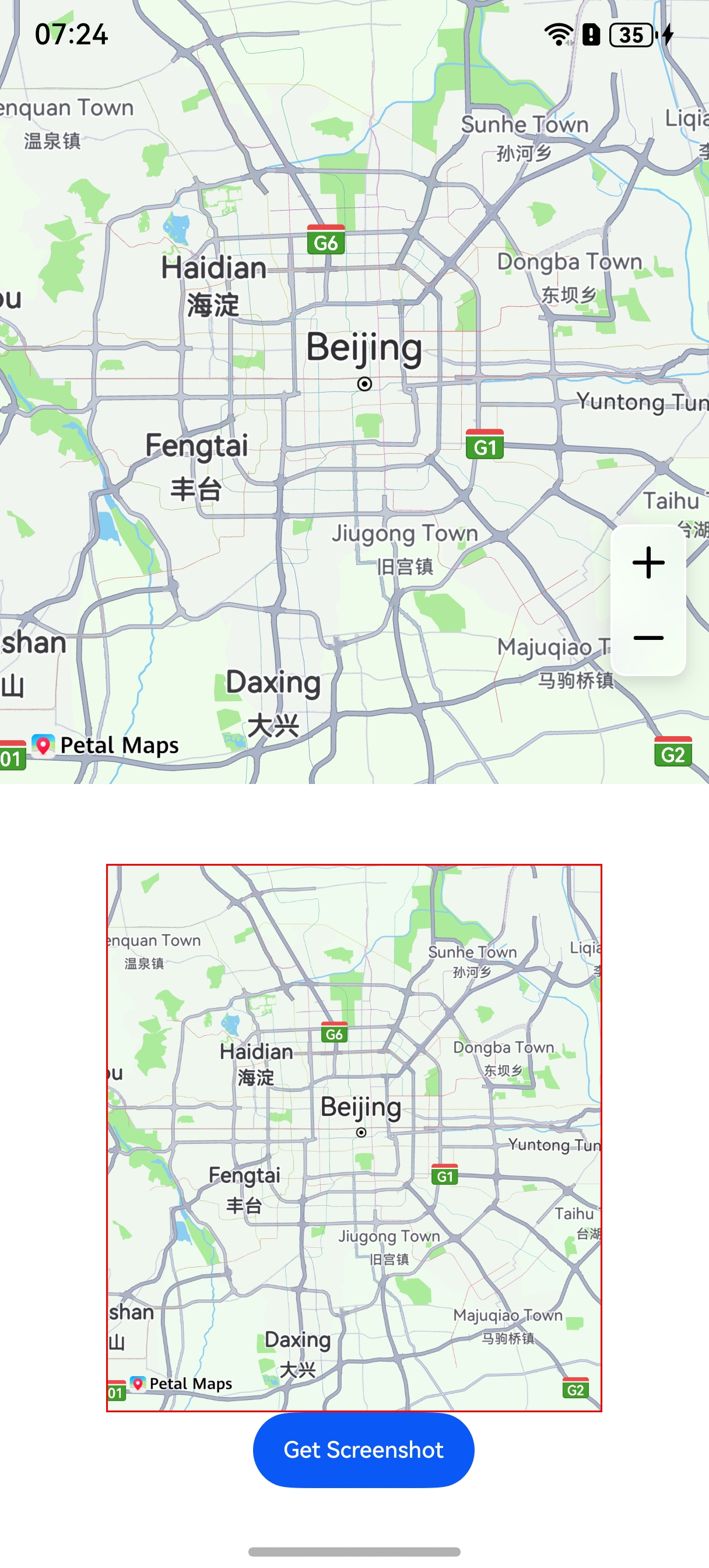
The following table describes the map screenshot API, which is provided by snapshot. For more information about the API, please refer to API Reference.
| API | Description |
|---|---|
| snapshot(): Promise<image.PixelMap> | Takes map screenshots. |
Import required modules.
- import { MapComponent, mapCommon, map } from '@kit.MapKit';
- import { AsyncCallback } from '@kit.BasicServicesKit';
- import { image } from '@kit.ImageKit';
Call the snapshot method to take a screenshot of the current map screen.
- @Entry
- @Component
- struct HuaweiMapDemo {
- private mapOptions?: mapCommon.MapOptions;
- private callback?: AsyncCallback<map.MapComponentController>;
- private mapController?: map.MapComponentController;
- @State image?: image.PixelMap = undefined;
-
- aboutToAppear(): void {
- // Map initialization parameters used to set the coordinates of the map center point and zoom level.
- this.mapOptions = {
- position: {
- target: {
- latitude: 39.9,
- longitude: 116.4
- },
- zoom: 10
- }
- };
-
- // Map initialization callback.
- this.callback = async (err, mapController) => {
- if (!err) {
- // Obtain the controller class of the map to operate the map.
- this.mapController = mapController;
- } else {
- console.error(`Failed to initialize the map. Code: ${err.code}; message: ${err.message}`);
- }
- };
- }
-
- build() {
- Stack() {
- Column() {
- MapComponent({ mapOptions: this.mapOptions, mapCallback: this.callback })
- .width('100%')
- .height('50%');
-
- Scroll(new Scroller()) {
- Column() {
- Image(this.image)
- .objectFit(ImageFit.Auto)
- .border({ width: 1, color: Color.Red }).width("100%")
- Button("Get Screenshot")
- .margin({ left: 10 })
- .fontSize(12)
- .onClick(async () => {
- if (this.mapController) {
- // Obtain the screenshot.
- let pixelMap = await this.mapController.snapshot();
- this.image = pixelMap;
- }
- });
- }
- }.width('70%').height("50%")
- }.width('100%')
- }.height('100%')
- }
- }
Intelligent Assistant
Chat with our virtual assistant to get answers promptly.
Quick start
Helps you find desired resources with ease.