


Intelligent Assistant
Chat with our virtual assistant to get answers promptly.
We use essential cookies for the website to function, as well as analytics cookies for analyzing and creating statistics of the website performance. To agree to the use of analytics cookies, click "Accept All". You can manage your preferences at any time by clicking "Cookie Settings" on the footer. More Information.
HarmonyOS
SmartFill offers scenario-specific input suggestions to realize one-tap filling of complex forms for users. It helps you with system development for your app or atomic service to unleash peak input efficiency within the HarmonyOS ecosystem. This function can be started using just a single line of code after you integrate ArkUI native input components (including TextInput and TextArea).
SmartFill supports phones, tablets, and (since 5.1.0(18)) PCs/2-in-1 devices.
SmartFill is available only to company developers who have passed identity verification.
Fields that SmartFill supports meet your service requirements. For details about the supported fields, please refer to ContentType Scenarios.
To integrate SmartFill, you need to send an application and wait for approval. The application process is as follows:
Create an app ID for your HarmonyOS app or atomic service by referring to Creating a HarmonyOS App or Atomic Service.
Sign in to AppGallery Connect and click Development and services.
Select your app, find SmartFill on the Manage open capabilities tab page, and click the apply button on the right.
In the New request dialog box, enter your application reason, upload the required attachment, and submit.
Apply only for necessary fields to be supported by SmartFill based on your service needs and use them properly. If your app uses SmartFill improperly, we will withdraw the service authorization.
Go to the interaction center and check your request.
Go back to the Manage open capabilities tab page. The switch of SmartFill is dimmed, and the apply button text changes, indicating that the capability is being requested.
Wait for approval. Once your application is approved, you will receive a notification at the interaction center. Then your app has integrated SmartFill successfully.
The capability will take effect in about 30 minutes after approval.
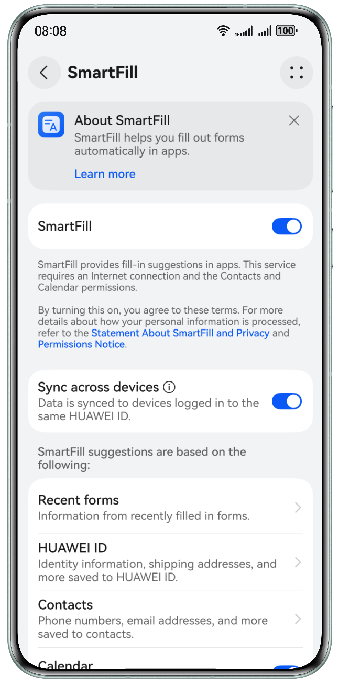
The SmartFill function can be triggered in scenarios specified in the ContentType attribute of the input component for your app or atomic service.
The device is connected to the Internet.
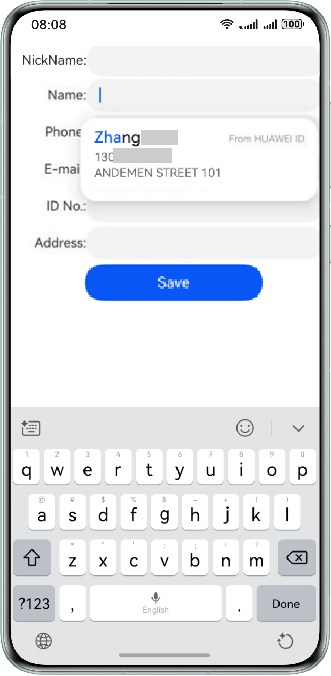
In the form, when a user taps any input component with the ContentType attribute set, input suggestions will be displayed below. For details about the data sources, please refer to Data Sources and Logic of Suggestions.
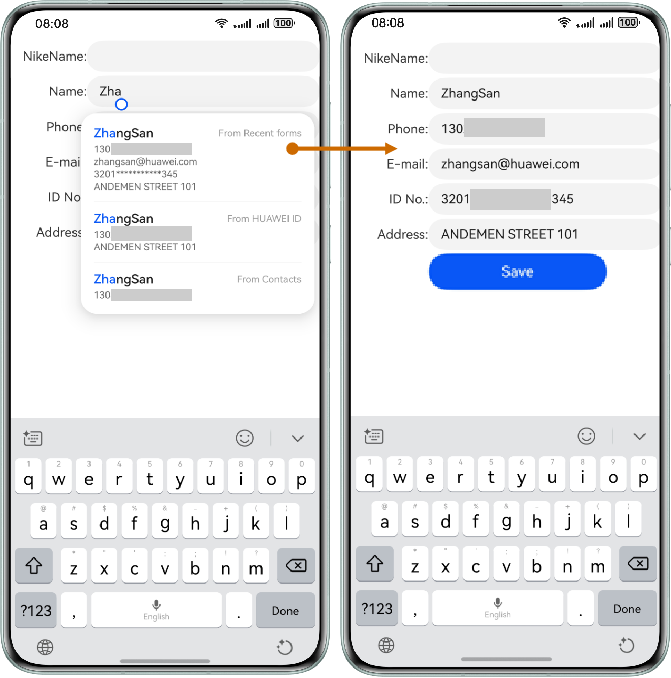
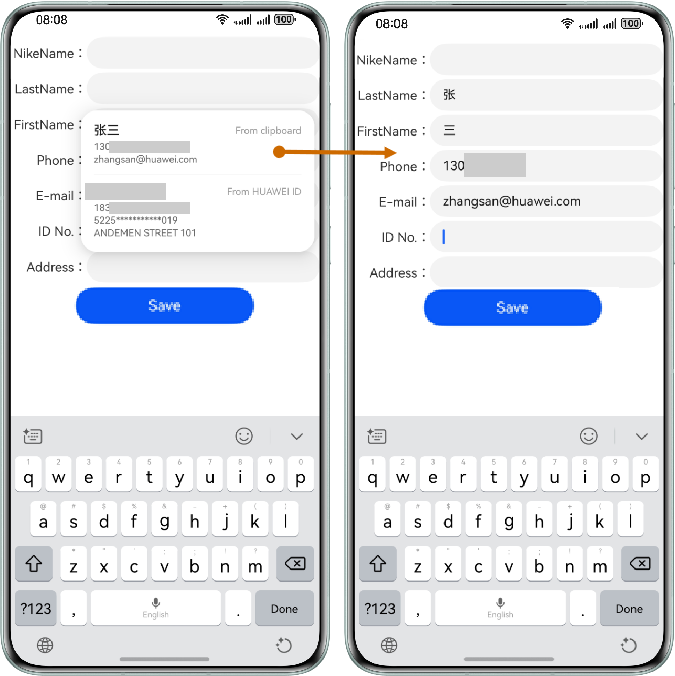
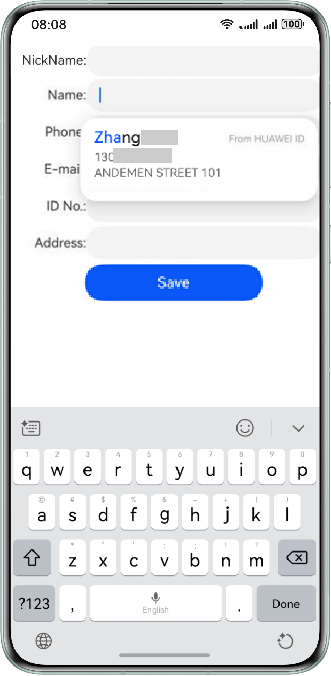
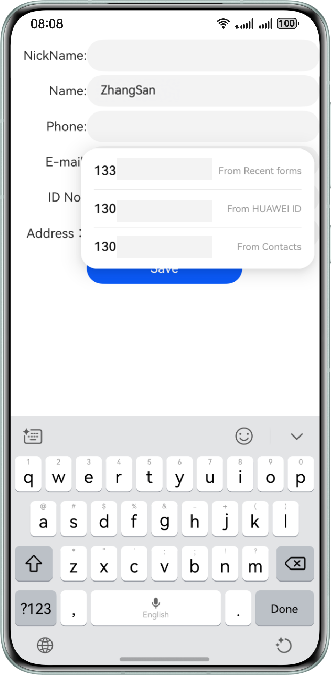
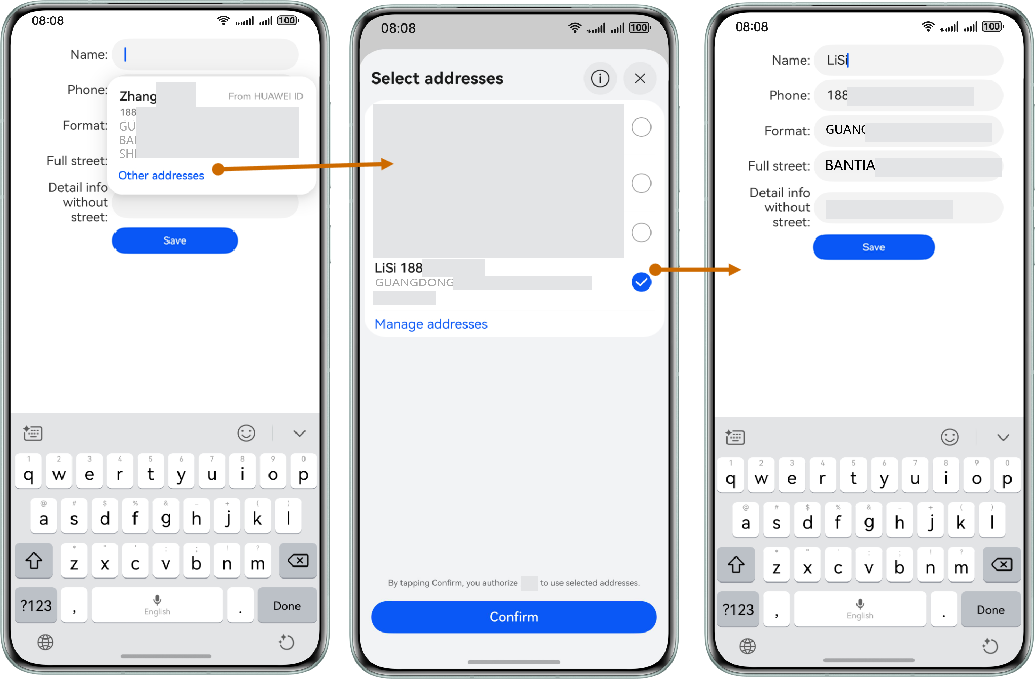
If a form requires nickname input, related suggestions can be obtained from Account Kit.
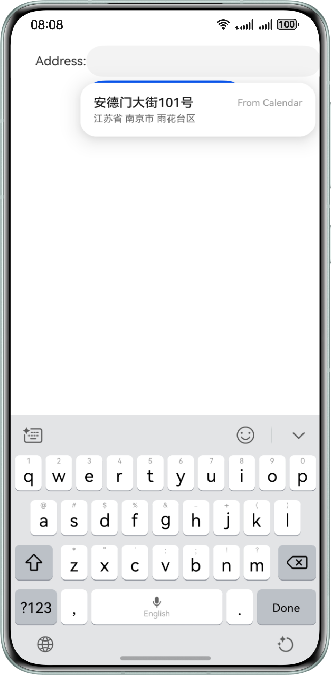
If a form contains a text input component with ContentType set to FORMAT_ADDRESS (detailed address), data will be obtained from events information generated in recent 2 hours for suggestions.
Currently, only Chinese addresses are supported for suggestions based on calendar events data.
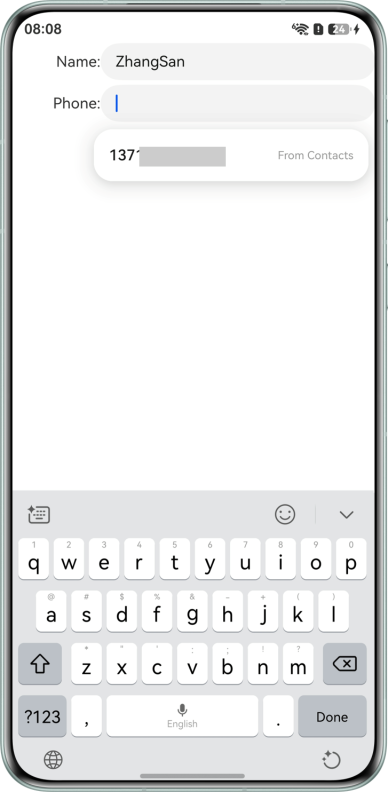
When a user taps an input component whose ContentType is PHONE_NUMBER, if the form contains an input component whose ContentType is PERSON_FULL_NAME or contains two input components whose ContentType is PERSON_LAST_NAME and PERSON_FIRST_NAME respectively that have been filled, contacts information will be recommended based on the input name information.
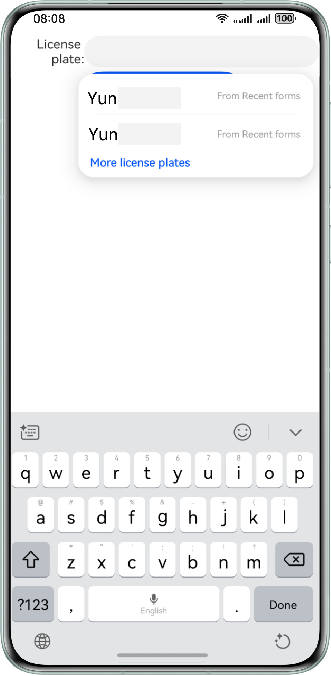
SmartFill supports license plate number filling suggestions since version 5.1.0(18).
If a form requires license plate number input, related suggestions can be obtained from the license plate information of the device owner stored in recent forms.
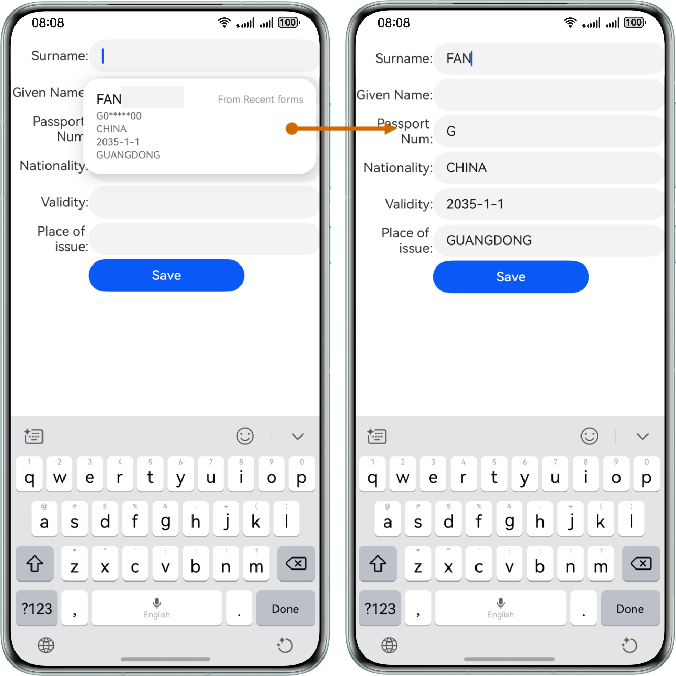
SmartFill supports passport information filling suggestions since version 5.1.0(18).
In the scenario where a form contains an input component whose ContentType is COUNTRY_ADDRESS (nationality), PASSPORT_NUMBER (passport number), VALIDITY (expiration date), or ISSUE_AT (issuance place), if a component requires name input is tapped, passport information can be obtained from recent forms to offer suggestions.
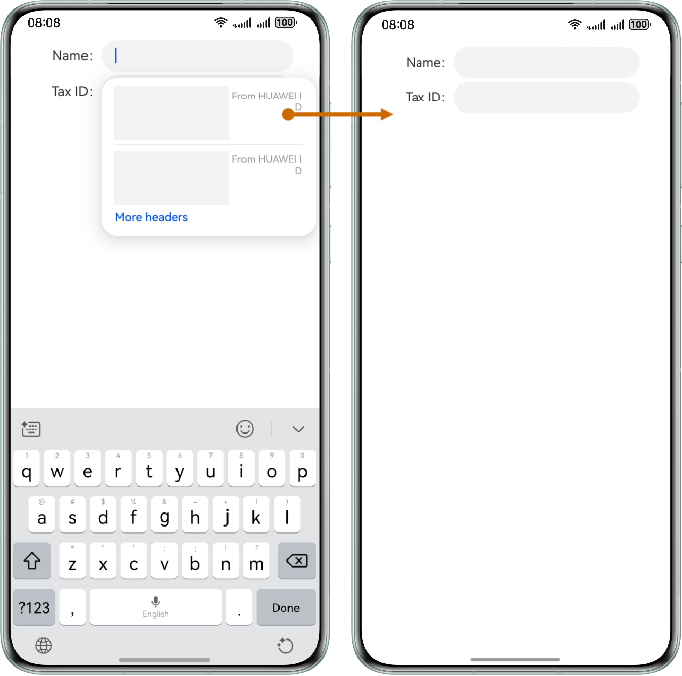
SmartFill supports invoice title information filling suggestions since version 5.1.0(18).
In the scenario where a form contains an input component whose ContentType is ORGANIZATION (organization name) and also an input component whose ContentType is TAX_ID, suggestions can be made. If the former component (ORGANIZATION) is tapped, suggestions can be made either based on the data obtained from Account Kit or based on the user input. Then suggestions for the component with ContentType set to TAX_ID will be provided based on the organization name input. If only one of the components exists, suggestions will not be available.
Previously filled form information can be saved in your app or atomic service for later filling suggestions.
When a user fills a form, input components with the ContentType attribute set will trigger recent form saving, asking the user whether to save the input. If the user confirms, they will be then asked whether to enable SmartFill, so that forms can be filled in with a single tap later.
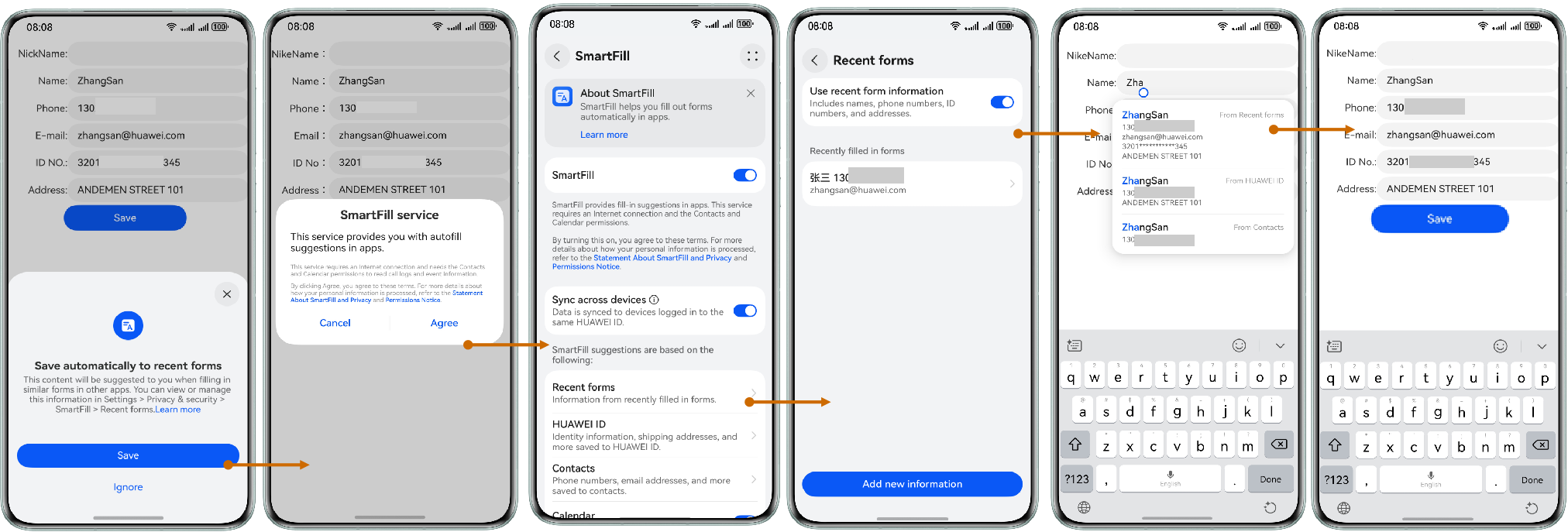
When a user switches or exits a page in a form for which SmartFill is enabled, the requestAutoSave API is called to show the saving page, asking the user whether to save the input in a pop-up. You can also actively call this API to save recent forms.
After the user taps the button to confirm saving of recent forms on the displayed page, if the SmartFill function has not been enabled, the user will be further prompted to enable this function. Only by enabling the function will recent forms be saved.
If the user ignores saving of recent forms, the same app will not ask the user again within 24 hours. If saving of recent forms is ignored for five times on the same device, the user will be prompted to choose whether they don't want to be asked again.
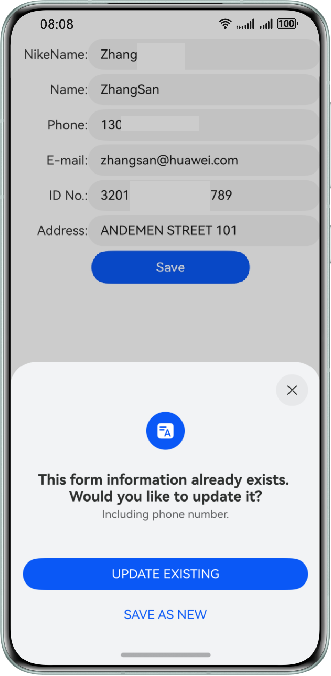
In the scenario where a form contains an input component whose ContentType is PERSON_FULL_NAME as well as another input component with the ContentType attribute set, if a user enters a name that already exists but other input information is different from recent form information saved for the name, the user will be asked whether to update the saved input or save the current input as a new record.
A user can manage recent forms under Smart fill or Personal info. They can either add new records or modify or delete existing records. If a lock screen password is set for the device, the user needs to enter the password to check recent forms.
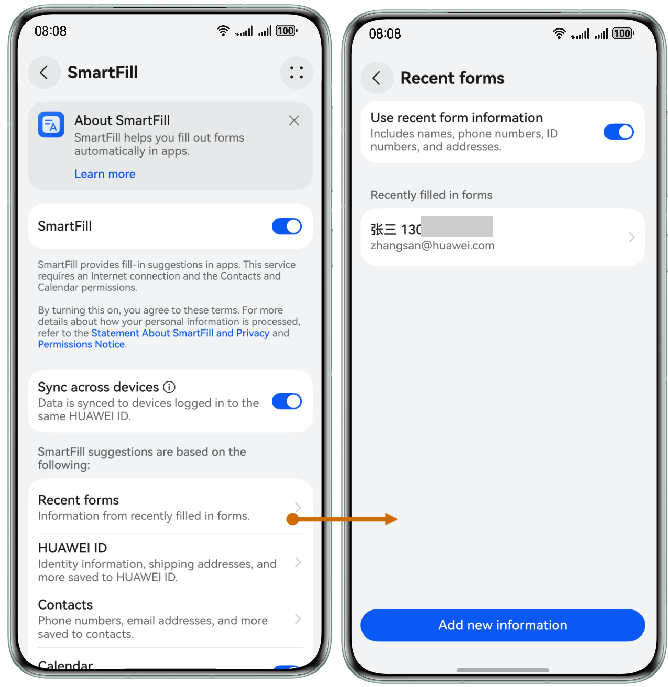
Data is synchronized across multiple devices under the same HUAWEI ID through the cloud space service.
After a user signs in to their HUAWEI ID, SmartFill is enabled under Cloud, and recent form data can be synchronized between multiple devices.
Intelligent Assistant
Chat with our virtual assistant to get answers promptly.
Quick start
Helps you find desired resources with ease.