We use essential cookies for the website to function, as well as analytics cookies for analyzing and creating statistics of the website performance. To agree to the use of analytics cookies, click "Accept All". You can manage your preferences at any time by clicking "Cookie Settings" on the footer. More Information.

Only Essential Cookies
Accept All
GuidesCoding and DebuggingDebugging Your AppRecording Screens

Recording Screens

During app development, you can use the screen recording feature to capture the app's running state and demonstrate its functional effects to others through the screen recording files.

Constraints

  • Before starting screen recording, unlock the device screen if a lock screen password is set. The screen recording app cannot be started when the screen is locked.
  • If a lock screen password is set, keep the screen unlocked during screen recording. If the screen is locked during screen recording, the screen recording app will exit.
  • The Emulator does not support this feature.

Using DevEco Studio

  1. Connect to a real device, and run an app on the device.
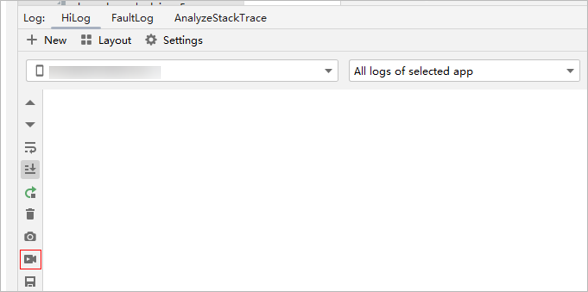
  2. On DevEco Studio, open the Log tab page.
  3. Click on the toolbar on the left to start screen recording.
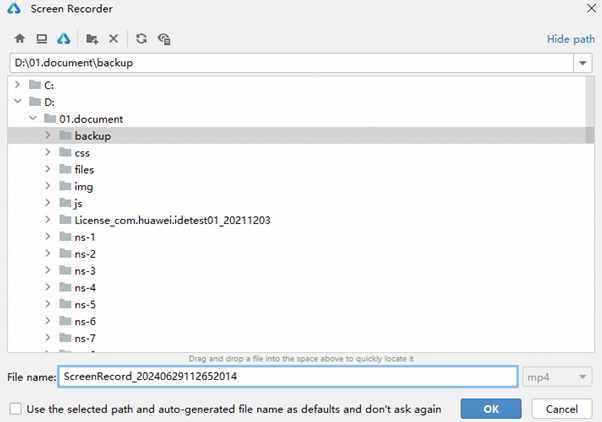
  4. Select the save path for the screen recording file. You can use the default path or set a custom path.

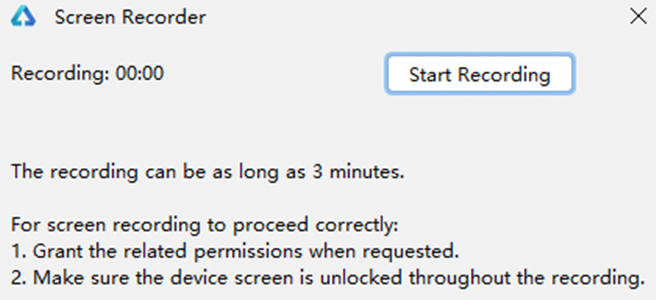
  5. After the path is selected, click Start Recording.

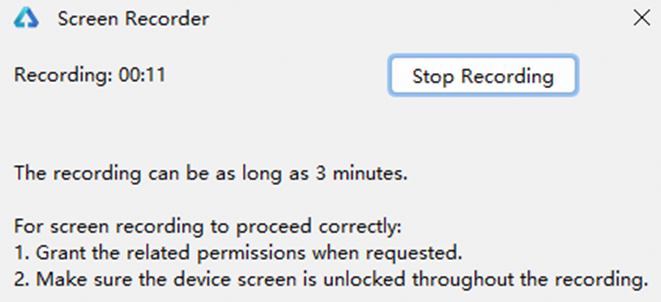
  6. When the recording is complete, click Stop Recording.

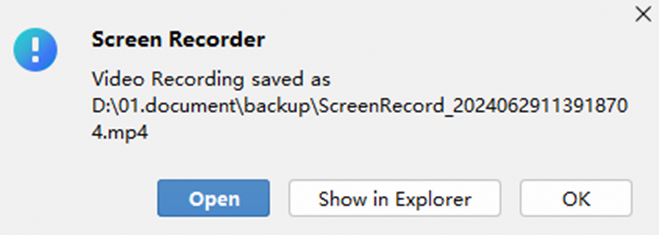
  7. A dialog box is displayed to indicate that the screen recording file is saved in the selected path, from which you can play the recording with a system media player or open the folder containing the file.

Setting a Custom Path for Screen Recording

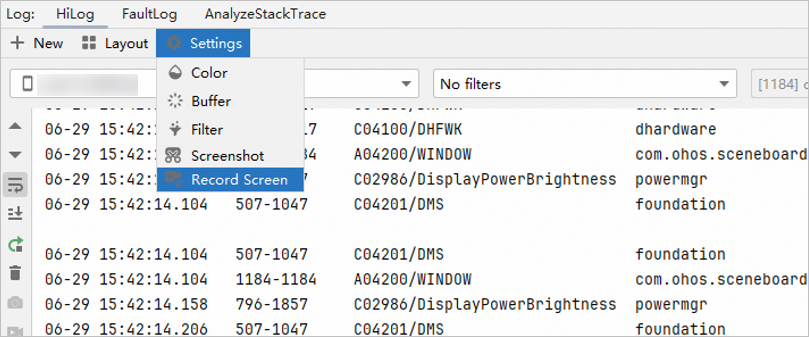
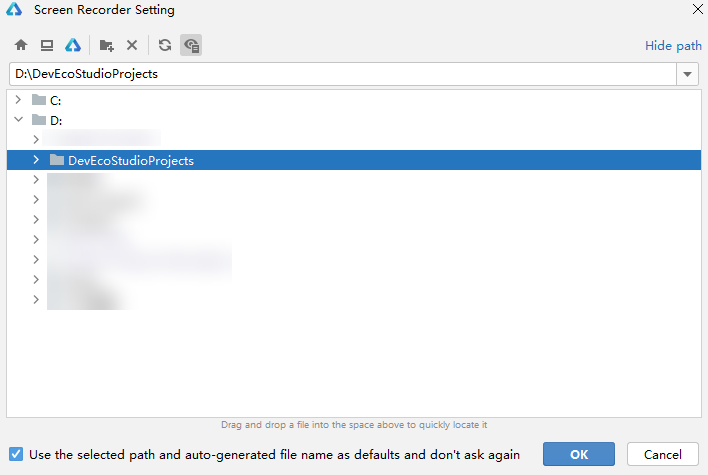
  1. Click the Log tab at the bottom and choose HiLog > Settings > Record Screen.

  2. In the dialog box that is displayed, select a custom path. After the path is set and Use the selected path and auto-generated file name as defaults and don't ask again is selected, the system automatically uses this path and a timestamp-based file name for saving the recording.

Using Commands

You can use hdc, a command line tool primarily used for debugging, to record the screen. For details about hdc, see hdc.

  1. Start screen recording.

    Collapse
    Word wrap
    Dark theme
    Copy code
    1. hdc shell aa start -b com.huawei.hmos.screenrecorder -a com.huawei.hmos.screenrecorder.ServiceExtAbility --ps "CustomizedFileName" "test.mp4" // Set the name of the screen recording file to test.mp4.

  2. Stop screen recording.

    Collapse
    Word wrap
    Dark theme
    Copy code
    1. hdc shell aa start -b com.huawei.hmos.screenrecorder -a com.huawei.hmos.screenrecorder.ServiceExtAbility

  3. Obtain the path to the screen recording file, which will be used as the value of {RecordFile} later.

    Collapse
    Word wrap
    Dark theme
    Copy code
    1. hdc shell mediatool query test.mp4 -u
    • If the query result contains the uri field, the screen recording file indicated on the third line of the return value cannot be directly downloaded, which means the file path cannot be directly used as the value of {RecordFile}.

      In this case, run the following command with the value of uri to save the file to a path on which you have the download permission, for example, /data/local/tmp:

      Collapse
      Word wrap
      Dark theme
      Copy code
      1. hdc shell mediatool recv "file://media/Photo/2/VID_1736853237_001/test.mp4" /data/local/tmp

      The second line in the command output is the value of {RecordFile}.

    • If the query result does not contain the uri field, the second line of the return value is the desired value of {RecordFile}.

  4. Run the following command with the value of {RecordFile} obtained in the previous step to download the screen recording file to the local device:

    Collapse
    Word wrap
    Dark theme
    Copy code
    1. hdc file recv {RecordFile} d:\test.mp4

Search in Guides
Enter a keyword.