To protect user privacy, the Wear Engine APIs need user authorization to work. It is recommended that you perform the operations in this section when users call Wear Engine's open capabilities for the first time.
Applying for Wearable Device Permissions
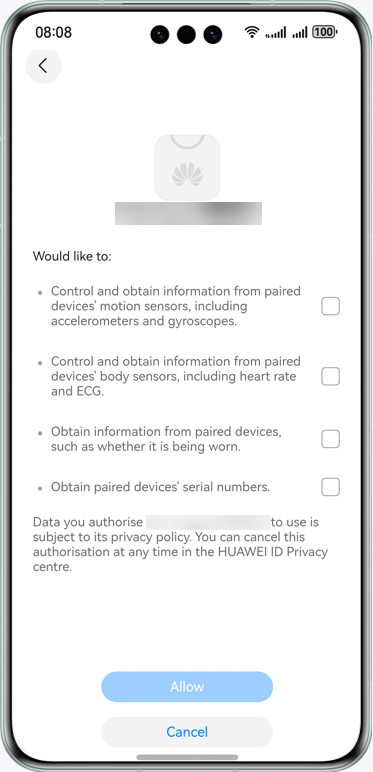
Your app can only access data upon user authorization on the HUAWEI ID sign-in screen and authorization screen. Users can select the data range to be authorized and grant only some data permissions.
-
Call the getAuthClient method in wearEngine to obtain the AuthClient object.
-
Define the authorization request class AuthorizationRequest.
-
Call the requestAuthorization method to request authorization from users. An authorization screen will display for users to grant the permissions. (The sign-in screen will display first if a user has not signed in to their HUAWEI ID.) You can use the APIs properly only after obtaining the user authorization. Otherwise, error code 201 will be reported.

-
Ensure that the permissions requested have been approved after applying for integrating Wear Engine. Otherwise, error code 1008500004 will be reported.
-
This API can be called for multiple times. If the requested permissions have been granted, the authorization screen will no longer display and the API will return the granted permissions.
-
You can obtain the permissions requested by your app based on the AuthorizationRequest object in the input parameter. For details about the types of permissions required, please refer to Permissions.
-
The authorization result is returned through the AuthorizationResponse object.
// Before using Wear Engine, import the wearEngine and related modules. import { wearEngine } from '@kit.WearEngine'; import { BusinessError } from '@kit.BasicServicesKit'; // Step 1: Obtain the AuthClient object. let authClient: wearEngine.AuthClient = wearEngine.getAuthClient(this.getUIContext().getHostContext()); // Step 2: Define the permission request class based on the permissions that require user authorization. let request: wearEngine.AuthorizationRequest = { permissions: [wearEngine.Permission.USER_STATUS] } // Step 3: Request user authorization. authClient.requestAuthorization(request).then(result => { console.info(`Succeeded in requesting authorize, authorized permissions is ${result.permissions}`); }).catch((error: BusinessError) => { console.error(`Failed to request authorize. Code is ${error.code}, message is ${error.message}`); }) -
Querying User Authorization Results
This API is used to query the app permissions granted by a user. If the required permissions are not granted, request authorization from the user by referring to Applying for Wearable Device Permissions. You are advised to use this API to check whether the required permissions have been granted before requesting user authorization.

Ensure that the permissions have been approved after applying for integrating Wear Engine. Otherwise, error code 1008500004 will be reported.
-
Call the getAuthClient method in wearEngine to obtain the AuthClient object.
-
Call the getAuthorization method to query the granted permissions.
// Before using Wear Engine, import the wearEngine and related modules.
import { wearEngine } from '@kit.WearEngine';
import { BusinessError } from '@kit.BasicServicesKit';

// Step 1: Obtain the AuthClient object.
let authClient: wearEngine.AuthClient = wearEngine.getAuthClient(this.getUIContext().getHostContext());

// Step 2: Call the API to query granted permissions.
authClient.getAuthorization().then(result => {
  console.info(`Succeeded in getting authorized permissions, authorized permissions is ${result.permissions}`);
}).catch((error: BusinessError) => {
  console.error(`Failed to get authorized permissions. Code is ${error.code}, message is ${error.message}`);
})