


Intelligent Assistant
Chat with our virtual assistant to get answers promptly.
We use essential cookies for the website to function, as well as analytics cookies for analyzing and creating statistics of the website performance. To agree to the use of analytics cookies, click "Accept All". You can manage your preferences at any time by clicking "Cookie Settings" on the footer. More Information.
HarmonyOS
Before development, the device must be upgraded to HarmonyOS NEXT Developer Beta1 or a later version through OTA.
| Tool | Version | Description |
|---|---|---|
| Migration debugging tool | 205.0.0.115 and later versions | Used to simulate and verify data migration. |
| DevEco Studio | DevEco Studio NEXT Developer Beta3 and later versions | For details, see DevEco Studio User Guide. |
| Compatible SDK | 5.0.0(12) | For details, see All HarmonyOS Versions. |
This section starts from creating a project and guides you through integrating the backup and restoration framework. If you have already created a project, you can skip this section.
You can customize a class in the BackupExtension.ts file to inherit BackupExtensionAbility and override the onBackup and onRestore methods to customize application data conversion and migration. In the data migration scenario where the device is upgraded from HarmonyOS to HarmonyOS NEXT, bundleVersion.name in the onRestore callback API is prefixed with 0.0.0.0.
The onRestore API is a synchronous API. All internal asynchronous operations require synchronous waiting.
The following uses an empty project as an example to describe how to implement BackupExtensionAbility:
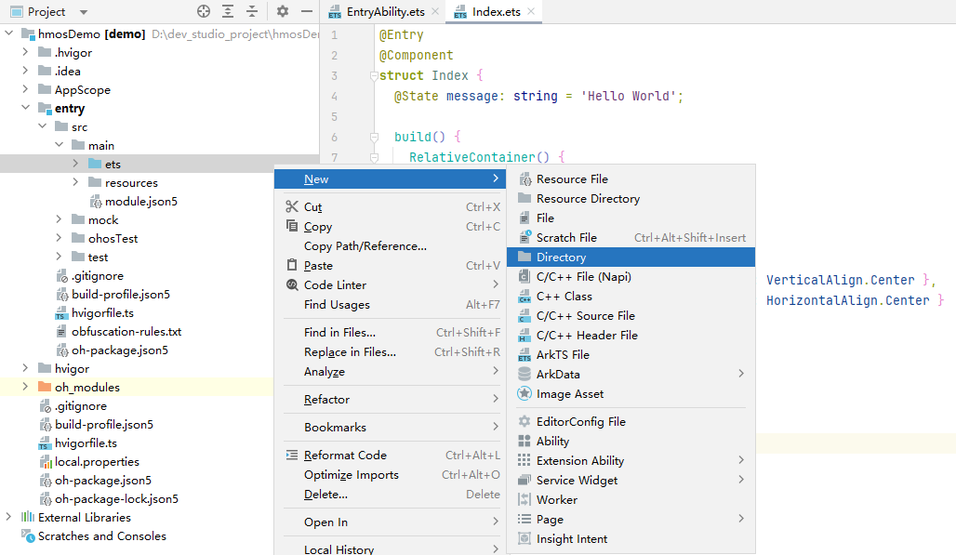
In the entry/src/main/ets/ directory, choose New > Directory to create the backupExtension directory.
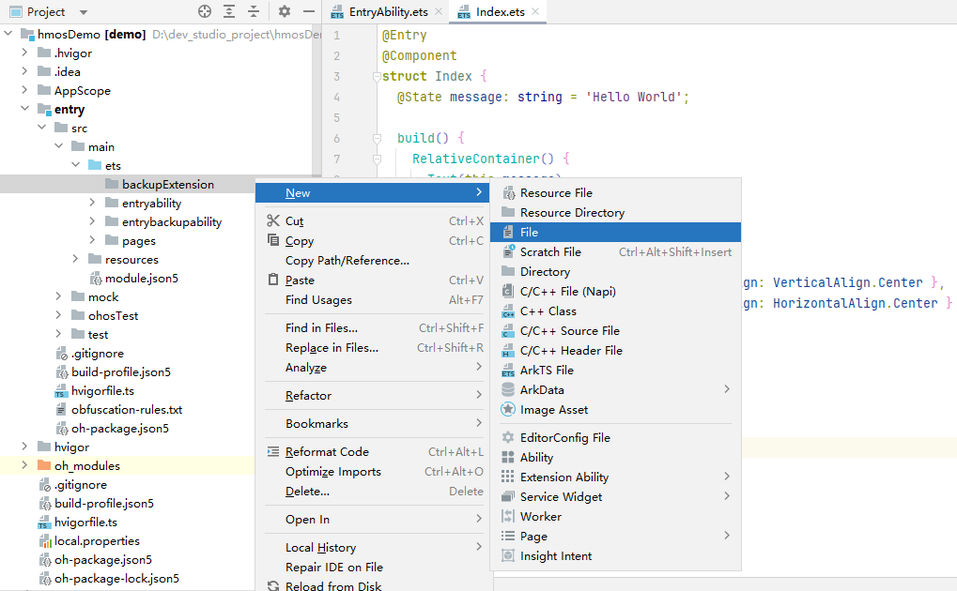
Click the **entry/src/main/ets/**backupExtension/ directory and choose New > File to create the BackupExtension.ets file.
Implement BackupExtensionAbility by referring to the following sample code. Fill the application data conversion and migration logic in the specified position.
When a device is upgraded from HarmonyOS to HarmonyOS NEXT, files in the original APK sandbox directory are stored in the HarmonyOS backup and restore directory. For details, see Mapping Between APK Sandbox Directories and Backup and Restore Directories.
- import { BackupExtensionAbility, BundleVersion } from '@kit.CoreFileKit';
-
- const TAG = `EntryBackupAbility`;
-
- /**
- * serviceExt *Process entry*
- */
- export default class EntryBackupAbility extends BackupExtensionAbility {
- async onBackup () {
- console.info(TAG,`onBackup ok`);
- await Promise.resolve();
- }
-
- /**
- * *API used for data restoration*. It is a synchronous API. All internal asynchronous operations require synchronous waiting.
- *
- * @param bundleVersion *Version information*
- */
- async onRestore (bundleVersion : BundleVersion): Promise<void> {
- console.info(TAG, `onRestore ok ${JSON.stringify(bundleVersion)}`);
- // If the prefix of bundleVersion.name is 0.0.0.0, the device is upgraded from HarmonyOS to HarmonyOS NEXT.
- if (bundleVersion.name.startsWith("0.0.0.0")){
- // Convert and migrate application data after the device is upgraded from HarmonyOS 4.x to HarmonyOS NEXT.
- // If asynchronous operations are involved, perform synchronous waiting.
- console.info(TAG, `HarmonyOS to HarmonyOS NEXT scenario`);
- } else {
- // Implement data processing after migration between HarmonyOS NEXT devices. If no special handling is required, leave empty as a stub implementation.
- // If asynchronous operations are involved, perform synchronous waiting.
- console.info(TAG, `Other scenario`);
- }
- }
- }
The maximum data migration duration of a single application is 15 minutes. If the application data migration is not complete within 15 minutes, the task will fail.
All the required data must be converted and migrated before the execution of BackupExtensionAbility is complete, after which the backup and restore framework clears the backup and restore directory.
You can use the metadata resource configuration file backup_config.json to enable backup and restoration and define the files to be transferred by the backup and restore framework.
The following uses an empty project as an example to describe how to configure metadata resource files:
In the **entry/src/main/resources/base/**profile/ directory, choose New > File to create the backup_config.json file.
Configure the metadata resource file by referring to the sample code.
- {
- "allowToBackupRestore": true,
- "extraInfo": {
- "supportScene": [
- "hmos2next"
- ]
- }
- }
You need to register the metadata resource in the application configuration file module.json5. Set type to backup and add an entry named ohos.extension.backup to metadata.
extensionAbilities can be accessed only when it is configured in the entry-level module.json5.
The following uses an empty project as an example to describe how to configure the module.json5 file:
You need to register the metadata resource in the entry-level module.json5 and configure the metadata resource file by referring to the sample code.
- "extensionAbilities": [
- {
- "description": "DemoBackupExtension",
- "icon": "$media:app_icon",
- "name": "BackupExtensionAbility",
- "srcEntry": "./ets/backupExtension/BackupExtension.ets", // Path of BackupExtension.ets in the code repository
- "type": "backup", // Set type to backup.
- "exported": false,
- "metadata": [ // Registered metadata resource
- {
- "name": "ohos.extension.backup",
- "resource": "$profile:backup_config"
- }
- ]
- }
- ]
The following table lists the mapping between the APK sandbox directories and the backup and restore directories.
| APK Sandbox Directory | Backup and Restore Directory | How to Obtain |
|---|---|---|
| /data/user_de/{userId}/{APK package name}/ | /data/storage/el1/base/.backup/restore/{APK package name}/de/ | this.context.area = contextConstant.AreaMode.EL1; let deSourcePath = this.context.backupDir + "restore/{APK package name}/de/" |
| /data/user/{userId}/{APK package name}/ | /data/storage/el2/base/.backup/restore/{APK package name}/ce/ | this.context.area = contextConstant.AreaMode.EL2; let ceSourcePath = this.context.backupDir + "restore/{APK package name}/ce/" |
| /data/media/{userId}/Android/data/{APK package name}/ | /data/storage/el2/base/.backup/restore/{APK package name}/A/data/ | this.context.area = contextConstant.AreaMode.EL2; let dataSourcePath = this.context.backupDir + "restore/{APK package name}/A/data/" |
| /data/media/{userId}/Android/obb/{APK package name}/ | /data/storage/el2/base/.backup/restore/{APK package name}/A/obb/ | this.context.area = contextConstant.AreaMode.EL2; let obbSourcePath = this.context.backupDir + "restore/{APK package name}/A/obb/" |
Intelligent Assistant
Chat with our virtual assistant to get answers promptly.
Quick start
Helps you find desired resources with ease.