Analytics Kit operates with an event analysis data model.
The model uses the Event-Param-User pattern to record data. It describes events using parameters and describes users using attributes.
Term | Meaning | Description |
|---|---|---|
Event | Event | Describes a specific task completed by a user at a location using a method at a certain time point, including key elements such as who, when, where, how, and what. |
Param | Parameter | Indicates associated parameters reported in events, for example, the product name and product price parameters in the add-to-cart event. These parameters can be used for subsequent in-depth analysis. |
UserProfiles | User attribute | Indicates a list of user attributes. Common user attributes include the device model, app version, and custom user attributes such as food preferences. |
Analytics Kit collects the AAID, which is the anonymous ID of an app. A unique AAID is allocated to each app on the same device. The AAID is used for connecting various Huawei services, such as Push Kit, Analytics Kit, and Remote Configuration.
The AAID will be reset in the following scenarios:
- The user reinstalls the app.
- The user restores the device to its factory settings.
- The user clears the app data.
- The app calls the clearCachedData API.
Procedure
- Configure the app installation source.
By configuring an app installation source, you can collect statistics on the app stores where your app is downloaded and analyze the effect of your marketing strategies.
To configure an app installation source, open the AndroidManifest.xml file of your project, and add the meta-data configuration to application.
<application>
    ......
    <meta-data
        android:name="install_channel"
        android:value="install_channel_value">
    </meta-data>
    ......
</application>
Replace install_channel_value with your app installation source. For example, if the app installation source is AppGallery, replace install_channel_value with AppGallery.

- The name of the app installation source can contain a maximum of 128 characters, including letters, digits, underscores (_), hyphens (-), and spaces. It cannot start or end with a space. Enter a source name that is easy to remember and understand.
- You can also set an installation source using the setChannel API. However, the value set through the API has a lower priority than that set in the AndroidManifest.xml file. If an installation source has been set in the AndroidManifest.xml file, then the one set by setChannel will not take effect.
- Initialize the Analytics SDK.
Call the getInstance API to initialize the Analytics SDK.

- During SDK initialization, a network request will be sent. Initialize the SDK only after users agree to the privacy agreement. For details about the method of setting whether to send network requests, please refer to According to regulatory requirements, my app cannot send any network requests before obtaining users' authorization on network access after I integrate the SDK. What should I do?.
- Initialize the Analytics SDK in onCreate of the first Activity or Application. Otherwise, the collection of lifecycle-related events will be affected.
- In this example, the type of context is Activity. Context type initialization has been supported since SDK version 2.3.0.304.
- If the Analytics SDK is initialized in Context mode and the Context is obtained from Application, automatic collection of some parameters of the LAUNCHAPP event will be affected. In some scenarios, the app launch mode cannot be obtained.
Java
HiAnalyticsInstance instance = HiAnalytics.getInstance(context);
Kotlin val instance = HiAnalytics.getInstance(context) - (Optional) If you need to query the referrer from Google Play, perform the following operations:
- Add the following dependency to the app-level build.gradle file:
implementation 'com.android.installreferrer:installreferrer:2.2'
- After initializing the Analytics SDK, call setCustomReferrer to set a custom referrer.
Java
// Obtain a HiAnalyticsInstance instance.
HiAnalyticsInstance instance = HiAnalytics.getInstance(context);
final InstallReferrerClient client = InstallReferrerClient.newBuilder(getBaseContext()).build();
client.startConnection(new InstallReferrerStateListener() {
    @Override
    public void onInstallReferrerSetupFinished(int responseCode) {
        if (responseCode == InstallReferrerClient.InstallReferrerResponse.OK) {
            try {
                ReferrerDetails details = client.getInstallReferrer();
                // Set a custom referrer.
                instance.setCustomReferrer(details.getInstallReferrer());
            } catch (RemoteException exception) {
                // Capture the exception.
            }
        }
    }
    @Override
    public void onInstallReferrerServiceDisconnected() {
        // Disconnect onInstallReferrerService.
    }
});
Kotlin // Obtain a HiAnalyticsInstance instance. val instance = HiAnalytics.getInstance(this); val client: InstallReferrerClient = InstallReferrerClient.newBuilder(baseContext).build() client.startConnection(object : InstallReferrerStateListener { override fun onInstallReferrerSetupFinished(responseCode: Int) { if (responseCode == InstallReferrerClient.InstallReferrerResponse.OK) { try { val details: ReferrerDetails = client.getInstallReferrer() // Set a custom referrer. instance.setCustomReferrer(details.getInstallReferrer()) } catch (exception: RemoteException) { // Capture the exception. } } } override fun onInstallReferrerServiceDisconnected() { // Disconnect onInstallReferrerService. } })
- Add the following dependency to the app-level build.gradle file:
- (Optional) Set event reporting policies.
The Analytics SDK provides four event reporting policies. These policies can be used in flexible combinations. Event reporting is triggered when any of the policies is met. Select an appropriate policy based on your service requirements.
You are advised to include ON_MOVE_BACKGROUND_POLICY in your event reporting policies. This ensures that events generated after app exit can be reported in a timely manner.
Policy
Description
Remarks
ON_APP_LAUNCH_POLICY
Reports an event upon app launch.
An event will be reported when an app is launched. An event will be reported immediately when this policy is set. After that, an event will be reported each time the app is launched.
ON_MOVE_BACKGROUND_POLICY
Reports an event upon app switching to the background.
An event will be reported when an app is switched to the background, including app exit.
ON_SCHEDULED_TIME_POLICY
Reports an event at the specified interval.
An event will be reported at the specified interval. The value ranges from 60 to 1800, in seconds. The default value is 60. If the specified value is beyond the value range, the boundary value is used.
ON_CACHE_THRESHOLD_POLICY
Reports an event when the specified threshold is reached.
An event will be reported when the number of cached events reaches the threshold. The value ranges from 30 to 1000. The default value is 30. If the specified value is beyond the value range, the boundary value is used.

- The preceding event reporting policies take effect only when the debug mode is disabled. The specified event reporting policies are saved persistently.
- The ON_MOVE_BACKGROUND_POLICY and ON_CACHE_THRESHOLD_POLICY policies are mandatory and take effect regardless of which policy is used. For the ON_CACHE_THRESHOLD_POLICY policy, you can change the threshold for reporting an event.
- Event reporting policies will be updated if a policy setting API is called multiple times. Only the last policy set by the API is effective.
- When reporting conditions specified by a policy are met and event reporting is triggered, the event will be cached locally if no network is available and will be reported again when reporting conditions are met next time.
- Record defined events using the onEvent API.

For details about event definitions, please refer to Automatically Collected Events, General, and Custom Events.
- Call APIs of Analytics Kit to implement the corresponding functions. For details, please refer to API Reference. For example, call setUserProfile to set user attributes.
Sample Code
- After the agconnect-services.json file is imported successfully, initialize the Analytics SDK in the onCreate method of the first activity to obtain a HiAnalyticsInstance instance.

If the agconnect-services.json file is incorrect, event tracking may fail. For details about how to import the agconnect-services.json file, please refer to Integrating the SDK.
Java
@Override
protected void onCreate(Bundle savedInstanceState) {
    super.onCreate(savedInstanceState);
    setContentView(R.layout.activity_main);
    // Enable SDK log recording.
    HiAnalyticsTools.enableLog();
    HiAnalyticsInstance instance = HiAnalytics.getInstance(this);
    // Or initialize Analytics Kit with the given context.
    Context context = this.getApplicationContext();
    HiAnalyticsInstance instance = HiAnalytics.getInstance(context);
    // (Optional) Set user attributes.
    instance.setUserProfile("userKey","value");
}
Kotlin override fun onCreate(savedInstanceState: Bundle?) { super.onCreate(savedInstanceState) setContentView(R.layout.activity_main) // Enable SDK log recording. HiAnalyticsTools.enableLog() val instance = HiAnalytics.getInstance(this) // Or initialize Analytics Kit with the given context. val context = this.applicationContext val instance = HiAnalytics.getInstance(context) // (Optional) Set user attributes. instance.setUserProfile("userKey", "value") } - (Optional) Set the ON_MOVE_BACKGROUND_POLICY and ON_SCHEDULED_TIME_POLICY policies.
Java
// Create a policy that is used to report an event upon app switching to the background.
ReportPolicy moveBackgroundPolicy = ReportPolicy.ON_MOVE_BACKGROUND_POLICY;
// Create a policy that is used to report an event at the specified interval.
ReportPolicy scheduledTimePolicy = ReportPolicy.ON_SCHEDULED_TIME_POLICY;
// Set the event reporting interval to 600 seconds.
scheduledTimePolicy.setThreshold(600);
Set<ReportPolicy> reportPolicies = new HashSet<>();
// Add the ON_SCHEDULED_TIME_POLICY and ON_MOVE_BACKGROUND_POLICY policies.
reportPolicies.add(scheduledTimePolicy);
reportPolicies.add(moveBackgroundPolicy);
// Set the ON_MOVE_BACKGROUND_POLICY and ON_SCHEDULED_TIME_POLICY policies.
instance.setReportPolicies(reportPolicies);
Kotlin // Create a policy that is used to report an event upon app switching to the background. val moveBackgroundPolicy = ReportPolicy.ON_MOVE_BACKGROUND_POLICY // Create a policy that is used to report an event at the specified interval. val scheduledTimePolicy = ReportPolicy.ON_SCHEDULED_TIME_POLICY // Set the event reporting interval to 600 seconds. scheduledTimePolicy.threshold = 600 val reportPolicies = HashSet<ReportPolicy>() // Add the ON_SCHEDULED_TIME_POLICY and ON_MOVE_BACKGROUND_POLICY policies. reportPolicies.add(scheduledTimePolicy) reportPolicies.add(moveBackgroundPolicy) // Set the ON_MOVE_BACKGROUND_POLICY and ON_SCHEDULED_TIME_POLICY policies. instance.setReportPolicies(reportPolicies) - Enable event tracking in proper positions of the code.
Java
// Enable tracking of the custom event in proper positions of the code.
Bundle bundle = new Bundle();
bundle.putString("exam_difficulty", "high");
bundle.putString("exam_level", "1-1");
bundle.putString("exam_time", "20190520-08");
instance.onEvent("begin_examination", bundle);
// Enable tracking of the predefined event in proper positions of the code.
Bundle bundle_pre = new Bundle();
bundle_pre.putString(HAParamType.PRODUCTID, "item_ID");
bundle_pre.putString(HAParamType.PRODUCTNAME, "name");
bundle_pre.putString(HAParamType.CATEGORY, "category");
bundle_pre.putLong(HAParamType.QUANTITY, 100L);
bundle_pre.putDouble(HAParamType.PRICE, 10.01);
bundle_pre.putDouble(HAParamType.REVENUE, 10);
bundle_pre.putString(HAParamType.CURRNAME, "currency");
bundle_pre.putString(HAParamType.PLACEID, "location_ID");
instance.onEvent(HAEventType.ADDPRODUCT2WISHLIST, bundle_pre);
Kotlin // Enable tracking of the custom event in proper positions of the code. val bundle = Bundle() bundle.putString("exam_difficulty", "high") bundle.putString("exam_level", "1-1") bundle.putString("exam_time", "20190520-08") instance.onEvent("begin_examination", bundle) // Enable tracking of the predefined event in proper positions of the code. val bundle_pre = Bundle() bundle_pre.putString(HAParamType.PRODUCTID, "item_ID") bundle_pre.putString(HAParamType.PRODUCTNAME, "name") bundle_pre.putString(HAParamType.CATEGORY, "category") bundle_pre.putLong(HAParamType.QUANTITY, 100L) bundle_pre.putDouble(HAParamType.PRICE, 10.01) bundle_pre.putDouble(HAParamType.REVENUE, 10.0) bundle_pre.putString(HAParamType.CURRNAME, "currency") bundle_pre.putString(HAParamType.PLACEID, "location_ID") instance.onEvent(HAEventType.ADDPRODUCT2WISHLIST, bundle_pre)
Setting the Debug Mode
During the development, you can enable the debug mode to view the event records in real time, observe the results, and adjust the event reporting policies as needed.
[h2]Enabling/Disabling the Debug Mode
- To enable the debug mode:
- Run the following command. After the debug mode is enabled, all events will be reported in real time. You can view the reported data on the App debugging page.

Replace <package_name> in the command with your app package name.
adb shell setprop debug.huawei.hms.analytics.app <package_name> - After the data is successfully reported, you can go to to view the reported data.
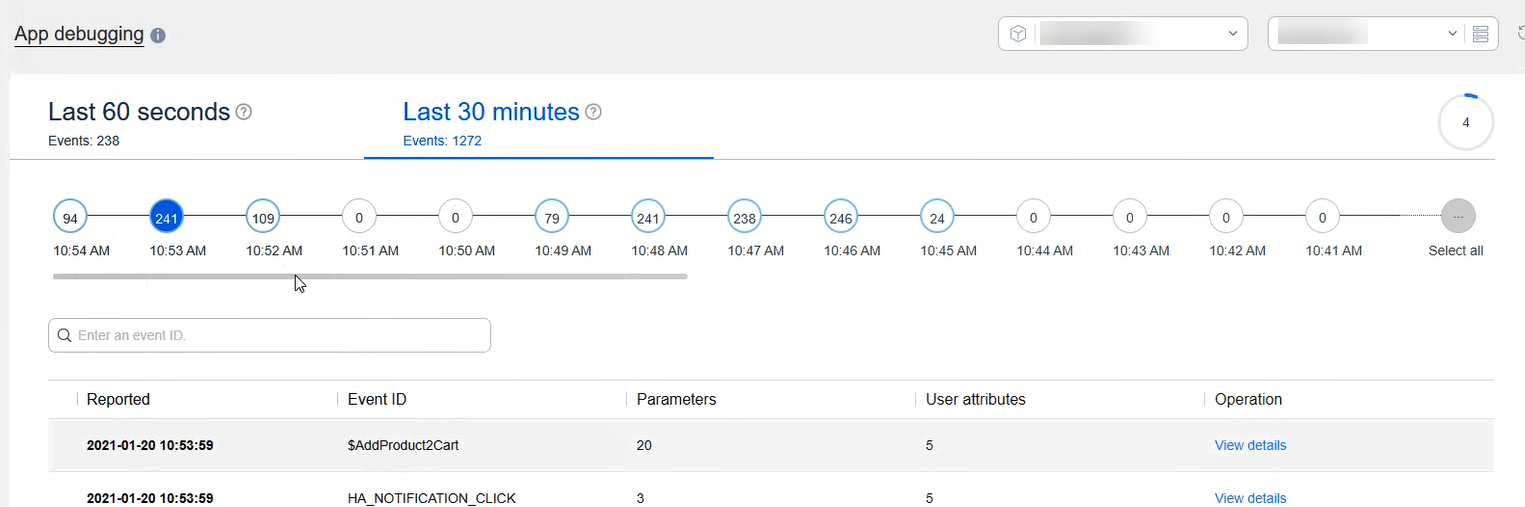
- For details about how to view the data in AppGallery Connect, please refer to App Debugging.
- Run the following command. After the debug mode is enabled, all events will be reported in real time. You can view the reported data on the App debugging page.
- To disable the debug mode:
(Optional) Configuring the AndroidManifest.xml File
- Set whether to enable advertising ID collection.
The operation is as follows:
Open the AndroidManifest.xml file of your project and add the meta-data configuration to application. The format is as follows:
<application>
    ......
    <meta-data
        android:name="analyticskit_adsid_collection_enabled"
        android:value="true">
    </meta-data>
    ......
</application>
The default value is true, indicating that advertising IDs can be collected. You can change the value as required.

You can also set whether to collect advertising IDs using setCollectAdsIdEnabled. The value set through this API has a higher priority than that set in the AndroidManifest.xml file.
- Disable system attribute collection.
The configuration is as follows:
Open the AndroidManifest.xml file of your project and add the meta-data configuration to application. The format is as follows:
<application>
    ......
    <meta-data
        android:name="analyticskit_properties_collection_disabled"
        android:value="userAgent">
    </meta-data>
    ......
</application>
value indicates the attribute that cannot be collected. You can set value only to userAgent now.

You can also set whether to collect system attributes using the setPropertyCollection API. The value set through this API has a higher priority than that set in the AndroidManifest.xml file.