Procedure
- Before you get started, register as a Huawei developer and complete identity verification on HUAWEI Developers. For details, please refer to Registration and Verification.
- Create an app by following instructions in Creating a Project and Adding an App to a Project.
- Enable Analytics Kit.
- Sign in to AppGallery Connect and click My projects.
- Select the target project and app.
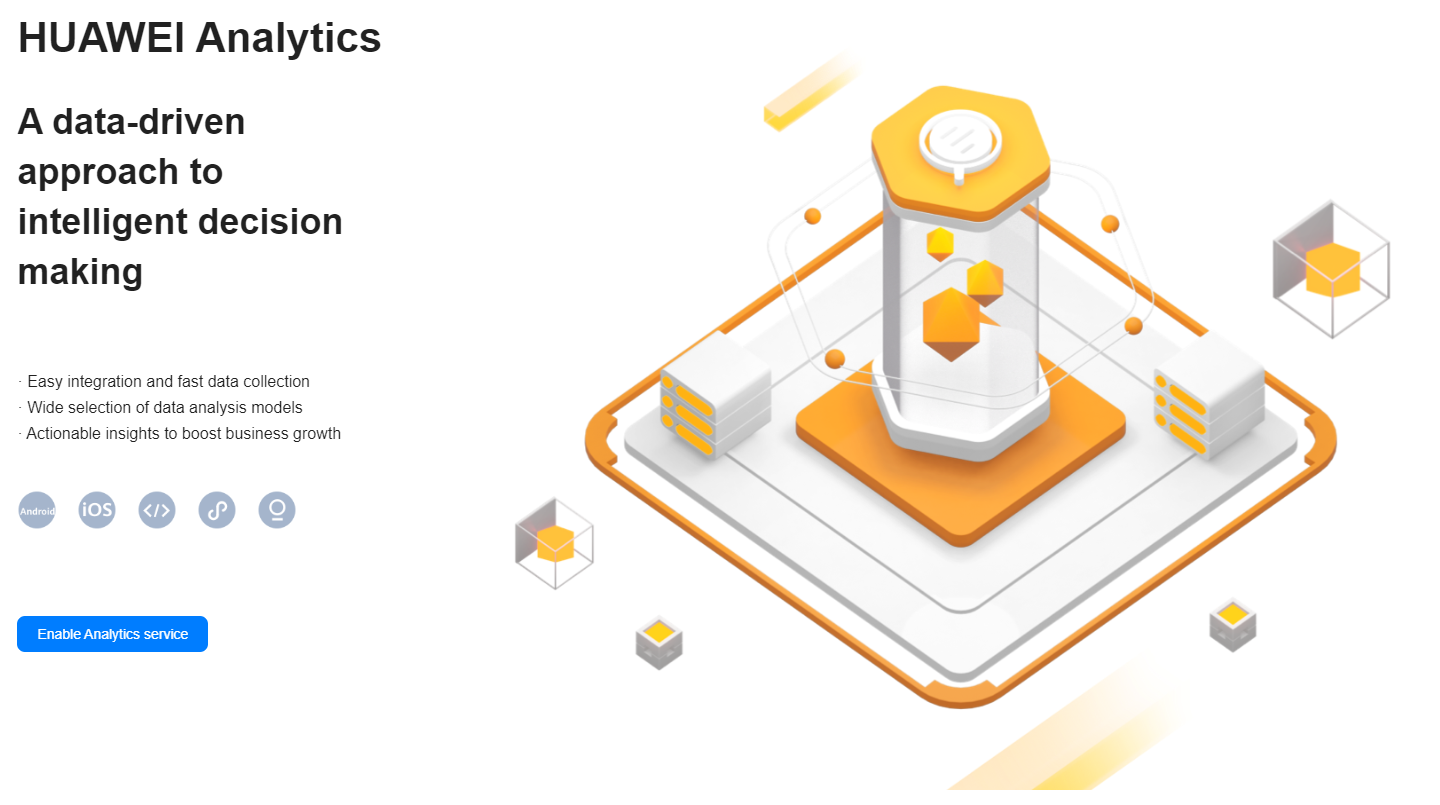
- Select any menu under HUAWEI Analytics and click Enable Analytics service. This service can be enabled only when you have the management permission.
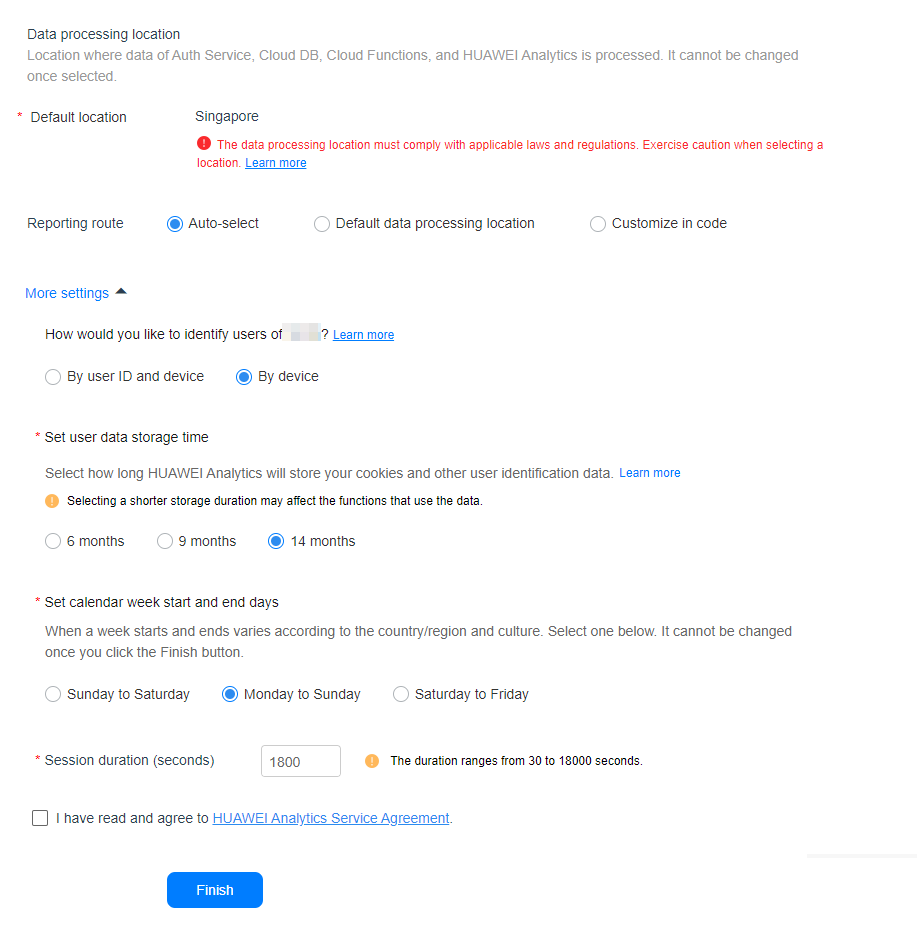
- On the Project access settings page, set the data processing location, user data storage time, and calendar week, and click Finish.

If your app will be released in multiple countries/regions, you are advised to enable multiple data processing locations and use InitSettings.routePolicy to initialize the SDK. When calling this method, specify the data processing locations as required.

Sign in to AppGallery Connect, click My projects, open the target project, and choose Project settings > Manage APIs. On the page displayed, check whether the API permission for Analytics Kit has been enabled.