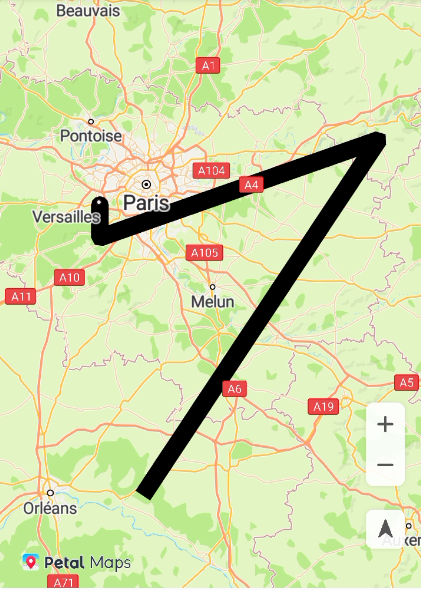
The Map SDK allows you to add different shapes on a map, including the polyline, polygon, and circle.
Polyline
A Polyline object consists of several ordered LatLng objects.
- Create a polyline object, as shown in Figure 1. To change the shape of an added polyline, call setPoints() of the Polyline object and provide a new list of vertices for the polyline. The sample code is as follows:
Java
// If hMap is null, the program stops running.
if (null == hMap) {
    return;
}
// If mPolyline is not null, remove it from the map and then set it to null.
Polyline mPolyline;
if (null != mPolyline) {
    mPolyline.remove();
    mPolyline = null;
}
// Add a polyline to a map.
mPolyline = hMap.addPolyline(new PolylineOptions()
    // Set the coordinates of a polyline.
    .add(new LatLng(47.893478, 2.334595), new LatLng(48.993478, 3.434595),
                new LatLng(48.693478, 2.134595), new LatLng(48.793478, 2.334595))
    // Set the color of a polyline.
    .color(Color.BLUE)
    // Set the polyline width.
    .width(3));
Kotlin
// If hMap is null, the program stops running.
if (null == hMap) {
    return
}
// If mPolyline is not null, remove it from the map and then set it to null.
var mPolyline
if (null != mPolyline) {
    mPolyline?.remove()
    mPolyline = null
}
// Add a polyline to a map.
mPolyline = hMap.addPolyline(PolylineOptions()
        // Set the coordinates of a polyline.
        .add(LatLng(47.893478, 2.334595), LatLng(48.993478, 3.434595),
                LatLng(48.693478, 2.134595), LatLng(48.793478, 2.334595))
        // Set the color of a polyline.
        .color(Color.BLUE)
        // Set the polyline width.
        .width(3f))
- Listen for polyline tap events. You can call the setClickable(boolean) method of a Polyline object to specify whether the related polyline is tappable. To set a listener for polyline tap events on a map, call the setOnPolylineClickListener(HuaweiMap.OnPolylineClickListener) method of the HuaweiMap object. The sample code is as follows:
Java
// Set that the polyline can be tapped.
mPolyline.setClickable(true);

hMap.setOnPolylineClickListener(new HuaweiMap.OnPolylineClickListener() {
    @Override
    public void onPolylineClick(Polyline polyline) {
        Toast.makeText(getApplicationContext(), "Polyline is clicked.", Toast.LENGTH_LONG).show();
    }
});
Kotlin
// Set that the polyline can be tapped.
mPolyline?.isClickable = true

hMap.setOnPolylineClickListener { Toast.makeText(applicationContext, "Polyline is clicked.", Toast.LENGTH_LONG).show() }
- Call the setGradient(boolean on) method of Polyline to enable gradient for a polyline. The sample code is as follows:
Java
// Enable gradient for a polyline.
mPolyline.setGradient(true);
Kotlin // Enable gradient for a polyline. mPolyline.setGradient(true)Figure 2 Gradient effect of a polyline
- Call the setColorValues(List<Integer> colors) method of Polyline to set colors for different segments of a polyline. The sample code is as follows:
Java
// Set colors for different segments of a polyline.
List<Integer> colorValueList = new ArrayList<>();
colorValueList.add(colorValue1);
colorValueList.add(colorValue2);
colorValueList.add(colorValue3);
mPolyline.setColorValues(colorValueList);
Kotlin // Set colors for different segments of a polyline. val colorValueList: MutableList<Int> = ArrayList() colorValueList.add(colorValue1) colorValueList.add(colorValue2) colorValueList.add(colorValue3) mPolyline.setColorValues(colorValueList)Figure 3 Colors for different segments of a polyline

Polygon
Similar to a Polyline, a Polygon consists of a group of ordered coordinates. However, a polygon is a closed area.
- Create a polygon object, as shown in Figure 4. To change the shape of an added polygon, call setPoints() of the Polygon object and provide a new list of vertices for the polygon. The sample code is as follows:
Java
if (null == hMap) {
    return;
}
Polygon mPolygon;
if (null != mPolygon) {
    mPolygon.remove();
    mPolygon = null;
}

mPolygon = hMap
    .addPolygon(new PolygonOptions().addAll(createRectangle(new LatLng(48.893478, 2.334595), 0.1, 0.1))
        .fillColor(Color.GREEN)
        .strokeColor(Color.BLACK));
Kotlin
if (null == hMap) {
    return
}
var mPolygon
if (null != mPolygon) {
    mPolygon?.remove()
    mPolygon = null
}

mPolygon = hMap
        .addPolygon(PolygonOptions().addAll(createRectangle(LatLng(48.893478, 2.334595), 0.1, 0.1))
                .fillColor(Color.GREEN)
                .strokeColor(Color.BLACK))
The implementation of createRectangle() is as follows:
The sample code is as follows:Java private List<LatLng> createRectangle(LatLng center, double halfWidth, double halfHeight) { return Arrays.asList(new LatLng(center.latitude - halfHeight, center.longitude - halfWidth), new LatLng(center.latitude - halfHeight, center.longitude + halfWidth), new LatLng(center.latitude + halfHeight, center.longitude + halfWidth), new LatLng(center.latitude + halfHeight, center.longitude - halfWidth)); }Kotlin private fun createRectangle(center: LatLng, halfWidth: Double, halfHeight: Double): List<LatLng> { return listOf(LatLng(center.latitude - halfHeight, center.longitude - halfWidth), LatLng(center.latitude - halfHeight, center.longitude + halfWidth), LatLng(center.latitude + halfHeight, center.longitude + halfWidth), LatLng(center.latitude + halfHeight, center.longitude - halfWidth)) } - Listen for polygon tap events. By default, a polygon is not tappable. You can call the setClickable(boolean) method of a Polygon object to specify whether the related polygon is tappable. To set a listener for polygon tap events on a map, call the setOnPolygonClickListener(HuaweiMap.OnPolygonClickListener) method of the HuaweiMap object. The sample code is as follows:
Java
// Set that the polygon can be tapped.
mPolygon.setClickable(true);

hMap.setOnPolygonClickListener(new HuaweiMap.OnPolygonClickListener() {
    @Override
    public void onPolygonClick(Polygon polygon) {
        Toast.makeText(getApplicationContext(), "Polygon is clicked.", Toast.LENGTH_LONG).show();
    }
});
Kotlin
// Set that the polygon can be tapped.
mPolygon?.isClickable = true

hMap.setOnPolygonClickListener { Toast.makeText(applicationContext, "Polygon is clicked.", Toast.LENGTH_LONG).show() }

Circle
There are two types of circles: solid circle and hollow circle. By default, a circle is hollow, which can be controlled by Circle attributes.
- Create a circle object, as shown in Figure 5. To modify attributes of an added Circle object, you can call its methods such as setCenter() and setRadius(). The sample code is as follows:
Java
if (null == hMap) {
    return;
}
Circle mCircle;
if (null != mCircle) {
    mCircle.remove();
    mCircle = null;
}

mCircle = hMap.addCircle(new CircleOptions()
        .center(new LatLng(48.893478, 2.334595))
        .radius(500)
        .fillColor(Color.GREEN));
Kotlin
if (null == hMap) {
    return
}
var mCircle
if (null != mCircle) {
    mCircle?.remove()
    mCircle = null
}
mCircle = hMap.addCircle(CircleOptions()
        .center(LatLng(48.893478, 2.334595))
        .radius(500.0)
        .fillColor(Color.GREEN))
- Listen for circle tap events. By default, a Circle object is not tappable. You can use CircleOptions.clickable(boolean) and call addCircle(CircleOptions) of the HuaweiMap object, or call Circle.setClickable(boolean) to specify whether a circle is tappable.
You can use HuaweiMap.OnCircleClickListener to listen for tap events of a tappable circle. To set a listener for circle tap events on a map, call the setOnCircleClickListener(HuaweiMap.OnCircleClickListener) method of the HuaweiMap object.
When a user taps a circle, the onCircleClick(Circle) method will be called to notify you.
The sample code is as follows:Java if (null != mCircle) { // Set that the circle can be tapped. mCircle.setClickable(true); hMap.setOnCircleClickListener(new HuaweiMap.OnCircleClickListener() { @Override public void onCircleClick(Circle circle) { if (circle.equals(mCircle)) { Toast.makeText(getApplicationContext(), "Circle is clicked.", Toast.LENGTH_LONG).show(); } } }); }
Kotlin
if (null != mCircle) {
    // Set that the circle can be tapped.
    mCircle?.isClickable = true

    hMap.setOnCircleClickListener { circle ->
        if (circle == mCircle) {
            Toast.makeText(applicationContext, "Circle is clicked.", Toast.LENGTH_LONG).show()
        }
    }
}
- Set a hollow circle. The sample code is as follows:
Java
// Set the fill color of the circle to transparent.
mCircle.setFillColor(Color.TRANSPARENT);
// Set the stroke color of the circle.
mCircle.setStrokeColor(Color.RED);
// Set the stroke width of the circle.
mCircle.setStrokeWidth(10.0f);
Kotlin
// Set the fill color of the circle to transparent.
mCircle?.fillColor = Color.TRANSPARENT
// Set the stroke color of the circle.
mCircle?.setStrokeColor(Color.RED)
// Set the stroke width of the circle.
mCircle?.setStrokeWidth(10.0f)

[h2]Stroke Color
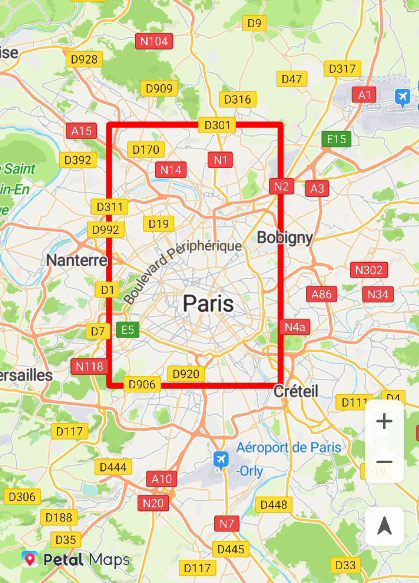
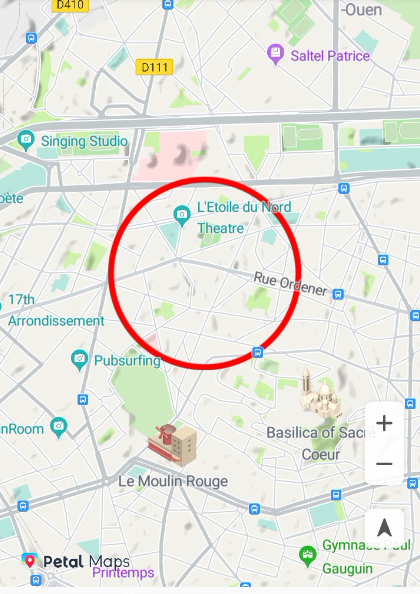
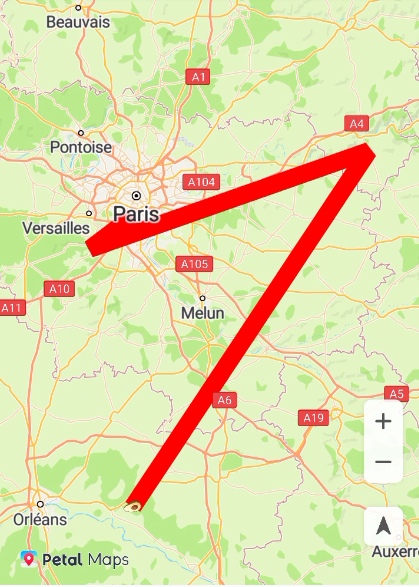
The Map SDK allows you to set stroke colors for Polyline, Polygon, and Circle.
- Polygon The sample code is as follows:
Java
// Add a polygon (mPolygon) to a map.
Polygon mPolygon = hMap.addPolygon(new PolygonOptions().add(new LatLng(48.793478, 2.234595), new LatLng(48.793478, 2.434595), new LatLng(48.993478, 2.434595), new LatLng(48.993478, 2.234595)));
// Set the stroke color of the polygon (mPolygon) to red.
mPolygon.setStrokeColor(Color.RED);
Kotlin
// Add a polygon (mPolygon) to a map.
val mPolygon: Polygon = hMap.addPolygon(PolygonOptions()
        .add(LatLng(48.793478, 2.234595), LatLng(48.793478, 2.434595)
                , LatLng(48.993478, 2.434595), LatLng(48.993478, 2.234595)))
// Set the stroke color of the polygon (mPolygon) to red.
mPolygon.strokeColor = Color.RED
- Circle The sample code is as follows:
Java
// Add a circle (mCircle) to a map.
Circle mCircle = hMap.addCircle(new CircleOptions()
    // Set the coordinates of the circle center.
    .center(new LatLng(48.893478, 2.334595))
    // Set the radius of the circle.
    .radius(500));
// Set the stroke color of the circle (mCircle) to red.
mCircle.setStrokeColor(Color.RED);
Kotlin
// Add a circle (mCircle) to a map.
val mCircle = hMap.addCircle(CircleOptions()
    // Set the coordinates of the circle center.
    .center(LatLng(48.893478, 2.334595))
    // Set the radius of the circle.
    .radius(500.0))
// Set the stroke color of the circle (mCircle) to red.
mCircle.strokeColor = Color.RED
- Polyline The sample code is as follows:
Java
// Add a polyline (mPolyline) to a map.
Polyline mPolyline = hMap.addPolyline(new PolylineOptions().add(new LatLng(47.893478, 2.334595),
        new LatLng(48.993478, 3.434595), new LatLng(48.693478, 2.134595), new LatLng(48.793478, 2.334595)));
// Set the color of the polyline (mPolyline) to red.
mPolyline.setColor(Color.RED);
// Set the width of the polyline (mPolyline) to 10 pixels.
mPolyline.setWidth(10);
Kotlin
// Add a polyline (mPolyline) to a map.
val mPolyline = hMap.addPolyline(PolylineOptions().add(LatLng(47.893478, 2.334595),
        LatLng(48.993478, 3.434595), LatLng(48.693478, 2.134595), LatLng(48.793478, 2.334595)))
// Set the color of the polyline (mPolyline) to red.
mPolyline.color = Color.RED
// Set the width of the polyline (mPolyline) to 10 pixels.
mPolyline.width = 10f
[h2]Fill Color
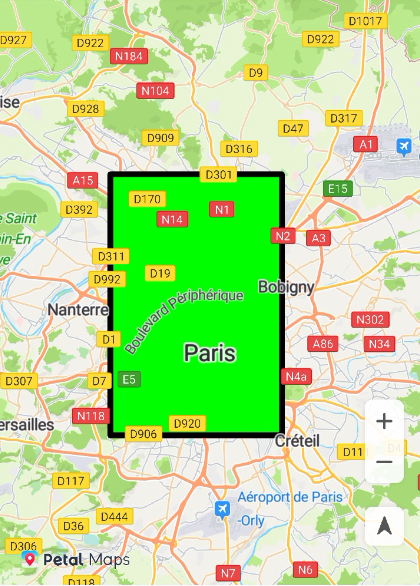
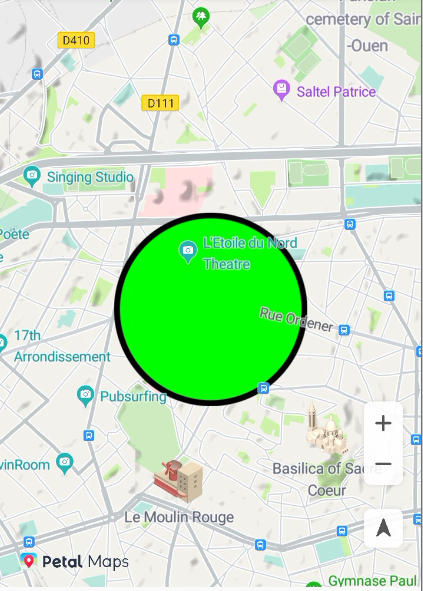
You can set fill colors for the Polygon and Circle objects.
- Polygon The sample code is as follows:
Java
Polygon mPolygon = hMap.addPolygon(new PolygonOptions().add(new LatLng(48.793478, 2.234595), new LatLng(48.793478, 2.434595), new LatLng(48.993478, 2.434595), new LatLng(48.993478, 2.234595)));
mPolygon.setFillColor(Color.GREEN);
Kotlin
val mPolygon: Polygon = hMap.addPolygon(PolygonOptions().add(LatLng(48.793478, 2.234595),
        LatLng(48.793478, 2.434595), LatLng(48.993478, 2.434595), LatLng(48.993478, 2.234595)))
mPolygon.fillColor = Color.GREEN
- Circle The sample code is as follows:
Java
Circle mCircle = hMap.addCircle(new CircleOptions().center(new LatLng(48.893478, 2.334595)).radius(500));
mCircle.setFillColor(Color.GREEN);
Kotlin
val mCircle = hMap.addCircle(CircleOptions().center(LatLng(48.893478, 2.334595)).radius(500.0))
mCircle.fillColor = Color.GREEN
[h2]Line Pattern
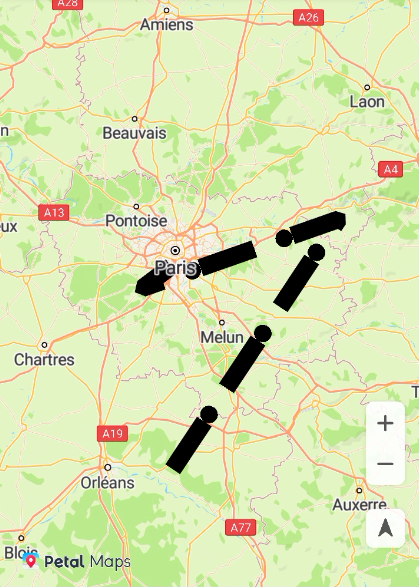
The Map SDK allows you to set the line pattern to one of the following: Dash, Dot, and Gap. The sample code uses the polyline as an example to describe how to set the line pattern:
Java
List<PatternItem> linePattern = new ArrayList<>();
PatternItem dash = new Dash(100);
linePattern.add(dash);
PatternItem dot = new Dot();
linePattern.add(dot);
PatternItem gap = new Gap(40);
linePattern.add(gap);

mPolyline = hMap.addPolyline(new PolylineOptions().add(new LatLng(47.893478, 2.334595), new LatLng(48.993478, 3.434595), new LatLng(48.693478, 2.134595), new LatLng(48.793478, 2.334595)));
mPolyline.setPattern(linePattern);
Kotlin
val linePattern: MutableList<PatternItem> = ArrayList()
val dash: PatternItem = Dash(100f)
linePattern.add(dash)
val dot: PatternItem = Dot()
linePattern.add(dot)
val gap: PatternItem = Gap(40f)
linePattern.add(gap)

mPolyline = hMap.addPolyline(PolylineOptions().add(LatLng(47.893478, 2.334595), LatLng(48.993478, 3.434595),
        LatLng(48.693478, 2.134595), LatLng(48.793478, 2.334595)))
mPolyline?.pattern = linePattern
[h2]Vertex Type
The Map SDK allows you to set the vertex type for a polyline to one of the following: ButtCap, CustomCap, RoundCap, and SquareCap.
Java
mPolyline = hMap.addPolyline(new PolylineOptions().add(new LatLng(47.893478, 2.334595), new LatLng(48.993478, 3.434595), new LatLng(48.693478, 2.134595), new LatLng(48.793478, 2.334595)));

// Set the start vertex of the polyline to a square.
mPolyline.setStartCap(new ButtCap());
// Set the end vertex of the polyline to a semicircle.
mPolyline.setEndCap(new RoundCap());
Kotlin
mPolyline = hMap.addPolyline(PolylineOptions().add(LatLng(47.893478, 2.334595), LatLng(48.993478, 3.434595),
        LatLng(48.693478, 2.134595), LatLng(48.793478, 2.334595)))

// Set the start vertex of the polyline to a square.
mPolyline?.startCap = ButtCap()
// Set the end vertex of the polyline to a semicircle.
mPolyline?.endCap = RoundCap()