Currently, Analytics Kit provides the APIs for importing custom user attributes and reporting user behavior. To reduce the coding workload, a Python SDK is provided for you to efficiently use the capabilities provided by these APIs.
Procedure
- Download the Python SDK installation package to your local device.
- Decompress the package locally and run the following command to install the SDK:
python -m pip install hw_wisecloud_analytics-*.whl --upgrade
- Initialize the Python SDK.
- Sign in to AppGallery Connect and click My projects.
- Find your app project and click the app that needs to integrate the SDK.
- On the Project settings page, obtain the app information.
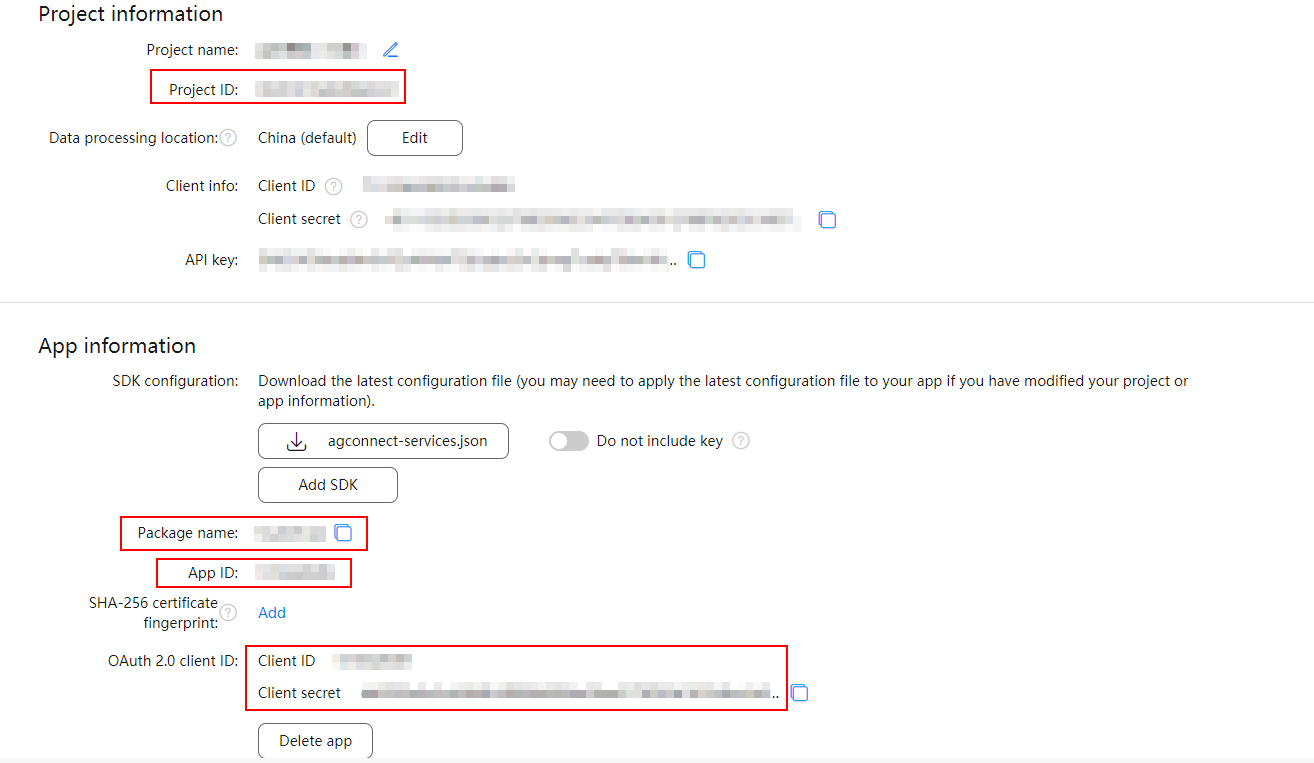
- Add app information. If your server receives requests from multiple apps, you need to add information about all these apps.

- For an iOS app, go to HUAWEI Analytics > Management > Apps and obtain the app ID and app package name. Then set set_app_id to the app ID and set_package_name to the app package name.
- For a web app, set set_package_name to the app ID.
ha = HuaweiApp.Init('Android',\
    'https://test.test.cn').\
    set_app_id('123').\
    set_client_id('123').\
    set_client_secret('123').\
    set_package_name('123.123').\
    set_product_id('123').\
    build()
The details are as follows:
- "Android": type of the app to be added, for example, Android, iOS, HarmonyOS, WEB, or Quick App.
- "https://test.test.cn": storage address corresponding to your app's data processing location.
Data Processing Location
Storage Address
China
- Find your project, and click the app for which you want to configure analysis data.
- Go to HUAWEI Analytics > Management > Analysis settings > API management and obtain the storage address.
Singapore
Russia
Germany
- set_app_id: Set this parameter to the value of App ID displayed under App information on the Project settings page.
- set_client_id: Set this parameter to the value of Client ID displayed under App information on the Project settings page.
- set_client_secret: Set this parameter to the value of Client secret displayed under App information on the Project settings page.
- set_package_name: Set this parameter to the value of Package name displayed under App information on the Project settings page.
- set_product_id: Set this parameter to the value of Project ID displayed under Project information on the Project settings page.
- (Optional) Configure data reporting. If no reporting configuration is provided during the SDK initialization, the default configuration will be used.

If the type of the parameter you enter is invalid, the SDK will convert the parameter to a valid one. If the conversion fails, the SDK will set the parameter to the default value and record a log.
SdkConfig.init().set_max_cache_size(10000).set_cache_time(10).set_max_retry(2).set_event_send_size(100).set_user_send_size(100).set_threshold(50).set_import_concurrent(10).set_async_mode(True).set_shut_down_delay(0.25).build();
Parameter
Description
set_max_cache_size
Maximum number of cached data records. When the number of cached data records reaches the maximum, the earliest data records will be deleted and recorded in logs.
The value is an integer ranging from 1 to 1000000, and the default value is 10000.
set_cache_time
Interval for reporting cached data, in seconds.
The value is an integer ranging from 1 to 1800, and the default value is 10.
set_max_retry
Number of reporting retries upon failure. If the reporting still fails after maximum retries, a log will be recorded.
The value is an integer ranging from 0 to 5, and the default value is 2.
set_event_send_size
Number of user behavior records reported at a time.
The value is an integer ranging from 1 to 100, and the default value is 100.
set_user_send_size
Number of custom user attributes reported at a time.
The value is an integer ranging from 1 to 100, and the default value is 100.
set_threshold
Threshold of the percentage of cached data records to all data records. When the percentage reaches the threshold, the reporting procedure will be triggered.
The value is an integer ranging from 1 to 100, and the default value is 50.
set_import_concurrent
Number of concurrent data reporting tasks.
The value is an integer ranging from 1 to 100, and the default value is 10.
set_async_mode
Data reporting mode. To set the asynchronous mode which depends on aiohttp, install aiohttp first. If you set the synchronous mode, the SDK will use multiple threads to report data concurrently.
The value is of the Boolean type. True indicates asynchronous data reporting, and False indicates synchronous data reporting. The default value is True.
set_shut_down_delay
Time of the delay added before closing the event loop, in seconds. This parameter takes effect only when set_async_mode is set to True.
The value is of the floating-point type. It ranges from 0 to 1, and the default value is 0.25.
NOTE:When asyncio in Python 3.8 or later works with aiohttp, warning logs will be occasionally recorded, which does not affect data reporting. If you want to disable warning logs, please refer to Graceful Shutdown.
- Initialize the Python SDK.
# Initialize the HuaweiApp instance.
ha = HuaweiApp.Init('android',\
    'https://analytics-api.cloud.huawei.com.cn').\
    set_app_id('123').\
    set_client_id('123').\
    set_client_secret('123').\
    set_package_name('123.123').\
    set_product_id('123').\
build()

# Initialize the SdkConfig instance.
config = SdkConfig.Init().\
 set_cache_time(10).\
 set_max_cache_size(1000).\
 set_user_send_size(100).\
 set_threshold(20).\
 build()

# (Optional) This callback can notify you of the session information reported each time, to facilitate statistics and debugging.
def report_call_back(batch_result_list):
    print(f'[batch over report] got: {batch_result_list}')

token_url = 'https://oauth-login.cloud.huawei.com/oauth2/v3/token'

HuaweiAnalyticsClient.init([ha], policy=config,
callback=report_call_back,
token_url=token_url)
Parameter
Description
HuaweiApp
App information obtained in 3.d.
SdkConfig
Data reporting configuration specified in 3.e.
token_url
Authentication address of the Python SDK. The current address is https://oauth-login.cloud.huawei.com/oauth2/v3/token. For details, please refer to OAuth 2.0-based Authentication.
- Send data. For details about API parameters, please refer to Importing Custom User Attributes and Reporting User Behavior.
# Report user attributes.
ret = HuaweiAnalyticsClient.add_user_data('123', {
    'id': 'abc1',
    'properties': [{
        'id': 'pos1',
        'value': '123'
    }, {
        'id': 'pos2',
        'value': '456'
    }]
})

# Report user behavior.
ret = HuaweiAnalyticsClient.add_event_data('101837255', {
    'aaid': '123-123-123-123-123',
    'eventid': '$EnterScreen',
    'eventtime': str(int(time.time() * 1000)),
    'event_session_name': '111111_22222',
    'first_session_event': 'true',
    'userid': 'myid',
    'properties': {
        'custom_key1': '',
        'custom_key2': '',
    }
})
If you specify report_call_back when initializing the Python SDK, this callback will notify you of the reporting result after user behavior is reported.
The data in the callback is of the dict type. The callback result of reporting user attributes is as follows:
{ // User attributes reported to the app whose ID is 123. ha_handler: 'app_123_user', // Reporting mode: asynchronous. req_mode: 'async', // Reason why the reporting thread is woken up. trigger_by: AwakeBatchReason.POLLING_INTERVAL, // Failed or successful sessions, recorded in array format independently. Failure_sessions: [{ // Response. response ': { status: 400, body: 'xxx' }, // Request (data passed by the add method), used to find specific problems. request : { data_type: 1, userdata_set: [{ 'id': 'neg', 'properties': [{ 'id': 'qwe', 'value': '12345678' }] }] }, // Number of reporting times. Value range: [1, set_max_retry+1]. req_count: 1, // IDs of concurrent data reporting tasks. task_id: 1, // Request duration. elapsed_time: timedelta(microseconds=10000)}], success_sessions: [{ response ': { status: 200, body: 'xxx' }, request : { data_type: 1, userdata_set: [{ 'id': 'neg', 'properties': [{ 'id': 'qwe', 'value': '12345678' }] }] }, req_count: 1, task_id: 0, elapsed_time: timedelta(microseconds=10000) }] } - Refresh data to report all data to the server immediately.

When your app process is stopped due to an app update, restart, or other reasons, you can call the flush method to report all data.
# Send all collected data to the server.
 HuaweiAnalyticsClient.flush()
Other Configurations
The Python SDK defines the HaSdkLogger class. If you need to view a log printed by the Python SDK, implement a custom logging handler, and then call the HaSdkLogger.init() method to set the custom logging handler when initializing the Python SDK.
# Specify a logging handler that outputs log files.
file = logging.FileHandler('test.log')
# Specify a logging handler that outputs log streams. You can specify StreamHandler or its derived handlers.
stream = logging.StreamHandler()

# Send the custom logging handlers to HaSdkLogger. If no logging handler is customized, no log will be output.
HaSdkLogger.init(file_handler=file, stream_handler=stream, level=logging.INFO)