Analytics Kit operates with an event analysis data model.
The model uses the Event-Param-User pattern to record data. It describes events using parameters and describes users using attributes.
Term | Meaning | Description |
|---|---|---|
Event | Event | Describes a specific task completed by a user at a location using a method at a certain time point, including key elements such as who, when, where, how, and what. |
Param | Parameter | Indicates associated parameters reported in events, for example, the product name and product price parameters in the add-to-cart event. These parameters can be used for subsequent in-depth analysis. |
UserProfile | User attribute | Indicates a list of user attributes. Common user attributes include the device model, app version, and custom user attributes such as food preferences. |
Analytics Kit collects the AAID, which is the anonymous ID of an app. A unique AAID is allocated to each app on the same device. The AAID is used for connecting various Huawei services, such as Analytics Kit and Remote Configuration.
The AAID will be reset if the user clears the browser data.
Procedure
If your app uses a module binder (such as Browserify or webpack), perform the following steps to integrate the Analytics SDK:
- Import and initialize the Analytics SDK.
- Import the Analytics SDK.
- Using npm:
import agconnect from '@agconnect/api';
import '@agconnect/instance';
import '@hw-hmscore/analytics-web';
- Using UMD:
Add the following code in your HTML file to reference the SDK:
<script src="./hw-hmscore-analytics-web-6.x.x-300.umd.js"></script>
In the preceding code, 6.x.x-300 indicates the version number of the referenced SDK, for example, 6.9.9-300.
- Using npm:
- Initialize the Analytics SDK.

During SDK initialization, a network request will be sent. Initialize the SDK only after users agree to the privacy agreement.
Sign in to AppGallery Connect, click My projects, and click the app for which you want to integrate the Analytics SDK. Go to Project settings, copy the agConnectConfig code snippet to the main.js file of your project, and initialize the Analytics SDK.
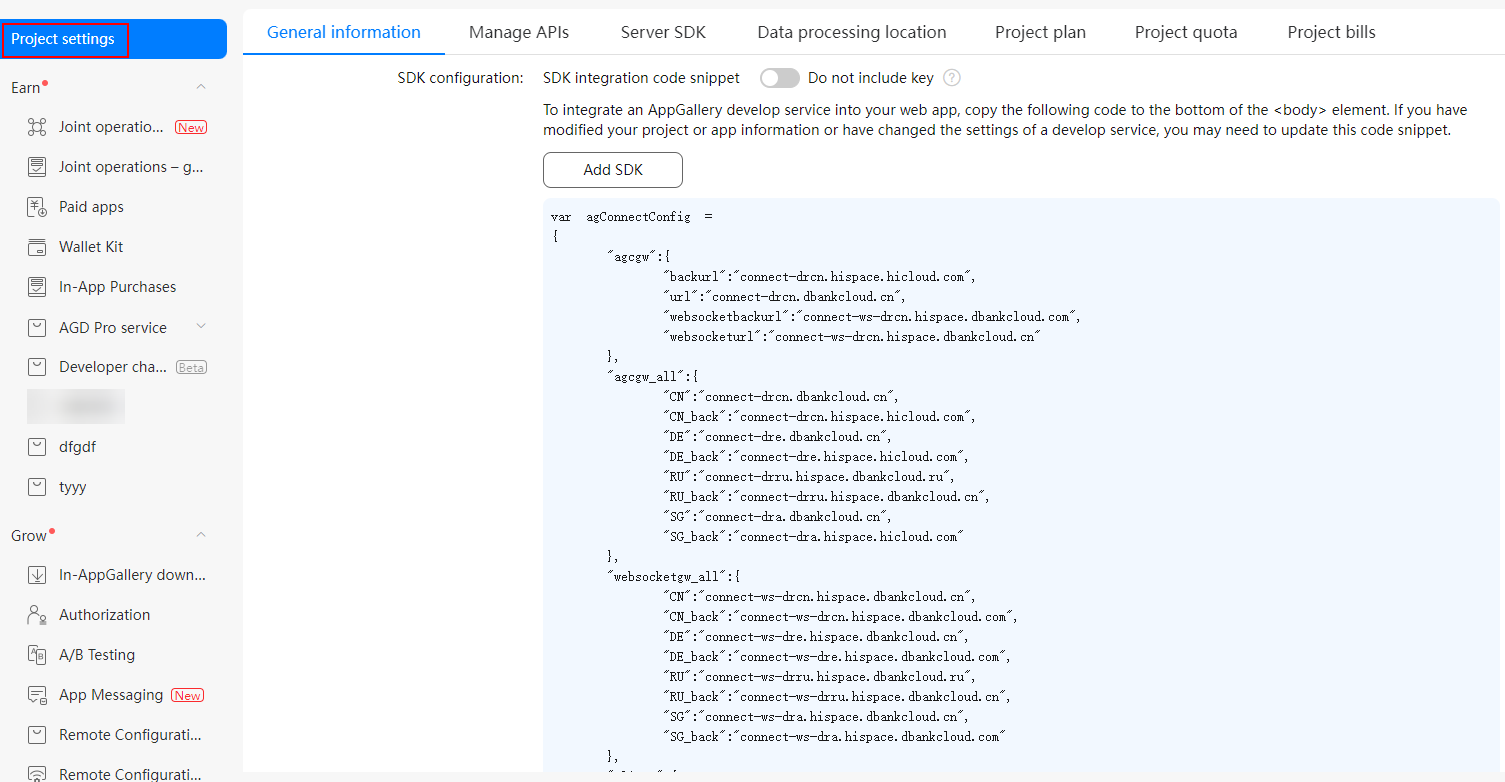
// TODO: Replace the following code with the configuration of your app.
const agConnectConfig = {
  // ...
};
// Configure the AppGallery Connect instance.
agconnect.instance().configInstance(agConnectConfig);
// Initialize the Analytics Kit instance.
let analytics = agconnect.analytics();
- Import the Analytics SDK.
- Record defined events using the onEvent API.

For details about event definitions, please refer to Automatically Collected Events, General, and Custom Events.
- Call APIs of Analytics Kit to implement the corresponding functions. For details, please refer to API Reference. For example, call setUserProfile to set user attributes.
Sample Code
- Import the Analytics SDK.
- Using npm:
import agconnect from '@agconnect/api';
import '@agconnect/instance';
import '@hw-hmscore/analytics-web';
- Using UMD:
<script src="./hw-hmscore-analytics-web-6.x.x-300.umd.js"></script>
- Using npm:
- After copying the initialization configuration successfully, initialize the Analytics SDK at the entry of the main.js file to obtain a HiAnalytics instance. If the copied configuration is incorrect, event tracking cannot be performed.
// TODO: Replace the following code with the configuration of your app. const agConnectConfig = { // ... }; // Configure the AppGallery Connect instance. agconnect.instance().configInstance(agConnectConfig); // Initialize the Analytics Kit instance. let analytics = agconnect.analytics(); - Enable tracking of the custom event in proper positions of the code.
// Enable tracking of the custom event in proper positions of the code. let eventId = "Complete_Exam"; let eventParams = { "Score": 95, "Level": "high" }; analytics.onEvent(eventId, eventParams); - Enable tracking of the predefined event in proper positions of the code.
// Enable tracking of the predefined event in proper positions of the code.
let preDefineParams = agconnect.analytics.ParamName;
let preDefineEvents = agconnect.analytics.EventName;
let eventParams = {};
eventParams[preDefineParams.PRODUCTID] = 'item_ID';
eventParams[preDefineParams.PRODUCTNAME] = 'name';
eventParams[preDefineParams.CATEGORY] =  'category';
eventParams[preDefineParams.QUANTITY] =  100;
eventParams[preDefineParams.PRICE] =  10.01;
eventParams[preDefineParams.REVENUE] =  10;
eventParams[preDefineParams.CURRNAME] =  'currency';
eventParams[preDefineParams.PLACEID] =  'location_ID';
analytics.onEvent(preDefineEvents.ADDPRODUCT2WISHLIST, eventParams);
Viewing the Real-Time Overview
After the data is successfully reported, you can go to and view the real-time monitoring data, as shown in the following figure.
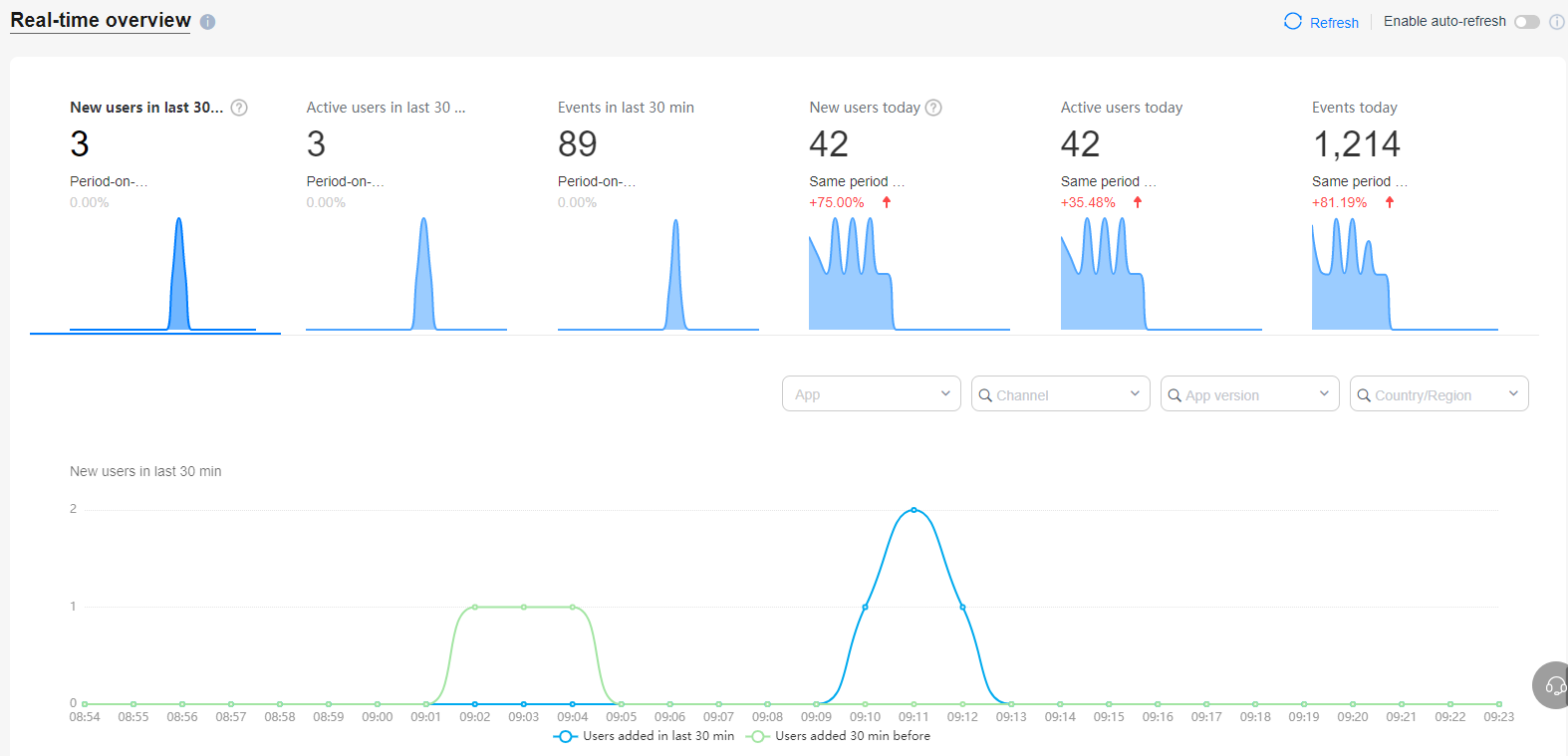
For details about how to view reported data in AppGallery Connect, please refer to Real-Time Overview.
Setting the Debug Mode
During the development, you can enable the debug mode to view the event records in real time, observe the results, and adjust the event reporting policies as needed.
[h2]Enabling the Debug Mode
Before the SDK is initialized, add the following code to enable the debug mode. (Do not use the debug mode in the production environment.)
// Enable the debug mode.
agconnect.analytics.InitSettings.debugMode = true;
// Customize a device ID when the debug mode is enabled.
agconnect.analytics.InitSettings.terminalName = "custom terminal name";
// Initialize the Analytics Kit instance.
let analytics = agconnect.analytics();
After the debug mode is enabled, all events are reported in real time. You can view the reported data under HUAWEI Analytics > App debugging.
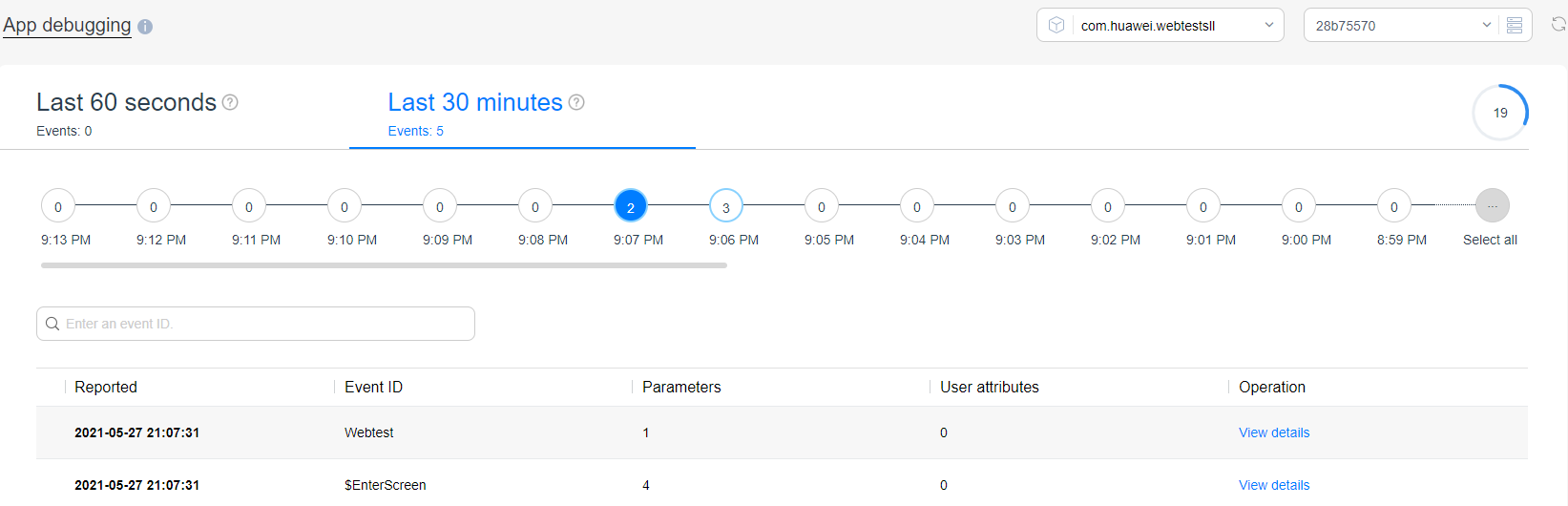
For details about how to view the data in AppGallery Connect, please refer to App Debugging.
Disabling Logging for AppGallery Connect
By default, the SDK records logs of AppGallery Connect. To disable logging, configure as follows before initializing the SDK:
// Disable logging.
agconnect.analytics.InitSettings.logDisabled = true;
// Minimum log level, which is case-insensitive. The options are INFO, WARN, and ERROR.
agconnect.analytics.InitSettings.logLevel = 'INFO';
Configuring URL Clustering
The SDK for web apps provides the URL clustering configuration. You can add the following startup configuration items before SDK initialization:
// Indicates whether to enable URL clustering.
 agconnect.analytics.UrlClusteringOptions.enabled= false;
// Indicates whether to remove the protocol.
 agconnect.analytics.UrlClusteringOptions.removeProtocol= true;
// Indicates whether to remove the protocol, domain name, and port number.
 agconnect.analytics.UrlClusteringOptions.removeOrigin= false;
// Indicates whether to remove all values.
 agconnect.analytics.UrlClusteringOptions.removeAllParams= true;
// Indicates whether to remove specified values.
 agconnect.analytics.UrlClusteringOptions.removeParams= {
    // The default processing method is to remove all values while retaining the keys.
     removeValuesOnly: true,
     params: {
        "key1": {
            // Indicates whether to remove all values while retaining the keys. This configuration will override the outmost one.
            removeValuesOnly: false,
           // Position of the value to be removed. The options are search, anchor, and both. search indicates the position before the anchor, anchor indicates the position after the anchor, and both indicates the positions before and after the anchor.
           position: 'both',
       }
     }
   };

// Indicates whether to remove the anchor.
 agconnect.analytics.UrlClusteringOptions.removeAnchor= true;
// URL patterns. If the passed URL meets any of the patterns after being processed based on your configuration, that pattern will be reported. You can specify a placeholder in the format of {Placeholder name} for URL patterns. The placeholder can match all characters except those specified by urlSeparators.
 agconnect.analytics.UrlClusteringOptions.urlPatterns= [];
agconnect.analytics.UrlClusteringOptions.urlSeparators= ':/.?=&#' 
After the SDK is initialized, the page exit event EXITSCREEN will be stored. If your URL contains parameters, parameters of the EXITSCREEN event will be recorded in the cache. You are advised to enable URL clustering before SDK initialization by setting UrlClusteringOptions to true. In this case, parameters of the EXITSCREEN event will not be recorded.